Leder du efter en hurtig måde at tilføje og redigere dit app push-notifikationsikon på?
Det er faktisk super nemt. Notifikationsikonet fortæller dine abonnenter, hvem du er. Det er et brandmærke på hver push-notifikation, du sender. Og det kan være uvurderligt, fordi det hjælper din målgruppe med at huske dit brand.
Omkostningen ved at sikre, at hver push-notifikation, du sender, hjælper dig med at blive mere mindeværdig? Mindre end 5 minutter.
I denne artikel vil vi vise dig, hvordan du tilføjer og redigerer dit app push-notifikationsikon. Og som vi sagde, er det super nemt.
Lad os dykke ned.
Hvorfor tilføje et app push-notifikationsikon?
Et app push-notifikationsikon er et lille, distinkt billede, der repræsenterer en app på en brugers enhed. Det vises sammen med push-notifikationer for visuelt at identificere kildeappen for beskeden eller advarslen.
Din branding er en stor komponent i din strategi for app push-notifikationer. Og dit app-ikon hjælper brugerne med hurtigt at genkende, hvilken app eller hjemmeside der kommunikerer med dem, uden at skulle læse notifikationens tekst.
Tilføjelse af et app push-notifikationsikon er et smart træk af et par årsager:
- Genkendelse: Ligesom vi øjeblikkeligt genkender ikoner, når vi ser et velkendt ansigt i en menneskemængde. Når din app sender en notifikation, fungerer ikonet som en lille vink, der siger: "Hej, det er mig!" Dette hjælper brugerne med hurtigt at identificere, hvilken app der kalder på deres opmærksomhed.
- Branding: Dit ikon er som en lille reklamesøjle for din app. Det er en del af din brandidentitet. Hver gang brugerne ser det, bliver de mindet om din app. Dette kan hjælpe med at holde din app i forreste række.
- Brugeroplevelse: Brugere har ofte mange installerede apps, og det kan være et reelt rod. Et unikt ikon hjælper dem med at administrere deres notifikationer mere effektivt. De kan med et øjebliks blik se, hvilke notifikationer de vil tjekke ud først.
- Professionalisme: En app med sit eget notifikationsikon ser mere poleret og professionel ud. Det viser, at du har tænkt over selv de små detaljer, hvilket kan forbedre den samlede brugertilfredshed.
- Funktionalitet: Nogle gange kan ikonet også formidle yderligere information. For eksempel kan en beskedapp vise forskellige ikoner for en ny besked vs. et ubesvaret opkald. Dette tilføjer et ekstra lag af funktionalitet og brugervenlighed.
Så et app push-notifikationsikon kan være lille, men det spiller en stor rolle i, hvordan brugerne interagerer med din app og opfatter den!
Sådan tilføjer du et app push-notifikationsikon
Integrerer du med en AI-kodningsassistent? Open source PushEngage Agent Skills lærer Claude Code, Cursor og enhver SKILL.md-kompatibel agent at integrere og debugge dette SDK. Og når du sender, lader PushEngage MCP-serveren den samme assistent køre dine kampagner — segmenter, afsendelser, A/B-tests og rapporter. Bygger du i Replit, Lovable eller Bolt? Open source vibe-coding kits inkluderer en færdiglavet demo-butik, en Flutter-starter og demoer med ét prompt med PushEngage forudkonfigureret.
Nu hvor vi forstår, hvad et app push-notifikationsikon er, og hvorfor du bør tilføje det, lad os se på, hvordan du nemt kan tilføje det uden nogen kodning overhovedet.
Trin #1: Vælg en App Push Notification Service
Push-notifikationer er et marketingværktøj, der hjælper dig med at forbinde med webbesøgende, selv efter de har forladt din hjemmeside. Du kan sende målrettede notifikationer til dine push-abonnenter og endda personliggøre dine notifikationer til forskellige kundesegmenter. Men hvilken push-notifikationstjeneste skal du vælge?
Vi anbefaler at bruge PushEngage til at sende push-notifikationskampagner.

PushEngage er den bedste push-notifikationstjeneste i verden. Og vi taler ikke kun om gratisversionen. Den giver dig mulighed for at forbinde med besøgende, efter de har forladt dit websted, med målrettede push-beskeder.
PushEngage er vores førstevalg til push-notifikationstjenester og -værktøjer, fordi den er:
- Super nem at bruge
- Har en visuel kampagnebygger med forudbyggede skabeloner, der kræver lidt eller ingen kodning at sætte op
- Nem at opsætte fuldt automatiserede push-notifikationskampagner for enhver form for hjemmeside
- Fuldstændig udstyret med Android- og iOS SDK'er til hurtigt at udvikle, implementere, analysere og administrere app-push-kampagner
- Bygget med flere muligheder for at sende personaliserede push-notifikationer for højere klikrater
- Udstyret med brugerdefineret målsporing, UTM-parametre og avanceret analyse
- Få kraftfulde push-notifikations A/B-test muligheder
Og dette er kun lige begyndelsen. Tjek PushEngages fulde liste over funktioner, før du går videre.
Den mest utrolige del ved PushEngage er, at den har en evigt gratis plan, som du kan prøve, før du træffer en købsbeslutning.
Pro Tip: Læs vores artikel om analyse af push-notifikationsomkostninger, før du køber nogen service.
Trin #2: Opsæt PushEngage App Push-notifikationer
Lige indtil nu har du været nødt til at bruge skelet-SDK'er til at sende app-push-notifikationer. Problemet med at bruge disse SDK'er er, at de er ret basale.
Teoretisk set kan du sende enhver form for mobilapp-push-kampagner med dem. Men så skal du også bygge:
- En grænseflade til at administrere dine kampagner
- En analyse-suite til at spore dine kampagners ydeevne
- Bedre understøttelse af rich media og omdirigeringslinks i appen (eller deep links)
- Processer til at koordinere både marketing- og udviklingsteams
Alt sammen for at introducere en enkelt kanal for vækst. Brugen af de gamle værktøjer til at sende mobilapp-push-notifikationer er kedelig, dyr, ressourcekrævende og tidskrævende. Og selvfølgelig kræver det dybe kodningsfærdigheder i dit team at udvikle og administrere alt, hvad du bygger.
Med de nye PushEngage Android- og iOS-SDK'er kan du sende mobilapp-push ved hjælp af den samme pålidelige software til gode leveringsrater. Men vi har bygget flere lag ovenpå, der gør det super nemt at bygge brugerdefinerede integrationer med din app. Og PushEngage administrerer hele SDK'en. Så du behøver ikke engang at bruge en masse tid og penge på at administrere dine integrationer.
Alt du skal gøre er at bygge!
Du kan sende broadcast-notifikationer direkte fra dit PushEngage-dashboard når du har sat din app op til at sende push-notifikationer til mobilapps ved hjælp af PushEngages SDK. Ja, du skal stadig tilføje kode til din app og udvikle forbindelserne mellem din app og PushEngage API'en. Men når det er gjort, kan du nemt oprette push-kampagner til mobilapps fra en færdigbygget softwaregrænseflade, der også kommer med:
- Meget engagerende push-kampagnetyper
- Beviste kampagneskabeloner med høje konverteringsrater
- Automatiserede kampagner til at promovere dit indhold, når du udgiver
- Flere målretnings- og kampagneplanlægningsmuligheder
- Web-push-kampagner som en supplerende vækstkanal
- Øget publikumsfastholdelse ved hjælp af databaseret personalisering
- Målsporing og avanceret analyse
- Smart A/B-test
- En dedikeret succesmanager
Og meget mere. Vi har lige fjernet besværet med at udvikle Android- og iOS-mobil-push-kampagner til din app.
Trin #3: Tilføj eller rediger dit app push-notifikationsikon
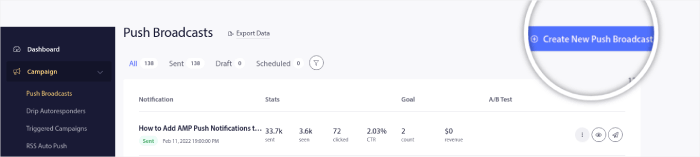
Du kan nemt indstille et ikon til iOS- og Android-mobilapp push-notifikationer. Gå tilbage til dit PushEngage-dashboard og gå til Kampagne » Udsendelser og klik på Opret en ny push-udsendelse.
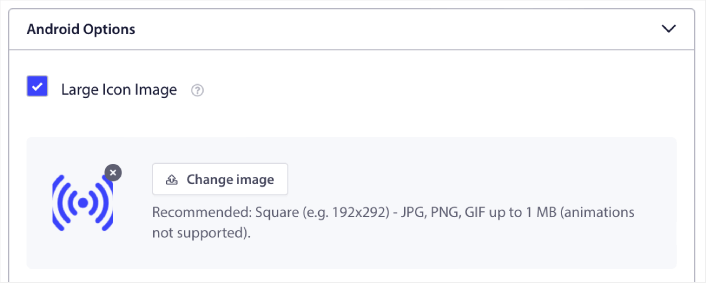
Under Android-indstillinger skal du markere afkrydsningsfeltet Stort ikonbillede:
Du kan gøre det samme for iOS-mobilapp-push. Indstil et medie-billede til din iOS-app-push-notifikation for at gøre din kampagne mere iøjnefaldende:
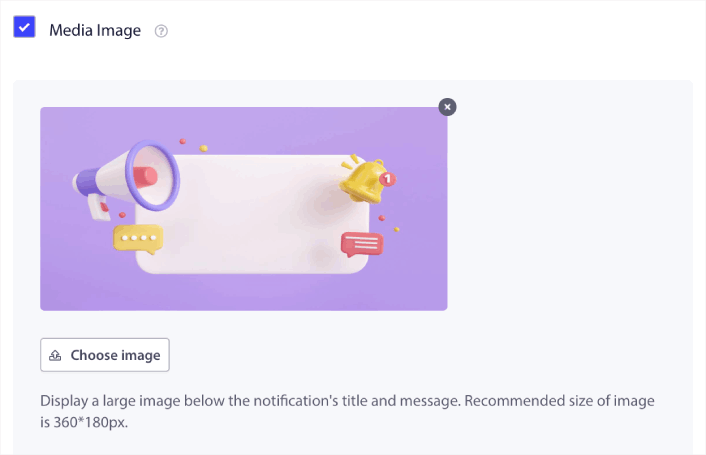
Billedet, du uploader, er dit app push-notifikationsikon. Hold dimensionerne på billedet på 192px x 192px for de bedste resultater, og sørg for, at billedstørrelsen er mindre end 1MB. Du kan bruge en JPG, PNG eller endda en GIF til animerede brandmærker. Bare sørg for, at ikonet er i overensstemmelse med de brandmærker, du bruger på sociale netværkssider.
Hvis du skal redigere dit ikon senere, er det her, du gør det. Upload blot et andet billede, og du er færdig!
Med andre ord kan du ret nemt bevare dine branddesignretningslinjer, når du sender mobilpush-notifikationer. Og alt det fra en brugervenlig grænseflade, som du aldrig behøver at administrere!
Trin #4: Send en testnotifikation for at tjekke dit notifikationsikon
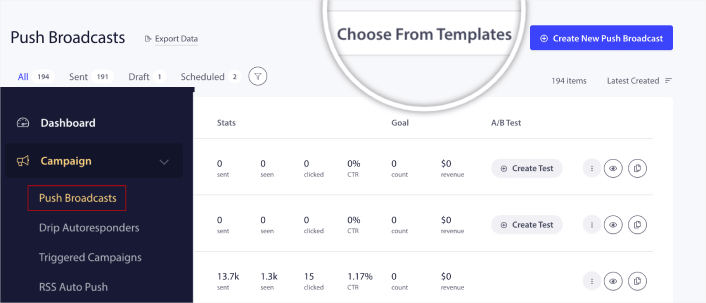
Gå til dit PushEngage-dashboard og gå til Kampagne » Push-udsendelser og klik på Vælg fra skabeloner:
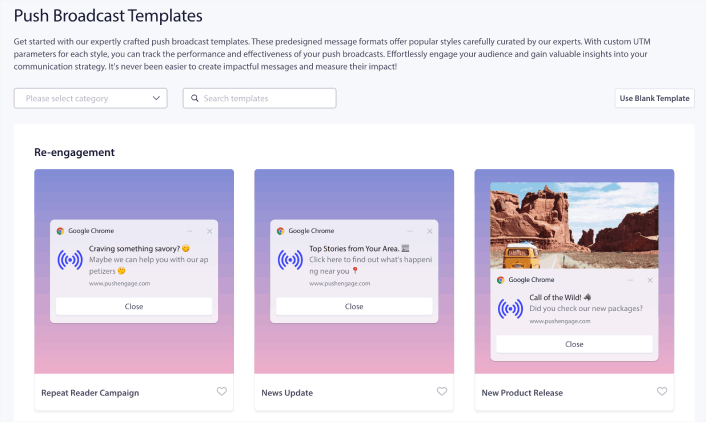
Derefter kan du vælge en skabelon at komme i gang med fra biblioteket:
Hold blot musen over en af skabelonerne, og klik på knappen Brug skabelon for at oprette en ny push-udsendelse ved hjælp af den skabelon:
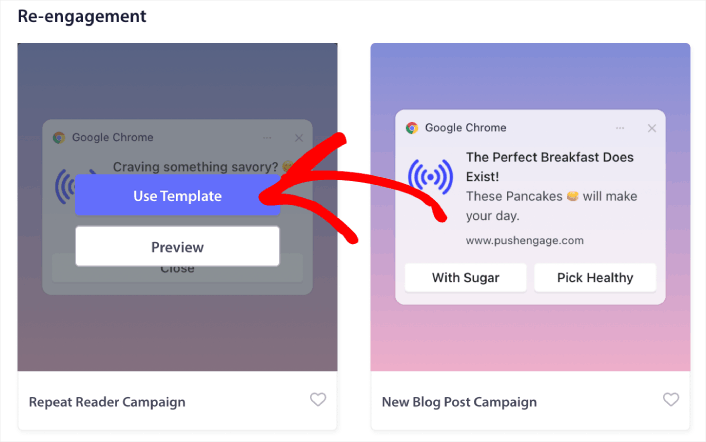
Når du bruger skabelonen, vil den automatisk udfylde alle de felter, du har brug for til at oprette en ny push-udsendelse ved at hente den fra skabelonen. Selvfølgelig kan du redigere alle felterne, så de passer bedre til dit brand. Men du kan også sende udsendelsen, som den er, hvis du vil.
I øjeblikket har vi push-notifikationsskabeloner til:
- Genaktiverings-push-notifikationer
- Annonceringskampagner
- Kampagner med tilbud
- Kampagner med nye blogindlæg
- Sæsonbestemte tilbuds-push-notifikationer
- Upselling og Cross-Selling push-notifikationer
- Flash Sale push-kampagner
Og det fedeste er, at selv vores gratis brugere får adgang til nogle gratis skabeloner. Selvfølgelig kan du altid opgradere din PushEngage-konto for at få adgang til rich push notifications med mere kraftfulde funktioner.
Lad os oprette en velkomst push-notifikationskampagne nu. Gå til dit PushEngage dashboard og gå til Kampagne »
Og som du kan se, er notifikationsikonet ret fremtrædende i vores eksempel!
Hvis du er ny til push-notifikationer, bør du følge en fuldgyldig push-notifikationstestproces, før du går live. Det vil hjælpe dig med at fejlfinde almindelige problemer med funktionaliteten, før dine besøgende ser dem og begynder at klage over en ødelagt brugeroplevelse.
Hvad skal du gøre, efter du har tilføjet et app push-notifikationsikon
Nu hvor du ved, hvordan du tilføjer et app push-notifikationsikon, er det tid til, at du begynder at oprette dine egne kampagner. Men før du kommer i gang med kampagnerne, bør du først studere nogle gode eksempler på push-notifikationer først.
Og hvis du er ny til push-notifikationer, bør du tjekke vores artikel om bedste praksis for push-notifikationer, før du begynder at oprette kampagner. Nogle af de bedste praksisser, som vi aktivt anbefaler, inkluderer:
- Boost klik med nysgerrighed
- Personliggør hver push-notifikation
- Skil dig ud med rigt medieindhold
- Genaktiver inaktive push-abonnenter
- Hold kunderne informeret
- Brug emojis, hvor du kan
- Skab en følelse af hastværk
Vi anbefaler at bruge PushEngage til at oprette dine push-notifikationskampagner. PushEngage er den førende push-notifikationssoftware på markedet, og dine kampagner vil være i sikre hænder.
Så hvis du ikke allerede har gjort det, så kom i gang med PushEngage i dag.


