Hej, Engagelings.
Spændende nyheder: vi har netop tilføjet en STOR opgradering til RSS push-notifikationer på PushEngage.
Vi lancerede RSS autopush-kampagner for et stykke tid siden, og det blev super populært. Men der var begrænsninger for, hvad du kunne gøre med RSS-notifikationer. Så vi har tilføjet nogle kraftigere funktioner til vores RSS-feed-kampagner.
Her er et hurtigt kig på højdepunkterne:
- Opret flere RSS-feeds
- Start/Pause/Slet dine RSS push-notifikationer når som helst
- Tilføj et stort billede til dine RSS-feeds
- Vælg dynamisk det store billede til dine RSS-feed push-notifikationer
- Indstil et notifikationsikon dynamisk fra RSS-feedet eller upload dit eget ikon
- Fremhæv automatisk dit seneste indhold ved at scanne RSS-feedet med intervaller, du bestemmer
- Vælg den målgruppe, du vil målrette mod, for bedre personalisering
- Tilføj udløbsregler for notifikationer
- Indstil brugerdefinerede UTM-parametre
- Få detaljeret kampagneanalyse for hver RSS-feed-kampagne
Vi har også gjort det super nemt at bruge. Der er lagt meget arbejde i denne opgradering, og vi tror, du vil elske den. Det er også en stor opdatering, så der er MEGET at pakke ud.
Lad os dykke ned.
Hvorfor sende RSS push-notifikationer?
Det er hårdt arbejde konstant at skabe indhold og administrere en blog. Men hvis du driver en seriøs forretning, ved du, at det ikke er nok bare at skabe indhold. Du skal også kunne promovere dit indhold.
Og push-notifikationer er en fantastisk måde at få abonnenter på en omkostningseffektiv måde. Det, der gør push-notifikationer så gode som et marketingværktøj, er, at de kan automatiseres fuldstændigt.
Det er her, RSS push-notifikationer kommer ind i billedet.
Hvis du opsætter RSS push-notifikationer på den rigtige måde, vil dine abonnenter automatisk modtage en push-notifikation, der fører dem til dit indhold, hver gang du udgiver indhold på dit websted.
Tag ikke fejl, dog. RSS push-notifikationer er stadig mindre personlige end andre automatiserede push-notifikationskampagner. Så vi anbefaler at bruge en blanding af forskellige kampagner for at maksimere din vækst. For eksempel skal du aktivere eCommerce push-notifikationer, hvis du driver en eCommerce-side.
Opret flere RSS-feed-notifikationer
Når du har installeret PushEngage på dit websted, skal du gå til dit PushEngage-dashboard og gå til Kampagne » RSS Auto Push og klikke på Opret ny kampagne:
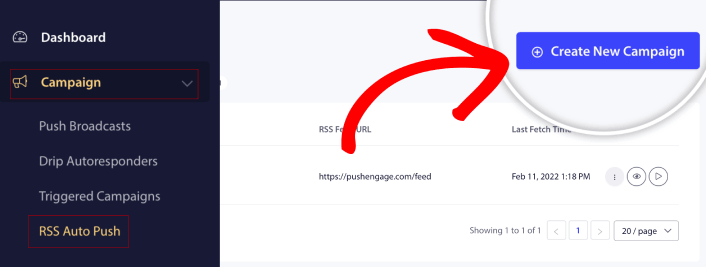
Med denne nye opgradering kan du nu oprette og sende flere RSS-feed-notifikationer til forskellige segmenter og målgrupper. Dit websted har ikke kun ét RSS-feed. Du kan oprette RSS-feeds for hver indholdskategori på dit websted.
Og det tager meget lidt tid at gøre. Men at oprette flere feeds giver dig mulighed for at sende mere personlige RSS push-notifikationer.
Lad os sige, at du har tre målgrupper, der kun er interesserede i superbiler, motorcykler og lastbiler. Du kan nemt oprette forskellige RSS-feed-URL'er for hver kategori og sende dine abonnenter push-notifikationer om indhold, de rent faktisk holder af.
Resultatet? Du vil se en stigning i dit websteds engagement, selv med en simpel RSS autopush-kampagne!
Start, pause og slet din RSS-kampagne når som helst
Det største problem med RSS-kampagner, selv e-mail RSS-kampagner, har været planlægning. Det er meget svært at kontrollere, hvor mange indlæg du sender. Og det var endnu sværere at pause dine kampagner.
Indtil nu!
Med PushEngage kan du nemt starte, pause eller slette enhver RSS-feed-kampagne når som helst. Dette er en super nyttig funktion, hvis du kører flere kampagner.
Lad os sige, at du kører en Black Friday push-notifikationskampagne. Dine abonnenter bør kun fokusere på dine salgstilbud. Men samtidig kan du ikke stoppe med at udgive nyt indhold, før feriesæsonen er ovre. Det er et godt tidspunkt at sætte dine RSS-feedkampagner på pause.
Da du nu kan køre flere RSS-kampagner, kan du endda fortsætte med at sende almindeligt indhold til abonnenter, som du ikke målretter med dine kampagnetilbud.
Nemme tilpasningsmuligheder for billeder
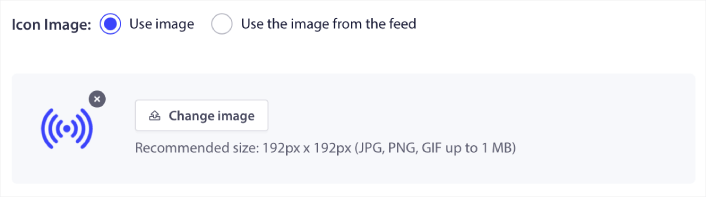
Du kan tilpasse både notifikationsikonet og notifikationens store billede direkte fra dit RSS-feed. For notifikationsikonet kan du enten uploade ikonet manuelt:
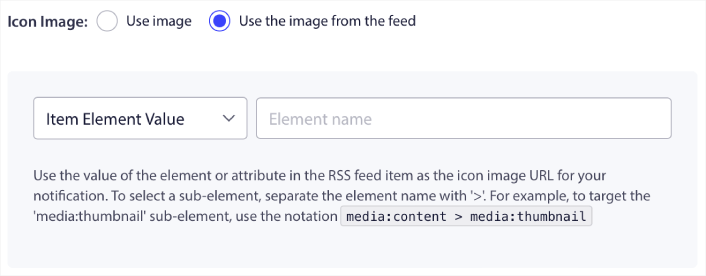
Eller du kan opsætte et mønster, så PushEngage dynamisk kan skrabe notifikationsikonet fra dit RSS-feed:
Tilsvarende kan du enten lade PushEngage automatisk finde det store billede til dine indlæg:

Eller du kan tilpasse den type store billede, du ønsker, ved at hente det fra dit RSS-feed:
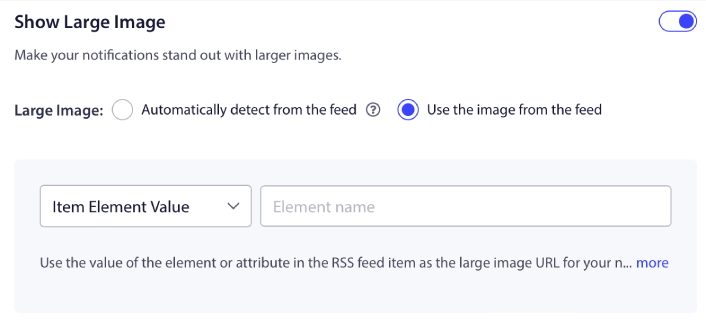
ADVARSEL: Brug kun de avancerede billedskrabe-muligheder, hvis du er i stand til at læse XML i et RSS-feed. Hvis du ikke er fortrolig med XML, bør du lade PushEngage bestemme dit store notifikationsbillede for dig, og du bør manuelt uploade notifikationsikonet.
Indstil RSS-notifikationsfrekvens
Du kan også indstille Kampagnefrekvensen for hver RSS-kampagne:
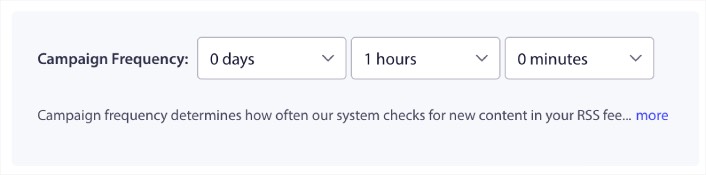
Kampagnefrekvens er, hvor ofte RSS-feedkampagnen leder efter nyt indhold på din blog for at sende en automatiseret push-notifikation. Minimumsværdien er 15 minutter, og maksimumsværdien er 7 dage.
Vi anbefaler at lede efter indhold at promovere hver anden dag, medmindre du er et nyhedsbureau. For nyhedsbureauer bør du holde det på 15 minutter. Husk, at PushEngage kun vil lede efter nyt indhold, efter du har opsat og udgivet din RSS-feedkampagne.
Indstil varighed for push-notifikation
Varigheden af push-notifikationer er, hvor længe notifikationen forbliver i din abonnents notifikationsbakke, før den automatisk slettes.
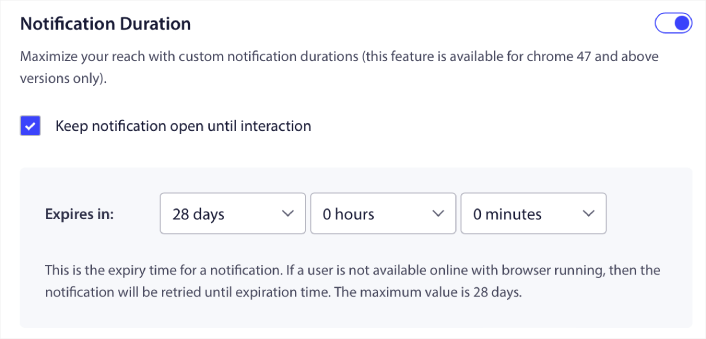
Hvis du ikke vil overvælde dine abonnenter med en masse ulæste notifikationer, er det sandsynligvis bedst at lade push-notifikationerne udløbe om et par dage.
I modsætning til udsendelsesnotifikationer eller endda andre automatiserede push-notifikationer, kan du ikke rigtig planlægge RSS-push-notifikationer efter tidszone eller et specifikt sendetidspunkt. Så du har altid mulighed for at holde notifikationen åben, indtil din abonnent interagerer med den, selv inden for udløbsgrænsen.
Indstil UTM-parametre til at spore dine notifikationer
Du kan også opsætte UTM-parametre til at spore push-notifikationerne:
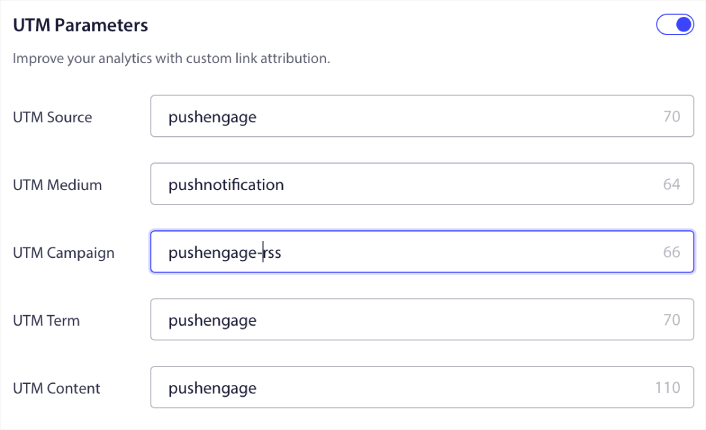
På denne måde kan du nemt tilskrive din trafik fra disse push-notifikationer i Google Analytics. Selvfølgelig kan du også få detaljeret analyse for hele din kampagne direkte fra dit PushEngage-dashboard.
Målret en specifik målgruppe
Den største opgradering til RSS-push-notifikationer er din mulighed for at vælge en Målgruppe til at sende målrettede notifikationer. Du kan enten sende RSS-feedkampagnen til alle dine abonnenter, eller du kan oprette målgrupper til at sende personaliserede push-notifikationer selv fra dit RSS-feed.
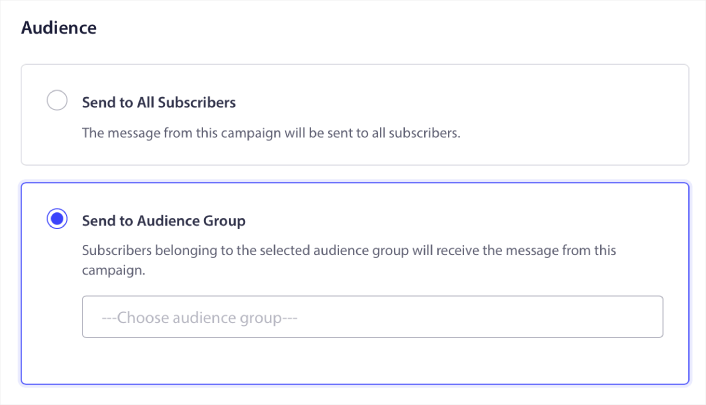
Nu kan du stadig sende automatiserede push-notifikationer ved at opsætte dem én gang. Men det er endnu bedre, fordi du kan vælge, hvilken type indhold du vil promovere til specifikke målgrupper.
Hvad ellers?
Vi ved, at det er hårdt arbejde at vækste en virksomhed. Hos PushEngage søger vi altid at forbedre vores produkt og din oplevelse. Vi har lanceret denne nye funktion for at hjælpe dig med at få endnu mere værdi ud af dit PushEngage-abonnement.
Mange tak for at læse denne meddelelse.
Hvis du har spørgsmål, er vores Customer Success-team her for at hjælpe. Start blot en samtale på Live Chat eller tjek vores kontaktside.
Og tak fordi du bruger PushEngage. Uanset om du bruger gratisversionen eller Enterprise-versionen, er du lige så vigtig for os. De nye RSS-autopush-funktioner er designet til at hjælpe dig med at få succes, og vi ønsker dig alt det bedste.
Giv os din mening i kommentarerne nedenfor, og hvis du endnu ikke har gjort det, kom i gang med PushEngage i dag!


