
هل تبحث عن دليل بسيط لإضافة علامات ميتا Open Graph لـ WordPress إلى موقعك؟
Open Graph هي الطريقة التي تتعامل بها فيسبوك مع البيانات الوصفية عند مشاركة منشورك أو صفحتك في منشورات فيسبوك. إنها الطريقة التي يجلب بها فيسبوك تلقائيًا الصورة المميزة والوصف التعريفي من عنوان URL فقط.
لكن إضافتها يدويًا إلى موقعك يمكن أن تكون مؤلمة حقًا.
أولاً، سيتعين عليك معرفة كيفية كتابة بيانات Open Graph المنظمة. بعد ذلك، سيتعين عليك إدراجها في ملفات سمة WordPress الخاصة بك. وهذا محفوف بالمخاطر للغاية. سيتعين عليك تعديل الملفات التي تساعد موقعك بالكامل على العمل بشكل صحيح. سطر واحد في غير محله يمكن أن يعطل موقعك بالكامل.
في هذه المقالة، سنقوم بإضافة علامات ميتا Open Graph لـ WordPress بالطريقة السهلة مع عدم وجود أي ترميز مطلوب.
دعنا نتعمق.
الخطوة # 1: تثبيت All in One SEO
يعد All in One SEO المكون الإضافي رقم 1 لتحسين محركات البحث في WordPress في العالم. إنه المكون الإضافي المثالي لإضافة علامات ميتا Open Graph لـ WordPress إلى موقعك دون أي ترميز.

يعد All in One SEO (AIOSEO) أحد أكثر المكونات الإضافية لتحسين محركات البحث شهرة في مجتمع WordPress. تم تجديد الإصدار الأصلي بالكامل لإضافة طن من الميزات والإضافات الجديدة. لذلك، إذا كنت قد استخدمت AIOSEO في الماضي، فأنت بحاجة إلى التحقق من المكون الإضافي مرة أخرى.
لا يقتصر الأمر على أن AIOSEO قوي بما يكفي لتطبيق أحدث ممارسات تحسين محركات البحث، بل تحصل أيضًا على خيارات متقدمة لحل مشكلات تحسين محركات البحث المحددة فورًا. وهذا يشمل:
- وحدات تحسين محركات البحث المحلية للشركات الصغيرة ذات الجمهور المحلي
- تحسين محركات البحث لـ WooCommerce للمتاجر عبر الإنترنت
- محسن تحسين محركات البحث داخل محرر ووردبريس الخاص بك
- خرائط الموقع الذكية للفهرسة الفورية على محركات البحث
- إضافة Schema لجعل المحتوى الخاص بك يحتل مرتبة في المقتطفات الغنية
وأكثر من ذلك بكثير! للحصول على قائمة كاملة بميزات All in One SEO، تحقق من مراجعتنا للمكون الإضافي.
أول شيء تحتاج إلى القيام به هو تثبيت وتفعيل المكون الإضافي All in One SEO. إذا لم تكن متأكدًا من كيفية القيام بذلك، فيجب عليك التحقق من هذا الدليل حول كيفية تثبيت مكونات WordPress الإضافية.
بعد تنزيل وتثبيت المكون الإضافي، تحصل على معالج إعداد:
وستستغرق عملية الإعداد أقل من 10 دقائق.
ولكن ماذا لو كنت تنتقل من إضافة تحسين محركات بحث أخرى؟ كل إضافة تتعامل مع البيانات الوصفية بشكل مختلف. لذا، هل عليك القيام بكل شيء من البداية؟ هل كل جهودك السابقة ذهبت سدى؟
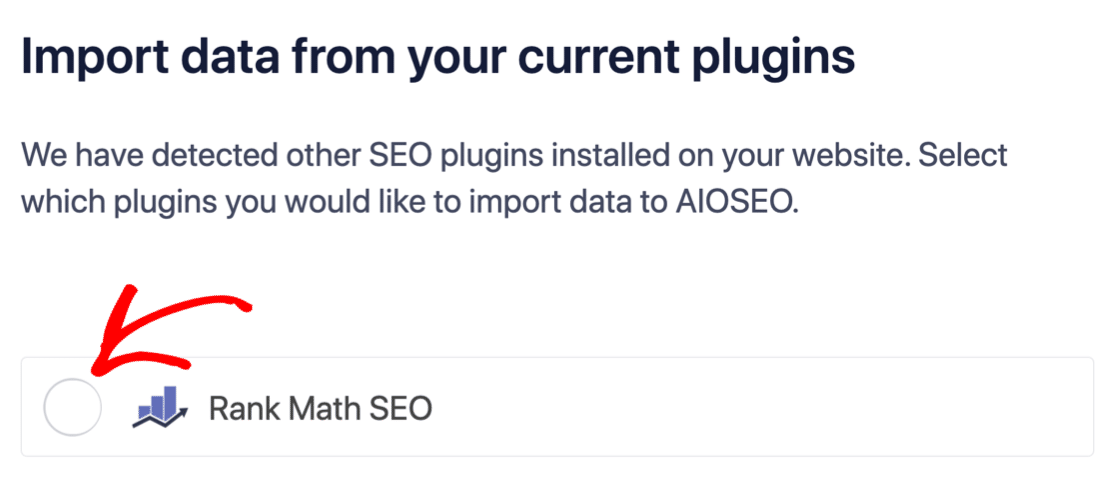
لا! إذا اكتشفت All in One SEO إضافة تحسين محركات بحث أخرى أثناء معالج الإعداد، فستعرض نسخ الإعدادات الأساسية لك:
في نهاية الإعداد، سيطلب منك معالج الإعداد إلغاء تنشيط إضافة تحسين محركات البحث القديمة الخاصة بك أيضًا. بهذه الطريقة، لا توجد تعارضات أو أخطاء في الإضافات:
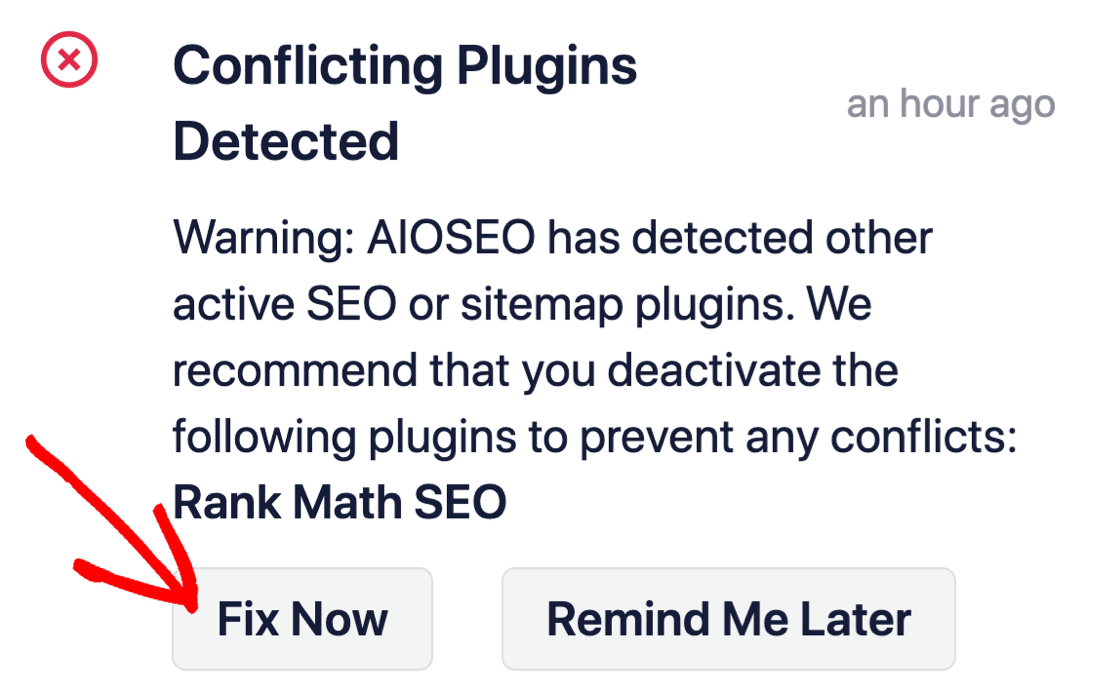
النقر على إصلاح الآن لن يحذف الإعدادات في إضافة تحسين محركات البحث القديمة الخاصة بك. إنه فقط يلغي تنشيط الإضافة لمنع التعارضات.
الخطوة # 2: تكوين إعدادات الوسائط الاجتماعية
في لوحة تحكم WordPress الخاصة بك، انتقل إلى All in One SEO » Social Networks » Social Profiles وأضف ملفاتك الشخصية الاجتماعية إلى الموقع:
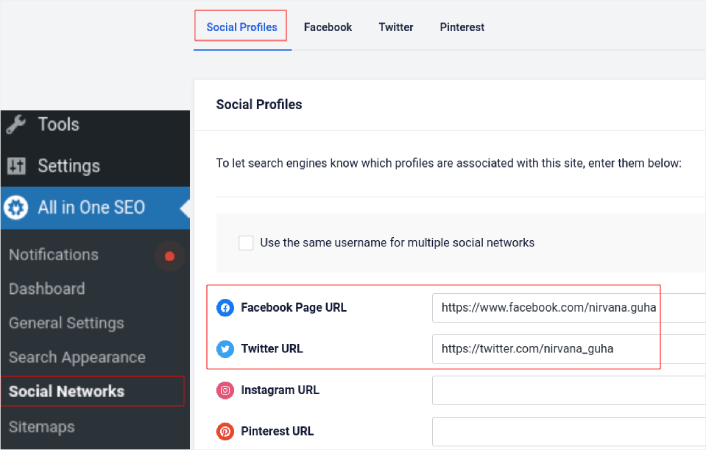
تضمن هذه الخطوة أن محركات البحث مثل Google و Bing تعرف ملفات تعريف الوسائط الاجتماعية المرتبطة بموقعك. في نفس الوقت، يساعدك هذا أيضًا في إعدادات مشاركة الوسائط الاجتماعية الخاصة بك. هذا هو التالي.
الخطوة # 3: تحرير إعدادات Facebook العامة
انتقل إلى All in One SEO » Social Networks وانقر فوق علامة التبويب Facebook. هنا، يمكنك تكوين إعدادات Facebook العامة الخاصة بك:
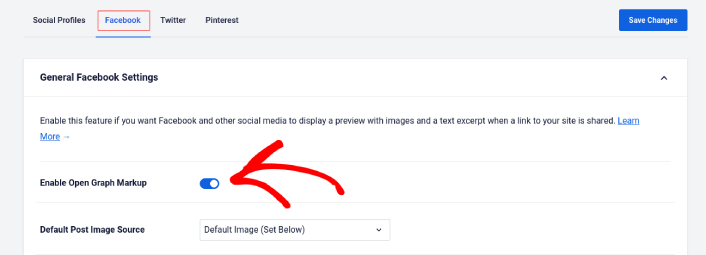
قم بتبديل مفتاح Enable Open Graph Markup لتفعيله.
هنا، يمكنك تعيين Default Post Image Source و Default Post Facebook Image:
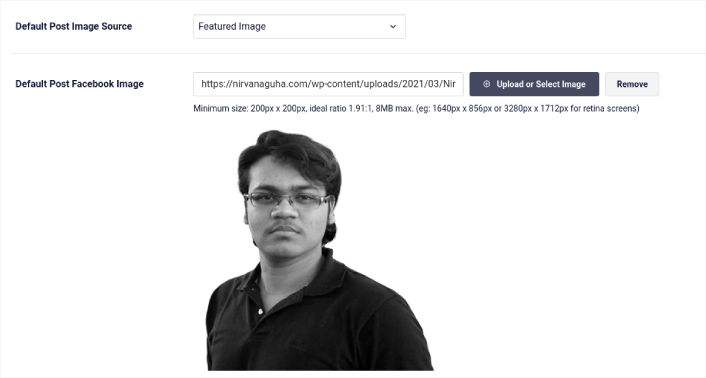
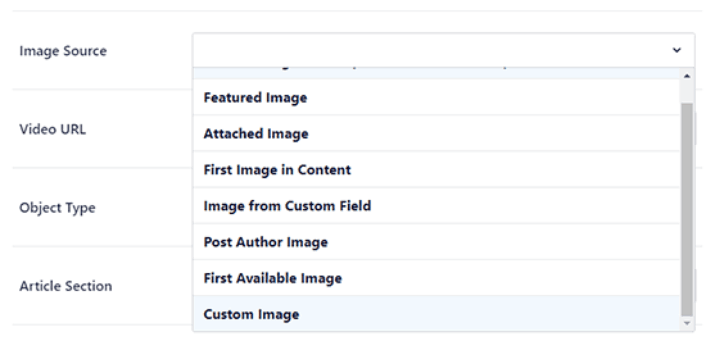
نوصي باستخدام خيار Featured Image كمصدر للصورة لمنشوراتك. ولكن يجب عليك أيضًا التحقق من الخيارات الأخرى:
يمكنك تعيين صورة Facebook الافتراضية لتكون شعارك أو أي شيء يمثل علامتك التجارية. انقر فوق الزر Upload or Select Image لتغيير الصورة الافتراضية. في مثالنا، نستخدم علامة تجارية شخصية. لذا، فإن صورة Facebook الافتراضية هي صورة للمؤلف.
بمجرد الانتهاء، اضغط على زر Save.
وهذا كل شيء! لقد انتهيت. بمجرد حفظ التغييرات، يمكنك محاولة مشاركة منشور على موقعك إلى صفحتك أو ملفك الشخصي على فيسبوك.
ماذا تفعل بعد إضافة علامات WordPress Open Graph الوصفية
هذا كل شيء لهذا اليوم أيها الأصدقاء!
بعد ذلك، يجب أن تبدأ في التفكير في طرق متعددة لإشراك وتحويل حركة المرور التي تجلبها من حسابات وسائل التواصل الاجتماعي الخاصة بك. طريقة رائعة للقيام بذلك هي استخدام إشعارات الدفع. يمكن أن تكون إشعارات الدفع أداة تسويقية قوية لجلب حركة المرور والمشاركة والمبيعات المباشرة لعملك.
إذا لم تكن مقتنعًا بنسبة 100٪، فيجب عليك الاطلاع على هذه الموارد حول كيفية استخدام الإشعارات الفورية بفعالية:
- 7 استراتيجيات ذكية لزيادة تفاعل العملاء
- هل إشعارات الدفع فعالة؟ 7 إحصائيات + 3 نصائح خبراء
- كيفية إعداد إشعارات الدفع للسلات المتروكة (دليل سهل)
- كيفية إضافة إضافة إشعارات الويب لـ WordPress إلى موقعك
نوصي باستخدام PushEngage لإنشاء حملات إشعارات الدفع الخاصة بك. PushEngage هو البرنامج رقم 1 لإشعارات الدفع في العالم. لذا، إذا لم تكن قد قمت بذلك بالفعل، ابدأ مع PushEngage اليوم!


