
هل تبحث عن طريقة سهلة لإضافة مكون إضافي لاشتراك مدونة ووردبريس؟
تريد أن تجعل الأمر بسيطًا قدر الإمكان للقراء للاشتراك في مدونتك. من خلال جعل الأشخاص يشتركون في مدونتك، يمكنك الحصول على زيارات متكررة وتفاعل ومبيعات. وأفضل طريقة للقيام بذلك هي استخدام أداة لجذب المزيد من المشتركين.
ولكن كيف تضيف مكونًا إضافيًا لاشتراك مدونة ووردبريس؟
في هذه المقالة، سنوضح لك بعضًا من أسهل الطرق لإضافة مكون إضافي لاشتراك مدونة ووردبريس. ولا يتطلب الأمر أي برمجة.
دعنا نتعمق.
كيفية إضافة مكون إضافي لاشتراك مدونة ووردبريس عبر دفع الويب
تعد الإشعارات الفورية من أفضل الطرق للحصول على زيارات متكررة وتفاعل ومبيعات على موقعك. ولكن الطريقة التقليدية للحصول على مشتركين في الإشعارات الفورية هي استخدام نموذج موافقة بسيط للإشعارات الفورية.
نوصي باستخدام أداة اشتراك في الإشعارات الفورية. المشكلة الوحيدة هي أن هناك خدمة إشعارات فورية واحدة فقط تسمح لك بإنشاء أداة اشتراك في الإشعارات الفورية في ووردبريس.
يفوز دفع الويب هنا لأن إشعارات دفع ووردبريس تشترك القراء بنقرة واحدة - لا يوجد نموذج بريد إلكتروني، ولا منافسة في صندوق الوارد، ولا مجلد بريد عشوائي.
الخطوة # 1: اختر خدمة إشعارات الدفع
إذا كنت جديدًا في مجال الإشعارات الفورية، يجب أن تبدأ بـ PushEngage.

PushEngage هي الإضافة رقم 1 للإشعارات الفورية في العالم.
تساعدك إشعارات الدفع على زيادة حركة مرور موقعك الإلكتروني ومشاركتك تلقائيًا. وإذا كنت تدير متجرًا عبر الإنترنت، فإن PushEngage يساعدك أيضًا على زيادة مبيعاتك من خلال مساعدتك في إنشاء إشعارات دفع آلية للتجارة الإلكترونية.
يمكنك البدء مجانًا، ولكن إذا كنت جادًا بشأن تنمية عملك، فيجب عليك شراء خطة مدفوعة. أيضًا، قبل شراء أي خدمة إشعارات دفع، يجب عليك الاطلاع على هذا الدليل حول تكاليف إشعارات الدفع.
إليك نظرة سريعة على ما تحصل عليه مع PushEngage:
- حملات آلية عالية التحويل
- خيارات استهداف وجدولة حملات متعددة
- تتبع الأهداف وتحليلات متقدمة
- اختبار A/B ذكي
- مدير نجاح مخصص
سترى أن PushEngage هو الخيار الأفضل بلا منازع إذا كنت ترغب في زيادة حركة المرور والمشاركة والمبيعات لعملك. وإذا كانت ميزانيتك محدودة، يمكنك دائمًا أن تكون مبدعًا بعض الشيء مع إشعارات الدفع الخاصة بك.
أفضل ما في الأمر هو أنه يمكنك استخدام PushEngage لإنشاء أداة اشتراك في ووردبريس.
الخطوة #2: إنشاء أداة ويدجت لاشتراك مدونة ووردبريس
توجه إلى لوحة تحكم PushEngage وانتقل إلى التصميم » الأدوات وقم بتمكين أداة إدارة الاشتراكات:
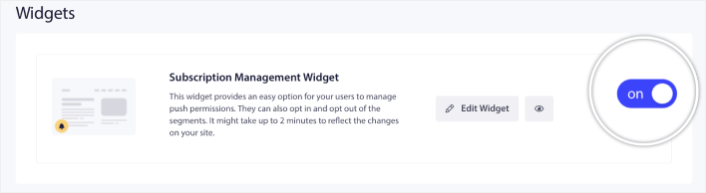
انقر على زر تحرير الأداة لتخصيص أداتك. ابدأ بتخصيص شكل ومظهر أداتك لتتناسب مع لغة تصميم علامتك التجارية ضمن الشكل والتصميم:
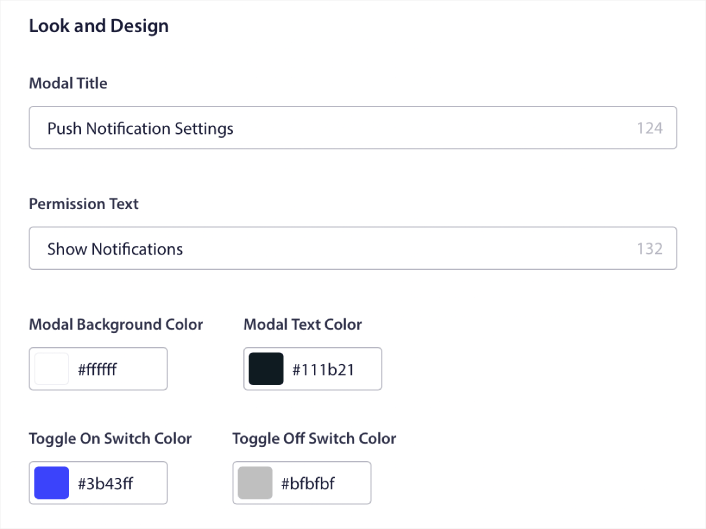
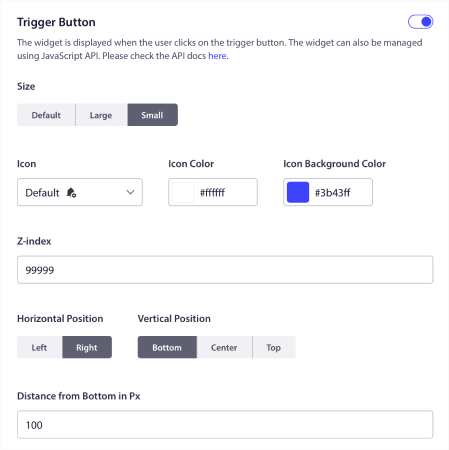
يمكنك إنشاء نافذة منبثقة مخصصة بالكامل تظل موجودة حتى عندما لا يشترك زوارك من خلال النافذة المنبثقة الافتراضية الخاصة بك. إذا كان حجم زر تشغيل النافذة المنبثقة يبدو غير مناسب لك، يمكنك تخصيص ذلك أيضًا ضمن زر التشغيل:
الخطوة #3: تحديد مكان عرض مكون اشتراك مدونة ووردبريس الإضافي
وأروع جزء هو أنه يمكنك أيضًا تحديد صفحات معينة لعرض الأداة ضمن قواعد عرض زر التشغيل:

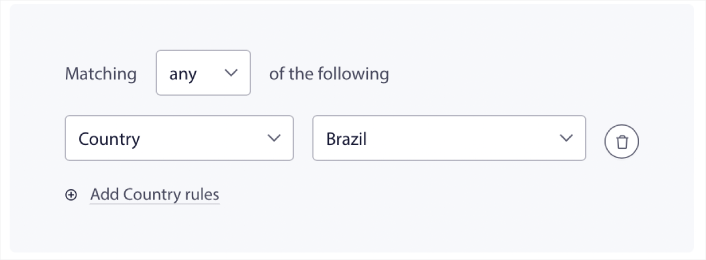
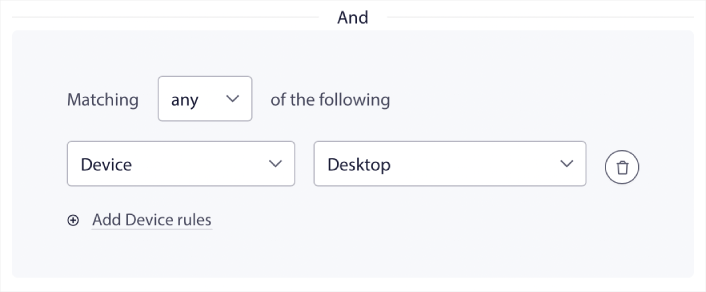
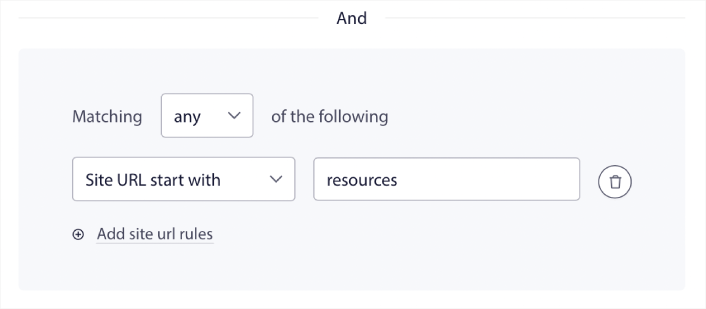
بشكل افتراضي، سيتم عرض الزر عبر جميع الصفحات. ولكن يمكنك إنشاء قواعد استهداف مخصصة لعرض إصدارات معينة من الأداة عن طريق استهداف:
المواقع:
الأجهزة:
وعناوين URL على موقعك:
الخطوة #4: السماح للمشتركين بتعيين تفضيلات الإشعارات الفورية
لأخذ الأمور إلى المستوى التالي، يمكنك أيضًا السماح للمشتركين لديك بتحديد أنواع الإشعارات التي يرغبون في تلقيها ضمن تفضيلات الشرائح:
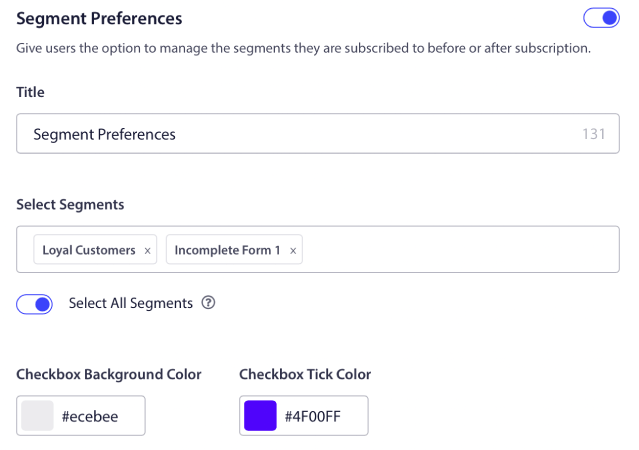
إذا قمت بتمكين تحديد الكل، فسيتم إضافة المشتركين تلقائيًا إلى جميع الشرائح المحددة افتراضيًا:
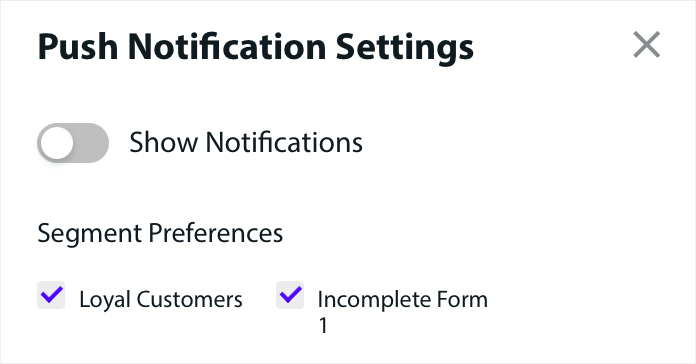
هذه ميزة قوية بشكل لا يصدق لمواقع الأخبار والمدونات.
الخطوة #5: طلب الإذن لإرسال إشعارات فورية مخصصة
إذا كنت تدير إشعارات الدفع للتجارة الإلكترونية على موقعك، فسيكون الكثير منها إشعارات دفع مشغلة. وهذا يشمل:
- إشعارات الدفع للتخلي عن التصفح
- إشعارات الدفع للتخلي عن سلة التسوق
- تنبيهات انخفاض الأسعار
- تنبيهات عند نفاد المخزون
وحتى حملات إشعارات الدفع المخصصة المشغلة.
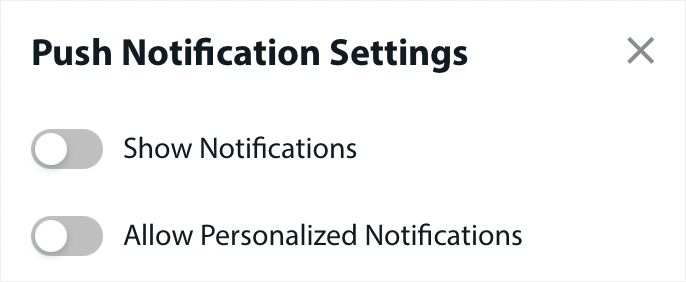
من خلال أداة إدارة الاشتراكات الجديدة الخاصة بنا، يمكنك الآن السماح لمشتركيك باختيار ما إذا كانوا يريدون رؤية إشعارات مخصصة:
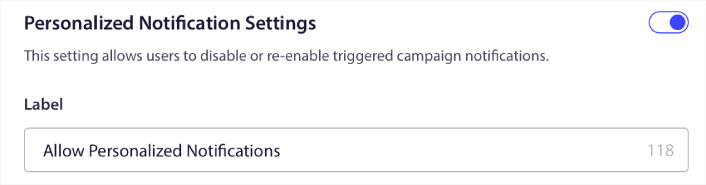
فقط قم بتمكين الخيار ضمن إعدادات الإشعارات المخصصة:
كيفية إضافة مكون إضافي لاشتراك مدونة ووردبريس عبر البريد الإلكتروني
تعد رسائل البريد الإلكتروني طريقة مجربة لزيادة حركة المرور والمبيعات. حتى الآن، لا يزال التسويق عبر البريد الإلكتروني أحد أكثر طرق التسويق فعالية من حيث التكلفة. الجزء الرائع هو أنه يمكنك إنشاء أداة اشتراك عبر البريد الإلكتروني في ووردبريس باستخدام أي من أفضل خدمات البريد الإلكتروني.
دعنا نبدأ مباشرة.
الخطوة #1: اختيار خدمة تسويق عبر البريد الإلكتروني
بدون شك، أفضل خدمة للشركات ذات النمو المرتفع هي Constant Contact. فهي تحتوي على جميع الميزات التي تحتاجها، وتأتي بأسعار مرنة، وهي سهلة الاستخدام للغاية. يمكنك أيضًا التركيز على أهم المقاييس. لتنمية عملك مباشرة من لوحة تحليلات البيانات.

Constant Contact هي أفضل خدمة تسويق عبر البريد الإلكتروني لإعداد الردود الآلية لعملك. إنها سهلة الاستخدام للغاية وتقدم الكثير من ميزات الأتمتة لتحسين حملات البريد الإلكتروني الخاصة بك.
إليك ما يجعل Constant Contact خيارًا رائعًا لإعداد الردود الآلية على البريد الإلكتروني:
- منشئ سحب وإفلات سهل لإنشاء رسائل البريد الإلكتروني
- مئات من قوالب البريد الإلكتروني المصممة مسبقًا
- رسائل الترحيب، عروض عيد الميلاد، والردود الآلية لسلات التسوق المهجورة
- أدوات بناء القوائم ونماذج الاشتراك لتنمية جمهورك
- اختبار A/B للبريد الإلكتروني المستهدف
- تكامل مع أنظمة إدارة علاقات العملاء (CRMs) والخدمات الخارجية
- دعم ممتاز عبر الدردشة الحية والهاتف
ناهيك عن أن Constant Contact لديها إضافة نماذج لووردبريس يمكنك استخدامها لجمع العملاء المحتملين ورعايتهم باستخدام الردود الآلية.
الخطوة #2: إنشاء قائمة الاشتراك عبر البريد الإلكتروني
بمجرد إنشاء حسابك، حان الوقت لإعداد قائمة البريد الإلكتروني الخاصة بك. انتقل إلى حساب Constant Contact الخاص بك وانقر فوق الزر جهات الاتصال ثم انقر فوق الزر إنشاء قائمة.

ستفتح نافذة منبثقة الآن. سيُطلب منك تقديم اسم لقائمة البريد الإلكتروني الخاصة بك. يمكن أن يكون أي شيء تريده، ولكن دعنا نسميها النشرة الإخبارية لهذا المثال.
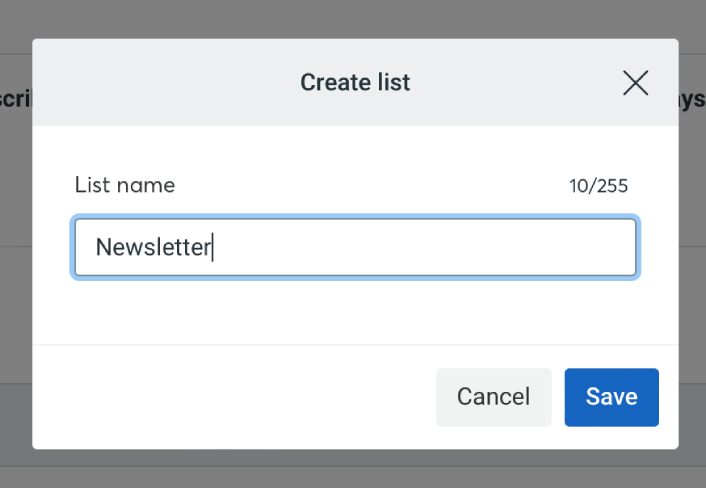
لا تنس النقر فوق زر 'حفظ' عند الانتهاء. الآن لديك قائمة جديدة يمكن للأشخاص الاشتراك فيها.
الخطوة #3: إنشاء نموذج اتصال في ووردبريس
نوصي باستخدام WPForms لإنشاء نماذج اتصال على موقع ووردبريس الخاص بك.
WPForms هو المكون الإضافي الأول لبناء نماذج ووردبريس مع أكثر من 3 ملايين مستخدم. تحصل على أداة بناء نماذج بالسحب والإفلات، مما يعني أنه يمكنك إنشاء نماذج ووردبريس بميزات مذهلة في غضون دقائق.
يمكنك أيضًا استخدام WPForms Lite، وهو الإصدار المجاني من WPForms. لذا، إذا كنت تبحث عن أداة بناء نماذج مجانية للبدء بها، يمكنك استخدام الإصدار Lite. لاحقًا، عندما تحتاج إلى ميزات أقوى لنماذجك، يمكنك الترقية إلى الخطط المدفوعة.
إذا لم تكن متأكدًا من كيفية إنشاء نموذج، فتحقق من هذه المقالة حول كيفية إنشاء نموذج ووردبريس للحصول على تعليمات مفصلة.
بمجرد أن يصبح نموذج الاشتراك جاهزًا، قم بتوصيله بـ Constant Contact. ببساطة انقر فوق علامة التبويب التسويق واختر Constant Contact.
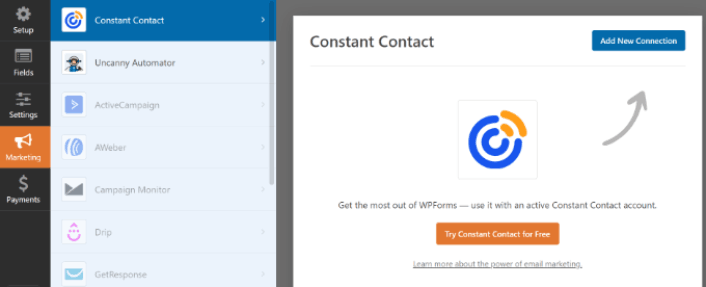
انقر فوق إضافة اتصال جديد لإنشاء الاتصال. ثم، انقر فوق الرابط الذي يقول انقر هنا للتسجيل في Constant Contact.
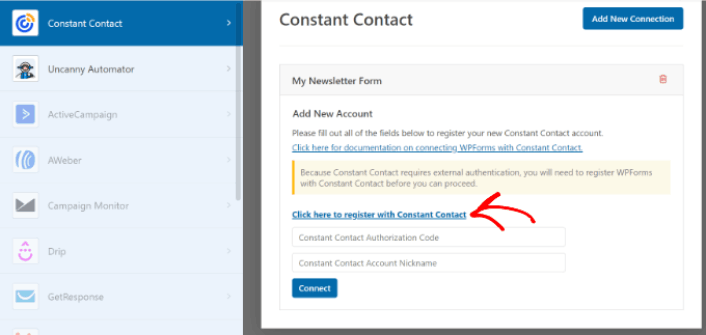
بمجرد النقر فوق الرابط، سيظهر مربع حوار يطلب منك تسجيل الدخول إلى حساب Constant Contact الخاص بك. تفضل بتسجيل الدخول. سيتم منحك رمز تفويض طويل لتسجيل نموذجك. تأكد من نسخ رمز التفويض.
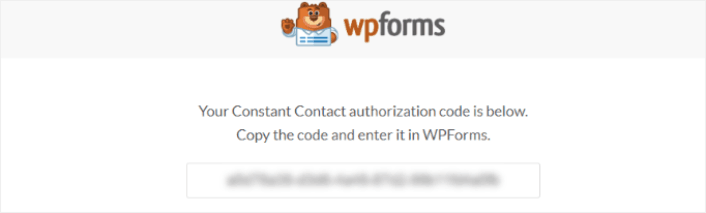
الصق رمز التفويض في إعدادات WPForms وانقر فوق زر الاتصال للمتابعة.
الخطوة #4: إضافة أداة الاشتراك الخاصة بك إلى موقع ووردبريس الخاص بك
انتقل إلى صفحة المظهر » الأدوات وسحب وإفلات لإضافة كتلة أداة WPForms إلى الشريط الجانبي الخاص بك.
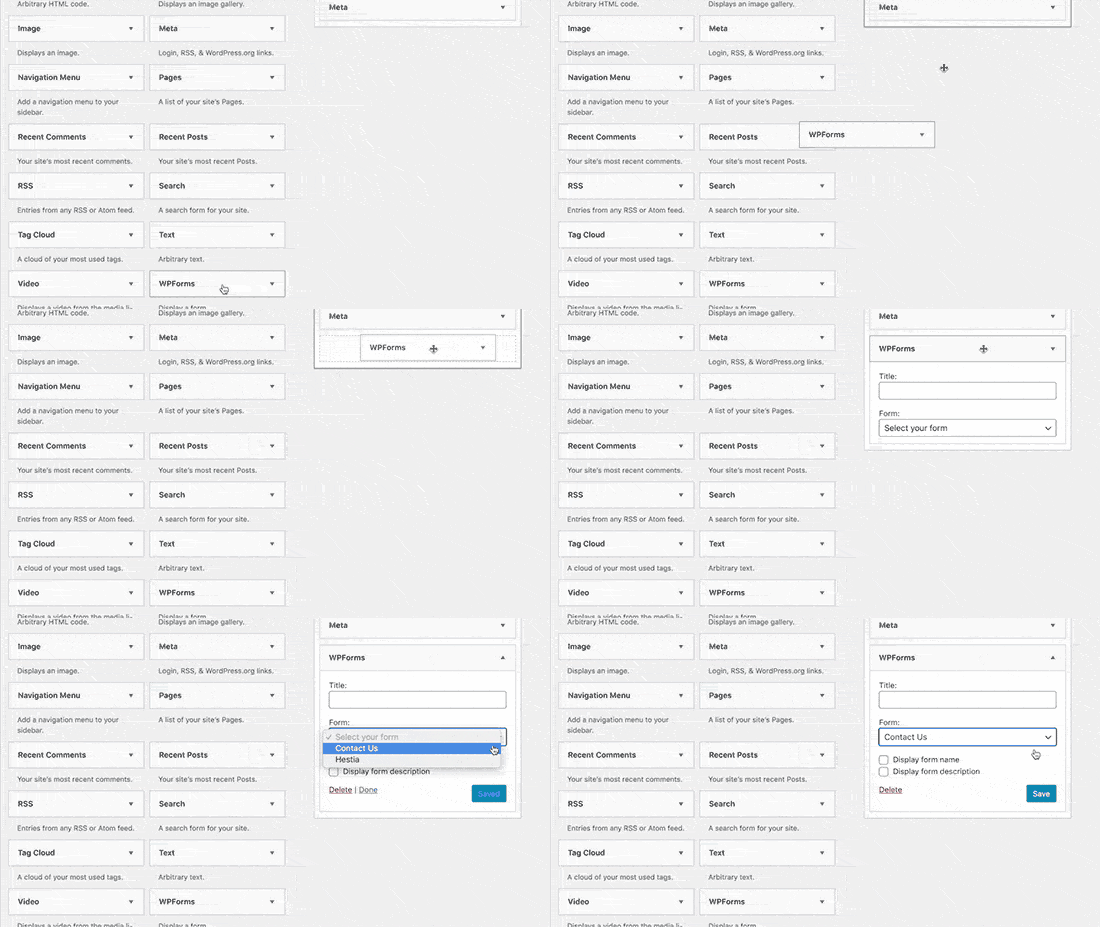
وأنت انتهيت!
ماذا تفعل بعد إضافة مكونات إضافية لاشتراك مدونة ووردبريس
هذا كل شيء لهذا اليوم أيها الأصدقاء!
حتى الآن، لقد قمت بإنشاء أول مكون إضافي لاشتراك مدونة ووردبريس الخاص بك.
الآن، كل ما تبقى هو جذب الزيارات إلى موقعك حتى تتمكن مكوناتك الإضافية من بدء العمل. طريقة بسيطة للقيام بذلك هي البدء في استخدام الإشعارات الفورية.
يعد إرسال إشعارات الدفع طريقة رائعة لتوليد حركة مرور متكررة لموقعك. إذا كان هذا شيئًا تهتم به، فيجب عليك أيضًا مراجعة هذه المقالات:
- تكلفة إشعارات الدفع: هل هي مجانية حقًا؟ (تحليل الأسعار)
- كيفية الحصول على المزيد من حركة المرور إلى مدونة ووردبريس الخاصة بك (9 طرق سهلة)
- كيفية زيادة معدل الاشتراك في إشعارات الدفع على الويب (7 طرق)
- كيفية إضافة إضافة إشعارات الويب لـ WordPress إلى موقعك
نوصي باستخدام PushEngage لإرسال إشعارات الدفع الخاصة بك. PushEngage هو البرنامج رقم 1 لإشعارات الدفع في العالم. لذا، إذا لم تكن قد قمت بذلك بالفعل، ابدأ مع PushEngage اليوم.


