
هل تبحث عن طريقة لإضافة إشعارات الدفع إلى إصدار AMP لموقعك؟ قد يكون إضافة إشعارات دفع AMP أمرًا تقنيًا بعض الشيء. لكننا سنساعدك في القيام بذلك بالطريقة السهلة.
صفحات الجوال المُسرّعة (AMP) هي في الأساس نسخة جوال لموقعك. لذلك، إذا لم تقم بإعداد إشعارات الدفع على موقع AMP الخاص بك، فستفقد مجموعة من المشتركين لأن جزءًا كبيرًا من جمهورك سيستخدم أجهزة الجوال لزيارة موقعك.
في هذه المقالة، سنستخدم PushEngage لتثبيت إشعارات دفع AMP لأنها أسهل بكثير من القيام بالأشياء يدويًا.
دعنا نتعمق.
كيفية تثبيت إشعارات دفع AMP
يعد تثبيت إشعارات دفع AMP عملية سريعة وسهلة حقًا. فقط اتبع هذه الخطوات وبحلول نهاية هذه المقالة، يجب أن تكون قادرًا على إرسال حملات دفع من موقعك مثل هذه:

تبدو جيدة، أليس كذلك؟ دعنا نتعمق.
الخطوة #1: إعداد حساب PushEngage الخاص بك
توجه إلى الصفحة الرئيسية لـ PushEngage وانقر على زر ابدأ:

يمكنك اختيار الخطة المجانية لتجربة PushEngage، أو اختيار خطة مدفوعة إذا كنت جادًا في تنمية عملك. تأتي الخطط المدفوعة مع المزيد من خيارات الحملات والقدرة على بناء قوائم مشتركين أكبر.
بمجرد التسجيل في حساب PushEngage الخاص بك، توجه إلى لوحة تحكم PushEngage الخاصة بك وانتقل إلى إعدادات الموقع » تفاصيل الموقع:

يمكنك تعيين شعارك واسم موقعك وعنوان URL لموقعك هنا. من المهم جدًا ترتيب هذه الأمور الآن حتى تتمكن من اختبار الإعداد بالكامل لاحقًا.
الخطوة رقم 2: الحصول على كود تثبيت إشعارات دفع AMP
لتثبيت إشعارات الدفع على موقع AMP الخاص بك، ستحتاج إلى الحصول على كود التثبيت. في شاشة إعدادات الموقع، قم بالتمرير لأسفل وانقر على زر انقر هنا للحصول على تعليمات الإعداد:

توجه إلى علامة التبويب AMP للحصول على إعدادات التثبيت.
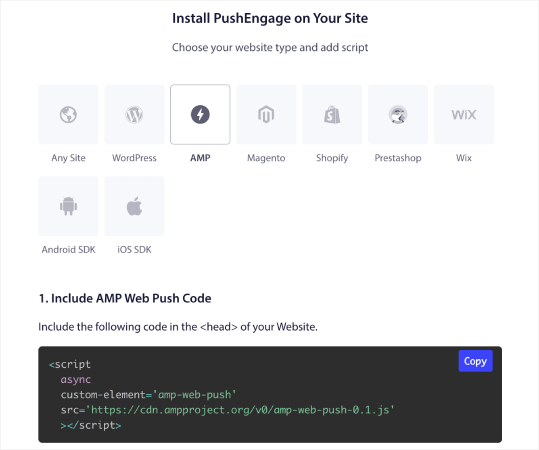
انسخ هذا الكود. ستحتاج إلى لصق هذا الكود في قسم <head> في HTML الخاص بموقعك. إذا كنت تدير موقع WordPress بإصدار AMP، فإن أبسط طريقة للقيام بذلك هي استخدام إضافة Insert Headers and Footers. إنها إضافة مجانية يمكنك فيها لصق كود تثبيت AMP دون الحاجة إلى الدخول إلى HTML الفعلي لموقعك:
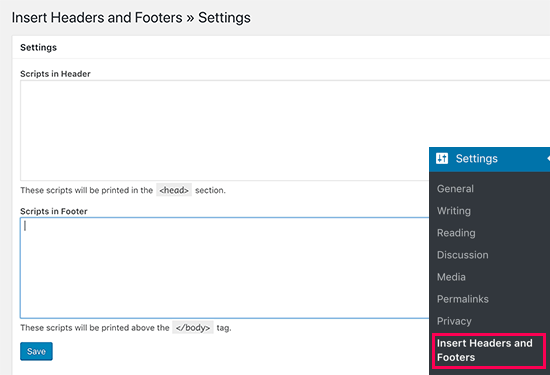
الخطوة رقم 3: تثبيت عامل الخدمة على موقع AMP الخاص بك
بعد ذلك، قم بتنزيل حزمة الملفات التي تتضمن عامل الخدمة.
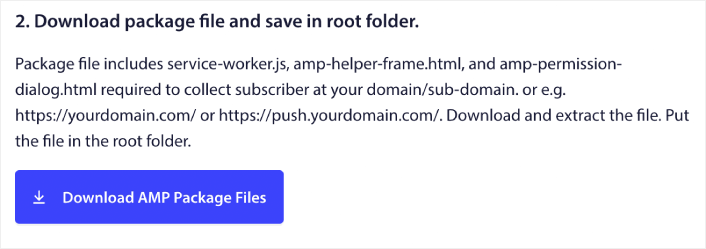
يشمل ذلك:
- service-worker.js
- amp-helper-frame.html
- amp-permission-dialog.html
قم بفك ضغط الحزمة وضع هذه الملفات في المجلد الجذر للخادم الخاص بك. هذا الجزء مهم للغاية. إذا تخطيت هذه الخطوة، فلن يتمكن موقعك من جمع مشتركين الدفع.
نصيحة احترافية: إذا لم تكن متأكدًا مما هو المجلد الجذر وكيف يمكنك تحميل الملفات إليه، فيجب عليك الاطلاع على هذه المقالة حول هيكل الملفات والدلائل في WordPress. إنها دليل بسيط جدًا للمبتدئين وتمنحك الكثير من البصيرة حول كيفية عمل WordPress.
الخطوة رقم 4: إضافة كود HTML لدفع AMP إلى موقعك
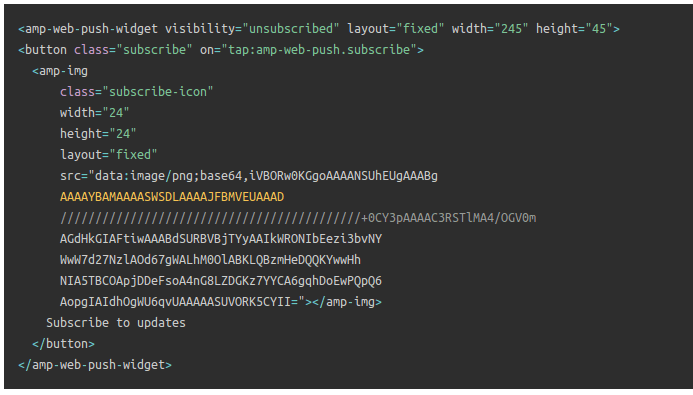
بعد ذلك، أضف كود HTML لتمكين زر الاشتراك بنقرة واحدة وزر لإلغاء الاشتراك من حملات الدفع.
يمكّن هذا الكود ملف عامل الخدمة الذي قمت بتحميله ويسمح لموقعك بعرض أزرار الاشتراك وإلغاء الاشتراك. لجمع المشتركين، تحتاج إلى منح زوارك طريقة بسيطة للاشتراك في حملات الدفع الخاصة بك. سيعطي زر إلغاء الاشتراك للمشتركين النشطين لديك طريقة للخروج إذا لم يكونوا مهتمين بالمحتوى الخاص بك. كلاهما مهم جدًا.
أضف زر "الاشتراك في التحديثات" حيث تريد أن يظهر على موقعك:
وأضف زر "إلغاء الاشتراك من التحديثات":
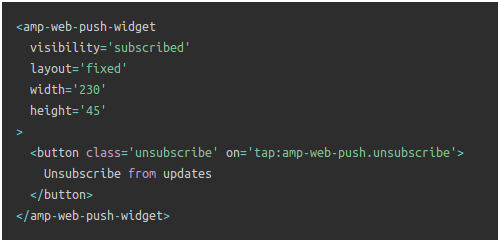
سيكون زر إلغاء الاشتراك زرًا بسيطًا 'اضغط للإلغاء'. تحصل على خيارات تخصيص أكثر بكثير للإصدار غير AMP من موقعك على كل من الأجهزة المحمولة وأجهزة سطح المكتب. لذلك، نوصي بإضافة AMP CSS إلى قسم <body> الخاص بك.
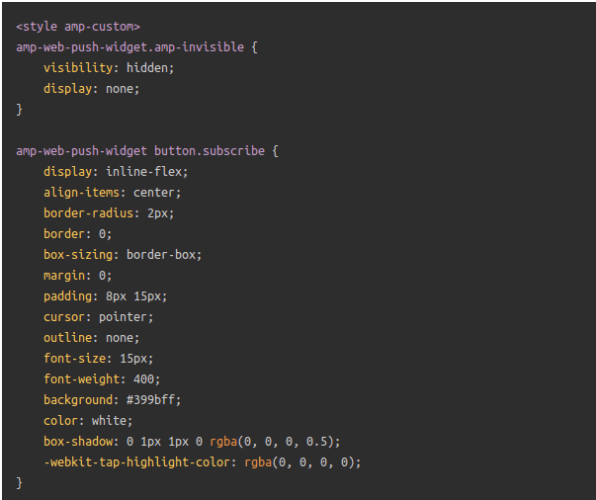
مقتطف الكود هذا مخصص لتخصيص شكل ومظهر أزرار الاشتراك وإلغاء الاشتراك. إذا كنت ترغب في اللعب بهذه الأنماط، فافعل ذلك. فقط تأكد من أنك لا تغير علامات AMP HTML التي يقوم الكود بتصميمها.
وهذا كل شيء. لقد انتهيت.
الخطوة رقم 5: تكوين خيار الاشتراك في PushEngage
الآن، عد إلى لوحة تحكم PushEngage الخاصة بك. انتقل إلى التصميم » نوافذ منبثقة وحدد الاشتراك الذي تختاره:
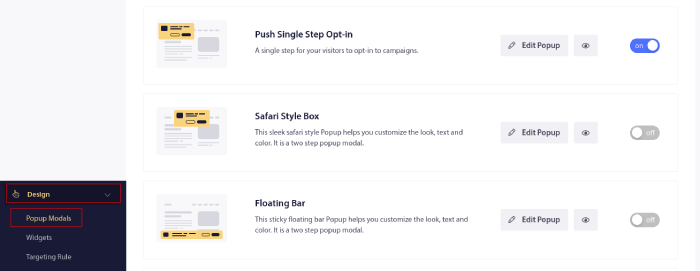
الفكرة هنا هي منح زوارك سببًا وجيهًا للاشتراك. إذا كنت بحاجة إلى بعض المساعدة في ذلك، فراجع مقالتنا حول كيفية إنشاء خيار اشتراك مخصص للإشعارات الفورية.
وإذا كنت ترغب في الحصول على بعض القوالب للبدء، يجب عليك الاطلاع على هذا المقال حول نماذج الاشتراك في الإشعارات الفورية عالية التحويل.
خطوة إضافية: إنشاء حملة ترحيب
بمجرد الانتهاء من إعداد الاشتراك، يمكن لموقعك جمع المشتركين.
ولكن كيف تعرف ما إذا كانت حملات الدفع الخاصة بك تعمل بشكل صحيح؟
نوصي بـ إنشاء إشعار دفع ترحيبي لاختبار ما إذا كان الإعداد الخاص بك قد تم بسلاسة. إشعار الترحيب هو إشعار دفع ويب ترسله إلى مشترك جديد لتأكيد اشتراكه وترحيبه.
انتقل إلى لوحة تحكم PushEngage وتوجه إلى الحملة » الردود الآلية المتسلسلة وانقر على إنشاء رد آلي متسلسل جديد:

بعد ذلك، قم بتسمية حملتك (نقترح شيئًا مثل رسالة ترحيب متسلسلة)، وتحت المحتوى، حدد الخيار الذي يقول، “إرسال إشعار فور اشتراك المستخدم“):

في هذه المرحلة، يمكنك النقر فوق السهم بجوار الإشعار لتعديل محتوى إشعارك. إذا كان لديك خطة Premium أو Enterprise مع PushEngage، فستتمكن من إضافة أكثر من إشعار واحد لإنشاء سلسلة من رسائل الترحيب الآلية. فقط انقر فوق إضافة إشعار جديد وقم بتحرير المحتوى.
بمجرد الانتهاء، انقر فوق إعدادات الحملة التلقائية وحدد الخيار لإرسال حملة الترحيب الخاصة بك إلى جميع المشتركين:

ثم، قم بالتمرير لأسفل لتعيين معلمات UTM الخاصة بك لـ تتبع حملات الدفع:

وعندما تنتهي، قم بالتمرير لأعلى مرة أخرى وانقر فوق الزر تفعيل الرد الآلي:

وهذا كل ما في الأمر!
لقد قمت بإعداد إشعارات دفع AMP على موقعك بنجاح. حان الوقت للعودة إلى لوحة تحكم PushEngage الخاصة بك والبدء في إنشاء حملات الدفع الخاصة بك.
ماذا تفعل بعد إضافة إشعارات دفع AMP إلى موقعك
هذا كل شيء لهذا اليوم أيها الأصدقاء!
إذا كنت جديدًا في حملات الدفع، فيجب عليك اتباع عملية اختبار إشعارات الدفع كاملة قبل أن تبدأ. سيساعدك ذلك في استكشاف المشكلات الشائعة وإصلاحها قبل أن يراها زوارك ويبدأوا في الشكوى من تجربة مستخدم معطلة.
يجب عليك أيضًا الاطلاع على بعض حملات الإشعارات الفورية الآلية الأخرى مثل:
نوصي بالتواصل مع مديري نجاح العملاء لدينا إذا واجهت أي صعوبة في أي من هذه الأمور. يسعدنا جدًا مساعدتك في أي مشكلة.
وإذا لم تكن قد قمت بذلك بالفعل، فابدأ بتجربة PushEngage. PushEngage هي الخدمة رقم 1 للإشعارات الفورية في العالم. لذلك، إذا كنت جادًا بشأن تنمية عملك، فإن PushEngage هو الخيار المناسب لك.


شكرًا على هذه النصائح والمعلومات. من السهل جدًا فهمها.
شرح جيد