
هل تبحث عن طريقة بسيطة لإضافة إشعارات الدفع إلى موقع Instapage الخاص بك؟
هذه فكرة رائعة حقًا. Instapage هو منشئ مواقع يتيح لك إنشاء صفحات ويب فورية. من السهل جدًا إنشاء موقع ويب والبدء في بيع منتج أو خدمة.
ولكن بمجرد أن يصبح موقعك مباشرًا، كيف تجلب الزيارات؟ كيف تبني التفاعل؟ كيف تحقق المزيد من المبيعات؟
هنا يمكن أن تكون إشعارات الدفع فعالة للغاية كأداة تسويقية لأنها يمكن أن تولد زيارات متكررة ومبيعات دون الحاجة إلى تشغيل إعلانات مدفوعة. يمكنك أيضًا إنشاء حملات آلية لتعزيز التفاعل والمبيعات بأقل جهد.
في هذه المقالة، سنوضح لك خطوة بخطوة كيفية إضافة إشعارات الدفع إلى موقع Instapage في أقل من 10 دقائق.
دعنا نتعمق.
كيفية تثبيت إشعارات الدفع على Instapage
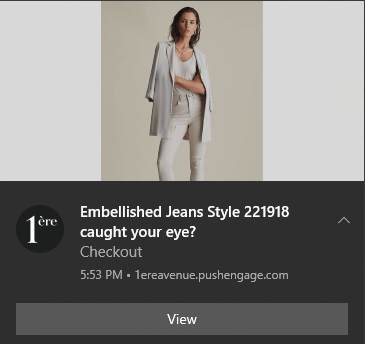
يعد إضافة إشعارات الدفع إلى موقع Instapage أمرًا بسيطًا للغاية. فقط اتبع الخطوات في هذه المقالة. إذا اتبعت كل خطوة، فبنهاية هذه المقالة، يجب أن تكون قادرًا على إرسال إشعارات الدفع مثل هذه:
هيا بنا!
الخطوة #1: إعداد حساب PushEngage الخاص بك
توجه إلى الصفحة الرئيسية لـ PushEngage وانقر على زر البدء:

يمكنك تجربة PushEngage مجانًا. إذا كنت تدير مدونة صغيرة تحتاج إلى زيارات متكررة وتفاعل، فهذا جيد بما فيه الكفاية على الأرجح. ولكن إذا كنت جادًا بشأن المبيعات، فيجب عليك الحصول على حزمة Enterprise وفتح الحملات الآلية.
بمجرد التسجيل في حساب PushEngage الخاص بك، توجه إلى لوحة تحكم PushEngage وانتقل إلى الإعدادات » إعدادات الموقع » إعدادات التثبيت:
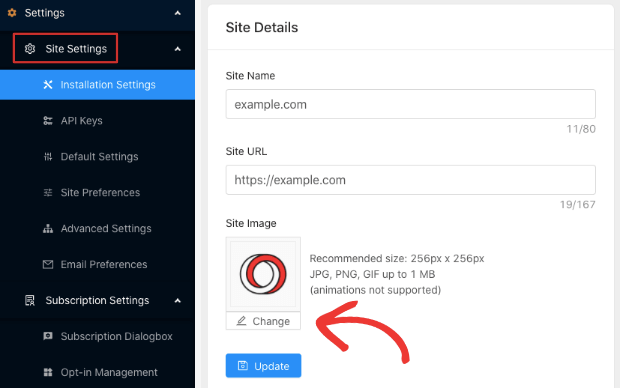
يمكنك تعيين شعارك واسم موقعك وعنوان URL لموقعك هنا. من المهم جدًا ترتيب هذه الأمور الآن حتى تتمكن من اختبار الإعداد بالكامل لاحقًا.
الخطوة #2: الحصول على رمز التثبيت من PushEngage
لتثبيت إشعارات الدفع، ستحتاج إلى الحصول على رمز تثبيت من لوحة تحكم PushEngage الخاصة بك. توجه إلى الإعدادات » إعدادات الموقع » إعدادات التثبيت:
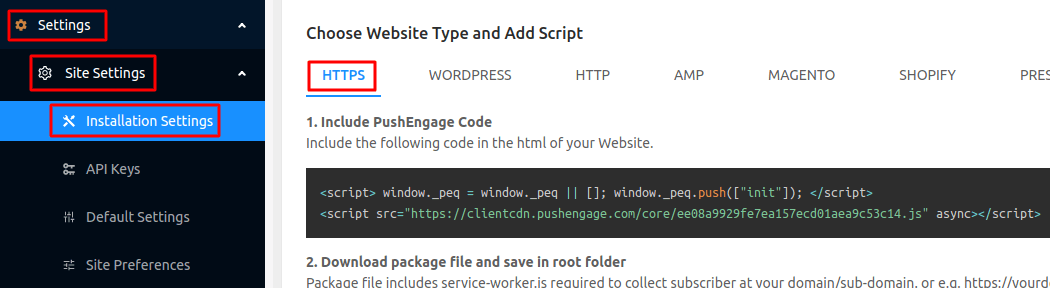
اعتمادًا على ما إذا كان موقعك يحتوي على شهادة SSL مثبتة، انتقل إلى علامة التبويب HTTP أو علامة التبويب HTTPS للحصول على رمز التثبيت الخاص بك.
انسخ مقتطف رمز جافا سكريبت هذا. ستحتاجه قريبًا.
الخطوة رقم 3: ضع رمز التثبيت في موقع Instapage الخاص بك
قم بتسجيل الدخول إلى لوحة تحكم Instapage الخاصة بك وفي منشئ الموقع، انتقل إلى الإعدادات وانقر على Javascript:
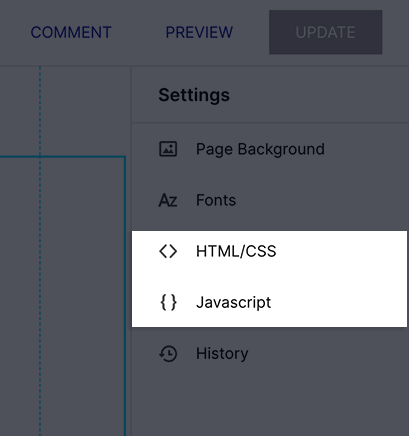
بعد ذلك، ما عليك سوى لصق مقتطف الكود الذي حصلت عليه من لوحة تحكم PushEngage الخاصة بك في النافذة المنبثقة:
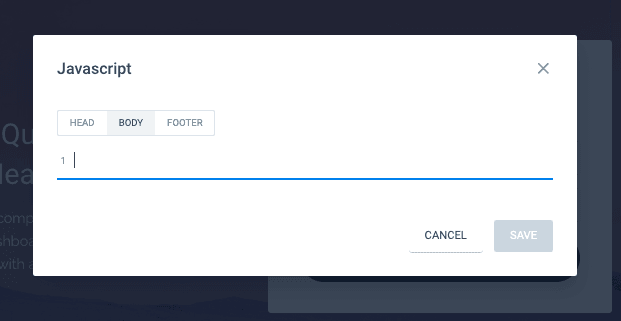
هذا هو المكان الذي تضع فيه عادةً رمز Google Analytics الخاص بك، و Facebook Pixel، ورموز التتبع الأخرى أيضًا. عند الانتهاء، اضغط على حفظ.
الخطوة #4: تكوين موافقة PushEngage
الآن، عد إلى لوحة تحكم PushEngage الخاصة بك. انتقل إلى الإعدادات » إعدادات الاشتراك » مربع حوار الاشتراك » تحرير:
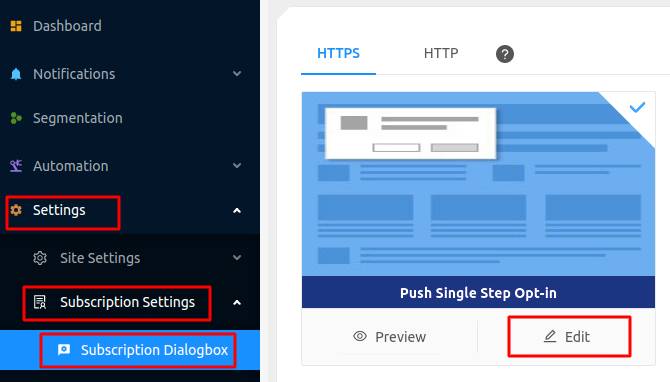
الفكرة هنا هي منح زوارك سببًا وجيهًا للاشتراك. إذا كنت بحاجة إلى بعض المساعدة في ذلك، فراجع مقالتنا حول كيفية إنشاء خيار اشتراك مخصص للإشعارات الفورية.
وإذا كنت ترغب في الحصول على بعض القوالب للبدء، يجب عليك الاطلاع على هذا المقال حول نماذج الاشتراك في الإشعارات الفورية عالية التحويل.
الخطوة #5: إنشاء حملتك الأولى
الآن بعد أن أصبح موقع Instapage الخاص بك قادرًا على إرسال إشعارات الدفع، يجب عليك إنشاء حملة فعلية.
نظرًا لأنك من المحتمل أن تبيع منتجًا على صفحة الهبوط الخاصة بك، فلنقم بإعداد تذكير سلة التسوق المهجورة لمتجرك.
تساعد حملة سلة التسوق المهجورة في تحقيق إيرادات إضافية عن طريق تحويل السلات المهجورة. إنها مجرد تذكير يبيع الكثير من المنتجات تلقائيًا. لذا، فهي حملة رائعة لدعم أي صفحة هبوط تحقق مبيعات مباشرة.
ما عليك سوى التوجه إلى لوحة تحكم PushEngage الخاصة بك والانتقال إلى الأتمتة » التخلي عن سلة التسوق » إنشاء رد تلقائي لسلة التسوق:
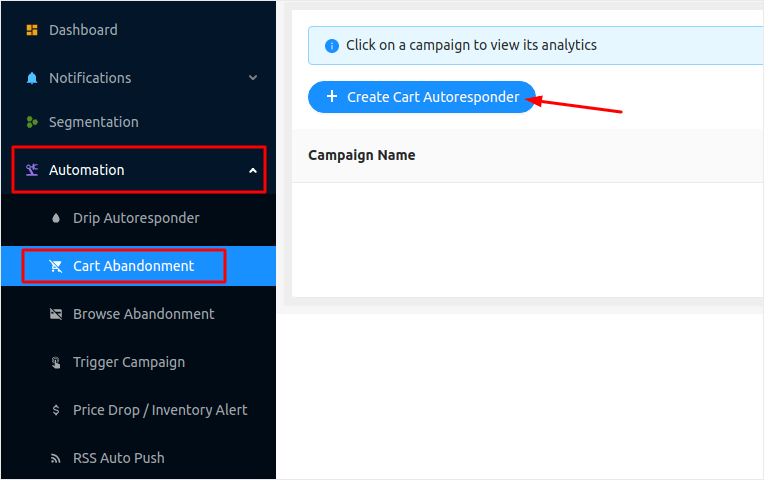
إذا كنت جديدًا في إنشاء حملات تسويق آلية، يمكنك ببساطة متابعة مقالتنا حول كيفية إعداد حملة إشعارات دفع لسلة التسوق المهجورة. اتبع كل خطوة، ويمكنك إعداد إشعارات دفع مثل هذه:
فقط في حال كنت تتساءل، لا تحتاج إلى أن تكون علامة تجارية مشهورة لكي تكون حملات إشعارات الدفع الخاصة بك فعالة. في الواقع، تم بناء PushEngage لمساعدة الشركات الصغيرة على النمو باستخدام إشعارات الدفع.
ولكن قبل أن تبدأ في تسويق صفحة الهبوط الخاصة بك، يجب عليك إصلاح أي مشاكل في عملية اشتراك إشعارات الدفع الخاصة بك. تحقق من هذه المقالة حول اختبار إشعارات الدفع الخاصة بك. إذا كان كل شيء يعمل بشكل مثالي، فقد انتهيت!
خاتمة
هذا كل شيء لهذا اليوم أيها الأصدقاء!
لقد أضفت للتو إشعارات الدفع إلى موقع Instapage الخاص بك. بعد ذلك، قمت بإنشاء حملة إشعارات دفع قوية لتعزيز نموك. كل ذلك في أقل من 10 دقائق!
تحقق من كيفية إنشاء حملات إشعارات الدفع الآلية أيضًا. معظم حملات الدفع بسيطة وفعالة. لذلك، نوصي بإعداد حملات متعددة لموقعك. إليك بعض الحملات الرائعة للبدء بها:
- كيفية إرسال إشعارات دفع RSS تلقائيًا
- كيفية إعداد إشعارات دفع التخلي عن سلة التسوق باستخدام GTM
- كيفية جدولة إشعارات الدفع بالطريقة السهلة [دليل 5 دقائق]
وإذا لم تكن قد فعلت ذلك بالفعل، فابدأ باستخدام PushEngage. PushEngage هو البرنامج رقم 1 للإشعارات الفورية في العالم. لذا، فإن حملاتك في أيد أمينة.


