في PushEngage نؤمن بالشفافية ونريد التأكد من عدم وجود تقييد للبائع عند التسجيل. لقد قمنا حتى إذا كنت ترغب في تمكين إشعارات الدفع عبر الويب على سفاري، وجعل المشتركين لديك قابلين للنقل، فأنت بحاجة إلى إنشاء شهادة دفع الويب الخاصة بك لسفاري، وتكوينها في PushEngage. هذه الخطوة مشابهة لإنشاء مفتاح FCM الخاص بك لمتصفح Chrome.
إليك التفصيل خطوة بخطوة الذي يمكنك اتباعه لإنشاء شهادتك الخاصة.
قبل إنشاء الشهادة، ستحتاج إلى بعض الأشياء -
- حساب مطور Apple نشط - حاليًا تبلغ تكلفة حساب المطور هذا 99 دولارًا سنويًا.
- معرف دفعات فريد لموقعك (يمكن إنشاؤه باستخدام حساب المطور)
باتباع الخطوات الأربع، يمكنك إنشاء شهادة دفعات الويب الخاصة بك لسفاري
الخطوة 1 - إنشاء طلب شهادة
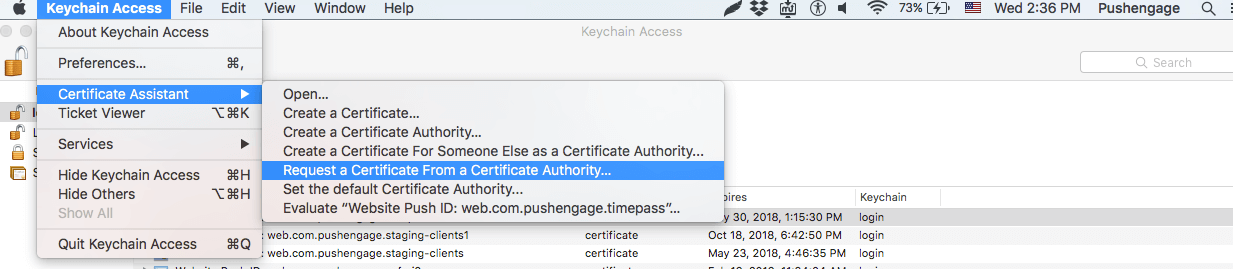
- قم بتشغيل تطبيق Keychain Access وانتقل إلى Keychain Access > Certificate Assistant > Request certificate from Certificate Authority
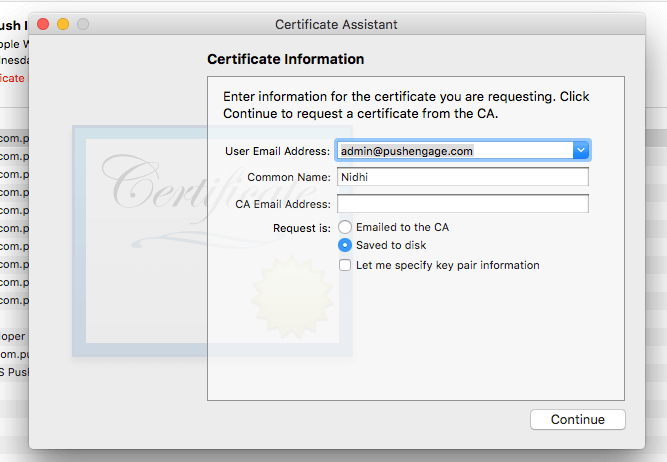
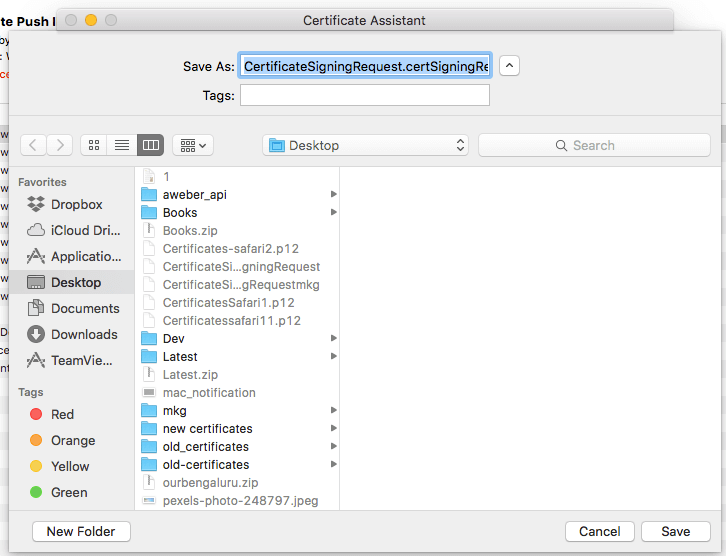
- في معلومات الشهادة، أضف عنوان بريد إلكتروني واسمًا ثم انقر على حفظ.
الخطوة 2 - إعداد معرف دفعات الويب لـ APNS
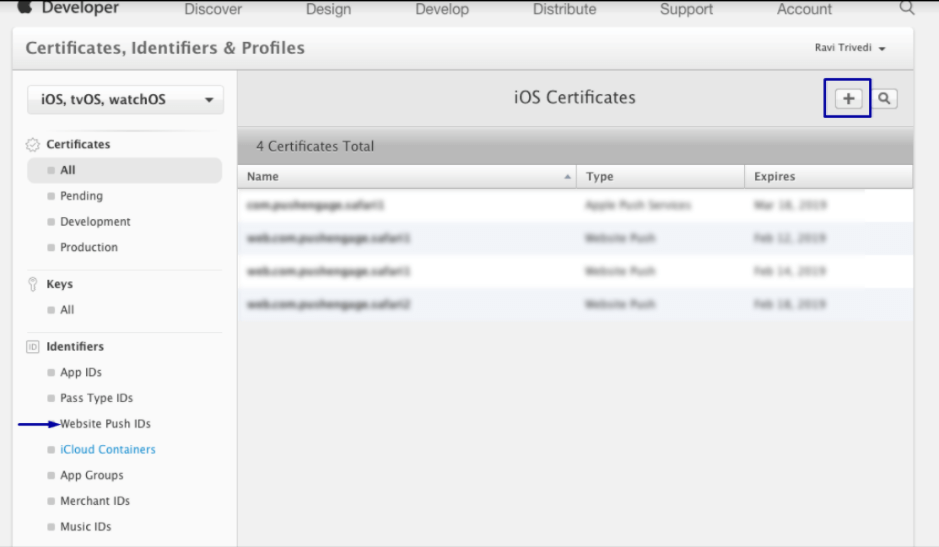
- تسجيل الدخول إلى وحدة تحكم مطوري Apple > المعرفات > معرفات دفع الويب وفي القسم الأيمن العلوي انقر على +
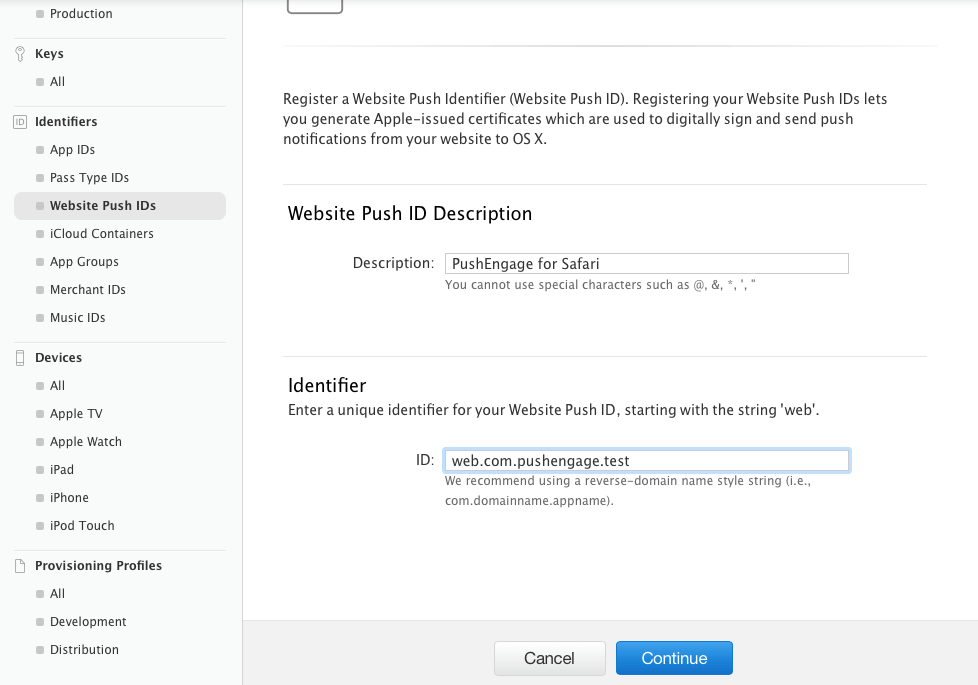
- سيتم إعادة توجيهك إلى النافذة التالية وهناك أضف وصفًا لمعرف دفع الويب ومعرفًا فريدًا. بمجرد الانتهاء، انقر على متابعة.
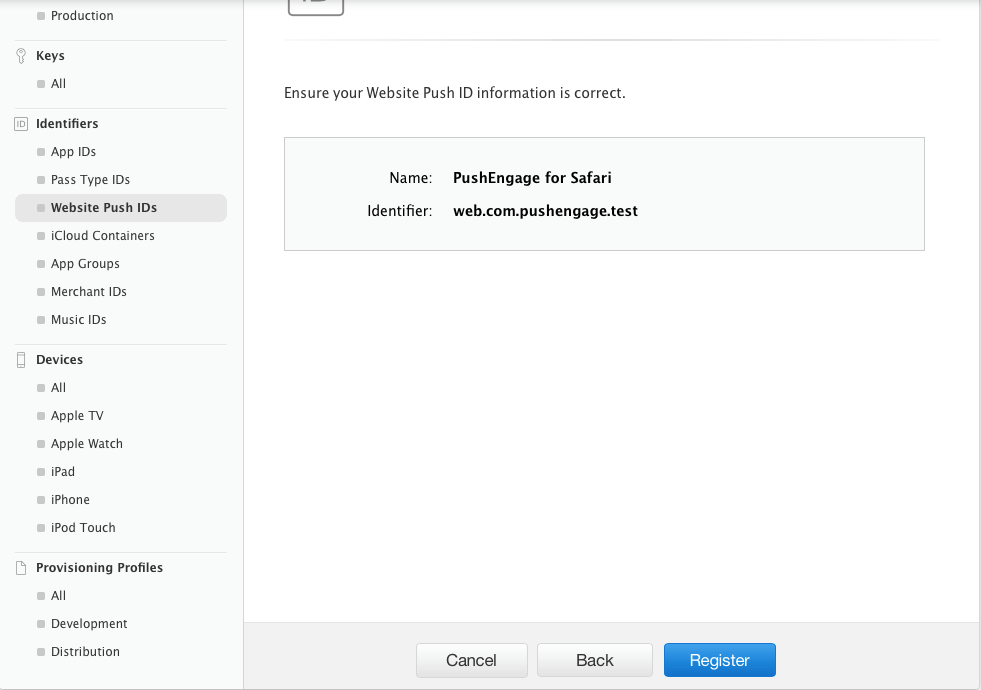
- في النافذة التالية، تأكد من أن معرف دفع الويب الخاص بك صحيح ثم انقر على تسجيل
الخطوة - 3 إنشاء شهادة دفعات الويب
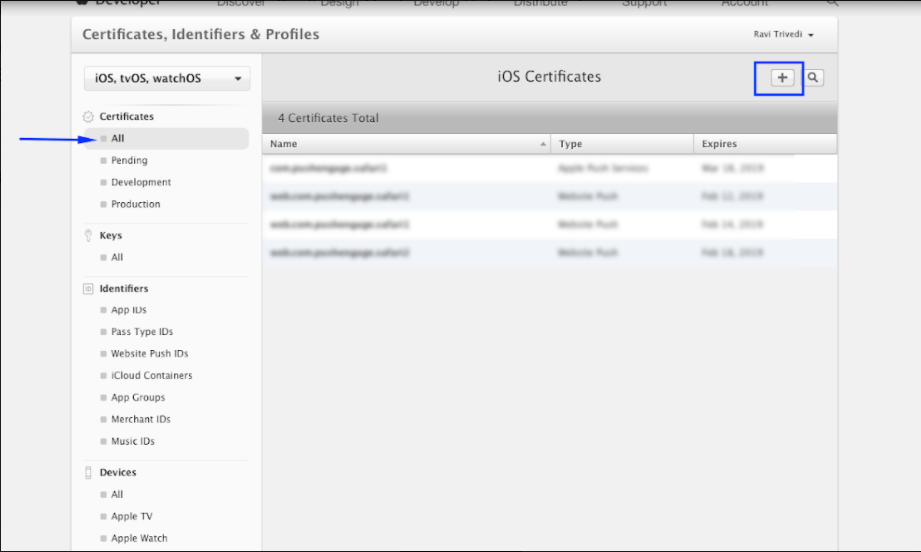
- انتقل إلى الشهادة > الكل > انقر على +
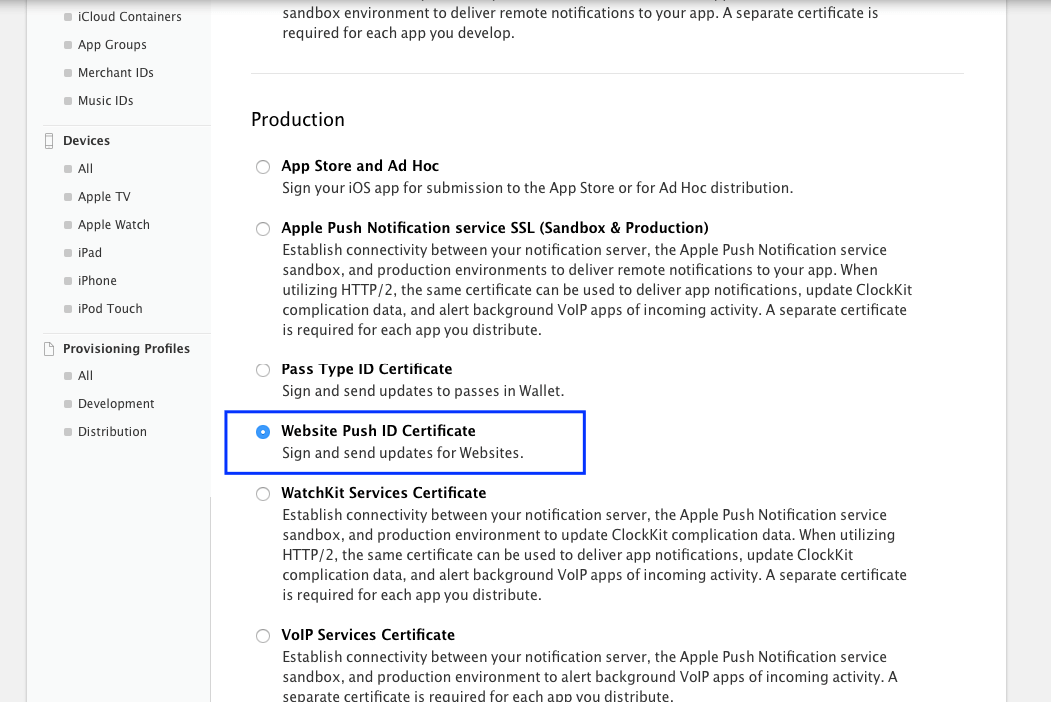
- حدد شهادة معرف دفع الويب > متابعة
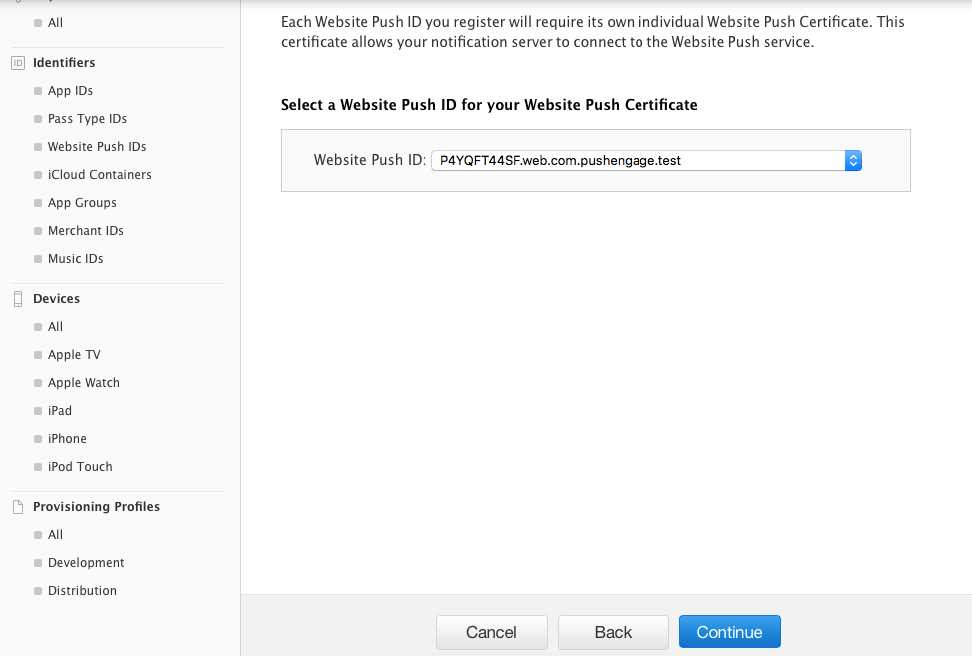
- حدد معرف دفع الويب الذي أنشأته في الخطوة 2 وانقر على متابعة
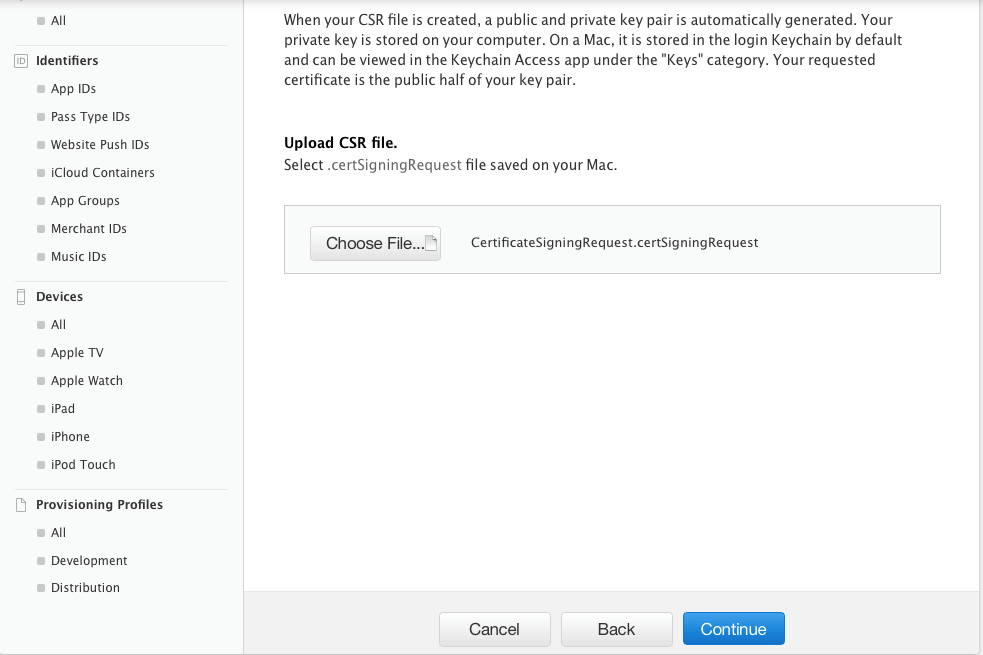
- الآن أضف شهادة CSR التي أنشأتها في الخطوة 1 وانقر على متابعة
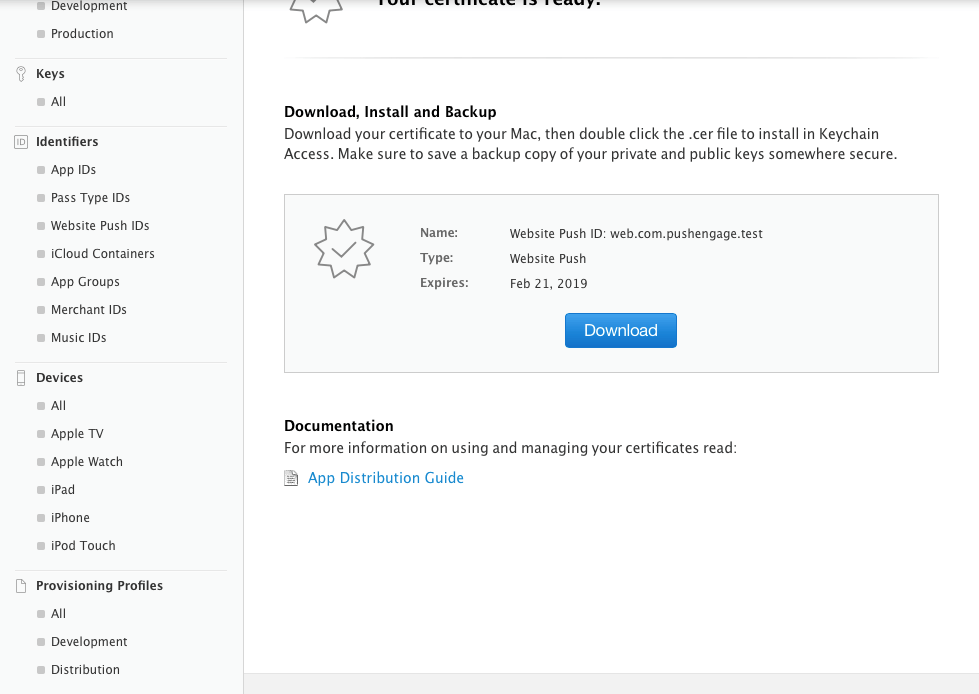
- في النافذة التالية، ستتلقى رسالة "شهادتك جاهزة". قم بتنزيلها حيث سيتم استخدامها لإرسال الإشعارات إلى مشتركيك.
- الآن يجب عليك تثبيت وتصدير الشهادة. لذا، انقر نقرًا مزدوجًا فوق الشهادة التي تم تنزيلها وسيتم تثبيت شهادتك في تطبيق Keychain Access
- لتصدير الشهادة - انتقل إلى تطبيق Keychain > الشهادة > انقر بزر الماوس الأيمن على الشهادة > حدد معرف دفع الويب الذي تم إنشاء الشهادة له > ثم انقر على تصدير
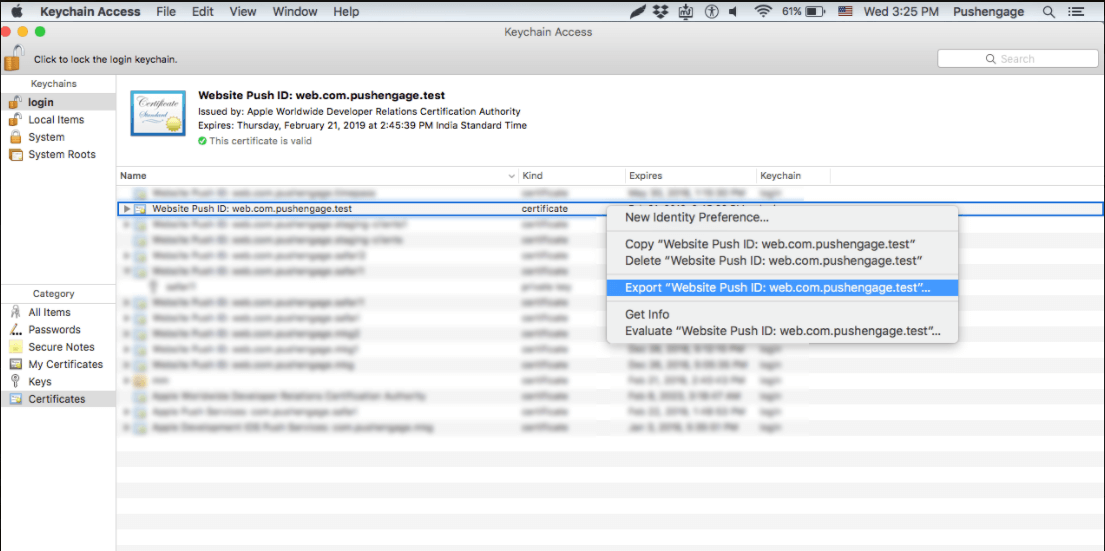
- استخدم تنسيق تبادل المعلومات الشخصية (.p12) عند حفظ الشهادة
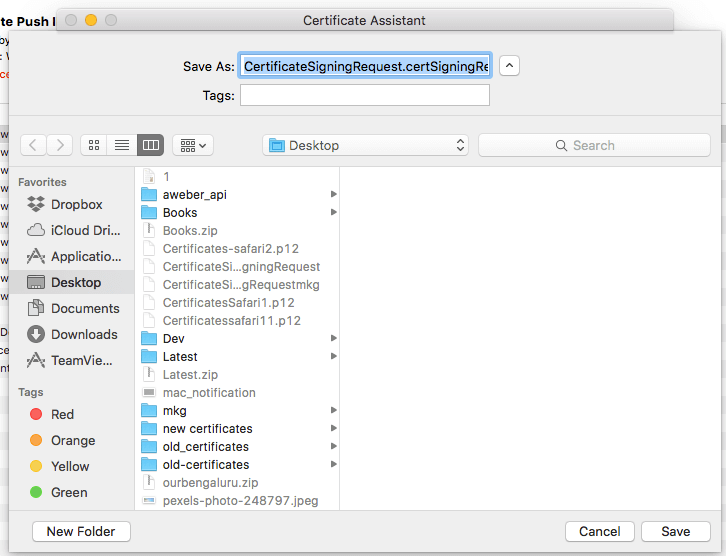
- في النافذة التالية، يمكنك اختيار إنشاء كلمة مرور أو تركها فارغة ثم النقر على موافق
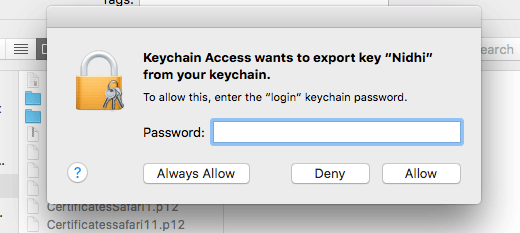
- انقر فوق السماح لتصدير الشهادة إلى MAC
الخطوة 4 - تحميل شهادتك إلى PushEngage
- انتقل إلى الإعدادات > إعدادات دفع الويب لسفاري > أدخل معرف دفع الويب > ملف المفتاح الخاص وكلمة المرور. بمجرد الانتهاء، انقر على تحديث.
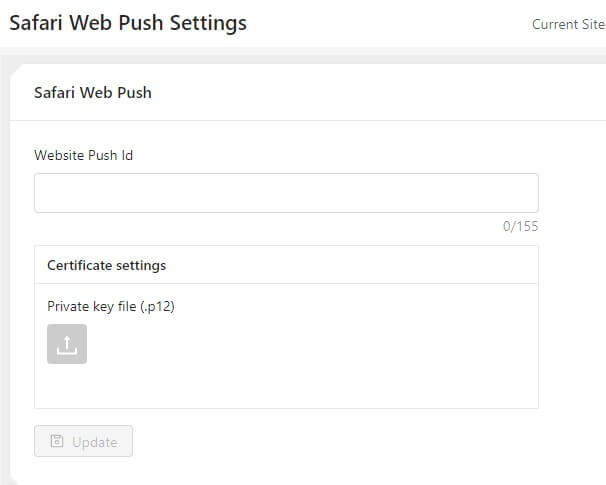
- إذا تم إعداد الإعدادات بشكل صحيح، فستتلقى رسالة "تم تحديث الإعدادات بنجاح"
هذا كل شيء ويمكنك الآن إرسال إشعارات إلى مشتركيك باستخدام سفاري. نحن ندعم أيضًا إشعارات الدفع على متصفح Chrome وفايرفوكس أيضًا.


الجملة الأولى: في PushEngage نؤمن بالشفافية ونريد التأكد من عدم وجود تقييد للبائع عند التسجيل.
يجب أن تكون:
في PushEngage نؤمن بالشفافية ونريد التأكد من عدم وجود تقييد للبائع على الإطلاق عند التسجيل.