بث الإشعارات الفورية هو إشعار فوري لمرة واحدة ترسله إلى المشتركين لديك، مثل إعلان عن تخفيضات، أو منتج جديد، أو تحديث للمتجر. على عكس التسلسل أو الإشعار التلقائي، يتم إرسال البث مرة واحدة إلى الجمهور الذي تختاره، إما فورًا أو حسب جدول زمني. يوضح هذا الدليل كيفية إنشاء بث إشعارات فورية واستهدافه وجدولته وإرساله في تطبيق PushEngage Shopify.
قبل البدء
- قم بتثبيت وربط PushEngage بمتجر Shopify الخاص بك، واجمع بعض المشتركين قبل الإرسال.
- حدد من يجب أن يتلقى البث: جميع المشتركين، أو مجموعة جمهور محفوظة، أو جمهور مخصص تقوم بإنشائه الآن.
- حدد متى يجب إرساله: فورًا، في يوم ووقت محددين، أو حسب جدول زمني متكرر.
كيف تعمل البثوث
يتكون بث الإشعارات الفورية من ثلاثة أجزاء: محتوى الإشعار، والجمهور، والجدول الزمني. تكتب الإشعار، وتختار من يتلقاه، وتحدد وقت إرساله. يمكنك أيضًا إجراء اختبار A/B، حيث تنشئ نسختين من المحتوى تشتركان في نفس الجمهور والجدول الزمني حتى يتمكن PushEngage من مقارنة أدائهما.
إنشاء بث إشعارات فورية
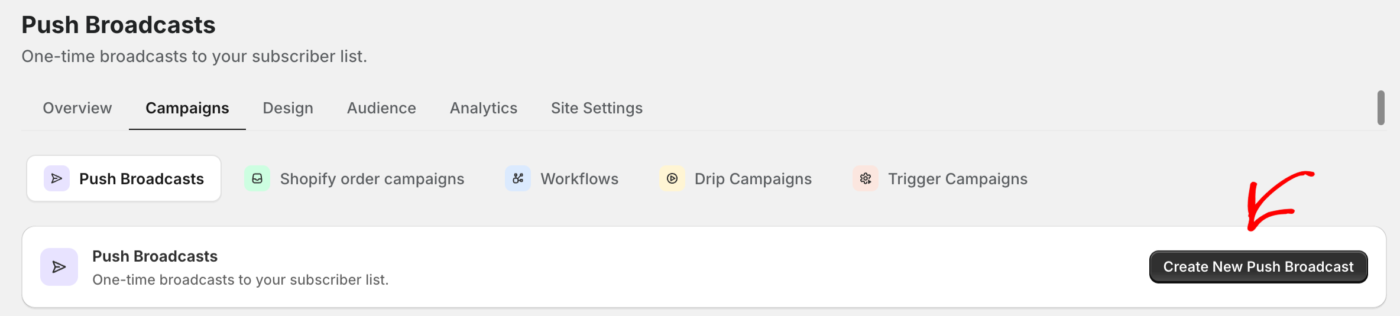
- انتقل إلى Web Push » Campaigns. بث الإشعارات الفورية هو العرض الافتراضي.
- انقر فوق Create لفتح بث جديد.
- اكتب محتوى إشعارك وأضف صورًا.
- اختر جمهورك.
- اضبط جدولك الزمني.
- انقر فوق Save draft للإنهاء لاحقًا، أو أرسل البث عندما يكون جاهزًا.
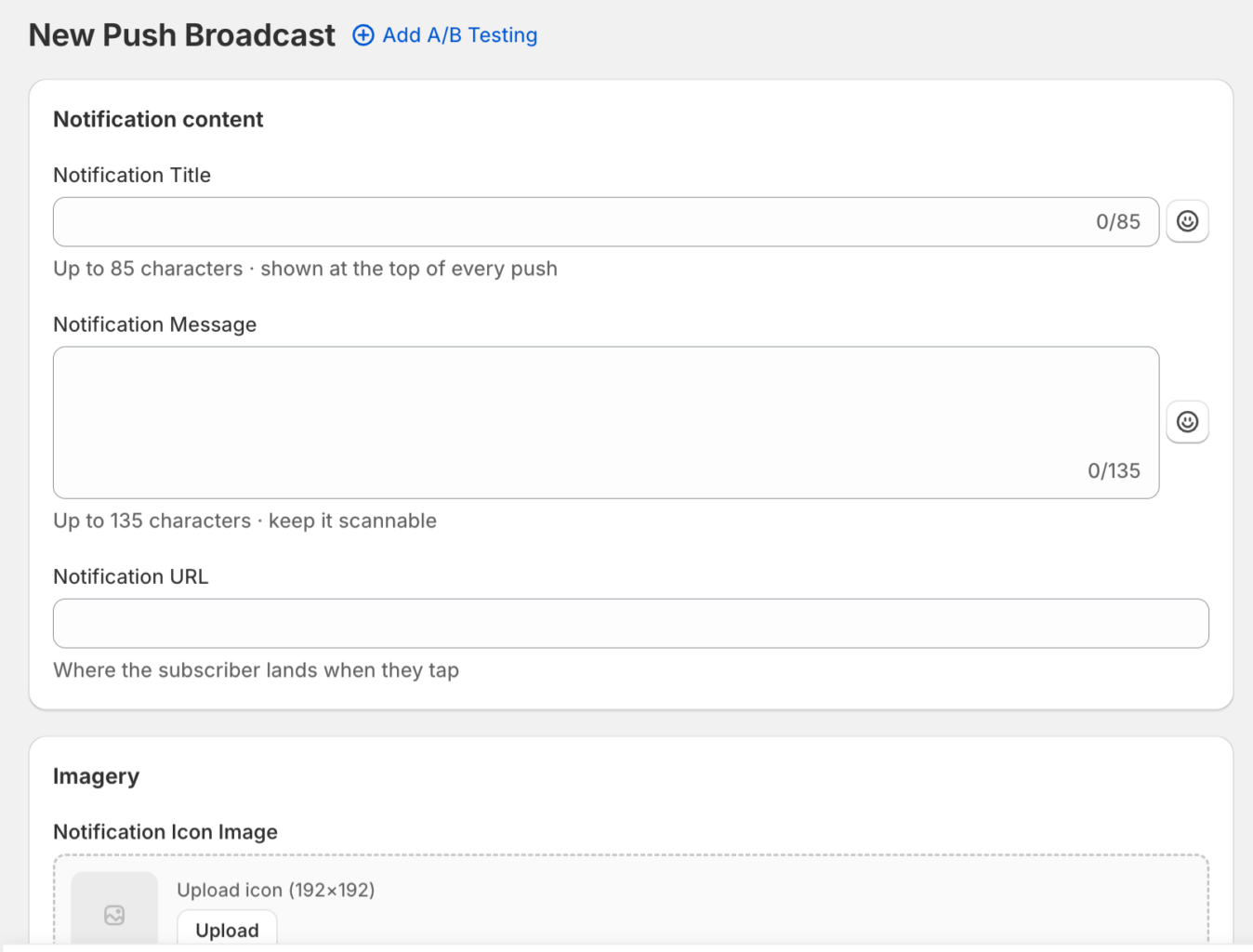
اكتب الإشعار
املأ حقول المحتوى الأساسية، ثم أضف صورًا وسلوكيات اختيارية.
| حقل | ملاحظات | حد |
|---|---|---|
| عنوان الإشعار | يظهر في أعلى كل إشعار. | 85 حرفًا |
| رسالة الإشعار | اجعله سهل القراءة. | 135 حرفًا |
| رابط الإشعار | حيث يصل المشترك عند النقر. | |
| صورة أيقونة الإشعار | صورة مربعة، 192 × 192 بكسل، تظهر في كل متصفح. | |
| صورة كبيرة | اختياري. 360 × 180 بكسل، نسبة 2:1، يظهر في Chrome و Edge و Android فقط. |
استخدم Multi Action Notification لإضافة أزرار إجراء، و Notification Duration لإبقاء الإشعار مفتوحًا حتى التفاعل أو لعدد محدد من الأيام والساعات والدقائق، و Tracking & UTM لإلحاق علامات التحليلات. يتم تحديث المعاينة المباشرة أثناء الكتابة.
اختر الجمهور
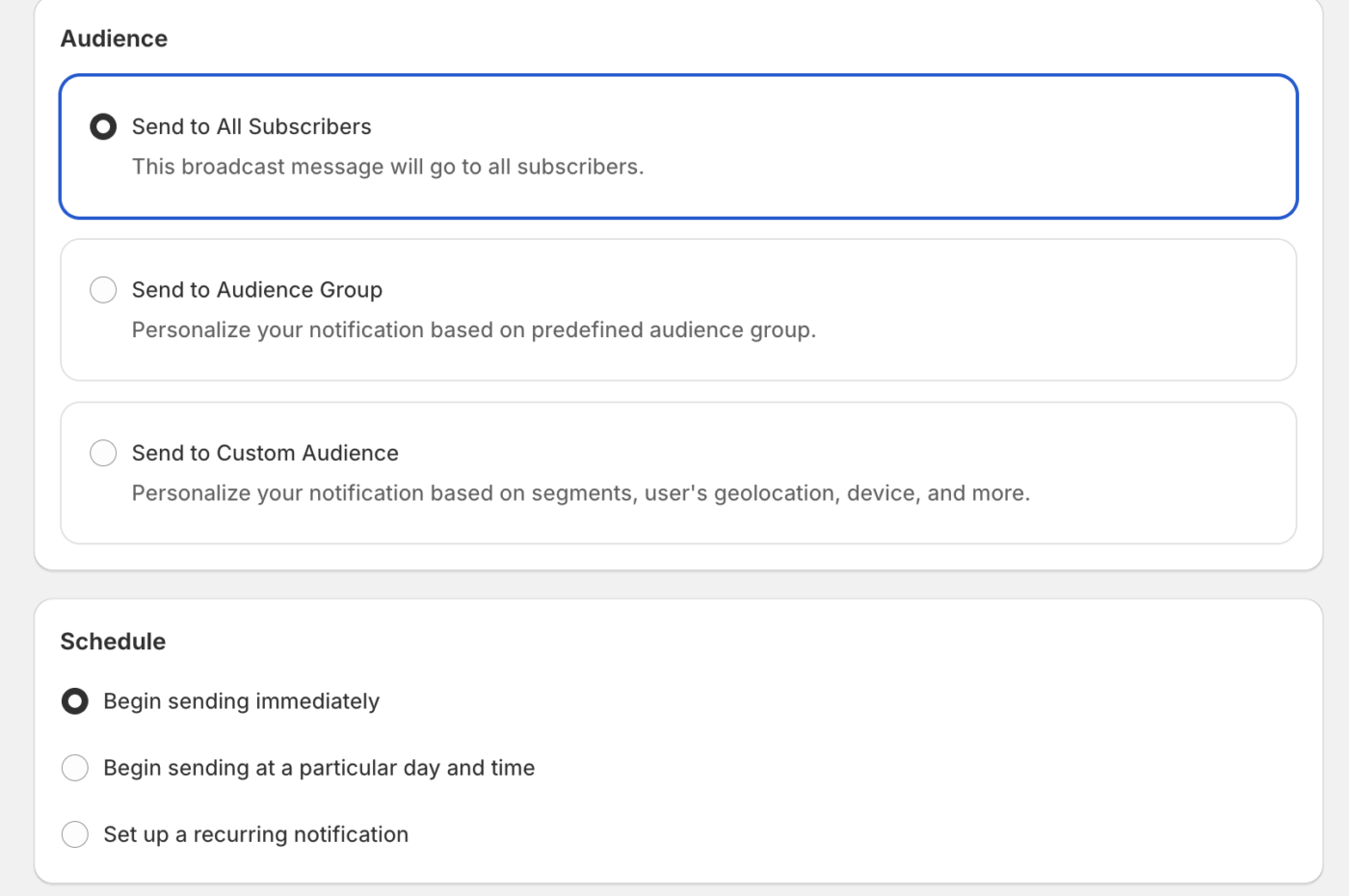
اختر أحد خيارات الاستهداف الثلاثة. حدد أحد الخيارات التالية –
- Send to All Subscribers للوصول إلى الجميع
- Send to Audience Group لاختيار مجموعة محفوظة
- Send to Custom Audience لإنشاء جمهور لمرة واحدة من الشرائح والمرشحات.
عند بناء جمهور مخصص، يمكنك تشغيل حفظ هذا كمجموعة جمهور قابلة لإعادة الاستخدام وتسميتها ووصفها لإعادة استخدامها لاحقًا.
تعيين الجدول الزمني
اختر بدء الإرسال فورًا للإرسال بمجرد التأكيد، أو بدء الإرسال في يوم ووقت معينين لاختيار تاريخ ووقت. مع الإرسال المجدول، يمكنك تشغيل إرسال البث في المنطقة الزمنية للمشتركين بحيث يتلقى كل مشترك إشعارًا في الوقت المحلي المختار. للإرسال على أساس متكرر، قم بتشغيل إعداد إشعار متكرر واختر تاريخ البدء وتاريخ الانتهاء وأيام الأسبوع والأوقات.
تشغيل اختبار A/B
لمقارنة نسختين، قم بتمكين اختبار A/B وقم بتحرير المتغير A والمتغير B بشكل مستقل. محتوى كل متغير، بما في ذلك العنوان والرسالة وعنوان URL والأيقونة والصورة الكبيرة وأزرار الإجراء، منفصل، بينما يتم مشاركة الجمهور والجدول الزمني وإعدادات A/B بين كلا المتغيرين.
أسئلة متكررة
هل يمكنني إرسال نفس البث إلى مجموعة محفوظة مرة أخرى لاحقًا؟
نعم. احفظ جمهورك المخصص كمجموعة جمهور قابلة لإعادة الاستخدام أثناء بناء البث، ثم اختر إرسال إلى مجموعة الجمهور في عمليات البث المستقبلية للوصول إلى نفس الأشخاص دون إعادة بناء الجمهور.
ما الفرق بين الإرسال في منطقتي الزمنية ومنطقة المشتركين الزمنية؟
عندما تقوم بالجدولة في منطقتك الزمنية، يتلقى الجميع الإشعار في نفس اللحظة المطلقة. عندما تقوم بتشغيل إرسال البث في المنطقة الزمنية للمشتركين، يقوم PushEngage بإنشاء إرسال مجدول لكل منطقة زمنية حتى يحصل كل مشترك عليه في الوقت المحلي المختار، وإذا مر الوقت بالفعل في منطقة زمنية، فسيتم إرساله على الفور هناك.
لماذا لا تظهر صورتي الكبيرة لكل مشترك؟
تظهر الصور الكبيرة في Chrome و Edge و Android فقط. يرى المشتركون على المتصفحات الأخرى الإشعار بدون الصورة الكبيرة، لذا تأكد من أن رسالتك تبدو جيدة بمفردها.
هل يمكنني تعديل بث بعد جدولته؟
افتح البث المجدول لتعديل محتواه أو جمهوره أو جدوله الزمني قبل إرساله. بمجرد إرسال البث، لا يمكن استدعاؤه.
إذا واجهت أي مشاكل، فلا تتردد في الاتصال بنا بالنقر هنا. سيكون فريق الدعم لدينا قادرًا على مساعدتك.