هل تبحث عن طريقة لإنشاء نافذة منبثقة من نوع لايت بوكس لموقعك؟
يمكن أن تكون النافذة المنبثقة من نوع لايت بوكس فعالة بشكل لا يصدق في جذب العملاء المحتملين. فهي مصممة للإقناع والتحويل.
لكن الاضطرار إلى ترميز واحدة من الصفر يمثل مشكلة حقيقية. أولاً، ستحتاج إلى معرفة ما يكفي من HTML و CSS و Javascript لإنشاء النافذة المنبثقة جنبًا إلى جنب مع قواعد التشغيل لتحديد وقت عرضها. بعد ذلك، ستحتاج إلى إنشاء تكامل يدوي مع مزود خدمة البريد الإلكتروني الخاص بك. وأخيرًا، ستحتاج إلى التعامل مع أي قضايا تتعلق بالخصوصية والأمان.
أخبار سارة: هناك طريقة أبسط بكثير.
في هذه المقالة، سنوضح لك كيفية إطلاق نافذة منبثقة من نوع لايت بوكس بدون أي ترميز في أقل من 10 دقائق.
دعنا نتعمق.
ما هي النافذة المنبثقة من نوع لايت بوكس؟
النافذة المنبثقة من نوع لايت بوكس هي نموذج اشتراك يظهر بتأثير سينمائي. عندما تظهر نافذة لايت بوكس، فإنها تطمس بقية الموقع في الخلفية. بهذه الطريقة، يكون تركيزك بالكامل على النافذة المنبثقة.
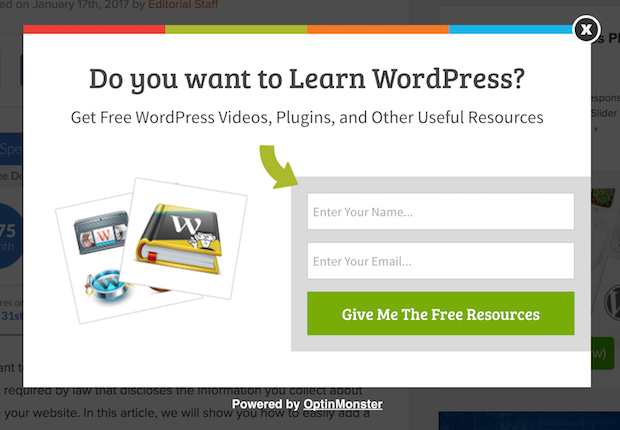
في الأصل، جاء مفهوم اللايت بوكس من الإعلانات الخارجية:
ثم، فكر بعض المطورين في أن هذا كان تأثيرًا رائعًا للغاية وأنشأوا مكتبة Javascript لإعادة إنشاء نفس التأثير على الأصول على الويب. لاحقًا، ظهرت فكرة استخدام النوافذ المنبثقة من نوع لايت بوكس.
لماذا تعمل النوافذ المنبثقة من نوع لايت بوكس؟
تجذب النوافذ المنبثقة من نوع لايت بوكس المزيد من رسائل البريد الإلكتروني مقارنة بنموذج الاشتراك التقليدي عبر البريد الإلكتروني.
ولكن لماذا تعمل؟
دعنا نلقي نظرة سريعة على الأسباب الرئيسية التي تجعل النوافذ المنبثقة من نوع لايت بوكس تعمل بشكل جيد.
#1. تتميز النوافذ المنبثقة من نوع لايت بوكس بدعوة واضحة لاتخاذ إجراء
يعتقد معظم الناس أنه من الرائع منح عملائهم الكثير من الخيارات.
لكن هذا ليس صحيحًا حقًا.
إذا كنت تبحث عن تحويلات مباشرة، فأنت تريد دعوة واحدة واضحة لاتخاذ إجراء يمكن لجمهورك التركيز عليها. بهذه الطريقة، تزيل جميع المشتتات من ذهن المستخدم. وتقوم النوافذ المنبثقة من نوع لايت بوكس بعمل رائع في تسليط الضوء على عرضك الأساسي وتشجيع الأشخاص على التركيز على دعوتك لاتخاذ إجراء.
لذلك، بشكل طبيعي، تكون معدلات التحويل رائعة جدًا.
#2. من المستحيل تجاهل النوافذ المنبثقة من نوع لايت بوكس
تشغل النوافذ المنبثقة من نوع لايت بوكس الشاشة بأكملها وتطمس كل شيء آخر. لذلك، من المستحيل عمليًا تجاهلها.
هذا صحيح بشكل خاص إذا كانت متحركة:
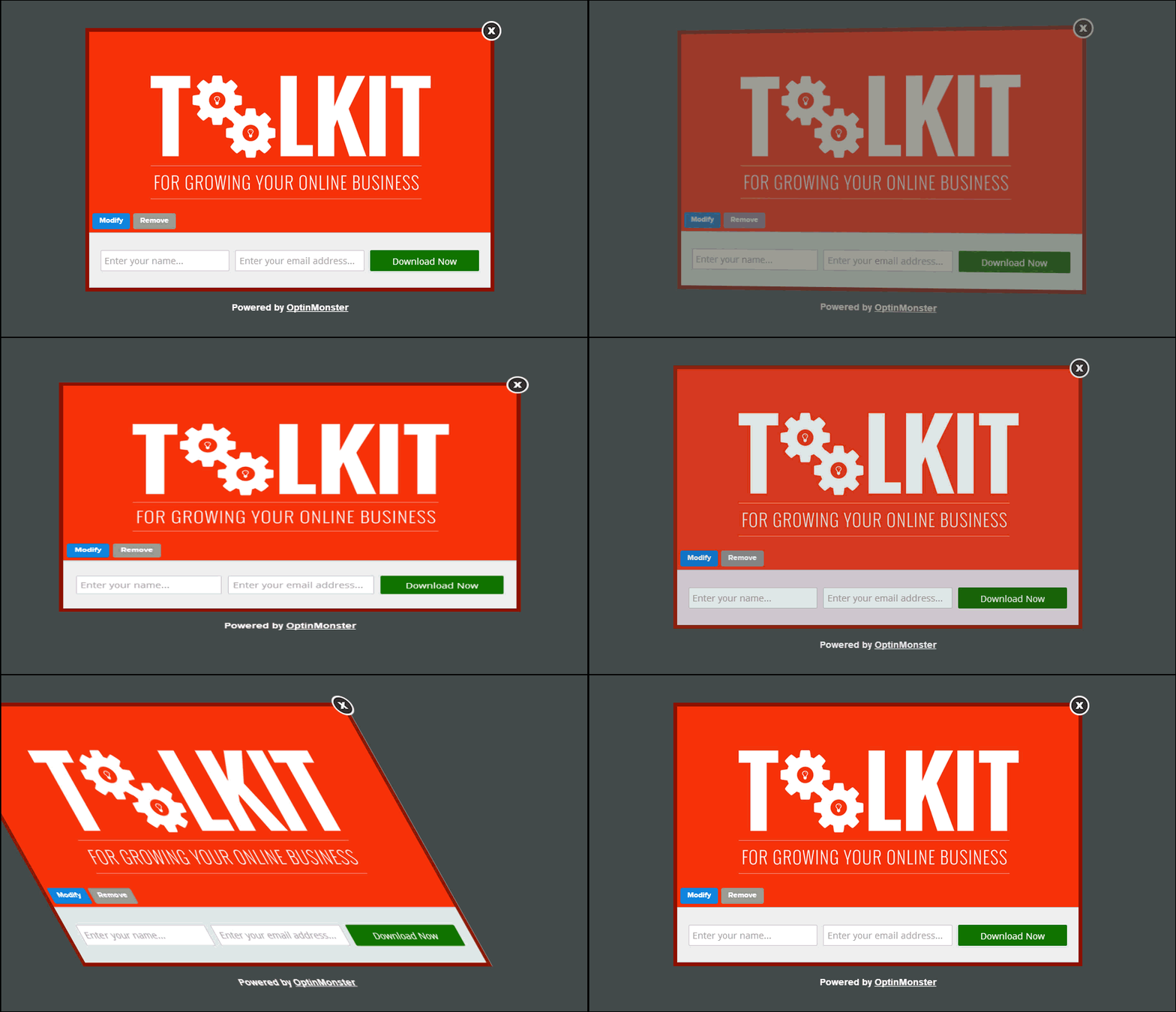
بالطبع، يجب عليك التأكد من أن نوافذك المنبثقة ليست تدخّلية. ويمكنك القيام بذلك عن طريق تخصيص وقت تشغيل النوافذ المنبثقة المختلفة على موقعك. طالما أن جمهورك لا ينزعج من المقاطعة، يمكنك بسهولة إقناعهم وتحويلهم.
#3. تمتلك النوافذ المنبثقة من نوع لايت بوكس مشغلات مخصصة
لا ينبغي عليك عرض نفس العرض لجميع زوار موقعك. إذا كنت تدير متجرًا للتجارة الإلكترونية، فستحتاج إلى عروض مختلفة جدًا للعملاء الجدد والعائدين.
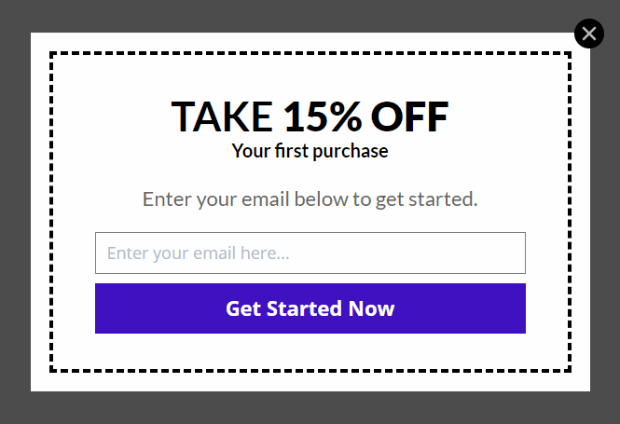
بالنسبة للعميل الجديد، يمكنك تشغيل حملة ترحيبية:
ولكن بالنسبة للعميل العائد، قد ترغب في إرسال عرض مختلف إليهم:
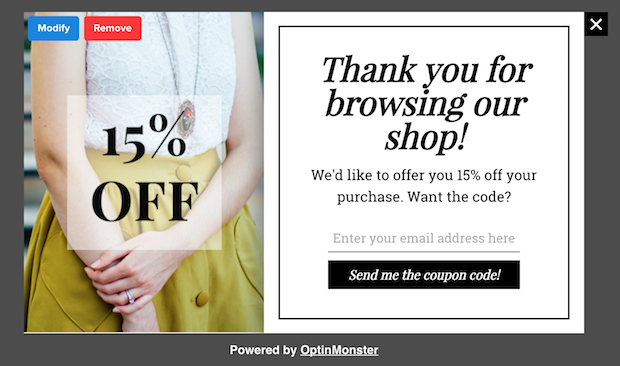
لاحظ كيف أن مبالغ الخصم لكلا العرضين متساوية تمامًا. ولكن الطريقة التي يتم بها تأطير العرض مختلفة بشكل كبير. وهذا أمر مهم للغاية لأن النوافذ المنبثقة من نوع لايت بوكس مبنية للتأثيرات المسرحية. لذا، فإن نهجًا أكثر تخصيصًا سيحقق لك نتائج أفضل بكثير بالتأكيد.
يمكنك حتى تخصيص العرض بناءً على تفضيلات المحتوى لدى المستخدم الخاص بك. إذا كانوا يقرؤون مقالًا عن وصفات العشاء، فمن المنطقي أكثر أن تعرض لهم عرضًا متعلقًا بوصفات العشاء بدلاً من عرض سيارات لهم.
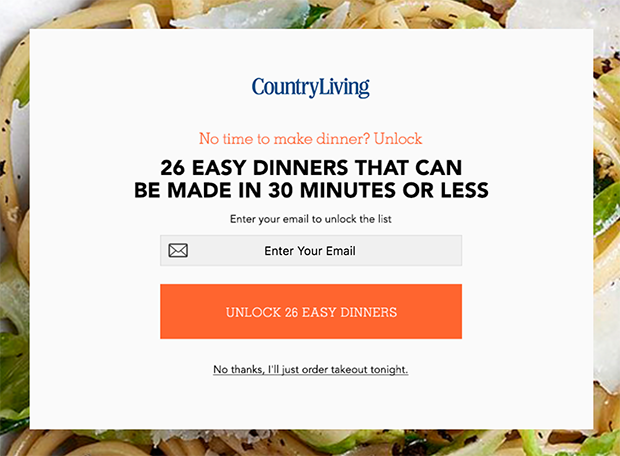
#4. نوافذ المنبثقة المنبثقة يمكنها التقاط الزوار المتخلين
النوافذ المنبثقة هي مجرد طريقة لعرض النافذة المنبثقة الخاصة بك. لذلك، لا يوجد شيء يمنعك حقًا من تخصيص المشغل إلى أي مدى تريده. نوصي بإنشاء نوافذ منبثقة من نوع Lightbox بنية الخروج.
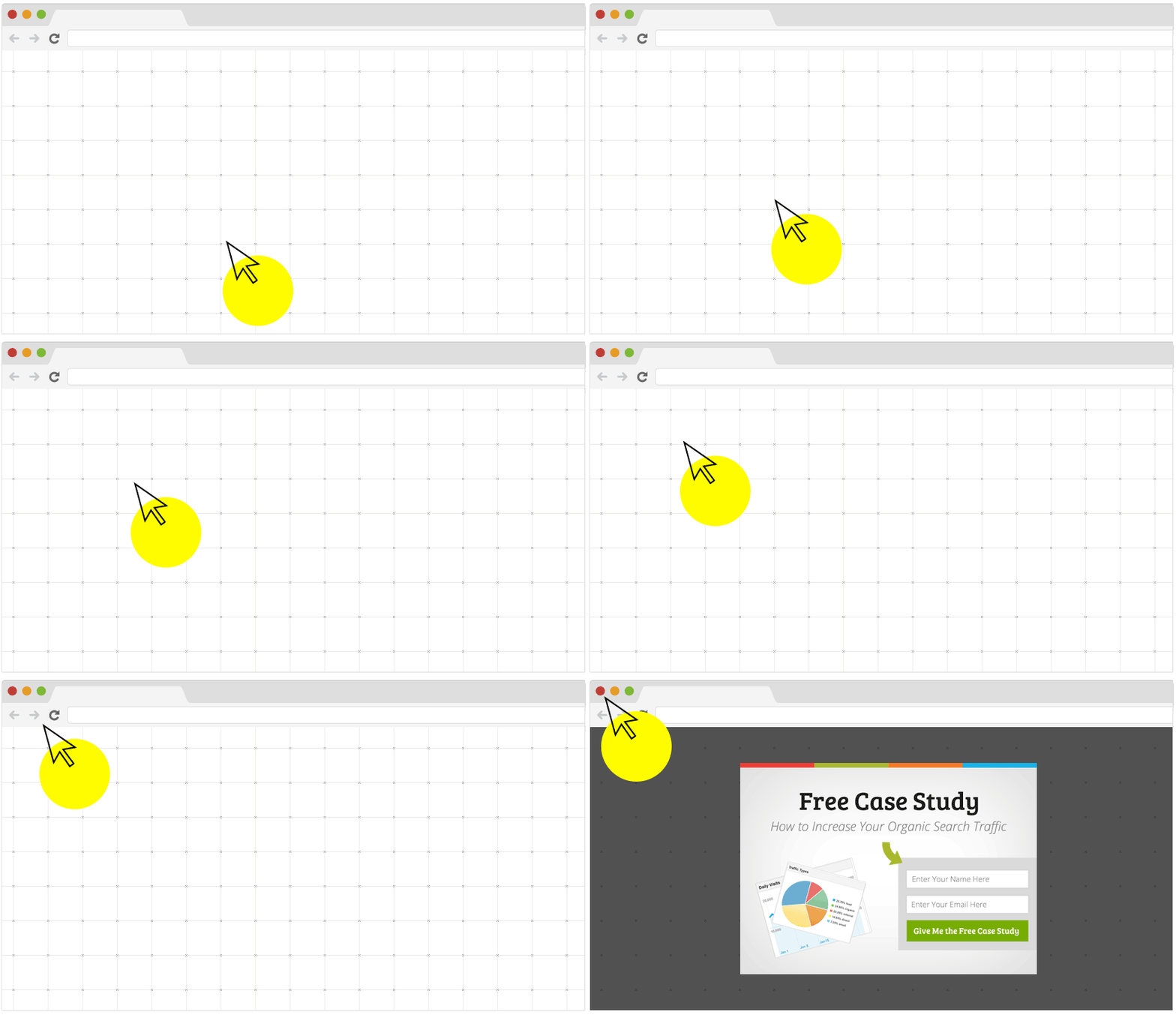
يتم تشغيل النوافذ المنبثقة بنية الخروج عندما يحاول زوارك مغادرة موقعك. نتيجة لذلك، تحتفظ بعدد كبير من الزوار الذين كانوا سيتخلون عن موقعك لولا ذلك. لذا، إذا كنت تعاني من التخلي عن الموقع، فيجب عليك بالتأكيد إنشاء نافذة منبثقة من نوع Lightbox بنية الخروج.
كيفية إنشاء نافذة منبثقة من نوع Lightbox
الآن بعد أن فهمت ما هي النافذة المنبثقة من نوع Lightbox ولماذا قد ترغب في إنشاء واحدة، كيف تنشئ نافذة منبثقة من نوع Lightbox؟ نوصي باستخدام OptinMonster لإنشاء النوافذ المنبثقة الخاصة بك.
OptinMonster هي أداة التحويل رقم 1 في العالم وقد استخدمناها بأنفسنا. OptinMonster تجعل من السهل للغاية إنشاء نوافذ منبثقة قوية تحقق التحويل. ولن تحتاج أبدًا إلى استخدام أي ترميز على الإطلاق.
لقد كتبنا حتى مراجعة كاملة لـ OptinMonster.
يمكنك الاطلاع على ذلك، أو البدء في حملتك الآن. كل ما عليك فعله هو التسجيل في OptinMonster واتباع بقية هذا المقال.
الخطوة #1: إنشاء حملة
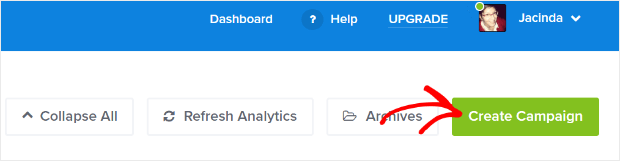
توجه إلى لوحة تحكم OptinMonster الخاصة بك واضغط على زر إنشاء:
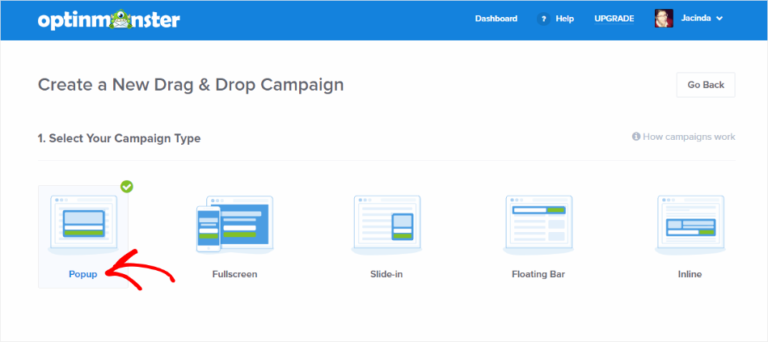
حدد نوع حملة النافذة المنبثقة من نوع Lightbox:
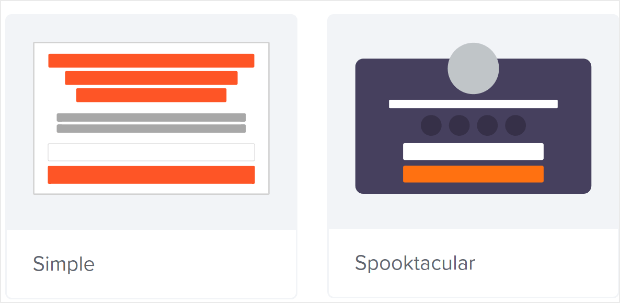
ثم، اختر قالب حملة. يمكنك اختيار أي قالب تريده، لكننا سنختار نوع الحملة البسيطة لهذا البرنامج التعليمي.
الآن، قم بتسمية حملتك. تذكر، اسم الحملة هذا لك ومن المحتمل أن تنشئ مجموعة كبيرة من هذه النوافذ المنبثقة بخيارات استهداف مختلفة. لذا، قم بتسمية الحملة باسم ذي معنى وإلا ستنتهي بك الأمور في ارتباك شديد لاحقًا.
أيضًا، اعتمادًا على خطتك، يمكنك أيضًا استخدام OptinMonster على مواقع متعددة. لذا، حدد موقع الويب الذي تريد عرض حملتك عليه أيضًا.
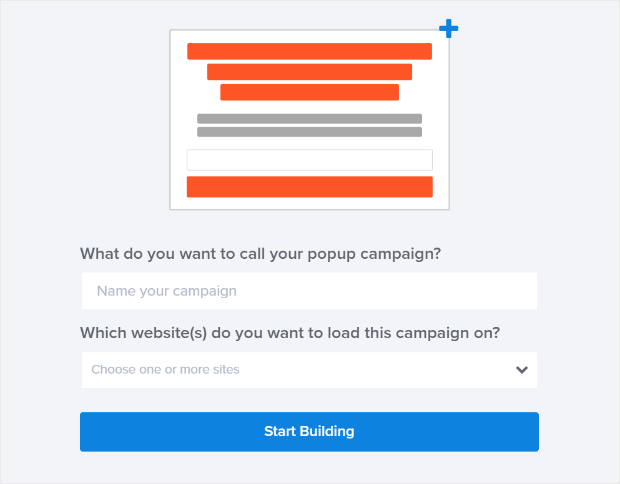
اضغط على ابدأ البناء عند الانتهاء.
الخطوة #2: تحرير النافذة المنبثقة من نوع Lightbox الخاصة بك
مع OptinMonster، ستحصل على منشئ نوافذ منبثقة مرئي بالسحب والإفلات. بمجرد الانتهاء من إنشاء حملتك، ستتمكن من تحرير أدق التفاصيل حول النافذة المنبثقة الخاصة بك. ابدأ بتحرير عنوان النافذة المنبثقة الخاص بك:
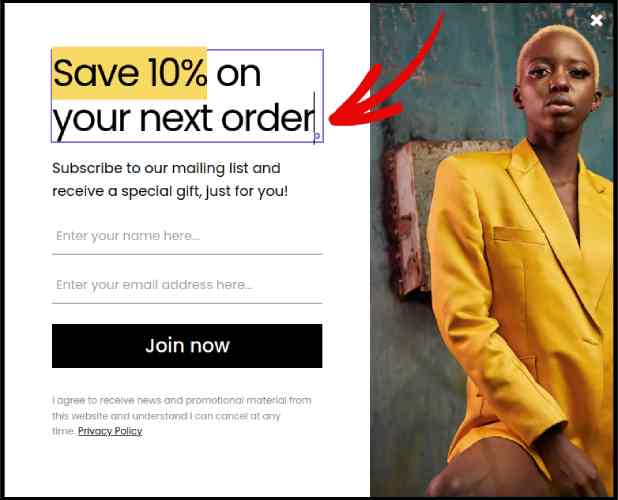
الجزء الأكثر روعة هنا هو أنك تنقر ببساطة على أي نص تريد تعديله وتغييره في مكانه. لا حاجة لملء نموذج أو تعديل أي كود HTML في النافذة المنبثقة.
ثم، اضبط نص زر المظهر الخاص بك لإنشاء دعوة واضحة لاتخاذ إجراء:
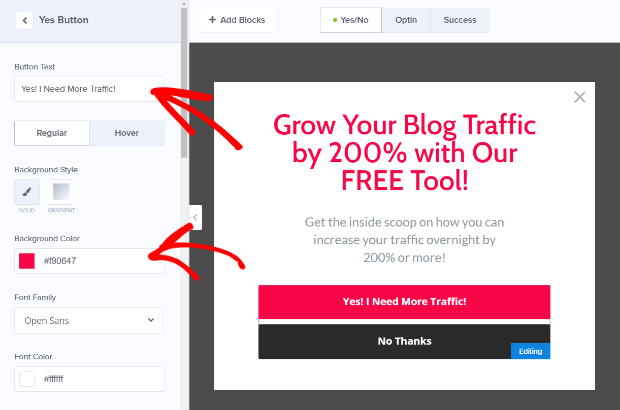
عندما تكون راضيًا عن مظهر النافذة المنبثقة الخاصة بك، يمكنك الانتقال إلى إعدادات أكثر تقدمًا.
الخطوة #3: تعيين قواعد العرض
قواعد العرض مخصصة لتحديد وقت ظهور حملتك على موقعك ومن يراها.
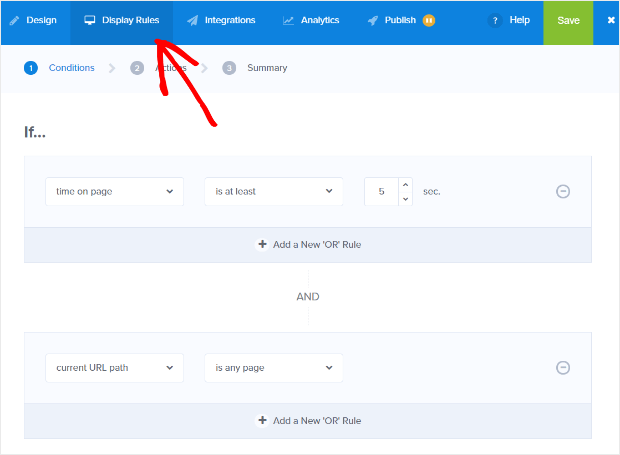
توصيتنا هي تغيير شرط التشغيل إلى نية الخروج:
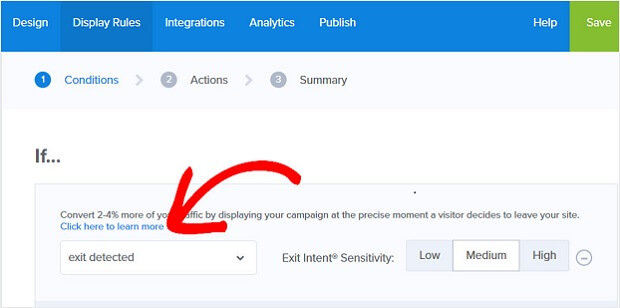
انقر فوق الخطوة التالية لاختيار الإجراء. هنا، نوصي بتعيين عرض عرض الحملة إلى عرض الاشتراك، وتعيين العرض مع تأثير الوحش إلى أي رسوم دخول ترغب فيها، و تشغيل المؤثر الصوتي إلى أي مؤثر صوتي للنافذة المنبثقة الخاصة بك.
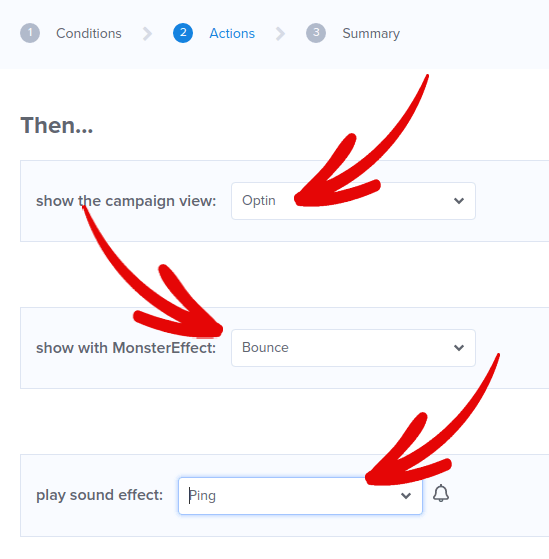
ثم، انقر فوق الزر الخطوة التالية. يمكنك رؤية النطاق الكامل لإعداداتك في علامة التبويب الملخص.
الخطوة #4: إعداد تكامل البريد الإلكتروني الخاص بك
الخطوة التالية هي إعداد تكامل البريد الإلكتروني الخاص بك. انقر فوق إضافة تكامل جديد من علامة التبويب التكاملات وحدد مزود خدمة البريد الإلكتروني الخاص بك:
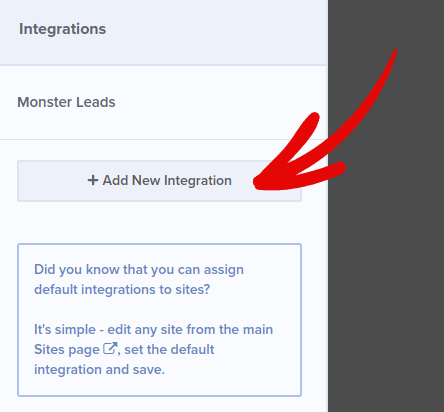
نوصي باستخدام Drip لتسويق البريد الإلكتروني الخاص بك إذا لم يكن لديك بالفعل مزود خدمة بريد إلكتروني.
الخطوة رقم 5: نشر نافذة المنبثقة الخاصة بك
عند إنشاء حملة جديدة، تكون متوقفة مؤقتًا بشكل افتراضي.
انتقل إلى علامة التبويب نشر من القائمة العلوية لرؤية خيارات النشر. ثم، قم بتعيين الحالة إلى نشر وحدد منصة موقع الويب:
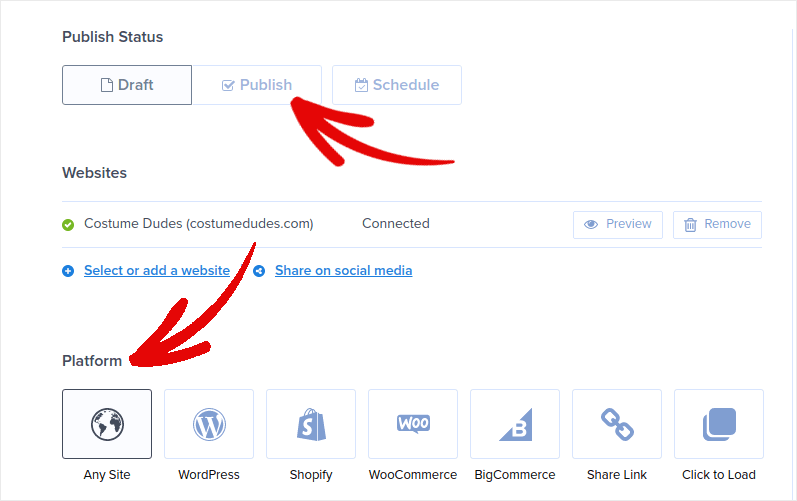
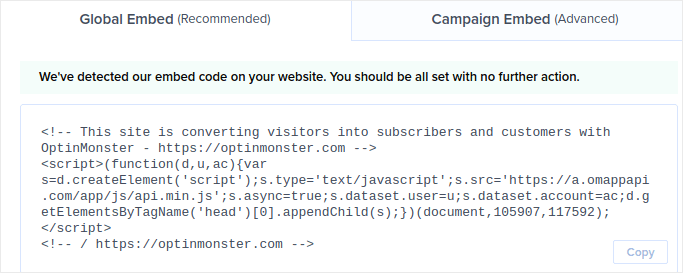
إذا كنت تدير موقع WordPress، فإن إضافة OptinMonster تقوم بالباقي تلقائيًا. الأمر نفسه ينطبق على Shopify و BigCommerce. لأي موقع آخر، انقر فوق أي موقع والصق رمز التضمين في رأس موقع الويب الخاص بك:
وأنت انتهيت!
مكافأة: جمع مشتركين في إشعارات الدفع من النافذة المنبثقة الخاصة بك
تساعدك إشعارات الدفع على زيادة حركة مرور موقعك الإلكتروني وتفاعله تلقائيًا. إشعارات الدفع عبر الويب هي طريقة فعالة لإعادة المستخدمين الذين ربما تخلوا عن جلستهم أو غادروا الموقع. يساعد ذلك في إعادة إشراك المستخدمين عن طريق إخطارهم بالمحتوى الجديد أو العروض أو الأحداث.
تتضمن إشعارات الدفع أيضًا رسائل واضحة وعملية و أزرار دعوة لاتخاذ إجراء، مما يشجع المستخدمين على اتخاذ إجراءات محددة، مثل قراءة مقال أو إكمال عملية شراء أو المشاركة في حدث.
يمكنك تخصيص إشعارات الدفع بناءً على تفضيلات المستخدمين وسلوكهم واهتماماتهم، للتأكد من أن الرسائل ذات صلة وقيمة لكل مستخدم. يجب على المستخدمين الموافقة على تلقي إشعارات الدفع عبر الويب. هذا يضمن عدم اعتبار الرسائل بريدًا عشوائيًا وأنها تُرسل بإذن المستخدمين.
الجزء الأروع هو أنه يمكنك جمع مشتركين في إشعارات الدفع من النافذة المنبثقة للبريد الإلكتروني الخاصة بك. لذا، في حال لم يرغب زوار موقعك في التخلي عن معرف البريد الإلكتروني الخاص بهم، لا يزال بإمكانك جعلهم يشتركون باستخدام إشعارات الدفع عبر الويب.
وهذا ما سنعمل عليه.
الخطوة # 1: اختر خدمة إشعارات الدفع
نوصي باستخدام PushEngage لإرسال إشعارات الدفع عبر الويب.

إليك نظرة سريعة على ما تحصل عليه مع PushEngage:
- حملات آلية عالية التحويل
- خيارات استهداف متعددة و جدولة الحملات
- تتبع الأهداف وتحليلات متقدمة
- اختبار A/B ذكي
- مدير نجاح مخصص
يمكنك البدء مجانًا، ولكن إذا كنت جادًا بشأن تنمية عملك، فيجب عليك شراء خطة مدفوعة. أيضًا، قبل شراء أي خدمة إشعارات دفع، يجب عليك الاطلاع على هذا الدليل حول تكاليف إشعارات الدفع.
وإذا كنت تدير متجرًا عبر الإنترنت، فإن PushEngage يساعدك أيضًا على زيادة مبيعاتك من خلال مساعدتك في إنشاء إشعارات تجارة إلكترونية آلية.
سترى أن PushEngage هو الخيار الأفضل بلا منازع إذا كنت ترغب في زيادة حركة المرور والمشاركة والمبيعات لعملك. وإذا كانت ميزانيتك محدودة، يمكنك دائمًا أن تكون مبدعًا بعض الشيء مع إشعارات الدفع الخاصة بك.
الخطوة رقم 2: إضافة كتلة HTML إلى النافذة المنبثقة الخاصة بك
أولاً، أضف كتلة HTML إلى النافذة المنبثقة الخاصة بك من الشريط الجانبي في OptinMonster.
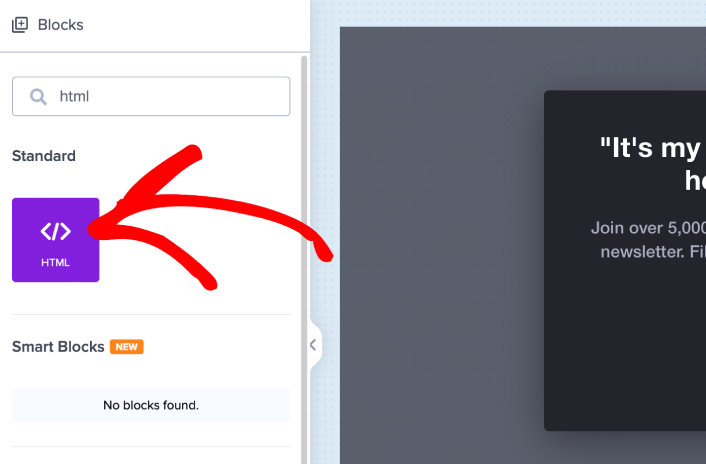
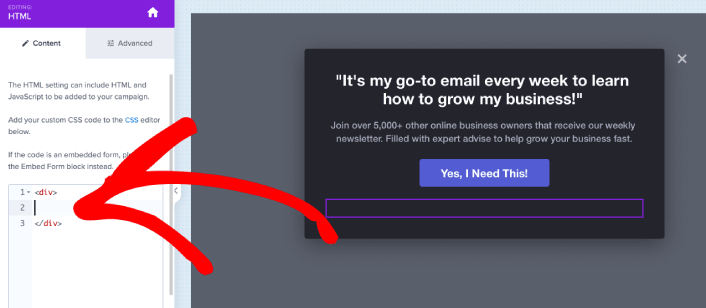
هذا هو المكان الذي سنضيف فيه الرمز لجمع مشتركين إشعارات الدفع. أولاً، الصق الرمز التالي لإنشاء زر قابل للنقر:
<button onclick="subscribeOnClickButton()" style="border: none; width: 100%; padding-left: 15%; padding-right:15%; text-align: center; display: inline-block; color: white;">Get Updates via Push Notifications Instead</button>الصق الكود حيث يُقال لك أنه يمكنك إضافة HTML:
في هذه المرحلة، يجب أن ترى زرًا جديدًا في النافذة المنبثقة الخاصة بك يقول، "الحصول على تحديثات عبر إشعارات الدفع بدلاً من ذلك" أسفل زر الاشتراك في البريد الإلكتروني مباشرةً:
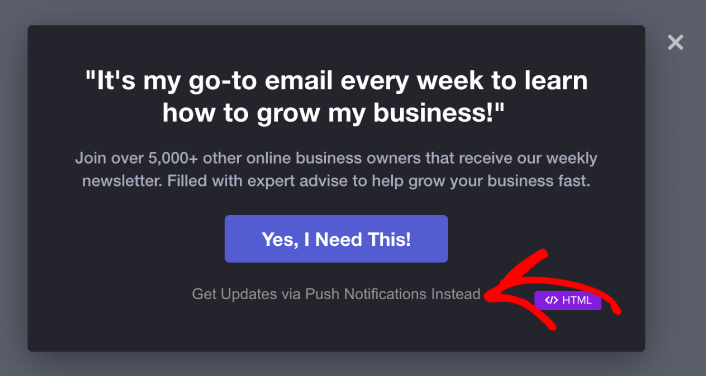
بالطبع، يمكنك اللعب بالأنماط لجعلها تبدو أكثر جاذبية. بعد ذلك، سنجعل الزر يجمع المشتركين في إشعارات الدفع عند النقر عليه.
الخطوة رقم 3: الحصول على رمز الاشتراك من PushEngage
توجه إلى الصفحة الرئيسية لـ PushEngage وانقر على زر البدء:

بعد ذلك، ستحتاج إلى تحديد الخطة المجانية لتجربة PushEngage أو اختيار خطة مدفوعة إذا كنت جادًا بشأن تنمية عملك. تأتي الخطط المدفوعة مع المزيد من خيارات الحملات والقدرة على بناء قوائم مشتركين أكبر.
في لوحة تحكم PushEngage الخاصة بك، انتقل إلى إعدادات الموقع » تفاصيل الموقع وانقر على زر انقر هنا لتعليمات الإعداد. ضمن أي موقع، ستحصل على كود التثبيت الخاص بك:

تحذير: تحتاج إلى نسخ الكود الذي تحصل عليه من لوحة التحكم الخاصة بك. الكود فريد لكل مستخدم PushEngage. لن تتمكن من نسخ الكود الموجود في الصورة وجمع المشتركين في إشعارات الدفع.
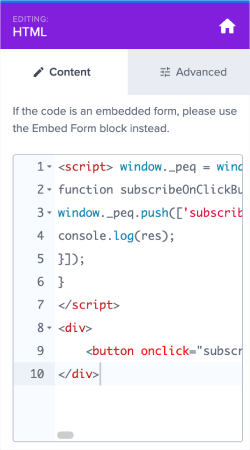
بمجرد حصولك على الرمز في لوحة تحكم PushEngage الخاصة بك، خذ النص البرمجي الثاني وأضف إليه بعض التعليمات البرمجية الإضافية. يجب أن يبدو الرمز النهائي الخاص بك شيئًا كهذا:
<script src="https://clientcdn.pushengage.com/core/02a6e92667ae2279fcba8932356c1d93.js" async></script>
<script> window._peq = window._peq || [];
function subscribeOnClickButton(){
window._peq.push(['subscribe',{}.pe,function(res){
console.log(res);
}]);
}
</script>
الخطوة رقم 4: إضافة رمز الاشتراك الخاص بك إلى كتلة HTML في النافذة المنبثقة الخاصة بك
أضف هذا الرمز إلى كتلة HTML في OptinMonster وأنت انتهيت!
عندما تنتهي، فقط اضغط على زري حفظ و نشر.
إذا قمت بفحص موقعك، يجب أن ترى الآن النافذة المنبثقة التي تجمع مشتركين في البريد الإلكتروني وإشعارات الدفع:
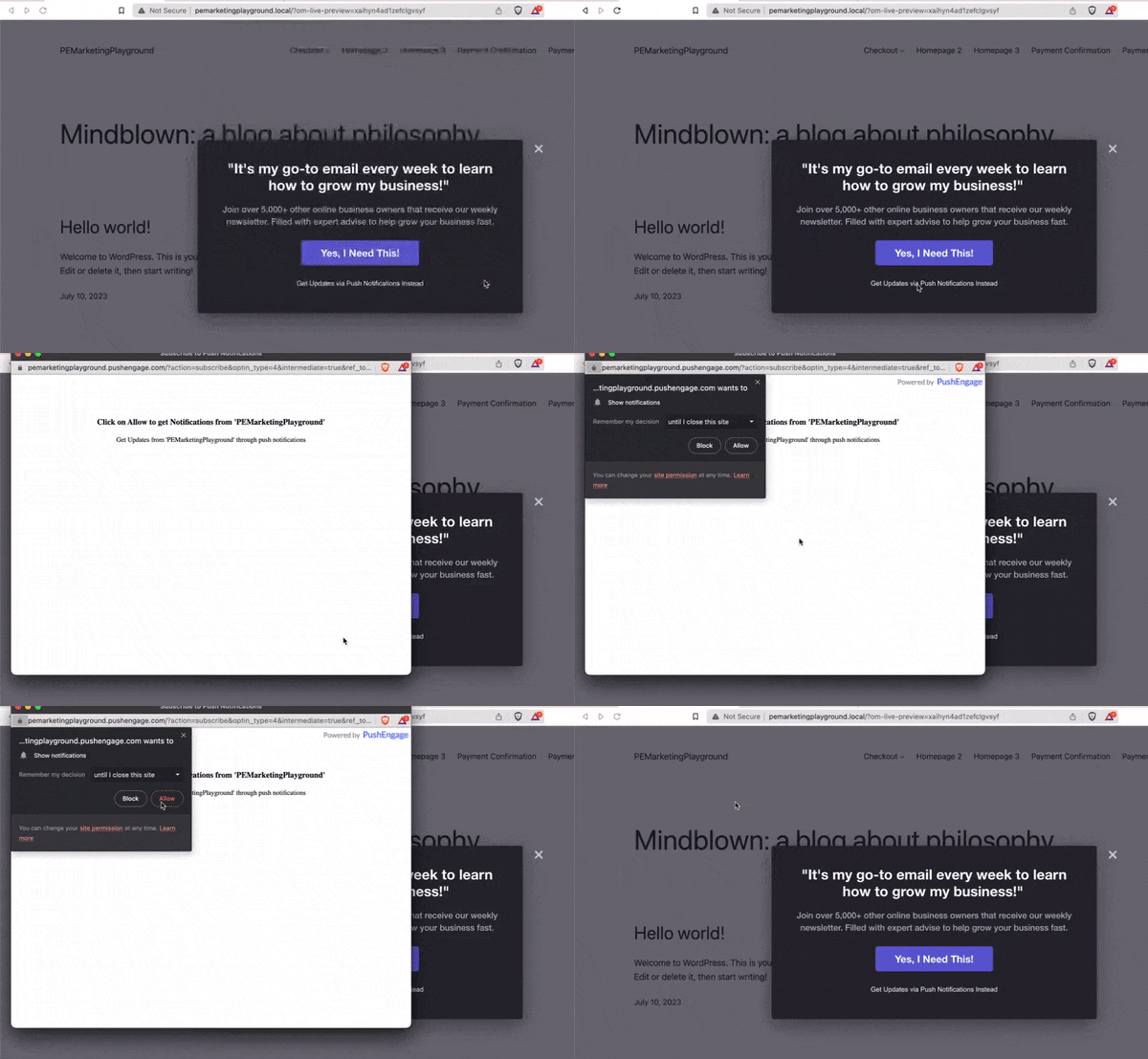
وبهذه الطريقة، فإنك تجمع مشتركين في الدفع من النافذة المنبثقة الخاصة بك. تأتي إشعارات الدفع مع وحدات نافذة منبثقة خاصة بها. لكنها صعبة التخصيص بعض الشيء. لذا، يمكنك إنشاء نوافذ منبثقة جميلة باستخدام OptinMonster ثم استخدامها كنوافذ منبثقة لإشعارات الدفع الخاصة بك.
ماذا تفعل بعد إنشاء نافذة منبثقة
هذا كل شيء لهذا اليوم أيها الأصدقاء!
أخبرنا إذا كان هذا المقال قد ساعدك. يمكن أن يساعدك إنشاء نوافذ منبثقة على موقعك في تحويل حركة المرور الخاصة بك إلى مشتركين في البريد الإلكتروني وعملاء محتملين حقيقيين. ونحن نوصي بشدة أن تبدأ في إنشاء نوافذ منبثقة على الفور.
وإذا كنت تبحث عن طريقة ميسورة التكلفة لزيادة زياراتك، نوصي باستخدام إشعارات الدفع. يمكن أن تساعدك إشعارات الدفع في جلب المزيد من الزيارات المتكررة وتفاعل الموقع. يمكنك أيضًا إنشاء حملات إشعارات دفع آلية تولد مبيعات.
غير مقتنع؟ تحقق من هذه الموارد:
- 7 استراتيجيات ذكية لزيادة تفاعل العملاء
- هل إشعارات الدفع فعالة؟ 7 إحصائيات + 3 نصائح خبراء
- كيفية إعداد إشعارات الدفع للسلات المتروكة (دليل سهل)
نوصي باستخدام PushEngage لإنشاء حملات إشعارات الدفع الخاصة بك. PushEngage هو البرنامج رقم 1 لإشعارات الدفع في العالم. لذا، إذا لم تكن قد فعلت ذلك بالفعل، ابدأ مع PushEngage اليوم!


