
WooCommerce'ta ürün aramanızı iyileştirmenin bir yolunu mu arıyorsunuz?
WooCommerce, ölçeklenebilir bir çevrimiçi mağaza oluşturmak için harika bir yoldur. Ancak ürün araması açıkçası yetersizdir. WooCommerce'taki varsayılan ürün arama özelliği nedeniyle TONLARCA satış kaçırıyor olabilirsiniz.
Peki, ne yapabilirsiniz? Bu makalede, tek bir kod satırı kullanmadan WooCommerce ürün aramasını güçlendirmenin çok basit, kolay yollarını size adım adım anlatacağız. Ve bunu 10 dakika veya daha kısa sürede yapacağız.
Kulağa hoş geliyor? Hadi dalalım.
PushEngage, dünyada 1 numaralı anlık bildirim eklentisidir. Ücretsiz alın!
WooCommerce'ta Ürün Aramanızı Neden İyileştirmelisiniz?
WooCommerce, kutudan çıktığı gibi varsayılan WordPress aramasını kullanır. Ve WordPress birçok harika özellikle birlikte gelse de, arama özelliği e-ticaret uygulamaları için pek uygun değildir.
Örneğin, ürün özniteliklerini dikkate almaz, arama sonuçlarınızı kontrol etmenize olanak tanımaz, herhangi bir arama verisi toplamaz ve daha birçok eksikliği vardır. Arama motoru kullanılabilirliğini iyileştirmek için bir WooCommerce ürün arama eklentisi kullanmanızı öneririz.
Doğru arama eklentisiyle şunlardan arama sonuçları alabilirsiniz:
- Özel Alanlar (gönderi meta verileri) ACF Alanları dahil
- E-ticaret ürün detayları, varyasyonları ve öznitelikleri
- Kategoriler, Etiketler, Özel Taksonomiler
- Kısa kod çıktıları
- Yüklenen belgeler (PDF, .docx, .txt, vb.)
- Özel veritabanı tablo içeriği
Ve tabii ki, gönderi başlıklarında ve içeriklerinde de arama yapabilirsiniz.
Bir alternatif, ürün sayfalarınızda bir AJAX ürün arama eklentisi kullanmak olabilir. Bir AJAX arama eklentisi, sitenizdeki Amazon otomatik tamamlama gibi çalışır. Ama sitenizde özel bir arama motoru oluşturabilirken neden bununla yetinesiniz?
Bir web ziyaretçisi sitenizde bir şey aradığında, sizden tam olarak ne istediklerini size kelimenin tam anlamıyla söylerler. Ancak çoğu WordPress arama çubuğu derinlemesine arama yapamaz. Ve kesinlikle ziyaretçilerinizin ne aradığını anlamanıza yardımcı olamazlar.
Web sitenizin ziyaretçilerine bağlamsal arama sonuçları sunan özel bir arama motoru oluşturmanıza yardımcı olabilecek bir arama eklentisi kullanmaya başlamanız gerekiyor.
SearchWP kullanmanızı öneririz.
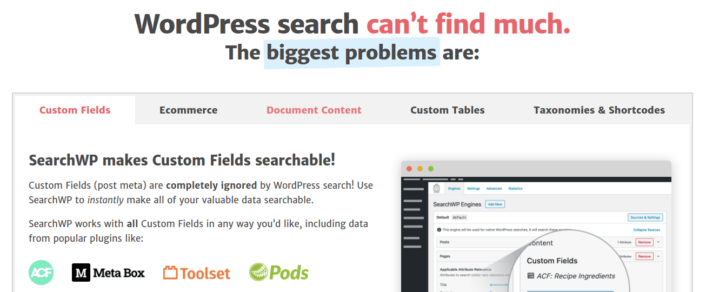
SearchWP, bildiğimiz en iyi WooCommerce arama eklentilerinden biridir.
Uygun fiyatlarla çok çeşitli özellikler elde edersiniz. Aslında, SearchWP, listedeki diğer tüm eklentilerin yapabildiği her şeyi, bir ürün filtresi oluşturmanın yanı sıra yapar.
En harika yanı, SearchWP'nin ayrıntılı analizler tutarak web sitesi ziyaretçilerinizin tam olarak ne aradığını size söylemesidir. Bu nedenle, sitenizin şu anda eksik olduğu içeriği oluşturmanıza ve sitenizde daha fazla trafik, etkileşim ve satış elde etmenize de yardımcı olur.
Devam edin ve SearchWP hakkındaki tam incelememizi okuyun ve bitirdiğinizde, devam edin ve eklentiyi yükleyin.
SearchWP'yi Kurma ve WooCommerce'ta Ürün Aramanızı Yükseltme
SearchWP, kurulumu ve kullanımı en kolay arama eklentilerinden biridir. Eklentiyi indirdikten ve kurduktan sonra, bir kurulum onayı alırsınız:

Bundan sonra, eklentinizi kurmak için Ayarlar » SearchWP bölümüne gidebilirsiniz. Ardından 'Lisans' menü seçeneğine tıklayın:
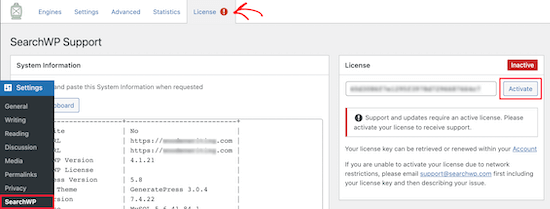
'Lisans' kutusuna lisans anahtarınızı girin ve 'Etkinleştir' düğmesine tıklayın:
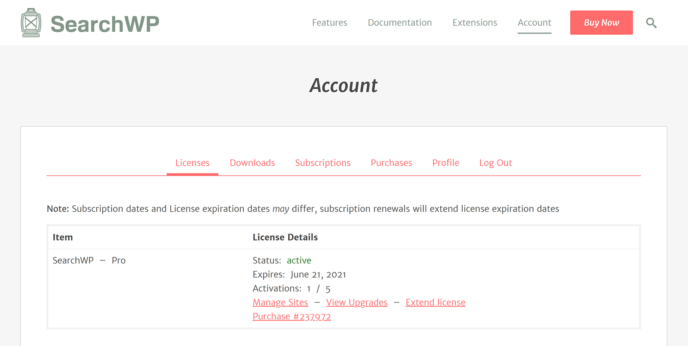
Ayarlar hakkında yakında daha fazla konuşacağız. Ama başlamak için yapmanız gereken tek şey bu.
SearchWP ile, aramanızı daha fazla özelleştirebilmeniz için önce site genelinde bir arama motoru oluşturmanız gerekir.
Ayarlar » SearchWP » Motorlar bölümüne gidin:
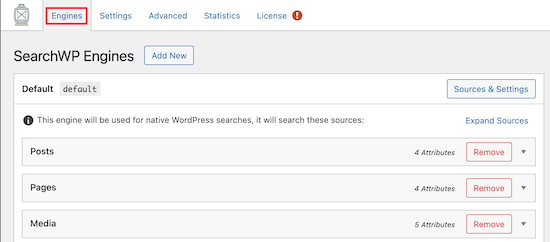
Açılır menülerine tıklayarak farklı içerik türlerini dahil ederek arama motoru ayarlarınızı ayarlayabilirsiniz. Ve kaydırıcıları kullanarak arama motorunuzun her içerik türüne ne kadar alaka düzeyi atadığını kontrol edebilirsiniz:
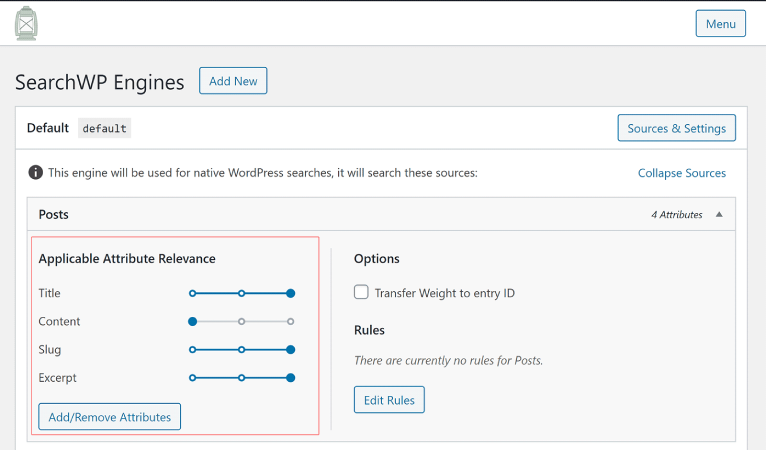
Örneğimizde, arama sonuçları açısından alaka düzeyi açısından gerçek içeriğe göre Gönderi Başlığı, Takma Ad ve Özet'e değer veriyoruz.
İşiniz bittiğinde, 'Kaydet'e basın.
Az önce oluşturduğunuz arama motoruyla ilgili gerçekten harika bir şey, Tam Arama Eşleşmeleri yerine Anahtar Kelime Köklerini kullanmasıdır. Bunun anlamı, kullanıcılarınızın içeriğinizi istedikleri şekilde arayabilecekleri ve içeriğiniz tam arama ifadesini içermese bile bağlamsal olarak alakalı sonuçlar alacaklarıdır!
WooCommerce'ta Ürün Aramasını Güçlendirme
Sonra, WooCommerce'ta ürün aramasını iyileştirmek için neler yapabileceğimize bakalım.
#1. WooCommerce'ta Ürün Aramasını WooCommerce Ürünleriyle Sınırlayın
SearchWP eklentisini yükleyip etkinleştirdikten sonra, yapmanız gereken ilk şey, ürün arama sonuçlarını herhangi bir gönderi türünü görüntülemek yerine yalnızca WooCommerce ürünleriyle sınırlamaktır.
Başlamak için Motorlar altındaki Kaynaklar ve Ayarlar düğmesine tıklayın.
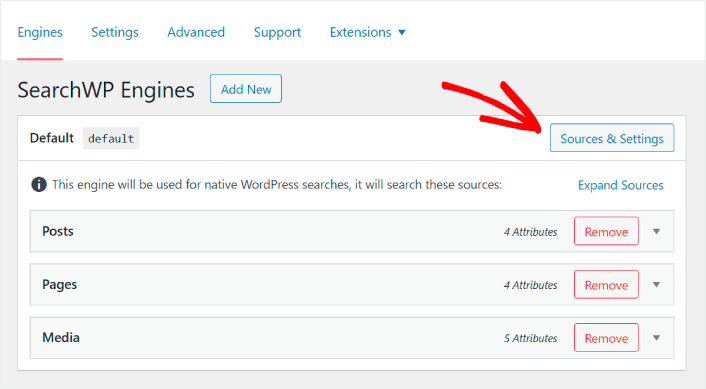
Burada, Ürünler dışındaki tüm arama kaynaklarının yanındaki kutuları işaretini kaldırın.
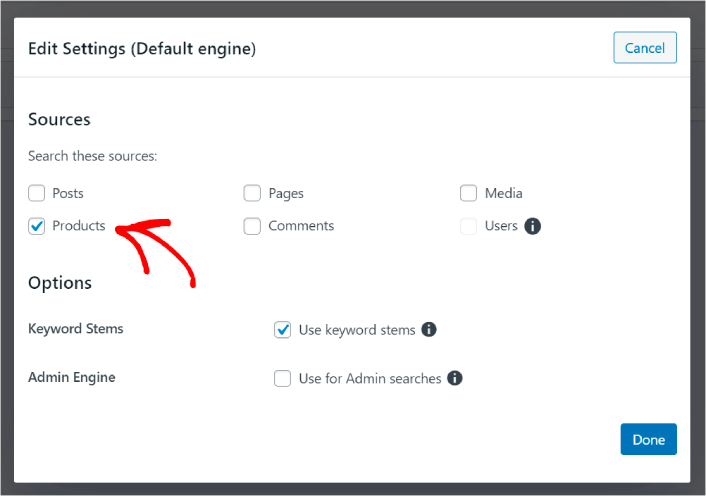
Bitirdiğinizde, değişiklikleri kaydetmek için Bitti düğmesine basın. Ve işiniz bitti!
#2. Ürün Özniteliklerine Göre Aramayı Etkinleştirin
Ayrıca tüm WooCommerce ürünleri için ürün özniteliklerini aranabilir hale getirelim. WooCommerce bu öznitelikleri zaten özel alanlar olarak saklar. Biz sadece onları aranabilir hale getireceğiz.
Ürünler için zaten bir arama motoru oluşturdunuz. Bu nedenle, son adımdan devam edebilirsiniz. Özel alan eklemek için Öznitelikleri Ekle/Kaldır düğmesine tıklayın.
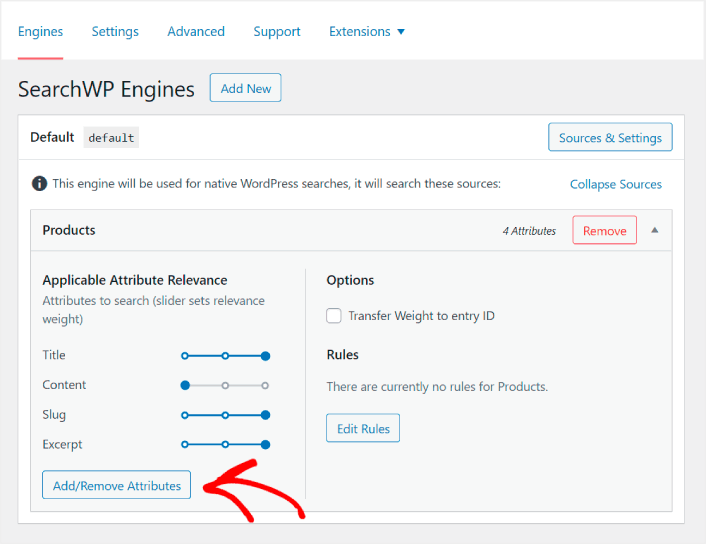
Ardından, Özel Alanlar açılır menüsünden Herhangi Bir Meta Anahtarı seçeneğini seçin.
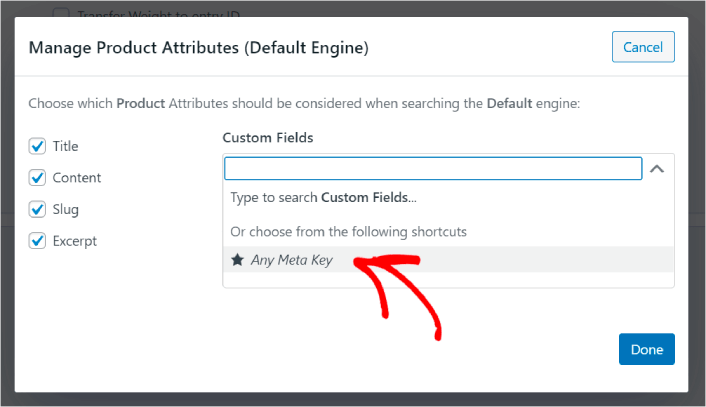
Bu, özel alanları otomatik olarak aranabilir hale getirmenizi sağlar. Ve şimdi, ürün arama motorunuz ürün öznitelikleri gibi özel alanlara göre arama yapabilir.
#3. Ürün Kategorisine Göre Aramayı Etkinleştir
Ürün özniteliklerini nasıl aranabilir hale getireceğinizi zaten gördünüz. Peki ya kategoriler? Müşterileriniz bir ürün aramıyor da belirli bir kategoride bir şey mi arıyorlarsa?
Çok kolay. Önceki ipucundan devam edin. Aynı ekranda Ürün Özniteliklerini Yönet altında, Taksonomiler etiketli başka bir açılır menü göreceksiniz. Listeden Ürün Kategorileri'ni seçmeniz yeterli.
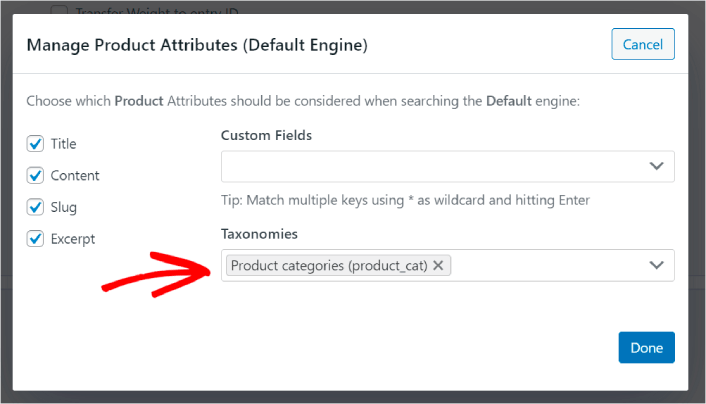
Ve şimdi, arama motorunuz kullanıcıların kategoriye göre arama yapmasına izin verecek.
#4. Ürün Etiketlerine Göre Aramayı Etkinleştir
Henüz bitirmediniz. Aynı ekranda, Taksonomiler açılır menüsüne daha fazla taksonomi ekleyebilirsiniz. Müşterileriniz bir ürün veya genel bir kategori aramıyorlarsa? Mavi ve beyaz Air Jordan veya spor ayakkabı istediklerini bilmiyorlar da bunun yerine mavi ve beyaz spor ayakkabı mı arıyorlarsa?
İşte o zaman ürün etiket aramalarını etkinleştirmeniz gerekir.
Taksonomiler altında, Ürün Etiketleri'ni de seçin.
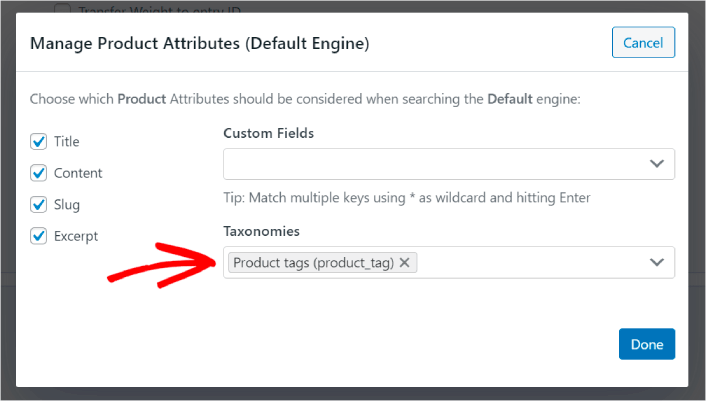
WooCommerce'deki ürün aramanızın ürün etiketlerini de dikkate almasına izin vermek, ürünleri aramak için yepyeni bir yol sunar. Bahsetmeye gerek yok, müşterilerinizin aradıklarını çok daha hızlı bulmalarına da yardımcı olur.
#5. Ürün SKU'larını Aranabilir Hale Getir
Son olarak, arama motorunu güçlendirmek için son bir özel alan ekleyeceğiz. Ürün SKU aramalarına da izin vereceğiz. Stok Tutma Birimleri (SKU'lar), e-ticaret işletmelerinin farklı ürünleri veya hatta benzer ürünleri hızlı bir şekilde tanımlamaları için bir yoldur.
Bir perakende satış noktasında, SKU genellikle bir barkod olur. Bu şekilde, ürüne bakmadan ürün varyantını, boyutunu, fiyatını, rengini, türünü ve üreticisini hızlı bir şekilde tanımlarsınız.
Çoğunlukla, SKU'lar WooCommerce'de envanter yönetimi için kullanılır. Ancak dropshipping, affiliate ve perakende sitelerinin ürün açıklamalarında SKU'larını görüntülemeleri de yaygın bir uygulamadır.
Bu nedenle, ürün SKU'larını aranabilir hale getirmek için tek yapmanız gereken Ürün Öznitelikleri ayarlarınıza başka bir Özel Alan eklemektir. Sadece ‘_sku’ yazın ve SearchWP geri kalanını otomatik olarak halledecektir.
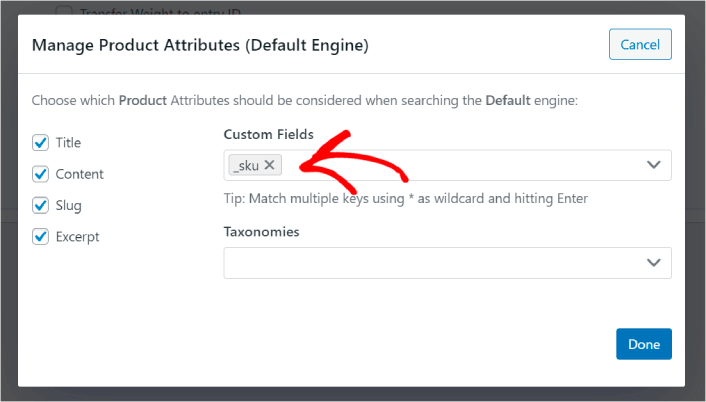
Ve hazırsınız!
WooCommerce'de Ürün Aramasını İyileştirdikten Sonra Ne Yapmalı
WooCommerce'ta ürün aramasını iyileştirdiğinize göre, tüm ürünleriniz para kazanmaya hazır. Şimdi sıra içeriklerinizden trafik, etkileşim ve satış getirmeye odaklanmakta.
Ve trafik, etkileşim ve satış elde etmenin yeni yollarını arıyorsanız, anlık bildirimler siteniz için süper faydalı olabilir.
Eğer %100 ikna olmadıysanız, anlık bildirimleri etkili bir şekilde nasıl kullanacağınıza dair bu kaynaklara göz atmalısınız:
- Müşteri Etkileşimini Artırmak İçin 7 Akıllı Strateji
- Anlık Bildirimler Etkili mi? 7 İstatistik + 3 Uzman İpucu
- Terk Edilmiş Sepet Anlık Bildirimleri Nasıl Ayarlanır (Kolay Eğitim)
- Sitenize Bir Web Bildirimleri WordPress Eklentisi Nasıl Eklenir
Anlık bildirim kampanyalarınızı oluşturmak için PushEngage'ı kullanmanızı öneririz. PushEngage, dünyanın 1 numaralı anlık bildirim yazılımıdır. Bu nedenle, henüz yapmadıysanız, bugün PushEngage'ı kullanmaya başlayın!


