
Zoho sitenize anlık bildirim eklemenin bir yolunu mu arıyorsunuz?
Bu gerçekten harika bir karar.
Anlık bildirimler, otomatik olarak ve çok az çabayla çok fazla trafik, etkileşim ve satış oluşturmanıza yardımcı olabilir. Ve bir Zoho sitesine anlık bildirim eklemek gerçekten çok kolay. Bu nedenle, bu gerçekten hızlı bir kazançtır.
Bu makalede, daha önce hiç yapmamış olsanız bile Zoho'ya anlık bildirimleri nasıl ekleyeceğinizi göstereceğiz.
Bu makale için, Zoho web sitenizde anlık bildirimleri ayarlamak üzere PushEngage'ı kullanacağız. PushEngage, dünyadaki 1 numaralı anlık bildirim yazılımıdır. Bu nedenle, kampanyalarınız emin ellerde olacaktır.
Ancak PushEngage kullanmıyor olsanız bile, bu işlem diğer satıcılar için oldukça benzer olmalıdır.
Hadi başlayalım.
Zoho'ya Anlık Bildirim Nasıl Kurulur
Zoho'ya anlık bildirim kurmak gerçekten zor değil. Sadece bu adımları izleyin ve bu makalenin sonunda, bunun gibi sitenizden anlık bildirimler gönderebilmelisiniz:
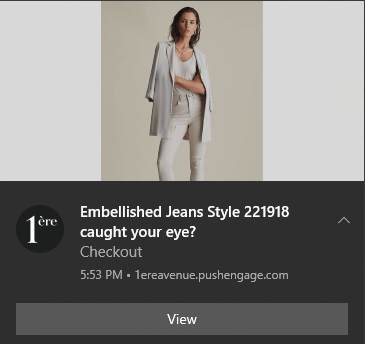
Ve anlık bildirimlerin gücünden yararlanmak için Zomato gibi dev olmak zorunda değilsiniz. Çok az trafiğe sahip küçük bir işletme sitesi işletiyor olsanız bile aynı şeyi çok etkili bir şekilde yapabilirsiniz.
Hadi başlayalım.
Adım #1: PushEngage Hesabınızı Kurun
PushEngage ana sayfasına gidin ve Başlayın düğmesine tıklayın:

PushEngage'ı denemek için ücretsiz planı seçebilir veya işletmenizi büyütme konusunda ciddiyseniz ücretli bir planı tercih edebilirsiniz. Ücretli planlar daha fazla kampanya seçeneği ve daha büyük abone listeleri oluşturma olanağı ile birlikte gelir.
Bir hesap için kaydolduktan sonra, PushEngage kontrol paneline gidin ve Ayarlar » Site Ayarları » Kurulum Ayarları'na gidin:
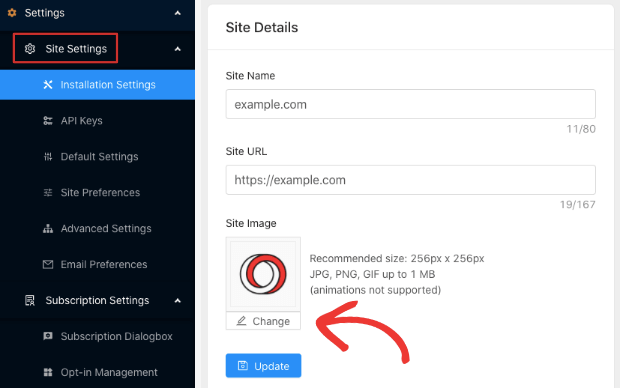
Burada site ayrıntılarınızı ve markanızı yapılandırırsınız. Anlık bildirimleriniz için bir logo ve site URL'si ayarlayın. Anlık bildirimlerinizi doğru bir şekilde test edebilmek için bunu şimdi yapmalısınız.
Adım #2: PushEngage'dan Kurulum Kodunu Alın
Ardından, PushEngage kontrol paneline gitmeniz ve kurulum kodunu almanız gerekecek. Ayarlar » Site Ayarları » Kurulum Ayarları'na gidin:
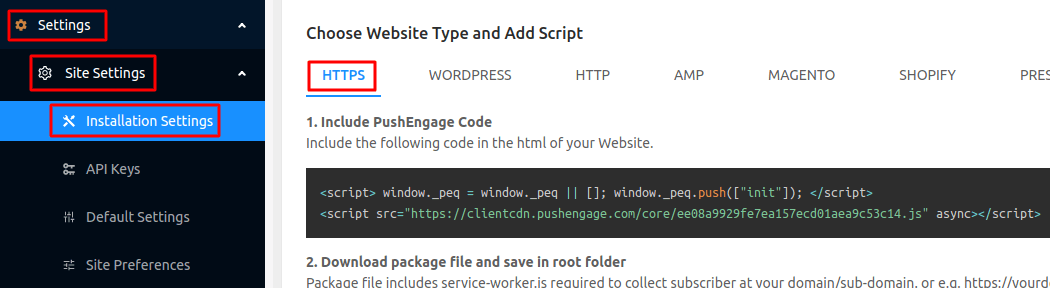
Sitenizde bir SSL sertifikası yüklü olup olmadığına bağlı olarak, kurulum kodunuzu almak için HTTP sekmesine veya HTTPS sekmesine gidin.
Bu kodu kopyalayın. Daha sonra ihtiyacınız olacak.
3. Adım: Kurulum Kodunu Zoho Sitenize Yerleştirin
Zoho Kontrol Panelinize giriş yapın ve Ayarlar:'ya tıklayın:
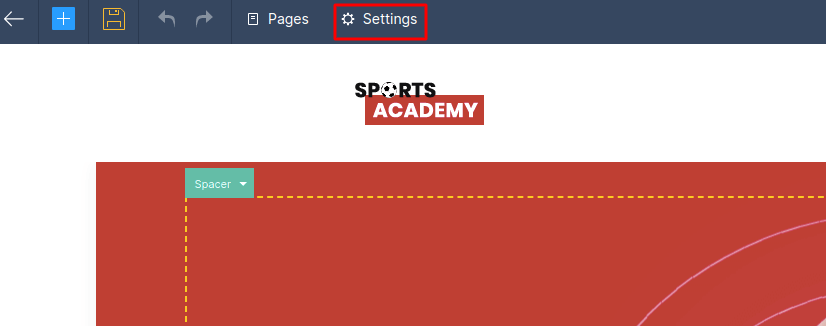
Ardından, Genel » Üst ve Alt Bilgi Kodu'na gidin:
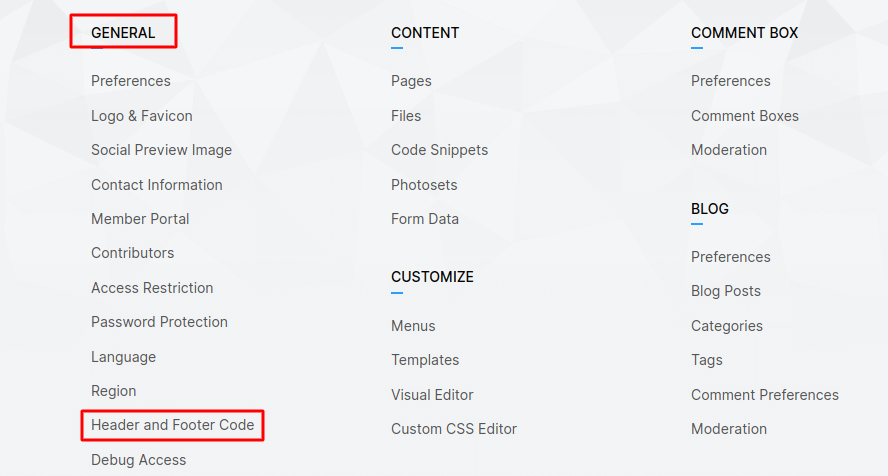
Ve kod düzenleyicide, PushEngage kod parçacığınızı Üst Bilgi Kodu altına yapıştırın:
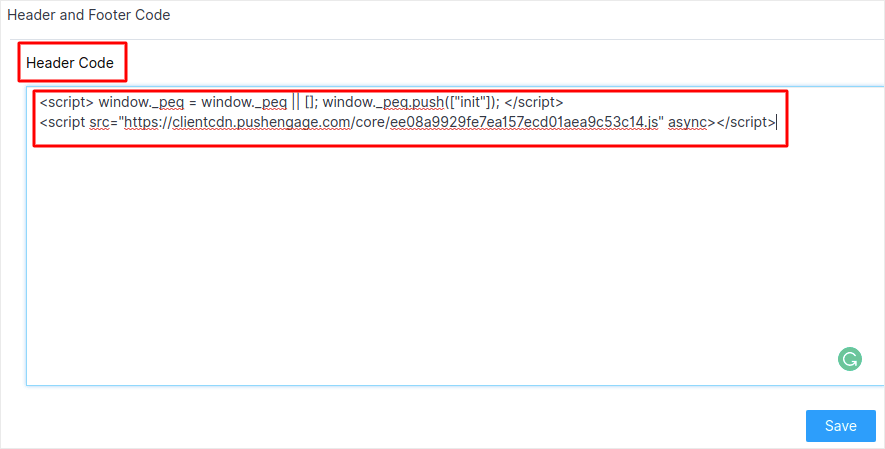
İşiniz bittiğinde, Kaydet'e basın.
Adım #4: PushEngage Onayını Yapılandırma
Son olarak, PushEngage kontrol panelinizde Ayarlar » Abonelik Ayarları » Abonelik İletişim Kutusu » Düzenle'ye gidin:
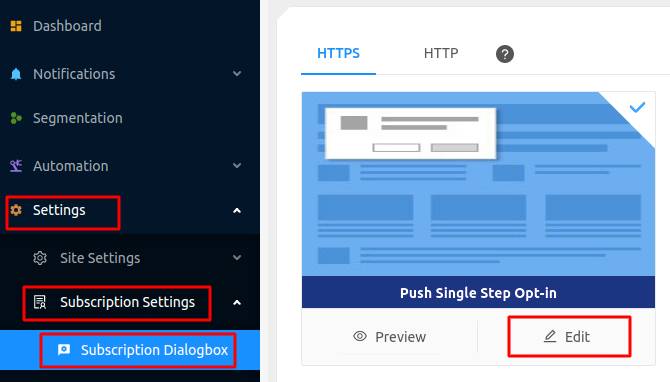
Buradan anlık bildirim kabul isteğinizi özelleştirebilirsiniz. Bu konuda yardıma ihtiyacınız varsa, özel bir anlık bildirim kabul isteği oluşturma hakkındaki bu makaleye göz atmalısınız.
Biraz ilhama ihtiyacınız varsa, yüksek dönüşüm sağlayan anlık bildirim kabul istekleri hakkındaki bu makaleye göz atabilirsiniz.
Adım #5: Hoş Geldin Bildirimi Oluşturma
İsteğe bağlıyı ayarlamayı bitirdiğinizde siteniz abone toplayabilir.
Ancak anlık bildirimlerinizin düzgün çalışıp çalışmadığını nasıl anlarsınız?
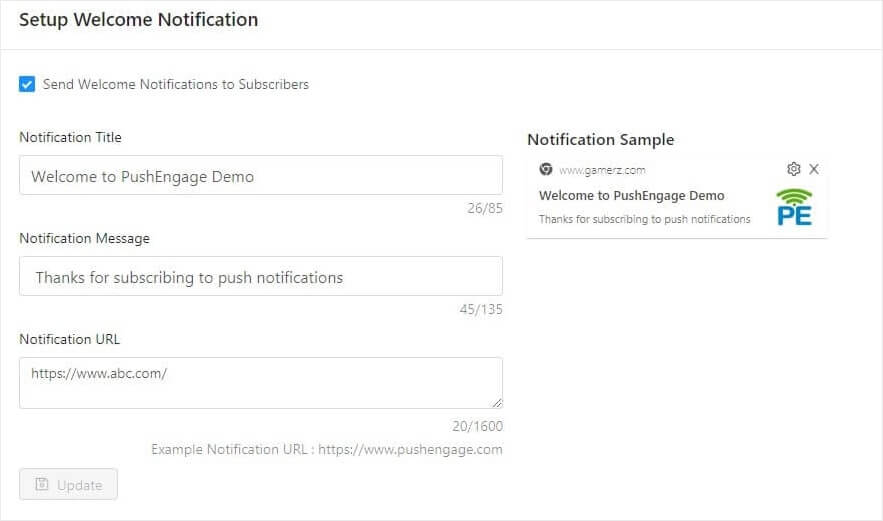
Kurulumunuzun sorunsuz ilerlediğini test etmek için bir hoş geldin anlık bildirimi oluşturmanızı öneririz. Hoş geldin bildirimi, yeni bir aboneye aboneliğini onaylamak ve onları hoş karşılamak için gönderdiğiniz bir anlık bildiridir.
Ayarlar » Site Ayarları » Kurulum Ayarları bölümüne gidin ve hoş geldin mesajınızı yapılandırın:
Son olarak, sitenize geri dönün ve her şeyin sorunsuz çalışıp çalışmadığını test etmek için kendi anlık bildirimlerinizi seçin.
Ve hepsi bu kadar!
Zoho sitenizde anlık bildirimleri başarıyla kurdunuz. PushEngage kontrol panelinize geri dönme ve anlık bildirim kampanyalarınızı oluşturmaya başlama zamanı.
Sonuç
Bu kadar, millet!
Anlık bildirimlere yeni başlıyorsanız, yayına geçmeden önce kapsamlı bir anlık bildirim testi sürecini izlemelisiniz. Ziyaretçileriniz bunları görmeden ve bozuk bir kullanıcı deneyimi hakkında şikayet etmeye başlamadan önce yaygın sorunları gidermenize yardımcı olacaktır.
Ve henüz yapmadıysanız, devam edin ve PushEngage'ı deneyin. PushEngage, dünyada 1 numaralı anlık bildirim hizmetidir. Bu nedenle, işinizi büyütme konusunda ciddiyseniz, PushEngage'a yatırım yapmalısınız.


