
Looking for a quick guide to add local business Schema in WordPress?
If you’re running a brick and mortar business and marketing on search engines to get more footfalls to your store, then local business Schema is going to be super helpful for you. But, how do you do it?
Isn’t Schema a lot of code snippets? Do you need to write code to add Schema to your site? Should you hire a developer?
The short answer is: No!
You can simply install a WordPress plugin to add local business Schema. And in this article, we’re going to show you how.
Давайте начнем.
Step #1: Select a Local Business Schema WordPress Plugin
Before you can add local business Schema to your WordPress site, you need to pick a WordPress plugin. We recommend using All In One SEO.

All in One SEO (AIOSEO) — один из самых признанных SEO-плагинов в сообществе WordPress. Исходная версия была полностью переработана с добавлением множества новых функций и надстроек. Так что, если вы использовали AIOSEO в прошлом, вам нужно снова проверить плагин.
AIOSEO не только обладает мощными SEO-функциями, достаточными для внедрения последних лучших практик SEO, но и предоставляет расширенные настройки SEO для решения конкретных проблем SEO прямо из коробки. Это включает:
- Модули локального SEO для малого бизнеса с местной аудиторией
- SEO для WooCommerce для интернет-магазинов
- SEO-оптимизатор внутри вашего редактора WordPress
- Умные карты сайта для мгновенной индексации в поисковых системах
- Плагин Schema, чтобы ваш контент ранжировался в расширенных сниппетах
И многое другое!
Короче говоря: All in One SEO позволяет вам правильно настроить SEO для WordPress, никогда не нанимая эксперта. И если верить 3+ миллионам клиентов All in One SEO (включая нас), AIOSEO — это фантастическое программное обеспечение для поисковой оптимизации для любых SEO-требований.
It’s perfect for bloggers and small business owners because it helps you take care of SEO without having to hire a professional.
Remember: You can only integrate the Google Search Console with All in One SEO. If you need more detailed website analytics, you should consider installing the MonsterInsights plugin to install Google Analytics to your WordPress site.
Step #2: Add Location Schema (Single Location Business)
Once you’ve installed AIOSEO, go to the AIOSEO menu » Local SEO. This will open a page where you can input your location and business information.
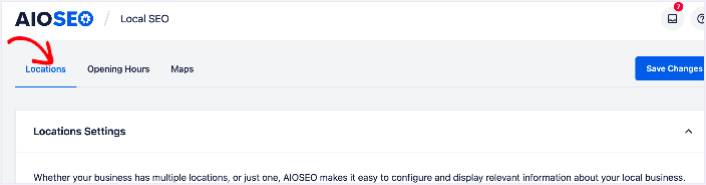
Next, you need to select whether your business is in one location or many.
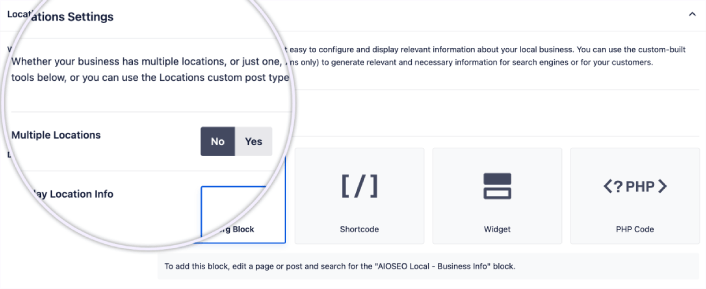
If yours is a single-location business, leave the Multiple Locations toggle set to No.
You can also choose whether you want your location information to be displayed as a:
- Gutenberg Block
- Shortcode
- Виджет
- PHP code
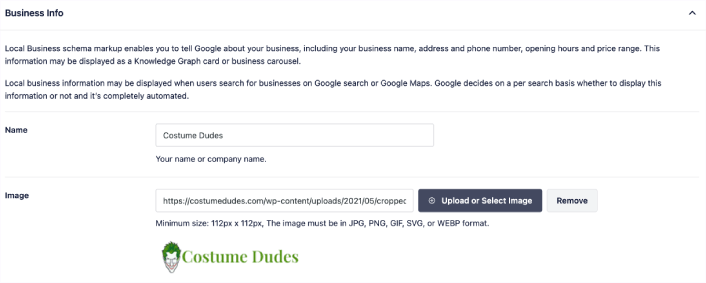
Then, add other business information like name, logo (image), business type, and address.
You can also add other information like a map of your location (more on this in a moment), contact information, VAT and Tax IDs, payment information, and the areas you serve.
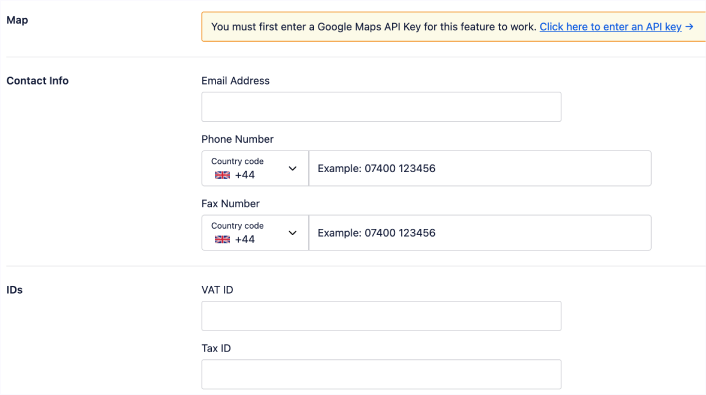
You can also add your payment info under Payment Info and showcase your store locations under Areas Served.
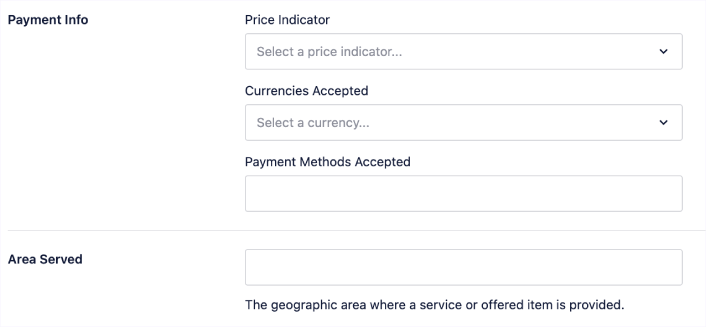
When you’re done, go ahead and hit the Save Changes button.
Step #3: Add Opening Hours
The next step to adding Local Business schema is to add your business hours. Go to the AIOSEO menu » Local SEO » Opening Hours. This will open a window where you can add your opening hours.
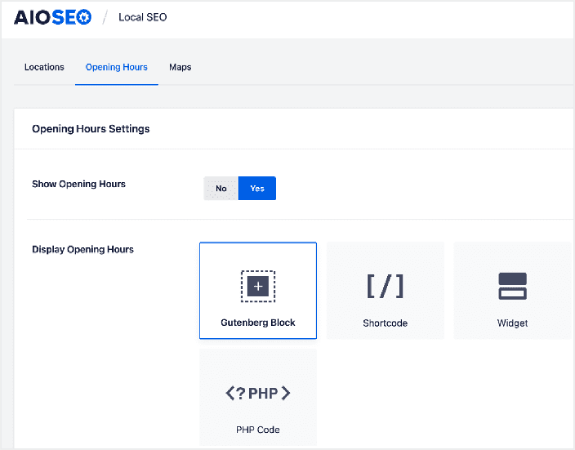
Set the Show Opening Hours toggle to Yes, and you can get options for displaying your opening hours.
If your business is open 24 hours, you can set the toggle to Open 24/7, and that’s it. You’ve added business hours to your Local Business schema.
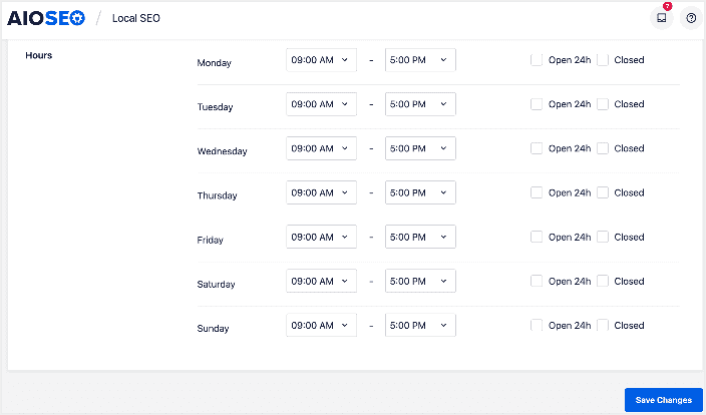
Once you’re done, click Save Changes, and your operating hours will be set.
Step #4: Add Google Maps
The final step to setting your Local Business schema is adding Google Maps, so you can visually display your location. To do that, go to the AIOSEO menu » Local SEO » Maps.
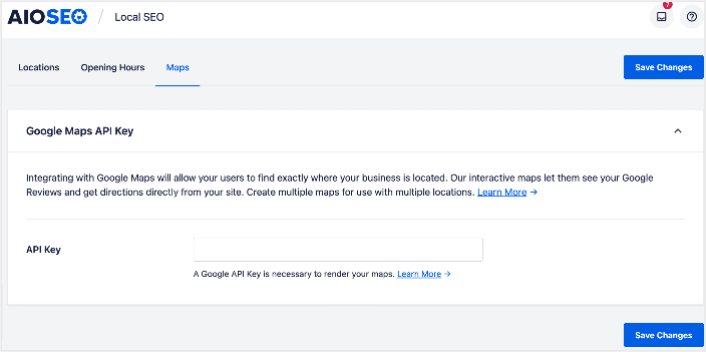
You’ll have to add a Google Maps API key in the API Key field for search engines to render your map.
Once done, click Save Changes.
And that’s it!
What to do After Adding Local Business Schema in WordPress
Adding local business schema is only one part of the puzzle. Our top recommendation is to use All in One SEO to optimize your website content. The right tools can help you with getting repeat traffic, engagement, and sales. For that, we recommend using push campaigns.
Push-уведомления могут стать мощным маркетинговым инструментом для растущего бизнеса. Не убедились? Ознакомьтесь с этими отличными ресурсами:
- 7 умных стратегий для повышения вовлеченности клиентов
- Эффективны ли push-уведомления? 7 статистических данных + 3 совета экспертов
- Как настроить push-уведомления о брошенной корзине (простое руководство)
Мы рекомендуем использовать PushEngage для создания ваших кампаний push-уведомлений. PushEngage — это программное обеспечение для push-уведомлений №1 в мире. Так что, если вы еще этого не сделали, начните использовать PushEngage сегодня!


