
Looking for a quick and easy tutorial on how to embed Instagram photos in WordPress?
Instagram embeds are not the same as having a link to an Instagram post. With Instagram embeds, you can showcase your entire Instagram feed or parts of it as you see fit.
But the tricky part is to create an Instagram embed for WordPress. WordPress doesn’t support Facebook and Instagram oEmbeds anymore. oEmbed was a simple way to fetch Instagram photos on any site by simply pasting the link. But now, you have to sign up as a Facebook app developer and create an app with oEmbed permissions to embed Instagram photos in WordPress.
If that sounds complicated, that’s because it really is. The good news is that there’s a super simple way to embed Instagram photos in WordPress. In this article, we’re going to see exactly how you can embed Instagram photos in WordPress without a single line of code.
И мы сделаем это за 10 минут или меньше!
Давайте начнем.
Why You Should Embed Instagram Photos in WordPress
If you can embed Instagram photos in WordPress, you’ll see a lot of benefits right away. It’s a great way to get the website visitors you bring in from other channels such as SEO to become your Instagram follower.
But that’s just the most obvious benefit. With Instagram feeds, you can customize the section to show your customer reviews, content from your top affiliates and influencers, and your most successful campaigns. It’s super easy to do as well. You can filter the showcased posts by specific hashtags and brand mentions.
Динамический контент также увеличивает вовлеченность на вашем сайте. Вы даже можете получить некоторую пользу для SEO вашего сайта благодаря дополнительному контенту на ваших страницах.
How to Embed Instagram Photos on Your WordPress Site
You can easily embed Instagram feeds on your website using the Instagram Feed Pro plugin from Smash Balloon.

Smash Balloon is the #1 social media feed plugin for WordPress. The Instagram Feed Pro plugin by Smash Balloon is the easiest way to embed Instagram photos in WordPress.
Вы можете использовать Smash Balloon для:
- Используйте свои ленты хэштегов на сайте как социальное доказательство
- Display interactive Twitter feeds to boost website engagement
- Embed your YouTube videos on your site to grow your subscribers
- Добавляйте на свой сайт реальные отзывы из бизнес-страницы Facebook, чтобы увеличить конверсию
And lots more! Most importantly, Instagram Feed Pro lets you embed an Instagram feed without registering as an app developer. This will save you a ton of time and hassle.
Если вы хотите ознакомиться с полным списком функций Smash Balloon, вам стоит прочитать наш обзор Smash Balloon.
The next few steps are all you need to do to embed Instagram photos in WordPress. If you follow every step, you should be able to create an Instagram feed on your site like this one:

Давайте начнем.
Step #1: Install and Activate the Instagram Feed Pro Plugin
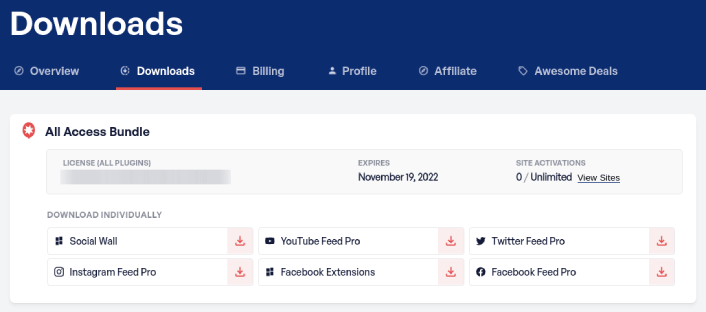
First off, install and activate the Instagram Feed Pro plugin. You can download the Instagram Feed Pro plugin from your Smash Balloon account under Downloads:
Then, activate the plugin using your license key in your WordPress dashboard by going to Instagram Feed » Settings » General » License Key:
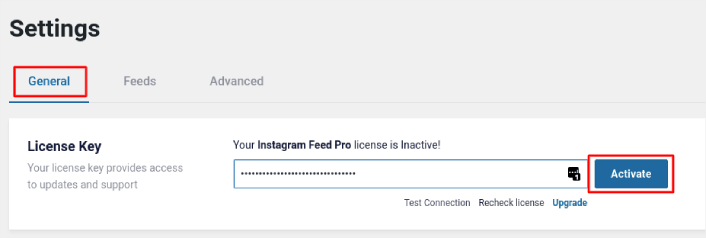
Paste in your license key and click on the Activate button.
Step #2: Connect Your Instagram Account to WordPress
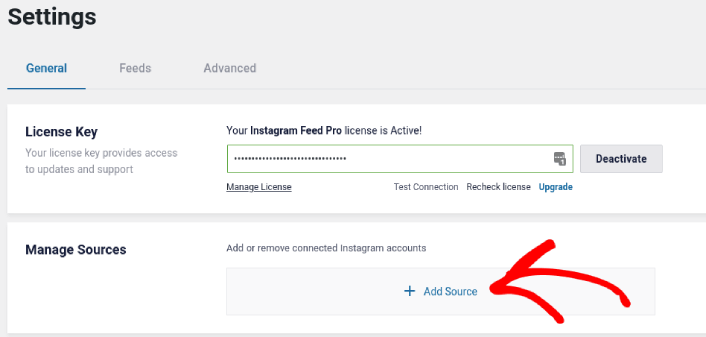
In your WordPress dashboard, go to Instagram Feed » Settings » General » Manage Sources and the click the plus (+) button:
Then, click on the Login with Instagram button:
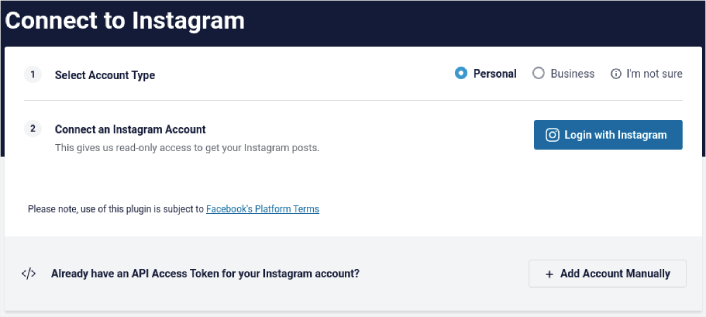
Once you’re done logging in to your account, you can start creating Instagram feeds for your site.
Step #3: Choose the Instagram Content to Display
In your WordPress dashboard, go to Instagram Feed » All Feeds and click the Add New button:
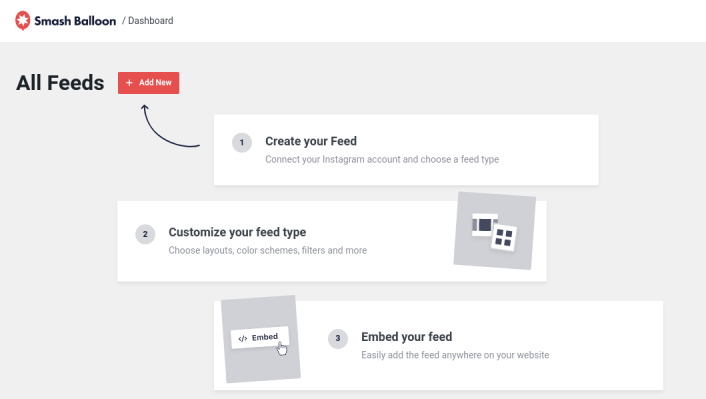
Next, you’ll need to select the type of content you want to display on your site:
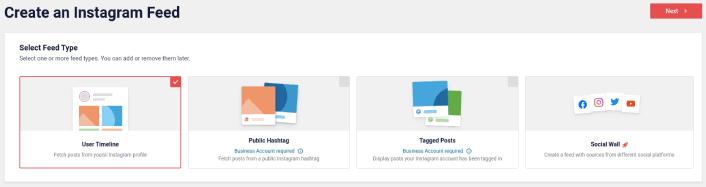
You can create 4 types of Instagram feeds:
- Хроника пользователя: Этот тип ленты доступен для всех учетных записей, и вы можете использовать его для отображения ваших последних публикаций.
- Public Hashtag: You can embed this type of feed to display only posts with a specific hashtag.
- Tagged Posts: This type of feed displays only posts where your Instagram handle is tagged. It’s perfect for showcasing social media reviews.
- Social Wall: You can embed Instagram photos in WordPress as part of a custom wall with feeds from other social media platforms as well.
Pick the right type of content for your site and click the Next button. You’ll be prompted to select the source for your Instagram feed. Just select the account you connected with your WordPress site earlier.
Step #4: Customize Your Instagram Feed
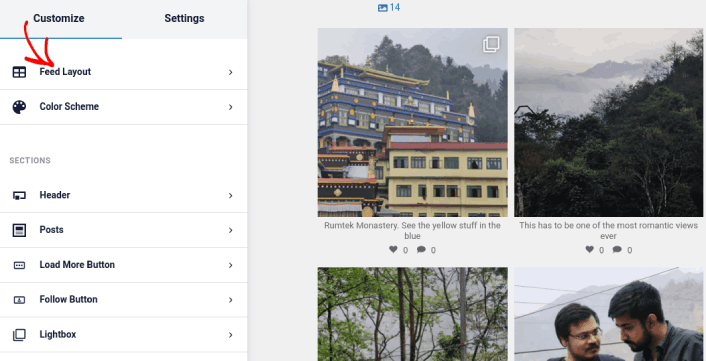
Now for the coolest bit about Smash Balloon. You can use a drag-and-drop editor to customize your Instagram feed! In the left-hand sidebar, you get a bunch of design options that are super easy to use.
Настроить макет ленты
Вы можете нажать на вкладку Макет ленты в разделе Настроить, чтобы выбрать макет для вашей вставки:
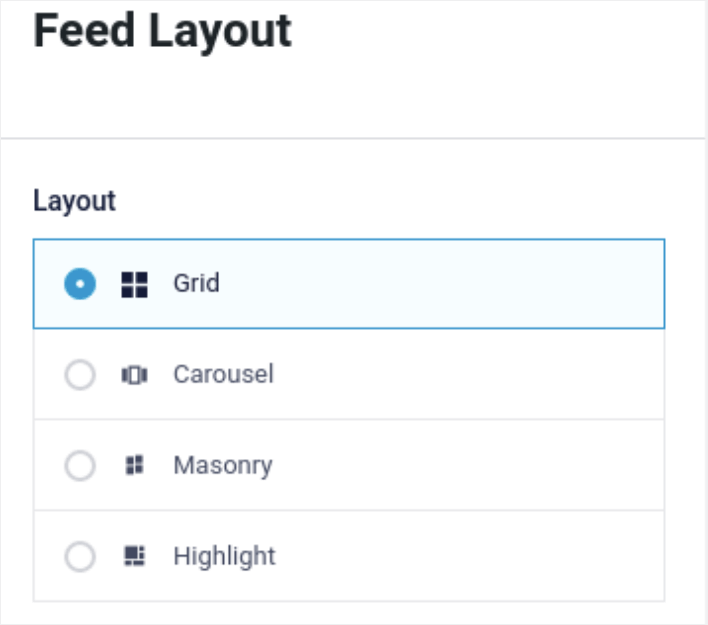
Вы можете выбрать один из 4 типов макетов. Вы можете посмотреть, как каждый из них выглядит в предварительном просмотре, а затем выбрать тот, который вам больше всего нравится:
Вы также можете установить пользовательскую высоту и отступы ленты:
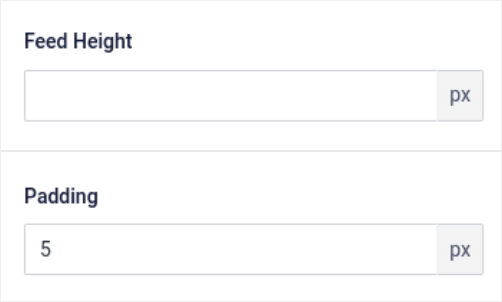
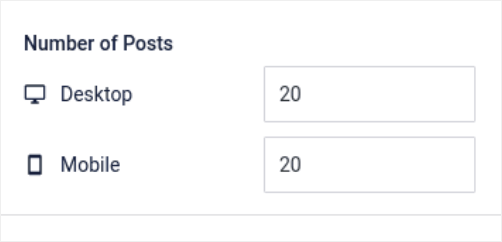
Вы даже можете указать количество публикаций, которые вы хотите отображать одновременно:
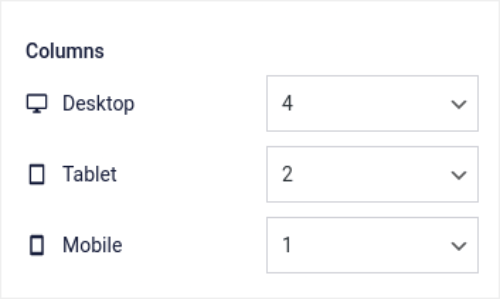
And if you’re feeling really fancy, you can also set the number of columns in your Instagram feed:
Настроить цветовую схему
The default color scheme in Instagram Feed Pro is meant to work with almost any site’s design. But just in case you feel that it’s out of place with the rest of your site, you can customize the feed’s color scheme as well.
В разделе Настроить перейдите в Цветовая схема, чтобы выбрать пользовательский вид:
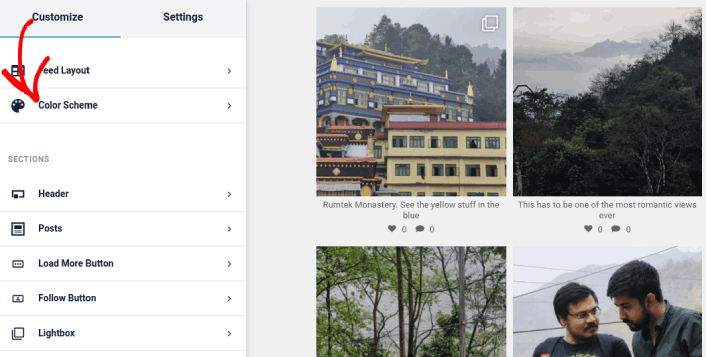
Мы рекомендуем использовать опцию Наследовать от темы, так как она автоматически получает стили вашей темы.
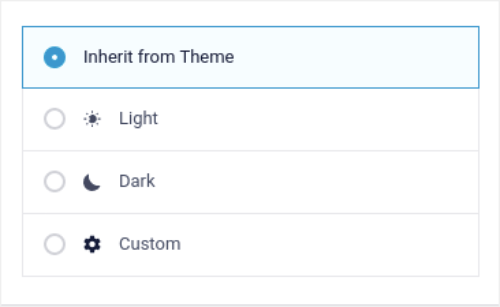
Но вы можете нажать на Пользовательский, чтобы создать свою собственную цветовую схему.
Добавить разделы в вашу ленту Instagram
Finally, you can also add custom sections to your Instagram feed under Customize » Sections:
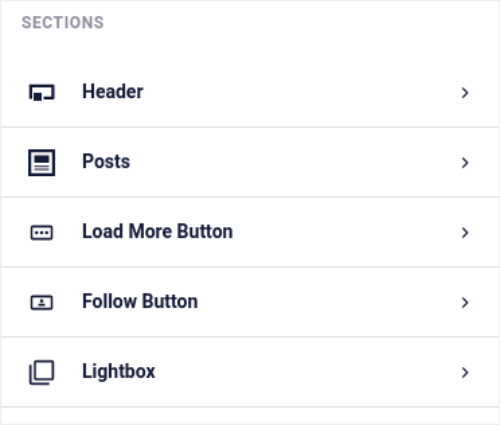
К ним относятся:
- Заголовок: Вы можете настроить заголовок, чтобы включить стили шрифтов, пользовательское изображение профиля, пользовательское описание и многое другое.
- Публикации: Вы можете настроить разрешение изображений и видео для ваших публикаций, разрешить подписи, включить сводки лайков и комментариев, а также создать эффекты при наведении.
- Кнопка «Загрузить еще»: Вы можете добавить кнопку «Загрузить еще» в свою ленту, чтобы загружать больше изображений, когда посетители нажимают на них.
- Follow Button: You can add a button to nudge your website visitors to follow you on Instagram.
- Лайтбокс: Вы можете создать всплывающее окно лайтбокса, в котором ваши публикации будут открываться в полноэкранном режиме при нажатии.
Когда вы будете довольны настройками, нажмите кнопку Сохранить.
Step #5: Embed Instagram Photos in WordPress Page/Post
Now that your feed has been fully customized, it’s time to embed Instagram photos on your site. In your WordPress dashboard, go to Instagram Feed » All Feeds and copy the feed shortcode:
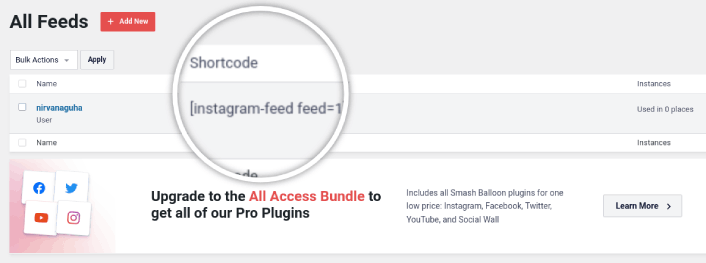
Now, you can use this shortcode to embed Instagram photos in WordPress instantly. You can add it to the sidebar, footer, posts, and even pages across your site.
If you followed all the steps from start to finish, you should have an Instagram feed on your site like this one:
Вот и все! Вы закончили.
What to do After You Embed Instagram Photos in WordPress
На этом всё, друзья!
By now, you’ve managed to embed Instagram photos in WordPress. Next, you should set up a viral giveaway to supercharge your social media following.
После этого всё, что остаётся, — это привлечь трафик на ваш сайт, чтобы ваши контактные формы могли начать работать. Простой способ сделать это — начать использовать push-уведомления. Отправка push-уведомлений — отличный способ привлечь повторный трафик на ваш сайт. Если вас это интересует, вам также стоит ознакомиться с этими статьями:
- Стоимость push-уведомлений: действительно ли это бесплатно? (Анализ цен)
- Как привлечь больше трафика на ваш блог WordPress (9 простых способов)
- Как повысить коэффициент согласия на получение push-уведомлений (7 способов)
- Как добавить плагин веб-уведомлений WordPress на ваш сайт
Мы рекомендуем использовать PushEngage для отправки ваших push-уведомлений. PushEngage — это программное обеспечение для push-уведомлений №1 в мире. Так что, если вы еще этого не сделали, начните работу с PushEngage сегодня.


