Looking for a way to fix the WordPress missed schedule error?
It’s hard enough managing a blog without having to see your scheduled posts not get published. The worst part is that you have to fix the scheduling issue manually each time and forcibly publish the article.
And the fact that this issue pops up from the WordPress scheduler itself is even more confusing. There is no theme or plugin conflict to resolve. But the good news is that you can fix this issue once and for all.
In this article, we’re going to look at some very simple ways to fix the WordPress missed schedule error. It should take you less than 10 minutes to resolve the problem forever.
よさそうですね?さあ、始めましょう。
Why Does the WordPress Missed Schedule Error Occur?
The WordPress missed schedule error occurs due to a WordPress cron job failure. WordPress cron jobs are automated schedulers that execute certain tasks at a scheduled time. But the problem is that WordPress cron jobs don’t get triggered by a specific date and time. They only get triggered when a user visits your site.
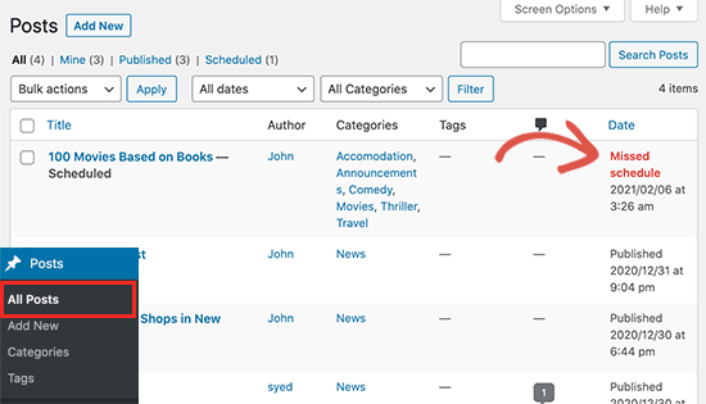
So, if no one visits your site when the post is scheduled for publishing, it won’t get published. It’s a real hassle for smaller sites with low traffic.
And the worst part is that you can still run into this problem even if you have consistent visitors.
Caching plugins could be interfering with your WordPress cron jobs. Or, it could be conflicting timezone settings. You could also be getting the WordPress missed schedule error because your site has insufficient memory to process an publish a large post.
How to Fix the WordPress Missed Schedule Error
Now that you know why the WordPress missed schedule error occurs, it’s time to fix it. The good news is that you can use a simple, free, lightweight WordPress plugin to fix your issue. No coding necessary.
Step #1: Install and Activate Missed Scheduled Posts Publisher Plugin
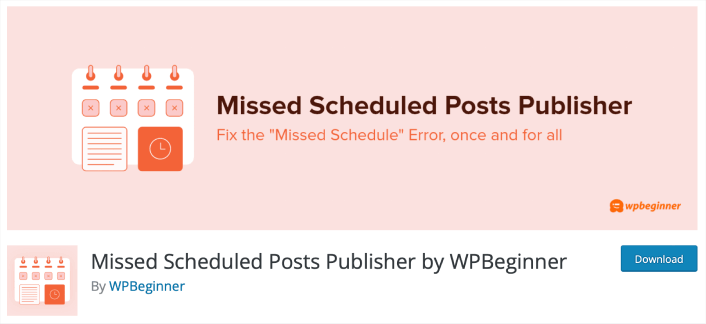
The Missed Scheduled Posts Publisher is a completely free plugin with zero settings and configurations. All you have to do is install and activate it. After that, the plugin fixes the WordPress missed schedule error by itself. If you’re not sure how to do that, you should check out this article on how to install and activate a WordPress plugin.
Every 15 minutes, the plugin checks for any posts with the missed schedule error and changes the status of the post from Scheduled to Published. It works for posts, pages, products, and any other custom post types that you may have on your WordPress website.
We use this plugin on our own site. So, we’re only endorsing it because we KNOW how good it is.
Remember: The plugin should fix this error by itself. Use the other steps in this article are ONLY if this plugin doesn’t work. Even so, don’t uninstall or deactivate the plugin. The remaining steps are meant to help the plugin and not replace it.
Step #2: Adjust WordPress Timezone Settings
In your WordPress dashboard, go to Settings » General page and scroll down to the Timezone section. From here, you need to select your timezone or the timezone you want to use for your WordPress website.
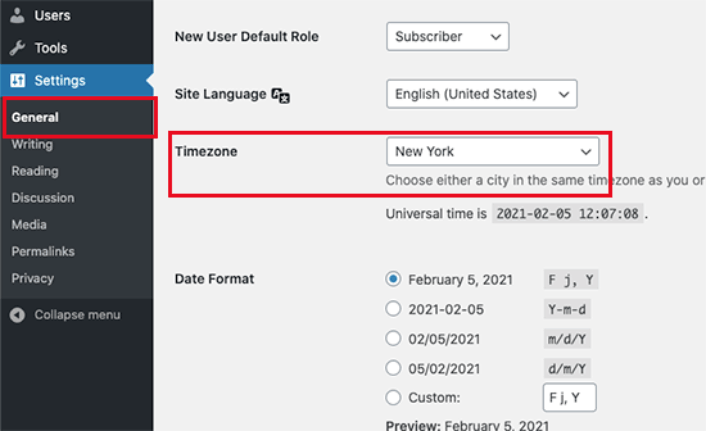
When you’re done, hit the Save Changes button. Updating your Timezone settings should resolve any issues the WordPress cron has with understanding the date and time for any scheduled post or page.
Step #3: Increase Your Site’s Memory Limit
Your WordPress website may be struggling with low memory limit issue. The easy fix is to give WordPress more server memory to use. The extra memory will let WordPress run better and resolve any timeout issues when WordPress tries to publish a scheduled post.
Add the following code to your wp-config.php file ust before the line that says, ‘That’s all, stop editing! Happy publishing.’
define('WP_MEMORY_LIMIT', '500M');For detailed step by step instructions, check out this guide on how to increase memory limit in WordPress.
Step #4: Clear Your Cache
Caching plugins can be a real help with increasing your site’s loading speed. But a poorly configured one can actually interfere with your WordPress cron jobs. There’s a whole bunch of caching plugins for WordPress. So, there’s no single process for clearing your cache. But every plugin should give you the option to clear your cache.
Here’s a beginner’s guide to clearing your cache if you’ve never done it before.
What to do After Fixing the WordPress Missed Schedule Error
Now that you’ve fixed the WordPress missed schedule error, all your content will go up on time. It’s time to focus on bringing traffic, engagement, and sales from your content next.
And if you’re looking for new ways to get traffic, engagement, and sales, push notifications can be super useful for your site.
If you’re not 100% convinced, you should check out these resources on how to effectively use push notifications:
- 顧客エンゲージメントを高めるための7つのスマートな戦略
- プッシュ通知は効果的ですか?7つの統計情報+3つの専門家のアドバイス
- 放棄されたカートのプッシュ通知を設定する方法(簡単なチュートリアル)
- Web通知WordPressプラグインをサイトに追加する方法
プッシュ通知キャンペーンを作成するためにPushEngageの使用をお勧めします。PushEngageは世界No.1のプッシュ通知ソフトウェアです。まだお済みでない場合は、 今すぐPushEngageを使い始めましょう!


