
Are you looking for an easy way to add a Twitter feed to your WordPress site?
If you have a great Twitter feed, it makes a lot of sense to embed it in your WordPress website and borrow some of that engagement. But how do you do it? Do you need a plugin? If yes, what plugin should you use? And if not, do you have to get your hands dirty with coding?
In this article, we’re going to answer all these questions and more.
Let’s check out how to embed a Twitter feed in WordPress the easy way.
Should You Add a Twitter Feed in WordPress Using a Plugin?
You should use a plugin to add a Twitter feed in WordPress. The trick is finding the right plugin for the job. You don’t want a poorly coded plugin slowing down your site. So, it’s best to use a professionally made plugin to add a Twitter feed to your WordPress site.
The best WordPress plugins are tested and optimized for speed. And it’s important to use a good plugin because your can embed a Twitter feed in a landing page to act as social proof and get more conversions.
Of course, this doesn’t mean that you can’t embed a Twitter feed in WordPress without a plugin. But it’s difficult to customize the look and feel of your feed without knowing HTML and CSS. You could also lose your embed code if you switch your WordPress theme. The same problem happens if you’re not using a child theme and your theme gets a major update.
It’s also really annoying to embed multiple Twitter feeds in different posts and pages through code.
We recommend using Smash Balloon’s Twitter Feed Pro to embed your Twitter feeds in WordPress.

Smash Balloon is a simple WordPress plugin that allows you to display your social media feeds on your site without using any code at all.
Smash Balloonを使用すると、数回のクリックでWordPressサイト用のカスタムソーシャルメディアフィードを作成できます。コーディングは不要で、開発者を雇う必要もありません。Instagram、Facebook、Twitter、YouTubeのフィードをまとめて、または個別に、好きなように統合できます。
Smash Balloonのようなプラグインを使用する非常にクールな方法は、ソーシャルメディアフィードを使用して紹介ウォールを作成することです。

一番良いところは?信じられないほど使いやすいことです。
Smash Balloonのセットアップはわずか5分で完了します。学習曲線は全くありません。
200万人以上のユーザーが、ウェブサイトにソーシャルフィードを表示するためにSmash Balloonを信頼しています。さらに、Smash BalloonはWordPressで平均4.8/5星の評価を得ています。
Let’s check out how to create a Twitter feed embed for your site using Smash Balloon.
How to Add a Twitter Feed in WordPress
Go ahead and install and activate the Twitter Feed Pro plugin. If you’re not sure how to do it, check out this article on how to install a WordPress plugin. Then, follow the steps in this guide to set up and embed a Twitter feed in WordPress.
Step #1: Create a Twitter Feed
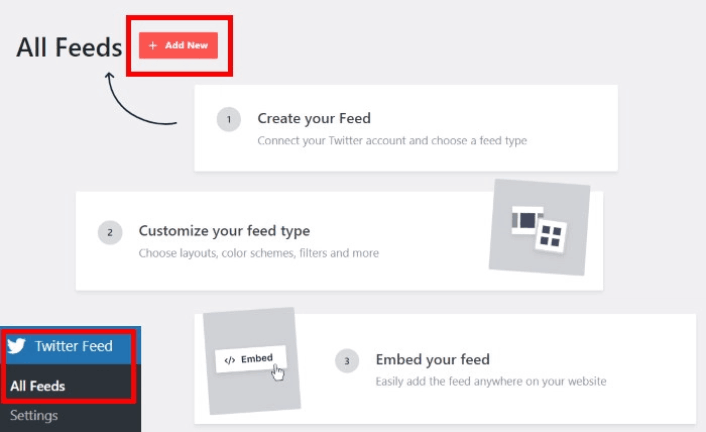
To get started, go to the Twitter Feed » All Feeds menu from your WordPress dashboard and click on the Add New button:
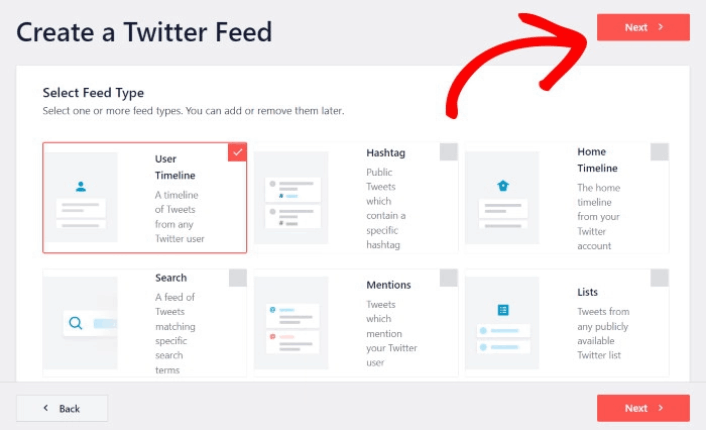
Next, choose the type of Twitter feed that you want to show on your website. There are 7 types of Twitter feeds you can create:
- User Timeline: All tweets from your Twitter account
- Hashtag: A feed of public hashtags from Twitter
- Home Timeline: Tweets from your Twitter timeline and the people you follow
- Search: A feed to display the results from an advanced Twitter search
- Mentions: All the tweets where other Twitter users have tagged you
- Lists: A feed with tweets from users on specific Twitter lists
Click the feed type you’d like to create, then click the Next button.
For this tutorial, we’re going with a User Timeline feed:
But we also recommend creating a Mentions feed to create a testimonial wall on your site.
Step #2: Link Your Twitter Account
For your Twitter feed to show on your site dynamically, you need to verify your Twitter feed. This way, the feed on your site will get automatically updated whenever you tweet something new.
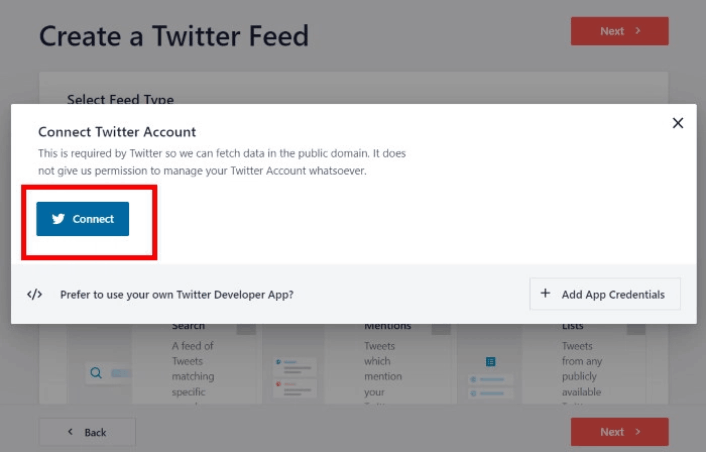
To get started, click on the Connect button:
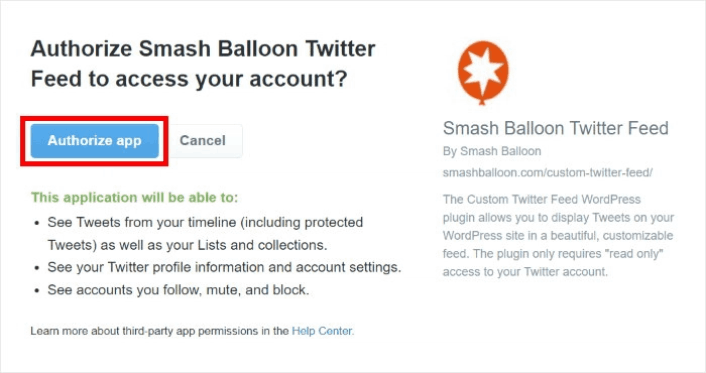
Now, the plugin will open Twitter and ask for read-only access to your Twitter account. Read-only access means that Twitter Feed Pro will only view information on Twitter and won’t be able to make changes to your account at all.
Click on the Authorize app button:
Enter the Twitter handle, hashtag, search term, Twitter list, and more that you want to embed and click the Next button:
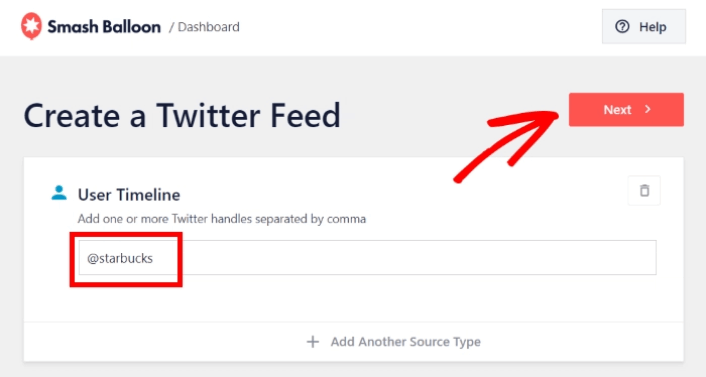
Next, you can customize how your Twitter feed looks and feels.
Step #3: Customize Your Twitter Feed in WordPress
Twitter Feeds Pro comes with responsive designs for your Twitter feeds. So, no matter what WordPress theme you’re using, it’s going to look awesome. Select a feed template that you prefer and click on the Next button:
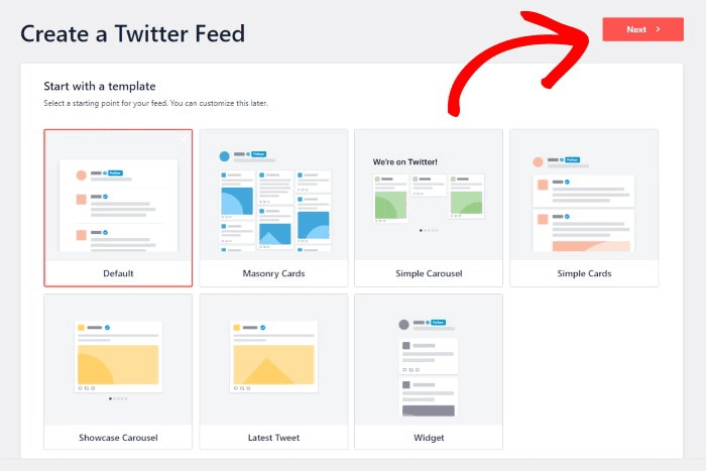
You can change your feed’s color scheme, layout, header style, load more button, and more on the left.

Click on the Feed Layout option on the left panel:

With Twitter Feed Pro, you can pick from 3 options: List, Masonry, and Carousel.

Play around with the different layouts until you find the right fit for your site. Just click on the Color Scheme option on the left to get started:

You get 4 color schemes that you can use to quickly change the colors of your Twitter feed:

And like before, click on the Save button to confirm your changes.
Step #4: Publish Your Twitter Feed in WordPress
Click on the Embed button at the top to get started.

To embed it on a WordPress page, click on the Add to a Page button:
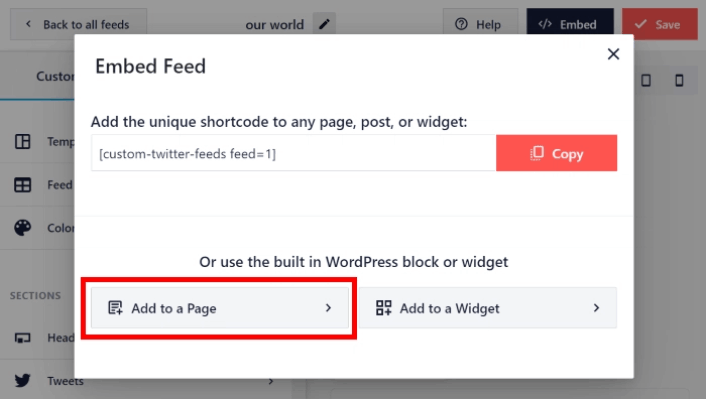
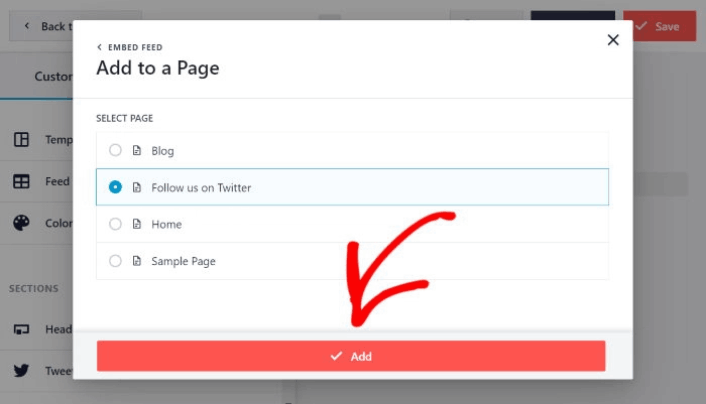
埋め込みたいフィードのページを選択し、追加ボタンをクリックするだけです。
これにより、WordPressページがブロックエディターで開きます。プラス(+)アイコンをクリックして、新しいWordPressブロックを追加します。

Click the Twitter Feed WordPress block to add it to your page:
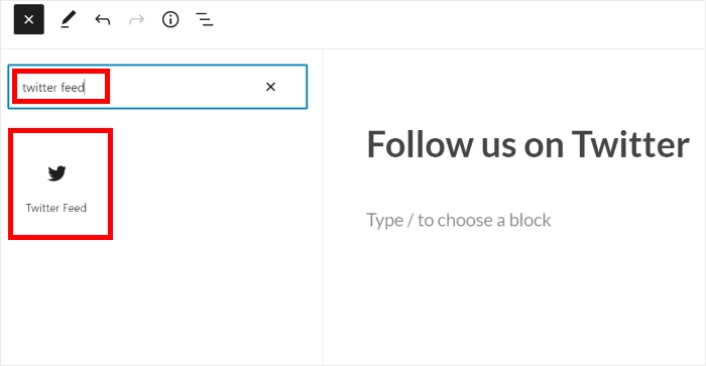
最後に、公開または更新ボタンをクリックすると、TwitterフィードがWordPressサイトに次のように公開されます。

これで完了です。
What to do After You Add a Twitter Feed in WordPress
That’s all for this one, folks! By now, you’ve managed to embed a Twitter feed in WordPress. You should also check out how to embed Instagram photos in WordPress. And how to set up a viral giveaway to supercharge your social media following.
その後は、コンタクトフォームが機能するようにサイトへのトラフィックを生成するだけです。その簡単な方法は、プッシュ通知の使用を開始することです。プッシュ通知の送信は、サイトのリピートトラフィックを生成するための優れた方法です。もしそれが興味のあることであれば、これらの記事も確認してください。
- プッシュ通知のコスト:本当に無料なの?(価格分析)
- Web通知WordPressプラグインをサイトに追加する方法
- WordPressブログへのトラフィックを増やす方法(簡単な9つの方法)
- ウェブプッシュ通知のオプトイン率を高める方法(7つの方法)
プッシュ通知の送信にはPushEngageの使用をお勧めします。PushEngageは世界No.1のプッシュ通知ソフトウェアです。まだお済みでない場合は、今すぐPushEngageを使い始めましょう。


