ポッドキャストのランディングページを素早く簡単に作成する方法をお探しですか?
ポッドキャストの運営は大変です。コンテンツ作成だけではありません。各エピソードの直前に、できる限りコンテンツを宣伝する必要があります。そして、あなたのビジネスは、各エピソードをどれだけの人が聴いているかにかかっています。
もちろん、Googleポッドキャスト、Spotify、Appleポッドキャストなどのポッドキャストプラットフォームから一部の購読者を得ることができます。しかし、あなたの競合もすべて同じプラットフォーム上にいます。そのため、ポッドキャストを宣伝するとき、ファンが他の誰かに登録してしまう可能性が高くなります。
もちろん、ポッドキャストのランディングページはこれらの問題を解決するのに役立ちます。しかし、どうやって作成するのでしょうか?すでにポッドキャストの運営には多くの時間と労力がかかっています。あなたのブランドを中心にウェブサイトを構築する時間がありますか?開発者に依頼する余裕はありますか?
幸いなことに、ポッドキャストのランディングページを簡単に作成する方法があります。この記事では、15分以内にあなた自身のポッドキャストページを立ち上げるお手伝いをします。
準備はいいですか?始めましょう。
ポッドキャストランディングページとは?
ポッドキャストランディングページとは、訪問者に登録する理由を与えることに焦点を当てた、完全にカスタマイズされたウェブページです。ポッドキャストウェブサイトとは異なり、ランディングページはあなたの番組やさまざまなエピソードについて話すことに焦点を当てていません。ランディングページの唯一の焦点は、コンバージョンを促進することです。
ポッドキャストランディングページの素晴らしい点は、好きなようにカスタマイズできることです。Spotifyのようなポッドキャストホスティングページではできない要素を、ポッドキャストランディングページに含め、制御することができます。
ポッドキャストランディングページのもう1つの代替的な使い方は、リスナーをリードに変換することです。例えば、ビジネス管理に関するポッドキャストがあり、フォロワーが増えているとします。あなたは自分のコースやコンサルティングサービスを宣伝するためのランディングページを作成できます。
ここが一番良いところです:訪問者を購読者に変える方法はたくさんあります。
どれくらいの時間があるか、そして購読者からどれくらいの収益を見込んでいるかによって、次のことができます:
その他多数!
ただし、開始する前に、ランディングページの非常に明確で具体的な目標を設定することを忘れないでください。多くのことができるからといって、すべてを1つのページで行う必要はありません。多くの場合、訪問者にクリックするものが多すぎると、何もクリックしなくなります。
成功したすべてのポッドキャストランディングページには何があるか?
ポッドキャストランディングページとは何か、そしてなぜそれを作成すべきかを知った今、あなたのランディングページのブループリントを作成する時が来ました。成功したランディングページをチェックすると、すべて非常に基本的な共通の要素を持っていることに気づくでしょう:
- ヘッドライン:ヘッドラインは、人々の注意を引き、もっと知りたいと思わせる場所です。
- Description: Just below the headline, you should have a description of what your viewers should expect from the rest of the page. This is a great place to convince readers to subscribe to your podcast as well.
- Latest episodes: Once people know what to expect from your brand, give them a taste of your show by listing your latest episodes. We recommend showcasing 3-5 episodes at most.
- Subscribe button: Follow up with a subscribe button so that your visitors can become podcast subscribers. This is known as the call to action (CTA) button. It’s how you nudge your visitors to take action on your page. Depending on your goal for the landing page, your CTA will vary.
- Social proof: A great way to give your readers a strong reason to subscribe is by offering social proof. Social proof simply tells your visitor that there are other people who are already taking the same action as you want them to take.
- Newsletter optin: Once you hit your visitors with the core offer, you can also ask them to become email subscribers. You can also ask them to become push notification subscribers using a click to subscribe button. It’s always best if you offer something valuable in exchange.
- Social sharing buttons: The more people talk about you on social media, the better chances you have of skyrocketing your subscribers. So, put up social sharing buttons on your landing page to encourage people to share it on social media.
Remember, these are only the most basic parts of any successful landing page. For your page, you can add a lot of other sections and create custom offers to increase your conversions.
How to Create a Podcast Landing Page in WordPress
Now that you know what to create, it’s time to launch your podcast landing page. For this tutorial, we highly recommend using SeedProd to create your landing pages.

SeedProd is the best WordPress landing page builder. It’s perfect for businesses, bloggers, and website owners looking to build high-converting landing pages without any development skills.
With SeedPreed, you get pre-built templates for high-converting landing pages that you can publish instantly. This includes templates for:
- 販売ページ
- 近日公開ページ
- 404ページ
- Maintenance pages
- Squeeze pages
- Login pages
- ありがとうございますページ
- ウェビナーページ
- ビデオページ
そして、さらに多くの機能があります!
Step #1: Install and Activate SeedProd
First, you’ll want to get the SeedProd Pro plugin and activate it. If you’re not sure how to do that, check out this article on how to install a WordPress plugin. Then, go to SeedProd » Settings on your WordPress dashboard and activate the Pro version:

Next, head to SeedProd » Pages for an overview of SeedProd’s landing page dashboard. This is where you can see the different types of landing pages you can create using SeedProd:

これらはすべて、事前構築済みの機能とデザインテンプレートを備えた特別なページであることを覚えておいてください。ポッドキャストのランディングページには、これらの特別なランディングページは絶対にどれも使用しないでください。代わりに、カスタムランディングページを作成します。
さらに下にスクロールして、新しいランディングページを追加ボタンをクリックして開始してください。

ステップ #2: 新しいランディングページを作成する
新しいランディングページを追加ボタンをクリックすると、SeedProdのランディングページテンプレートライブラリが表示されます。これらは、完全にレスポンシブな、専門的にデザインされたランディングページテンプレートです。
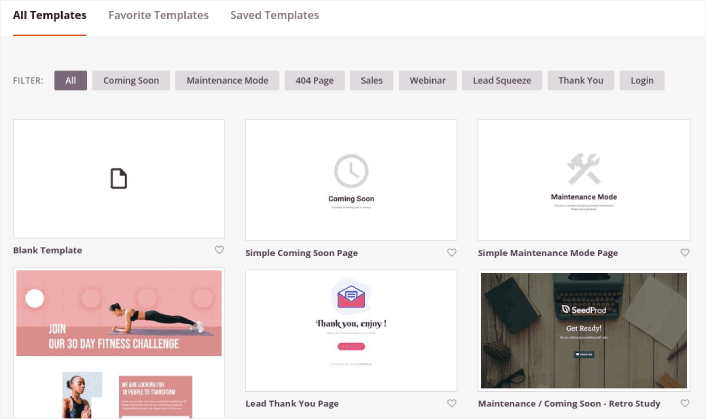
次に、これらのテンプレートのいずれかを選択して開始できます。テンプレートはあくまで出発点であることを忘れないでください。後でページのすべての要素をカスタマイズできます。まずは、適合すると思われるテンプレートを見つけてください。
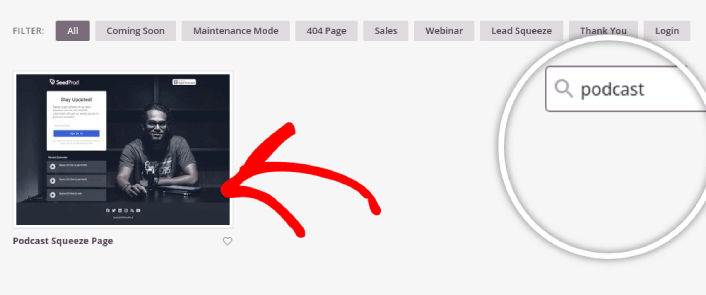
このガイドでは、ポッドキャスト・スqueezeページテンプレートを選択しました。
ステップ #3: ランディングページのデザインをカスタマイズする
SeedProdのビジュアルビルダーを使用すると、ドラッグアンドドロップのコンテンツブロックを使用してランディングページをカスタマイズできます。
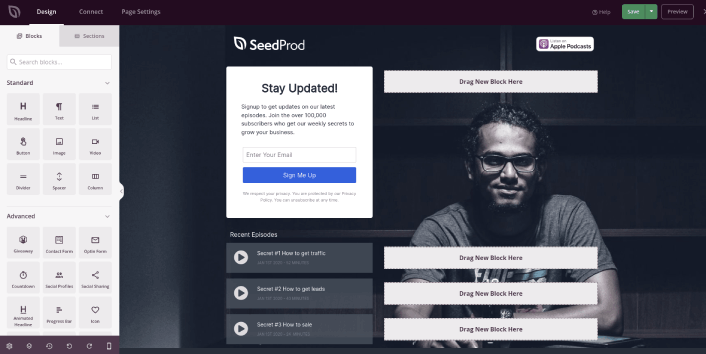
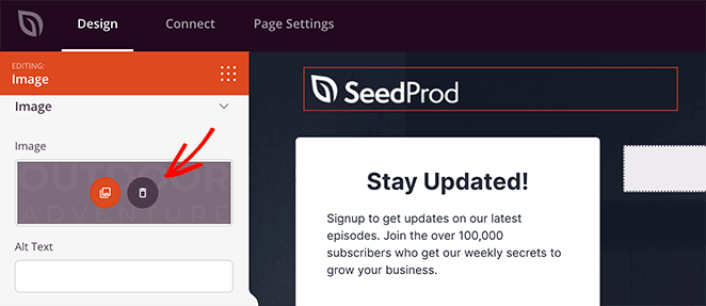
ロゴをクリックして、好きな画像に置き換えることができます。
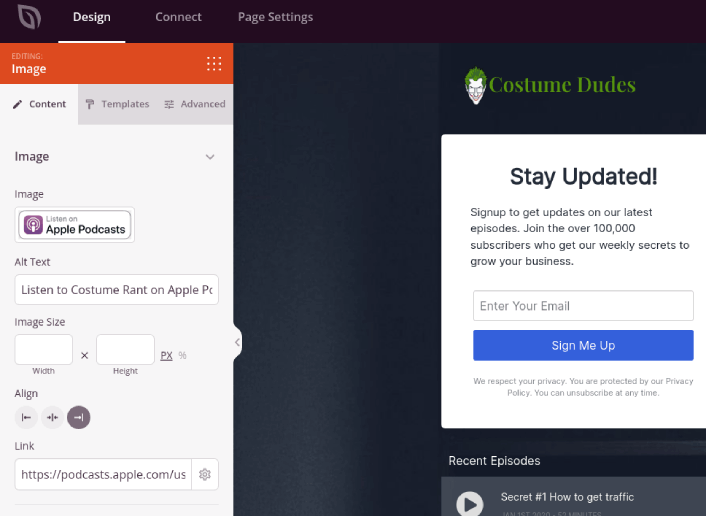
数分で、ランディングページ用の完全にカスタマイズされたヘッダーを作成できます。たとえば、Apple Podcastsで聴くボタンをクリックして、ポッドキャストのリンクを挿入します。
ポッドキャストの簡単な説明を含むセクションを追加するのも非常に簡単です。ビジュアルビルダーのセクションタブに移動し、ヒーローセクションの下にある、ワンクリックでインポートできるいくつかの事前構築済みテンプレートを見つけます。
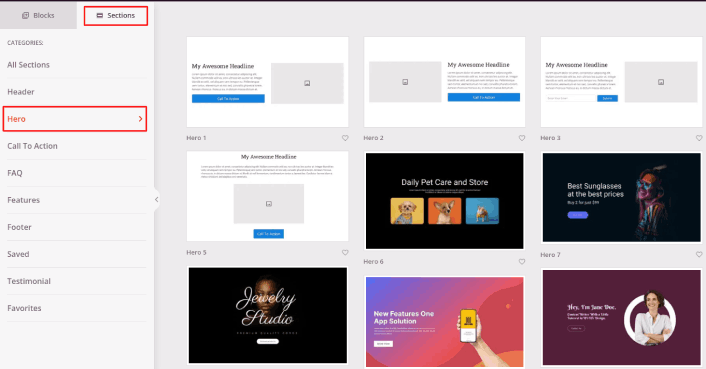
好きなものを選択してください。色やコンテンツについては心配しないでください。すべて編集できます。テンプレートによく合うレイアウトを探してください。
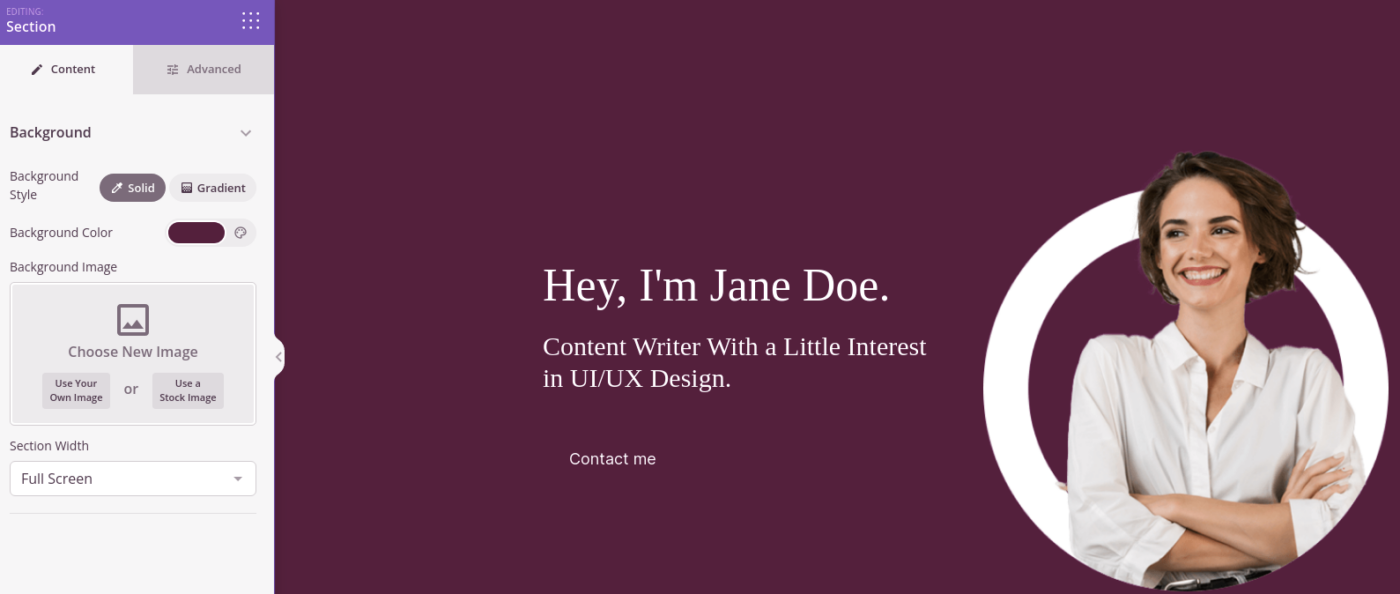
ヒーローセクションは、以前と同様に、別の画像を選択し、見出しと説明を変更することでカスタマイズできます。ついでに、視聴者にポッドキャストの購読を促すコールトゥアクションボタンも追加しましょう。
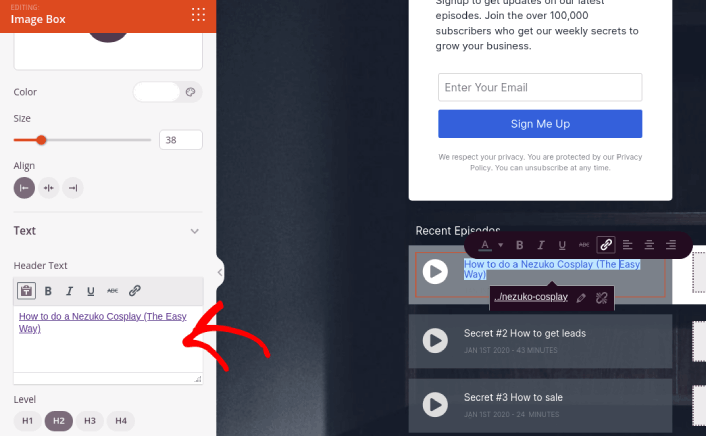
選択したテンプレートには、最新のエピソードを紹介するための事前構築済みブロックも含まれています。したがって、行う必要があるのは、情報を編集してエピソードのURLを追加することだけです。
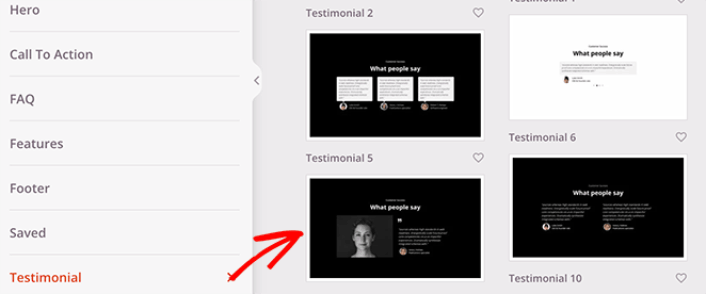
次に、セクションタブから、お客様の声の見出しを選択し、好きなデザインを選びます。そして、あっという間に、ランディングページにお客様の声セクションができます。
とても簡単です!
ステップ #4: ポッドキャストランディングページにクリックして購読ボタンを追加する
プッシュ通知購読者を収集するために、クリックして購読ボタンを追加することもできます。プッシュ通知は、リピートトラフィックを増やし、エンゲージメントを高め、公式グッズがあれば販売するためにも役立ちます。
SeedProdでは、サイドバーからカスタムHTMLモジュールをドラッグアンドドロップするだけです。
最初の折り目のメールサインアップフォームのすぐ下に、購読ボタンを配置しました。
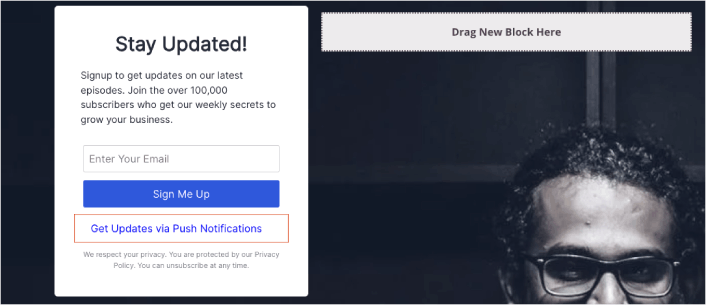
しかし、ボタンは好きな場所に挿入できます。
For this part, you need some experience with HTML and CSS. Or, you can copy this code and paste it into your Custom HTML block:
<button onclick="subscribeOnClickButton()" style="border: none; padding-left: 5%; padding-right:5%; text-align: center; display: inline-block; color: blue;">Get Updates via Push Notifications</button>That’s a standard button in HTML with very little styling. The only fancy bit is the onclick function in the code. It basically means that your visitors can click on the button to subscribe to something. Now, we need to give the button some extra code to allow your visitors to subscribe to push notifications.
PushEngageのホームページにアクセスし、開始するボタンをクリックします。

次に、PushEngage を試すために無料プランを選択するか、ビジネスの成長に真剣に取り組んでいる場合は有料プランを選択します。有料プランには、より多くのキャンペーンオプションと、さらに大きな購読者リストを構築する機能が付属しています。
あなたのPushEngageダッシュボードで、サイト設定 »サイト詳細に移動し、セットアップ手順を表示するにはここをクリックボタンをクリックします。「任意のサイト」の下に、インストールコードが表示されます。

警告:ダッシュボードから取得したコードをコピーする必要があります。コードはPushEngageユーザーごとに固有です。画像内のコードをコピーしてプッシュ通知購読者を収集することはできません。
PushEngage ダッシュボードでコードを取得したら、このスニペットをコードに追加します。
<script> window._peq = window._peq || [];</script> <script>
function subscribeOnClickButton(){
window._peq.push(['subscribe',{}.pe,function(res){
if(res.statuscode==1)
{
// Code to return response
console.log(res);
}
}]);
}
</script>
最終的なコードは次のようになります。
<script src="https://clientcdn.pushengage.com/core/02a6e92667ae2279fcba8932356c1d93.js" async></script>
<script> window._peq = window._peq || [];</script> <script>
function subscribeOnClickButton(){
window._peq.push(['subscribe',{}.pe,function(res){
if(res.statuscode==1)
{
// Code to return response
console.log(res);
}
}]);
}
</script>
You’ll want to add this code to the HTML block in your landing page after the code for the button. It should look something like this:
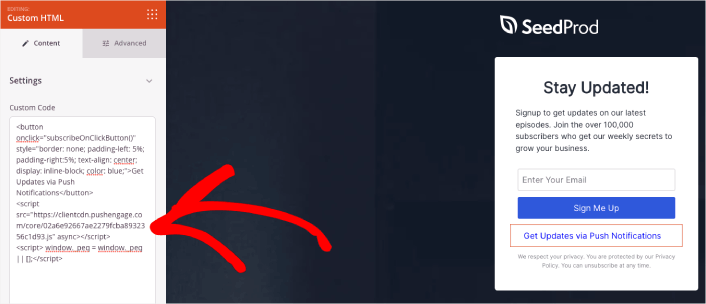
Feel free to customize the styles for the button any way you please. When you’re done customizing your podcast landing page, go ahead and hit the Save button.
Step #5: Configure Your Page Settings
After you’re done designing your podcast page, click the Connect tab at the top of your page builder, and select your email marketing provider to collect leads on your site.

Then, click the Page Settings tab at the top of your screen.

Here, you can add an SEO plugin and a Google Analytics plugin to your landing page. You can even set up custom tracking codes such as a Facebook Pixel or a Pinterest pixel to track ad performance.
Step #6: Publish Your Podcast Landing Page in WordPress
Now let’s go ahead and publish your design. To do this, click the dropdown arrow next to the Save button and click Publish.
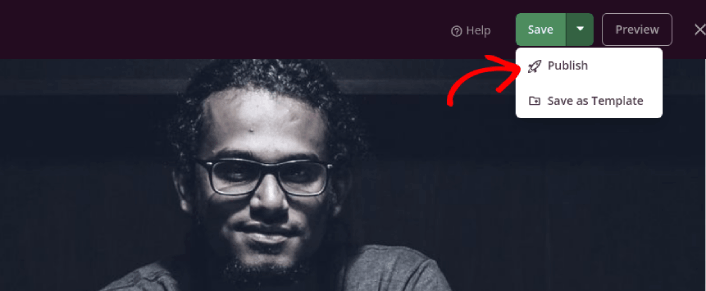
You can then click the See Live Page button to see how it looks.
Congratulations! You just published your very first podcast landing page.
What to do After You Build a Podcast Landing Page
Now that your podcast landing page is live, it’s time to work on your traffic, engagement, and sales. You should try using push notifications on your site. Push notifications are a great marketing tool that can help you grow your business.
Take a look at these epic resources and you’ll know what we mean:
プッシュ通知キャンペーンを作成するためにPushEngageの使用をお勧めします。PushEngageは世界No.1のプッシュ通知ソフトウェアです。まだお済みでない場合は、 今すぐPushEngageを使い始めましょう!


