
Looking for a tutorial on how to add credit card payment to WordPress?
By default, WordPress does not come with credit card payment options. The good news is that there are several WordPress plugins that accept credit card payments using an online payment processor. Depending on the type of site you’re running, there are some very elegant solutions out there.
In this article, we will show you how to easily accept credit card payments on any type of WordPress site.
早速飛び込みましょう。
Why Accept Credit Card Payments in WordPress?
Credit cards are among the most popular modes of payment. If you’re planning to monetize your site without accepting credit card payments, you’re leaving money on the table.
Accepting credit card payments will improve your conversion rate. If you’re running an eCommerce site, this can reduce your cart abandonment rates as well.
Before you begin, you will need to enable HTTPS/SSL on your website so that you can securely accept credit card payments. If you’re not sure how to do that, you can follow this simple guide on how to get a free SSL certificate for your WordPress site.
How to Add Credit Card Payment to WordPress without Shopping Cart
It doesn’t always make sense to create an online store to accept payments. For instance, if you’re a freelancer, it might be much more convenient to simply create a payment form on your site. You can do the same thing for digital products as well.
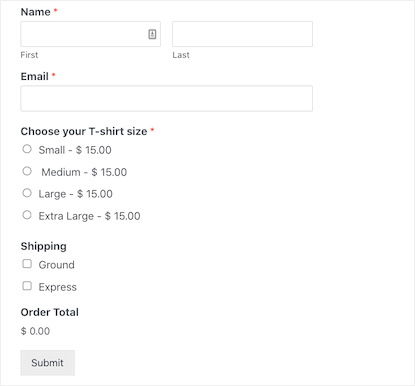
We recommend WPForms to create a simple, but powerful payment form on your site like this one:
The first step is to go ahead and install WPForms on your site.
WPForms は、最も強力なドラッグ&ドロップ WordPress フォームビルダーです。このプラグインを使えば、数分で WordPress サイト用のカスタムフォームを簡単に作成できます。
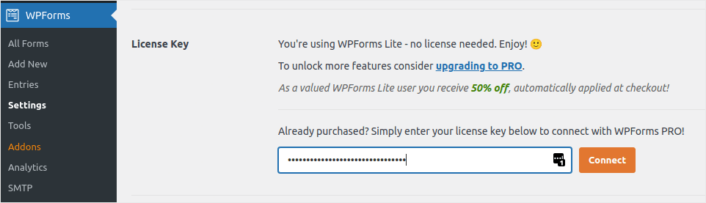
Go to WPForms » Settings in your WordPress dashboard to enter your license key and activate the plugin.
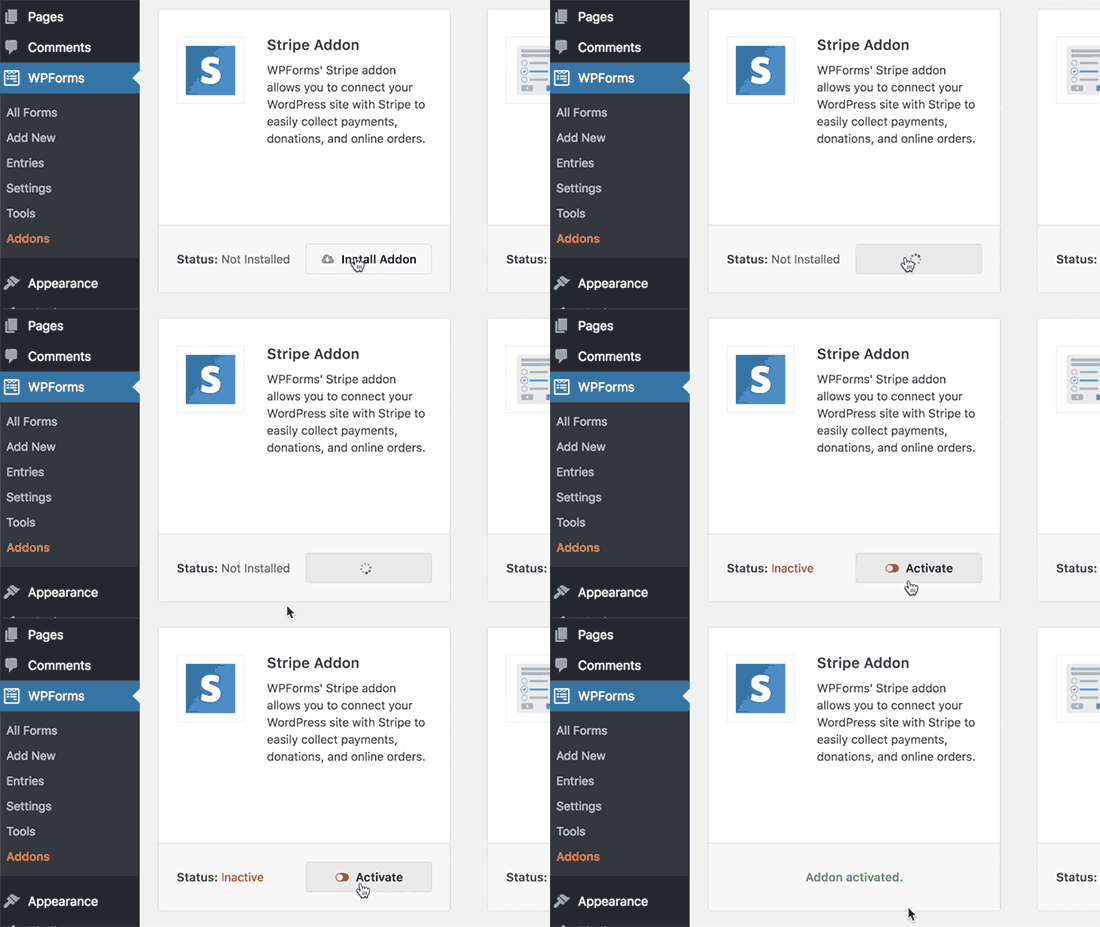
Next, you’ll need to connect Stripe to your WPForms account. If you haven’t already, go ahead and create a Stripe account. Then you need to head over to WPForms » Addons and find the Stripe addon. Click on the Install Addon button and then click on the Activate button.
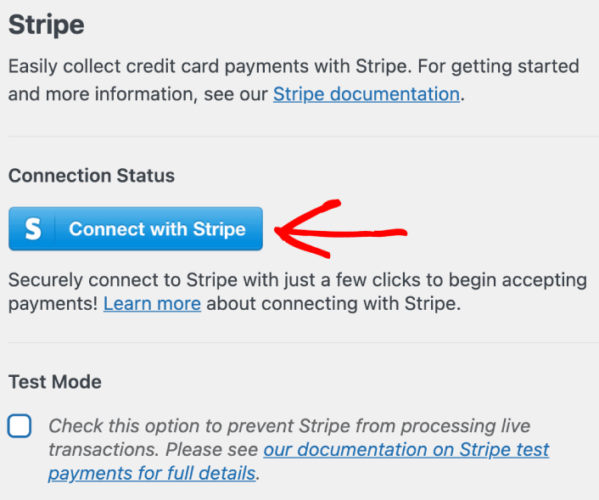
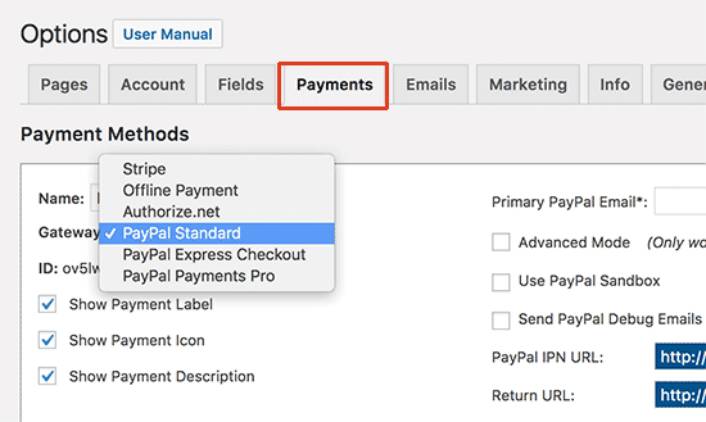
Then, you’ll need to connect WPForms to your Stripe account. Head over to WPForms » Settings » Payments tab and click the Connect with Stripe button.
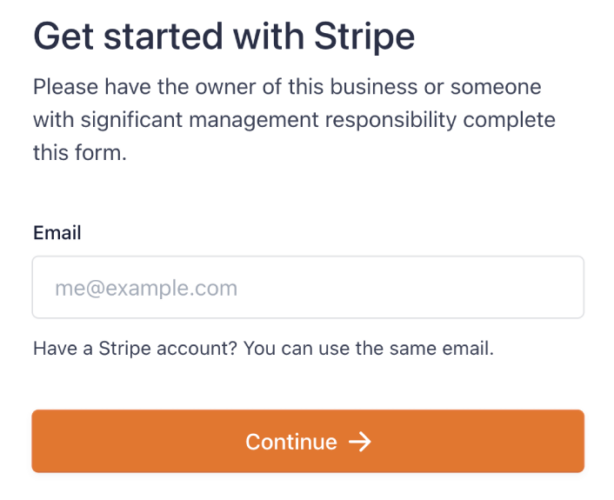
On the next screen, you can enter your Stripe email address and click the Next button.
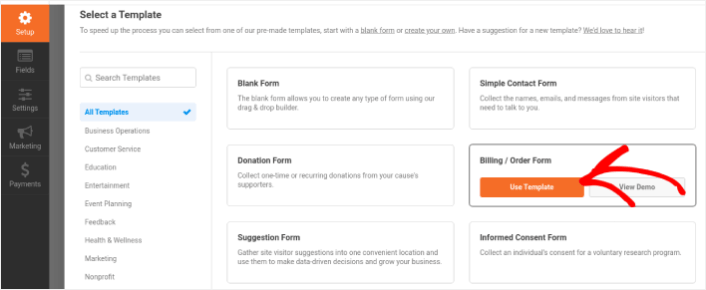
Once your Stripe setup is complete, you should create your own WordPress payment form. Go to WPForms » Add New in your WordPress dashboard. Give your form a title and select the Billing / Order Form template.
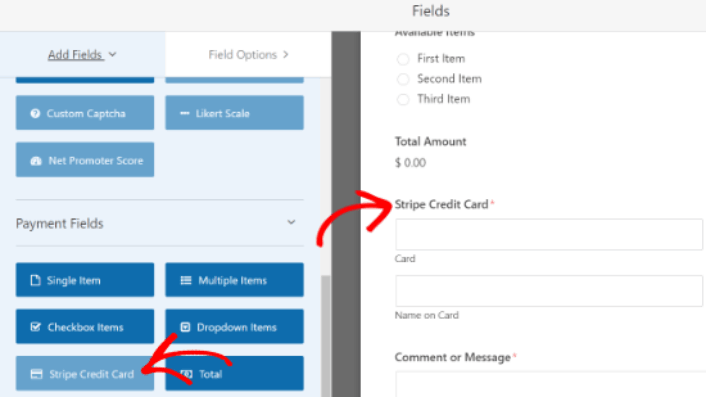
The template will automatically create a payment form for you that you can place anywhere on your site. Go ahead and edit the form using the WPForms drag and drop form builder. When you’re happy with the fields in your payment form, add the Stripe Credit Card field as well.
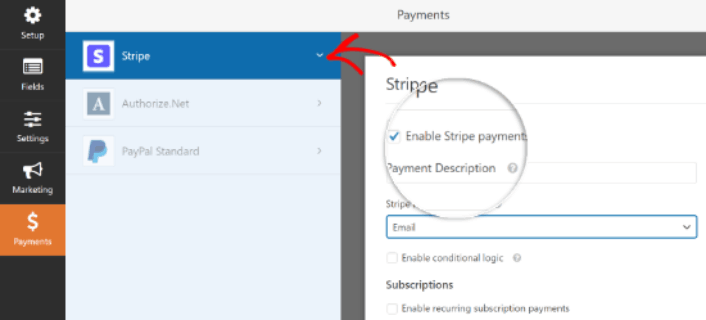
Finally, under the Payments tab, click the Enable Stripe payments option:
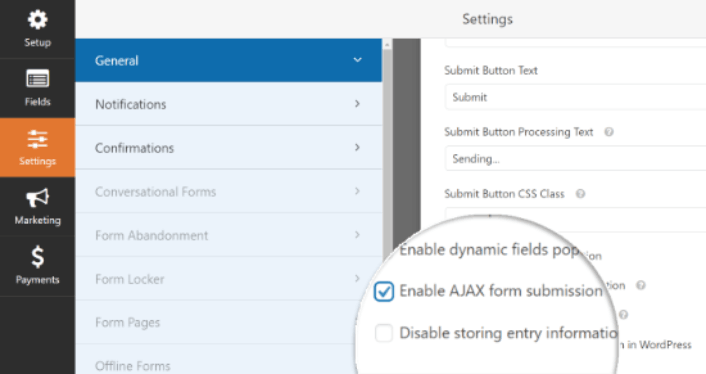
今、解決すべき最後の問題が1つあります。Stripeクレジットカードフィールドを使用するために、AJAXフォーム送信を有効にします。AJAXフォーム送信により、顧客はページ全体をリロードすることなくフォームを送信できます。
設定 » 一般設定に移動し、AJAXフォーム送信を有効にするオプションをクリックします。
これで完了です!すべての手順を正しく実行した場合、WordPressサイトのどこにでも連絡フォームを埋め込むことができるようになり、次のようになります。
WordPressオンラインストアにクレジットカード決済を追加する方法
WordPressで構築された本格的なeコマースサイトにクレジットカード決済を追加できます。しかも非常に簡単です。WordPressでeコマースサイトを簡単に作成するために、WooCommerceにサインアップできます。
WooCommerceには、さまざまな決済方法を使用してサイトで決済を受け付けるための複数の連携機能があります。
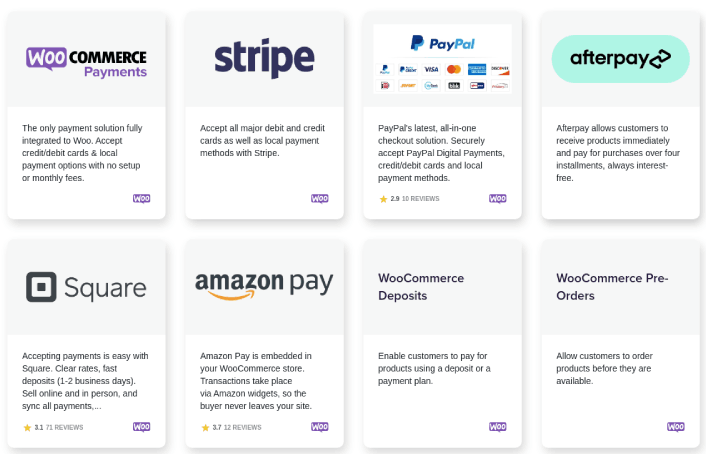
最も良い点は、WooCommerceセットアップウィザード内で直接、WordPressオンラインストアにクレジットカード決済を追加できることです。
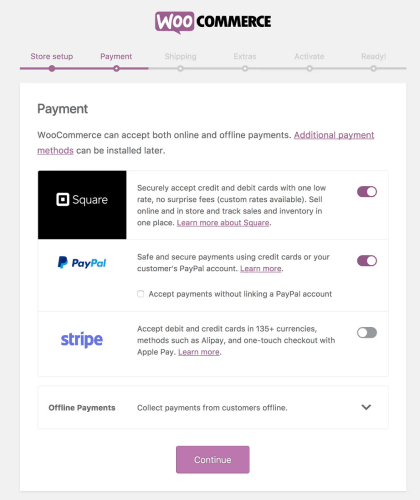
Stripeアカウントを作成し、セットアップウィザードでStripe決済を有効にし、WooCommerceストアをStripeアカウントに接続するだけです。
注:デフォルトのStripe連携には、ストアで受け付けられる決済の種類にいくつかの制限があります。Stripe決済機能をさらに拡張したい場合は、WP Simple Payの使用をお勧めします。
WordPressメンバーシップサイトにクレジットカード決済を追加する方法
次のようなメンバーシップウェブサイトを構築したい場合:
- メンバーシップサブスクリプションの販売
- オンラインコース
- 有料コンテンツ
その場合は、MemberPressの使用をお勧めします。
MemberPressは、さまざまな連携機能を使用してクレジットカード決済を受け付ける強力なWordPressメンバーシッププラグインです。
他の種類のサイトと同様に、Stripeを簡単にセットアップしてクレジットカード決済オプションを追加できます。
WordPressにクレジットカード決済を追加した後の作業
WordPressにクレジットカード決済を追加する方法がわかったので、次にやりたいことは、新しい方法を見つけて次のものを増やすことです:
- トラフィック
- エンゲージメント
- 売上
トラフィック、エンゲージメント、売上をサイトで構築するためにプッシュ通知の使用をお勧めします。まだ納得できませんか?プッシュ通知を使用してビジネスを成長させるのに役立つ、これらの素晴らしいリソースを確認してください:
- 放棄されたカートのプッシュ通知を設定する方法(簡単なチュートリアル)
- プッシュ通知を簡単にスケジュールする方法【5分ガイド】
- 10分未満で価格下落通知キャンペーンを作成する方法。
- Web通知WordPressプラグインをサイトに追加する方法
PushEngageは世界No.1のプッシュ通知ソフトウェアです。そのため、プッシュ通知の作成とEコマースビジネスの成長にはPushEngageの使用をお勧めします。


