
Looking for a quick and easy tutorial on how to embed Instagram photos in WordPress?
Instagram embeds are not the same as having a link to an Instagram post. With Instagram embeds, you can showcase your entire Instagram feed or parts of it as you see fit.
But the tricky part is to create an Instagram embed for WordPress. WordPress doesn’t support Facebook and Instagram oEmbeds anymore. oEmbed was a simple way to fetch Instagram photos on any site by simply pasting the link. But now, you have to sign up as a Facebook app developer and create an app with oEmbed permissions to embed Instagram photos in WordPress.
If that sounds complicated, that’s because it really is. The good news is that there’s a super simple way to embed Instagram photos in WordPress. In this article, we’re going to see exactly how you can embed Instagram photos in WordPress without a single line of code.
そして、10分以内に完了します!
さあ、始めましょう。
Why You Should Embed Instagram Photos in WordPress
If you can embed Instagram photos in WordPress, you’ll see a lot of benefits right away. It’s a great way to get the website visitors you bring in from other channels such as SEO to become your Instagram follower.
But that’s just the most obvious benefit. With Instagram feeds, you can customize the section to show your customer reviews, content from your top affiliates and influencers, and your most successful campaigns. It’s super easy to do as well. You can filter the showcased posts by specific hashtags and brand mentions.
動的なコンテンツは、サイトのエンゲージメントも高めます。ページに追加されたコンテンツにより、サイトのSEOも向上する可能性があります。
How to Embed Instagram Photos on Your WordPress Site
You can easily embed Instagram feeds on your website using the Instagram Feed Pro plugin from Smash Balloon.

Smash Balloon is the #1 social media feed plugin for WordPress. The Instagram Feed Pro plugin by Smash Balloon is the easiest way to embed Instagram photos in WordPress.
Smash Balloonを使用して、次のことができます:
- サイトでハッシュタグフィードを ソーシャルプルーフ として使用する
- Display interactive Twitter feeds to boost website engagement
- YouTube動画をサイトに埋め込んで チャンネル登録者を増やす
- Facebookビジネスページの実際のレビューをサイトに追加して コンバージョンを増やす
And lots more! Most importantly, Instagram Feed Pro lets you embed an Instagram feed without registering as an app developer. This will save you a ton of time and hassle.
Smash Balloonの全機能リストを確認したい場合は、Smash Balloonのレビューをご覧ください。
The next few steps are all you need to do to embed Instagram photos in WordPress. If you follow every step, you should be able to create an Instagram feed on your site like this one:

始めましょう。
Step #1: Install and Activate the Instagram Feed Pro Plugin
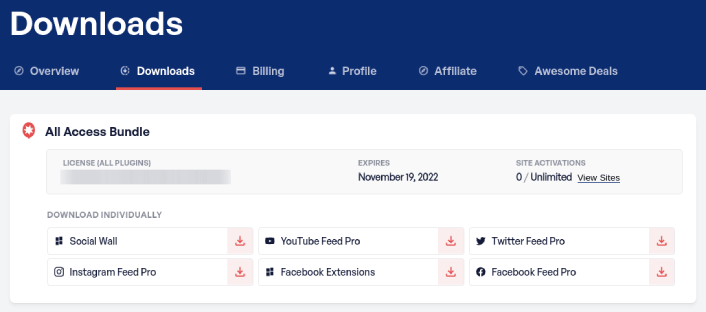
First off, install and activate the Instagram Feed Pro plugin. You can download the Instagram Feed Pro plugin from your Smash Balloon account under Downloads:
Then, activate the plugin using your license key in your WordPress dashboard by going to Instagram Feed » Settings » General » License Key:
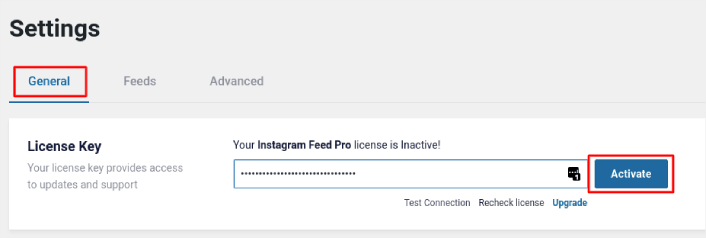
Paste in your license key and click on the Activate button.
Step #2: Connect Your Instagram Account to WordPress
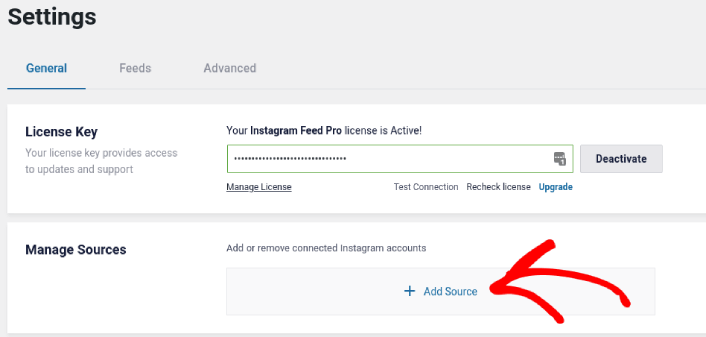
In your WordPress dashboard, go to Instagram Feed » Settings » General » Manage Sources and the click the plus (+) button:
Then, click on the Login with Instagram button:
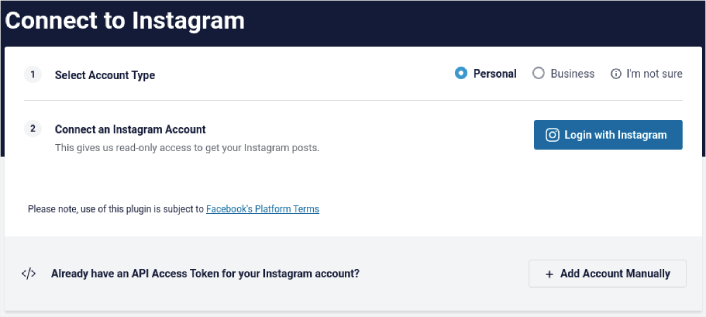
Once you’re done logging in to your account, you can start creating Instagram feeds for your site.
Step #3: Choose the Instagram Content to Display
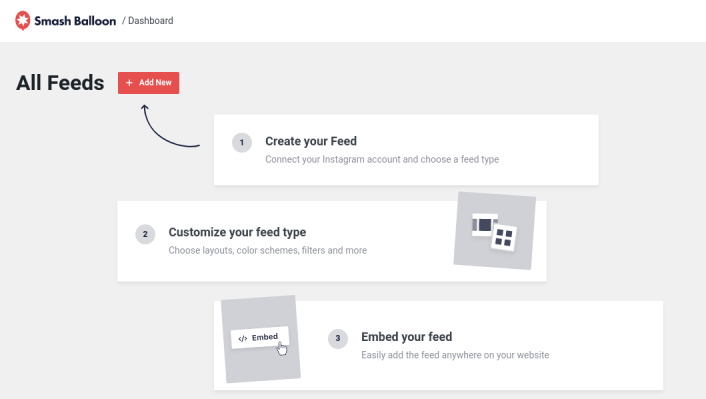
In your WordPress dashboard, go to Instagram Feed » All Feeds and click the Add New button:
Next, you’ll need to select the type of content you want to display on your site:
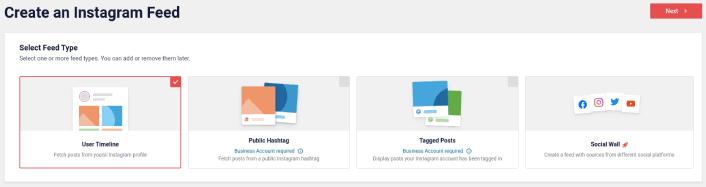
You can create 4 types of Instagram feeds:
- User Timeline: このタイプのフィードはすべての Вアカウントで利用でき、最新の投稿を表示するために使用できます。
- Public Hashtag: You can embed this type of feed to display only posts with a specific hashtag.
- Tagged Posts: This type of feed displays only posts where your Instagram handle is tagged. It’s perfect for showcasing social media reviews.
- Social Wall: You can embed Instagram photos in WordPress as part of a custom wall with feeds from other social media platforms as well.
Pick the right type of content for your site and click the Next button. You’ll be prompted to select the source for your Instagram feed. Just select the account you connected with your WordPress site earlier.
Step #4: Customize Your Instagram Feed
Now for the coolest bit about Smash Balloon. You can use a drag-and-drop editor to customize your Instagram feed! In the left-hand sidebar, you get a bunch of design options that are super easy to use.
フィードレイアウトをカスタマイズする
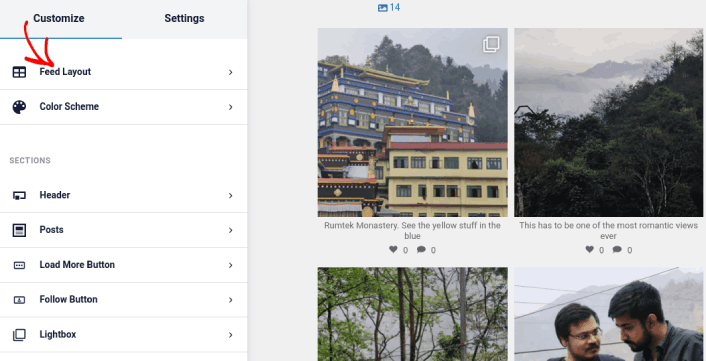
Customize の下の Feed Layout タブをクリックして、埋め込み用のレイアウトを選択できます。
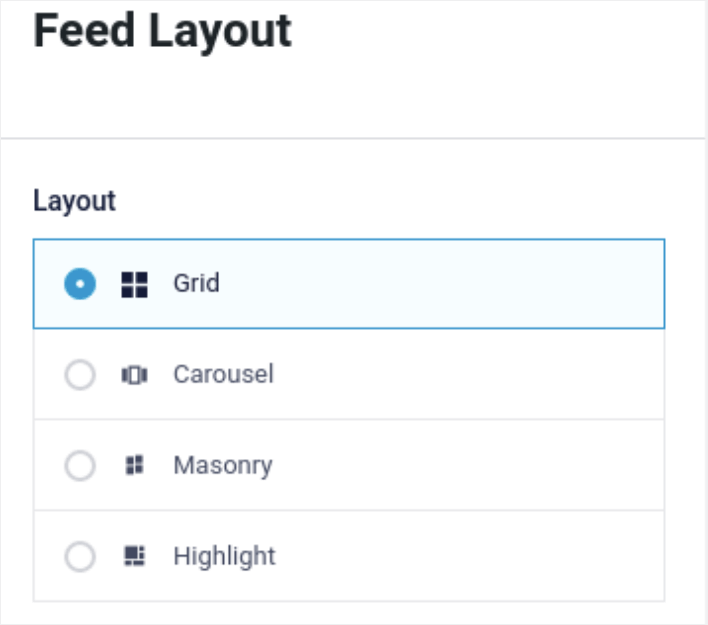
4種類のレイアウトから選択できます。それぞれの見た目をプレビューで確認し、最も気に入ったものを選択してください。
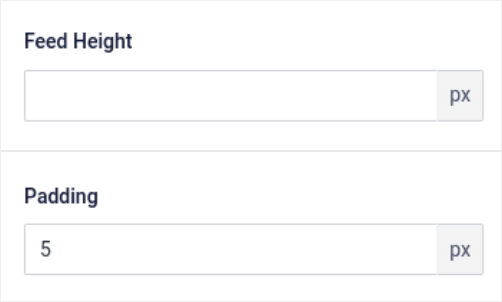
カスタムフィードの高さとパディングを設定することもできます。
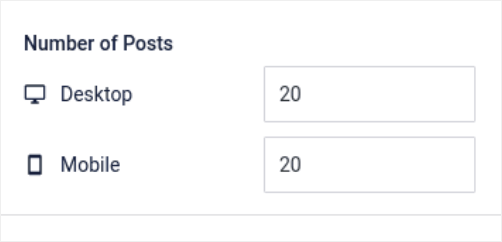
一度に表示したい投稿数を設定することもできます。
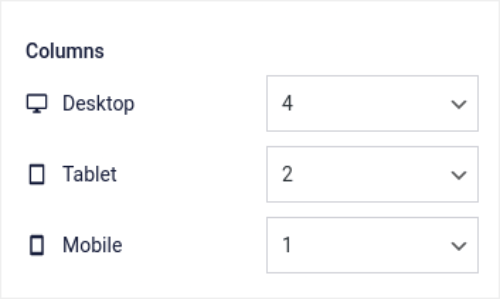
And if you’re feeling really fancy, you can also set the number of columns in your Instagram feed:
カラー スキームをカスタマイズする
The default color scheme in Instagram Feed Pro is meant to work with almost any site’s design. But just in case you feel that it’s out of place with the rest of your site, you can customize the feed’s color scheme as well.
Customize の下の Color Scheme に移動して、カスタムの外観を選択します。
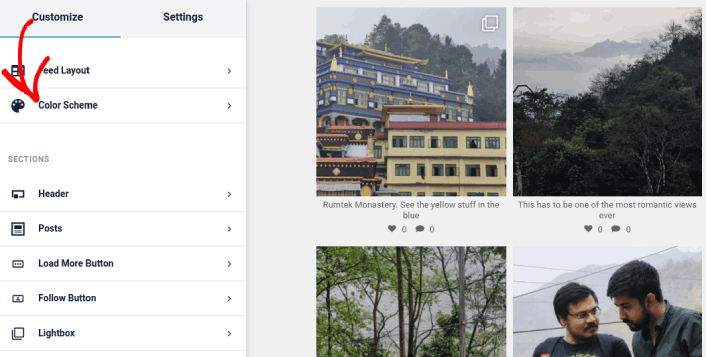
Inherit from Theme オプションを使用することをお勧めします。これにより、テーマのスタイルが自動的に取得されます。
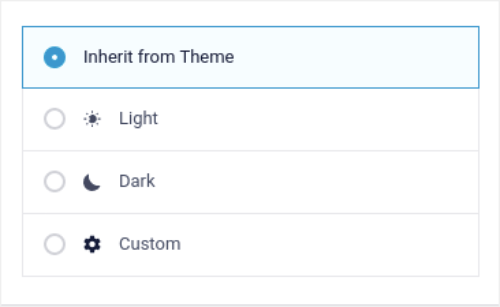
しかし、Custom をクリックして独自のカラー スキームを作成することもできます。
Instagramフィードにセクションを追加する
Finally, you can also add custom sections to your Instagram feed under Customize » Sections:
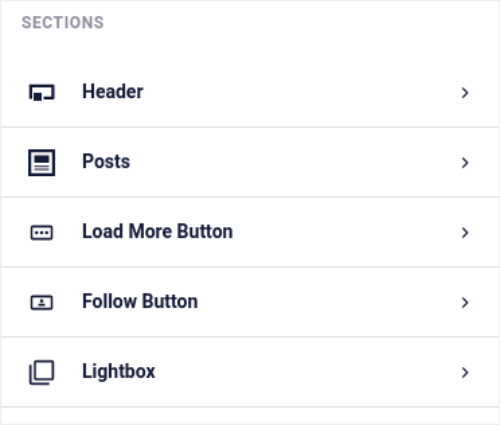
これには以下が含まれます:
- Header: ヘッダーをカスタマイズして、フォントスタイル、カスタム表示画像、カスタム自己紹介などを追加できます。
- Posts: 投稿の画像と動画の解像度をカスタマイズしたり、キャプションを許可したり、いいねやコメントの概要を含めたり、ホバーエフェクトを作成したりできます。
- 読み込みボタン: フィードに読み込みボタンを追加すると、訪問者がクリックしたときにさらに画像を取得できます。
- Follow Button: You can add a button to nudge your website visitors to follow you on Instagram.
- ライトボックス: クリックすると投稿がフルスクリーンモードでポップアップ表示されるライトボックスポップアップを作成できます。
設定に満足したら、保存ボタンをクリックしてください。
Step #5: Embed Instagram Photos in WordPress Page/Post
Now that your feed has been fully customized, it’s time to embed Instagram photos on your site. In your WordPress dashboard, go to Instagram Feed » All Feeds and copy the feed shortcode:
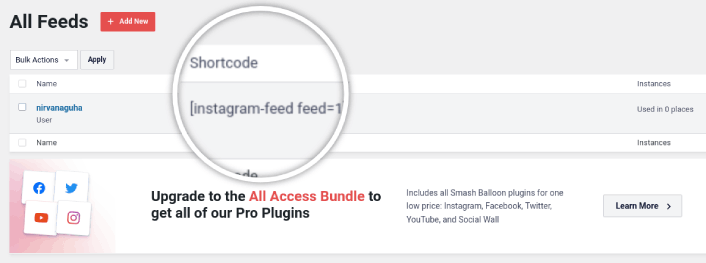
Now, you can use this shortcode to embed Instagram photos in WordPress instantly. You can add it to the sidebar, footer, posts, and even pages across your site.
If you followed all the steps from start to finish, you should have an Instagram feed on your site like this one:
これで完了です!
What to do After You Embed Instagram Photos in WordPress
今回は以上です、皆さん!
By now, you’ve managed to embed Instagram photos in WordPress. Next, you should set up a viral giveaway to supercharge your social media following.
その後は、コンタクトフォームが機能するようにサイトへのトラフィックを生成するだけです。その簡単な方法は、プッシュ通知の使用を開始することです。プッシュ通知の送信は、サイトのリピートトラフィックを生成するための優れた方法です。もしそれが興味のあることであれば、これらの記事も確認してください。
- プッシュ通知のコスト:本当に無料なの?(価格分析)
- WordPressブログへのトラフィックを増やす方法(簡単な9つの方法)
- ウェブプッシュ通知のオプトイン率を高める方法(7つの方法)
- Web通知WordPressプラグインをサイトに追加する方法
プッシュ通知の送信にはPushEngageの使用をお勧めします。PushEngageは世界No.1のプッシュ通知ソフトウェアです。まだお済みでない場合は、今すぐPushEngageを使い始めましょう。


