Si vous souhaitez afficher différents styles de pop-ups sur votre site Web en même temps, vous avez besoin d'une stratégie différente pour inciter les gens à s'inscrire ou à afficher les préférences de segment dans certains pop-ups et à avoir un pop-up régulier sur d'autres pages. Vous pouvez activer plusieurs pop-ups dès maintenant avec PushEngage.
Dans ce guide, vous découvrirez comment cibler efficacement vos abonnés grâce à plusieurs pop-ups via des règles de ciblage local.
Comment configurer une règle de ciblage local
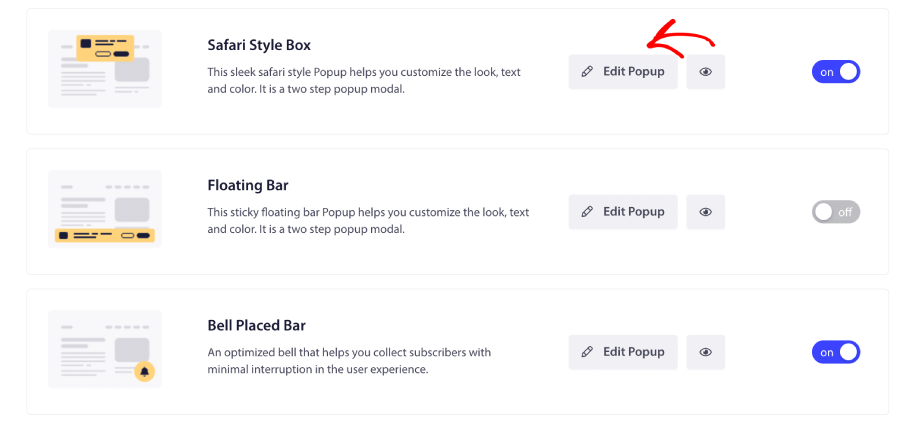
Si vous souhaitez utiliser plus d'un pop-up modal pour collecter des abonnés sur votre site Web, il est recommandé d'appliquer des règles locales lors de la personnalisation des pop-ups. Cela vous permet de gérer différents styles sur des pages spécifiques ou pour différents pays. Pour ce faire, allez dans "Design" > "Pop-ups Modaux", faites défiler jusqu'au style de pop-up que vous souhaitez modifier et cliquez sur "Modifier le pop-up" comme indiqué ci-dessous.
Dans les étapes suivantes, vous devez faire défiler vers le bas jusqu'à la section "Règles d'opt-in d'abonnement" et activer le bouton.
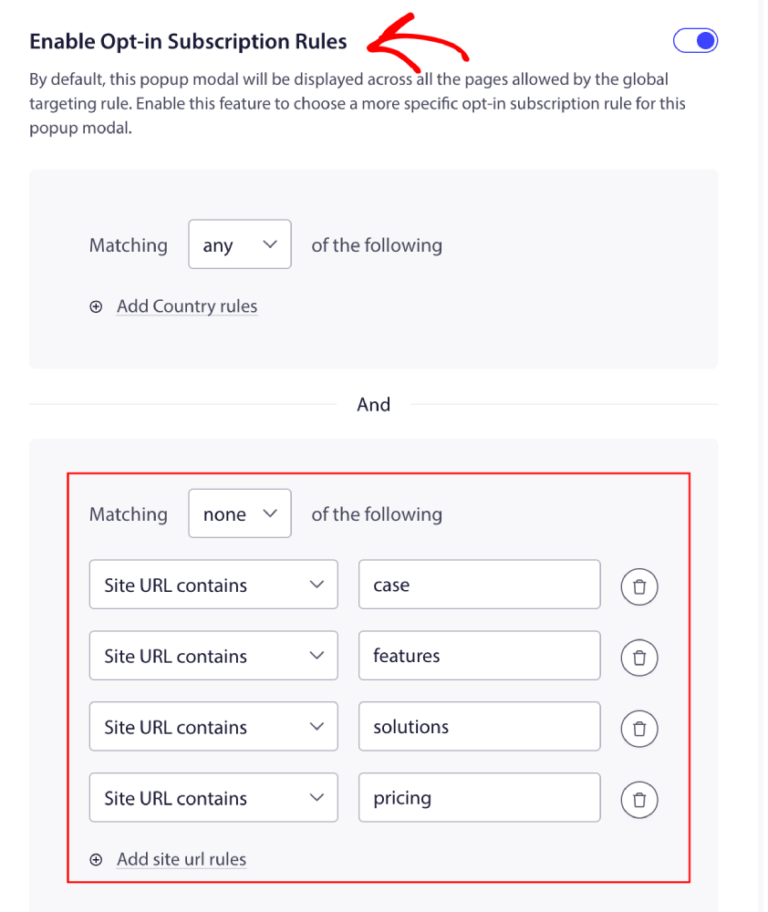
Vous pouvez maintenant ajouter les règles, cliquer sur "Enregistrer", puis sélectionner vos options d'affichage.
C'est tout ! Voici comment gérer les règles de ciblage pour le pop-up d'abonnement.
Si vous rencontrez des problèmes, veuillez nous contacter en cliquant ici. Notre équipe de support sera en mesure de vous aider.