Remarque : Il n'y a pas de documentation héritée disponible pour cet élément, vous voyez donc la documentation actuelle.
Il est facile de mettre à jour vos informations de facturation avec une autre carte sur votre compte pour que vos services ne soient pas interrompus. Vous apprendrez comment mettre à jour les détails de votre carte de crédit supplémentaire dans cet article.
Avant de commencer
Si vous vous êtes abonné via PayPal, vous devrez mettre à jour vos informations de facturation depuis votre compte PayPal. Vous ne pourrez pas mettre à jour vos informations de facturation dans votre compte PushEngage à moins que vous ne vous abonniez directement par carte de crédit.
Ajouter une autre carte
Vous devez vous connecter à votre tableau de bord PushEngage, vous déplacer vers le coin supérieur droit et naviguer vers Facturation.
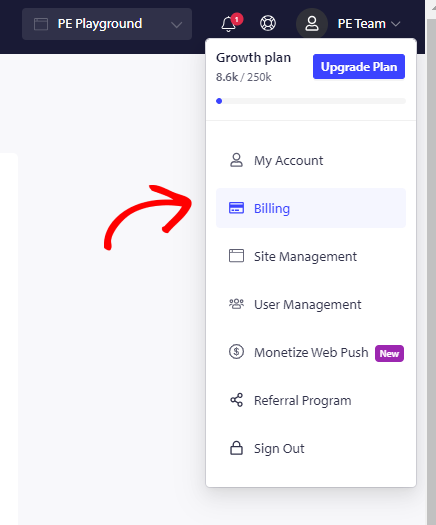
Vous verrez tous les détails de votre abonnement. Veuillez cliquer sur Mettre à jour le forfait » Passer à « Facturation et paiement ».
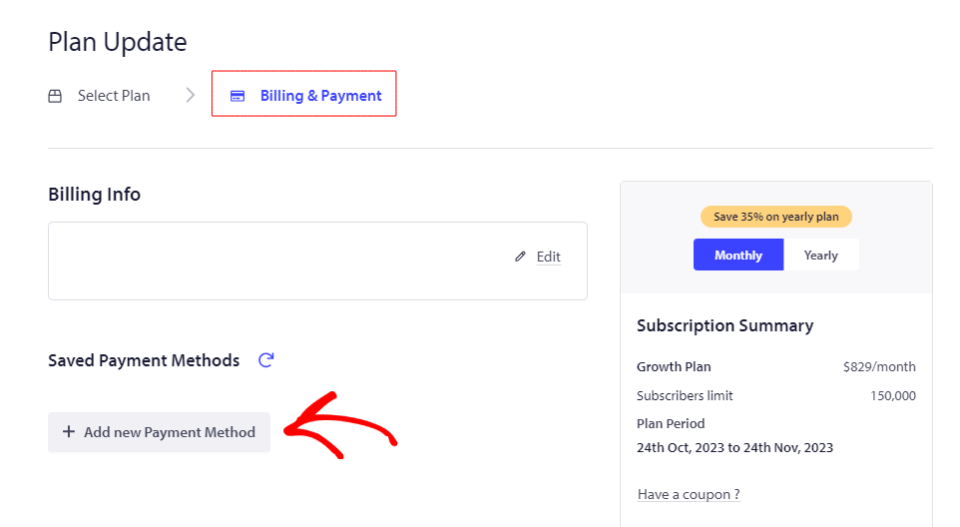
Cliquez sur Ajouter un nouveau mode de paiement, et entrez votre numéro de carte, la date mentionnée sur la carte ainsi que le code de sécurité de la carte (CVC).
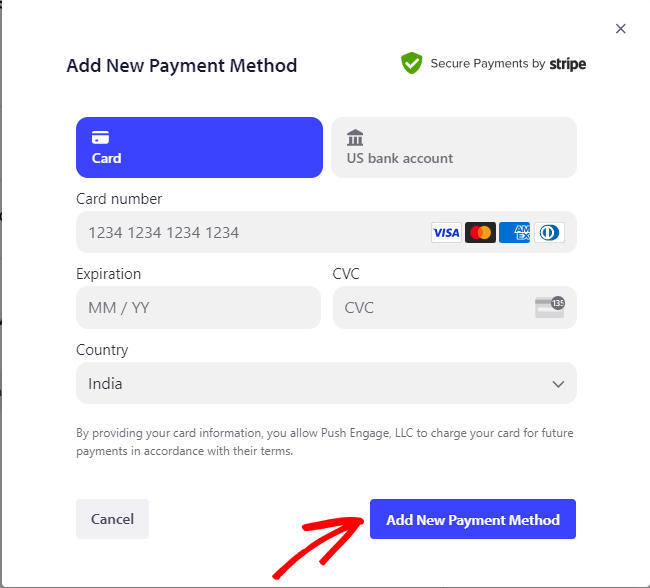
Cliquez sur Ajouter un nouveau mode de paiement une fois que vous avez entré tous les détails.
Votre nouvelle carte est maintenant mise à jour dans le compte et peut être utilisée pour traiter le paiement.
Remarque : Veuillez noter que vous devrez ajouter au moins une carte dans votre compte, vous ne pouvez pas supprimer toutes les cartes de votre compte.
Si vous rencontrez des problèmes, n'hésitez pas à nous contacter en cliquant ici. Notre équipe de support pourra vous aider.


