
Leder du efter en WP Mail SMTP anmeldelse for at træffe din beslutning om pluginnet?
Du er helt sikkert kommet til det rette sted.
WP Mail SMTP kan hjælpe dig med at reducere spam-e-mails fra din WordPress-side.
Men er det virkelig det #1 WordPress SMTP-plugin? Hvorfor ville du overhovedet have brug for et SMTP-plugin? WordPress har sin egen PHP mailer. Hvorfor investere i at købe et SMTP-plugin, der også hjælper dig med at sende e-mails?
I denne artikel vil vi besvare alle disse spørgsmål og mere til.
Vigtigst af alt vil vi sætte WP Mail SMTP på prøve og finde ud af, om det virkelig er værd at købe.
Lad os dykke lige ned i det.
Hvad er WP Mail SMTP?
WP Mail SMTP er et plugin, der hjælper dig med at forbedre din WordPress e-mail leveringsevne. Pluginnet omgår standard wp_mail() funktionen og tvinger din side til at bruge SMTP-indstillinger i stedet.
Med simple ord: Du kan bruge enhver e-mail leveringstjenesteudbyder, inklusive Gmail, til at sende e-mails. Men mere om det senere.
Brug af WP Mail SMTP fjerner nogle af de største problemer med e-mail leveringsevne i WordPress. Standardmetoden for WordPress-sider til at sende e-mails kan blive markeret som spam. Og det er hvis de overhovedet bliver leveret.
WP Mail SMTP kan også være nyttigt, når:
- din hosting ikke understøtter mail()-funktionen, og WordPress ikke kan sende e-mail
- din server ikke er konfigureret korrekt til at levere mail fra dit WordPress-websted
- du vil sende dine forretnings-e-mails via Gmail eller Google Apps
- forespørgselsbeskeder fra dine WordPress-formularer aldrig bliver sendt til din indbakke
Og her er sagen: Næsten ALLE WordPress-websteder lider af det samme problem.
Så, selvom du driver en personlig blog og indsamler e-mails for at sende et nyhedsbrev, eller hvis du er en VVS'er, der accepterer bookinger på en lille virksomhedsside, vil du have præcis det samme problem med e-mails på WordPress.
Hvis du allerede har oplevet problemer med e-mail leveringsevne fra WordPress eller WooCommerce, og du ved, hvad vi taler om, bør du helt sikkert komme i gang med WP Mail SMTP i dag.
Tænk ikke engang over det. Gå bare og hent pluginnet lige nu.
Men hvis du gerne vil forstå problemet dybere og få et klarere billede af, hvad WP Mail SMTP har at tilbyde, så bliv ved med at læse.
Hvorfor bruge WP Mail SMTP?
De fleste WordPress-hostingudbydere er ikke rigtig konfigureret korrekt til at sende e-mails. Som et resultat får du måske ikke engang besked om indsendelser via kontaktformularer. Brug af WP Mail SMTP giver dig mulighed for at omgå standard wp_mail() funktionen og tvinger din side til at bruge SMTP-indstillinger i stedet.
På denne måde, selvom din webvært ikke er korrekt konfigureret til at sende e-mails, vil du stadig være i stand til at sende automatiserede e-mails og e-mail-notifikationer fra din side.
Lad os slet ikke komme i gang med, hvilket mareridt dette er for WooCommerce-butikker!
WordPress håndterer e-mails til brugerregistrering ved hjælp af indbygget PHP-kode kaldet wp_mail()-funktionen:

Dette er et stort problem, fordi ikke alle WordPress-værter tilbyder servere, der er korrekt konfigureret til at bruge PHP mail.
Og selv hvis serverne er korrekt konfigureret, bruger Gmail og andre e-mail-tjenesteudbydere strenge spamfiltre. Disse spamfiltre forsøger at autentificere, at din e-mail kommer fra din virksomhed og ikke en svigagtig tredjepart. Det er her, de fleste af dine e-mails bliver blokeret eller markeret som spam.
Du kan arbejde dig uden om dette problem ved at bruge WP Mail SMTP.
Sådan opsætter du WP Mail SMTP på din side
I denne sektion vil vi vise dig, hvordan du bruger en SMTP-tjeneste til at sikre din e-mail-levering. Vi vil også vise dig, hvilken SMTP-tjeneste vi bruger, men uanset hvilken SMTP-tjeneste du vælger, skal du installere WP Mail SMTP-pluginnet.
Så gå videre og installer og aktiver pluginnet. Hvis du er usikker på, hvordan du gør det, vil denne vejledning vise dig hvordan du installerer et WordPress-plugin.
Trin #1: Konfigurer pluginnet
Når du er færdig med at installere pluginnet, skal du gå til dit WordPress-dashboard og klikke på WP Mail SMTP for at konfigurere pluginnet:
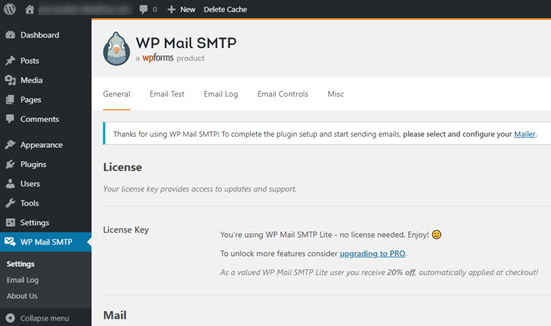
Når du har indtastet din licensnøgle, skal du begynde at udfylde sektionen Mail:
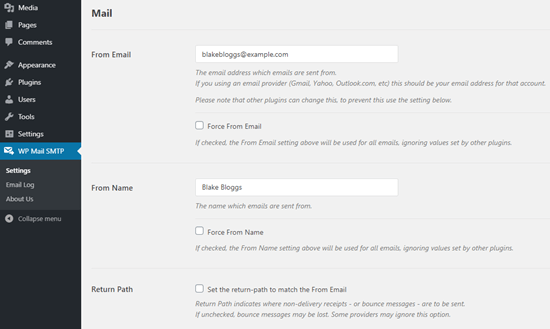
BEMÆRK: Sørg for, at du indtaster den samme e-mailadresse som den, du vil bruge til din SMTP-tjeneste. Hvis der er modstridende e-mails, vil du blive ved med at få fejl fra SMTP-tjenestens dashboard.
Det bedste ved dette plugin er, at selvom dine andre WordPress-plugins som f.eks. WP Forms bruger andre e-mailadresser, kan WP Mail SMTP tvinge dem til at bruge denne e-mailadresse.
Det var alt for nu.
Dernæst skal du vælge en SMTP-e-mailtjeneste til dit websted. Vi anbefaler at bruge SMTP.com. Men du kan finde mange forskellige tjenester der.
For at afslutte opsætningen af WP Mail SMTP-pluginnet skal du oprette en konto hos SMTP.com. Det er en meget populær SMTP-tjeneste, der giver dig mulighed for at sende bulk-e-mails med høje leveringsrater.
Trin #2: Opdater WP Mail SMTP-pluginnet
Gå til WP Mail SMTP-pluginnet, og klik på WP Mail SMTP » Indstillinger.
Vælg derefter en tjenesteudbyder under Mailudbyder. Du kan vælge mellem en lang række muligheder:
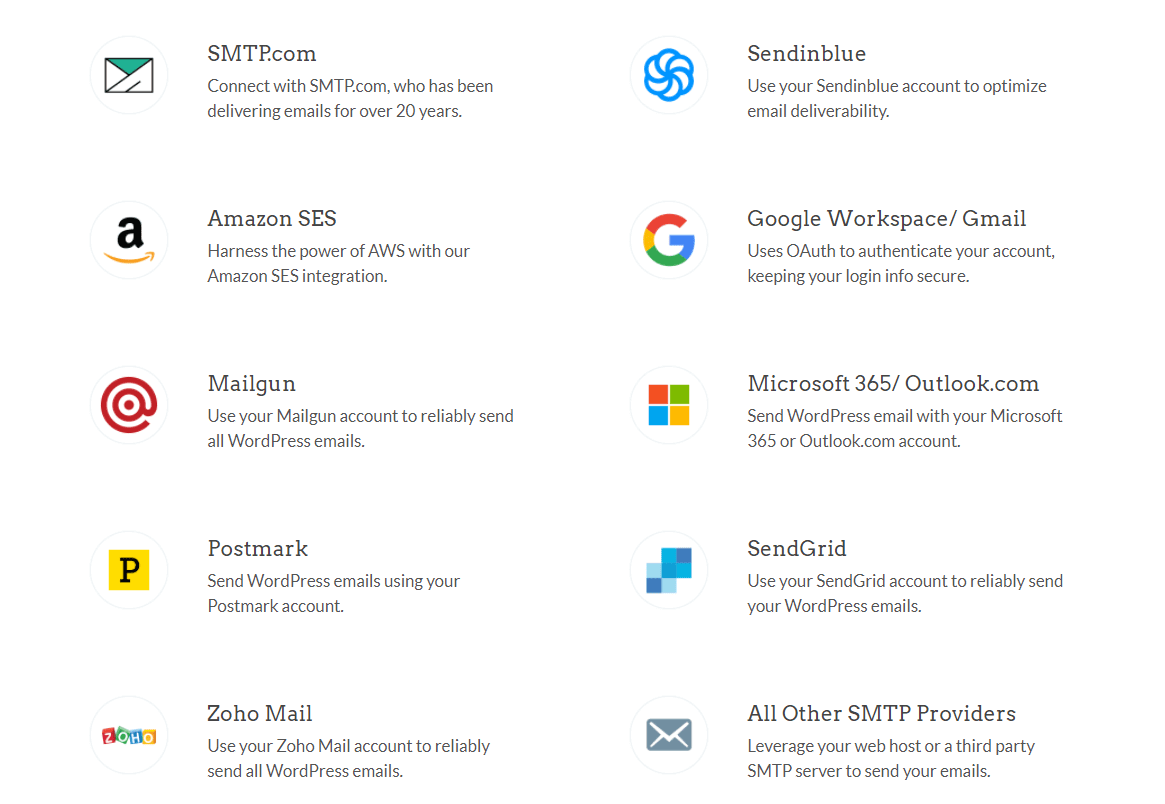
Vi anbefaler at bruge SMTP.com:
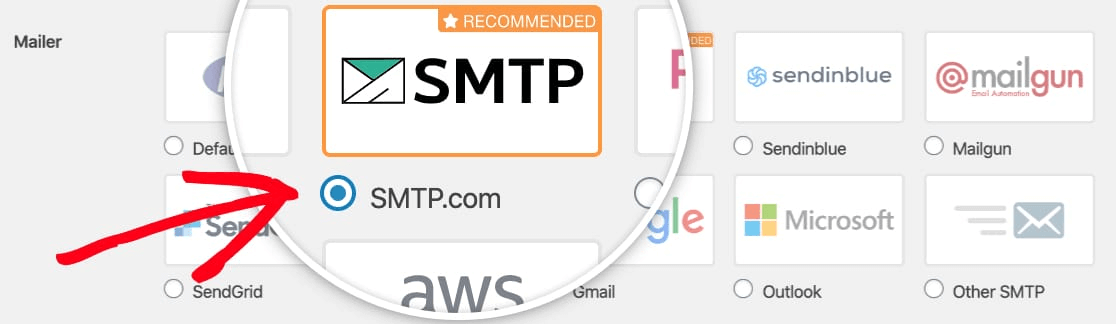
Trin #3: Opret en SMTP-konto
Opret en ny konto:

Når du har tilmeldt dig, bliver du bedt om at klikke på et aktiveringslink via e-mail og bekræfte din identitet. Så hold øje med flere e-mails.
Og gå derefter tilbage til WP Mail SMTP-pluginnet for at forbinde din SMTP-konto til pluginnet.
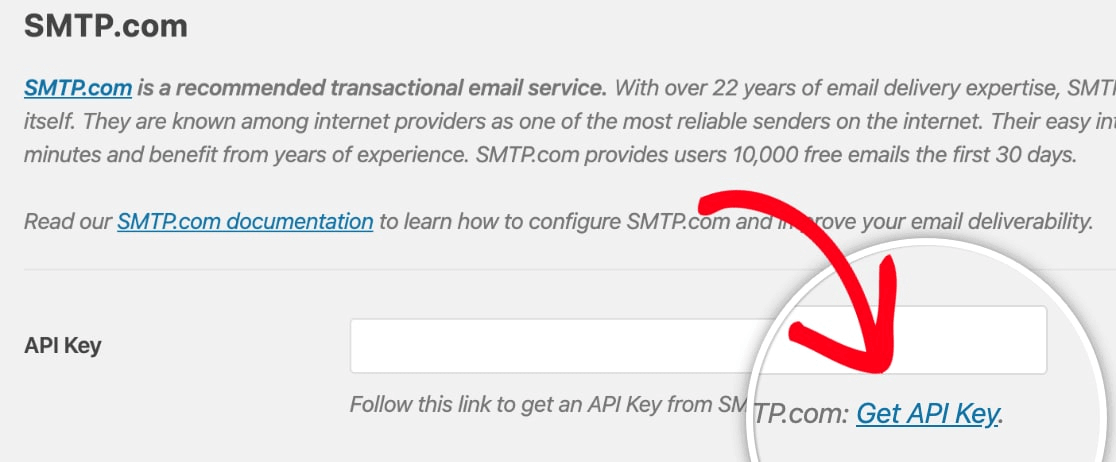
Pop-up'en vil bede om en API-nøgle, som du kan få fra dit SMTP.com-dashboard. Klik på linket Få API-nøgle (klik på dette link for at komme dertil direkte):
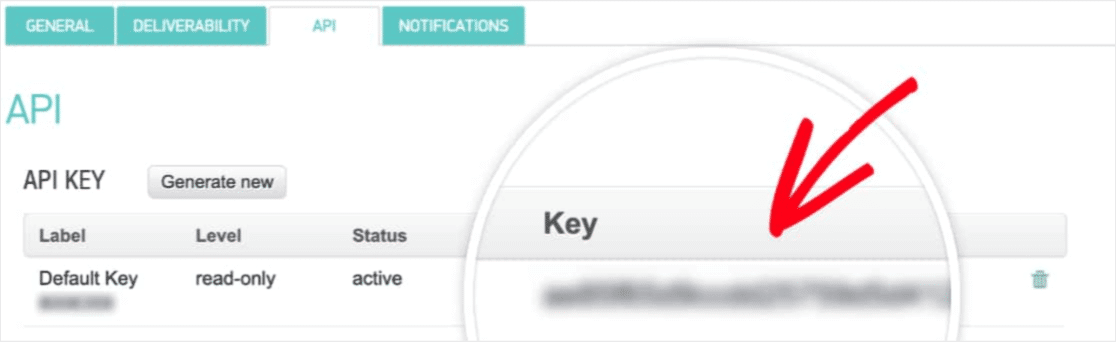
Du bør se en tabel på denne side. Kopier API-nøglen i kolonnen Nøgle:
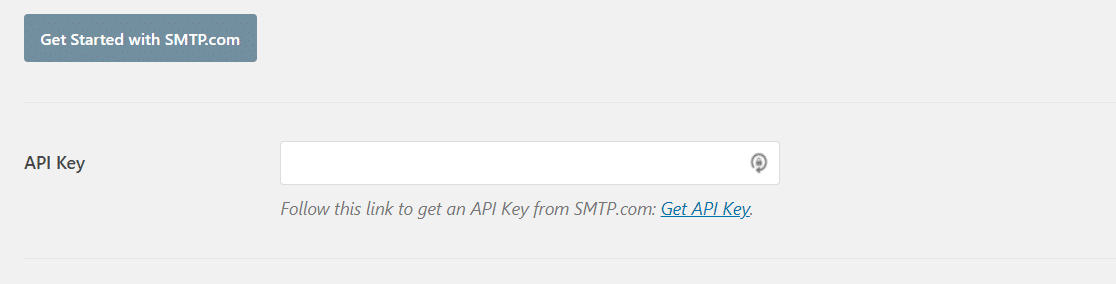
Indsæt derefter denne API-nøgle i WP Mail SMTP:
Til sidst, i feltet Afsender navn, skal du klikke på linket Hent afsender navn:

Kopier navnet i kolonnen Navn:
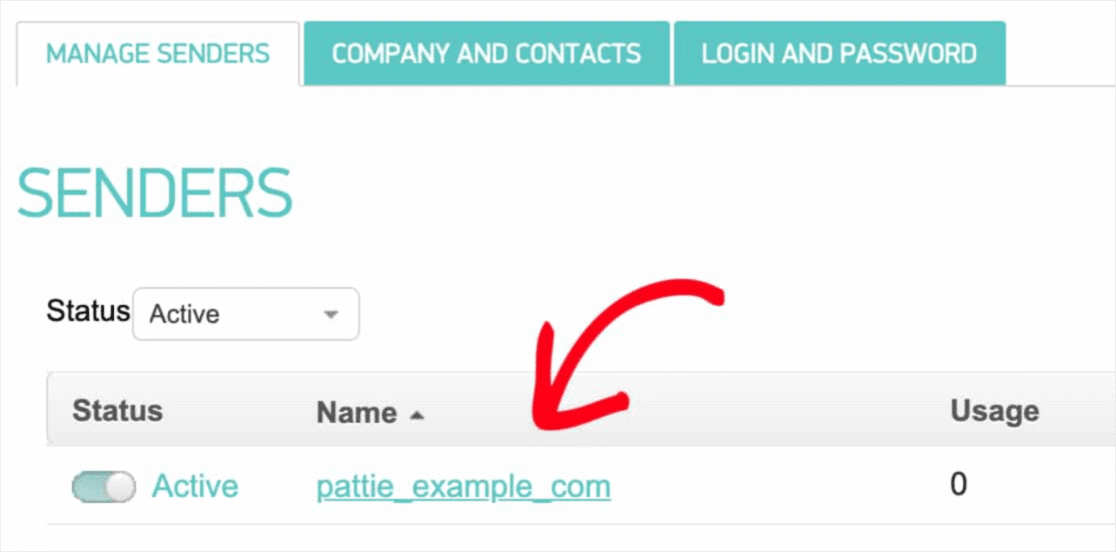
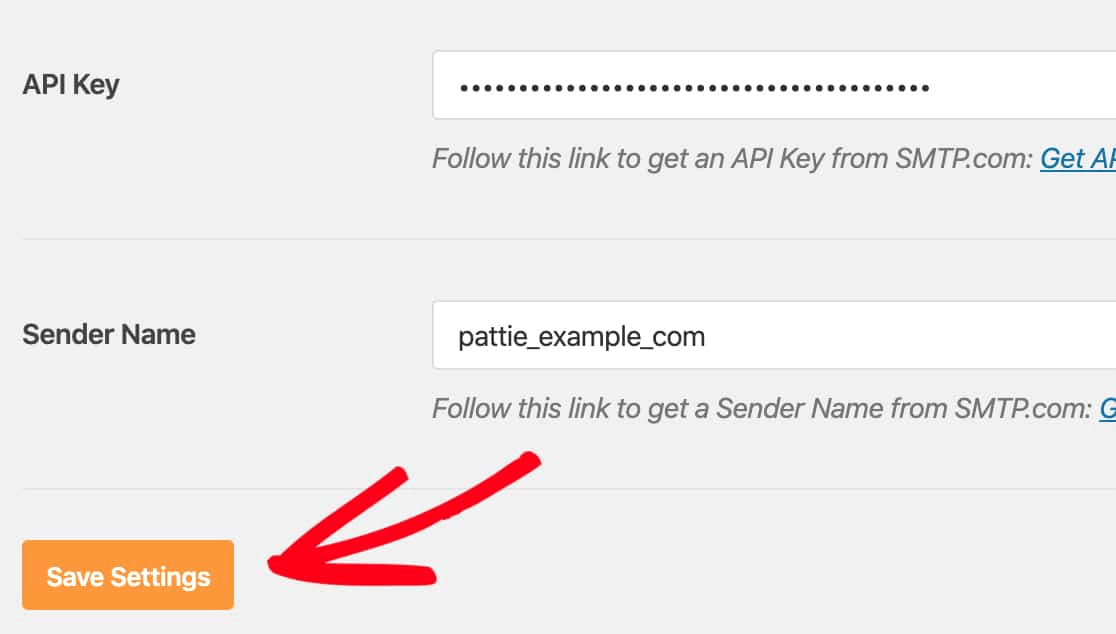
Og indsæt det i WP Mail SMTP.
Tryk derefter på Gem indstillinger:
Trin #4: Tilføj SPF-posten til dine DNS-poster
Efter godkendelsen begynder din vigtigste opgave: Tilføjelse af SPF-posten til dine DNS-poster. Hvis tingene blev alt for tekniske for dig alt for hurtigt, så fortvivl ikke. Det er en simpel proces.
Sender Policy Framework (SPF) er, hvordan SMTP.com godkender dine e-mails. Inkludering af dette trin sikrer, at dine e-mails ikke strander i spam-indbakken.
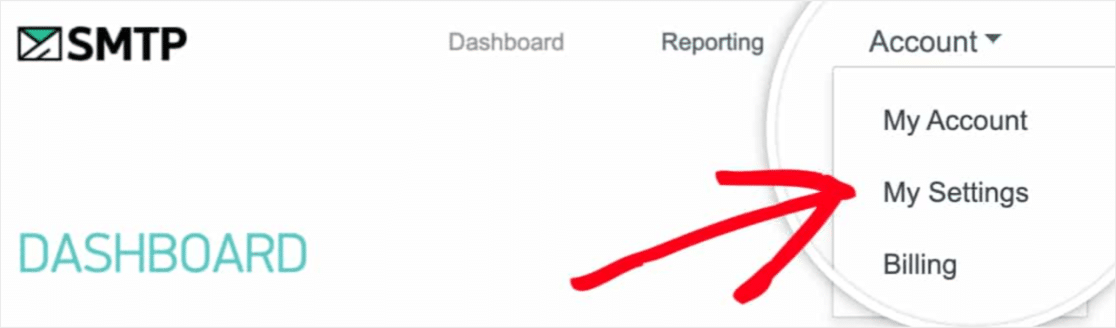
Gå til navigationsmenuen på din SMTP.com-konto, og klik på Konto » Mine indstillinger:
Gå til Generelle indstillinger og kig under SPF-post:
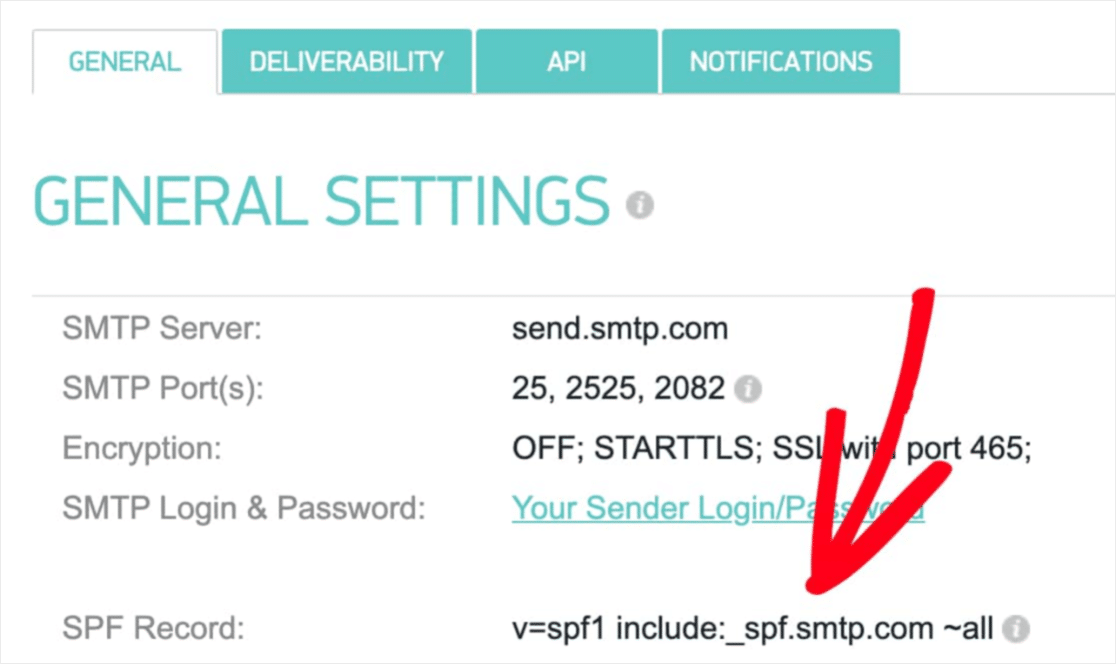
Du skal tilføje denne SPF-post til DNS-indstillingerne for dit websted. Hvis du ikke ved, hvordan du gør dette, kan du se denne artikel om hvordan man tilføjer SPF-poster.
BEMÆRK: I DNS-indstillingerne vil du se et felt kaldet TTL (Time To Live). Standardværdien er normalt 1 time. Hvis du kan ændre denne post, anbefaler vi at ændre den til 1 dag eller 86400 sekunder. Dette vil give serveren mulighed for at cache disse oplysninger i en hel dag.
Trin #5: Valider dine SPF-poster
Hvis du har tilføjet SPF-posten, er det tid til at validere, at ændringerne er blevet opdateret. Det kan tage op til 48 timer, før ændringerne afspejles. Så det er en god idé at validere resultaterne, før du går videre til næste trin.
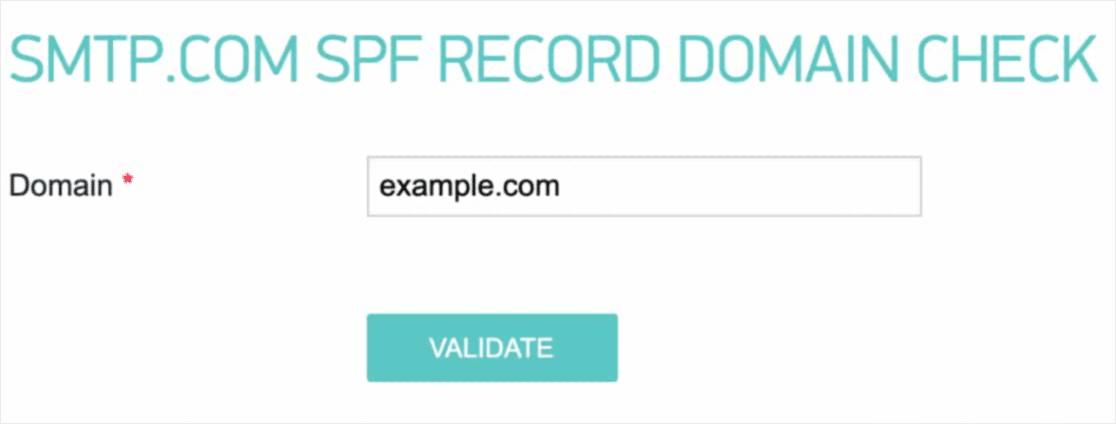
Klik på dette link og gå til sektionen, der siger SMTP.com SPF Record Domain Check.
I feltet Domæne skal du indsende din hjemmesides URL og klikke på Valider:
Hvis alt gik godt, bør du se denne Bestået-besked:
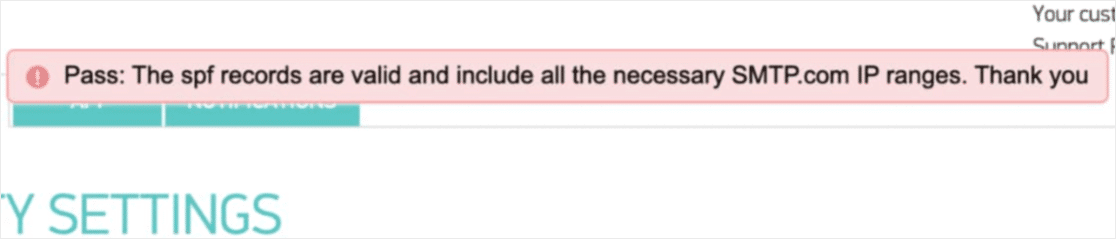
Og du er færdig!
Trin #6: Send en test-e-mail
Du er klar. Dette er det sidste trin, hvor du verificerer, at alt fungerer, som det skal. Heldigvis har WP Mail SMTP en indbygget 'Test-e-mail'-funktion.
Gå til WP Mail SMTP og klik på fanen E-mail-test:
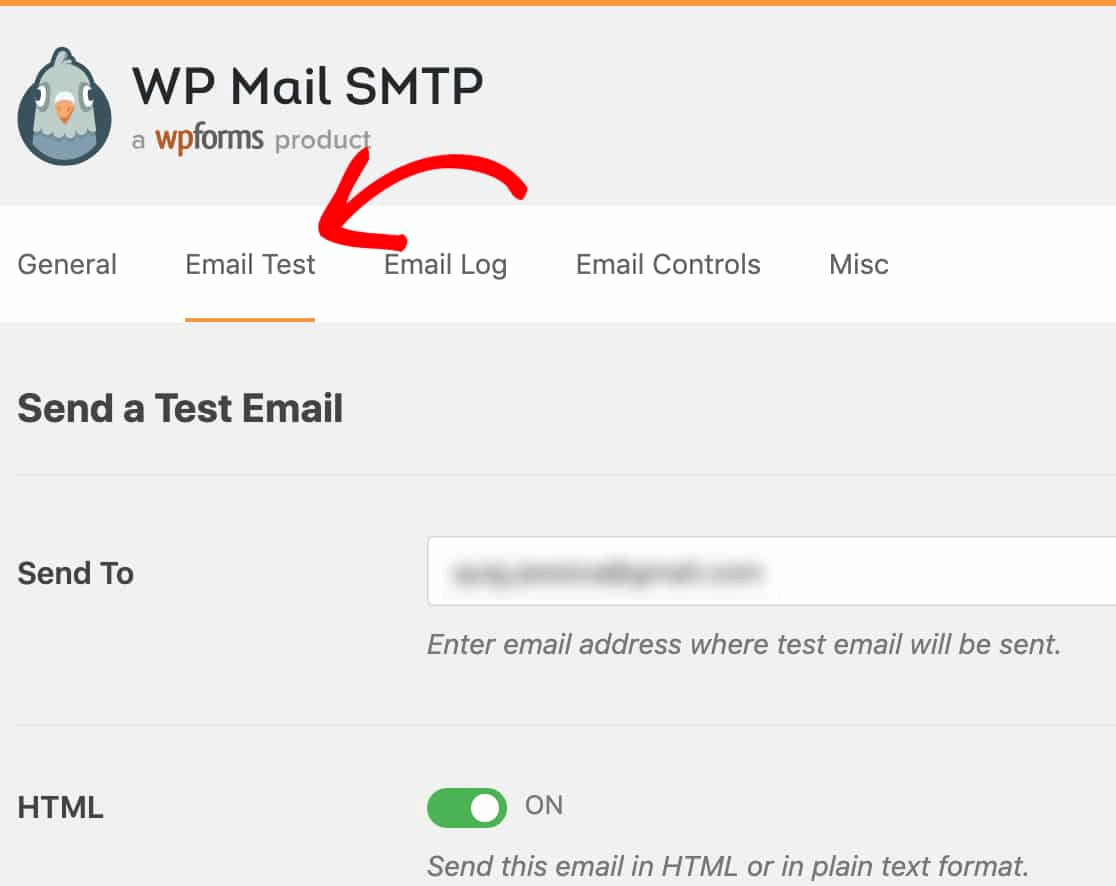
Indtast en hvilken som helst e-mailadresse, du har adgang til, og send en test-e-mail. Hvis alt gik godt, bør du se denne succesbesked:
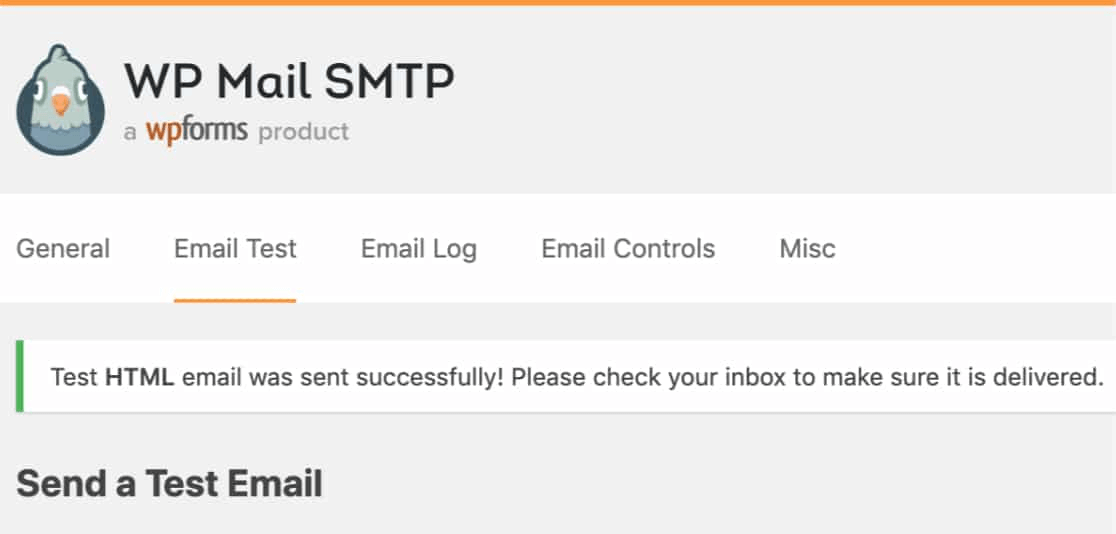
Tjek nu din indbakke og bekræft, at du har modtaget e-mailen i din primære indbakke. Vi er meget sikre på, at du finder den der.
Endelig skal du bare verificere, at e-mailen gik igennem din SMTP.com-konto. Klik på dette link for at gå til siden Leveringsdygtighedsindstillinger. Hvis du ser 'Bestået'-notifikationen som denne, har du gjort et godt stykke arbejde:
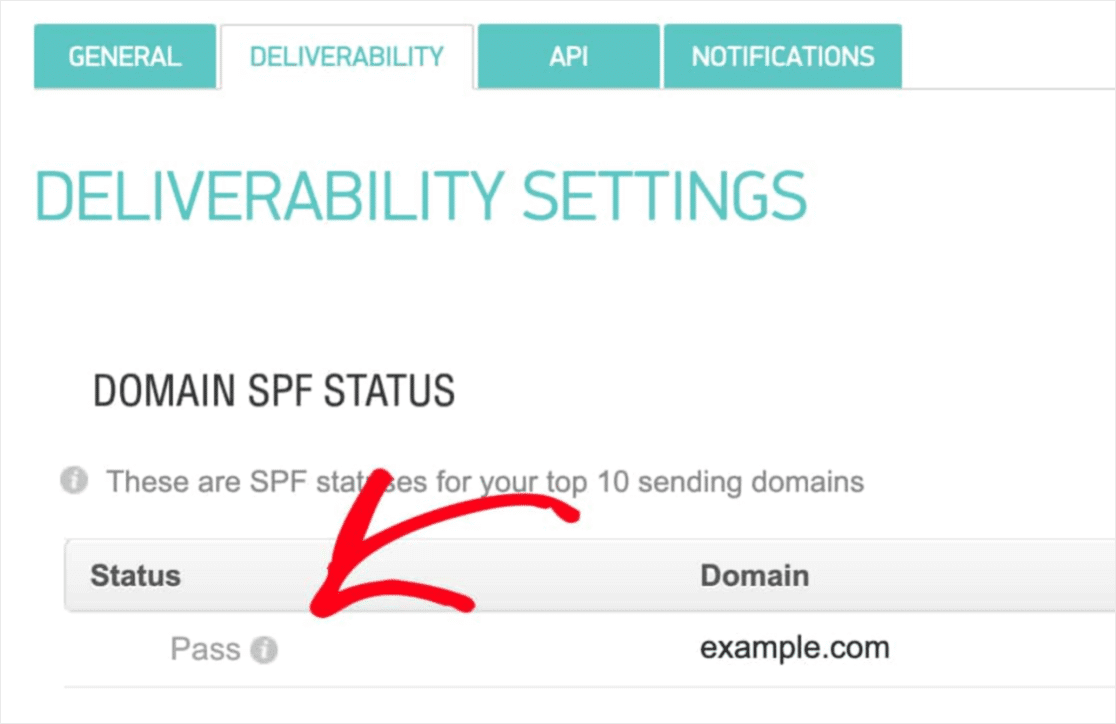
Hvis du ikke ser en 'Bestået'-status, så har du lavet en fejl. Gå tilbage til forrige sektion og gennemgå trin 1-4 og sørg for, at du ikke har overset noget.
Priser
Den endelige overvejelse her er prissætning.
Det er ret tydeligt, at WP Mail SMTP er mere rettet mod at løse et almindeligt problem uden nogen kodning.
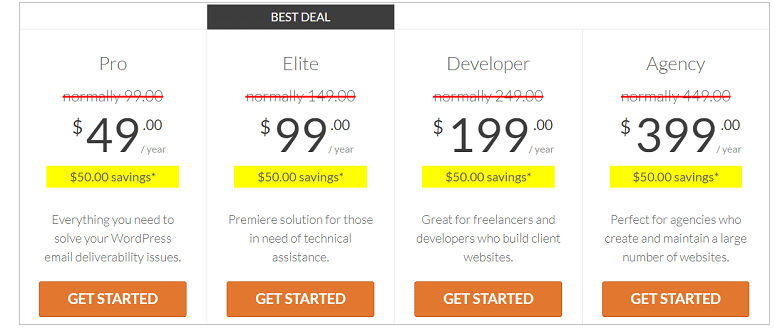
Når du går efter de højere pakker, får du meget mere værdi fra WP Mail SMTP.
WP Mail SMTP kommer under 4 forskellige prisklasser:
- Pro-plan: Tilgængelig for $49/år. Den tilbyder et års gratis downloads, support og opdateringer.
- Elite Plan: Tilgængelig for 99 USD/år. Denne plan inkluderer gratis White Glove-opsætning og prioriteret support.
- Udviklerplan: Tilgængelig for 199 USD/år. Du får et års gratis downloads, support og opdateringer. Du kan tilføje op til 20 forskellige websteder.
- Bureauplan: Tilgængelig for 399 USD/år. Denne licens inkluderer alt fra Udviklerplanen, og du kan tilføje op til 100 websteder.
Hvilken passer bedst til dine behov? Skriv en kommentar og lad os det vide.
Afslutning
Det var alt for denne gang, folkens!
Vores dom? WP Mail SMTP er helt sikkert en god investering for voksende virksomheder.
Som vi sagde, kan ethvert WordPress-websted potentielt lide under det samme problem med e-mails. Selvom du driver en rigtig lille virksomhed, kan du ende med at ødelægge din omsætning, fordi dit websted ikke lod dig vide, hvornår en kunde stillede en forespørgsel.
Gør ingen fejl, den lethed, hvormed du kan løse problemer med e-mail-levering med WP Mail SMTP, er uovertruffen. Og hvis du overvejer prisen, er den endnu mere tiltalende.
Efter vores mening er WP Mail SMTP helt klart det bedste SMTP-plugin til WordPress. Og hvis du er klar til at løse problemet, bør du få pluginnet lige nu.
Hvis du ikke er klar til at løse sådanne problemer endnu, bør du fokusere mere på marketing. En god måde at få mere trafik, engagement og konverteringer på ville være at bruge push-notifikationer til dit websted. Vi anbefaler at bruge PushEngage til at oprette dine push-notifikationskampagner.
PushEngage er verdens førende software til push-notifikationer. Så hvis du ikke allerede har gjort det, kom i gang med PushEngage i dag!


