
Leder du efter en simpel vejledning til at tilføje WordPress Open Graph meta tags til dit websted?
Open Graph er, hvordan Facebook håndterer metadata, når du deler dit indlæg eller din side på Facebook-opslag. Det er sådan, Facebook automatisk henter det fremhævede billede og metabeskrivelsen kun fra URL'en.
Men at tilføje det manuelt til dit websted kan være en reel plage.
For det første bliver du nødt til at lære, hvordan Open Graph strukturerede data skrives. Derefter skal du indsætte det i dine WordPress-temafiler. Og det er super risikabelt. Du skal redigere filer, der hjælper hele dit websted med at fungere korrekt. En enkelt linje ude af sted kan styrte hele dit websted ned.
I denne artikel vil vi tilføje WordPress Open Graph meta tags på den nemme måde uden nogen kodning.
Lad os dykke ned.
Trin #1: Installer All in One SEO
All in One SEO er det #1 WordPress SEO-plugin i verden. Det er det perfekte plugin til at tilføje WordPress Open Graph meta tags til dit websted uden nogen kodning.

All in One SEO (AIOSEO) er et af de mest anerkendte SEO-plugins i WordPress-fællesskabet. Den oprindelige version blev fuldstændig revideret for at tilføje en masse nye funktioner og tilføjelser. Så hvis du brugte AIOSEO tidligere, skal du tjekke pluginnet igen.
Ikke alene er AIOSEO kraftfuldt nok til at implementere de nyeste SEO-bedste praksisser, men du får også avancerede muligheder for at løse specifikke SEO-problemer lige ud af boksen. Dette inkluderer:
- Lokale SEO-moduler til små virksomheder med et lokalt publikum
- WooCommerce SEO til onlinebutikker
- En SEO-optimerer inde i din WordPress-editor
- Smarte sitemaps til øjeblikkelig indeksering på søgemaskiner
- Et Schema-plugin til at få dit indhold til at rangere i Rich Snippets
Og meget mere! For en komplet liste over All in One SEO's funktioner, tjek vores anmeldelse af pluginnet.
Det første, du skal gøre, er at installere og aktivere All in One SEO-pluginnet. Hvis du ikke er sikker på, hvordan du gør det, bør du tjekke denne guide om hvordan man installerer WordPress-plugins.
Efter du har downloadet og installeret pluginnet, får du en opsætningsguide:
Og opsætningsprocessen tager mindre end 10 minutter.
Men hvad nu hvis du migrerer fra et andet SEO-plugin? Hvert plugin håndterer metadata forskelligt. Så skal du gøre alt fra bunden? Er al din tidligere indsats spildt?
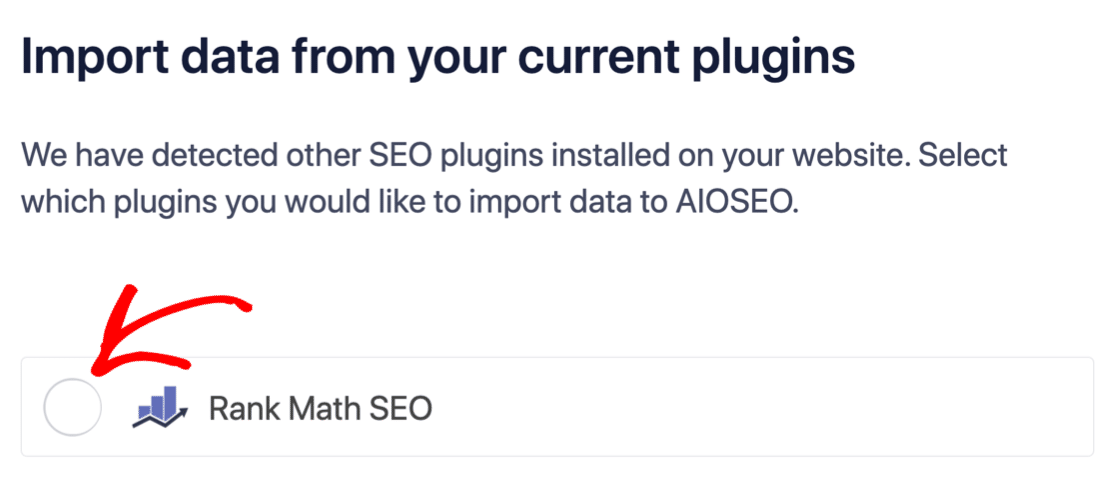
Nej! Hvis All in One SEO registrerer et andet SEO-plugin under opsætningsguiden, vil det tilbyde at kopiere de grundlæggende indstillinger for dig:
Ved slutningen af opsætningen vil opsætningsguiden bede dig om at deaktivere dit gamle SEO-plugin. På denne måde er der ingen plugin-konflikter og fejl:
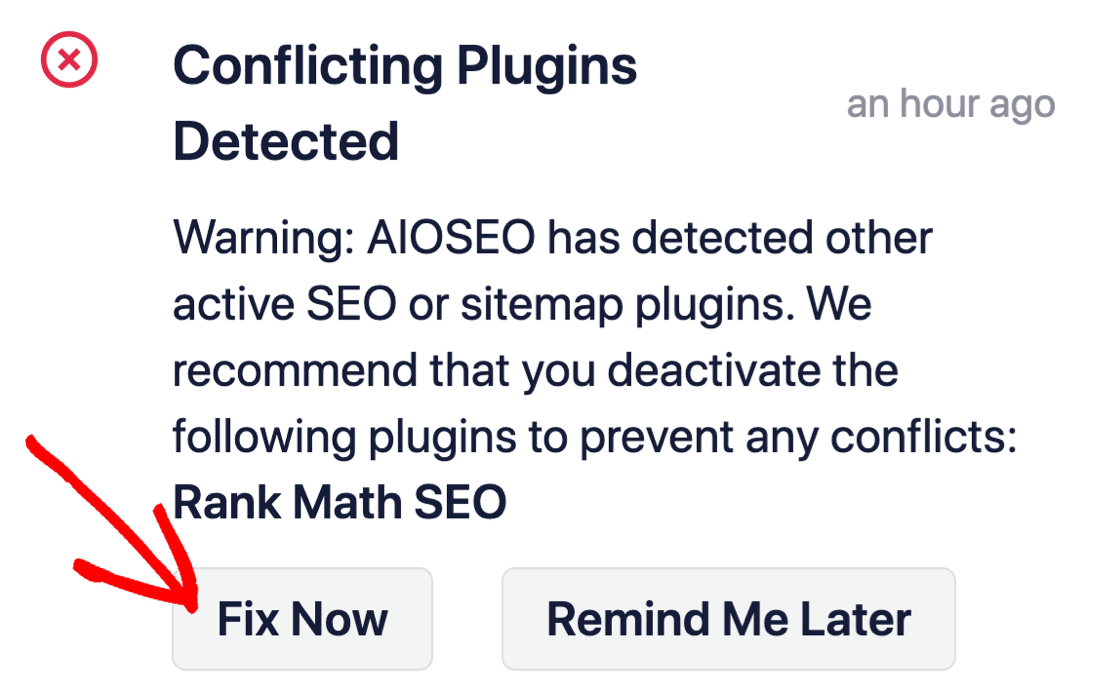
Klik på Fix Now sletter ikke indstillingerne i dit gamle SEO-plugin. Det deaktiverer blot pluginnet for at forhindre konflikter.
Trin #2: Konfigurer indstillinger for sociale medier
Gå til All in One SEO » Sociale Netværk » Sociale Profiler i dit WordPress-dashboard, og tilføj dine sociale profiler til webstedet:
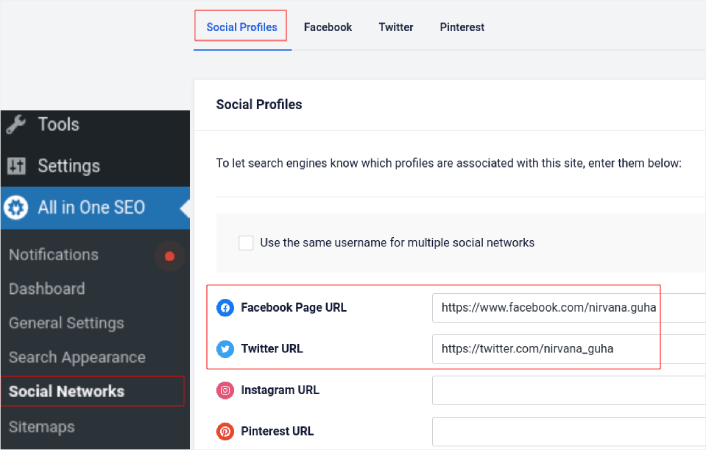
Dette trin sikrer, at søgemaskiner som Google og Bing ved, hvilke sociale medieprofiler der er tilknyttet dit websted. Samtidig hjælper dette dig også med dine indstillinger for deling på sociale medier. Det er det næste.
Trin #3: Rediger generelle Facebook-indstillinger
Gå til All in One SEO » Sociale Netværk, og klik på fanen Facebook. Her kan du konfigurere dine Generelle Facebook-indstillinger:
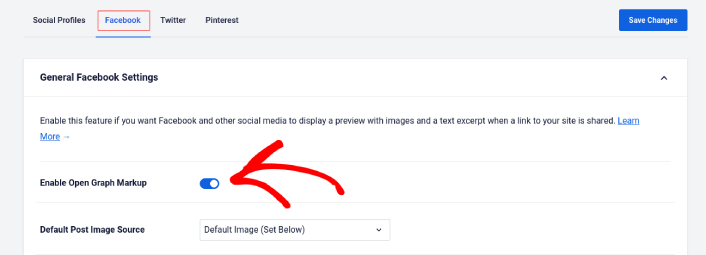
Slå kontakten Aktivér Open Graph Markup til for at aktivere den.
Her kan du indstille Standardindstillinger for indlægsbillede og et Standard Facebook-billede til indlæg:
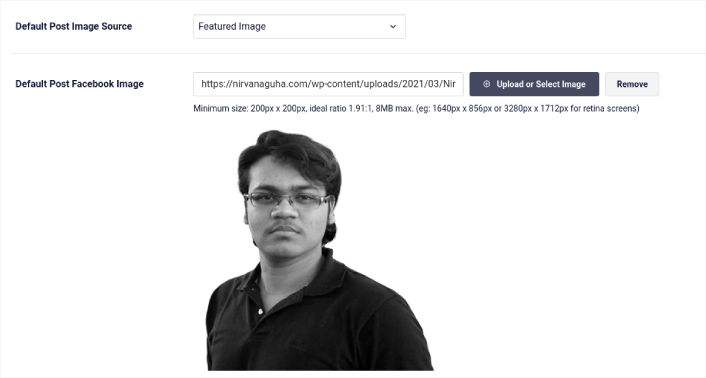
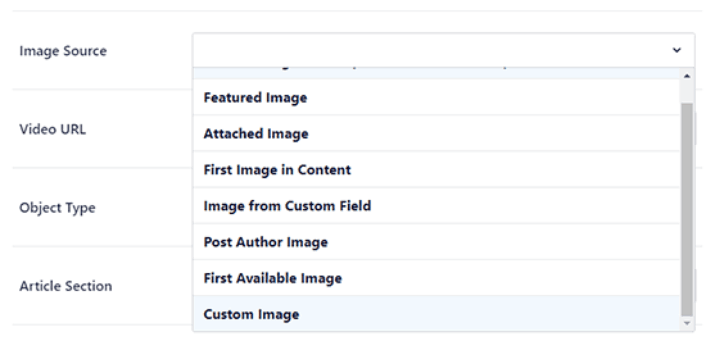
Vi anbefaler at bruge indstillingen Fremhævet billede som billedkilde til dine indlæg. Men du bør også tjekke de andre muligheder:
Du kan indstille standard Facebook-billedet til at være dit logo eller noget, der repræsenterer dit brand. Klik på knappen Upload eller Vælg billede for at ændre standardbilledet. I vores eksempel bruger vi et personligt brand. Så standard Facebook-billedet er et billede af forfatteren.
Når du er færdig, skal du trykke på knappen Gem.
Og det er det! Du er færdig. Når du har gemt ændringerne, kan du prøve at dele et indlæg fra dit websted til din Facebook-side eller profil.
Hvad du skal gøre, efter du har tilføjet WordPress Open Graph-metatags
Det var alt for denne gang, folkens!
Derefter bør du begynde at tænke på flere måder at engagere og konvertere den trafik, du bringer ind fra dine sociale mediekonti. En god måde at gøre det på er at bruge push-notifikationer. Push-notifikationer kan være et kraftfuldt marketingværktøj til at skabe trafik, engagement og direkte salg for din virksomhed.
Hvis du ikke er 100% overbevist, bør du tjekke disse ressourcer om, hvordan du effektivt bruger push-notifikationer:
- 7 Smarte Strategier til at Øge Kundeengagement
- Er Push-notifikationer Effektive? 7 Statistikker + 3 Eksperttips
- Sådan opsættes push-meddelelser om forladte indkøbskurve (nem vejledning)
- Sådan tilføjer du et Web Notifications WordPress-plugin til dit websted
Vi anbefaler at bruge PushEngage til at oprette dine push-notifikationskampagner. PushEngage er den #1 push-notifikationssoftware i verden. Så hvis du ikke allerede har gjort det, så kom i gang med PushEngage i dag!


