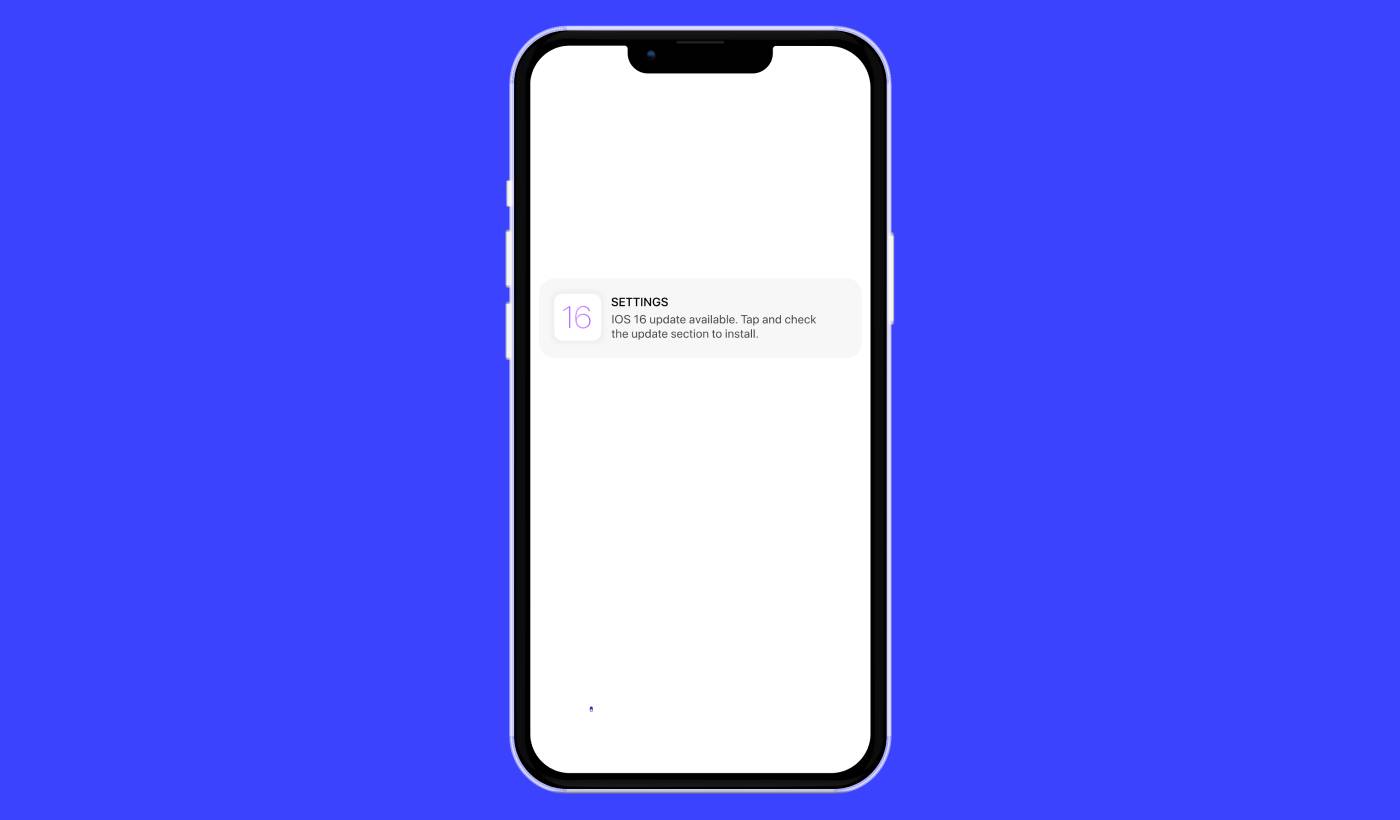
Leder du efter en simpel guide til iOS push-notifikationskampagner? iOS push-notifikationer, de små praktiske beskeder, der dukker op på din skærm, kan være en reel game-changer for din virksomhed, hvis de bruges korrekt.
Forestil dig nu dette: Du er virksomhedsejer og har lige lanceret et lynsalg på din hjemmeside og app. Hvordan får du kunderne til straks at strømme til din side? Simpelt, ved at sende en iOS push-notifikation. Lige pludselig modtager kunderne en rettidig meddelelse om udsalget, og din hjemmeside- og app-trafik skyder i vejret.
Men hvad er en iOS push-notifikation præcist? Tænk på det som din personlige, lommevenlige billboard. Det er en kort besked eller notifikation, der sendes til iOS-enheder (iPhones, iPads) fra apps installeret på enheden.
Det bedste er, at du kan få alt dette sat op super hurtigt! Lyder det interessant, ikke? Lad os dykke ned.
Hvad er en iOS Push-notifikation?
En iOS push-notifikation svarer til et lille digitalt notat, der vises på dine Apple mobile enheder. Det kan være fra dine foretrukne sociale medieplatforme, nyhedsdistributører eller online shopping-apps – alt sammen med det formål at holde dig opdateret, engageret og forbundet.
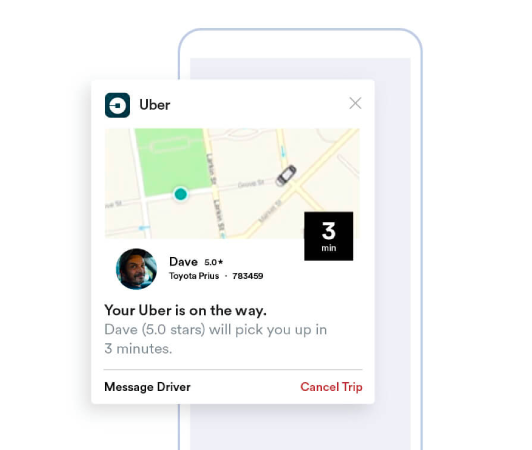
Tænk på disse mini-beskeder som blide bank på din iOS-enheds skulder sendt via Apple Push Notification service (APNs). (Når du er klar til at vælge en leverandør, kan du sammenligne de bedste iOS push-notifikationstjenester.) Det er næsten som om appen hvisker til din enhed og beder om din opmærksomhed. Det bemærkelsesværdige ved iOS push-notifikationer er, at du ikke engang behøver at have appen aktiv eller bruge den. Som ved et trylleslag dukker notifikationer op, selv på din låste skærm, hvilket sikrer, at du aldrig går glip af vigtige opdateringer eller prompts.
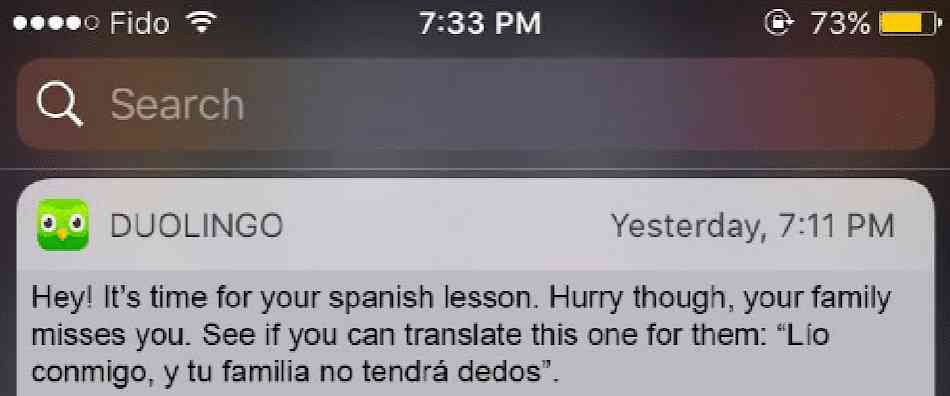
iOS push-notifikationer tilbyder en rigdom af fordele. Først og fremmest er de et exceptionelt værktøj til at holde dig informeret med opdateret information. Forestil dig en notifikation fra en online shopping-app, der informerer dig om et aktuelt udsalg.

Derudover kan de spare dig dyrebar tid. Forestil dig din bank-app, der sender en notifikation, der bekræfter en succesfuld transaktion, hvilket eliminerer behovet for at logge ind og tjekke manuelt. Ud over disse praktiske fordele forbedrer iOS push-notifikationer din samlede app-oplevelse ved at gøre den mere livlig og interaktiv.
Navigationen i disse notifikationer er gjort brugervenlig af platforme som PushEngage. Udstyret med sofistikerede funktioner sikrer PushEngage, at disse små informationsstykker, der tjener dine interesser, når dig rettidigt og er strømlinet efter dine præferencer. Uanset om det er notifikationsfrekvens eller typen af notifikationer; PushEngage giver dig kontrollen.
Bevæbnet med en grundlæggende forståelse af, hvad iOS push-notifikationer er, og deres mekanik, lad os dykke dybere ned i de forskellige typer af notifikationer og afsløre, hvordan apps udnytter dem til at engagere og konvertere deres brugere.
Typer af iOS Push-notifikationskampagner, du kan bruge
Der er mange typer af iOS push-notifikationer, der kan bruges til at øge interaktionen med dit publikum. Ved at forstå disse forskellige typer kan du forbedre deres effektivitet og skabe en mere personlig og interaktiv brugeroplevelse.
- Notifikationer i appen: Disse notifikationer kan sendes, når en bruger aktivt bruger din app. For eksempel kan en e-handelsapp sende en notifikation om en særlig rabat på en vare, som brugeren er interesseret i. Med PushEngage kan virksomheder nemt sende disse relevante og rettidige beskeder for at øge brugerengagementet.
- Placeringsbaserede notifikationer: Disse notifikationer sendes baseret på brugerens geografiske placering. De er gode til virksomheder som detailbutikker eller arrangementer, der ønsker at informere nærliggende brugere om eksklusive tilbud. PushEngage gør geo-targeting enkelt og sikrer, at virksomheder effektivt kan nå deres målgruppe, uanset hvor de er.
- Adfærdsbaserede notifikationer: Disse notifikationer sendes som svar på specifikke handlinger, der er foretaget (eller ikke foretaget) af brugeren i appen. For eksempel, hvis en bruger tilføjer en vare til sin indkøbskurv, men ikke køber den, kan en adfærdsbaseret notifikation minde dem om det. Med PushEngage kan virksomheder præcist styre disse typer af notifikationer.
- Tidsbestemte notifikationer: Disse push-notifikationer er indstillet til at blive sendt på forudbestemte tidspunkter og kan bruges til tilbagevendende begivenheder eller meddelelser. Med PushEngage kan disse notifikationer planlægges i forvejen, hvilket sikrer, at brugerne holdes informeret om vigtige opdateringer eller begivenheder.
En succesfuld push-notifikationskampagne kræver den rigtige type notifikation til dens mål. Så hvis du ønsker at booste din virksomhed ved hjælp af iOS push-notifikationskampagner, har du brug for en iOS push-notifikationstjeneste med mange tilgængelige valgmuligheder for at optimere din strategi for maksimalt engagement.
Hvordan fungerer en iOS push-notifikation?
En iOS push-notifikation genereres, når den specifikke app på din iOS-enhed kommunikerer med APNs. Når notifikationen er udformet og sendt, ruter APNs den til den tilsigtede enhed – alt sammen inden for få mikrosekunder.
Lad os nu dykke dybere ned i verdenen af iOS push-notifikationer. Overvej at tjekke din telefon, og du ser straks en notifikation fra din yndlingsnyheds-app, der fortæller dig om breaking news, eller din foretrukne shopping-app, der advarer dig om et flash-udsalg. Det er i disse øjeblikke, at iOS push-notifikationer kommer i spil. Disse notifikationer er små beskeder, som apps sender for at blive vist på enhedens hjemme- eller låseskærm, selv når appen ikke er i brug.
iOS push-notifikationer er vitale dele af vores daglige digitale interaktion. De drives af Apples push-notifikationstjeneste, kendt som APNs. Denne tjeneste koordinerer leveringen af notifikationer fra dine apps' servere til dine Apple-enheder. Denne proces sikrer, at du altid er opdateret og modtager notifikationer i realtid fra dine apps uden at skulle tjekke dem manuelt.
Disse notifikationer giver ikke kun information, men sparer dig også tid og holder dig forbundet. Ved at bruge vores partner, PushEngage, kan virksomheder sende målrettede iOS push-notifikationer, der øger brugerens dopamin- og engagementniveauer. For eksempel kan PushEngage-drevne notifikationer intelligent minde dig om varer, der er efterladt i din e-handelskurv, eller advare dig om ankomsten af et længe ventet produkt. I denne forstand beriger de den samlede brugeroplevelse ved at levere optimerede og personlige notifikationer.
Tænk på det på denne måde: iOS push-notifikationer er som venlige dørvogtere, der leverer nyttige opdateringer lige til døren på din enhed. Og hvad mere er, deres roller bliver stadigt mere forskelligartede og spændende med tiden. Så ved at bruge et kraftfuldt værktøj som PushEngage kan både virksomheder og brugere opnå betydelige fordele fra disse sofistikerede varslingssystemer.
Sådan tilføjer du iOS push-notifikationer til din app
Integrerer du med en AI-kodningsassistent? Open source PushEngage Agent Skills lærer Claude Code, Cursor og enhver SKILL.md-kompatibel agent at integrere og debugge dette SDK. Og når du sender, lader PushEngage MCP-serveren den samme assistent køre dine kampagner — segmenter, afsendelser, A/B-tests og rapporter. Bygger du i Replit, Lovable eller Bolt? Open source vibe-coding kits inkluderer en færdiglavet demo-butik, en Flutter-starter og demoer med ét prompt med PushEngage forudkonfigureret.
Der er grundlæggende to typer af iOS push-notifikationskampagner:
- En iOS web push-notifikation
- En iOS app push-notifikation
Baseret på din virksomhed kan du muligvis sende både web- og app-push-notifikationer. Og vi anbefaler kraftigt at sende begge typer push-advarsler. Men før du opretter en iOS-push-advarsel, skal du vælge en push-notifikationstjeneste. En push-notifikationstjeneste er en software, der giver dig mulighed for at oprette push-kampagner uden nogen kodning.
Vi anbefaler at bruge PushEngage.

PushEngage er verdens førende plugin til push-notifikationer.
Push-notifikationer hjælper dig med at øge din webtrafik og dit engagement automatisk. Og hvis du driver en onlinebutik, hjælper PushEngage dig også med at øge dit salg ved at hjælpe dig med at oprette automatiserede e-handels-push-notifikationer.
Du kan komme i gang gratis, men hvis du er seriøs omkring at vækste din forretning, bør du købe en betalt plan. Før du køber en push-notifikationstjeneste, bør du også se denne guide til priser på push-notifikationer.
Her er et hurtigt overblik over, hvad du får med PushEngage:
- Højtkonverterende automatiserede kampagner
- Flere målretnings- og kampagneplanlægningsmuligheder
- Målsporing og avanceret analyse
- Intelligent A/B-test
- Beviste push-notifikationsskabeloner til at hjælpe dig med at få mere trafik og konverteringer
- En dedikeret succesmanager
Du vil se, at PushEngage uden tvivl er det bedste valg, hvis du vil opbygge trafik, engagement og salg for din virksomhed. Og hvis du har et stramt budget, kan du altid være lidt kreativ med dine push-notifikationer.
Sådan opretter du en gratis PushEngage-konto
Gå til PushEngage og klik på Kom i gang gratis nu:
Du kan komme i gang med gratisplanen. Men hvis du leder efter de mest kraftfulde browserunderretninger, bør du vælge en betalt plan baseret på dine forretningsbehov. Når du ved, hvilken plan du vil have, skal du klikke på Kom i gang for at oprette din PushEngage-konto.
Tilmeld dig PushEngage
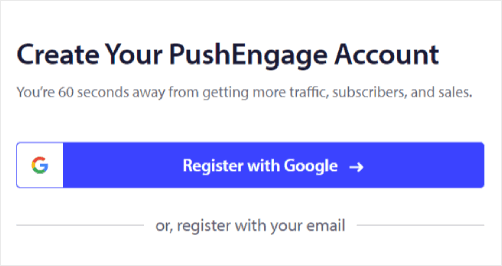
Nu er det tid til at oprette din PushEngage-konto. Start med at tilmelde dig med en e-mailadresse eller et Gmail-id:
Udfyld derefter dine kontooplysninger:
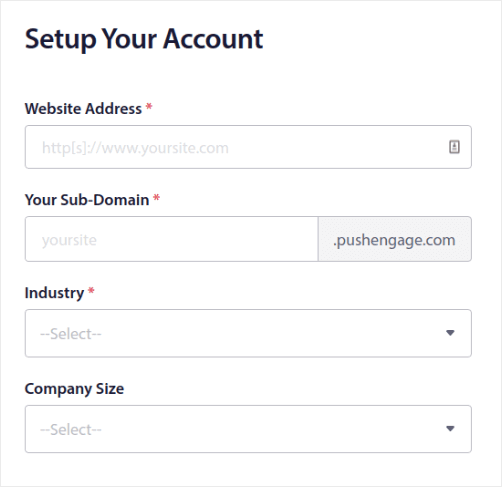
Og tilføj dine kreditkortoplysninger for at købe din plan:
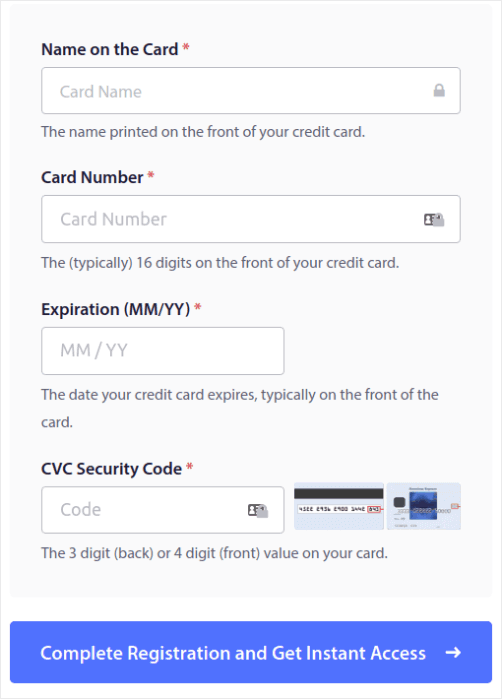
Hvis du valgte gratis kontoen, vil dit kreditkort aldrig blive opkrævet penge, før du vælger at opgradere din plan. Og nu er du klar til at få adgang til dit PushEngage-dashboard. Klik blot på Gennemfør registrering og få øjeblikkelig adgang.
Hvis du har brugt OneSignal eller PushAlert før, vil du se, at PushEngage giver dig en meget renere oplevelse fra dashboardet. OneSignal-dashboardet er ikke beregnet til avancerede kampagner. Til det skal du bruge API'en mere end OneSignal-pluginet.
Sådan tilføjer du web app iOS push-notifikationskampagner til dit website
Lad os starte med at opsætte iOS push-notifikationer fra dit website. Ideen bag dette er enkel. Vi omdanner dit website til en simpel webapp, der kan sende iOS- og iPadOS-push-notifikationer. Denne tilgang er ideel til at sende web app push-notifikationer.
Trin #1: Tilføj en Web App Manifest til dit Website for at sende Web Push-notifikationer
Tænk på en web app manifest som en speciel fil, der fungerer som en vejledning for dit website, når det er installeret på en persons telefon eller computer. Den er skrevet på et sprog kaldet JSON, men du behøver ikke bekymre dig om den del.
Manifestfilen indeholder vigtige oplysninger om din Progressive Web App (PWA), såsom dens navn, beskrivelse, ikoner og farver. Så når nogen tilføjer dit website til deres startskærm eller installerer det på deres enhed, bruger browseren dette manifest til at vide, hvordan din app skal se ud og fungere. Dette giver dig mulighed for at sende PWA push-notifikationer.
For eksempel fortæller manifestet browseren, hvilket ikon den skal bruge til din app på startskærmen eller app-skuffen, så den ser pæn og genkendelig ud. Den angiver også farverne og temaet for din app for at give den et ensartet og tiltalende udseende.
Derudover inkluderer manifestet den URL, der skal åbnes, når nogen starter din app. På denne måde ved browseren, hvilken side eller sektion af dit website den skal vise dem først.
Oprettelse af en manifestfil kan gøres hurtigt med onlineværktøjer, der udfører det tunge arbejde for dig. Vi anbefaler at bruge denne gratis app manifest generator til at bygge din webappmanifest med få klik og uden kodning.
Når du har manifestet klar, navngiver du det normalt "manifest.json" og uploader det til rodmappen på din hjemmeside.
Kort sagt er webappmanifestet som en manual, der får din webapp til at se ud og føles helt rigtig, når folk bruger den på deres enheder. Det er en væsentlig del af at skabe en god brugeroplevelse for dine hjemmesidebesøgende.
Et typisk manifest ser nogenlunde sådan ud:
{
	"name": "PushEngage",
	"short_name": "PushEngage",
	"start_url": "/",
	"display": "standalone",
	"theme_color": "#3b43ff",
	"background_color": "#ffffff",
	"icons": [
		{
			"src": "icon/icon-128x128.png",
				"sizes": "128x128",
				"type": "image/png"
		},
		{
			"src": "img/icon-192x192.png",
			"sizes": "192x192",
			"type": "image/png"
		},
		{
			"src": "img/icon-512x512.png",
			"sizes": "512x512",
			"type": "image/png"
		}
 	]
}
Når du har tilføjet din manifestfil til rodmappen på din hjemmeserver, skal du tilføje et kodestykke i HTML-hovedet på din hjemmeside. Kodestykket vil se nogenlunde sådan ud:
<link rel="manifest" href="/manifest.json">Hvis du bruger WordPress og har brug for hjælp til at tilføje dette kodestykke til din sides header, kan du bruge WPCode til at uploade manifestfilen. Det er et af de bedste kodestykke-plugins til WordPress.
Trin #2: Installer PushEngage på din WordPress-side
Du er færdig med at oprette din konto. Så gå over til PushEngage dashboard og følg med.
BEMÆRK: Hvis du ikke bruger en WordPress-side, bør du se vores andre installationsvejledninger.

Klik på Sideindstillinger » Sideoplysninger og klik på knappen Klik her for opsætningsinstruktioner:

Klik på fanen WordPress og klik på knappen Installer PushEngage WordPress Plugin for at installere pluginet på din hjemmeside.

Her er den fede del: Da du oprettede din PushEngage-konto, synkroniserede du allerede din hjemmeside med din PushEngage-konto. Så klik på installationslinket i PushEngage-dashboardet for automatisk at installere PushEngage WordPress-pluginnet på din hjemmeside.
Trin #3: Forbind din WordPress-hjemmeside med PushEngage
Når du er færdig med at installere og aktivere PushEngage WordPress-pluginnet, vil du se PushEngage-opstartsguiden:
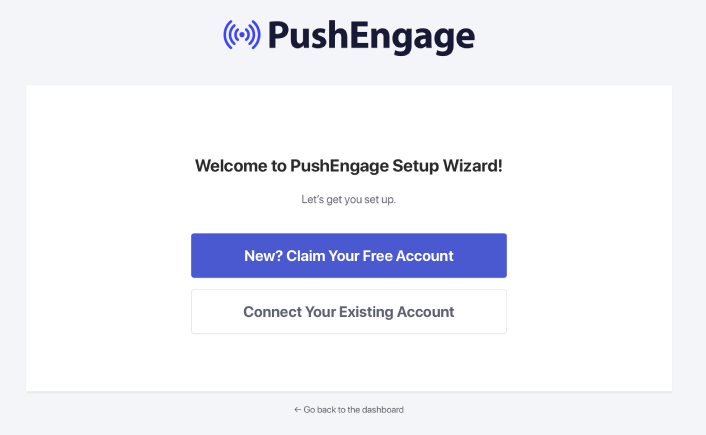
Guiden er ret ligetil. Hvis du er ny bruger, skal du klikke på Ny? Gør krav på din gratis konto. Og hvis du allerede har tilmeldt dig, skal du klikke på Forbind din eksisterende konto.
Dernæst kan du vælge din side fra rullemenuen Vælg en side under Forbind en registreret side, hvis du allerede har registreret en side under tilmelding:
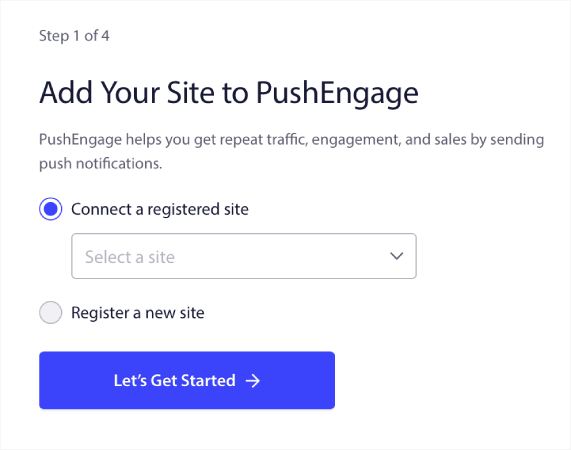
Eller du kan klikke på Registrer en ny side for at tilføje en ny side, hvis du har en Premium prisplan eller højere. I næste trin vil guiden bede dig om at installere andre nødvendige WordPress-plugins.
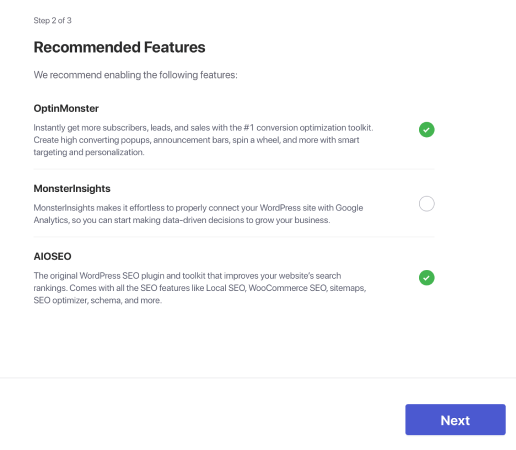
Hvis du fulgte hvert trin korrekt, vil du se denne succesmeddelelse fra guiden:
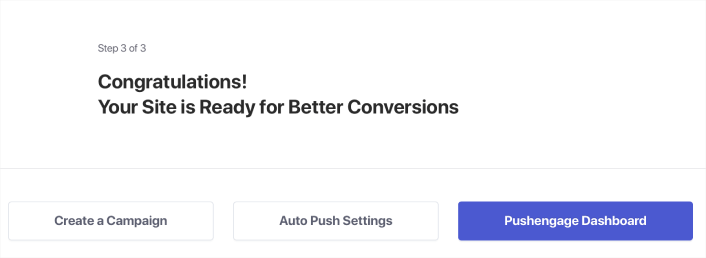
Du er nu klar til at oprette kampagner og push-underretningspop op-modaler.
Trin #4: Test dit hjemmesidemanifest
Okay, lad os gennemgå trinene for at teste din webapp og sikre, at alt fungerer problemfrit.
Åbn først din hjemmeside ved hjælp af Safari-browseren på din iPhone eller iPad. Sørg for, at din enhed kører iOS 16.4 eller en nyere version. Når din hjemmeside er indlæst, vil du se en Del-knap. Den ligner et kvadrat med en pil, der peger opad. Tryk på den knap for at åbne delingsmenuen.
I delingsmenuen bør du finde en mulighed kaldet Tilføj til Hjemmeskærm. Klik på den mulighed.
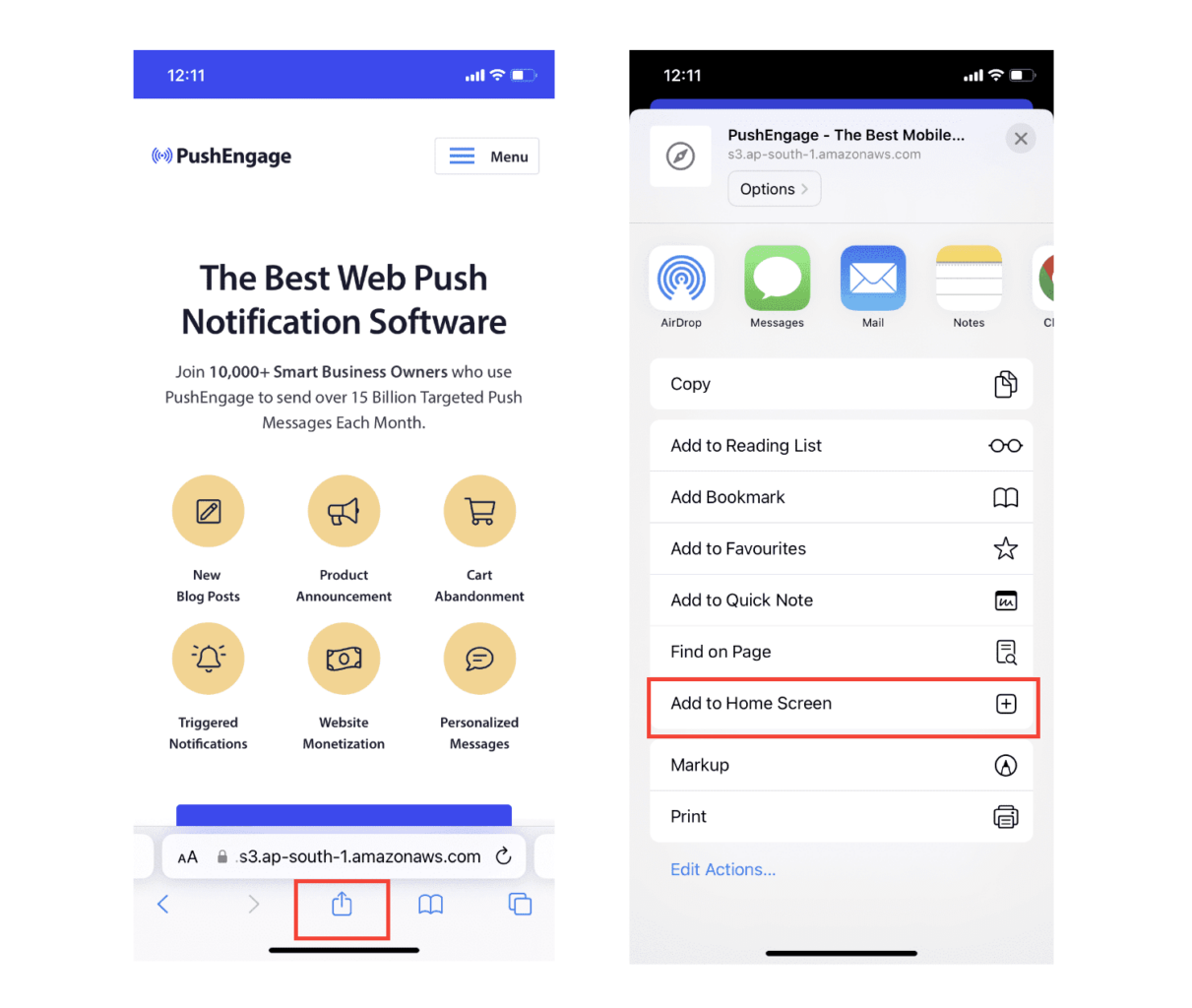
Nu vil webappen blive gemt på din enheds Hjemmeskærm, ligesom enhver anden app, du downloader fra App Store.
Hvis alt er sat korrekt op, vil webappen, når du åbner den fra din Hjemmeskærm, ikke længere åbne i Safari-browseren. I stedet vil det føles som at bruge en almindelig app på din iPhone eller iPad.
For at lade dine brugere vide, at de kan få web push-notifikationer fra din app, kan du vise dem et banner på skærmen. Dette banner vil bede dem om at tilføje din app til deres Hjemmeskærm og abonnere på web push-notifikationerne. Det er en praktisk måde at holde dine brugere engagerede med din app og modtage vigtige opdateringer.
Så, følg disse trin, og du er klar til at give dine brugere en problemfri og app-lignende oplevelse på iOS-enheder! For en komplet gennemgang af test af dine push-notifikationer, se vores dokumentation om iOS web push-notifikationer.
Sådan tilføjer du iOS push-notifikationskampagner til din app
Den nemmeste måde at sende iOS push-notifikationer til mobilapps fra din native iOS-app er at bruge PushEngage iOS SDK. Indtil nu har du været nødt til at bruge skelet-SDK'er til at sende app push-notifikationer. Problemet med at bruge disse SDK'er er, at de er ret basale.
Teoretisk set kan du sende enhver form for mobilapp-push-kampagner med dem. Men så skal du også bygge:
- En grænseflade til at administrere dine kampagner
- En analyse-suite til at spore dine kampagners ydeevne
- Bedre understøttelse af rich media og omdirigeringslinks i appen (eller deep links)
- Processer til at koordinere både marketing- og udviklingsteams
Alt sammen for at introducere en enkelt kanal for vækst. Brugen af de gamle værktøjer til at sende mobilapp-push-notifikationer er kedelig, dyr, ressourcekrævende og tidskrævende. Og selvfølgelig kræver det dybe kodningsfærdigheder i dit team at udvikle og administrere alt, hvad du bygger.
Med PushEngage Android- og iOS SDK'er kan du sende mobilapp-push ved hjælp af den samme pålidelige software for gode leveringsrater. Men vi har bygget flere lag ovenpå, der gør det super nemt at bygge brugerdefinerede integrationer med din app. Og PushEngage administrerer hele SDK'en. Så du behøver ikke engang at bruge en masse tid og penge på at administrere dine integrationer.
Alt du skal gøre er at bygge!
Du kan sende broadcast-notifikationer direkte fra dit PushEngage-dashboard når du har sat din app op til at sende push-notifikationer til mobilapps ved hjælp af PushEngages SDK. Ja, du skal stadig tilføje kode til din app og udvikle forbindelserne mellem din app og PushEngage API'en. Men når det er gjort, kan du nemt oprette push-kampagner til mobilapps fra en færdigbygget softwaregrænseflade, der også kommer med:
- Meget engagerende push-kampagnetyper
- Beviste kampagneskabeloner med høje konverteringsrater
- Automatiserede kampagner til at promovere dit indhold, når du udgiver
- Flere målretnings- og kampagneplanlægningsmuligheder
- Web-push-kampagner som en supplerende vækstkanal
- Øget publikumsfastholdelse ved hjælp af databaseret personalisering
- Målsporing og avanceret analyse
- Smart A/B-test
- En dedikeret succesmanager
Og meget mere. PushEngage fjerner besværet med at udvikle Android- og iOS-mobil push-kampagner til din app.
Vi har oprettet en detaljeret trin-for-trin guide til opsætning af iOS app push-notifikationer til PushEngage. Gå og se den for at begynde at sende iOS app push-notifikationer med det samme.
Tilføj Push-notifikationer til din iOS-app
Her er den faktiske integration ved hjælp af PushEngage iOS SDK 1.0. Du skal bruge iOS 12+, Xcode 15+, en APNs-nøgle uploadet til dit PushEngage-dashboard (den forklaring af APNs-certifikater og -nøgler dækker det på fem minutter), og omkring en eftermiddag. SDK'en leveres som to moduler: PushEngage til din app-mål og PushEngageExtension til notifikationsudvidelsesmål. Når denne forbindelse er etableret, flyttes kampagner til dashboardet og holder op med at være ingeniør-billetter.
Trin 1: Tilføj pakken
I Xcode skal du gå til Arkiv → Tilføj pakkeafhængigheder og indtaste repository-URL'en, eller bruge CocoaPods:
# Swift Package Manager
https://github.com/awesomemotive/pushengage-ios-sdk

# CocoaPods
target 'YourApp' do
  pod 'PushEngage', '~> 1.0.0'
end
target 'YourNotificationServiceExtension' do
  pod 'PushEngageExtension', '~> 1.0.0'
end
Trin 2: Konfigurer App Group
Tilføj App Groups-kapaciteten til dit app-mål og alle notifikationsudvidelsesmål ved hjælp af den samme gruppe-ID, og deklarer den i hver måls Info.plist:
<key>PushEngage_App_Group_Key</key>
<string>group.com.yourcompany.yourapp</string>
Appen og dens udvidelser deler abonnentstatus gennem denne container. At springe den over er den mest almindelige integrationsfejl. Uden den starter dine udvidelser tomme ved hver levering.
Trin 3: Initialiser og anmod om tilladelse
import PushEngage

@main
class AppDelegate: UIResponder, UIApplicationDelegate {
    func application(_ application: UIApplication,
                     didFinishLaunchingWithOptions launchOptions: [UIApplication.LaunchOptionsKey: Any]?) -> Bool {
        PushEngage.setAppID(id: "YOUR_APP_ID")
        PushEngage.setInitialInfo(for: application, with: launchOptions)
        return true
    }
}

// Later, at a value moment — not on first launch:
PushEngage.requestNotificationPermission { granted, error in
    if granted { /* subscribed */ }
}
Hvor du placerer den tilladelsesanmodning, betyder mere end nogen anden linje i dette afsnit. iOS giver dig præcis én indbygget prompt pr. installation, og vejledningen til tilladelses-priming dækker mønsteret med blid forespørgsel, der beskytter den.
Rich Push: Billeder, knapper og lyde
Rich media kræver en Notification Service Extension, et lille mål, der aflytter hver notifikation og vedhæfter medier før visning. Tilføj målet i Xcode, link PushEngageExtension til det, og videresend to livscyklus-kald:
import PushEngageExtension

class NotificationService: UNNotificationServiceExtension {
    override func didReceive(_ request: UNNotificationRequest,
                             withContentHandler contentHandler: @escaping (UNNotificationContent) -> Void) {
        PushEngageExtension.didReceiveNotificationExtensionRequest(request,
                                                                   bestContentHandler: contentHandler)
    }

    override func serviceExtensionTimeWillExpire() {
        // hand back the best content prepared so far
    }
}
Herfra bliver rich media en dashboard-funktion. Dit marketingteam vedhæfter produktbilledet, når de bygger kampagnen, og udvidelsen gengiver det. Ingen app-ændringer pr. kampagne.
Identificer brugere og vedhæft attributter
// Identify the signed-in user (12 predefined fields supported)
PushEngage.identify(fields: [
    "first_name": "Priya",
    "email": "[email protected]",
    "profile_id": "user-42",
    "city": "Austin"
]) { success, error in }

// Attach custom attributes for segmentation
PushEngage.addSubscriberAttributes([
    "favorite_category": "outerwear",
    "loyalty_tier": "gold"
]) { success, error in }

// On sign-out, clear PII but keep the anonymous subscription
PushEngage.logout(fieldNames: nil) { success, error in }
Gentagne identificeringskald med uændrede data afkortes lokalt, så det er sikkert at kalde ved hver lancering. Når attributter flyder, bliver et segment som guld-tier overtøj-shoppere i Texas en gemt målgruppe i dashboardet snarere end en dataanmodning.
Deep Links: Land hvert tryk på den rigtige skærm
PushEngage.setNotificationOpenHandler { result in
    // actionID is nil when the SDK already opened the URL itself
    guard let deepLink = result.notificationAction.actionID else { return }
    DispatchQueue.main.async {
        router.navigate(to: deepLink)   // e.g. myapp://cart
    }
}
Indstil håndteringen én gang, og rute baseret på det deep link, som hver kampagne bærer. Marketingmedarbejderen indsætter linket i kampagneformularen; din håndtering klarer navigationen. Fuldstændige mønstre, inklusive universelle links, findes i vejledningen til deep linking.
Udløs kampagner fra app-begivenheder
PushEngage.trackEvent(name: "cart_updated",
                      properties: ["cart_value": 89.50, "item_count": 2],
                      profileId: currentUserId,
provider: nil, eventType: nil) { _, _ in }trackEvent-kaldet omdanner enhver in-app-adfærd til en kampagneudløser: en forladt indkøbskurv, et gennemført onboarding-trin, en besøgt kategori. Instrumentér hændelsen én gang, og marketing gentager kampagner mod den på ubestemt tid. Vejledningen til hændelsesudløste kampagner indeholder opsætningen til indkøbskurve, onboarding og win-back, og opsætningsdokumentationen gennemgår alle efterfølgende dashboardskærme.
Sådan personliggør du dine kampagner
Før du opretter en kampagne, bør du opsætte segmenter og målgruppegrupper for at sende personlige push-beskeder.
Intet slår niveauet af personalisering, du kan opnå ved at oprette segmenter og målgruppegrupper til dine push-notifikationsabonnenter. Gå til PushEngage » Audience og begynd at oprette segmenter og målgruppegrupper med det samme.
Under fanen Segments kan du oprette nye segmenter eller redigere eksisterende:
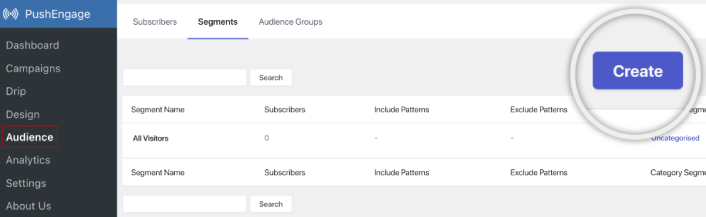
Og hvis du har brug for endnu dybere personalisering, skal du oprette en målgruppegruppe under fanen Audience Groups:
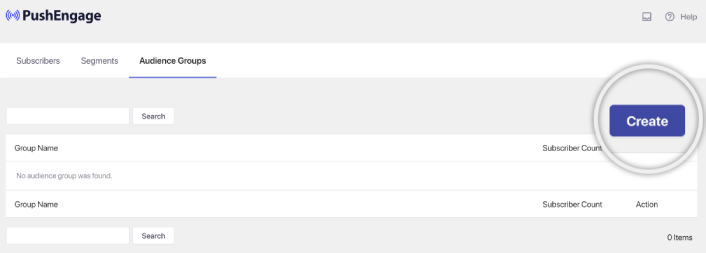
Hvis du er nybegynder inden for push-notifikationssegmenter og personaliserede push-notifikationer, bør du læse vores artikel om hvordan man opretter segmenter og vores meddelelse om avanceret målgruppegruppering.
Det fedeste er, at du kan oprette målrettede push-kampagner ved at oprette en Målgruppe kun for dine iOS- og iPadOS-brugere:
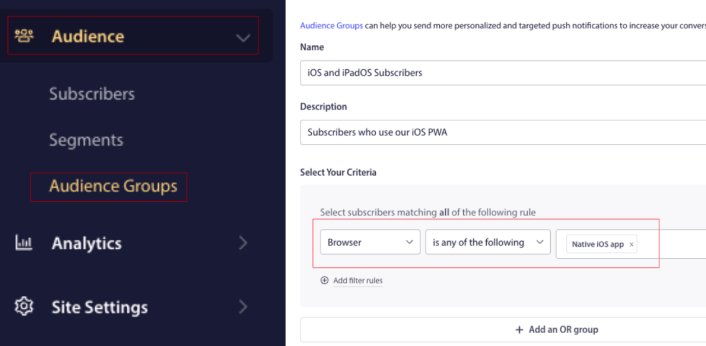
Og du kan bruge denne målgruppe til dine dryp-kampagner og udsendelser.
Sådan opretter du en push-notifikations-drip-kampagne
Gå til PushEngage dashboard og gå til Campaign » Drip Autoresponders og klik på Create New Drip Autoresponder:

Navngiv derefter din kampagne (vi foreslår noget som "Velkomst Drip"), og under Content, vælg muligheden "Send notification immediately after user subscribes“:

På dette tidspunkt kan du klikke på pilen ved siden af notifikationen for at redigere indholdet af din notifikation.
Hvis du har en Premium- eller Enterprise-plan med PushEngage, vil du kunne tilføje mere end én notifikation for at oprette en sekvens af automatiserede velkomstbeskeder. Klik blot på Add New Notification og rediger indholdet.
Når du er færdig, skal du klikke på Drip Settings og vælge muligheden for at sende din velkomstkampagne til alle abonnenter:

Rul derefter ned for at indstille dine egne UTM-parametre for at spore push-notifikationerne:
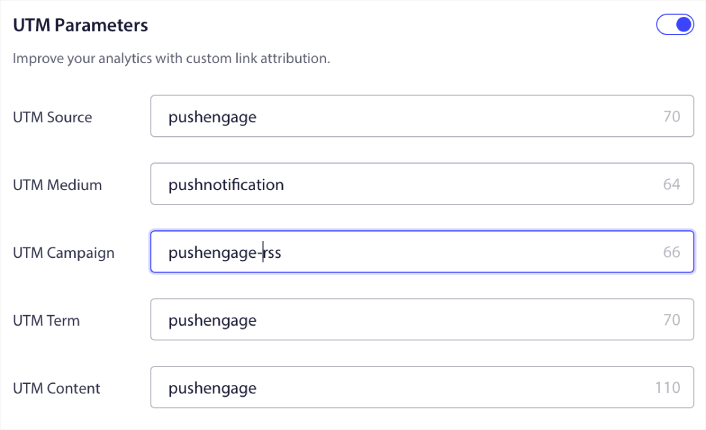
Og når du er færdig, rul op igen og klik på knappen Activate Autoresponder:

Og du er færdig!
Sådan sender du en iOS web push-udsendelse
Gå til dit PushEngage dashboard og gå til Campaign » Push Broadcasts og klik på knappen Create a New Push Broadcast:
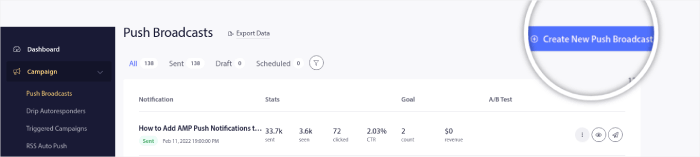
Under fanen Content, tilføj dit push-notifikationsindhold:
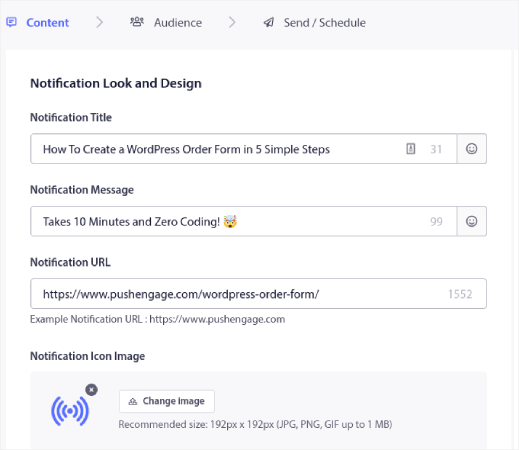
Og du kan opsætte en A/B-test for at øge dine klikrater, eller du kan planlægge dine push-udsendelser for at få flere visninger. I begge tilfælde bør du tjekke vores bedste praksis for push-notifikationer for de bedste resultater.
Sådan opretter du en iOS push-notifikations popup-modal
En push-notifikations popup-modal er et lille vindue, der vises oven på en hjemmeside eller mobilapp-grænseflade for at vise en besked eller notifikation til hjemmesidebesøgende.
Popup-modellen kan udløses af forskellige begivenheder. Du kan opsætte popups, der udløses ved sidebesøg, ved scroll-dybde og endda ved brugerdefinerede handlinger som f.eks. klik på knap.
Normalt vil du se en opfordring til handling på popup-modellen, såsom "Abonner" eller "Tillad" for at få samtykke fra besøgende til at sende dem push-notifikationer. Hvis du følger denne vejledning, kan du oprette en popup som denne:
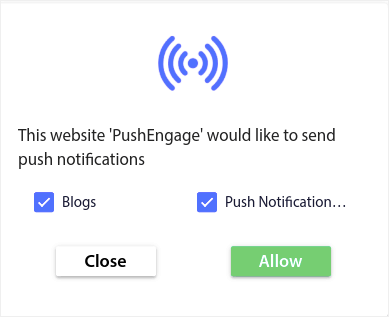
Du kan oprette popup-modalvinduer, der kan segmentere abonnenter direkte, eller oprette almindelige popups, der blot indsamler abonnenter med standardattributter som geolokation og browser.
Gå tilbage til dit WordPress-dashboard. Gå til PushEngage » Design:
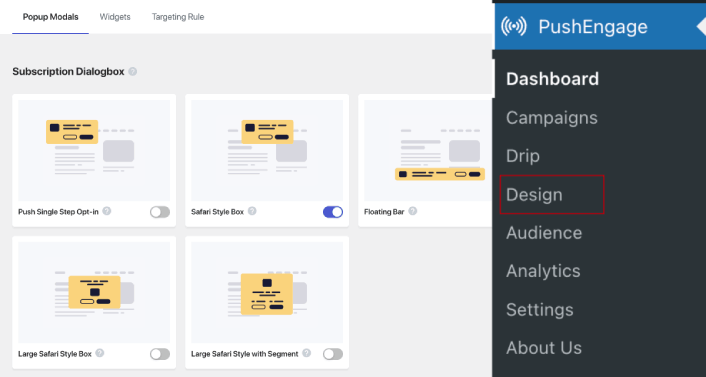
Og du kan opsætte så mange popup-modalvinduer, som du ønsker. Selvfølgelig kan du sørge for, at de udløses på forskellige tidspunkter under Visningsindstillinger for hvert popup-modalvindue.
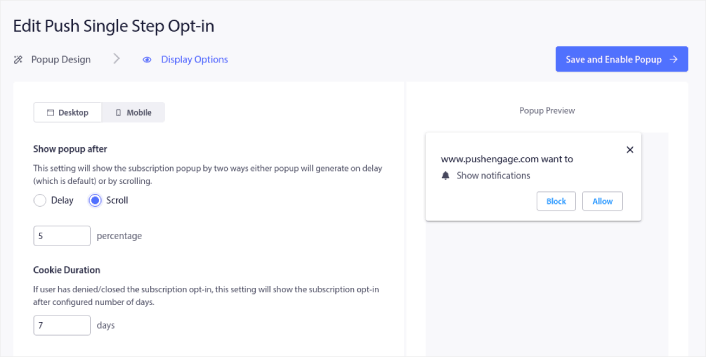
Idéen her er at give dine besøgende en solid grund til at abonnere. Hvis du har brug for hjælp til det, kan du se vores artikel om hvordan man opretter en brugerdefineret push-notifikations-opt-in.
Og hvis du vil oprette mere målrettede popup-modalvinduer, kan du bruge målretningsreglerne under fanen Målretningsregel :
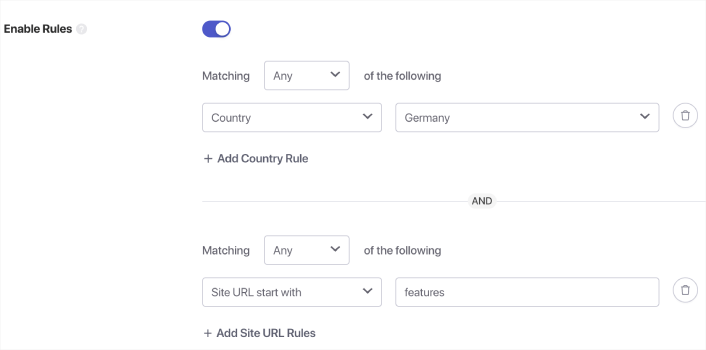
Dette er globale målretningsregler og vil have præference frem for målretningsregler for individuelle popup-modalvinduer. Men hvis du ønsker det, kan du oprette robuste målretningsregler for hvert modalvindue ved at redigere dem.
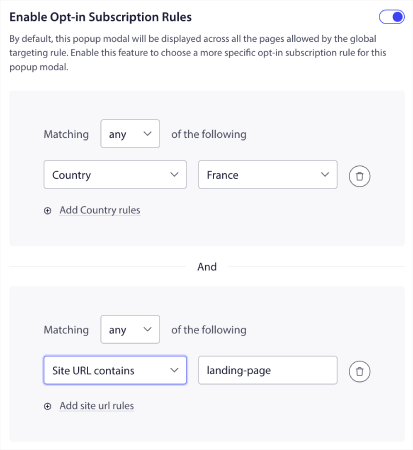
For eksempel kan du oprette popup-modalvinduer på forskellige sprog for at målrette besøgende fra forskellige lande.
Og hvis du gerne vil have nogle skabeloner med en høj klikrate til at komme i gang, bør du se denne artikel om konverteringsdygtige push-notifikations-opt-ins.
Hvad du skal gøre, før du sender iOS push-notifikationer
Du er næsten færdig.
Før du begynder at sende web push-notifikationer til iOS og iPadOS, skal du opsætte en abonnements-opt-in for dit website. Din opt-in vil konvertere webbesøgende til push-notifikationsabonnenter. Så dette er et kritisk element.
Hvis du har brug for inspiration, kan du se denne artikel om konverteringsdygtige push-notifikations-opt-ins. Når du er færdig med at opsætte opt-in, kan dit websted indsamle abonnenter. Men hvordan ved du overhovedet, at din opt-in fungerer korrekt?
Så det fornuftige er at opsætte en velkomst-push-notifikation.
Pro-tip: Du bør bruge noget tid på en fuldskala test af dine push-notifikationer. Dette vil fejlfinde de mest almindelige problemer, og du spilder ikke din tid på at forsøge at løse problemer senere.
Hvad du skal gøre, efter du har sendt iOS push-notifikationer
Det var alt for denne gang, folkens!
Hvis du fandt denne artikel nyttig, så sørg for at efterlade en kommentar nedenfor.
At komme i gang med push-notifikationer kan virke skræmmende. Men hvis du holder øje med målsporing og analyse, skal det nok gå fint. Vigtigere er, at du vil tjene meget mere profit med hjælp fra push-notifikationskampagner. Her er et par seje ressourcer til at komme i gang:
- Sådan bruges retargeting push-notifikationer til at fordoble din omsætning
- Sådan sorteres dine push-notifikationer og finder vindende kampagner
- Sådan renses push-notifikationsabonnentlister (nemt)
- Sådan sendes RSS push-notifikationer automatisk
- Sådan bruges push-notifikationer til at promovere en nyhedsside
- Sådan bruges cross-selling push-notifikationer til at fordoble dit salg
- Sådan bruges browse abandonment push-notifikationer (4 trin)
Hvis du er ny inden for push-notifikationer, bør du prøve PushEngage. For at gå dybere ind i strategien er vores app push marketingguide den naturlige næste læsning. PushEngage er den #1 push-notifikationssoftware på markedet. Og dine kampagner vil være i sikre hænder.
Så hvis du ikke allerede har gjort det, kom i gang med PushEngage i dag!


