Leder du efter en nem måde at sende RSS push-notifikationer på?
Det er hårdt arbejde konstant at skabe indhold og administrere en blog. Men hvis du driver en seriøs forretning, ved du, at det ikke er nok bare at skabe indhold. Du skal også kunne promovere dit indhold.
Og push-notifikationer er en fantastisk måde at få abonnenter på en omkostningseffektiv måde. Det, der gør push-notifikationer så gode som et marketingværktøj, er, at de kan automatiseres fuldstændigt.
Det er her, RSS push-notifikationer kommer ind i billedet.
Hvis du opsætter RSS push-notifikationer på den rigtige måde, vil dine abonnenter automatisk modtage en push-notifikation, der fører dem til dit indhold, hver gang du udgiver indhold på dit websted.
Og i denne artikel vil vi vise dig præcis, hvordan du opsætter RSS auto push på dit websted.
Sådan aktiverer du RSS push-notifikationer på ethvert websted
Du kan opsætte RSS push-notifikationer til enhver type websted, så længe det har et RSS-feed. Hvis du ikke er sikker på, om dit websted har et RSS-feed, skal du blot gå til URL'en 'yoursite.com/rss' for at tjekke (Erstat 'yoursite' i eksemplet med dit faktiske webstedsnavn).
Og for at sende RSS-push-notifikationer skal du også bruge en push-notifikationsudbyder. Til denne artikel vil vi vise dig, hvordan du bruger PushEngage til at sende RSS-auto-push. PushEngage er den førende push-notifikationssoftware i verden. Så dine kampagner vil være i sikre hænder.
Lad os komme i gang.
Trin #1: Installer PushEngage
Gå til PushEngage hjemmeside og klik på knappen Kom i gang :

Du kan vælge gratisplanen for at prøve PushEngage, eller vælge en betalt plan, hvis du er seriøs omkring at vækste din forretning. De betalte planer inkluderer bedre målretningsmuligheder for publikum og funktioner til kampagneautomatisering.
Når du har oprettet en konto, skal du gå til PushEngage dashboard og gå til Webstedsindstillinger » Webstedsdetaljer :

Her kan du tilpasse, hvordan dit brand ser ud i de push-notifikationer, du sender ud. Fortsæt og indstil et logo og en websteds-URL for dine push-notifikationer.
Dine push-notifikationsabonnenter vil se dit Webstedsnavn, Webstedsbillede og Websteds-URL på dine notifikationer. Så du bør opsætte disse nu, så du kan teste dine push-notifikationer senere.
Når dette er gjort, skal du gå til PushEngage dashboard og hente installationskoden. Klik på knappen Klik her for opsætningsvejledning :

Kopiér installationskoden:
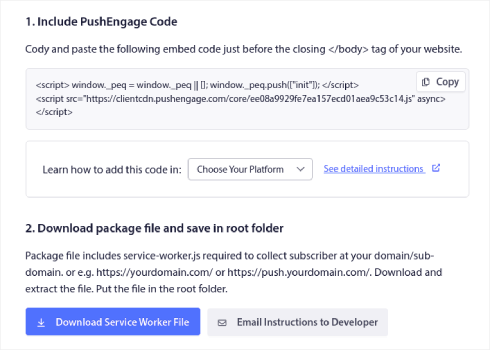
Og derefter skal du indsætte installationskoden i HTML-<head>-sektionen på dit websted. Hvis du ikke er sikker på, hvordan du gør det, kan du tjekke denne artikel om hvordan man installerer web push-notifikationer på ethvert websted.
Eller, hvis du driver et WordPress-site, kan du installere WordPress-pluginnet til webnotifikationer. Pluginnet klarer hele installationen selv. Og du er klar til at opsætte dine push-notifikationskampagner næste gang.
Trin #2: Opret en ny RSS push-notifikationskampagne
Når du har installeret PushEngage på dit websted, skal du gå til dit PushEngage-dashboard og navigere til Kampagne » RSS Auto Push og klikke på Opret ny kampagne:
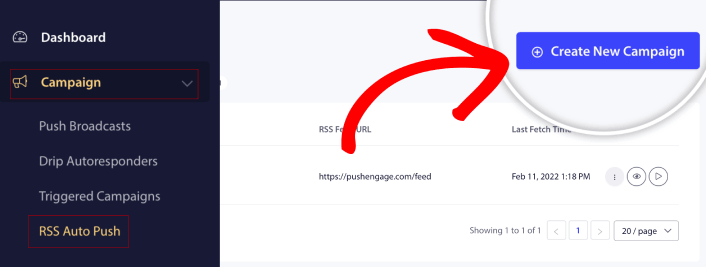
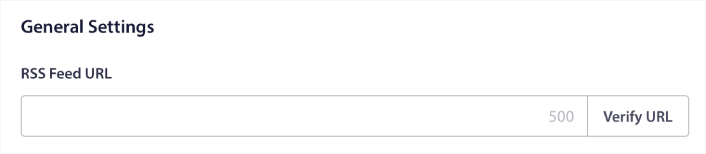
Dette vil oprette en helt ny RSS push-notifikationskampagne. Du kan opsætte flere RSS-feedkampagner i PushEngage. Start med at give din kampagne et beskrivende navn. Indsæt derefter URL'en til dit RSS-feed:
Trin #3: Opsæt RSS-notifikationsindstillinger
Dernæst vil du indstille Kampagnefrekvens:
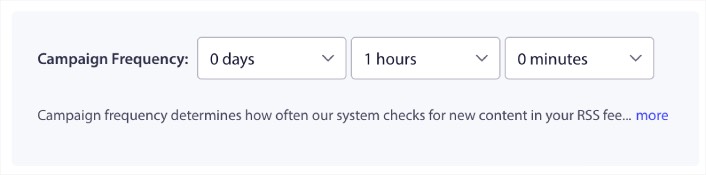
Kampagnefrekvens er, hvor ofte RSS-feedkampagnen leder efter nyt indhold på din blog for at sende en automatiseret push-notifikation. Minimumsværdien er 15 minutter, og maksimumsværdien er 7 dage.
Vi anbefaler at lede efter indhold at promovere hver anden dag, medmindre du er et nyhedsbureau. For nyhedsbureauer bør du holde det på 15 minutter. Husk, at PushEngage kun vil lede efter nyt indhold, efter du har opsat og udgivet din RSS-feedkampagne.
Trin #4: Vælg indlæg, der skal promoveres
Du kan vælge, hvilke indlæg der skal promoveres. Du kan vælge mellem Kun det seneste element eller Alle elementer. Hvis du opsætter RSS push-notifikationerne til kun at vælge det seneste element, sender PushEngage kun det seneste indlæg:
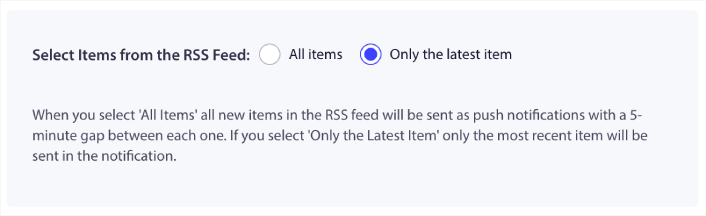
Eller du kan vælge indstillingen Alle elementer. I dette tilfælde vil kampagnen vælge alle indlæg på dit websted og sende push-notifikationer for hver enkelt med 5 minutters mellemrum imellem dem.
Trin #5: Indstil et RSS push-notifikationsikon
Dit push-notifikationsikon etablerer din brandidentitet i dine RSS push-notifikationer. Vi anbefaler at bruge dit varemærke, så dine abonnenter øjeblikkeligt ved, at notifikationen er fra dit brand.
Nu er der to muligheder her. Du kan enten uploade notifikationsikonet manuelt:
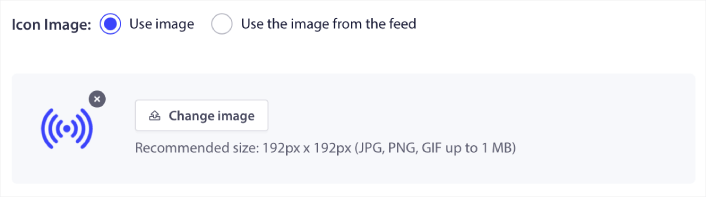
Og det er virkelig enkelt at gøre. Klik blot på Skift billede og upload dit notifikationsikon. Eller du kan hente det fra dit RSS-feed:
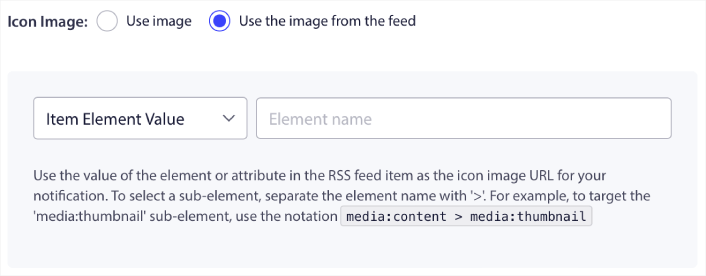
Du kan enten vælge elementet eller attributten inde i et element for dynamisk at vælge dit notifikationsikon fra feedet. Typisk vil de fleste RSS-feeds indeholde webstedets ikon inde i media:content-elementet. Endnu mere specifikt er det normalt inde i media:thumbnail-attributten af media:content-elementet.
For at målrette elementet kan du vælge indstillingen Elementværdi og indstille den til media:content. Eller du kan vælge indstillingen Elementattributværdi og indstille den til media:content > media:thumbnail.
NOTE: Vi anbefaler kun at bruge denne indstilling, hvis du ved, hvordan man læser XML. RSS-feeds indeholder muligvis ikke webstedsikonet i de samme XML-tags som vores eksempel. Så hvis du er usikker på, hvordan du henter notifikationsikonet fra RSS-feedet, anbefaler vi at uploade det manuelt i stedet.
Trin #6: Vælg stort billede til RSS-feed notifikationer
Nu skal vi vælge det store billede til dine RSS-feed notifikationer. Igen er der to måder at gøre dette på. Du kan lade PushEngage automatisk finde billedet fra RSS-feedet:

Eller du kan manuelt vælge, hvilket billede du vil have fra feedet:
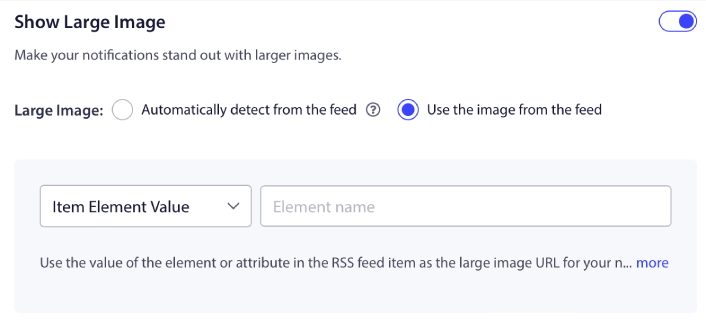
Dette er præcis det samme som at vælge notifikationsikonet fra RSS-feedet. Du kan igen vælge billedet fra XML-elementet, der indeholder det, eller du kan vælge det specifikke attribut, der indeholder dit foretrukne billede.
NOTE: Vi anbefaler kun at vælge en URL fra dit RSS-feed, hvis du ved, hvordan man læser XML. Hvis du er usikker på, hvordan man læser XML, er det bedre at lade PushEngage finde det bedste billede til dine notifikationer.
Trin #7: Indstil varighed for push-notifikationer
Varigheden af push-notifikationer er, hvor længe notifikationen forbliver i din abonnents notifikationsbakke, før den automatisk slettes.
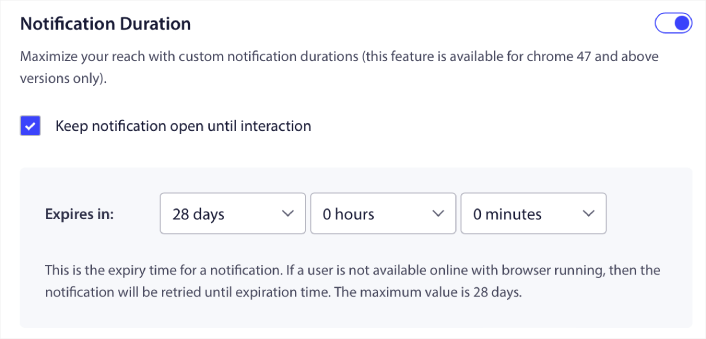
Hvis du ikke vil overvælde dine abonnenter med en masse ulæste notifikationer, er det sandsynligvis bedst at lade push-notifikationerne udløbe om et par dage.
I modsætning til broadcast-notifikationer eller endda andre automatiserede push-notifikationer kan du ikke rigtig planlægge RSS push-notifikationer. Så du har altid muligheden for at holde notifikationen åben, indtil din abonnent interagerer med den, selv inden for udløbsgrænsen.
Trin #8: Indstil UTM-parametre
Vi er næsten færdige. Rul ned for at indstille dine egne UTM-parametre til sporing af push-notifikationerne:
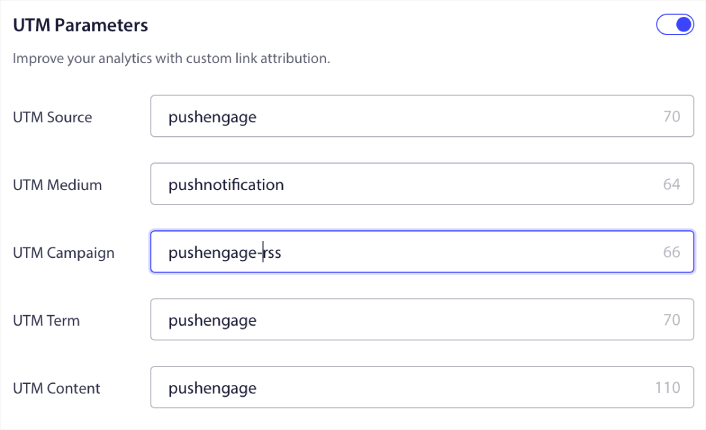
På denne måde kan du nemt tilskrive din trafik fra disse push-notifikationer i Google Analytics.
Trin #9: Vælg målgruppe
Endelig skal vi vælge en Målgruppe til at sende dine RSS push-notifikationer. Du sender enten RSS-feed-kampagnen til alle dine abonnenter, eller du kan oprette Målgrupper til at sende personaliserede push-notifikationer selv fra dit RSS-feed.
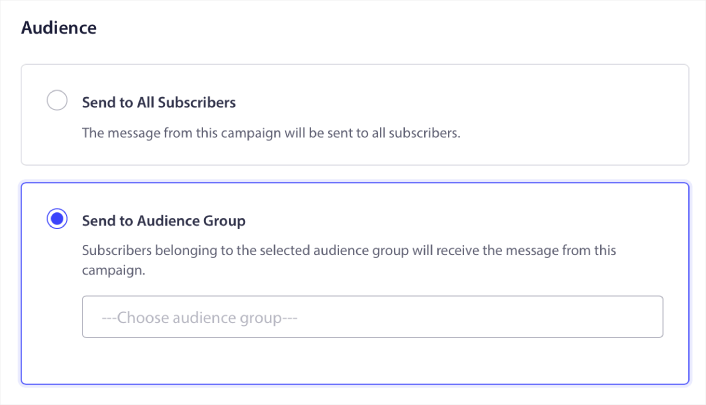
Og det er det! Det er virkelig alt, hvad der er at sige om det.
Nu, hver gang du udgiver et nyt indlæg, vil alle push-notifikationsabonnenter i den valgte målgruppe automatisk modtage en push-notifikation om dit nye indhold.
Hvad du skal gøre efter opsætning af RSS push-notifikationer
Hvis du er ny til at sende push-notifikationer, bør du følge en fuldgyldig push-notifikationstestproces, før du går live. Det vil hjælpe dig med at fejlfinde almindelige problemer, før dine besøgende ser dem og begynder at klage over en ødelagt brugeroplevelse.
Og hvis du ikke allerede har gjort det, så prøv PushEngage. PushEngage er den #1 push-notifikationstjeneste i verden. Så hvis du er seriøs omkring at vækste din forretning, bør du investere i PushEngage.
RSS push-notifikationer er fantastiske. Men du bør begynde at oprette mere målrettede push-notifikationer for bedre resultater. Oprettelse af brugerdefinerede push-notifikationskampagner kan tage tid, men de er virkelig det værd. Tjek disse artikler, før du beslutter dig:
- Sådan konverterer du abonnenter til købere ved hjælp af web push-notifikationer
- Bedste praksis for push-notifikationer
- 21 bedste eksempler på velkomstbeskeder til hjemmesider, du kan bruge
- Hvorfor velkomst-push-notifikationer er vigtige
- Sådan udføres A/B-test af push-meddelelser (bedste praksis)
Push-notifikationer hjælper virksomheder med at vokse over hele verden. Vil du bare vente, indtil dine konkurrenter begynder at bruge det, før du gør?


