Leder du efter en måde at tilføje push-notifikationer til AMP-versionen af dit websted? Tilføjelse af AMP push-notifikationer kan være lidt teknisk. Men vi vil hjælpe dig med at gøre det på den nemme måde.
AMP eller Accelerated Mobile Pages er essentielt en mobilversion af dit websted. Så hvis du ikke opsætter web push på dit AMP-websted, vil du miste en masse abonnenter, fordi en stor del af dit publikum vil bruge mobile enheder til at besøge dit websted.
I denne artikel vil vi bruge PushEngage til at installere AMP push-notifikationer, fordi det er meget nemmere end at gøre tingene manuelt.
Lad os dykke ned.
Sådan installeres AMP push-notifikationer
Installation af AMP push-notifikationer er en virkelig hurtig og nem proces. Følg blot disse trin, og i slutningen af denne artikel bør du kunne sende push-kampagner fra dit websted som denne:
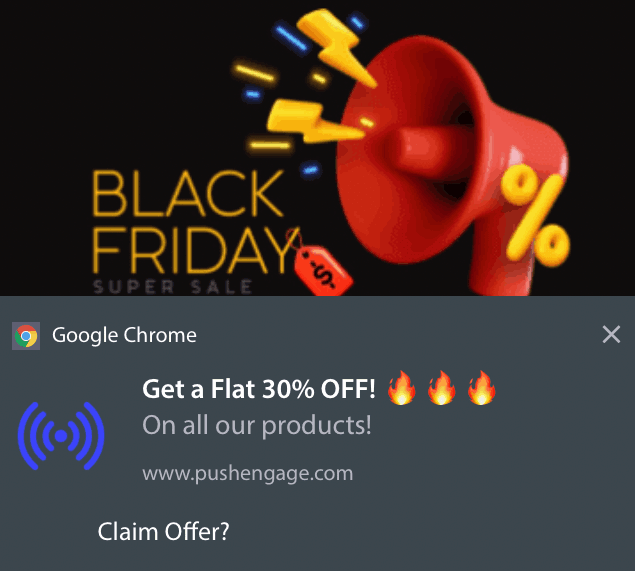
Ser godt ud, ikke? Lad os dykke ned.
Trin #1: Opsæt din PushEngage-konto
Gå til PushEngage-hjemmesiden og klik på knappen Kom i gang:

Du kan vælge gratisplanen for at prøve PushEngage, eller vælge en betalt plan, hvis du er seriøs omkring at vækste din forretning. De betalte planer kommer med flere kampagnemuligheder og muligheden for at opbygge endnu større abonnentlister.
Når du har tilmeldt dig din PushEngage-konto, skal du gå til dit PushEngage-dashboard og gå til Sideindstillinger » Sideoplysninger:

Du kan indstille dit logo, sidenavn og side-URL her. Det er virkelig vigtigt at få styr på disse ting lige nu, så du kan teste hele din opsætning senere.
Trin #2: Hent installationskoden til AMP push-notifikationer
For at installere web push på dit AMP-websted skal du have en installationskode. På din Site Settings-skærm skal du rulle ned og klikke på knappen Click Here For Setup Instruction:

Gå til AMP-fanen for at få installationsindstillinger.
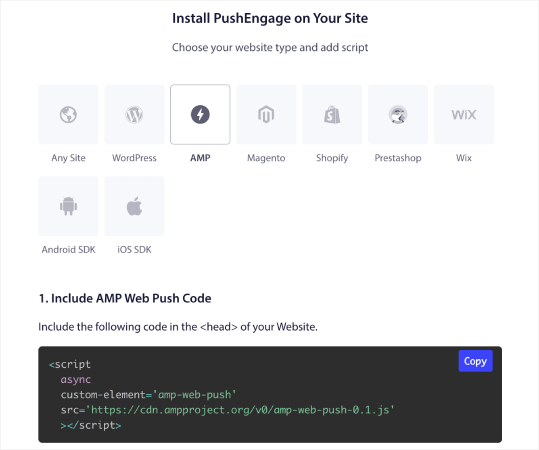
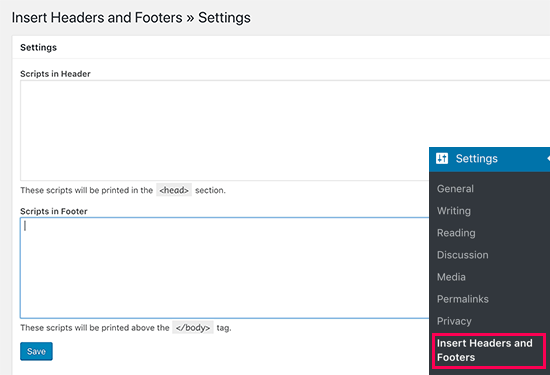
Kopier denne kode. Du skal indsætte denne kode i HTML-<head> på dit websted. Hvis du kører et WordPress-websted med en AMP-version, er den nemmeste måde at gøre dette på at bruge Insert Headers and Footers plugin. Det er et gratis plugin, hvor du kan indsætte AMP-installationskoden uden at skulle gå ind i den faktiske HTML på dit websted:
Trin #3: Installer Service Worker på dit AMP-websted
Download derefter pakke-filen, der inkluderer service worker.
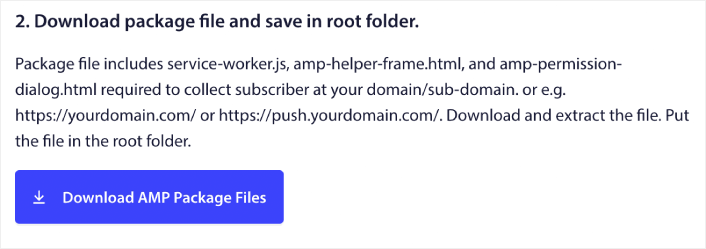
Dette inkluderer:
- service-worker.js
- amp-helper-frame.html
- amp-permission-dialog.html
Udpak pakken, og placer disse filer i rodmappen på din server. Denne del er meget vigtig. Hvis du springer dette trin over, vil dit websted ikke kunne indsamle push-abonnenter.
Pro Tip: Hvis du er usikker på, hvad rodmappen er, og hvordan du kan uploade filer dertil, bør du tjekke denne artikel om WordPress fil- og mappestruktur. Det er en rigtig simpel guide for begyndere, og du får en masse indsigt i, hvordan WordPress fungerer.
Trin #4: Tilføj AMP push HTML-koden til dit websted
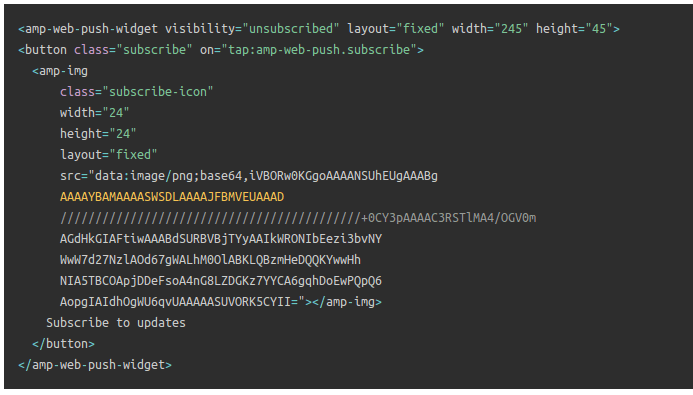
Tilføj derefter HTML-koden for at aktivere en knap til at abonnere ved klik og en knap til at afmelde push-kampagner.
Denne kode aktiverer den service worker-fil, du har uploadet, og giver dit websted mulighed for at vise knapper til at abonnere og afmelde. For at indsamle abonnenter skal du give dine besøgende en simpel måde at abonnere på dine push-kampagner. Afmeldingsknappen giver dine aktive abonnenter en måde at fravælge, hvis de ikke er interesserede i dit indhold. Begge er ret vigtige.
Tilføj knappen 'Abonner på opdateringer', hvor du vil have den til at vises på dit websted:
Og tilføj en knap 'Afmeld opdateringer':
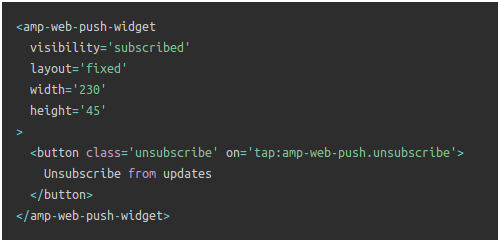
Anmeldelse-knappen vil være en simpel 'tryk for at afmelde'-knap. Du får mange flere tilpasningsmuligheder for ikke-AMP-versionen af dit websted på både mobil- og desktop-enheder. Derfor anbefaler vi, at du tilføjer AMP CSS til din <body>-sektion.
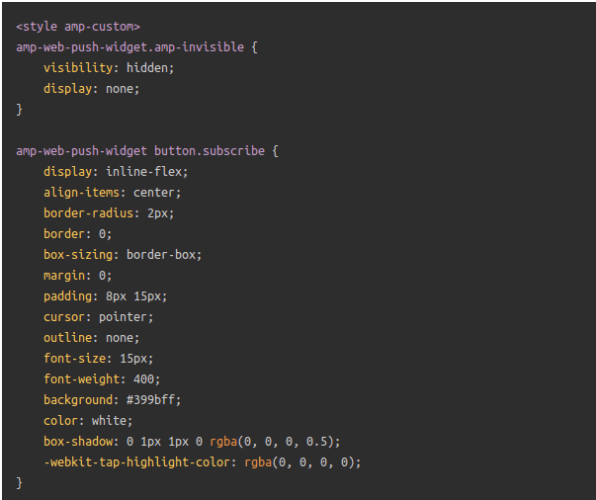
Dette kodestykke er beregnet til at tilpasse udseendet af både Tilmeld- og Afmeld-knapper. Hvis du vil lege med disse stilarter, så gør det endelig. Bare sørg for, at du ikke ændrer de AMP HTML-tags, som koden styler.
Og det var det. Du er færdig.
Trin #5: Konfigurering af PushEngage Opt-In
Gå nu tilbage til dit PushEngage-dashboard. Gå til Design » Popup Modals og vælg den optin, du ønsker:
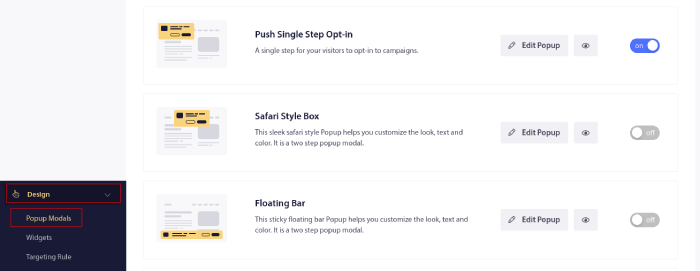
Idéen her er at give dine besøgende en solid grund til at abonnere. Hvis du har brug for hjælp til det, kan du se vores artikel om hvordan man opretter en brugerdefineret push-notifikations-opt-in.
Og hvis du ønsker nogle skabeloner til at komme i gang, bør du tjekke denne artikel om konverteringsdygtige push-notifikations-opt-ins.
BONUS Trin: Opret en Velkomstkampagne
Når du er færdig med at opsætte tilmeldingen, kan dit websted indsamle abonnenter.
Men hvordan ved du, om dine push-kampagner fungerer korrekt?
Vi anbefaler, at du opretter en velkomst push-meddelelse for at teste, om din opsætning gik glat. En velkomstmeddelelse er en web push-meddelelse, du sender til en ny abonnent for at bekræfte deres abonnement og byde dem velkommen ombord.
Gå til PushEngage dashboard og gå til Campaign » Drip Autoresponders og klik på Create New Drip Autoresponder:

Navngiv derefter din kampagne (vi foreslår noget som "Velkomst Drip"), og under Content, vælg muligheden "Send notification immediately after user subscribes“:

På dette tidspunkt kan du klikke på pilen ud for notifikationen for at redigere indholdet af din notifikation. Hvis du har en Premium- eller Enterprise-plan med PushEngage, vil du kunne tilføje mere end én notifikation for at oprette en sekvens af automatiserede velkomstbeskeder. Klik blot på Tilføj ny notifikation og rediger indholdet.
Når du er færdig, skal du klikke på Drip Settings og vælge muligheden for at sende din velkomstkampagne til alle abonnenter:

Rul derefter ned for at indstille dine egne UTM-parametre for at spore push-kampagnerne:

Og når du er færdig, rul op igen og klik på knappen Activate Autoresponder:

Og det er alt, hvad der er at sige!
Du har med succes sat AMP web push-meddelelser op på dit websted. Det er tid til at vende tilbage til dit PushEngage dashboard og begynde at oprette dine push-kampagner.
Hvad du skal gøre, efter du har tilføjet AMP push-meddelelser til dit websted
Det var alt for denne gang, folkens!
Hvis du er ny til push-kampagner, bør du følge en fuldgyldig push-meddelelses testproces, før du går live. Det vil hjælpe dig med at fejlfinde almindelige problemer, før dine besøgende ser dem og begynder at klage over en ødelagt brugeroplevelse.
Du bør også tjekke nogle flere automatiserede push-notifikationskampagner ud, såsom:
Vi anbefaler, at du kontakter vores Customer Success Managers, hvis du sidder fast med noget af dette. Vi hjælper dig meget gerne med ethvert problem.
Og hvis du ikke allerede har gjort det, så prøv PushEngage. PushEngage er den #1 push-notifikationstjeneste i verden. Så hvis du er seriøs omkring at vækste din virksomhed, er PushEngage den rigtige løsning for dig.


Tak for disse tips & information. Det er meget let at forstå.
god forklaring