Leder du efter en hurtig måde at tilføje og redigere dit push-notifikationsikon på?
Det er faktisk super nemt. Notifikationsikonet fortæller dine abonnenter, hvem du er. Det er et varemærke på hver push-notifikation, du sender. Og det kan være uvurderligt, fordi det hjælper din målgruppe med at huske dit brand. (På Android-apps kan du gå videre og ændre notifikationsfarven for at matche din brandpalette.)
Omkostningen ved at sikre, at hver push-notifikation, du sender, hjælper dig med at blive mere mindeværdig? Mindre end 5 minutter.
I denne artikel vil vi vise dig, hvordan du tilføjer og redigerer dit push-notifikationsikon. Og som vi sagde, det er super nemt.
Lad os dykke ned.
Hvorfor tilføje et push-notifikationsikon?
Et push-notifikationsikon er et lille, karakteristisk billede, der repræsenterer en app på en brugers enhed. Det vises sammen med push-notifikationer for visuelt at identificere kildeappen for beskeden eller advarslen.
Dette ikon hjælper brugerne med hurtigt at genkende, hvilken app eller hjemmeside der kommunikerer med dem, uden at skulle læse notifikationens tekst.
At tilføje et push-notifikationsikon er en smart beslutning af et par årsager:
- Genkendelse: Ligesom vi øjeblikkeligt genkender ikoner, når vi ser et velkendt ansigt i en menneskemængde. Når din app sender en notifikation, fungerer ikonet som en lille vink, der siger: "Hej, det er mig!" Dette hjælper brugerne med hurtigt at identificere, hvilken app der kalder på deres opmærksomhed.
- Branding: Dit ikon er som en lille reklamesøjle for din app. Det er en del af din brandidentitet. Hver gang brugerne ser det, bliver de mindet om din app. Dette kan hjælpe med at holde din app i forreste række.
- Brugeroplevelse: Brugere har ofte mange installerede apps, og det kan være et reelt rod. Et unikt ikon hjælper dem med at administrere deres notifikationer mere effektivt. De kan med et øjebliks blik se, hvilke notifikationer de vil tjekke ud først.
- Professionalisme: En app med sit eget notifikationsikon ser mere poleret og professionel ud. Det viser, at du har tænkt over selv de små detaljer, hvilket kan forbedre den samlede brugertilfredshed.
- Funktionalitet: Nogle gange kan ikonet også formidle yderligere information. For eksempel kan en beskedapp vise forskellige ikoner for en ny besked vs. et ubesvaret opkald. Dette tilføjer et ekstra lag af funktionalitet og brugervenlighed.
Så et push-notifikationsikon er måske lille, men det spiller en stor rolle i, hvordan brugerne interagerer med din app og opfatter den!
Sådan tilføjer du et push-notifikationsikon
Nu hvor vi forstår, hvad et push-notifikationsikon er, og hvorfor du bør tilføje det, lad os se på, hvordan du nemt kan tilføje det uden nogen kodning overhovedet.
Trin #1: Vælg en Push-notifikationstjeneste
Push-notifikationer er et marketingværktøj, der hjælper dig med at forbinde med webbesøgende, selv efter de har forladt din hjemmeside. Du kan sende målrettede notifikationer til dine push-abonnenter og endda personliggøre dine notifikationer til forskellige kundesegmenter. Men hvilken push-notifikationstjeneste skal du vælge?
Vi anbefaler at bruge PushEngage til at sende push-notifikationskampagner.

PushEngage er den bedste push-notifikationstjeneste i verden. Og vi taler ikke kun om gratisversionen. Den giver dig mulighed for at forbinde med besøgende, efter de har forladt dit websted, med målrettede push-beskeder.
PushEngage er vores førstevalg til push-notifikationstjenester og -værktøjer, fordi den er:
- Den er så nem at bruge
- Effektiv på HTTP- og HTTPS-websteder
- Leveres med en visuel builder, der kræver lidt eller ingen kodning at sætte op
- Opsæt nemt fuldt automatiserede push-meddelelseskampagner for enhver form for websted
- Har flere muligheder for at sende personlige push-notifikationer for højere klikrater
- Udstyret med brugerdefineret målsporing, UTM-parametre og avanceret analyse
Og dette er kun lige begyndelsen. Tjek PushEngages fulde liste over funktioner, før du går videre.
Den mest utrolige del ved PushEngage er, at den har en evigt gratis plan, som du kan prøve, før du træffer en købsbeslutning.
Pro Tip: Læs vores artikel om analyse af push-notifikationsomkostninger, før du køber nogen service.
Trin #2: Installer PushEngage-pluginnet
Når du har oprettet din konto, skal du gå til PushEngage-dashboardet og følge med:

Klik på Webstedsindstillinger » Webstedsdetaljer og klik på knappen Klik her for opsætningsinstruktioner:

Klik på fanen WordPress og klik på knappen Installer PushEngage WordPress Plugin for at installere pluginnet på dit websted.

Her er det fede: Da du oprettede din PushEngage-konto, synkroniserede du allerede din hjemmeside med din PushEngage-konto. Så klik på installationslinket i PushEngage-dashboardet for automatisk at installere PushEngage WordPress-pluginet på din hjemmeside.
Og du er færdig! Du har med succes sat et webnotifikations-WordPress-plugin op på din hjemmeside. Du behøver slet ikke at logge ind på dit WordPress-adminpanel. For en mere detaljeret vejledning, se vores artikel om hvordan man installerer webnotifikationer på WordPress.
Trin #3: Tilføj eller rediger dit push-notifikationsikon
Gå tilbage til dit PushEngage-dashboard. Klik på Siteindstillinger » Webbetsstedoplysninger og under Upload dit webstedikon kan du uploade et billede:
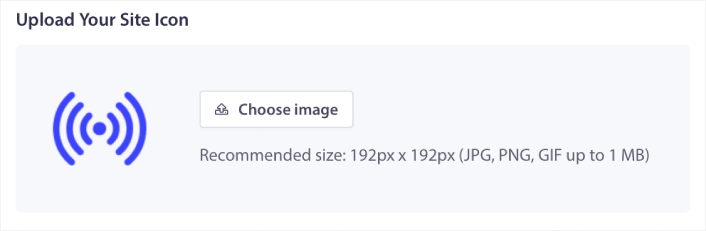
Billedet du uploader er dit push-notifikationsikon. Hold dimensionerne på billedet på 192px x 192px for de bedste resultater, og sørg for, at billedstørrelsen er mindre end 1 MB. Du kan bruge en JPG, PNG eller endda en GIF til animerede brand-mærker. Bare sørg for, at ikonet er i overensstemmelse med de brand-mærker, du bruger på sociale netværkssider.
Hvis du skal redigere dit ikon senere, er det her, du gør det. Upload blot et andet billede, og du er færdig!
Trin #4: Send en testnotifikation for at tjekke dit notifikationsikon
Vi anbefaler at oprette en velkomstbesked til webstedet for at teste dine push-notifikationer. Velkomst-push-notifikationer er gode til:
- Bekræftelse: Du vil bekræfte, at din nye abonnent faktisk er tilmeldt dine web-push-notifikationer.
- Genaktivering: Velkomstkampagner er en god måde at få dine abonnenter til at vende tilbage til dit websted.
- Salg: Du kan give dine nye abonnenter et velkomsttilbud med rabatter, gratis gaver og kuponer.
Lad os oprette en velkomst-push-notifikationskampagne nu. Gå til dit PushEngage-dashboard og gå til Kampagne » Drip Autoresponders » Opret ny Drip Autoresponder:
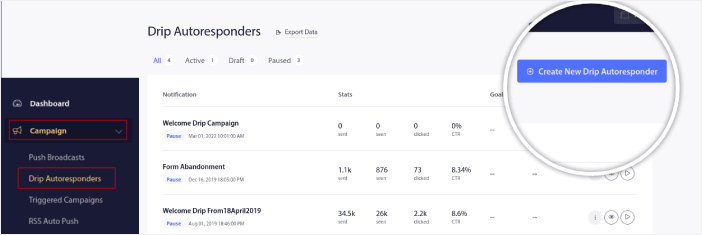
Giv din drip-kampagne et navn, som du nemt kan huske. Indstil derefter den første push-notifikation til at blive sendt umiddelbart efter, at en besøgende abonnerer på dine push-notifikationer.

Du kan redigere notifikationen for at oprette brugerdefineret indhold til din velkomstbesked. Når du er færdig, skal du klikke på knappen Tilføj ny notifikation for at tilføje flere notifikationer til sekvensen. Du kan redigere de nye notifikationer og indstille en brugerdefineret forsinkelse mellem hver notifikation.
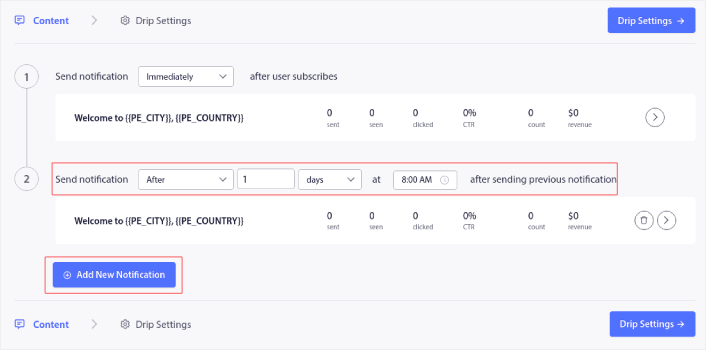
Du kan tilføje så mange notifikationer, som du vil, men vi anbefaler at oprette en velkomst-drip med 5-7 notifikationer.
Derefter skal du vælge dit publikum i Drip-indstillinger:
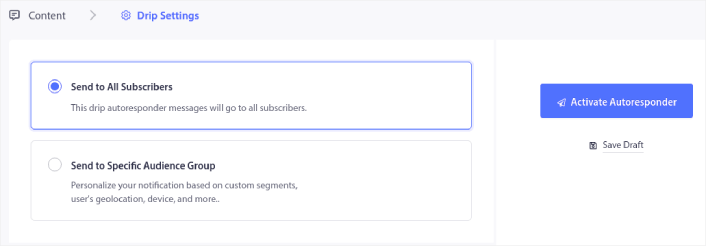
Du kan sende forskellige velkomst-drips til forskellige segmenter ved at bruge indstillingen Send til specifik målgruppe. Dette er især nyttigt, når du segmenterer besøgende, når de tilmelder sig push-notifikationer.
Når du er tilfreds med din målretning, skal du klikke på knappen Aktivér autoresponder.
Og du er færdig!
Hvis dine push-notifikationer blev installeret korrekt, bør du se en velkomstnotifikation som denne:
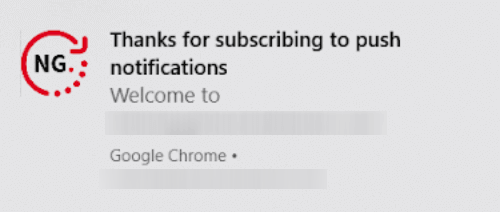
Og som du kan se, er notifikationsikonet ret fremtrædende i vores eksempel!
Hvis du er ny til push-notifikationer, bør du følge en fuldgyldig push-notifikationstestproces, før du går live. Det vil hjælpe dig med at fejlfinde almindelige problemer med funktionaliteten, før dine besøgende ser dem og begynder at klage over en ødelagt brugeroplevelse.
Hvad du skal gøre, efter du har tilføjet et notifikationsikon
Nu hvor du ved, hvordan du tilføjer et push-notifikationsikon, er det tid til, at du begynder at oprette dine egne kampagner. Men før du kommer i gang med kampagnerne, bør du først studere nogle gode eksempler på push-notifikationer.
Og hvis du er ny til push-notifikationer, bør du tjekke vores artikel om bedste praksis for push-notifikationer, før du begynder at oprette kampagner. Nogle af de bedste praksisser, som vi aktivt anbefaler, inkluderer:
- Boost klik med nysgerrighed
- Personliggør hver push-notifikation
- Skil dig ud med rigt medieindhold
- Genaktiver inaktive push-abonnenter
- Hold kunderne informeret
- Brug emojis, hvor du kan
- Skab en følelse af hastværk
Vi anbefaler at bruge PushEngage til at oprette dine push-notifikationskampagner. PushEngage er den førende push-notifikationssoftware på markedet, og dine kampagner vil være i sikre hænder.
Så hvis du ikke allerede har gjort det, så kom i gang med PushEngage i dag.


