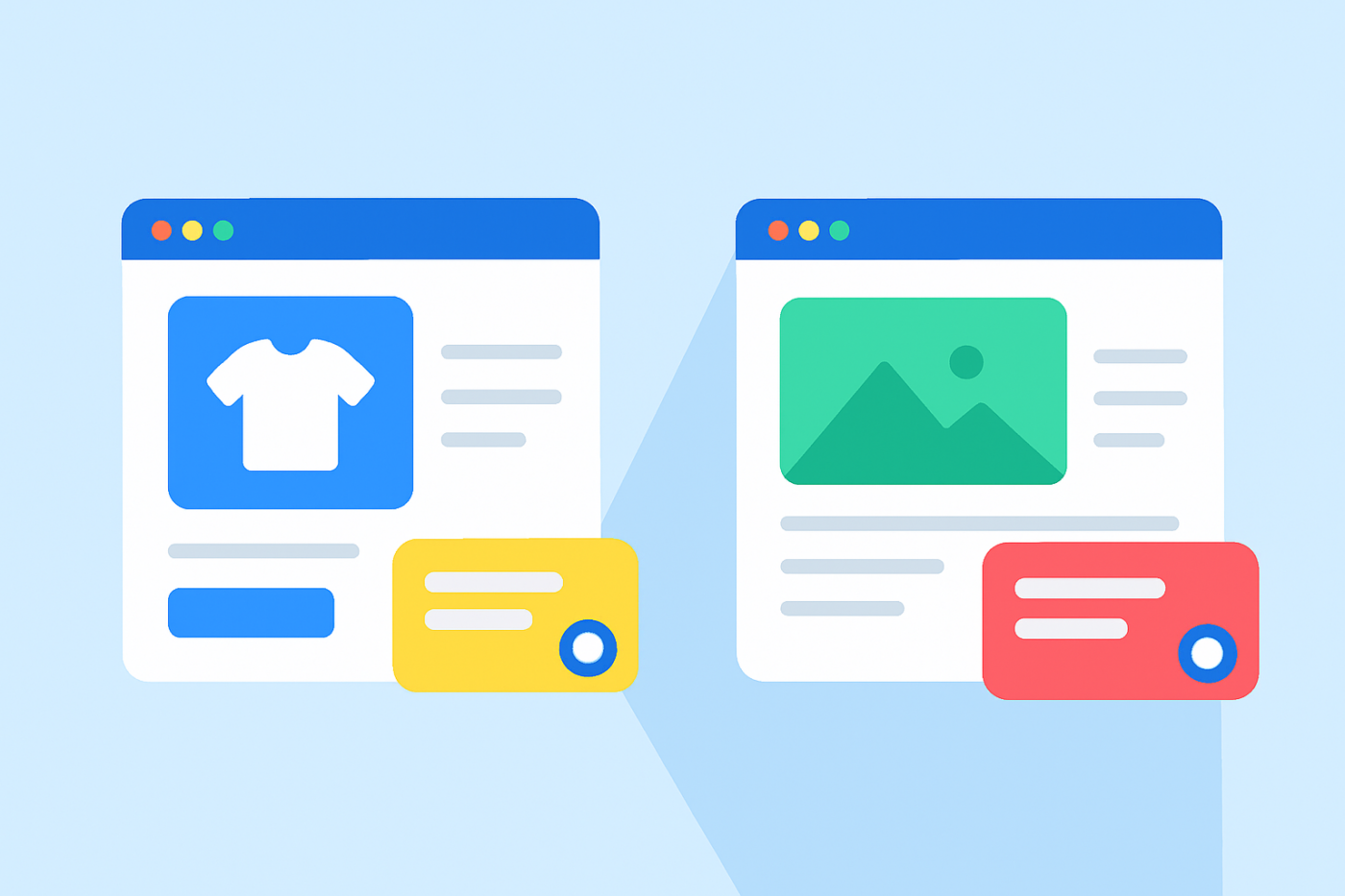
Når besøgende lander på dit website, er de ikke alle i samme sindstilstand. Nogen, der browser en produktside, evaluerer et køb. Nogen, der læser et blogindlæg, lærer, researcher eller bare udforsker.
At vise begge besøgende den samme chat-widget er en af de hurtigste måder at miste konverteringer, overvælde dine agenter og forvirre brugerintentionen.
Med PushEngages nye chat-widgets til WordPress og WooCommerce kan du oprette forskellige widgets til forskellige pagetyper — hver med sit eget design, besked, kanaler, agenter og regler.
Denne guide vil føre dig igennem præcis, hvordan du opsætter én chat-widget til produktsider og en anden til blogindlæg.
Send multichannel-beskeder i dag!
Push- og WhatsApp-beskeder er super effektive, billige marketingværktøjer, der hjælper dig med at øge din gentagne trafik, engagement og salg automatisk.
- Hvorfor produktsider og blogindlæg har brug for forskellige chat-oplevelser
- Hvad brugerdefinerede chat-widgets lader dig gøre
- Eksempler: Chat-strategier for produktsider vs. blogindlæg
- Sådan opsætter du forskellige chat-widgets ved hjælp af PushEngage
- Bedste praksis for at køre flere chat-widgets
- Hvad du skal gøre efter opsætning af chat-widgets
Ikke alle live chat-widgets til WordPress understøtter widgets pr. side, så tjek for denne funktion, før du forpligter dig til et værktøj.
Hvorfor produktsider og blogindlæg har brug for forskellige chat-oplevelser
Produktsider = Høj intention, lav tålmodighed
Når nogen er på en produktside, overvejer de at købe — eller opgive. De sammenligner priser, tjekker tilgængelighed, undrer sig over forsendelse og tøver med kvaliteten.
Din chat-widget på denne side skal:
- Være øjeblikkelig eller have høj synlighed
- Forbinde til salgseksperter
- Give tryghed
- Fjerne friktion
- Lukke salget
Hvis du forsinker chatten eller bruger en blød besked, mister du øjeblikket.
Blogindlæg = Lav intention, høj nysgerrighed
Besøgende på et blogindlæg er endnu ikke klar til at købe. De lærer, researcher eller danner en problemformulering.
Din chat-widget her bør:
- Være hjælpsom, ikke påtrængende
- Udløses efter en forsinkelse
- Guide dem mod ressourcer
- Indsamle e-mails eller kundeemne-intention
- Blidt varme dem mod produkter
At forsøge at sælge aggressivt her vil skubbe læserne væk.
At matche chatten til intentionen = Flere konverteringer
At tilpasse din chat-strategi til den besøgendes sindstilstand er en af de enkleste måder at forbedre engagement, reducere supportbelastning og øge salget.
Hvad brugerdefinerede chat-widgets lader dig gøre
PushEngage giver dig mulighed for at oprette flere widgets — hver med sin egen:
- Design
- Kanaler (WhatsApp, Live Chat, E-mail)
- Agenttildelinger
- Proaktive beskeder
- Målretningsregler
- Adfærdstriggere
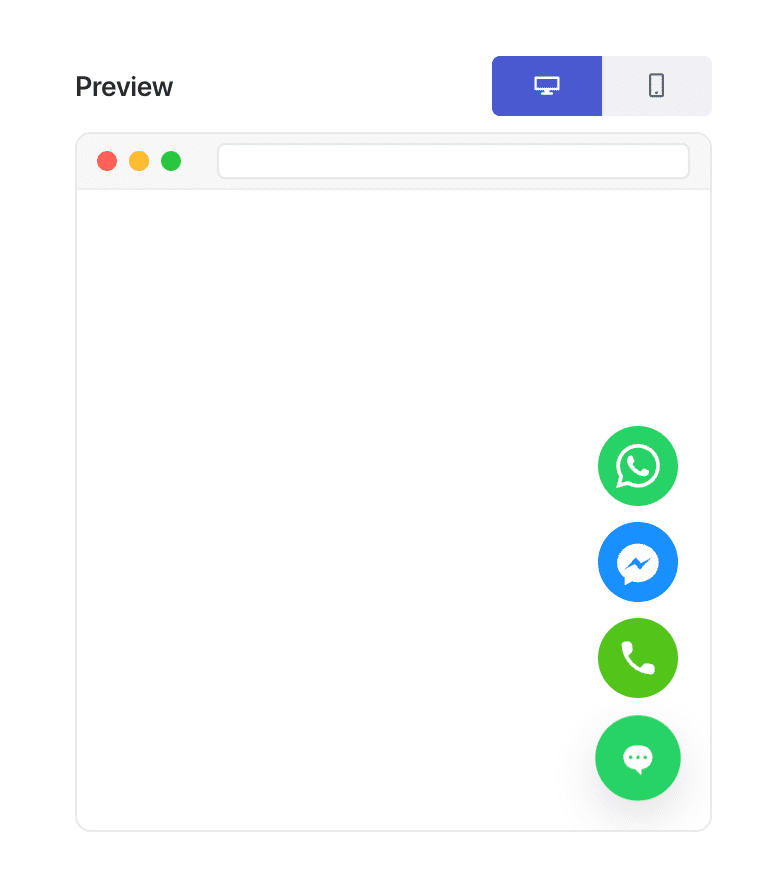
Denne fleksibilitet er præcis, hvad der gør "side-type-baseret personalisering" mulig.
Eksempler: Chat-strategier for produktsider vs. blogindlæg
Idéer til chat-widgets på produktsider
Disse beskeder konverterer browsere til købere:
- “Har du spørgsmål før bestilling? Chat med en produktekspert.”
- “Spørg om leveringstider eller produkt specifikationer.”
- “Har du brug for hjælp til at vælge den rigtige variant?”
Brug:
- Salgsagenter
- WhatsApp + live chat
- Hurtige triggere (0–5 sekunder eller 20–30% scroll)
Idéer til chat-widgets på blogindlæg
Disse beskeder føles naturlige i et læringsmiljø:
- “Har du brug for hjælp til at forstå dette emne?”
- “Leder du efter produktanbefalinger? Jeg kan hjælpe.”
- “Ønsker du et resumé eller en guide? Bare spørg!”
Brug:
- Supportagenter
- Valgfri e-mail-indsamling
- Forsinkede triggere (40–60 sekunder eller 60–70% scroll)
Sådan opsætter du forskellige chat-widgets ved hjælp af PushEngage
Dette er den præcise konfiguration, du vil bruge i WordPress/WooCommerce med PushEngage.
Trin 1: Opret din første chat-widget
- I WordPress, gå til: PushEngage → Chat Widgets → Opret Ny Widget
- Navngiv den: Produktside Chat
- Vælg en fremtrædende farve og stil
- Tilføj kanaler som WhatsApp + Live Chat
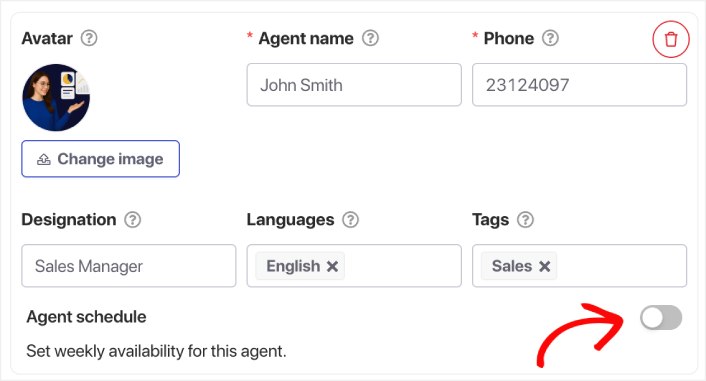
- Tildel dine salgs- eller produktagenter
Trin 2: Tilføj en salgsfokuseret besked
Under Indhold » Udseende » Avanceret visning, rul ned til feltet CTA Tekst og tilføj en salgsbesked.
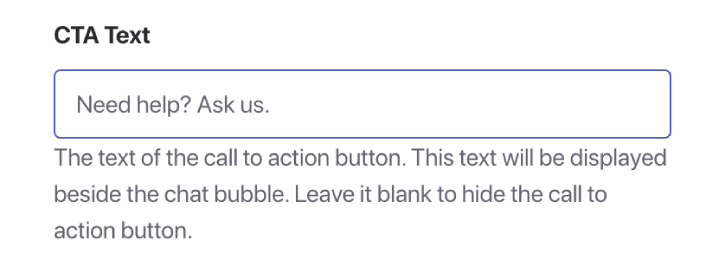
Eksempler:
- "Har du brug for hjælp før køb? Spørg os om alt."
- "Usikker på størrelse eller pasform? Jeg kan hjælpe."
- "Få dit produkt leveret hurtigere - spørg hvordan!"
Denne besked er beregnet til at fremkalde handling.
Trin 3: Målret widgetten mod WooCommerce produktsider
Gå til fanen Triggere og rul ned til Visningsregler.
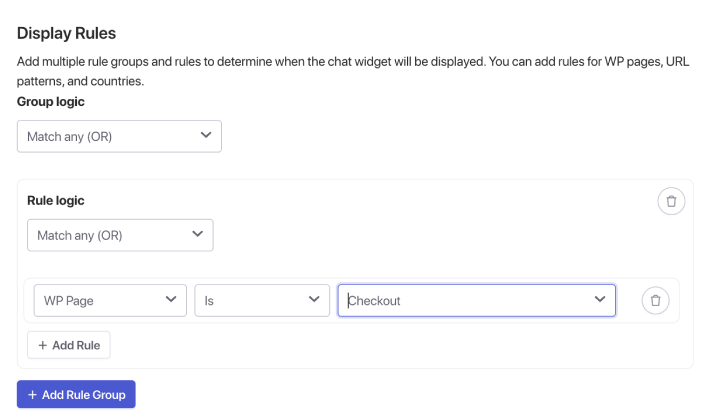
Her kan du bruge indstillingen WP Side til at finde WooCommerce-sider som produkt, kasse osv. Men hvis du hellere vil bruge specifikke URL'er, skal du blot klikke på rullemenuen og vælge URL i stedet og justere din målretning derefter.
Når du er færdig, skal du blot gemme din chat-widget og aktivere den.
Det samme gælder for opsætning af en chat-widget til blog-sider. Opret en separat widget, der udelukkende målretter mod blog-sider.
Anbefalede adfærdsregler
- Vis efter 45-60 sekunder
- Eller efter 60-70% scroll
- Kun desktop (valgfrit)
Dette får widgeten til at føles understøttende, ikke forstyrrende.
Bedste praksis for at køre flere chat-widgets
1. Hold dit design konsistent
Selvom widgets kan variere efter kontekst, skal de stadig føles som det samme brand.
2. Overvæld ikke besøgende
Undgå for mange proaktive popups. Lad konteksten gøre det tunge løft.
3. Tildel de rigtige agenter
Produktsider → Salg
Blog sider → Support eller pædagogisk personale
4. Tjek analyser månedligt
Se på:
- Triggede sessioner
- Gns. responstid
- Konverteringsflow
- Sider hvor brugere falder fra
Finjuster baseret på faktiske data.
5. Husk forskelle mellem mobil og desktop
Mobilvisninger er essentielle. Juster meddelelseslængde og trigger-timing derefter.
Hvad du skal gøre efter opsætning af chat-widgets
At oprette forskellige chat-widgets til produktsider og blogindlæg er en af de enkleste, mest effektive forbedringer, du kan foretage til din WordPress- eller WooCommerce-oplevelse.
Produktsider kræver hurtig, salgsorienteret support.
Blog-sider kræver langsom, understøttende vejledning.
Med PushEngage kan du opsætte dette på få minutter – og straks begynde at se bedre engagement, højere konverteringer og mere effektive agentarbejdsmængder.
- Kunder ser altid nogen online
- Responstiderne falder
- Før-køb konverteringer stiger
- Support føles hurtigere og mere pålidelig
- Din butik føles globalt klar
Når tidsplanerne er indstillet, kan dit team arbejde mere effektivt – og dine kunder får den oplevelse, de forventer.
Hvis du endnu ikke har opsat agentprofiler og -planer i PushEngage, er det nu, du skal gøre det.
Ikke overbevist? Se disse fantastiske ressourcer om multichannel marketingkampagner:
- Sådan øger du hotelsalg i lavsæsonen
- Sådan laver du multichannel-marketing for hoteller i 2026
- Sådan konverterer du abonnenter til købere ved hjælp af web push-notifikationer
- Sådan giver du abonnenter besked om nye WordPress-indlæg
- Sådan sender du lager-tilbage-notifikationer for at få mere salg
- Sådan renses push-notifikationsabonnentlister (nemt)
- Sådan sendes RSS push-notifikationer automatisk
- Sådan bruges push-notifikationer til at promovere en nyhedsside
- Sådan bruges cross-selling push-notifikationer til at fordoble dit salg
- Sådan bruges browse abandonment push-notifikationer (4 trin)


