Leder du efter en vejledning til, hvordan du giver abonnenter besked om nye WordPress-indlæg?
At skabe indhold og administrere en blog er i sig selv en udfordring. Men det er ikke nok blot at udgive indhold. Du bliver nødt til at promovere din blog meget for at generere trafik og leads.
Push-notifikationer er en fantastisk måde at generere gentagen trafik, engagement og salg på. Det bedste er, at du fuldstændig kan automatisere afsendelsen af kraftfulde push-notifikationer.
I denne artikel vil vi se på, hvordan du giver abonnenter besked om nye WordPress-indlæg.
Vi vil bruge PushEngage til denne vejledning. PushEngage er den førende push-notifikationssoftware i verden. Så dine kampagner vil være i sikre hænder.
Lad os dykke ned.
Metode #1: RSS Push til at give abonnenter besked om nye WordPress-indlæg
Hvis dit websted har et RSS-feed, kan du bruge det til automatisk at give abonnenter besked om nye WordPress-indlæg.
Vi vil se på, hvordan du kan opsætte RSS push-notifikationer for ethvert WordPress-websted. Før du starter, skal du tjekke, om dit websted har et RSS-feed eller ej. Du kan tjekke ved at gå til URL'en: yoursite.com/rss eller yoursite.com/feed.
Husk at erstatte 'yoursite' i den URL med dit websteds faktiske link. Hvis du ser RSS-siden indlæst, er du klar.
Alle WordPress-websteder kommer med et RSS-feed som standard. Så der burde ikke være nogen problemer.
Alt, hvad du behøver til denne metode, er et push-notifikationsplugin til WordPress, der understøtter RSS auto-push — ingen kode, ingen manuel afsendelse.
Trin #1: Installer PushEngage
Gå til PushEngage hjemmeside og klik på knappen Kom i gang :

Du kan vælge gratisplanen for at prøve PushEngage, eller vælge en betalt plan, hvis du er seriøs omkring at vækste din forretning. De betalte planer inkluderer bedre målretningsmuligheder for publikum og funktioner til kampagneautomatisering.
Når du har oprettet en konto, skal du gå til PushEngage dashboard og gå til Webstedsindstillinger » Webstedsdetaljer :

Her kan du tilpasse, hvordan dit brand ser ud i de push-notifikationer, du sender ud. Fortsæt og indstil et logo og en websteds-URL for dine push-notifikationer.
Dine push-notifikationsabonnenter vil se dit Webstedsnavn, Webstedsbillede, og Websteds-URL på dine notifikationer. Så du bør sætte disse op nu for at teste dine push-notifikationer senere.
Når dette er gjort, skal du gå til PushEngage dashboard og hente installationskoden. Klik på knappen Klik her for opsætningsvejledning :

Kopiér installationskoden:
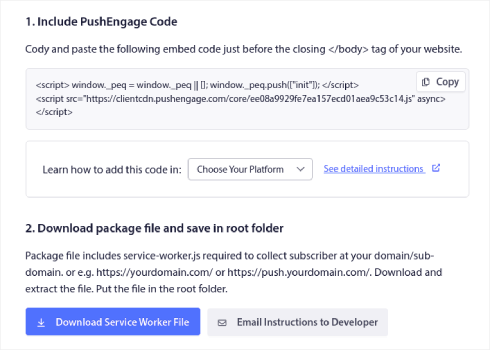
Og så skal du indsætte installationskoden i HTML-<head>-delen af dit websted.
Hvis du ikke er sikker på, hvordan du gør det, kan du se denne artikel om hvordan man installerer web push-notifikationer på ethvert websted.
Trin #2: Aktiver RSS Push-notifikationer fra PushEngage Dashboard
Når du har installeret PushEngage på dit websted, skal du gå til dit PushEngage-dashboard og vælge Kampagne » RSS Auto Push:
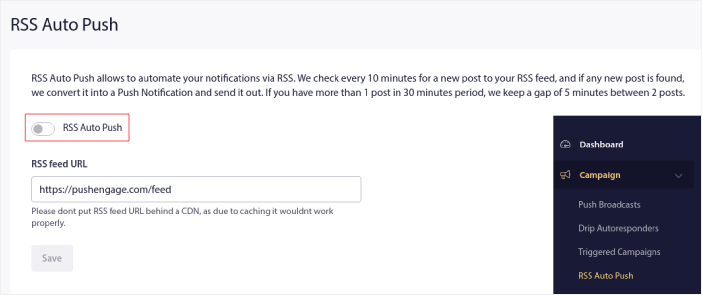
Klik på skifteknappen for at aktivere RSS Auto Push og indsæt din RSS-feed-URL.
Når det er gjort, skal du klikke på Bekræft RSS for at bekræfte, at dit RSS-feed er blevet accepteret. Når du er færdig, skal du blot trykke på Gem.
Og det er det! Det er alt, hvad der er til det.
Dine push-notifikationsabonnenter vil automatisk modtage en push-notifikation om dit nye indhold, hver gang du udgiver et nyt indlæg.
Metode #2: RSS-e-mails til at give abonnenter besked om nye WordPress-indlæg
Du kan bruge RSS-feedet på dit websted til automatisk at sende en e-mail, hver gang et nyt blogindlæg udgives.
For at oprette en RSS-feed-e-mail anbefaler vi at bruge Sendinblue.
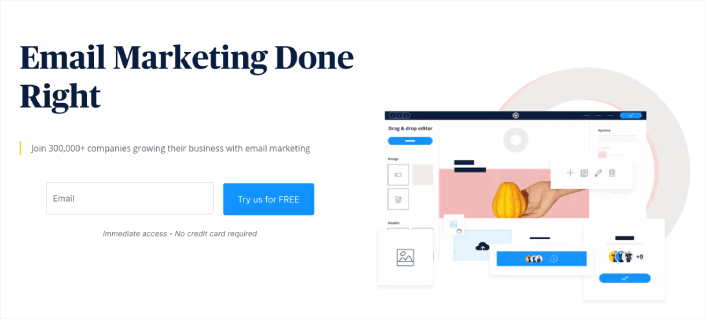
Sendinblue er en førsteklasses e-mail marketingtjeneste. Du kan bruge den til at sende automatiserede e-mails lige ud af boksen. Tilmeld dig gratis på hjemmesiden for at komme i gang. Efter du har oprettet en konto, vil du se dit Sendinblue-dashboard.
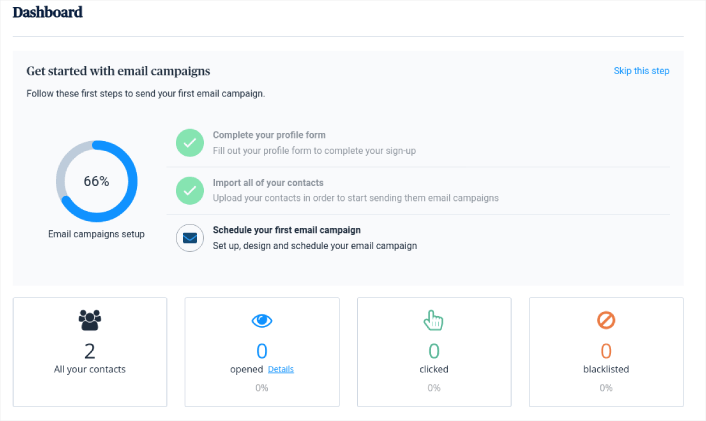
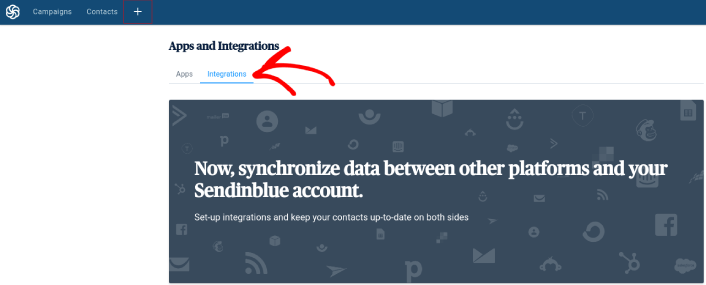
Klik nu på + -knappen i den øverste navigationsmenu. Klik derefter på menupunktet Integrationer nedenunder:
Skriv RSS i søgefeltet, og du vil se RSS-kampagnemuligheden.
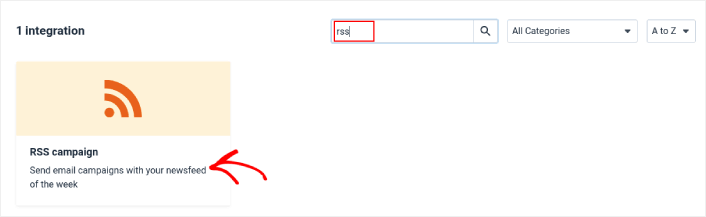
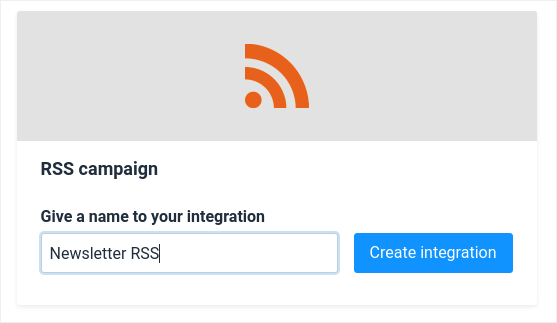
Klik på RSS-kampagne for at oprette en ny RSS-kampagne. Giv derefter din RSS-kampagne et navn, og klik på Opret integration:
Dernæst skal du konfigurere din e-mailkampagne til at hente dit RSS-feed og automatisk sende e-mails. Start med at indsætte din RSS-feed URL, og klik på Indlæs RSS:
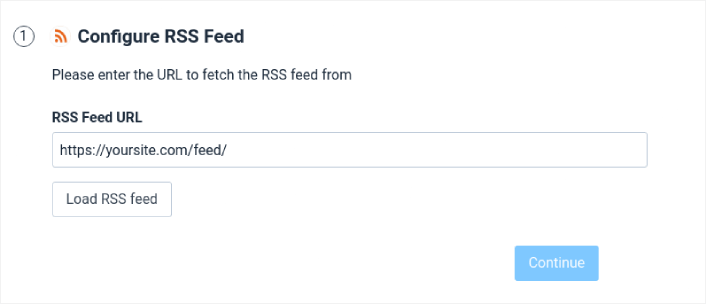
Klik derefter på Fortsæt og opsæt e-mailens design. Vi anbefaler, at du vælger standarddesignet, da det allerede er sat pænt op.
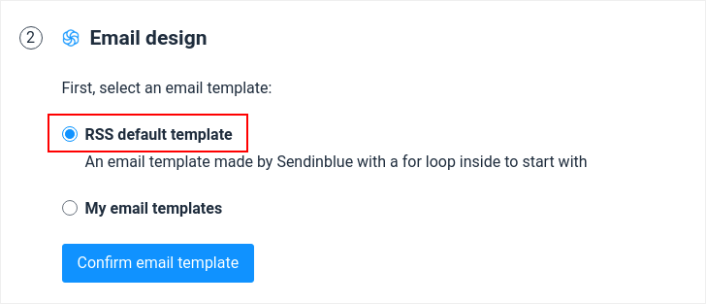
Klik derefter på Bekræft e-mailskabelon for at fortsætte. Derefter skal du vælge præcis, hvem du vil sende din RSS-feed e-mailkampagne til.
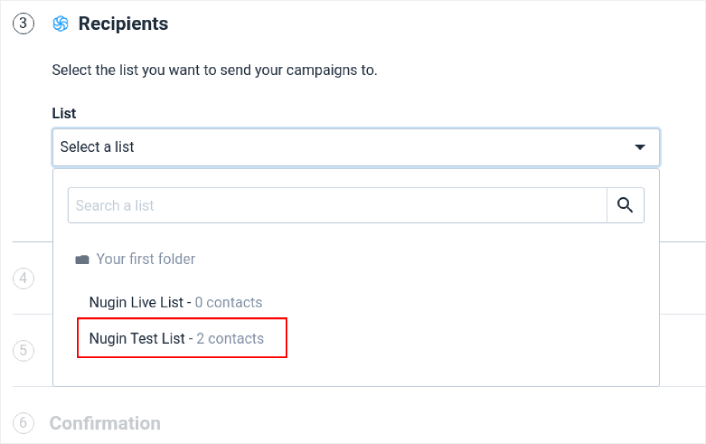
Afslut derefter dine kampagnedetaljer, og giv din kampagne et navn.
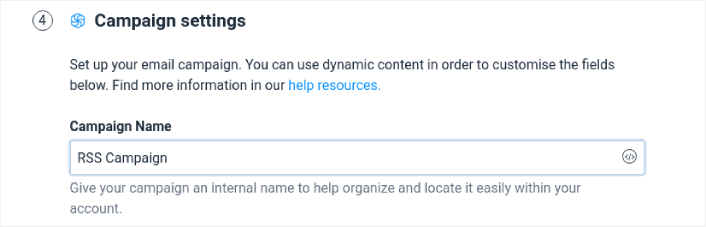
Tilføj derefter en dynamisk emnelinje ved at klikke på knappen Tilføj dynamisk indhold og vælge TITEL fra rullelisten.
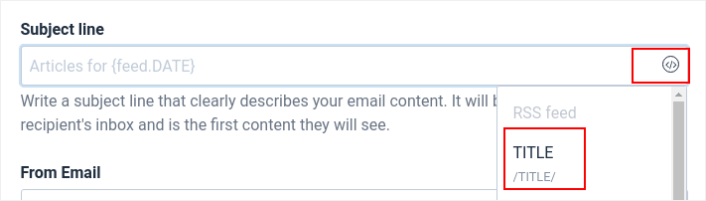
For Fra e-mail skal du blot vælge din e-mailadresse fra rullelisten.

Fra navn er navnet på dit brand. Det kan være dit navn i tilfælde af et personligt brand.

Derefter skal du klikke på knappen Fortsæt og vælge, hvornår du vil sende din kampagne:
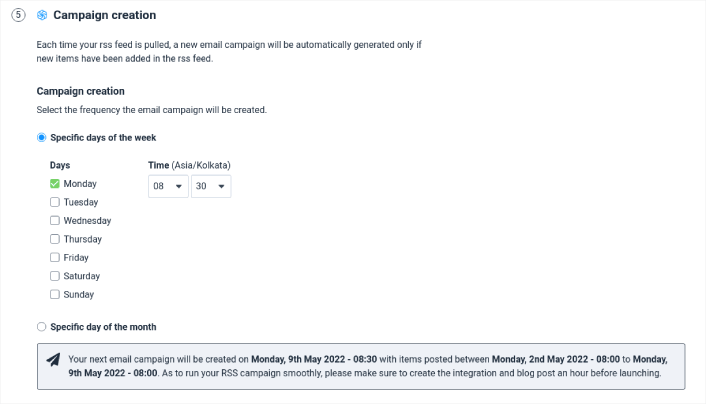
Du kan også vælge at sende e-mailen automatisk eller manuelt.
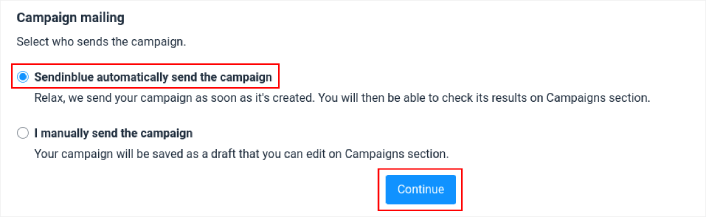
Når du er færdig, skal du klikke på knappen Fortsæt.
Klik endelig på Gem og aktiver for at starte din kampagne:
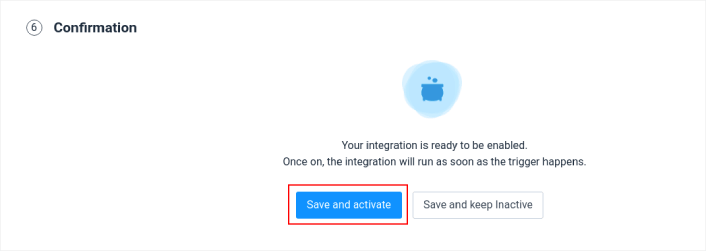
Og du er færdig!
Metode #3: Nyhedsbrev til at underrette abonnenter om nye WordPress-indlæg
Sidst, men ikke mindst, kan du også sende opdateringer om dine nye WordPress-indlæg til dine abonnenter ved hjælp af dit e-mailnyhedsbrev. Dette er en manuel proces, og selvom du får MEGET kontrol over din kreative proces og tilpasning, kan det tage tid at opsætte.
Til dette anbefaler vi at bruge Constant Contact.

Constant Contact er nem at bruge og er den mest begyndervenlige e-mailmarketingtjeneste. Du får simpel sporing og rapportering, ubegrænsede e-mails, delingsværktøjer til sociale medier, segmentering, et gratis billedbibliotek og meget mere.
Hvis du aldrig har oprettet et e-mailnyhedsbrev før, så tjek denne guide til oprettelse af e-mailnyhedsbreve (på den rigtige måde).
Du kan underrette abonnenter om nye WordPress-indlæg. Hvad nu?
Mens RSS-push kan være en enkel måde at automatisere trafik til dine indlæg på, er der en stor risiko.
For de fleste websteder er udgivelse af et indlæg en regelmæssig aktivitet. Og du ønsker måske ikke at sende push-meddelelser så ofte. Ikke at nævne, at du sender en udsendelsesbesked til alle dine abonnenter uden nogen målretning. Så det er ikke den mest effektive strategi.
Tjek disse artikler, før du begynder at bruge RSS push-meddelelser:
- Sådan konverterer du abonnenter til købere ved hjælp af web push-notifikationer
- Bedste praksis for push-notifikationer
- Hvorfor velkomst-push-notifikationer er vigtige
- Sådan tilføjer du et Web Notifications WordPress-plugin til dit websted
Hvis du er ny til push-notifikationer, bør du følge en fuldgyldig push-notifikationstestproces, før du går live. Det vil hjælpe dig med at fejlfinde almindelige problemer, før dine besøgende ser dem og begynder at klage over en ødelagt brugeroplevelse.
Og hvis du ikke allerede har gjort det, så prøv PushEngage. PushEngage er den #1 push-notifikationstjeneste i verden. Så hvis du er seriøs omkring at vækste din virksomhed, bør du investere i PushEngage.
Push-notifikationer hjælper virksomheder med at vokse over hele verden. Vil du bare vente, indtil dine konkurrenter begynder at bruge det, før du gør?


Jeg elsker dit WordPress-design, hvor har du downloadet det fra?
Det er et brugerdefineret design. Hjemmesiden er bygget med en kombination af Gutenberg og SeedProd. SeedProd har et stort bibliotek af hjemmesideskabeloner. Så du kan lancere super hurtigt. Gå og tjek det ud!