
Leder du efter en enkel måde at tilføje push-notifikationer til din Volusion-butik?
Du traf den rigtige beslutning om at tilføje push-notifikationer til dit websted. Du kan oprette automatiserede push-notifikationer til e-handelswebsteder, der genererer trafik, engagement og salg på autopilot.
Volusion er en fantastisk platform til at starte din e-handelsvirksomhed. Lad os nu udvide den ved hjælp af push-notifikationer.
I denne artikel vil vi vise dig, hvordan du installerer push-notifikationer på din Volusion-butik i 5 enkle trin.
Vi vil bruge PushEngage til at opsætte push-notifikationer. PushEngage er den førende push-notifikationssoftware i verden. Så hvis du endnu ikke har valgt en leverandør, kan du komme i gang med PushEngage i dag.
Men hvis du har en anden leverandør, skal du ikke bekymre dig. Trinene bør være næsten identiske for enhver push-notifikationssoftware.
Lad os dykke ned.
Sådan installeres push-notifikationer på Volusion
Det er ret simpelt at tilføje push-notifikationer til en Volusion-butik. Alt du skal gøre er at følge med i denne artikel.
Hvis du følger hvert trin, bør du i slutningen af denne artikel kunne sende push-notifikationer som denne:
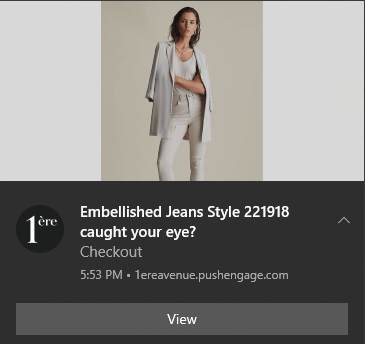
Lad os komme i gang.
Trin #1: Opsæt din PushEngage-konto
Gå til PushEngage hjemmeside og klik på knappen Kom i gang :

Du kan prøve PushEngage gratis. Men hvis du er seriøs omkring at udvide din virksomhed, bør du vælge en betalt plan for at låse op for de mest kraftfulde funktioner og kampagner, som PushEngage har at tilbyde. Da Volusion er en e-handelswebstedsbygger, bør du ideelt set få Enterprise-pakken for at få fuld adgang til automatiserede push-notifikationskampagner.
Når du har tilmeldt dig din PushEngage-konto, skal du gå til dit PushEngage-dashboard og gå til Indstillinger » Webbetsindstillinger » Installationsindstillinger:
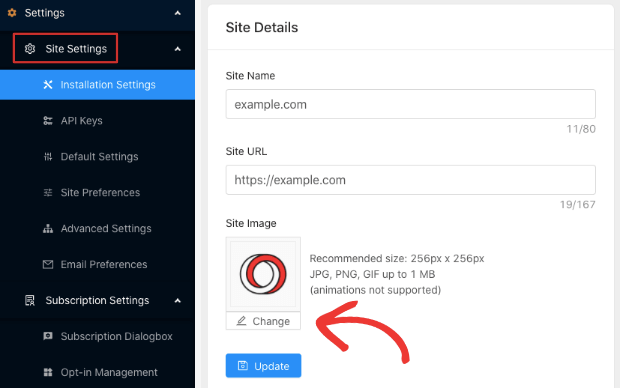
Du kan indstille dit logo, webstedsnavn og websteds-URL her. Du kan opsætte dit brand senere. Men ærligt talt, hvis du bare får det gjort lige nu, vil det være meget lettere for dig at teste ting senere.
Trin #2: Hent installationskoden fra PushEngage
Før du kan tilføje push-notifikationer til dit Volusion-websted, skal du have en installationskode fra dit PushEngage-dashboard.
Gå til Indstillinger » Webstedsindstillinger » Installationsindstillinger:
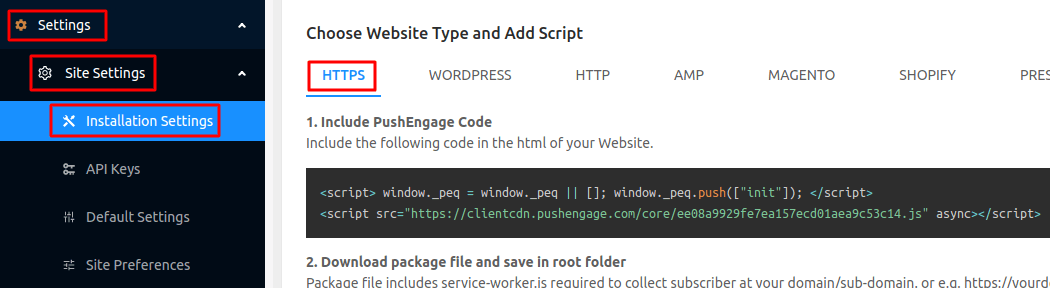
Billedet viser dig kun en eksempelkode til HTTPS-websteder. Hvis du ikke har et SSL-certifikat installeret, kan du klikke på HTTP-fanen på samme skærm. Og koden, du får, vil være unik for dit websted. Så kopier venligst ikke koden på billedet. Gå og få din egen kode!
Og du bør kopiere denne Javascript-kodestykke. Du får brug for den snart.
Trin #3: Placer installationskoden på dit Volusion-websted
På dit Volusion-websted skal du gå til Design » Filredigering:
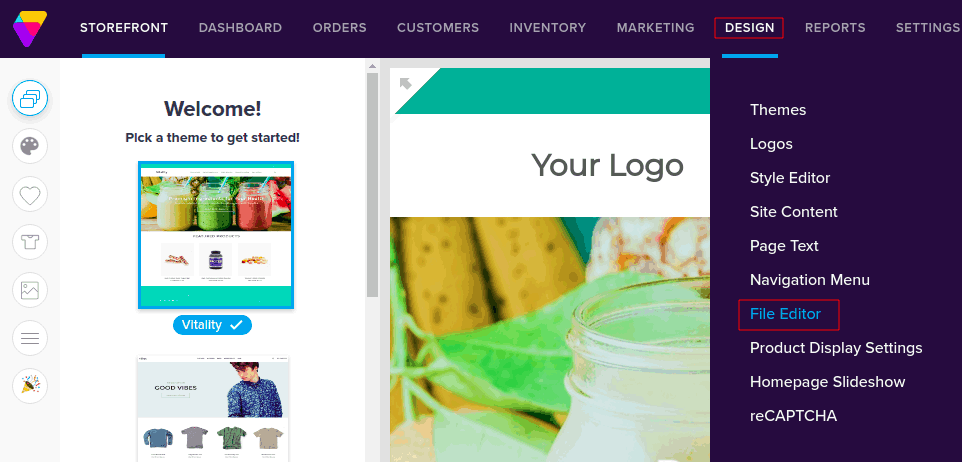
Dette åbner Filredigeringen, og på højre side vil du se et panel, der viser temafiler under Genveje:
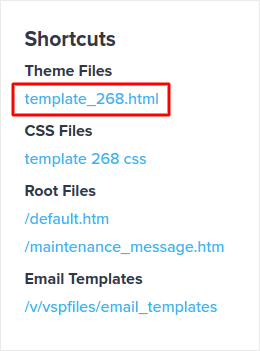
Klik på HTML-filen for at redigere den og indsæt dit PushEngage Javascript-kodestykke lige før </head>:
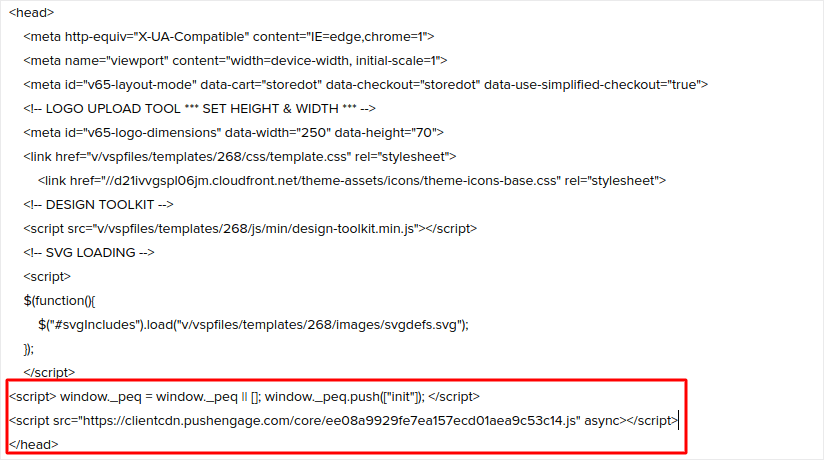
Til sidst, når du er færdig, skal du trykke på Gem.
Trin #4: Konfigurer PushEngage Opt-In
Derefter, i dit PushEngage-dashboard, skal du gå til Indstillinger » Abonnementsindstillinger » Abonnementsdialogboks » Rediger:
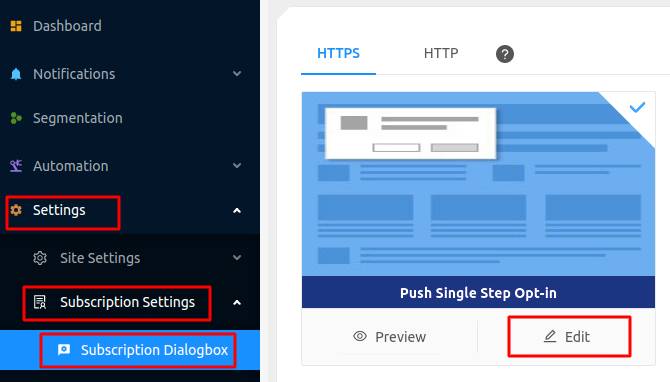
Idéen her er at give dine besøgende en solid grund til at abonnere. Hvis du har brug for hjælp til det, kan du se vores artikel om hvordan man opretter en brugerdefineret push-notifikations-opt-in.
Og hvis du ønsker nogle skabeloner til at komme i gang, bør du tjekke denne artikel om konverteringsdygtige push-notifikations-opt-ins.
Trin #5: Opret din første kampagne
Nu hvor dit Volusion-websted kan sende push-notifikationer, lad os oprette en faktisk kampagne.
En af de bedste kampagner, du kan oprette til et e-handelswebsted, er en kampagne for forladte indkøbskurve. En kampagne for forladte indkøbskurve hjælper dig med at øge din omsætning ved at genvinde salg, der allerede er halvt gennemført.
Gå blot til dit PushEngage-dashboard og gå til Automation » Cart Abandonment » Create Cart Autoresponder:
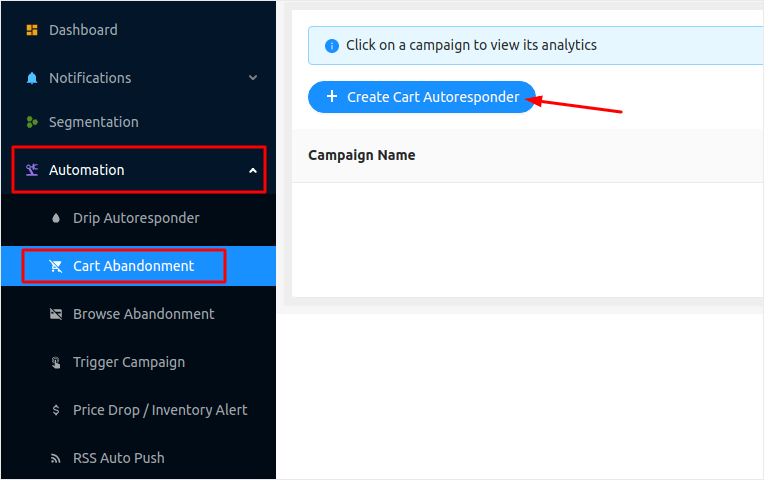
Følg vores artikel om hvordan man opretter en kampagne for forladte indkøbskurve, og du kan oprette og sende en autoresponder som denne:
Pro-tip: Dette er et godt tidspunkt også at teste dine push-meddelelser og kontrollere, at alt i din kampagne fungerer fint.
Afslutning
Det var alt for denne gang, folkens!
Hvis du nød denne artikel, og du formåede at opsætte din første push-meddelelseskampagne i din Volusion-butik, godt gået!
Du bør også tjekke hvordan man opretter prisaldrigvarsler til din butik også.
Og hvis du ikke allerede har gjort det, kom i gang med PushEngage. PushEngage er den #1 push-meddelelsessoftware i verden. Så dine kampagner er i sikre hænder.


