Leder du efter en guide til at oprette vandfalds-push-kampagner?
Vandfaldsnotifikationer vinder meget popularitet i disse dage. I lang tid kunne du kun sende vandfalds-e-mail-kampagner. Men nu kan du genskabe de samme effektive kampagner og bruge målretningsmulighederne i push-notifikationssoftware til at sende vandfalds-push-notifikationer.
Men hvordan kommer du i gang? Har du brug for erfaring med vandfaldskampagner? Har du brug for erfaring med at opsætte push-notifikationskampagner?
I denne artikel vil vi hjælpe dig med at oprette vandfalds-push-kampagner ved hjælp af et eksempel. Vi vil også besvare alle dine spørgsmål om vandfalds-push-notifikationer.
Lyder godt? Lad os dykke ned.
Hvad er vandfalds-push-kampagner?
En vandfalds-push-kampagne er en type annoncekampagne for mobile enheder. Den fungerer således: du sender push-notifikationer til en gruppe mennesker, men ikke alle på én gang. I stedet sender du notifikationen først til de mennesker, der mest sandsynligt vil interagere med notifikationen og udføre den handling, du ønsker, de skal udføre.
Hvis disse mennesker ikke reagerer, går du videre til den næste gruppe mennesker, og så videre.
Ideen er at få så mange mennesker som muligt til at interagere med notifikationen, mens du bruger mindst muligt penge. Det kaldes et "vandfald", fordi det er som en række trin, som netværket gennemgår, og målretter forskellige grupper af mennesker på hvert trin.
Lad mig forklare.
Med enhver virksomhed, du driver, vil du se en gruppe af abonnenter, der er ekstremt engagerede. De køber alt, hvad du sælger, tilbyder gladeligt testimonials og anmeldelser og henviser nye kunder til dig.
Og så igen, du vil se abonnenter, der simpelthen ikke er interesserede i noget om din virksomhed.
Push-notifikationskampagner kommer med detaljeret analyse. Så du kan se begge grupper ret tydeligt på din abonnentliste. Og det fede er, at du kan oprette målgruppegrupper i PushEngage for at retarget begge typer af abonnenter.
Derefter kan du oprette målretningsmuligheder for dine push-notifikationer for at retargete specifik adfærd på hver notifikation, du sender. Når vi kommer til vores eksempel, vil du se tydeligere, hvordan adfærdsmålretning påvirker en vandfalds-push-kampagne. For nu bør du vide, at alle push-vandfaldskampagner har to kernekomponenter:
- Et sæt push-notifikationer med et fælles mål
- Målgruppegrupper til at retarget forskellige typer af abonnenter
Lad os se på, hvorfor vandfalds-push-kampagner er så effektive næste gang.
Hvorfor sende vandfalds-push-kampagner?
Der er flere fordele ved at bruge vandfalds-push-kampagner til at vækste dit brand:
- Effektiv brug af annoncebudget: Ved at målrette de mest værdifulde brugere først og derefter bevæge sig ned ad prioriteringslisten kan en vandfalds-push-kampagne hjælpe med at maksimere afkastet af investeringen (ROI) for dit annonceforbrug. Dette sikrer, at dit annoncebudget bliver brugt så effektivt som muligt.
- Højere engagementrater: Ved at målrette brugere, der mest sandsynligt vil engagere sig i annoncen, øger du chancerne for at få en højere klikrate og konverteringsrate, hvilket kan føre til øget omsætning.
- Tilpasset målretning: Med en vandfalds-push-kampagne kan du oprette forskellige segmenter af brugere baseret på deres demografi, adfærd og andre faktorer. Dette giver dig mulighed for at skræddersy dit budskab til hver gruppe og øge sandsynligheden for succes.
- Realtidsoptimering: Med en vandfalds-push-kampagne kan du spore ydeevnen af hvert segment i realtid og justere din målretningsstrategi derefter. Dette sikrer, at du altid optimerer for de bedst mulige resultater.
Samlet set kan vandfalds-push-kampagner være en effektiv måde at nå din målgruppe på og drive engagement og konverteringer, samtidig med at spild af annonceudgifter minimeres.
Sådan sender du vandfalds-push-notifikationer
Nu hvor vi ved, hvad en vandfalds-push-kampagne er, og hvorfor du bør oprette dem, lad os se på et reelt eksempel med trin-for-trin-instruktioner til at oprette en.
Før du går i gang med at sende vandfalds-push-notifikationer, skal du vælge en push-notifikationstjeneste. Vi anbefaler at bruge PushEngage.
Trin #1: Opret en gratis PushEngage-konto
Gå til PushEngage og klik på Kom i gang gratis nu:

Du kan komme i gang med den gratis plan. Men hvis du leder efter de mest kraftfulde browser-notifikationer, bør du vælge en betalt plan baseret på dine forretningsbehov:
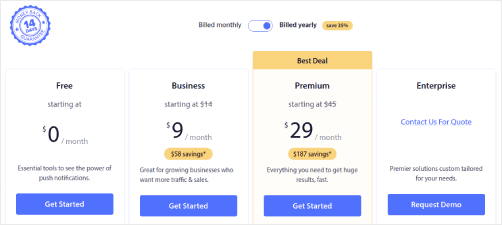
Når du ved, hvilken plan du vil have, skal du klikke på Kom i gang for at oprette din PushEngage-konto.
Trin #2: Tilmeld dig PushEngage
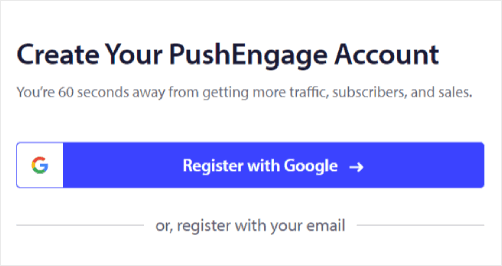
Nu er det tid til at oprette din PushEngage-konto. Start med at tilmelde dig med en e-mailadresse eller et Gmail-id:
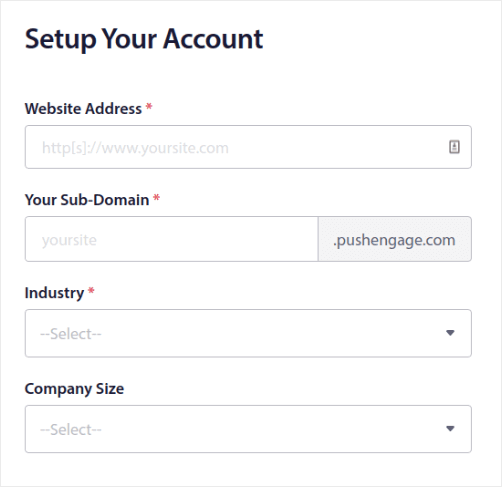
Udfyld derefter dine kontooplysninger:
Og tilføj dine kreditkortoplysninger for at købe din plan:
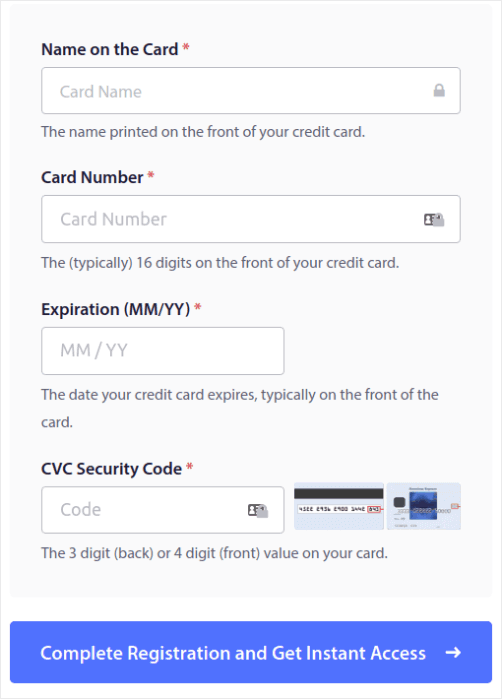
Hvis du valgte den gratis konto, vil dit kreditkort aldrig blive opkrævet penge, før du vælger at opgradere din plan. Og nu er du klar til at få adgang til dit PushEngage-dashboard. Klik blot på Gennemfør registrering og få øjeblikkelig adgang.
Hvis du har brugt OneSignal eller PushAlert før, vil du se, at PushEngage giver dig en meget renere oplevelse fra dashboardet. OneSignal-dashboardet er ikke beregnet til avancerede kampagner. Til det skal du bruge API'en mere end OneSignal-pluginet.
Trin #3: Installer WordPress-pluginnet til webenotifikationer
Du er færdig med at oprette din konto. Så gå til PushEngage-dashboardet og følg med:

Klik på Webstedsindstillinger » Webstedsdetaljer og klik på knappen Klik her for opsætningsinstruktioner:

Klik på fanen WordPress og klik på knappen Installer PushEngage WordPress Plugin for at installere pluginnet på dit websted.

Her er det fede: Da du oprettede din PushEngage-konto, synkroniserede du allerede din hjemmeside med din PushEngage-konto. Så klik på installationslinket i PushEngage-dashboardet for automatisk at installere PushEngage WordPress-pluginet på din hjemmeside.
Trin #4: Forbind dit WordPress-websted med PushEngage
Når du er færdig med at installere og aktivere PushEngage WordPress-pluginet, vil du se PushEngage-guiden:
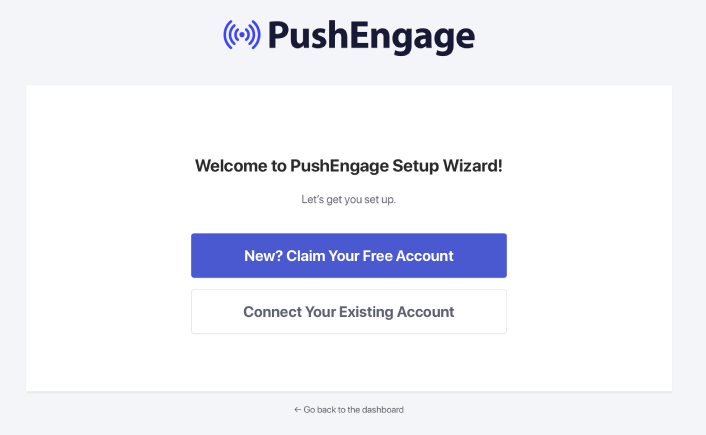
Guiden er ret ligetil. Hvis du er ny bruger, skal du klikke på Ny? Gør krav på din gratis konto. Og hvis du allerede har tilmeldt dig, skal du klikke på Forbind din eksisterende konto.
Dernæst kan du vælge dit websted fra rullemenuen Vælg et websted under Forbind et registreret websted, hvis du allerede har registreret et websted under tilmelding:
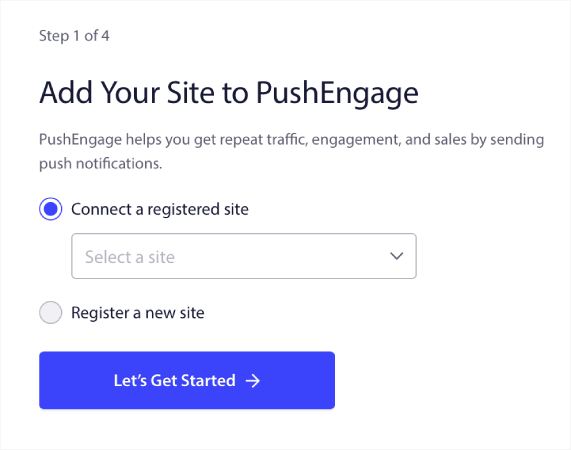
Eller du kan klikke på Registrer et nyt websted for at tilføje et nyt websted, hvis du har en Premium-prisplan eller højere. I næste trin vil onboarding-guiden bede dig om at installere andre must-have WordPress-plugins.
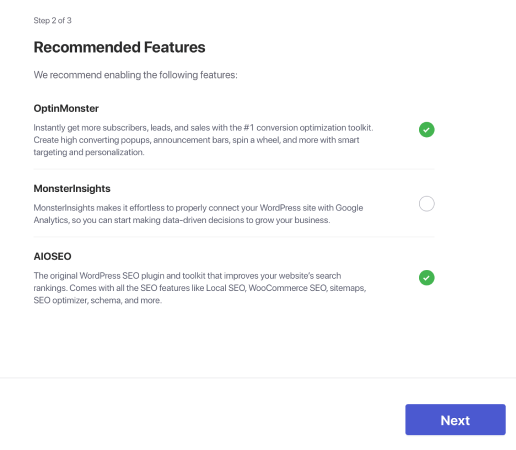
Hvis du fulgte hvert trin korrekt, vil du se denne succesmeddelelse fra guiden:
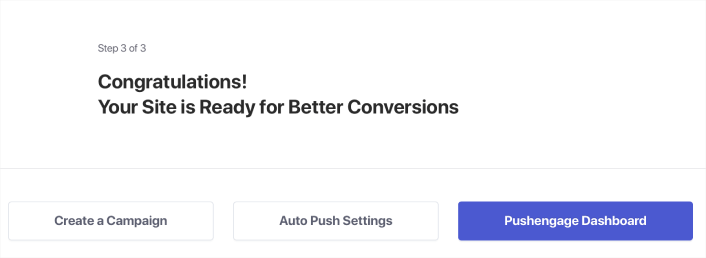
Du er nu klar til at oprette kampagner.
Trin #5: Opret vandfalds-push-kampagner
Endelig er det tid til vores eksempel. For at vise dig et reelt brugsscenarie for vandfalds-push-kampagner, vil vi tage eksemplet med Black Friday-tilbud. Vores mål er at maksimere konverteringerne på vores Black Friday-tilbud.
For at retargete vores abonnenter baseret på deres adfærd, sender vi en udsendelse til alle vores abonnenter. Derefter, baseret på deres engagementniveauer, opretter vi forskellige målgruppegrupper til retargeting.
Sådan sender du din notifikation til alle abonnenter
Vi ønsker maksimal rækkevidde for 3 notifikationer:
- Tidlig Black Friday-meddelelse
- Black Friday Lynsalg
- Cyber Monday Udsalg
Så vi sender disse 3 notifikationer til alle. I fanen Målgruppe skal du vælge Send til alle abonnenter:

Sådan retargeter du abonnenter, der ikke klikkede på udsendelsen til alle
Hvis du ikke sender notifikationen til alle abonnenter, skal du oprette en Målgruppegruppe. For eksempel, hvis du vil målrette abonnenter, der ikke klikkede på udsendelsen til alle, skal du oprette en ny målgruppegruppe.
I dit WordPress-dashboard skal du gå til Målgruppe » Målgruppegrupper og klikke på Opret ny målgruppegruppe:
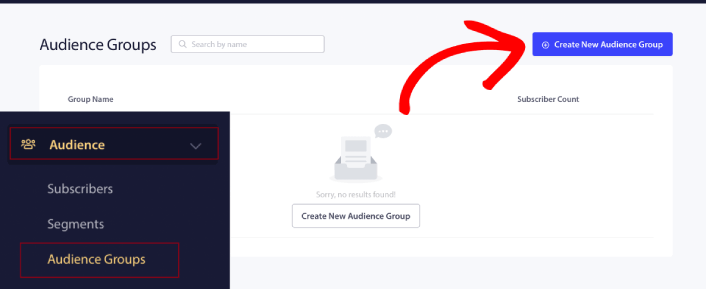
For at målrette abonnenter, der ikke klikkede på den sidste notifikation, skal du filtrere efter Sidste klikdato:
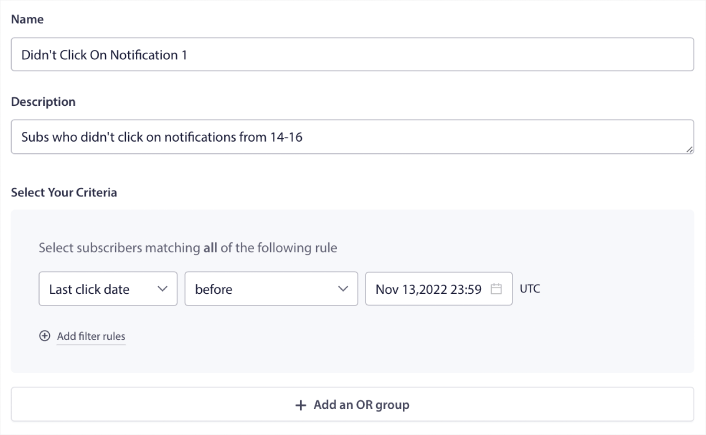
Filtrer efter sidste klikdato før den dato, du sendte din forrige notifikation. Så hvis du sendte den sidste push-notifikation den 14. november, skal du filtrere efter abonnenter, der klikkede på notifikationer kun før 13. november ved midnat.
BEMÆRK: I modsætning til en e-mailkampagne kan du ikke filtrere efter klikrate på den sidste notifikation. Den tætteste tilnærmelse er at filtrere efter klik i et datointerval.
Når du er færdig, skal du klikke på Gem notifikation.
Gå derefter tilbage til din push-notifikationsudsendelse og vælg Send til målgruppegruppe. Vælg din gruppe fra rullemenuen:
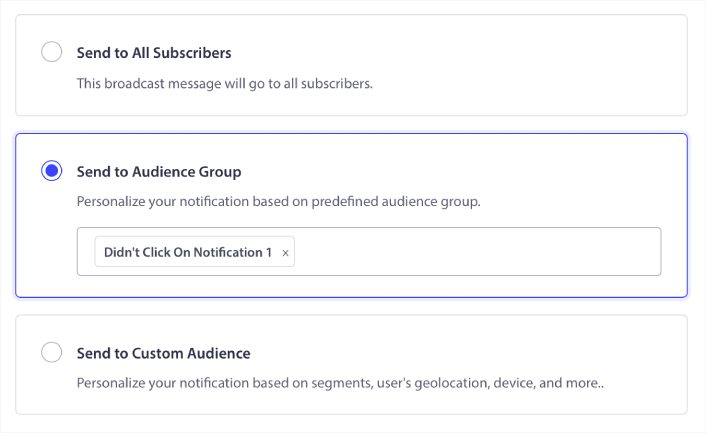
Sådan retargeter du abonnenter, der klikkede på udsendelsen til alle
Hvis du vil målrette abonnenter, der klikkede på din sidste notifikation, kan du oprette en anden Målgruppe.
Filtrer dine abonnenter efter Sidste klikdato efter den dato, du sendte din forrige notifikation OG før den dato, du vil sende din næste notifikation:
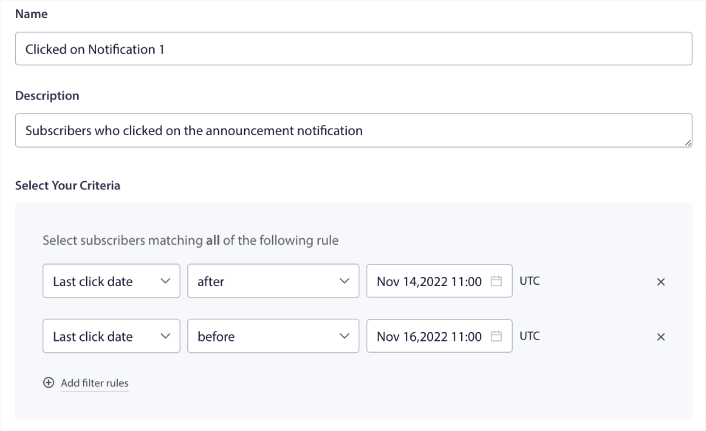
Du kan tilføje OG kriterier til dit filter ved at klikke på Tilføj filterregler. Et filter som dette er fantastisk til cross-selling push-notifikationer.
Resultatet af disse målgruppegrupper er mere granulær målretning. Så hver gang kan du sende forskellige tilbud for at forbedre dine konverteringsrater.
Hvad du skal gøre, efter du har oprettet vandfalds-push-kampagner
En af de vigtigste ting at huske om vandfalds-push-kampagner er, at du kun kan bruge denne metode på broadcast push-notifikationer. Drip-kampagner i push-notifikationer har endnu ikke så granulære målretningsmuligheder.
Så sørg for at A/B-teste dine push-notifikationer. Vi foreslår også, at du tager dig tid til at læse vores artikler og lære, hvordan du supercharger dine automatiserede push-notifikationer. Start med vores artikel om bedste praksis for push-notifikationer.
Hvis du er ny til push-notifikationer, bør du følge en fuld push-notifikationstestproces, før du går live. Det vil hjælpe dig med at fejlfinde almindelige problemer, før dine besøgende ser dem og begynder at klage over en dårlig brugeroplevelse. Og helt sikkert bør du opsætte Google Analytics til at spore push-notifikationer.
Retargeting af push-notifikationer for at målrette abonnenter, der klikkede på dem eller ej. Lad os vide, hvordan det virker for dig. I mellemtiden kan du tjekke disse ressourcer:
- Sådan øger du klik på dine push-notifikationer med nysgerrighed
- Sådan personaliserer du hver push-notifikation
- Sådan skiller du dig ud med rich media i dine push-notifikationer
- Sådan genaktiverer du inaktive push-abonnenter
- Sådan bruger du push-notifikationer til at holde kunderne informeret
- Sådan bruger du emojis i dine push-notifikationer for højere klikrater
- Sådan øger du konverteringer ved at skabe en følelse af hastværk
Og hvis du ikke allerede har gjort det, kom i gang med PushEngage.


