Leder du efter en hurtig vejledning til, hvordan du opsætter push-notifikationer på dit Squarespace-websted?
Gode nyheder: Det er præcis, hvad denne artikel handler om.
Og du kan installere push-notifikationer på dit Squarespace-websted, selvom du aldrig har gjort det før. Du behøver ingen kodningserfaring. Du behøver ikke engang erfaring med push-notifikationer eller Squarespace.
Alt du skal gøre er at følge med.
Lyder godt? Lad os dykke ned.
Installation af push-notifikationer på Squarespace
Opret din Squarespace-konto. Vælg en hvilken som helst skabelon, du vil, til enhver type websted, du vil oprette. Denne vejledning virker uanset hvad.
Når det er gjort, lad os opsætte dine push-notifikationer ved hjælp af PushEngage. PushEngage er den førende software til push-notifikationer. Så vi anbefaler kraftigt at bruge PushEngage til dine push-notifikationskampagner.
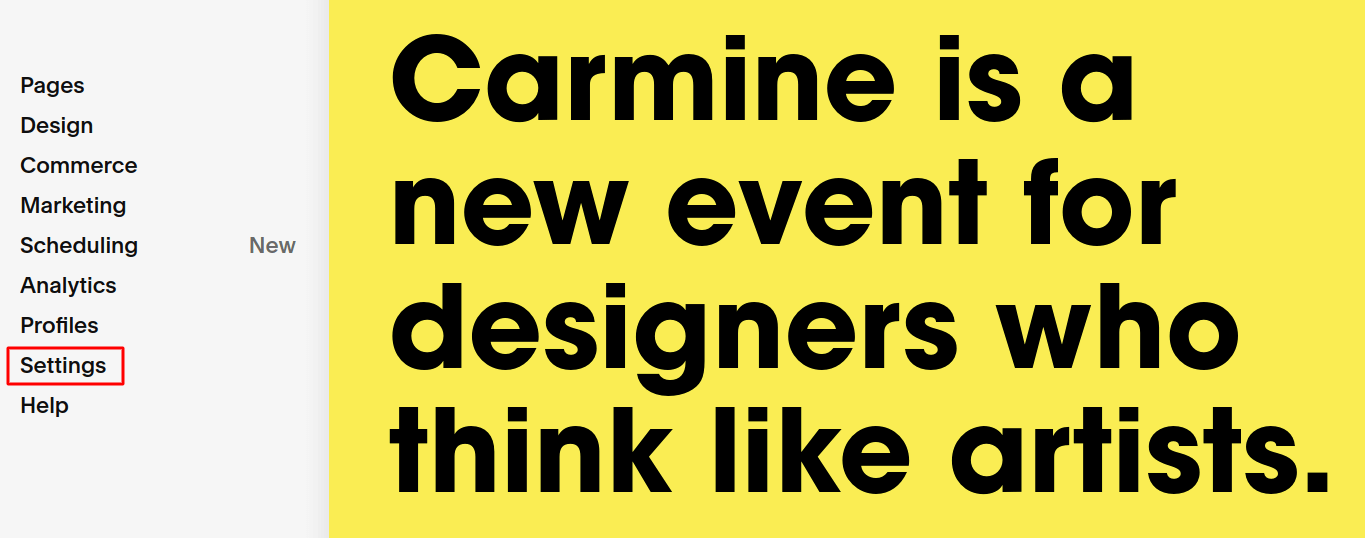
Fra dit Squarespace-dashboard skal du gå til Indstillinger:
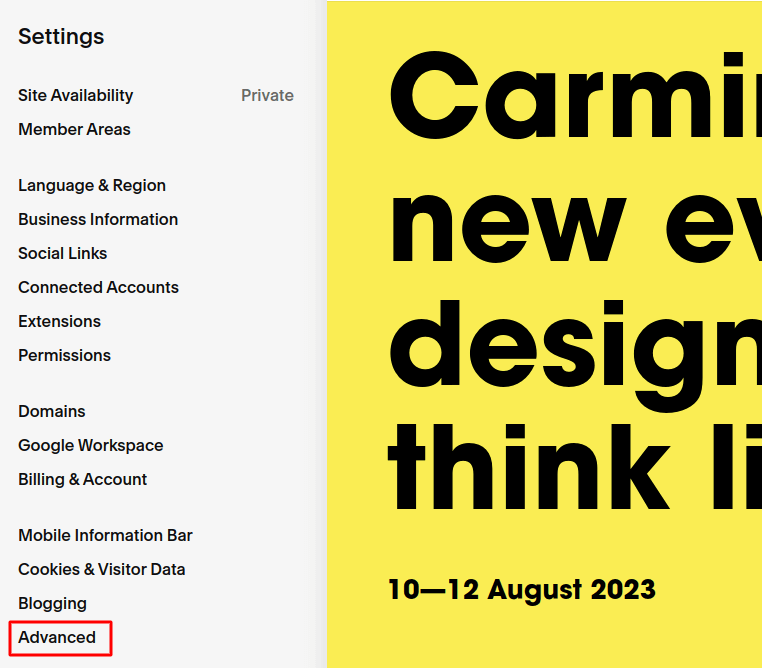
Klik derefter på Avanceret:
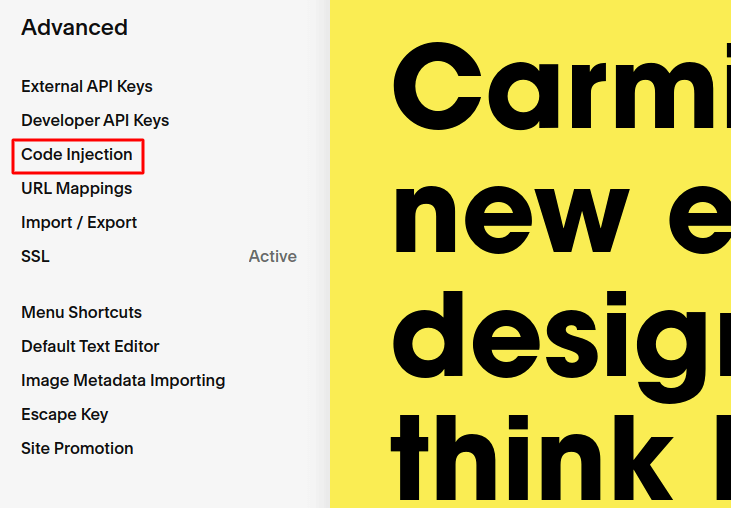
Og klik derefter på Kodeindsættelse:
Gå nu til dit PushEngage-dashboard og gå til Indstillinger » Webstedsindstillinger » Installationsindstillinger:
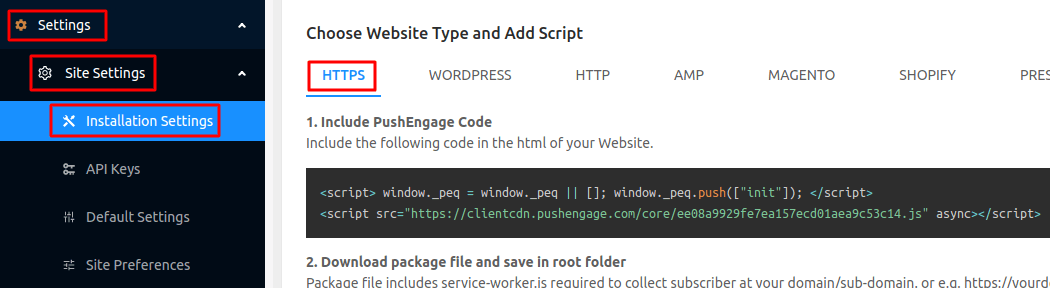
Og kopier koden fra enten HTTPS- eller HTTP-fanen, afhængigt af om dit websted har et SSL-certifikat installeret.
Og indsæt den derefter i Header-sektionen på dit Squarespace-websted ved hjælp af Kodeindsættelse:
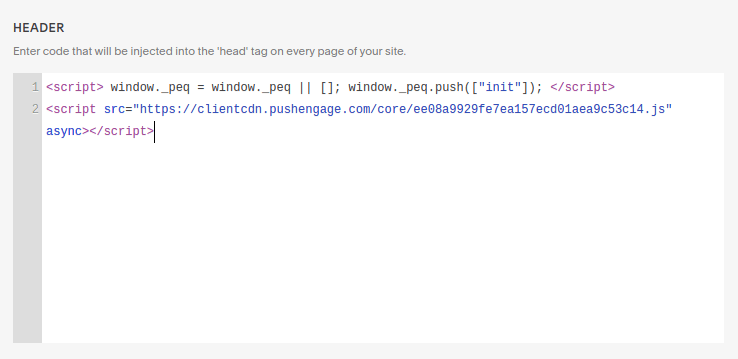
Når det er gjort, skal du blot klikke på Gem.
Hvis du kører et HTTP-websted, er du klar. Men hvis du kører et HTTPS-websted, skal du aktivere Hurtig installation fra PushEngage-dashboardet næste gang.
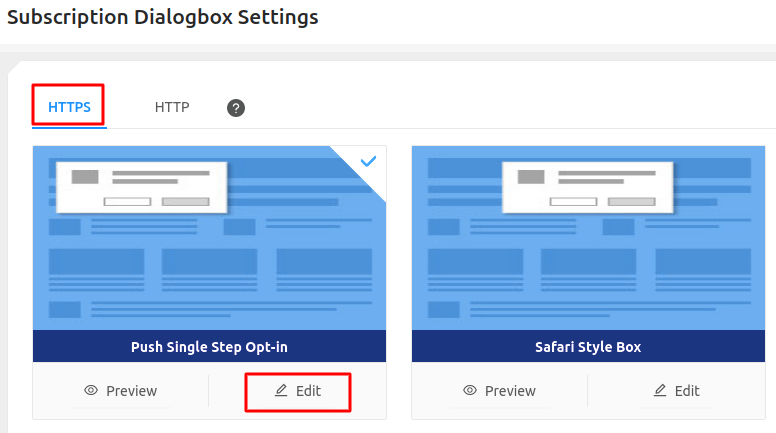
Gå til Indstillinger » Abonnementsindstillinger » Abonnementsdialogboks. Her skal du vælge Webstedstype som HTTPS og vælge en opt-in, og derefter klikke på Rediger:
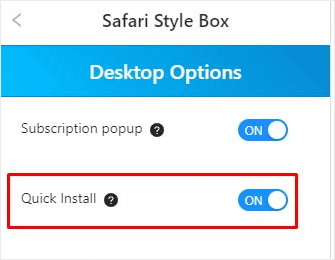
Gå til Skrivebordsindstillinger og aktiver Hurtig installation. Når du er færdig, skal du gemme ændringerne og gøre det samme for mobil også:
Og det er alt!
Du kan nu gå til dit websted og kontrollere, om pop-up'en til abonnement på push-notifikationer vises. Hvis du har fulgt alle disse trin, bør du se pop-up'en nu.
Alt du skal gøre nu er at oprette dine push-notifikationskampagner.
Gå til Notifikationer » Opret » Ny notifikation:
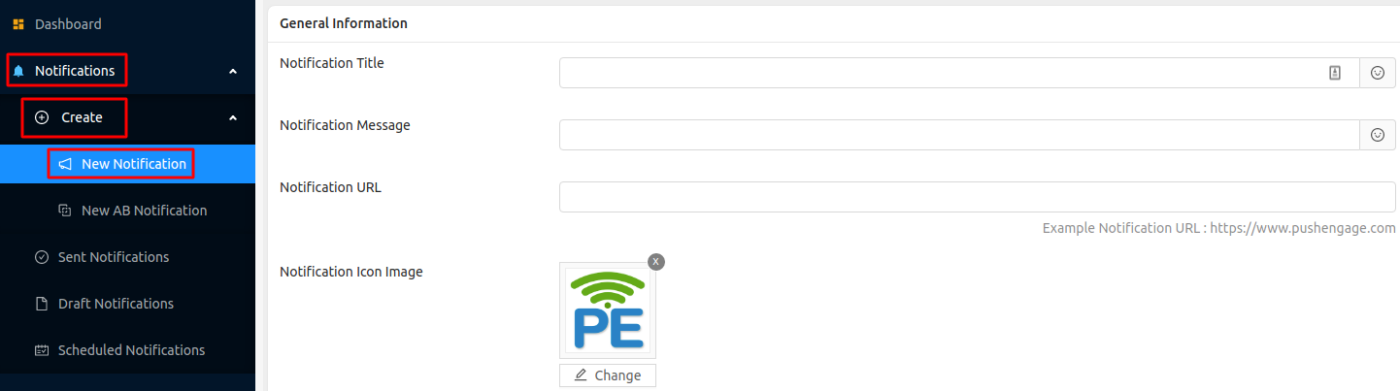
Her kan du oprette dine push-notifikationer. Giv blot din notifikation en titel, lidt brødtekst og en URL, som brugeren skal lande på, når nogen klikker på notifikationen. Du kan endda bruge emojis i din push-notifikation titel og tekst.
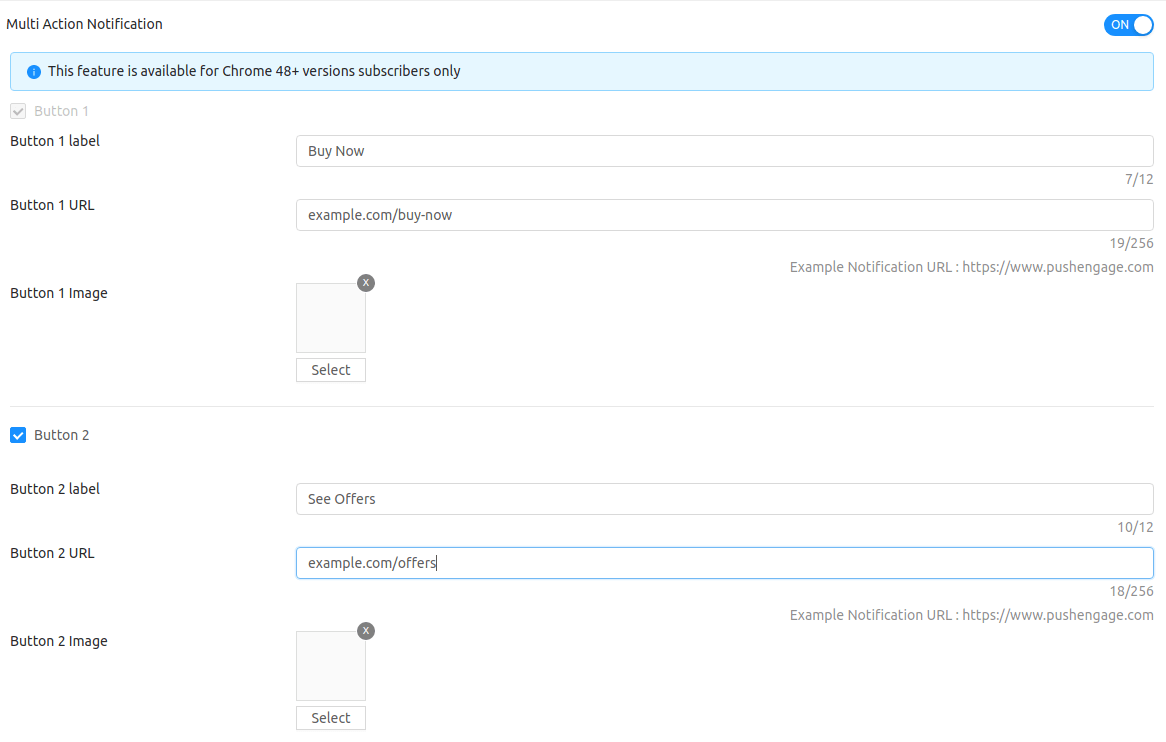
Hvis du ruller ned på samme skærm, får du muligheder for at oprette brugerdefinerede call-to-action-knapper:
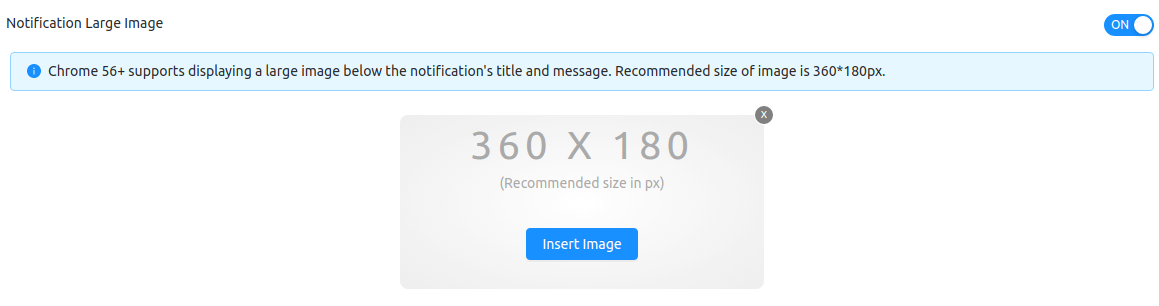
Du kan endda tilføje super-attraktive push-notifikationsbilleder for at få flere klik:
Hvis du er ny til push-notifikationer, og du aldrig har sendt en før, er her, hvordan den endelige version af en push-notifikation typisk ser ud:
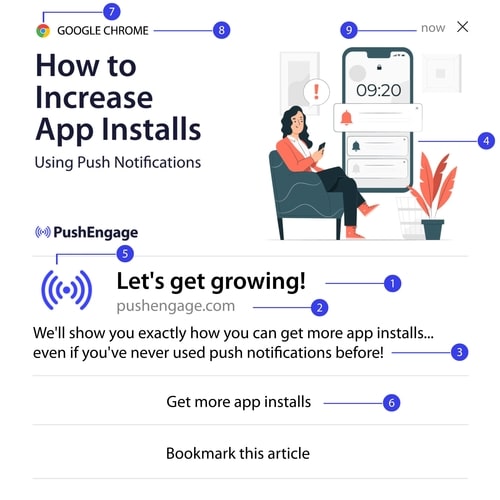
Hvis du har brug for flere detaljer om delene af en push-notifikation og hvordan du opsætter dem, bør du tjekke vores begynderguide til push-notifikationer.
Afslutning
Det var alt for denne gang, folkens!
Hvis du installerer push-notifikationer for første gang, bør du også teste dine push-notifikationer, før du går live.
Og hvis du lige er startet, bør du prøve PushEngage. PushEngage er den bedste push-notifikationssoftware i verden. Så dine push-notifikationskampagner vil være i gode hænder.


