Leder du efter en måde at tilføje Blogger push-notifikationer til din blog?
Det er en rigtig god beslutning.
Push-notifikationer kan hjælpe dig med at generere en masse trafik, engagement og salg på autopilot og med meget lidt indsats. Og det er virkelig nemt at tilføje push-notifikationer til et Blogger-websted. Så det er virkelig en hurtig gevinst.
I denne artikel viser vi dig, hvordan du tilføjer push-notifikationer til en Blogger-blog, selvom du aldrig har gjort det før.
Til denne artikel vil vi bruge PushEngage til at opsætte push-notifikationer på din Blogger-blog. PushEngage er den #1 push-notifikationssoftware i verden. Så dine kampagner vil være i gode hænder.
Men selv hvis du ikke bruger PushEngage, bør denne proces være ret lig den for andre udbydere.
Lad os dykke ned.
Sådan installeres Blogger push-notifikationer
Installation af push-notifikationer på Blogger er en virkelig hurtig og nem proces. Følg blot disse trin, og i slutningen af denne artikel bør du kunne sende push-notifikationer fra dit websted som denne:

Og du behøver ikke at være en gigant som Zomato for at udnytte kraften i push-notifikationer. Du kan gøre det samme meget effektivt, selvom du driver et lille forretningswebsted med meget lidt trafik.
Lad os dykke ned.
Trin #1: Opsæt din PushEngage-konto
Gå til PushEngage-hjemmesiden og klik på knappen Kom i gang:

Du kan vælge gratisplanen for at prøve PushEngage, eller vælge en betalt plan, hvis du er seriøs omkring at vækste din forretning. De betalte planer kommer med flere kampagnemuligheder og muligheden for at opbygge endnu større abonnentlister.
Når du har tilmeldt dig din PushEngage-konto, skal du gå til dit PushEngage-dashboard og gå til Sideindstillinger » Sideoplysninger:

Du kan indstille dit logo, sidenavn og side-URL her. Det er virkelig vigtigt at få styr på disse ting lige nu, så du kan teste hele din opsætning senere.
Trin #2: Hent installationskoden fra PushEngage
For at installere push-notifikationer skal du have en installationskode. På din Sideindstillinger-skærm skal du rulle ned og klikke på knappen Klik her for opsætningsinstruktioner:

Klik derefter på fanen Enhver side:

Du kan bruge Javascript-koden til at begynde at sende push-notifikationer.
Trin #3: Placer installationskoden på din Blogger-blog
Log ind på dit Blogger-dashboard og klik på Tema:
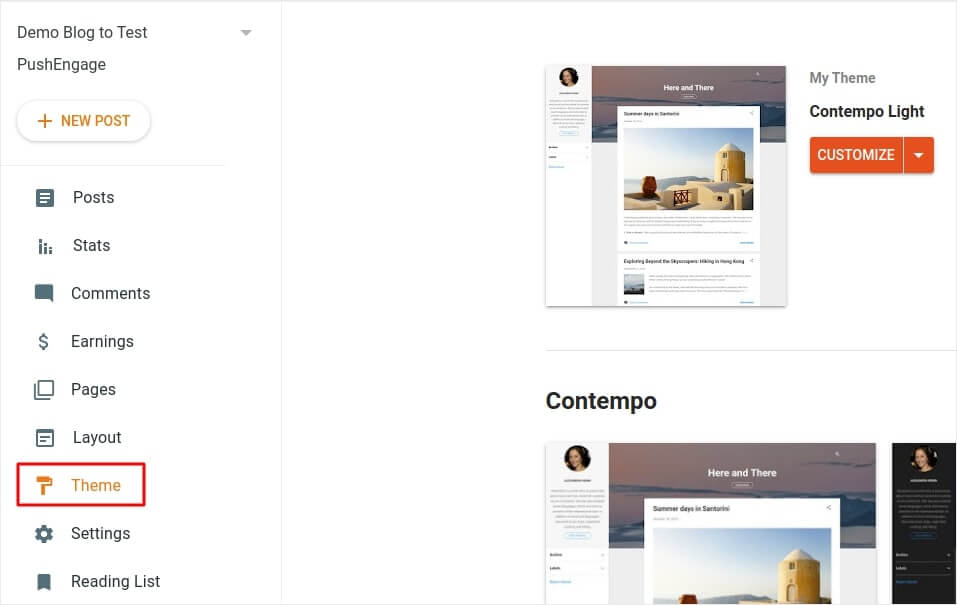
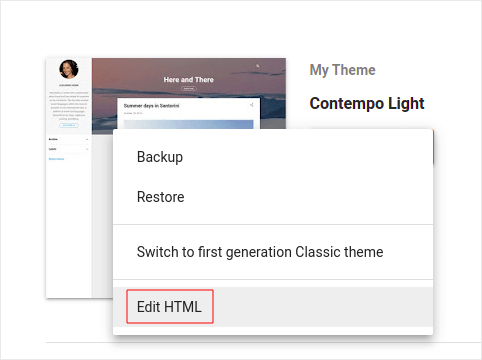
Og klik på Tilpas » Rediger HTML:
Og i koderedigeringsprogrammet skal du indsætte din PushEngage-kodestykke inde i <head>-tagget:
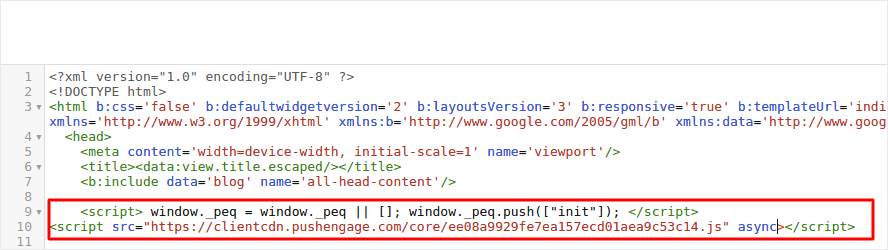
Når du er færdig, skal du trykke på Gem.
Trin #4: Konfigurering af PushEngage-tilmelding
Gå nu tilbage til dit PushEngage-dashboard. Gå til Design » Popup Modals og vælg den optin, du ønsker:
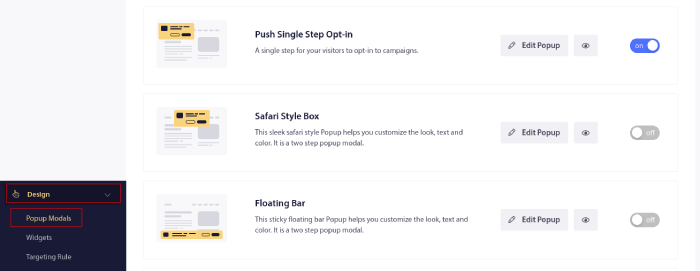
Herfra kan du tilpasse din push-notifikations-tilmelding. Hvis du har brug for hjælp til det, bør du tjekke denne artikel om hvordan man opretter en brugerdefineret push-notifikations-tilmelding.
Hvis du har brug for inspiration, kan du tjekke denne artikel om højt konverterende push-notifikations-tilmeldinger.
Trin #5: Opret en velkomstnotifikation
Når du er færdig med at opsætte tilmeldingen, kan dit websted indsamle abonnenter.
Men hvordan ved du, om dine push-notifikationer fungerer korrekt?
Vi anbefaler, at du opretter en velkomst-push-notifikation for at teste, om din opsætning gik glat. En velkomstnotifikation er en push-notifikation, du sender til en ny abonnent for at bekræfte deres abonnement og byde dem velkommen ombord.
Gå til PushEngage dashboard og gå til Campaign » Drip Autoresponders og klik på Create New Drip Autoresponder:

Navngiv derefter din kampagne (vi foreslår noget som "Velkomst Drip"), og under Content, vælg muligheden "Send notification immediately after user subscribes“:

På dette tidspunkt kan du klikke på pilen ved siden af notifikationen for at redigere indholdet af din notifikation.
Hvis du har en Premium- eller Enterprise-plan med PushEngage, vil du kunne tilføje mere end én notifikation for at oprette en sekvens af automatiserede velkomstbeskeder. Klik blot på Add New Notification og rediger indholdet.
Når du er færdig, skal du klikke på Drip Settings og vælge muligheden for at sende din velkomstkampagne til alle abonnenter:

Rul derefter ned for at indstille dine egne UTM-parametre for at spore push-notifikationerne:

Og når du er færdig, rul op igen og klik på knappen Activate Autoresponder:

Og du er færdig!
Du har med succes opsat Blogger push-notifikationer på din blog. Det er tid til at vende tilbage til dit PushEngage dashboard og begynde at oprette dine push-notifikationskampagner.
Hvad du skal gøre efter installation af Blogger push-notifikationer
Det var alt for denne gang, folkens!
Hvis du er ny til push-notifikationer, bør du følge en fuld push-notifikationstestproces, før du går live. Det vil hjælpe dig med at fejlfinde almindelige problemer, før dine besøgende ser dem og begynder at klage over en dårlig brugeroplevelse.
At komme i gang med målrettede push-notifikationer kan virke skræmmende. Men hvis du holder øje med målsporing og analyse, skal det nok gå. Endnu vigtigere, du vil tjene meget mere profit med hjælp fra push-notifikationskampagner. Her er et par seje ressourcer til at komme i gang:
- Sådan bruges retargeting push-notifikationer til at fordoble din omsætning
- Sådan sorteres dine push-notifikationer og finder vindende kampagner
- Sådan renses push-notifikationsabonnentlister (nemt)
- Sådan sendes RSS push-notifikationer automatisk
- Sådan bruges push-notifikationer til at promovere en nyhedsside
- Sådan bruges cross-selling push-notifikationer til at fordoble dit salg
- Sådan bruges browse abandonment push-notifikationer (4 trin)
Og hvis du ikke allerede har gjort det, så prøv PushEngage. PushEngage er den #1 push-notifikationstjeneste i verden. Så hvis du er seriøs omkring at vækste din forretning, bør du investere i PushEngage.


Tak for at dele dette informative indlæg.