Leder du efter en detaljeret, trinvis guide til at oprette Black Friday push-notifikationer, der konverterer?
Ja, du kan sende en simpel push-notifikationsudsendelse. Men vil det virke? Vi har fundet en solid proces, der hjælper dig med at få flere salg i feriesæsonen. Og vi har testet den flere gange med flere brands.
I denne artikel dækker vi, hvordan vi opretter push-notifikationer til PushEngages Black Friday-udsalg. Og hvordan du kan gøre det samme. Vi vil se på, hvad du skal bruge for at komme i gang, hvordan du opretter kampagnerne, og hvordan en ideel tidsplan ville se ud.
Lyder godt? Lad os dykke ned.
Før du kommer i gang med Black Friday push-notifikationer
Push-notifikationer er et marketingværktøj, der hjælper dig med at forbinde med webbesøgende, selv efter de har forladt dit websted. Du kan sende målrettede notifikationer til dine push-abonnenter og endda personliggøre dine notifikationer til forskellige kundesegmenter. Men hvilken push-notifikationstjeneste skal du vælge?
Vi anbefaler at bruge PushEngage til at sende push-notifikationskampagner.

PushEngage er den bedste push-notifikationstjeneste i verden. Og vi taler ikke kun om gratisversionen. Den giver dig mulighed for at forbinde med besøgende, efter de har forladt dit websted, med målrettede push-beskeder.
PushEngage er vores førstevalg til push-notifikationstjenester og -værktøjer, fordi den er:
- Den er så nem at bruge
- Effektiv på HTTP- og HTTPS-websteder
- Leveres med en visuel builder, der kræver lidt eller ingen kodning at sætte op
- Opsæt nemt fuldt automatiserede push-meddelelseskampagner for enhver form for websted
- Har flere muligheder for at sende personlige push-notifikationer for højere klikrater
- Udstyret med brugerdefineret målsporing, UTM-parametre og avanceret analyse
Og dette er kun en lille del af mulighederne. Tjek PushEngages fulde liste over funktioner, før du går videre. Det mest utrolige ved PushEngage er, at den har en evigt gratis plan, som du kan prøve, før du træffer en købsbeslutning.
Pro Tip: Se vores artikel om omkostningsanalyse for push-notifikationer, før du køber nogen tjeneste.
Når du har oprettet din konto, skal du gå til PushEngage-dashboardet og følge med:

Klik på Webstedsindstillinger » Webstedsdetaljer og klik på knappen Klik her for opsætningsinstruktioner:

Klik på fanen WordPress og klik på knappen Installer PushEngage WordPress Plugin for at installere pluginnet på dit websted.

Her er det fede: Da du oprettede din PushEngage-konto, synkroniserede du allerede din hjemmeside med din PushEngage-konto. Så klik på installationslinket i PushEngage-dashboardet for automatisk at installere PushEngage WordPress-pluginet på din hjemmeside.
Og du er færdig! Du har med succes installeret et WordPress-plugin til webnotifikationer på dit websted. Du behøver slet ikke at logge ind på dit WordPress-administrationspanel. For en mere detaljeret guide, se vores artikel om hvordan man installerer webnotifikationer på WordPress.
Før du begynder at oprette Black Friday push-notifikationer, bør du også se disse ressourcer for at komme i gang.
- Sådan tilføjer du et WordPress-plugin til webenotifikationer til dit websted
- Sådan tilføjer du dit push-notifikationsikon (den nemme måde)
- 7 bedste praksisser for push-meddelelser for at få øjeblikkelig trafik
- Sådan aktiverer du enkelttrins-tilmeldinger til push-notifikationer
- [Annoncering] PushEngage har nu avanceret målgruppegruppering
Jeg anbefaler kraftigt at bruge disse ressourcer til hurtigt at komme i gang med PushEngage.
Sådan opretter du din push-notifikationskampagne
Nu hvor vi har en grundlæggende forståelse af, hvordan PushEngage fungerer, lad os oprette vores kampagne. I øjeblikket tilbyder PushEngage kun funktionen Målgruppegrupper til Push-udsendelser.
Så i dit PushEngage-dashboard skal du gå til Kampagne » Push-udsendelser for at oprette dine push-notifikationer.

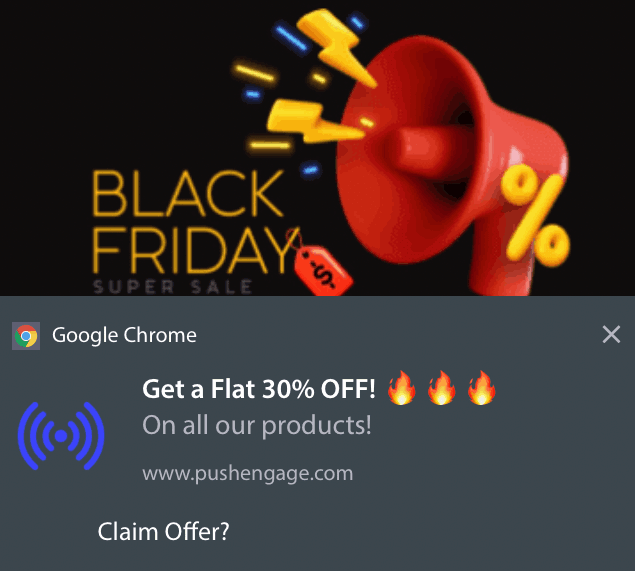
Følg derefter vores trin-for-trin-proces for at oprette et kraftfuldt Black Friday-udsalg. Hvis du følger hvert trin, bør du have kraftfulde push-notifikationer som denne:
Trin #1: Udarbejd dit push-notifikationsindhold
Dit push-notifikationsindhold vil omfatte:
- En notifikationstitel
- En notifikationsbesked
- En URL at omdirigere til
- Et stort billede til notifikationen
- Call-to-Action-knapper
- En udløbsgrænse for notifikationen
Start med det grundlæggende indhold i din notifikation først:
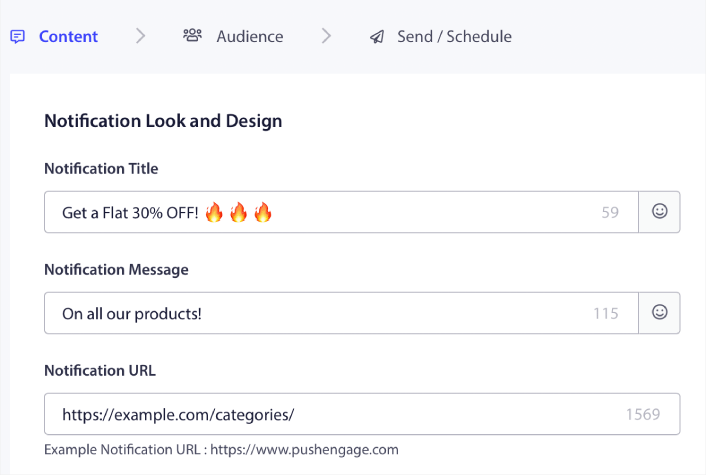
Bemærk brugen af emojis i Notifikationstitlen. Vi anbefaler at bruge emojis i titlen og beskeden til alle dine push-notifikationer for højere åbningsrater. Du kan A/B-teste dine notifikationer også for bedre ydeevne.
Trin #2: Tilføj et stort billede til din notifikation
Det er svært at skille sig ud fra en masse notifikationer i Notifikationsbakken. Derfor har du brug for et stort billede for at få dine notifikationer til at poppe:
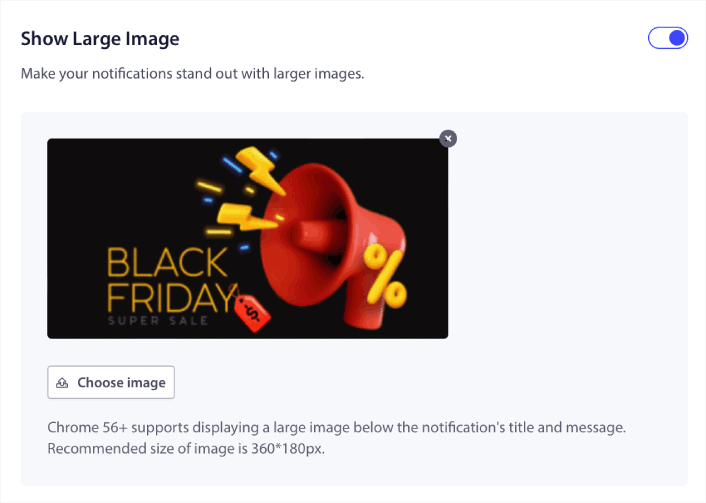
Du kan bruge PNG- og JPEG-formater til billeder.
Trin #3: Tilføj CTA'er for højere klikrater
Vi har set, at brugen af brugerdefinerede call-to-action-knapper øger klikraterne på dine notifikationer. Derfor anbefaler vi kraftigt at bruge indstillingen Multi Action Notification til at oprette en brugerdefineret CTA:
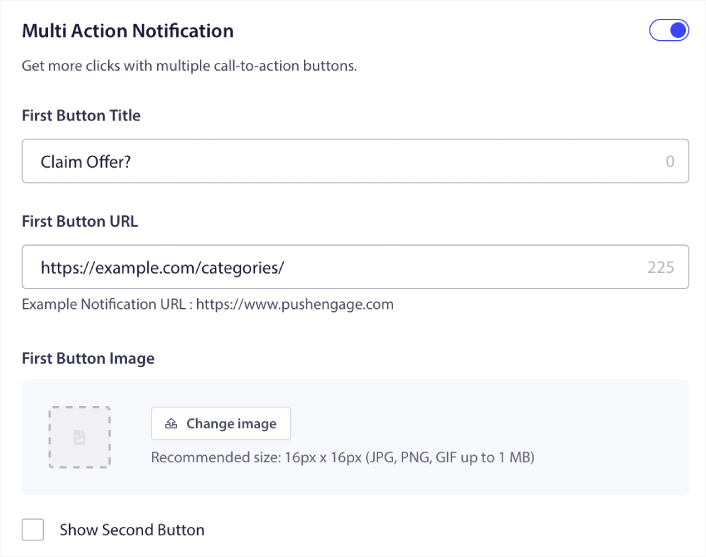
Du kan tilføje højst to CTA'er. Hvis du vil, kan du oprette en split-test med én CTA eller to. Efter vores erfaring er det normalt bedst at bruge flere CTA'er, medmindre du er meget fokuseret på KUN én handling.
Én ting, du skal være opmærksom på, er tegnsbegrænsninger for push-notifikationer. Alt i push-notifikationer har en tegnsbegrænsning baseret på din abonnents browser og enhed. Hvis dine notifikationer er for ordrige, vises de simpelthen ikke på den rigtige måde.
Trin #4: Indstil notifikationsvarighed
Notifikationsvarighed er en tidsgrænse, hvorefter din push-notifikation udløber. Efter udløb vil din abonnent ikke kunne se notifikationen, selvom den blev leveret til dem.
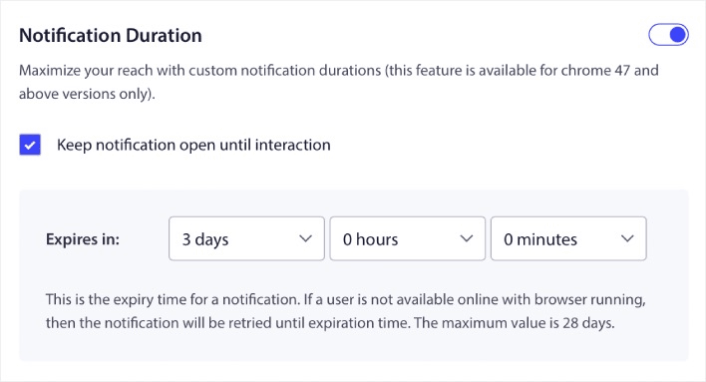
Indstilling af en Notifikationsvarighed er en god praksis for alle salgsaktiviteter. På denne måde bliver dine abonnenter ikke oversvømmet med en masse notifikationer.
Pro Tip: Sørg for at indstille den rigtige varighed for et Flash Sale. Hvis dine abonnenter klikker igennem til et tilbud, der allerede er udløbet, vil de være meget utilfredse.
Trin #5: Vælg din målgruppe
Nu hvor du har dit indhold på plads, er det tid til at finde den rigtige målgruppe til dine notifikationer.
Sådan sender du din notifikation til alle abonnenter
Vi ønsker maksimal rækkevidde for 3 notifikationer:
- Tidlig Black Friday-meddelelse
- Black Friday Lynsalg
- Cyber Monday Udsalg
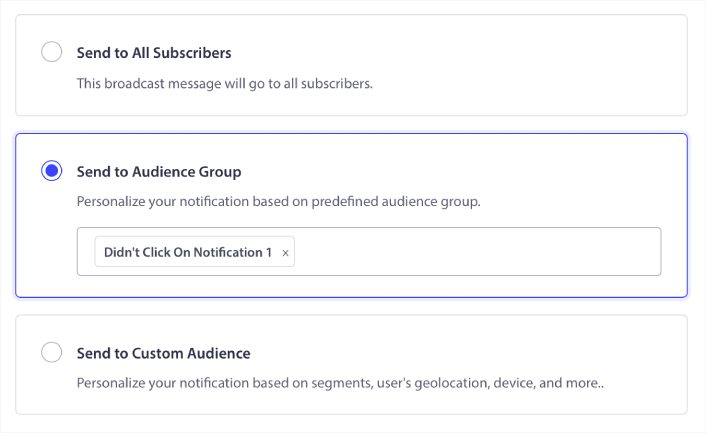
Så vi sender disse 3 notifikationer til alle. I fanen Målgruppe skal du vælge Send til alle abonnenter:

Sådan retargeter du abonnenter, der ikke klikkede på udsendelsen til alle
Hvis du ikke sender notifikationen til alle abonnenter, skal du oprette en Målgruppe.
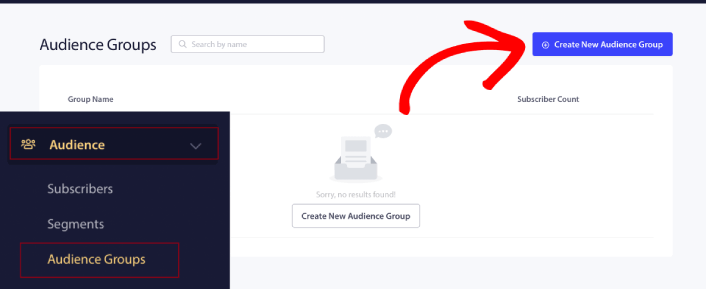
Gå til Målgruppe » Målgrupper og klik på Opret ny målgruppe:
For at målrette abonnenter, der ikke klikkede på den sidste notifikation, skal du filtrere efter Sidste klikdato:
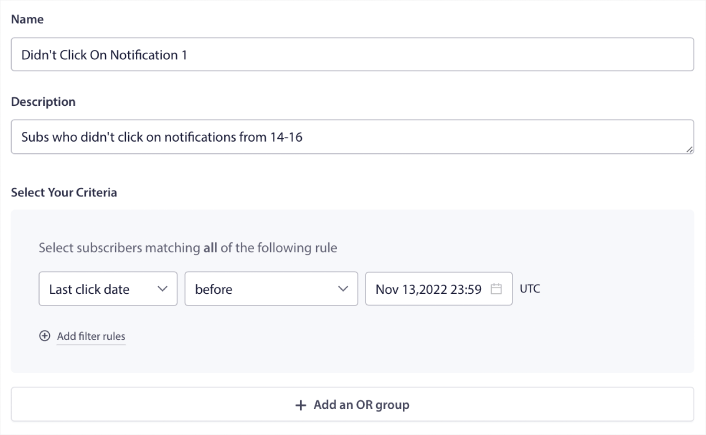
Filtrer efter sidste klikdato før den dato, du sendte din forrige notifikation. Så hvis du sendte den sidste push-notifikation den 14. november, skal du filtrere efter abonnenter, der klikkede på notifikationer kun før 13. november ved midnat.
BEMÆRK: I modsætning til en e-mailkampagne kan du ikke filtrere efter klikrate på den sidste notifikation. Den tætteste tilnærmelse er at filtrere efter klik i et datointerval.
Når du er færdig, skal du klikke på Gem notifikation.
Gå derefter tilbage til din push-notifikationsudsendelse og vælg Send til målgruppegruppe. Vælg din gruppe fra rullemenuen:
Sådan retargeter du abonnenter, der klikkede på udsendelsen til alle
Hvis du vil målrette abonnenter, der klikkede på din sidste notifikation, kan du oprette en anden målgruppe.
Filtrer dine abonnenter efter Sidste klikdato efter den dato, du sendte din forrige notifikation OG før den dato, du vil sende din næste notifikation:
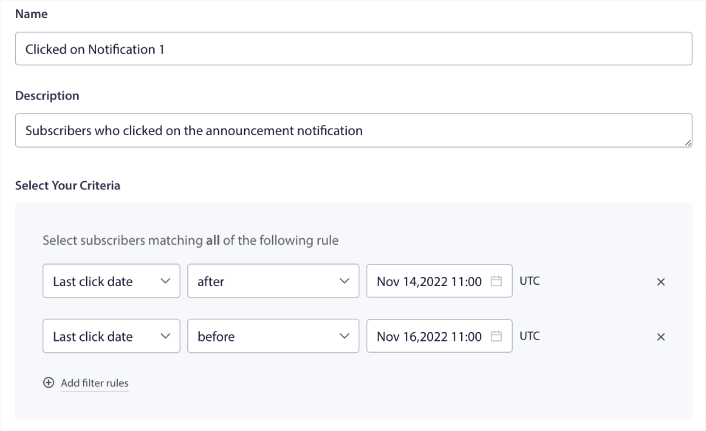
Du kan tilføje OG kriterier til dit filter ved at klikke på Tilføj filterregler. Et filter som dette er fantastisk til cross-selling push-notifikationer.
Trin #6: Planlæg din push-notifikation
I fanen Planlægning skal du vælge Begynd at sende på et bestemt tidspunkt og dato for detaljerede planlægningsmuligheder.
Vi sender notifikationen kl. 11:00. Da browser-push-notifikationer vises, uanset hvornår du faktisk sendte notifikationen, kan du sende den endnu tidligere, hvis du vil.
Da min standard tidszoneindstilling ikke er i EST, bruger jeg indstillingen Send notifikationer i abonnenternes tidszone:
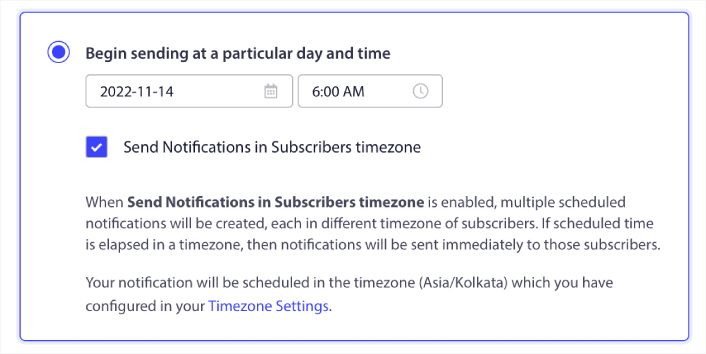
Glem ikke at teste dine notifikationer ved at klikke på knappen Test notifikation. Når du er færdig, skal du klikke på Planlæg notifikation.
Hvad er den ideelle tidsplan for Black Friday push-notifikationer
Der er ingen rigtig eller forkert tidsplan med feriekampagner. Men vi følger en meget streng tidsplan, og den virker:
- 3 notifikationer til et tidligt Black Friday-salg
- 1 notifikation til Black Friday
- 1 notifikation til Small Business Saturday
- 1 notifikation til Cyber Monday
- 1 notifikation til Cyber Monday forlænget udsalg
Og retarget push-notifikationer for at målrette abonnenter, der klikkede på dem eller ej. Lad os vide, hvordan det virker for dig. I mellemtiden kan du tjekke disse ressourcer:
- Sådan øger du klik på dine push-notifikationer med nysgerrighed
- Sådan personaliserer du hver push-notifikation
- Sådan skiller du dig ud med rich media i dine push-notifikationer
- Sådan genaktiverer du inaktive push-abonnenter
- Sådan bruger du push-notifikationer til at holde kunderne informeret
- Sådan bruger du emojis i dine push-notifikationer for højere klikrater
- Sådan øger du konverteringer ved at skabe en følelse af hastværk
Og hvis du ikke allerede har gjort det, så kom i gang med PushEngage i dag.


