Создание кампании с нуля может показаться сложным. Но мы позаботимся о вас! Мы собрали множество шаблонов из разных отраслей и для разных случаев использования. Эти шаблоны разработаны, чтобы облегчить вашу жизнь и сэкономить ваше время.
В этой статье мы покажем вам, как использовать эти шаблоны для легкой настройки кампаний, экономя при этом время.
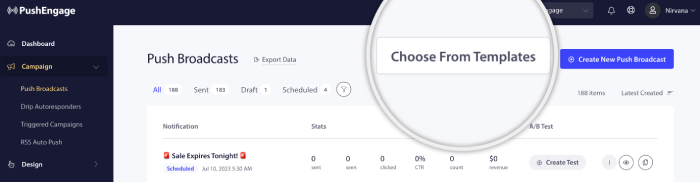
Пожалуйста, войдите в панель управления PushEngage и перейдите в раздел Кампании » Push-рассылки.
Затем вы можете либо создать новую push-рассылку с нуля, либо выбрать из шаблонов. Для этого нажмите кнопку Выбрать из шаблонов.
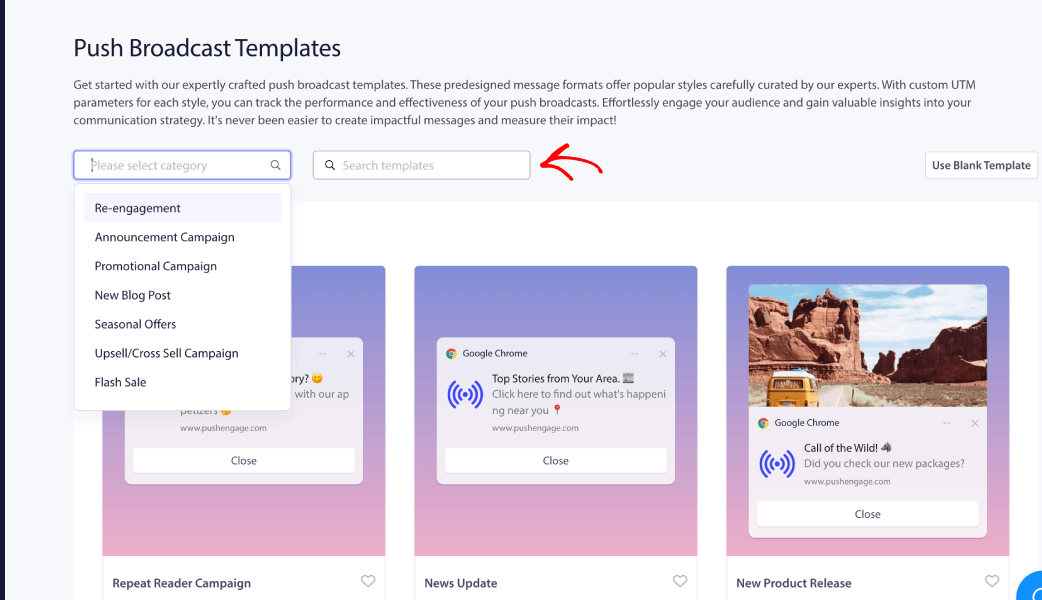
Все шаблоны откроются для вас, чтобы вы могли изучить и выбрать подходящую кампанию. Вы можете искать по ключевым словам или выбрать категорию кампании из выпадающего списка.
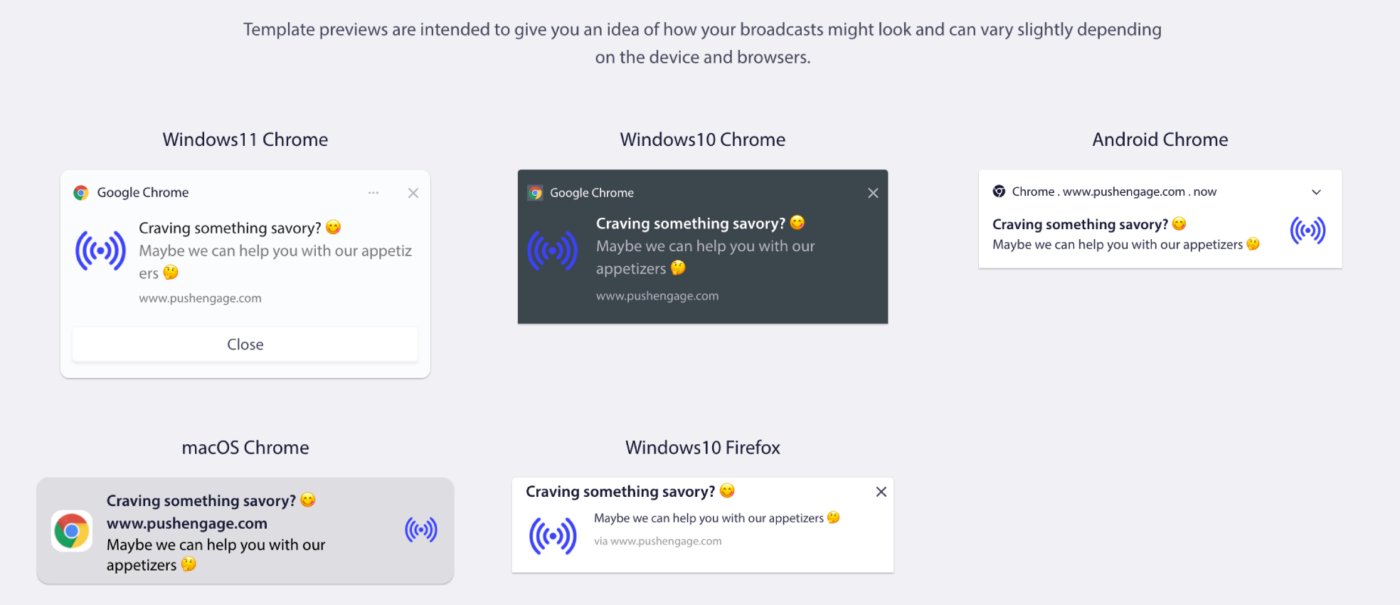
Вы можете нажать «Предпросмотр», чтобы понять, как это будет выглядеть в различных операционных системах и комбинациях браузеров. Внешний вид кампании веб-push-уведомлений сильно зависит от устройства и браузера. Вот пример –
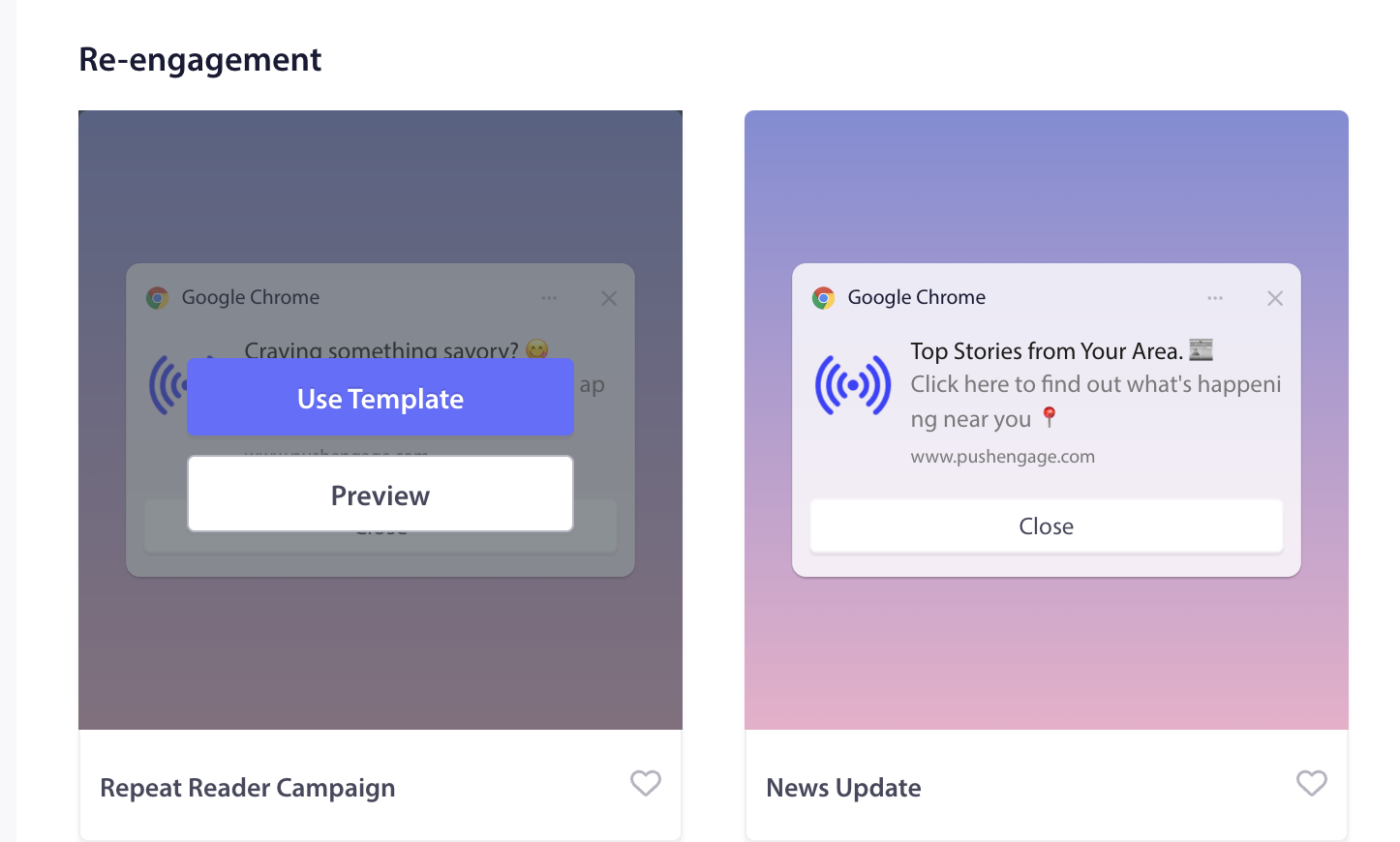
Если вы нажмете «Использовать шаблон», откроется редактор кампании с предварительно заполненным текстом, как показано в кампании. Вы можете перейти к аудитории, чтобы выбрать целевых подписчиков или настроить контент в соответствии с вашей стратегией.
Настройка шаблона
Вы можете настроить выбранный шаблон или отправить его как есть вашей аудитории.
Примечание: Вы можете получить бесплатную кампанию, созданную как рассылка для подписчиков, которых мы собрали. Если у вас возникнут проблемы, вы можете связаться с нами, и мы создадим ее бесплатно.
Редактирование контента кампании
Название кампании, сообщение и URL будут предварительно заполнены. Логотип вашего сайта также будет добавлен как изображение уведомления. Вот несколько моментов, которые следует учитывать при настройке кампаний –
- Вы можете создать любое сообщение трансляции длиной до 135 символов (включая эмодзи 😊)
- Добавьте заголовок длиной до 85 символов
- Изображение размером до 1 МБ
- Целевой URL (192x192 пикселя) – этот URL открывается при нажатии на сообщение рассылки.
Поведение кампании и Отслеживание
Длительность уведомления: Вам необходимо установить длительность всех уведомлений перед отправкой, чтобы избежать перегрузки подписчиков уведомлениями. Это приводит к большому количеству уведомлений для ваших подписчиков и увеличивает количество отписок. Вы можете установить срок действия уведомления максимум на 28 дней.
UTM-параметры для отслеживания в Google Analytics: Добавление UTM-параметров позволяет анализировать данные в Google Analytics. Когда вы отправляете уведомления, настройка UTM-параметров поможет собрать данные, которые будут отображаться в GA. Вы можете указать обязательные поля – UTM Source, UTM Medium и UTM Campaign, как показано в примере ниже.
Тестирование кампаний
Тестовая отправка покажет вам, как будет выглядеть рассылка при отправке подписчикам. Прокрутите вниз и нажмите «Тестовая отправка уведомления». Убедитесь, что вы разрешили уведомления для PushEngage.
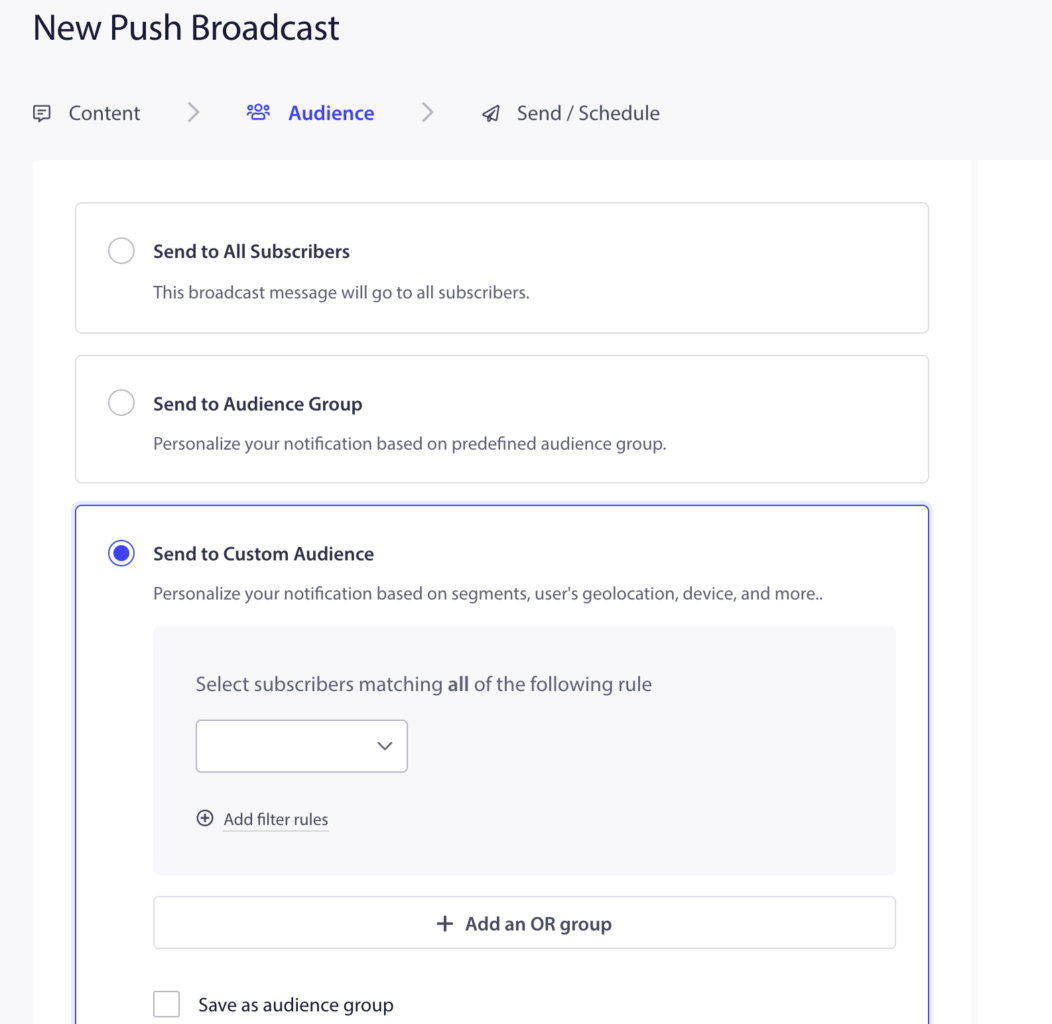
Выбор аудитории
Вы можете отправить его всем подписчикам, отправить группе аудитории или отправить пользовательской аудитории.
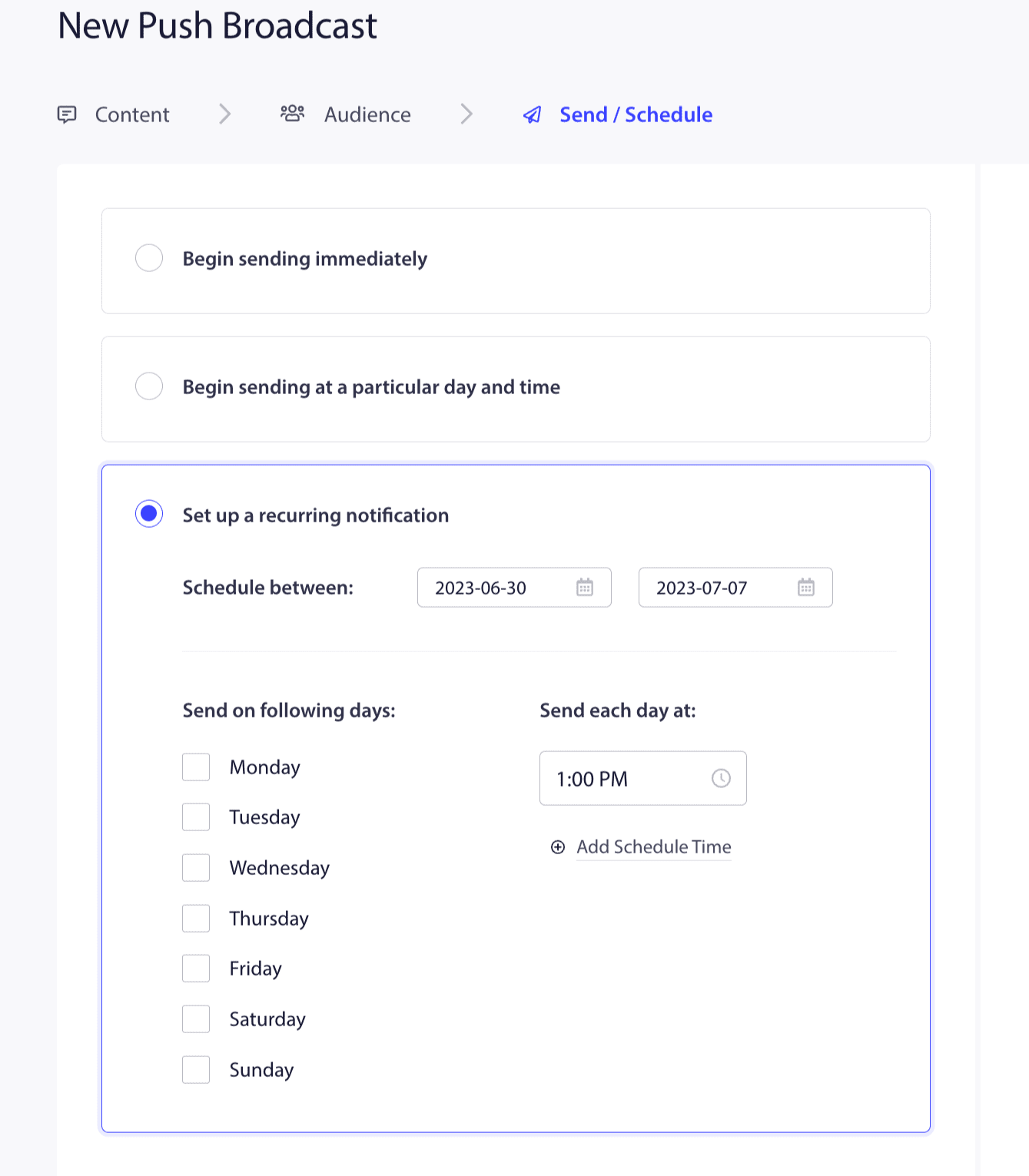
Параметры отправки/планирования
Вы также можете запланировать кампанию или отправить ее своей аудитории немедленно.
Вот и все; вы готовы использовать шаблон и отправить его своим подписчикам.
Если у вас возникнут какие-либо проблемы, пожалуйста, свяжитесь с нами, нажав здесь. Наша служба поддержки сможет вам помочь.