A/B-Testing ermöglicht es Ihnen, zwei Versionen einer Push-Sendung zu versenden und zu vergleichen, welche besser funktioniert. Sie erstellen zwei Benachrichtigungsvarianten, und PushEngage kann jede an eine Stichprobe Ihres Publikums senden und dann automatisch die Gewinnerversion an alle anderen senden. Diese Anleitung zeigt Ihnen, wie Sie einen A/B-Test auf einer Push-Sendung in der PushEngage Shopify-App einrichten.
Bevor Sie beginnen
- Installieren und verbinden Sie PushEngage in Ihrem Shopify-Store und bauen Sie ein Publikum auf, bevor Sie testen.
- Haben Sie mindestens zwei Ideen zum Vergleichen, z. B. zwei Titel, zwei Nachrichten oder zwei Bilder.
- Für intelligentes A/B-Testing muss Ihr Zielpublikum groß genug sein, um eine Stichprobe zu ziehen, mit mindestens 50 Abonnenten in der Testphase, um die besten Ergebnisse zu erzielen.
Wie A/B-Testing funktioniert
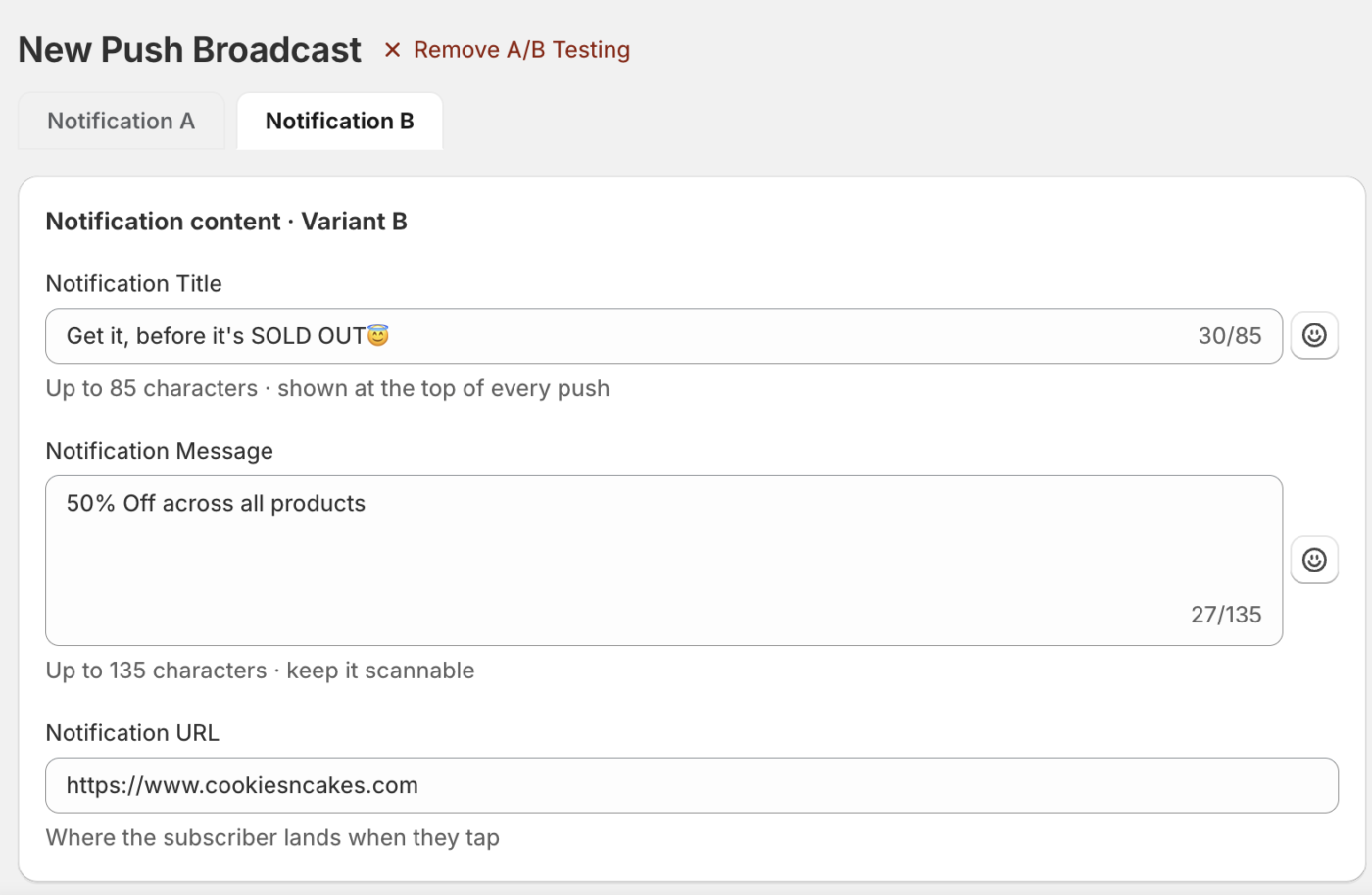
Sie beginnen mit einer Push-Sendung und fügen ihr A/B-Testing hinzu. Die Sendung hat dann zwei Inhaltsvarianten, Benachrichtigung A und Benachrichtigung B, die dasselbe Publikum und denselben Zeitplan teilen. Der Inhalt jeder Variante ist unabhängig, sodass Sie Titel, Nachricht, URL, Bild und Aktionsschaltflächen pro Variante ändern können.
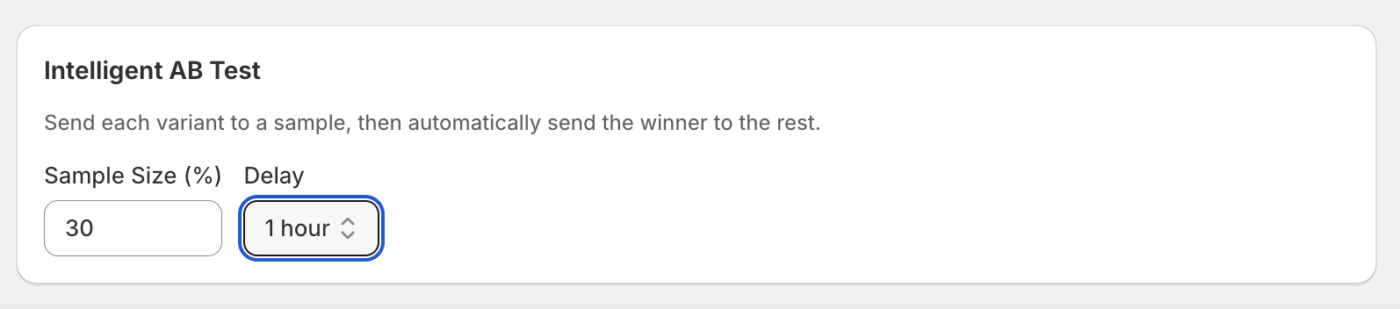
Wenn Intelligenter AB-Test aktiviert ist, sendet PushEngage jede Variante an eine Stichprobe Ihres Publikums, wartet eine von Ihnen festgelegte Verzögerung ab und sendet dann automatisch die Gewinner-Variante an den Rest des Publikums. Sie steuern die Stichprobengröße und die Verzögerung, bevor der Gewinner versendet wird.
Erstellen Sie einen A/B-Test
1. Gehen Sie zu Push-Benachrichtigungen » Kampagnen. Push-Sendungen ist die Standardansicht.
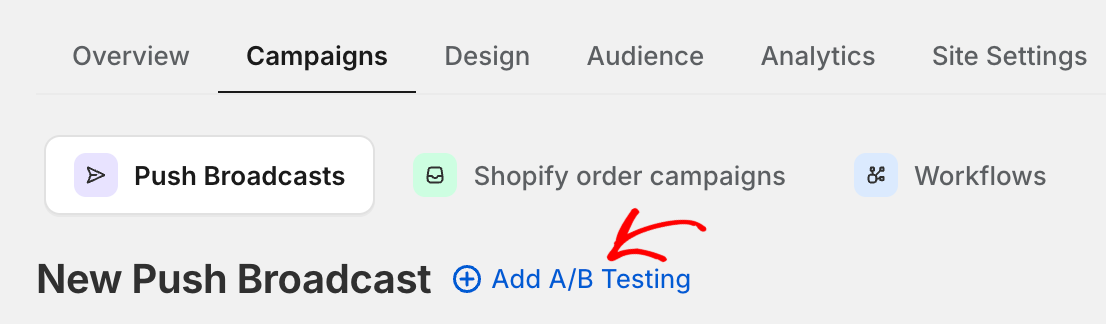
2. Klicken Sie auf Erstellen, um eine neue Sendung zu starten und die Details auszufüllen. Klicken Sie dann auf A/B-Testing hinzufügen, um den Test zu aktivieren.
3. Wechseln Sie nun zum Tab Benachrichtigung B und schreiben Sie die zweite Version.
4. Legen Sie Ihr Publikum und den Zeitplan fest, die beide Varianten gemeinsam nutzen.
5. Konfigurieren Sie die Optionen für den intelligenten AB-Test, wenn PushEngage den Gewinner automatisch auswählen und senden soll.
6. Als Entwurf speichern oder die Sendung planen.
Richten Sie den intelligenten AB-Test ein
In der Karte Intelligenter AB-Test sendet PushEngage jede Variante an eine Stichprobe und sendet dann automatisch den Gewinner an den Rest. Stellen Sie die Stichprobengröße (%) ein, um zu steuern, wie viel Ihres Publikums den Test erhält, und stellen Sie die Verzögerung ein, um zu steuern, wie lange PushEngage wartet, bevor der Gewinner an alle anderen gesendet wird. Die Stichprobe muss mindestens 50 Abonnenten erreichen, damit der Test ausgeführt werden kann.
Testergebnisse überprüfen
Nachdem ein Test ausgeführt wurde, öffnen Sie die Sendung aus der Liste der Push-Sendungen, um die Ergebnisse anzuzeigen. Jede Variante zeigt ihre eigene Leistung, und die Gewinner-Variante ist markiert, damit Sie sehen können, auf welche Version Ihr Publikum am besten reagiert hat.
Häufig gestellte Fragen
Was kann ich zwischen den beiden Varianten ändern?
Sie können jedes Inhaltsfeld ändern, einschließlich Titel, Nachricht, URL, Symbol, großes Bild und Aktionsschaltflächen. Zielgruppe und Zeitplan werden gemeinsam genutzt, sodass der einzige Unterschied, den Ihre Abonnenten erfahren, der von Ihnen variierte Inhalt ist.
Wie entscheidet PushEngage über den Gewinner?
Wenn der intelligente A/B-Test aktiviert ist, sendet PushEngage jede Variante an die von Ihnen festgelegte Stichprobe, wartet auf Ihre Verzögerung und sendet dann die besser performende Variante an die restliche Zielgruppe.
Kann ich eine Drip- oder Trigger-Kampagne A/B-testen?
A/B-Tests gelten für Push-Übertragungen. Für Drip- und Trigger-Kampagnen erstellen Sie separate Kampagnen, um Ansätze zu vergleichen.
Wenn Sie auf Probleme stoßen, können Sie uns gerne kontaktieren, indem Sie hier klicken. Unser Support-Team wird Ihnen helfen können.