
想知道如何在不学习复杂知识的情况下查看 WordPress 分析?
在本文中,我们将向您展示如何正确设置 Google Analytics 以用于您的 WordPress 网站:
- 即使……您以前从未做过
- 即使……您尝试设置 Google Analytics 但失败了
- 即使……您已安装 Google Analytics,但报告太复杂而无法使用
我们将帮助您以一种每次都能奏效的方式完成此操作。因此,如果您运行多个 WordPress 网站,本文将为您节省大量时间。
让我们直接开始吧。
为什么您需要 WordPress 分析
WordPress 允许您创建几乎任何类型的网站。
如果您经营的网站不仅仅是爱好,您会希望尽快增加流量、参与度和销售额。这时 Google Analytics 就可以提供帮助。
Google Analytics 是获取网站强大见解的最佳方式。只需将 Google Analytics 集成到您的 WordPress 网站,即可获得出色的 WordPress 分析。您需要关注的指标将因网站的盈利方式而异。
如果您是博主或联盟营销人员,您会想知道:
- 人们是如何发现您的网站的?
- 他们最喜欢哪种类型的内容?
- 哪些联盟推广获得了最多的点击?
如果您经营的是一个为您的服务产生潜在客户的业务网站,您会想知道:
- 人们是如何了解您的业务的?
- 您的流量中有多少比例通过填写咨询表单转化为潜在客户?
- 您的哪些服务最受欢迎?
当然,对于电子商务网站,关键指标也会略有不同。
无论如何,您都需要为您的 WordPress 网站设置 Google Analytics。要获取 WordPress 分析并跟踪访问者行为,您需要安装跟踪代码。
让我们来看看如何正确设置 WordPress 分析。
如何设置 Google Analytics 以查看 WordPress 分析
在获取 WordPress 分析之前,您需要先设置 Google Analytics 并将 Google Analytics 跟踪代码添加到您的网站。让我们将整个过程分解为简单的步骤。
第 1 步:登录您的 Google Analytics 帐户
首先,您需要打开 Google Analytics 网站 ,然后点击页面右上角的 免费开始 按钮:

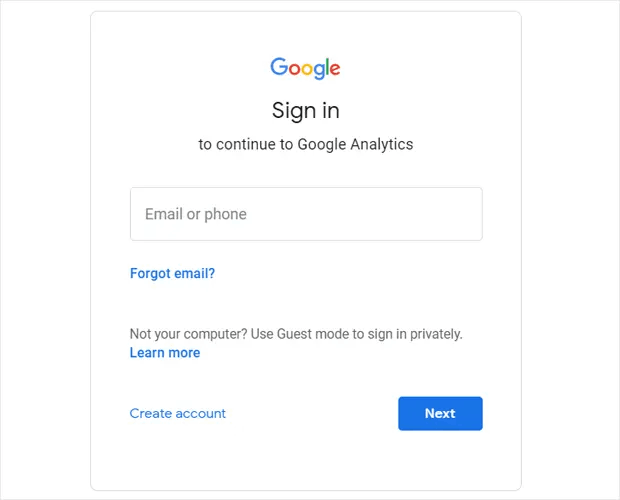
然后,使用您的 Google 帐户登录:
第 2 步:设置您的 Google Analytics 帐户
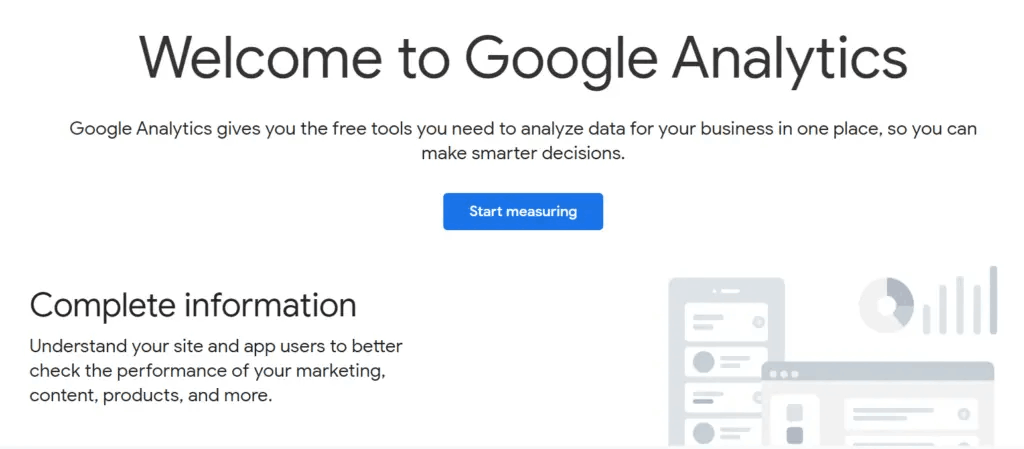
使用您的 Google 帐户登录后,您将看到一个中间页面,帮助您创建 Google Analytics 帐户。您仅在首次登录 Google Analytics 帐户时看到此页面。点击开始衡量:
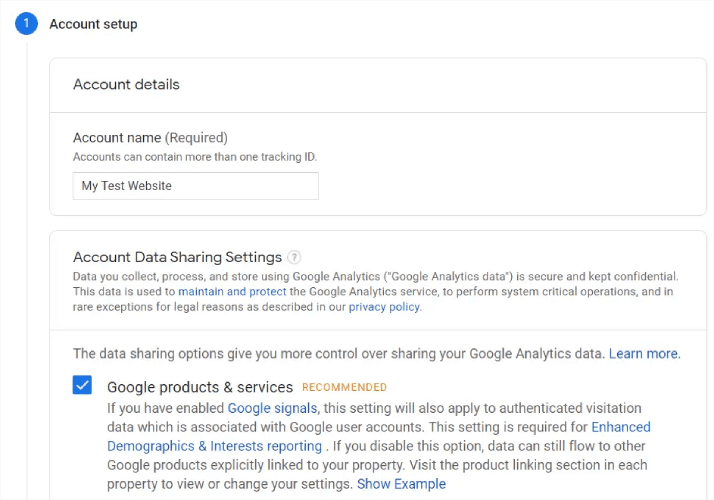
填写您的基本帐户详细信息,并确保在点击下一步之前,通过勾选复选框来共享您的数据:
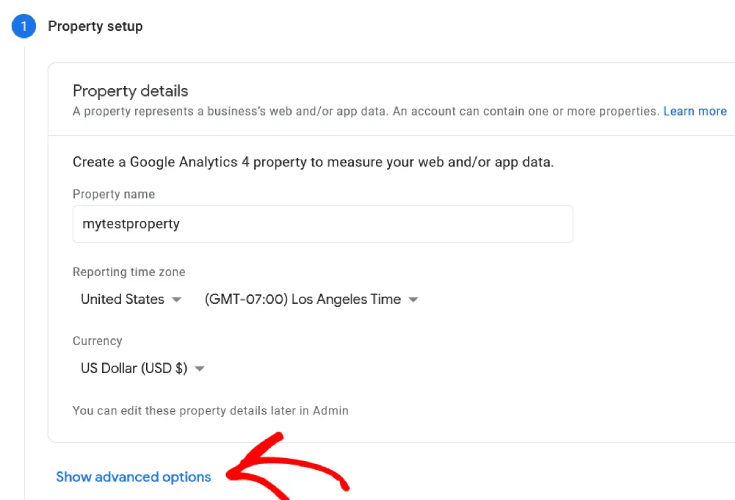
接下来,您需要填写您的属性详细信息。这通常包括网站或应用名称、报告时区和您偏好的货币。完成后,点击高级设置:
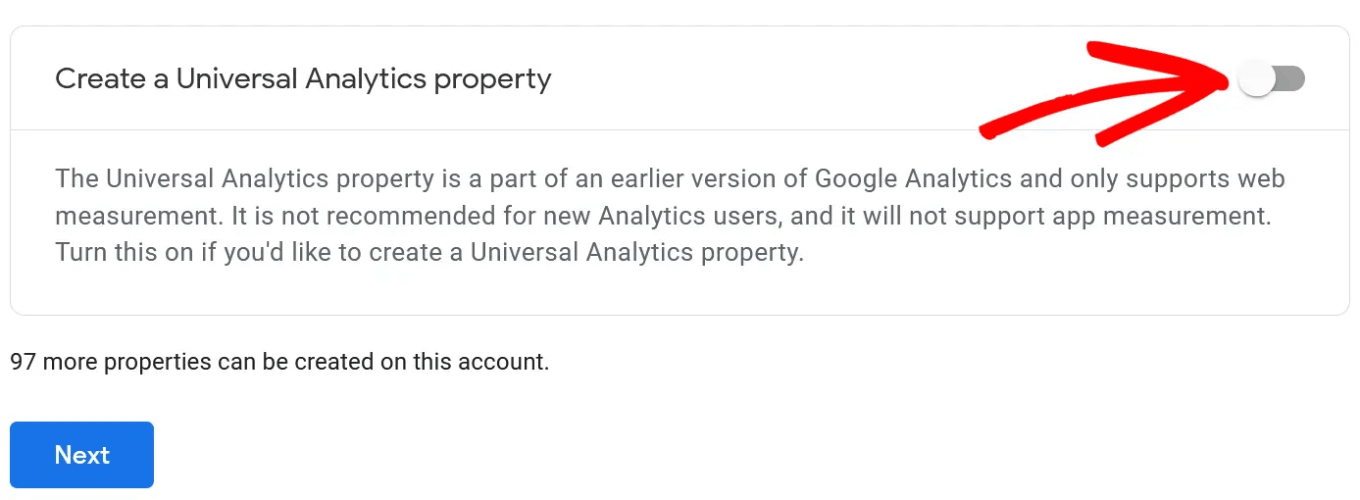
并启用创建通用版 Google Analytics 媒体资源选项:
接下来,输入您网站的网址,并确保选择仅创建通用版 Google Analytics 媒体资源选项。
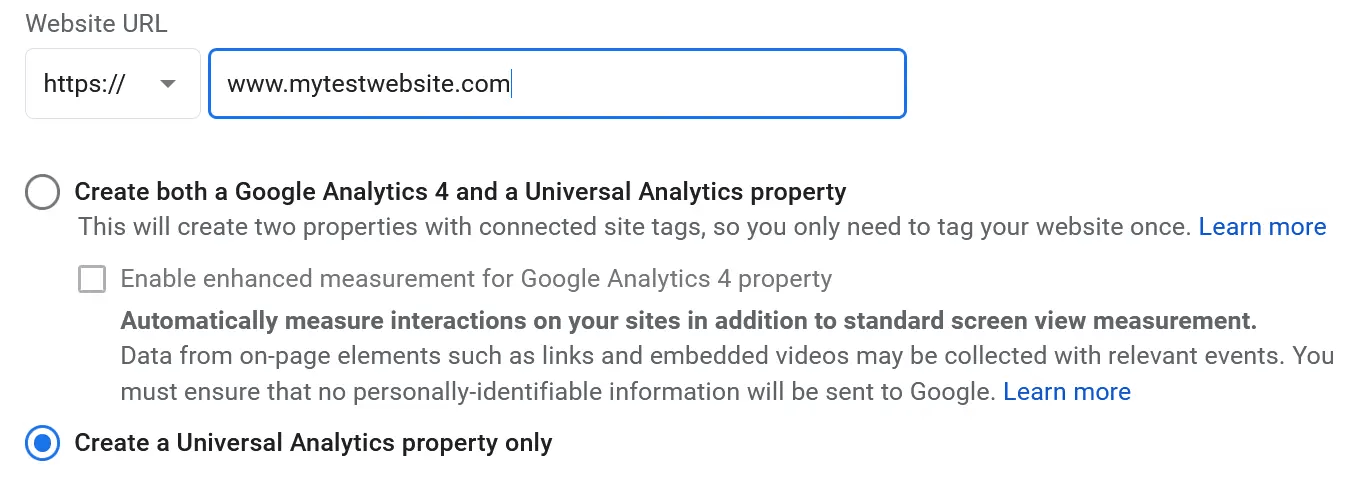
启用通用分析将确保您能够使用其他跟踪平台并准确衡量广告效果。接下来,您需要指定您的业务详细信息:
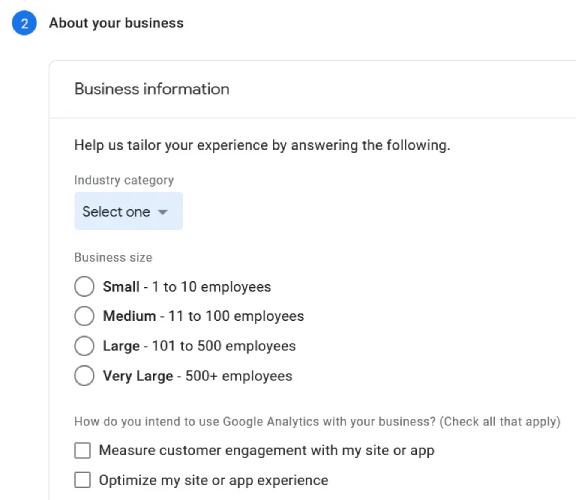
完成此操作后,您几乎就可以开始使用 Google Analytics 了。由于 Google Analytics 通过您的网站接受和收集用户数据,因此您需要接受其 GDPR 合规性协议和服务条款。
就是这样!您已完成。如果您严格按照每个步骤操作,您将被重定向到一个包含您的 Google Analytics 跟踪代码和 ID 的页面:
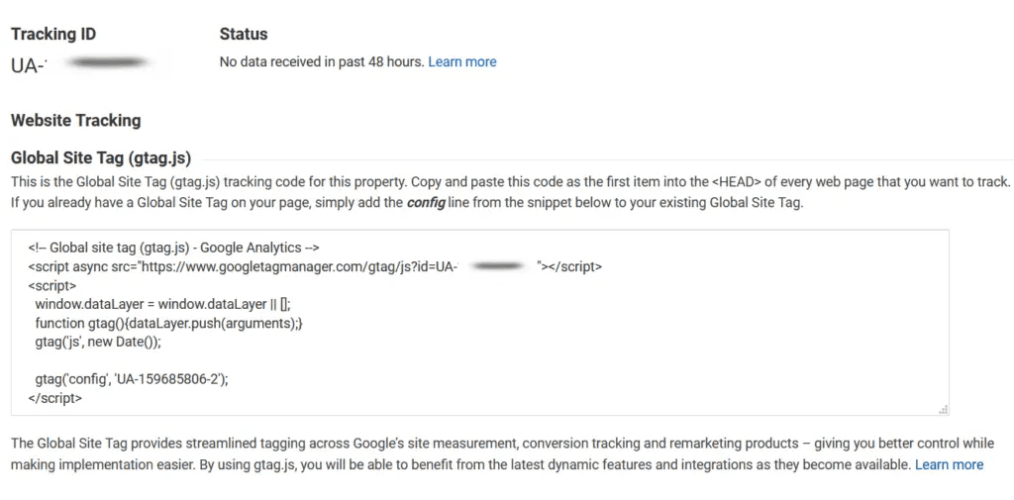
现在,您可以将跟踪代码安装到您的网站上,并开始获取 WordPress 分析数据了。
如何使用 Google Analytics 获取 WordPress 分析数据
要安装 WordPress 分析信息中心,您需要复制跟踪代码并将其粘贴到您网站的 HTML <head> 部分。或者,您也可以直接使用 Google Analytics 插件来完成,而无需使用任何代码。
如果您没有任何 WordPress 开发经验,我们强烈建议您使用 最佳 Google Analytics 插件之一,而不是尝试手动进行所有设置。
第 1 步:选择一个 WordPress 分析插件
MonsterInsights 是排名第一的 WordPress 分析插件。我们自己也使用过该插件,并强烈推荐使用 MonsterInsights 来获取 WordPress 分析数据。

使用 MonsterInsights 可以非常轻松地将 Google Analytics 安装到 WordPress 网站。此外,您还可以获得许多很棒的功能,让您直接在 WordPress 后台获得强大的见解。
以下是MonsterInsights可以为您做什么的快速概览:
- 无需任何代码即可跟踪Google Analytics
- 兼容任何版本的Google Analytics
- 查找热门内容的报告
- 详细的受众洞察
- 电子商务分析
- 表单注册分析
- 自定义维度的附加洞察
- 联盟链接点击跟踪
- GDPR合规
- 高级集成
如果您需要仔细查看这些功能,您应该看看我们的MonsterInsights评测。
第 2 步:安装 MonsterInsights 插件
现在就去安装并激活 WordPress 插件吧。如果您不确定如何操作,请查看这篇关于安装 WordPress 插件的指南。完成后,请使用设置向导开始操作。
首先选择您的业务类别:
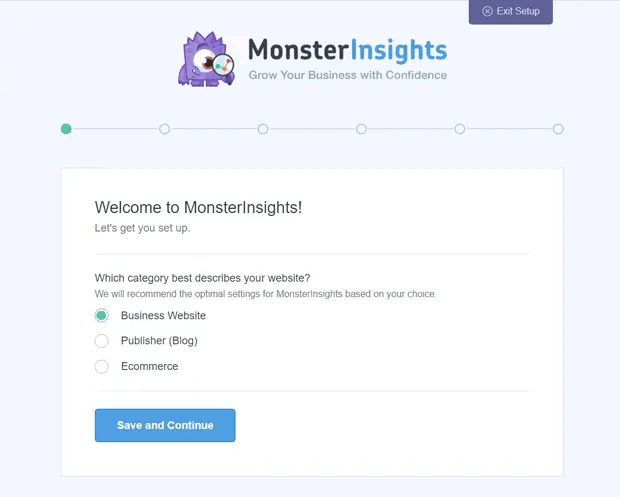
然后,通过输入您的许可证密钥将MonsterInsights帐户连接到您的网站:
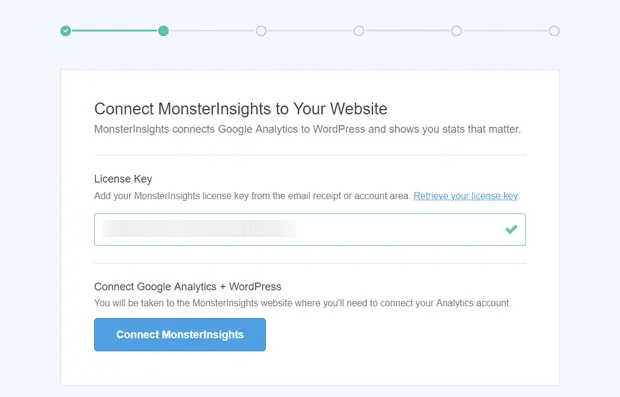
第 3 步:将您的 Google Analytics 帐号与 MonsterInsights 连接
激活插件后,您将看到一个选项,可将您的 Google Analytics 与您的 MonsterInsights 帐户关联。使用正确的 Google 帐户登录以继续进行身份验证:
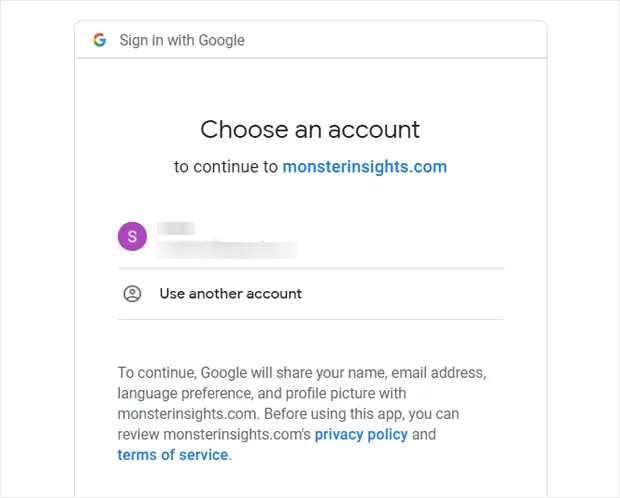
MonsterInsights 将请求正确的权限以访问您的 Google Analytics 帐户。点击 允许:
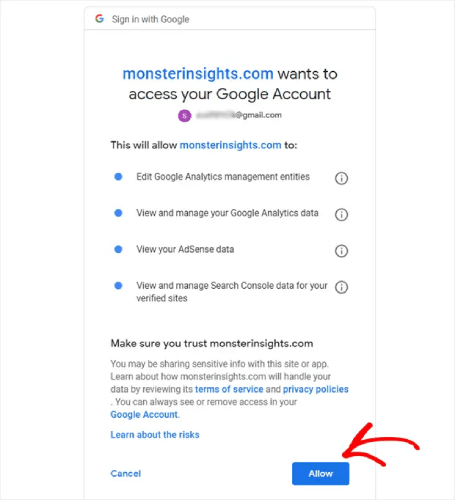
如果一切顺利,您将可以选择要与 MonsterInsights 关联的 Google Analytics 媒体资源。选择正确的媒体资源,然后点击 完成关联:
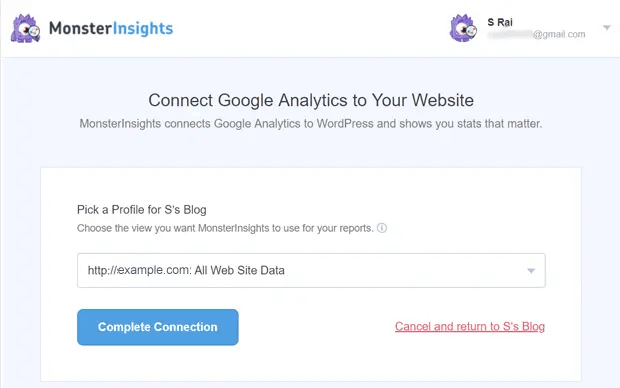
第 4 步:配置 MonsterInsights 插件设置
此时,MonsterInsights 将拥有对您 Google Analytics 帐户的正确访问权限,并将开始为您推荐最佳设置。
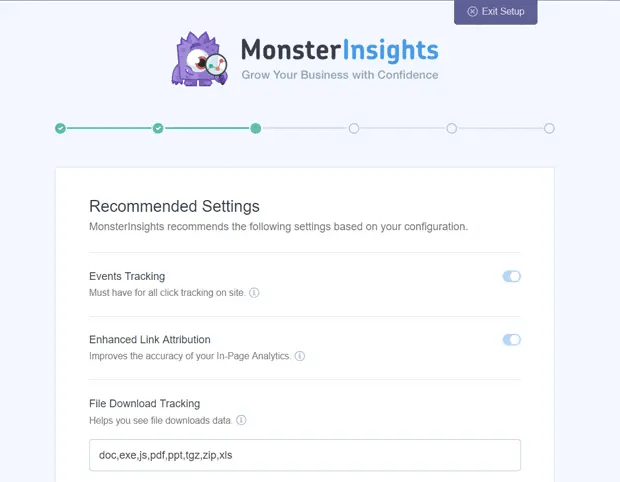
这些设置通常包括:
- 事件跟踪
- 增强型链接归因
- 文件下载跟踪
- 联盟链接跟踪
- 访问 MonsterInsights 的报告
- 自动插件更新
在您审查和配置完这些设置后,MonsterInsights 将建议您也安装一些附加组件:
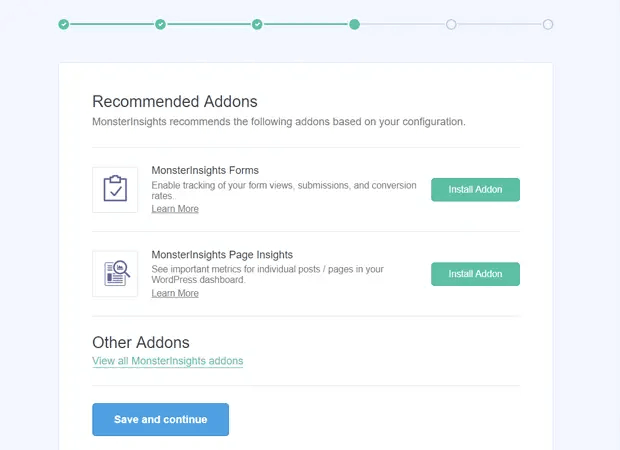
在您点击 保存并继续 后,MonsterInsights 将建议安装 WPForms:
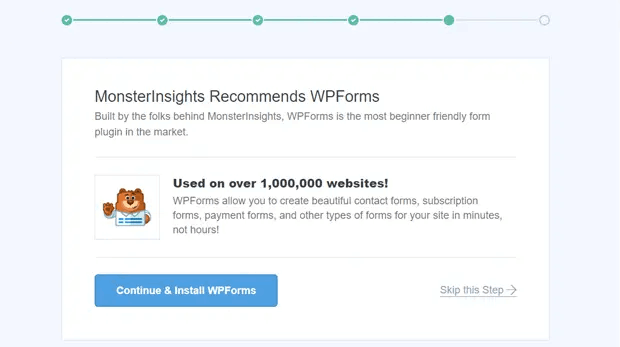
WPForms 是排名第一的 WordPress 表单插件。无论您经营何种业务,它都可以帮助您为 WordPress 网站创建功能强大的表单。我们也推荐使用 WPForms。
回到 WordPress 分析,您已完成设置。点击 完成设置并退出向导:
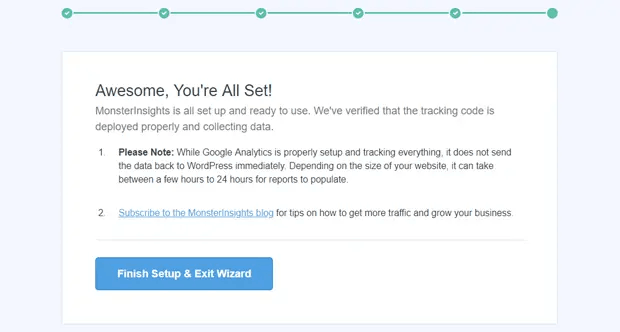
24 小时后,Google Analytics 将开始收集您网站的流量数据,您将在报告中看到这些数据。
如何在仪表板中查看 WordPress 分析报告
正如我们之前提到的,MonsterInsights 允许您直接在 WordPress 仪表板中查看 Google Analytics 报告:
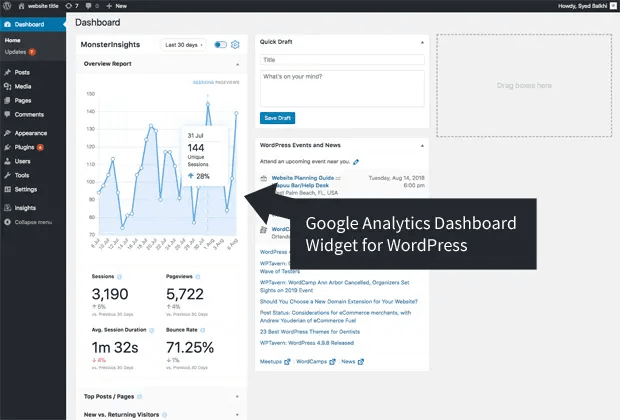
要查看完整报告,您需要从 WordPress 仪表板访问 Insights » Reports。在那里,您将看到 概览报告:
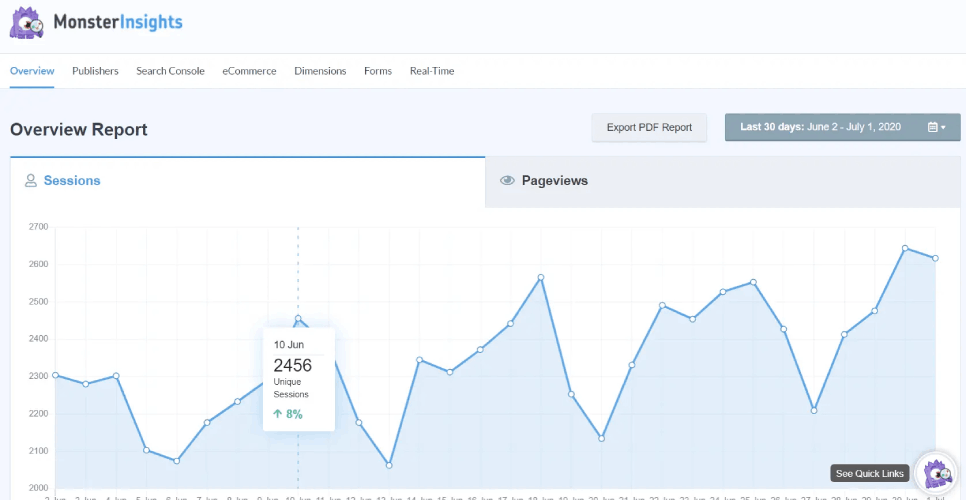
当然,如果您已设置好其他报告,也可以查看它们。如果没有,请查看这篇关于 如何创建和使用自定义 Google Analytics 报告 的文章。
您可以在仪表板中看到的一些指标包括:
- 热门着陆页:您网站上最受欢迎的内容是什么?
- 链接和按钮点击跟踪:哪些链接和按钮获得的点击最多?
- 搜索控制台报告:人们在找到您的内容时使用哪些搜索词?
- 表单提交报告:哪些表单获得的展示次数和转化次数最多?
还有更多!
获取网站的 WordPress 分析后该做什么
好了,各位,本次分享就到这里!
如果您刚刚开始使用 WordPress 分析,您已经迈出了利用数据驱动的见解来增加网站流量、参与度和销售的第一步。接下来,您需要找到增加网站上这些指标的方法。一个好的起点是使用推送通知。
推送通知可以作为任何类型企业的非常强大的营销工具。
不相信我们?查看这些精彩的资源:
- 如何在WordPress中安装网站通知
- 如何在 Google Analytics 中设置 WordPress 表单跟踪
- 如何通知订阅者有关新的 WordPress 帖子
- 最佳WordPress推送通知插件(已比较)
- 如何在没有插件的情况下在WordPress上使用推送通知
我们建议您使用PushEngage进行推送通知营销活动。PushEngage是全球排名第一的推送通知软件。您可以创建自动化的推送通知营销活动,让您在睡梦中也能赚钱。所有这些都来自一个简单直观的仪表板。
所以,如果您还没有,请立即开始使用 PushEngage!


