安装 Weebly 移动推送通知应用

如何添加 Weebly 移动推送通知应用(简单)

Looking for a way to add a Weebly mobile push notifications app to your site?

Push notifications can help you quickly grow your repeat traffic, engagement, and sales. But what service should you use to send push notifications? Will it be worth your time? Can you afford web notifications as a marketing channel?

And most importantly, do you need a development team to launch your marketing campaigns?

In this article, we’re going to show you how to add a Weebly mobile push notifications app site step by step with no coding in ten minutes or less. Weebly is a great platform to create your very first website. So, once you’re done setting up your Weebly website, it’s time to dive into this tutorial.

让我们开始吧。

How to Install a Weebly Mobile Push Notifications App

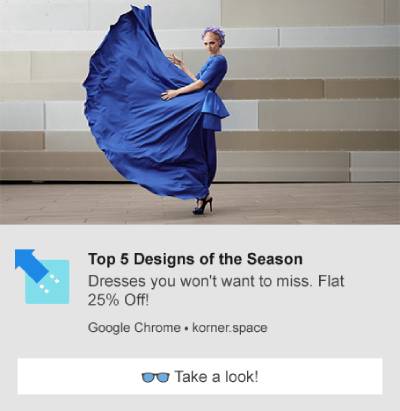
Installing a Weebly mobile push notifications app isn’t really difficult. Just follow these simple steps and by the end of this article, you should see a welcome push notification on your site like this one:

Welcome Offer Wix Push Notifications Campaign

Truth be told, we don’t really prefer using Weebly as a website builder. In our honest opinion, WordPress or even Shopify gives you way better features and functionality. So, if you can shift to WordPress or Shopify, now might be the best time to do it.

But if you’re sticking to Weebly, don’t worry. It’s still easy to install push notifications to your site.

让我们开始吧。

第 1 步:设置您的 PushEngage 帐户

访问 PushEngage 主页,然后点击 开始使用 按钮:

PushEngage for Wix push notifications

You can select the free plan to try out PushEngage, or choose a paid plan if you’re serious about growing your business. The paid plans come with more campaign options and the ability to build even bigger subscriber lists. Push notifications cost very little to get started and you can use your credit card to buy a plan.

If you’re running an eCommerce site, we highly recommend getting a paid plan so that you can set up eCommerce push notifications. Push notifications are great for launching new products from your online store.

Check out the pricing plans and select a plan to get started. Once you’ve signed up for an account, head over to the PushEngage dashboard and go to Site Settings » Installation Settings:

Wix push notifications Installation Settings

This is where you configure your site details and branding. Go ahead and set a logo and website URL for your push notifications. You should do this right now so that you can test your push notifications properly.

第 2 步:从 PushEngage 获取安装代码

Next, you’ll need to head over to the PushEngage dashboard and get the installation code. Inside Installation Settings:

PushEngage 任何网站安装代码

Depending on whether your site has an SSL certificate installed, go to either the HTTP tab or the HTTPS tab to get your installation code. For WordPress sites, there’s no need for this installation code. The plugin takes care of everything. This applies to WooCommerce sites as well.

But since you’re running a Weebly site, just copy this installation code.

Step #3: Place the Weebly Mobile Push Notifications App Installation Code in Your Site

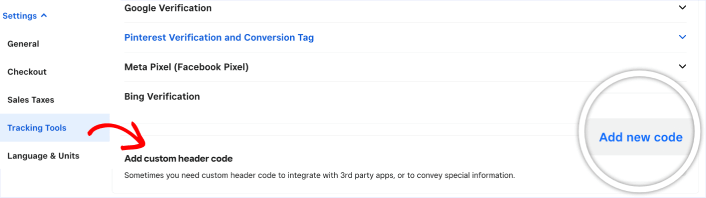
Log in to your Weebly account, head over to Settings » Tracking Tools, and go to the Add custom header code section:

Weebly mobile push notifications app

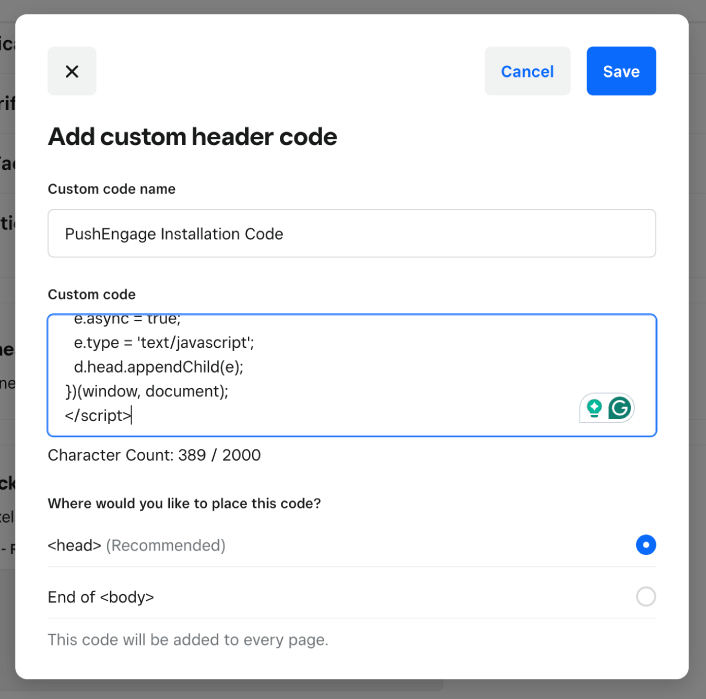
Click on the Add new code button and paste the PushEngage installation code.

Add installation code to Weebly head

When you’re done, click the Save button.

Step #4: Configuring the Weebly Mobile Push Notifications App Opt-In

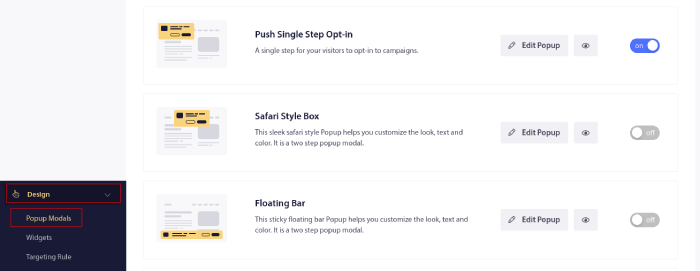
最后,在您的 PushEngage 仪表板中,转到设计 » 弹出窗口

弹出式模态框

您可以在此处自定义推送通知选择加入。如果您需要帮助,可以查看这篇关于如何创建自定义推送通知选择加入的文章。

如果您需要一些灵感,可以查看这篇关于高转化率的推送通知选择加入的文章。 

Step #5: Create Welcome Web Push Notifications

无论您是新开的店铺还是已有的店铺,网站欢迎消息都至关重要。欢迎推送通知非常适合用于:

  • 确认:您想确认您的新订阅者确实已订阅您的网站推送通知。
  • 重新互动:欢迎活动是让您的订阅者重新访问您网站的好方法。
  • 销售:您可以为新订阅者提供包含折扣、免费赠品和优惠券的欢迎优惠。

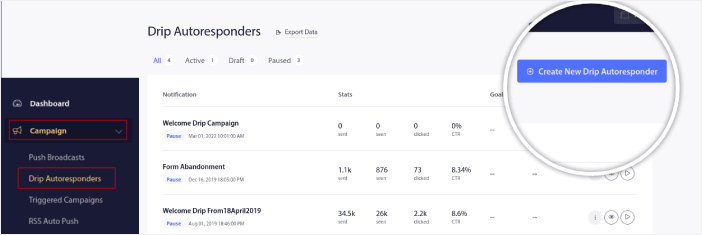
现在就来创建一个欢迎推送通知活动吧。前往您的 PushEngage 仪表板,然后转到活动 » 自动回复 » 创建新的自动回复

创建新的自动回复邮件

为您的自动回复活动命名,以便您轻松记住。然后,设置第一个推送通知,在访问者订阅您的推送通知后立即发送。

创建欢迎邮件系列

您可以编辑通知,为您的欢迎消息创建自定义内容。完成后,点击添加新通知按钮,将更多通知添加到序列中。您可以编辑新通知并设置每个通知之间的自定义延迟。
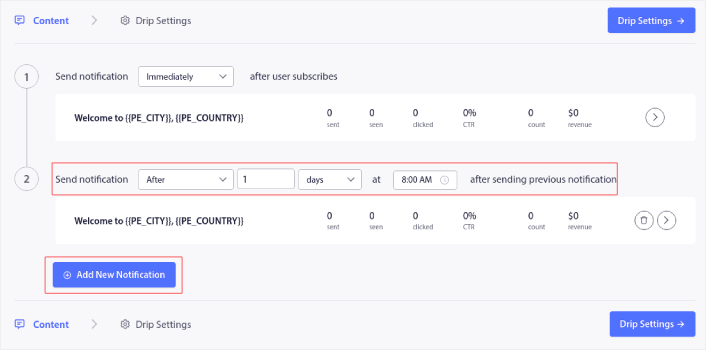
为欢迎邮件系列添加新通知

您可以添加任意数量的通知,但我们建议创建包含 5-7 个通知的欢迎自动回复。

之后,在自动回复设置中选择您的受众:
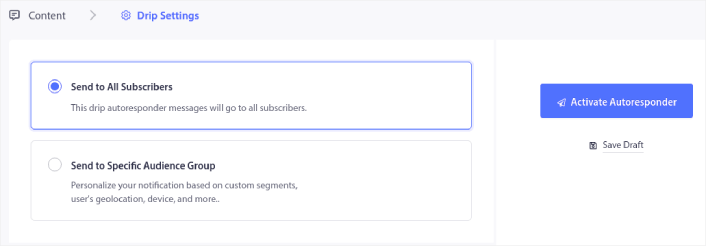
选择自动回复邮件受众

您可以使用发送给特定受众群组选项为不同的细分受众发送不同的欢迎自动回复。当您在访问者选择推送通知时对其进行细分时,这尤其有用。当您对目标受众满意后,点击激活自动回复按钮。您就完成了!

NOTE: You can schedule real-time notifications as well. So, if you want to send notifications from a mobile app on Android or iOS, PushEngage is a great choice for you.

You have successfully set up Wix push notifications on your site. It’s time to head back to your PushEngage dashboard and start creating your push notification campaigns.

What to do After Adding a Weebly Mobile Push Notifications App

好了,各位,本次分享就到这里!

If you’re new to push notifications, you should follow a full-blown push notification testing process before you go live. It’ll help you troubleshoot common issues with the functionality before your visitors see them and start complaining about a broken user experience.

You should check out some of these incredible resources to understand how push notifications can help grow your business before you invest in an extension:

One of the best things about push notifications is that you can create templates for your campaigns very easily. If you need inspiration for your campaign templates, check out these epic push notification examples.

如果您还没有尝试过PushEngage,现在就去试试吧。PushEngage是全球排名第一的推送通知服务。所以,如果您想认真发展您的业务,就应该投资PushEngage。

立即开始使用 PushEngage

添加评论

我们很高兴您选择留下评论。请记住,所有评论都将根据我们的隐私政策进行审核,并且所有链接都将是 nofollow。请勿在姓名字段中使用关键字。让我们进行一次个人化且有意义的对话。

在访客离开您的网站后与他们互动并挽留他们

通过难以忽略的推送通知,增加每次网站访问的价值。

  • 永久免费套餐
  • 轻松设置
  • 五星支持