Web App Push Notifications

如何发送网站应用推送通知(轻松上手)

Looking for a simple way to add web app push notifications that can help you grow your business?

Setting up push notifications for web apps can be a little bit tricky. There’s always some conflict with sending web push notifications. Usually, the biggest problem is the delivery rates. You can add web push to your web app in many ways. But how do you send web push notifications that actually get delivered from your web app?

Don’t worry! In this article, we’re going to show you step-by-step how you can send web app push notifications with reliable delivery rates in less than 10 minutes.

让我们开始吧。

How to Install Web App Push Notifications

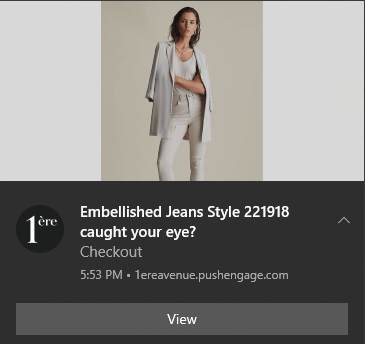
Adding push notifications to a web app is quite simple. Just follow the steps in this article. If you follow every step, by the end of this article, you should be able to send push notifications like this one:

web app push notifications example

The main challenge is that all web push notification software uses a Javascript file called service_worker.js. The service worker helps you collect push notification subscribers through popup modals. But all web apps already have a service worker file that serves a different purpose. And at a time, your web app can only use one service worker.

In simple words, web push services confuse your web app. So, sometimes it will collect push notification subscribers and sometimes, it won’t. Sometimes you can send notifications and sometimes you can’t. You might even end up sending push messages to your entire subscriber list and have it delivered only to a few subscribers.

Of course, web app builders like Mendix come with their own push notification system. But what if you want to migrate to some other push notification service? What if you want more flexibility and control over your push notification campaigns?

We recommend using PushEngage to send web app push notifications. PushEngage is the #1 push notification software in the world. So, you know that your campaigns are in safe hands.

让我们开始吧。

第 1 步:设置您的 PushEngage 帐户

前往 PushEngage 主页,然后点击“开始使用”按钮:

PushEngage

You can try out PushEngage for free. If you’re running a small blog that needs repeat traffic and engagement, that’s probably good enough. But if you’re serious about sales, you should get the Enterprise package and unlock the automated campaigns.

注册 PushEngage 帐户后,请前往您的 PushEngage 仪表板 并转到 网站设置 » 网站详细信息

PushEngage网站设置

您可以在此处设置您的徽标、网站名称和网站 URL。现在就处理好这些事情非常重要,这样您以后才能测试整个设置。

第 2 步:从 PushEngage 获取安装代码

要安装推送通知,您需要获取安装代码。在您的网站设置屏幕中,向下滚动并单击单击此处获取设置说明按钮:

PushEngage 安装设置

然后,单击任何网站选项卡:

PushEngage 任何网站安装代码

您可以使用 Javascript 代码开始发送推送通知。

Step #3: Add the Service Worker Code For Web App Push Notifications

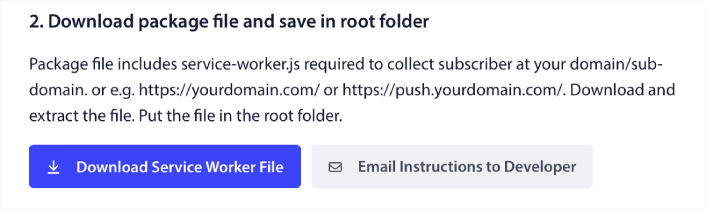
The most tricky part of the process is finally here. In the PushEngage dashboard under Setup Instructions, you’ll also see an option to download the service worker file.

Download Service Worker

IMPORTANT: By default, a web app doesn’t require a service worker file. All you need to turn any site into a web app is a manifest file. So, if your web app doesn’t have a service worker file, then you can simply add the PushEngage service worker to the root directory of your website or web app.

But if your web app already has a service worker in place, then DO NOT directly upload the PushEngage service worker file as is. Open the PushEngage service worker in a text editor like Notepad and copy the code in the PushEngage service worker file. Then, find the service worker file for your web app and simply add the PushEngage service worker code to the file.

If you neglect this step, you won’t be able to collect push notification subscribers.

第 4 步:配置 PushEngage 订阅选项

现在,返回您的 PushEngage 仪表板。转到 设计 » 弹出窗口并选择您喜欢的选择加入方式:
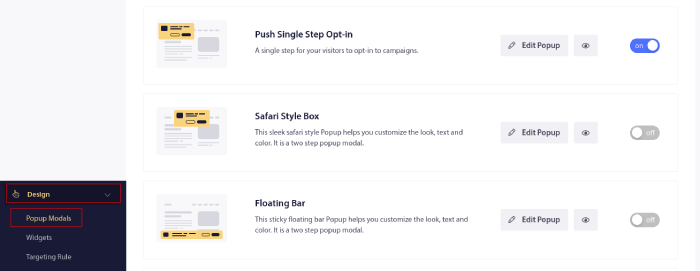
弹出式模态框

这里的想法是为您的访问者提供订阅的充分理由。如果您需要这方面的帮助,请查看我们关于 如何创建自定义推送通知选择加入的文章。

如果您想获取一些入门模板,您应该查看这篇关于 高转化率推送通知订阅选项的文章。

第 5 步:创建您的第一个营销活动

Now that your web app can send push notifications, you should create an actual campaign.

废弃购物车营销活动通过转化废弃的购物车来帮助产生额外收入。这是一个简单的提醒,可以自动销售大量产品。因此,它非常适合支持任何带来直接销售的着陆页。

Just head over to your PushEngage dashboard and go to  Campaigns » Triggered Campaigns » Create A New Triggered Campaign:
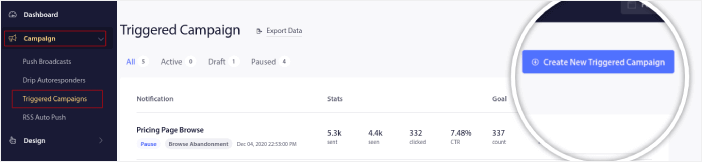
创建新的触发式广告系列

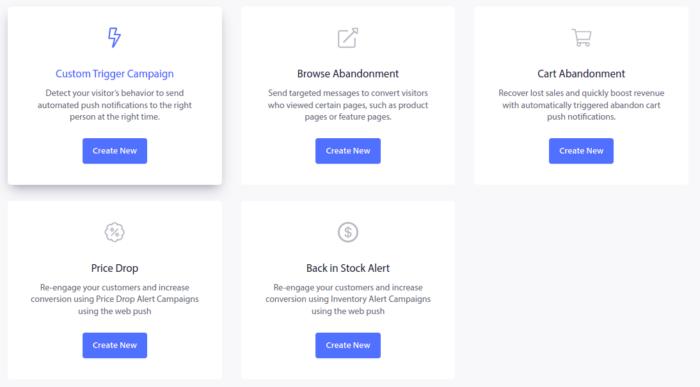
And then, select the Cart Abandonment campaign template:

触发式广告系列类型

如果您是创建自动化营销活动的新手,可以简单地参考我们关于如何设置废弃购物车推送通知营销活动的文章。请遵循每个步骤,您就可以设置像这样的推送通知:

1 个废弃购物车示例

以防您想知道,您的推送通知营销活动不必是家喻户晓的品牌才能有效。事实上,PushEngage 的创建就是为了帮助小型企业通过推送通知实现增长。

But before you start marketing your site, you should fix any issues with your push notification subscription process. Check out this article on testing your push notifications. If everything’s working perfectly, you’re done!

What To Do After Adding Web App Push Notifications?

好了,各位,本次分享就到这里!

You can now send web app push notifications. By now, you’ve also created a powerful web push notification campaign to boost your growth. All that, in less than 10 minutes!

Check out how to create other automated push notification campaigns as well. Most push campaigns are simple and effective. So, we recommend setting up multiple campaigns for your site. Here are a few great ones to start with:

如果您还没有开始,请立即开始使用 PushEngage。PushEngage 是全球排名第一的推送通知软件。因此,您的营销活动是安全的。

立即开始使用 PushEngage

添加评论

我们很高兴您选择留下评论。请记住,所有评论都将根据我们的隐私政策进行审核,并且所有链接都将是 nofollow。请勿在姓名字段中使用关键字。让我们进行一次个人化且有意义的对话。

在访客离开您的网站后与他们互动并挽留他们

通过难以忽略的推送通知,增加每次网站访问的价值。

  • 永久免费套餐
  • 轻松设置
  • 五星支持