
您知道您可以自动发送Shopify RSS Feed推送通知吗?
持续创作内容和管理Shopify商店是一项艰苦的工作。但如果您经营的是一项严肃的业务,您就会知道,仅仅创作内容是不够的。您还必须能够推广您的内容。
而推送通知是经济高效地获取订阅者的绝佳方式。推送通知之所以成为一种出色的营销工具,是因为它们可以完全自动化。
这就是 RSS 推送通知发挥作用的地方。
问题是:Shopify本身不提供RSS Feed。但有一个变通方法。
如果您以正确的方式设置RSS推送通知,那么每次在您的网站上发布内容时,您的订阅者都会自动收到一条将他们带到您内容的推送通知。
在本文中,我们将向您展示如何在您的网站上设置Shopify RSS Feed自动推送。
立即发送Shopify RSS Feed推送通知活动!
推送通知是一种超级有效、低成本的营销工具,可帮助您自动增加重复流量、互动和销售。
如何为产品启用Shopify RSS Feed
您需要一个第三方应用程序才能在您的网站上启用Shopify RSS Feed。市面上有许多选择,但我推荐使用Mulwi Shopping Feeds。
Mulwi允许您为您的Shopify商店创建自定义XML Feed。您可以轻松创建XML Shopify RSS Feed。将该应用程序安装到您的Shopify商店并为您的产品创建XML Feed。
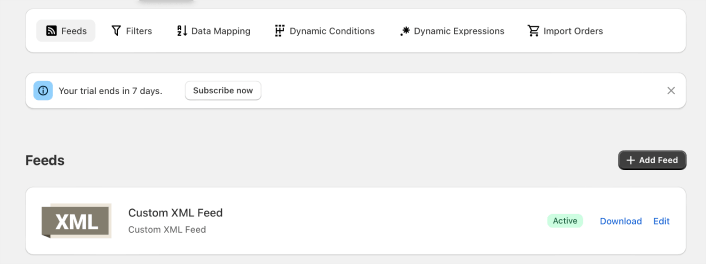
创建XML Feed时,您将获得该Feed的链接。
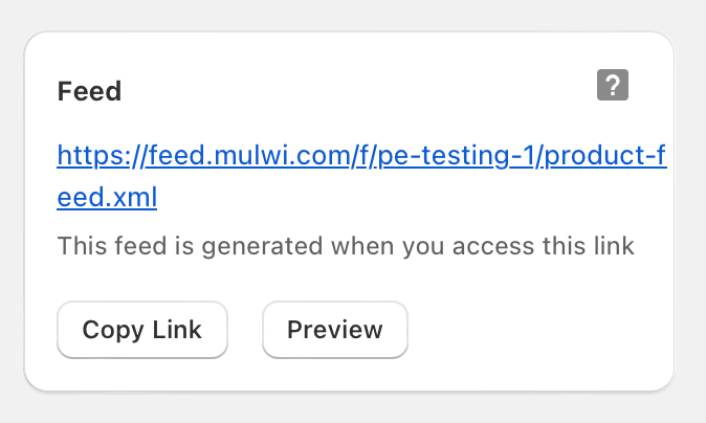
点击复制链接按钮复制Shopify RSS Feed URL。稍后您将需要它。
如何启用Shopify RSS Feed推送通知
只要网站有RSS Feed,您就可以为任何类型的网站设置Shopify RSS Feed推送通知。现在,您已经有了RSS Feed的链接。所以,您已经准备好了一半。
而且,要发送 RSS 推送通知,您还需要一个推送通知供应商。在本文中,我们将向您展示如何使用 PushEngage 发送 RSS 自动推送。PushEngage 是全球排名第一的推送通知软件。因此,您的广告系列将得到妥善处理。
让我们开始吧。
步骤#1:安装PushEngage
您可以像安装其他应用程序一样安装PushEngage Shopify应用程序。
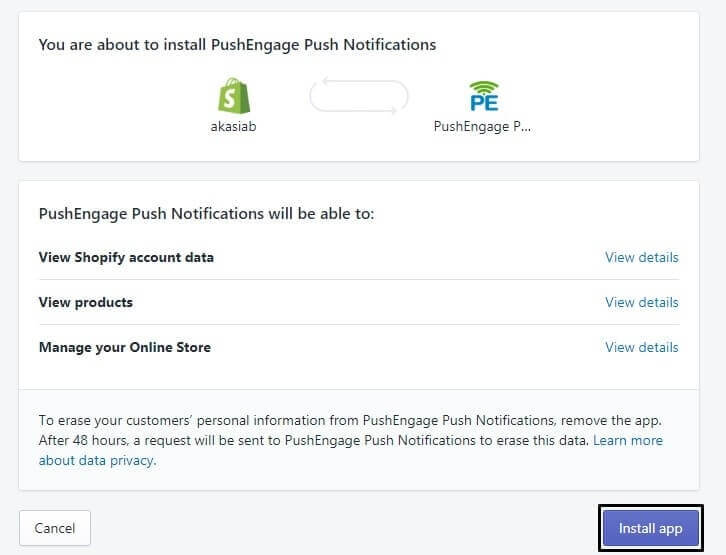
安装完应用程序后,请转到您的 PushEngage仪表板 并配置您的PushEngage帐户,以便您可以立即发送通知。
您将在 PushEngage 控制面板中看到一个 7 点清单需要完成。
只需按照设置过程进行操作,完成后您将在网站上看到推送通知选择。您还可以查看此关于 如何发送Shopify网站推送通知 的指南,以轻松入门。
第 2 步:创建新的 RSS 推送通知广告系列
在您的网站上安装PushEngage后,请转到您的PushEngage仪表板并进入活动 » RSS自动推送。点击创建新活动:
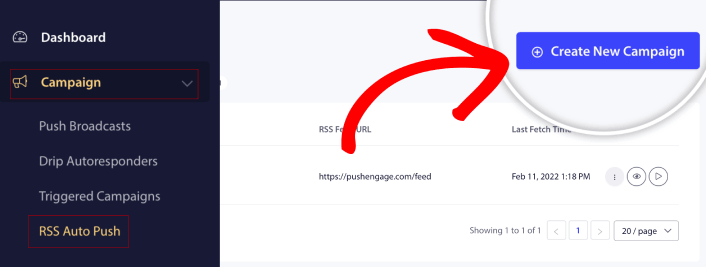
这将创建一个全新的 RSS 推送通知广告系列。您可以在 PushEngage 中设置多个 RSS 供稿广告系列。首先为您的广告系列命名。然后,粘贴您的 RSS 供稿的 URL:
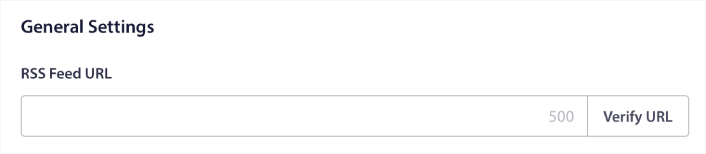
在这里粘贴您从Mulwi获得的URL。完成后点击验证URL。
第 3 步:设置 RSS 通知设置
接下来,您需要设置广告系列频率:
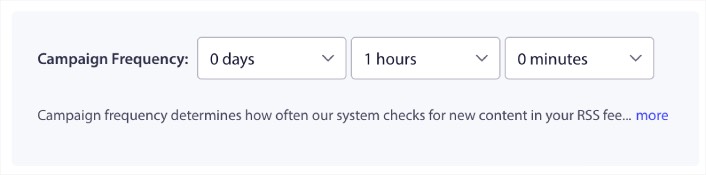
广告系列频率是指 RSS 供稿广告系列检查您博客中新内容的频率,以便发送自动推送通知。最小值是 15 分钟,最大值是 7 天。
除非您是新闻机构,否则我们建议每 2 天查找一次要推广的内容。对于新闻机构,您应将其限制在 15 分钟。请记住,一旦您设置并发布了 RSS Feed 广告系列,PushEngage 才会查找新内容。
第 4 步:选择要推广的帖子
您可以选择要推广的帖子。您可以在“仅最新项目”或“所有项目”之间进行选择。如果您设置了 RSS 推送通知以仅选择最新项目,PushEngage 只会发送最新帖子:
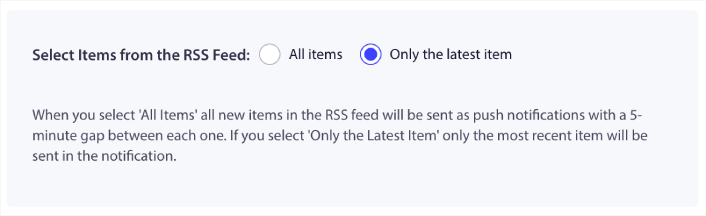
或者,您可以选择“所有项目”选项。在这种情况下,广告系列将选择您网站上的所有帖子,并为每个帖子发送推送通知,帖子之间间隔 5 分钟。
第 5 步:设置 RSS 推送通知图标
您的 推送通知图标 在您的 RSS 推送通知中建立了您的品牌标识。我们建议使用您的品牌标志,以便您的订阅者可以立即知道该通知来自您的品牌。
现在,这里有两个选项。您可以手动上传通知图标:
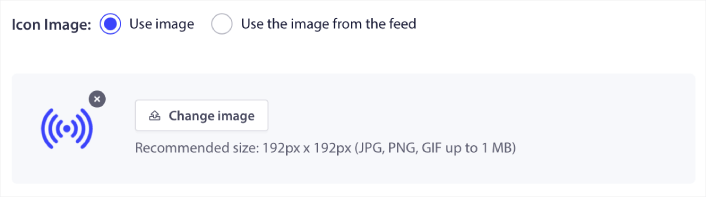
这确实很简单。只需点击“更改图片”并上传您的通知图标。或者,您可以从 RSS Feed 中获取它:
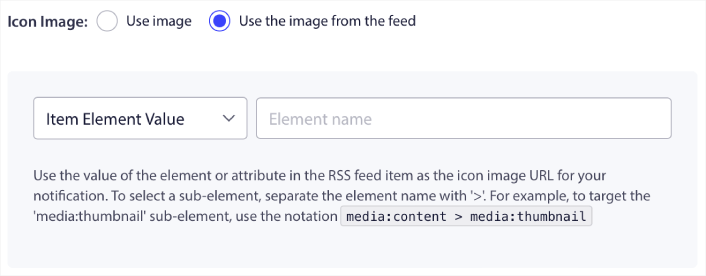
您可以选择元素项或元素内的属性来动态选择 Feed 中的通知图标。通常,大多数 RSS Feed 会将网站图标保存在 media:content 项目元素中。更具体地说,它通常位于 media:content 元素的 media:thumbnail 属性中。
要定位元素,您可以选择“项目元素值”选项并将其设置为 media:content。或者,您可以选择“元素属性值”选项并将其设置为 media:content > media:thumbnail。
注意:我们建议仅在您知道如何读取 XML 时才使用此选项。RSS Feed 可能不包含与我们示例相同的 XML 标签中的网站图标。因此,如果您不确定如何从 RSS Feed 中获取通知图标,我们建议手动上传。
第 6 步:为 RSS Feed 通知选择大图片
现在,我们将为您的 RSS Feed 通知选择大图片。同样,有两种方法可以做到这一点。您可以让 PushEngage 自动从 RSS Feed 中查找图片:

或者,您可以手动选择 Feed 中的图片:
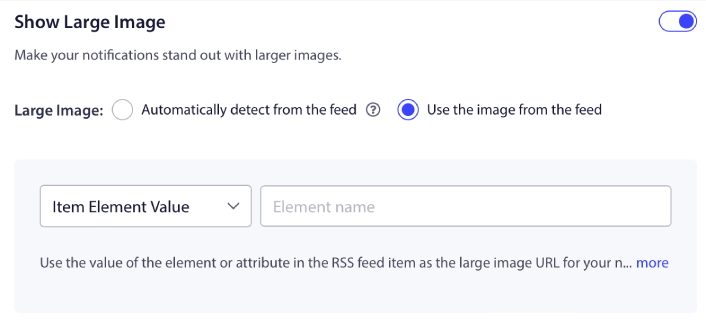
这与从 RSS Feed 中选择通知图标完全相同。您可以再次选择包含图片的 XML 元素,或者选择包含您首选图片的特定属性。
注意:我们仅建议在您知道如何读取 XML 时才从 RSS Feed 中选择 URL。如果您不确定如何读取 XML,最好让 PushEngage 为您的通知查找最佳图片。
第 7 步:设置推送通知持续时间
推送通知的持续时间是指通知在您的订阅者通知托盘中保留多长时间后会被自动删除。
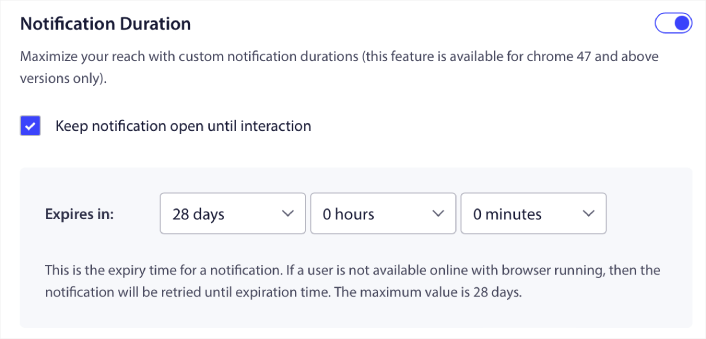
如果您不想让订阅者被大量未读通知淹没,最好让推送通知在几天后过期。
与广播通知甚至其他自动推送通知不同,您无法真正安排 RSS 推送通知。因此,您始终可以选择在订阅者与通知互动之前保持通知打开状态,即使在到期限制内。
第 8 步:设置 UTM 参数
我们快完成了。向下滚动以设置您自己的 UTM 参数以跟踪推送通知:
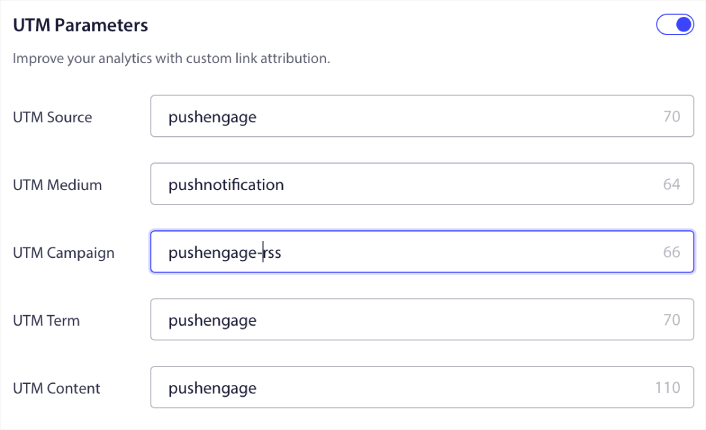
这样,您就可以在 Google Analytics 中轻松地将这些推送通知的流量归因。
第 9 步:选择受众群组
最后,我们将选择一个受众群组来发送您的 RSS 推送通知。您可以将 RSS feed 活动发送给所有订阅者,或者创建受众群组以从 RSS feed 发送个性化推送通知。
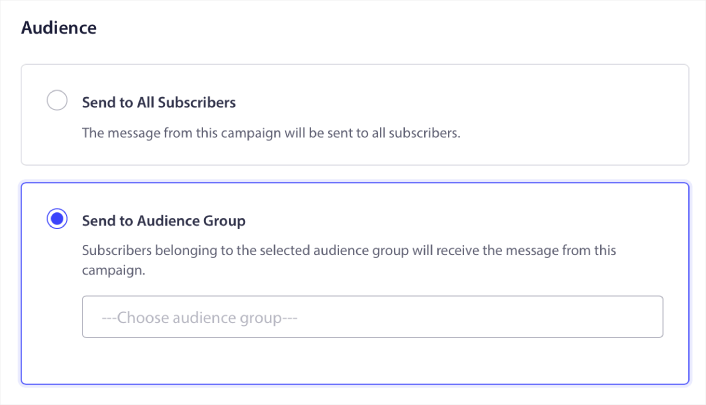
就是这样!真的就这么简单。
现在,每次您发布新帖子时,所选受众群组中的任何推送通知订阅者都会自动收到有关您新内容的推送通知。
设置Shopify RSS Feed通知后该怎么做
现在,您的Shopify RSS Feed通知已上线。如果您是发送推送通知的新手,在上线之前,您应该遵循一个完整的 推送通知测试 过程。这将帮助您在访问者看到它们并开始抱怨糟糕的用户体验之前,排除常见问题。
如果您还没有尝试过PushEngage,现在就去试试吧。PushEngage是全球排名第一的推送通知服务。所以,如果您想认真发展您的业务,就应该投资PushEngage。
RSS 推送通知很棒。但是,为了获得更好的结果,您应该创建更多有针对性的推送通知。创建自定义推送通知活动可能需要时间,但它们确实值得。在您做出决定之前,请查看这些文章:
推送通知正在帮助世界各地的企业成长。您是打算等到竞争对手开始使用它之后才开始吗?


