Push Notification Action Buttons

如何使用推送通知操作按钮将点击量提高一倍

Looking for an easy way to add push notification action buttons that actually work?

The biggest challenge isn’t to add a button to your push notification. What’s most challenging is creating buttons that get clicks. Unlike your website, you don’t have unlimited characters to craft compelling buttons.

So, you need to keep your buttons simple, relevant, and focused.

In this article, we’ll show you how to add multiple push notification action buttons, how to optimize them for clicks, and some cool ways to use them. And yes, there will be some real examples as well.

让我们开始吧。

How to Add Multiple Push Notification Action Buttons

Before we get started, it’s always best to choose a push notification service to send push notifications. The right push notification service will make it super easy to create powerful campaigns with little to no code.

If you’ve been using Firebase Cloud Messaging (FCM) to send push messages, then it’s time to switch up right away. Check out this article to get a better understanding of why FCM is not the best option for you.

We recommend using PushEngage to create and send your push notifications.

PushEngage 推送通知服务

PushEngage is the #1 push notification service in the world.

推送通知可帮助您自动增加网站流量和参与度。如果您经营在线商店,PushEngage 还可以通过帮助您创建自动电子商务推送通知来帮助您增加销售额。

您可以免费开始使用,但如果您想认真发展业务,则应购买付费套餐。此外,在购买任何推送通知服务之前,您应该查看这篇关于 推送通知成本的指南。

PushEngage 提供以下功能,快速概览:

  • 高转化率的自动化营销活动
  • 多种定位和营销活动调度选项
  • 目标跟踪和高级分析
  • 智能 A/B 测试
  • 专属客户成功经理

您会发现,如果您想为您的业务带来流量、参与度和销售额,PushEngage 绝对是最佳选择。而且,如果您预算有限,您总是可以 在推送通知方面发挥创意

前往您的PushEngage 控制面板,然后转到 **Campaign » Push Broadcasts**,并点击 **Create a New Push Broadcast** 按钮:
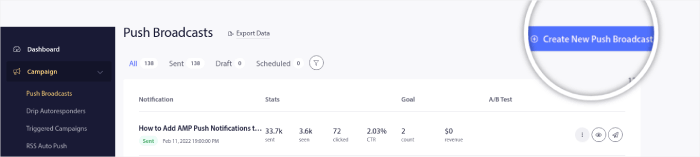
创建新的推送广播

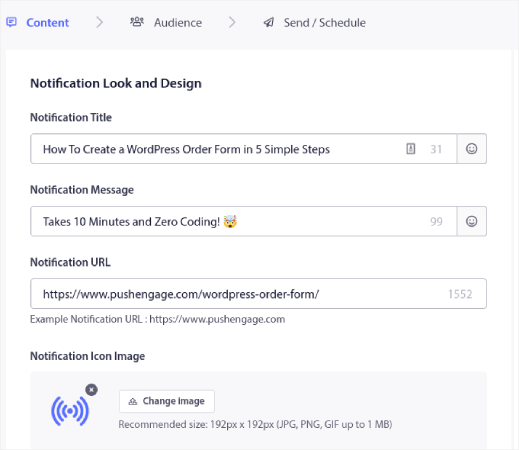
在 **Content** 选项卡下,添加您的推送通知内容:

推送广播内容

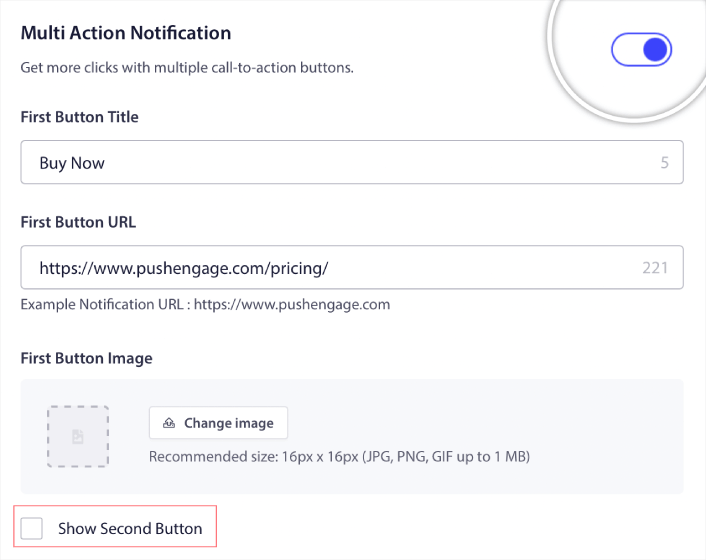
Then, scroll down to Multi Action Notification and enable it:

Push Notification Action Buttons

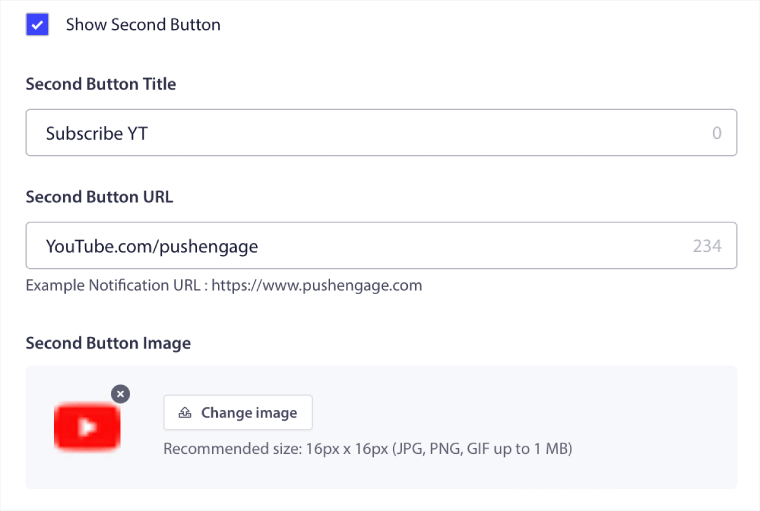
You can click the Show Second Button option to create a second push notification action button.

Second Push Notification Action Button

Since you can only use 12 characters for your button label, it can be difficult to write compelling copy sometimes.

For instance, you can ask your push notification subscribers to subscribe to your email newsletter or your YouTube channel. But how do you let them know what to subscribe to without using so many words? A cool hack is to use the button images to add more context to your button.

You can only use a maximum of two push notification action buttons. So, you need to make them both count. Before you send your notification, be super clear on what you want from your push campaign. An easier way to get better results would be to use drip push notifications.

PushEngage allows you to create push notification action buttons for your drip campaigns as well. This way, you can send out targeted push notifications to get focused results.

Let’s check out some cool ways to use push notification action buttons now.

How to Use Push Notification Buttons to Get More Traffic

If you’re running a blog or a news site or even an agency site, repeat traffic is super important. The only issue is getting clicks on your push notification action buttons.

You can’t really use power words in your button copy like you can in an email.

So, what do you do?

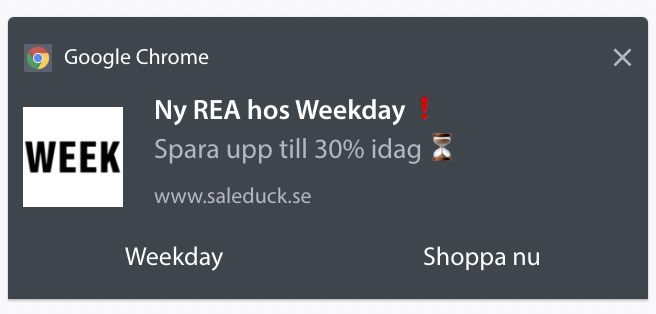
A simple way to increase your repeat traffic is to use your push notification action buttons to give them more options to click. For instance, if you’re running an eCommerce site, you’re likely going to use a browse abandonment campaign. You can use one button to ask your visitors to complete the purchase and another to get them to browse a category page.

浏览废弃推送通知

By giving them two options, you get a much better chance of your visitors clicking through to your site.

How to Add a Click to Subscribe Button to Your Popup

推送通知可帮助您自动增加网站流量和参与度。如果您经营在线商店,PushEngage 还可以通过帮助您创建自动电子商务推送通知来帮助您增加销售额。

您可以免费开始使用,但如果您想认真发展业务,则应购买付费套餐。此外,在购买任何推送通知服务之前,您应该查看这篇关于 推送通知成本的指南。

PushEngage 提供以下功能,快速概览:

  • 高转化率的自动化营销活动
  • 多种定位和营销活动调度选项
  • 目标跟踪和高级分析
  • 智能 A/B 测试
  • 专属客户成功经理

您会发现,如果您想为您的业务带来流量、参与度和销售额,PushEngage 绝对是最佳选择。而且,如果您预算有限,您总是可以 在推送通知方面发挥创意

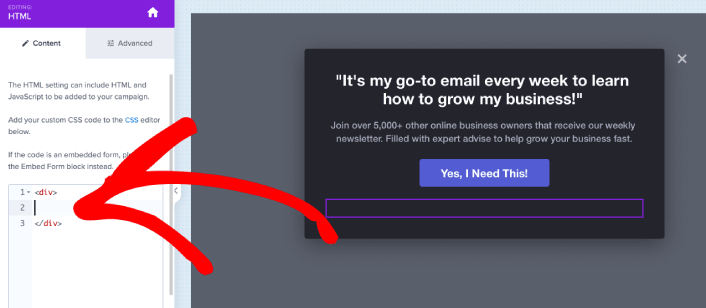
首先,从 OptinMonster 中的侧边栏将一个HTML块添加到您的弹出窗口。
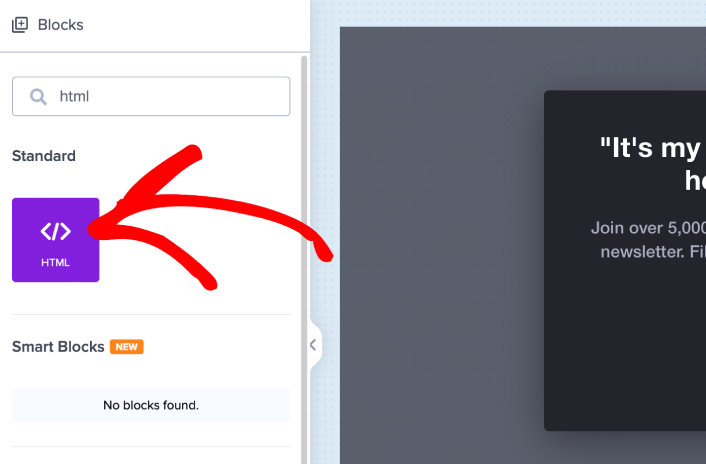
在 OptinMonster 中添加 HTML 块

这是我们将添加代码以收集推送通知订阅者的地方。首先,粘贴以下代码以创建可点击按钮:

<button onclick="subscribeOnClickButton()" style="border: none; width: 100%; padding-left: 15%; padding-right:15%; text-align: center; display: inline-block; color: white;">Get Updates via Push Notifications</button>

将代码粘贴到显示可以添加 HTML 的位置:

将 HTML 代码添加到弹出窗口

当然,您可以调整样式使其看起来更具吸引力。接下来,我们将使按钮在被点击时收集推送通知订阅者。

前往 PushEngage 主页,然后点击“开始使用”按钮:

PushEngage

然后,您可以选择免费计划来试用 PushEngage,或者如果您想认真发展您的业务,可以选择付费计划。付费计划提供更多的营销活动选项,并能够建立更大的订阅用户列表。

在您的 PushEngage 仪表板中,转到“网站设置”»“网站详细信息”,然后点击“单击此处获取设置说明”按钮。在“任何网站”下,您将获得安装代码:

PushEngage 任何网站安装代码

警告:您需要复制从仪表板获取的代码。该代码对于每个 PushEngage 用户都是唯一的。您将无法复制图像中的代码并收集推送通知订阅者。

在您的 PushEngage 仪表板中获得代码后,复制第二个脚本并为其添加一些额外的代码。您的最终代码应如下所示:

<script src="https://clientcdn.pushengage.com/core/02a6e92667ae2279fcba8932356c1d93.js" async></script>
<script> window._peq = window._peq || [];
function subscribeOnClickButton(){
window._peq.push(['subscribe',{}.pe,function(res){
console.log(res);
}]);
}
</script>

将此代码添加到 OptinMonster 中的HTML块,紧跟在按钮代码之后,并放在<div></div>代码块之间,这样就完成了!

How to Use Push Notification Buttons to Get More Sales

Sales keep your business alive. And you can use push notifications to get a ton of extra sales. Let’s check out how you can use your push notification action buttons to get more sales.

Think of a simple cart abandonment campaign. The point is to get your customers to buy what’s in their cart. But instead of using a straightforward cart abandonment campaign, you can also use personalized recommendations for other products and get them to revisit your store. Chances are that they’ll add the new product to their cart and actually make a purchase.

It’s super easy to do using push notification segments. And if this sounds like a new idea to you, it’s not. Thousands of our customers already use this idea. It’s called cross-selling.

Cross-selling push notifications help you increase sales as you’re 60-70% more likely to sell to an existing customer. Head over to your PushEngage dashboard and go to Audience » Segments and create your segments:

创建新细分

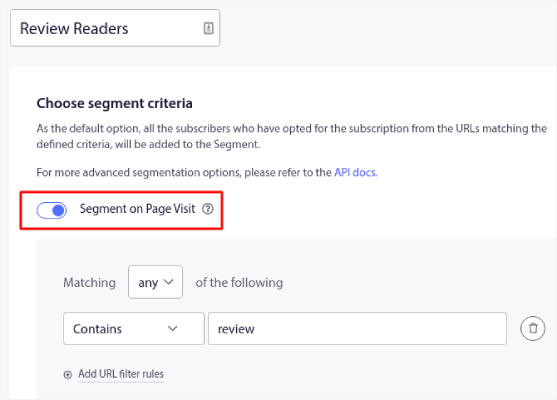
您需要在访客访问特定类别中的产品时对其进行细分:

保存细分

Then, just pair a product with each of your segments. Not all your customers will be interested in the exact same product. You’ll want to find products that are interesting to each customer segment.

Once that’s done, create a drip autoresponder to promote it.

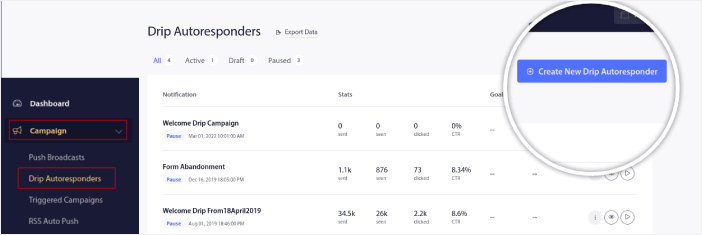
前往您的 PushEngage 控制面板,然后转到 营销活动 » 自动回复邮件 » 创建新自动回复邮件

创建新的自动回复邮件

Go ahead and create separate drips for each segment. If you’re new to push notifications, you should check out our article on how to use eCommerce push notifications for epic campaign ideas.

What to do After You Learn to Use Push Notification Action Buttons

好了,各位,本次分享就到这里!

Once you’ve created a click-on-subscribe button for your site, you should check out our advanced segmentation rules.

Creating granular segments can help you personalize your push notifications to a great extent. This means more engagement, higher clicks, and more sales from your push notification campaigns. Check out these epic resources to get started:

And if you’re new to push notifications, you should try out PushEngage. PushEngage offers some of the most powerful and flexible push notification campaigns anywhere. So, if you’re serious about growing your business, get started with PushEngage today!

添加评论

我们很高兴您选择留下评论。请记住,所有评论都将根据我们的隐私政策进行审核,并且所有链接都将是 nofollow。请勿在姓名字段中使用关键字。让我们进行一次个人化且有意义的对话。

在访客离开您的网站后与他们互动并挽留他们

通过难以忽略的推送通知,增加每次网站访问的价值。

  • 永久免费套餐
  • 轻松设置
  • 五星支持