Improve Product Search in WooCommerce

How to Improve Product Search in WooCommerce (5 Easy Ways)

Looking for a way to improve your product search in WooCommerce?

WooCommerce is an amazing way to build a scalable online store. But their product search is frankly underwhelming. You could be missing out on a TON of sales just because of the default product search in WooCommerce.

So, what can you do? In this article, we’re going to walk you through some very simple, easy ways to supercharge the WooCommerce product search without using a single line of code. And we’re going to do it in 10 minutes or less.

听起来不错?让我们开始吧。

PushEngage是全球排名第一的推送通知插件。免费获取

Why Improve Your Product Search in WooCommerce?

WooCommerce uses the default WordPress search right out of the box. And while WordPress comes with a lot of great features, their search feature isn’t really meant for eCommerce applications.

For example, it doesn’t consider product attributes, gives you no way to control your search results, doesn’t collect any search data, and many more. We recommend using a WooCommerce product search plugin to improve your search engine usability.

With the right search plugin, you can search results from:

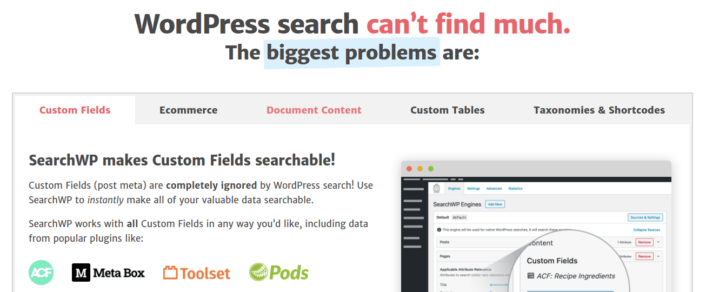
  • 自定义字段(文章元数据),包括 ACF 字段
  • 电子商务产品详细信息、变体和属性
  • 分类、标签、自定义分类法
  • 短代码输出
  • 上传的文档(PDF、.docx、.txt 等)
  • 自定义数据库表内容

And of course, you can also search in the post titles and content as well.

One alternative would be to use a AJAX product search plugin inside your product pages. An AJAX search plugin works like the Amazon autocomplete on your site. But why settle for that when you can create a custom search engine on your site?

当网站访问者在您的网站上搜索内容时,他们实际上是在告诉您他们想要什么。但大多数 WordPress 搜索栏都无法进行深度搜索。而且它们绝对无法帮助您了解访问者在搜索什么。

You need to start using a search plugin that can help you build a custom search engine that serves your website visitors with contextual search results.

We recommend using SearchWP.

SearchWP

SearchWP is one of the best WooCommerce search plugin we know of. 

 You get a huge range of features at an affordable pricing. In fact, SearchWP does everything that all the other plugins in the list can do besides creating a product filter.

The coolest bit is that SearchWP tells you exactly what your website visitors are looking for by maintaining detailed analytics. So, it also helps you create content that your site is currently missing and getting more traffic, engagement, and sales on your site.

Go ahead and read our full review of SearchWP and when you’re done, go ahead and install the plugin.

How to Set Up SearchWP and Upgrade Your Product Search in WooCommerce

SearchWP 是迄今为止最容易设置和使用的搜索插件之一。下载并 安装插件后,您会收到安装确认:

SearchWP 激活消息

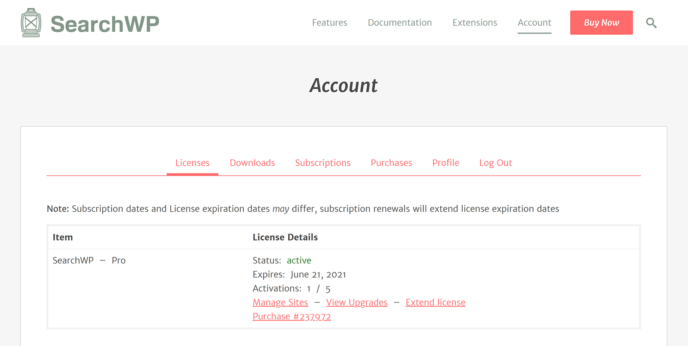
之后,您可以转到 设置 » SearchWP 来设置您的插件。然后点击“许可证”菜单选项:
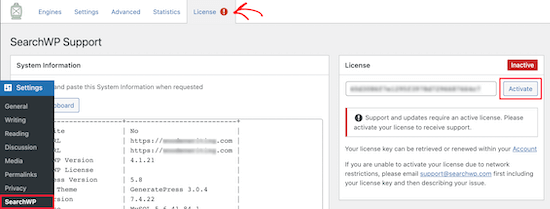
激活 SearchWP

在“许可证”框中输入您的许可证密钥,然后点击“激活”按钮:

激活 SearchWP 许可证

我们稍后会详细介绍设置。但这确实是您入门所需的所有操作。

使用 SearchWP,您需要先创建一个全站搜索引擎,然后才能进一步自定义搜索。

前往 设置 » SearchWP » 引擎:
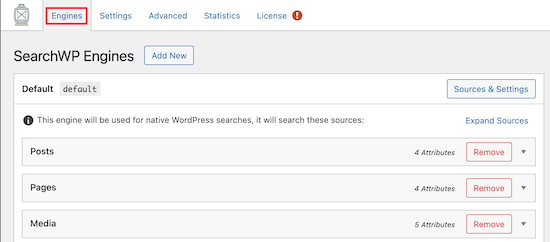
创建新的 SearchWP 搜索引擎

您可以通过点击不同内容类型的下拉菜单来调整搜索引擎设置,包含不同的内容类型。您还可以使用滑块控制搜索引擎为每种内容类型分配多少相关性:
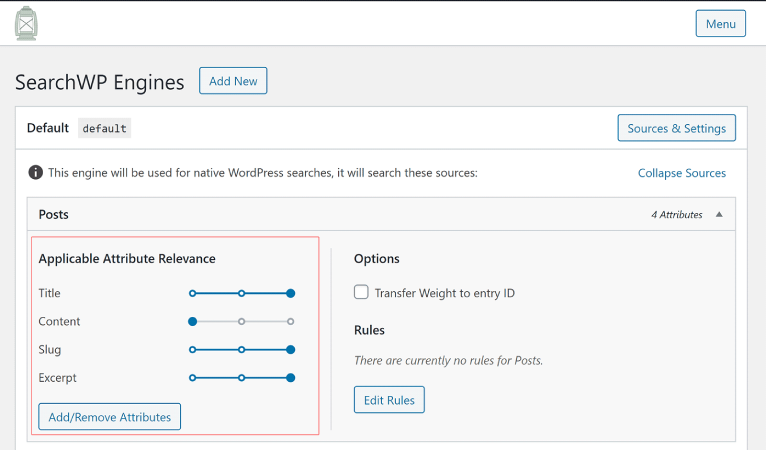
使用滑块调整搜索属性

在我们的示例中,在搜索结果相关性方面,我们更看重文章标题、别名和摘要,而不是实际内容。

完成后,只需点击“保存”。

您刚刚创建的搜索引擎一个非常酷的功能是它使用关键词词干提取而不是精确搜索匹配。这意味着您的用户可以以任何他们喜欢的方式搜索您的内容,即使您的内容不包含精确的搜索短语,他们也能获得上下文相关的结果!

How to Supercharge the Product Search in WooCommerce

Next, let’s check out what we can do to improve the product search in WooCommerce.

#1. Restrict the Product Search in WooCommerce to WooCommerce Products

Once you’ve installed and activated the SearchWP plugin, the first thing you’ll want to do is restrict the product search results to stick to WooCommerce products instead of displaying any post type.

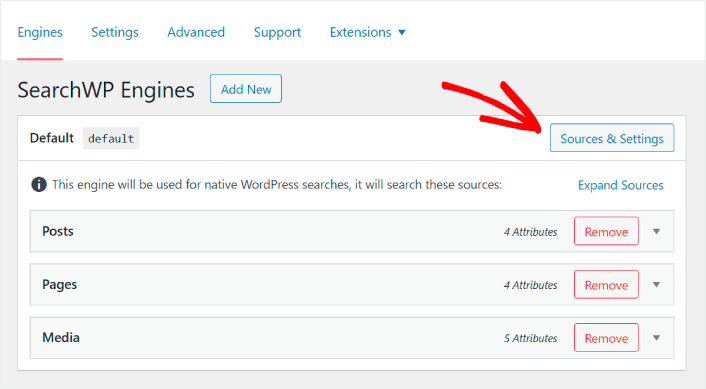
To get started, click the Sources & Settings button under Engines.

SearchWP Sources and Settings

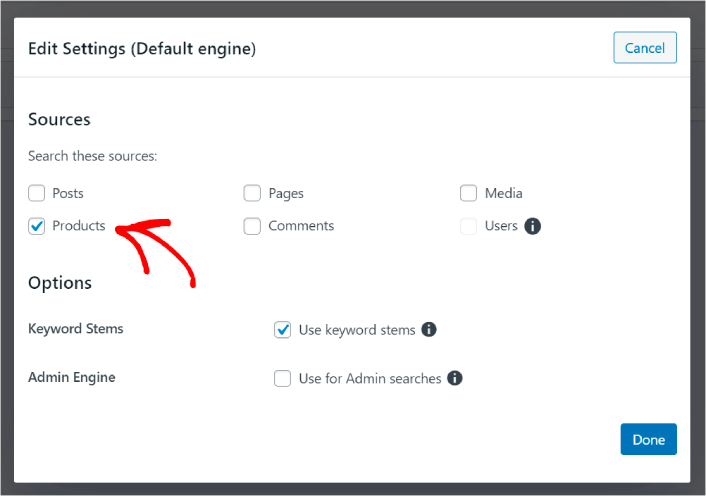
Here, uncheck the boxes next to all search sources except Products.

Product Search in WooCommerce

When you’re finished, hit the Done button to save the changes. And you’re done!

#2. Enable Search by Product Attributes

Let’s also make product attributes for all WooCommerce products searchable. WooCommerce stores these attributes as custom fields anyway. We’re just going to make them searchable.

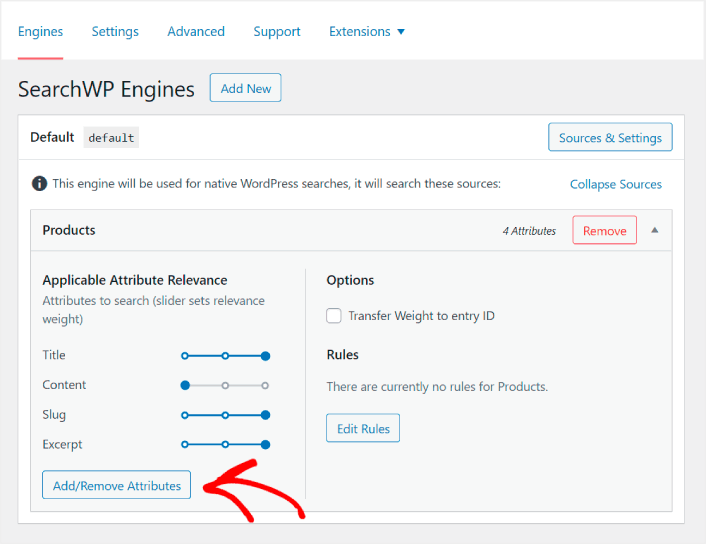
You’ve already set up a search engine for products. So, you can simply continue from the last step. Click the Add/Remove Attributes button to add custom fields.

Product Attribute Search

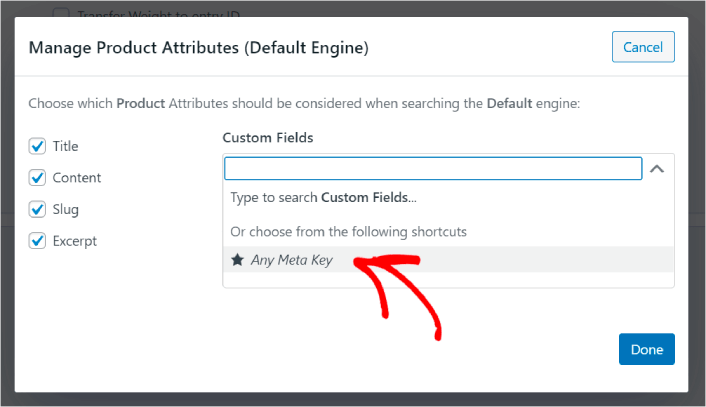
Then, in the Custom Fields dropdown, select the Any Meta Key option.

Manage Product Attributes

This allows you to automatically make any custom fields searchable. And now, your product search engine can search by custom fields such as product attributes.

#3. Enable Search by Product Category

You’ve already seen how to make product attributes searchable. But what about categories? What if your customers aren’t searching for a product, but looking for something in a specific category?

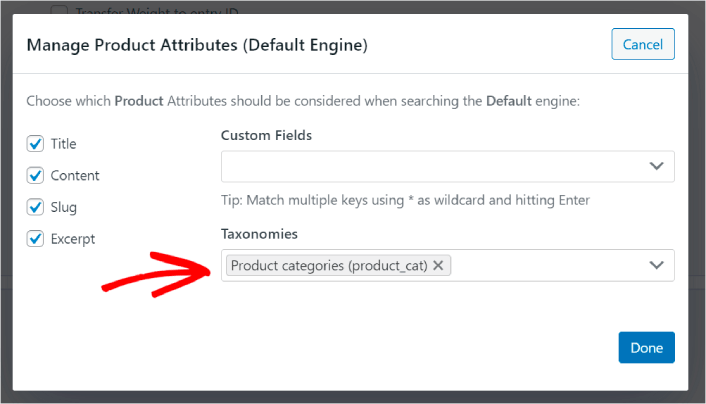
It’s easy. Just keep going from the previous tip. In the same screen under Manage Product Attributes, you’ll see another dropdown labeled Taxonomies. Just select Product Categories from the list.

Allow Product Category Searches

And now, your search engine will allow users to search by category.

#4. Enable Search by Product Tags

You’re not done yet. In the same screen, you can add even more taxonomies in the Taxonomies dropdown. What if your customers aren’t looking for a product or an overall category? What if they don’t know that they want blue and white Air Jordans or even sneakers but they’re looking for blue and white sneakers instead?

That’s when you need to enable product tag searches.

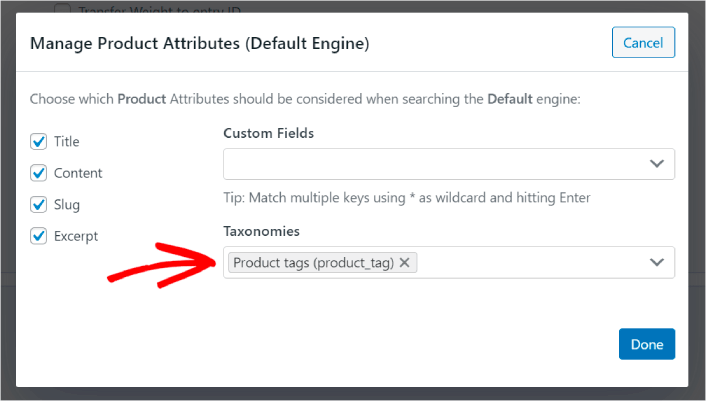
Under Taxonomies, select Product Tags as well.

Allow Product Tag Search

Allowing your product search in WooCommerce to also consider product tags gives it a whole new way to search for products. Not to mention, it also helps your customers find what they’re looking for much faster.

#5. Make Product SKUs Searchable

Finally, we’re going to add one last custom field to the search engine to supercharge it. We’ll allow product SKU searches as well. Stock Keeping Units (SKUs) are a way for eCommerce businesses to quickly identify different products or even similar products.

In a retail outlet, the SKU is usually a bar code. This way, you quickly identify the product variant, size, price, color, type, and manufacturer without even looking at the product.

Mostly, SKUs are used for inventory management in WooCommerce. But it’s also common practice for dropshipping, affiliate, and retail sites to display the SKU for their products in the product description.

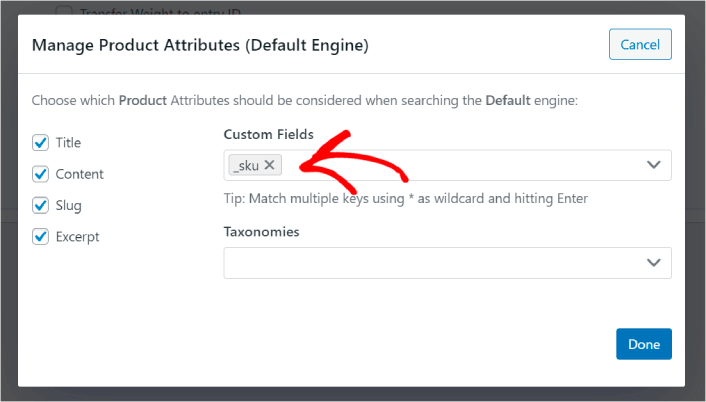
So, to make product SKUs searchable, all you need to do is add another Custom Field into your Product Attributes settings. Just type in ‘_sku’ and SearchWP will automatically take care of the rest.

Allow Product SKU Searches

And you’re good to go!

What to Do After Improving Product Search in WooCommerce

Now that you’ve improved the product search in WooCommerce, all your products are ready to make you money. It’s time to focus on bringing traffic, engagement, and sales from your content next.

And if you’re looking for new ways to get traffic, engagement, and sales, push notifications can be super useful for your site.

If you’re not 100% convinced, you should check out these resources on how to effectively use push notifications:

我们建议使用PushEngage来创建您的推送通知广告系列。PushEngage是全球排名第一的推送通知软件。所以,如果您还没有,请立即开始使用PushEngage

添加评论

我们很高兴您选择留下评论。请记住,所有评论都将根据我们的隐私政策进行审核,并且所有链接都将是 nofollow。请勿在姓名字段中使用关键字。让我们进行一次个人化且有意义的对话。

在访客离开您的网站后与他们互动并挽留他们

通过难以忽略的推送通知,增加每次网站访问的价值。

  • 永久免费套餐
  • 轻松设置
  • 五星支持