How to Add a Push Notification Icon

如何添加您的推送通知图标(简单方法)

Looking for a quick way to add and edit your push notification icon?

It’s actually super easy. The notification icon tells your subscribers who you are. It’s a brand mark on each push notification you send. And that can be priceless because it helps your audience remember your brand.

The cost of making sure that each push notification you send helps you become more memorable? Less than 5 minutes.

In this article, we’re going to show you how to add and edit your push notification icon. And like we said, it’s super easy.

让我们开始吧。

Why Add a Push Notification Icon?

A push notification icon is a small, distinctive image that represents an app on a user’s device. It appears alongside push notifications to visually identify the source app of the message or alert.

This icon helps users quickly recognize which app or website is communicating with them without having to read the notification’s text.

Adding a push notification icon is a smart move for a few reasons:

  1. Recognition: Just like seeing a familiar face in a crowd, we instantly recognize icons. When your app sends a notification, the icon acts like a little wave, saying, “Hey, it’s me!” This helps users quickly identify which app is calling for their attention.
  2. Branding: Your icon is like a tiny billboard for your app. It’s a part of your brand identity. Each time users see it, they’re reminded of your app. This can help keep your app top-of-mind.
  3. User Experience: Users often have many apps installed, and it can be a real jumble. A unique icon helps them manage their notifications more efficiently. They can see at a glance which notifications they want to check out first.
  4. Professionalism: An app with its own notification icon looks more polished and professional. It shows that you’ve put thought into even the small details, which can improve overall user satisfaction.
  5. Functionality: Sometimes, the icon can also convey additional information. For example, a messaging app might show different icons for a new message vs. a missed call. This adds an extra layer of functionality and user convenience.

So, a push notification icon might be small, but it plays a big role in how users interact with your app and perceive it!

How to Add a Push Notification Icon

Now that we understand what a push notification icon is and why you should add it, let’s check out how you can add it easily without any coding at all.

第 1 步:选择一个推送通知服务

Push notifications are a marketing tool that helps you to connect with web visitors even after they leave your website. You can send targeted notifications to your push subscribers and even personalize your notifications for difference customer segments. But which push notification service should you choose?

We recommend using PushEngage to send push notification campaigns.

PushEngage 推送通知服务

PushEngage 是世界上最好的推送通知服务。我们不仅仅是指免费版本。它允许您通过定向推送消息在访问者离开您的网站后与他们建立联系。

PushEngage 是我们推送通知服务和工具的首选,因为它:

  • 易于使用
  • 在 HTTP 和 HTTPS 网站上均有效
  • 附带可视化构建器,设置所需编码很少或无需编码
  • 轻松设置完全 自动化的推送通知广告系列 ,适用于任何类型的网站
  • 提供多种选项,可发送个性化推送通知以提高点击率
  • 配备自定义目标跟踪、UTM 参数和高级分析功能

这仅仅是冰山一角。在继续之前,请查看 PushEngage 的完整功能列表。

PushEngage 最令人称奇的部分是它有一个永久免费套餐,您可以在做出购买决定之前进行试用。

专业提示:在购买任何服务之前,请查看我们关于推送通知成本分析的文章。

Step #2: Install the PushEngage Plugin

Once you’re done creating your account, head over to the PushEngage dashboard and follow along:

PushEngage 仪表板

点击 网站设置 » 网站详细信息,然后点击 点击此处获取设置说明 按钮:

PushEngage 安装设置

点击 WordPress 选项卡,然后点击 安装 PushEngage WordPress 插件 按钮将插件安装到您的网站上。 

PushEngage WordPress 安装

Here’s the cool part: When you created your PushEngage account, you already synced your website with your PushEngage account. So, click on the installation link in the PushEngage dashboard to automatically install the PushEngage WordPress plugin to your website.

And you’re done! You have successfully set up a web notifications WordPress plugin on your website. You don’t have to login to your WordPress admin panel at all. For a more detailed guide, check out our article on how to install web notifications on WordPress.

Step #3: Add or Edit Your Push Notification Icon

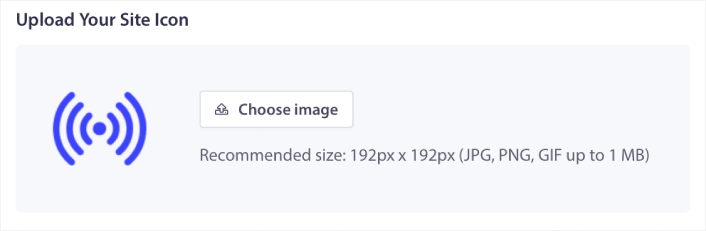
Go back to your PushEngage dashboard. Click on Site Settings » Site Details and under Upload Your Site Icon, you can upload an image:

Upload Push Notification Icon

The image you upload is your push notification icon. Keep the dimensions of the image at 192px x192px for the best results and make sure that the image size is less than 1MB. You can use a JPG, PNG, or even a GIF for animated brand marks. Just makes sure that the icon is consistent with brand marks that you use on social network sites.

If you need to edit your icon later, this is where you do it. Simply upload a different image and you’re done!

Step #4: Send a Test Notification to Check Your Notification Icon

We recommend creating a website welcome message to test your push notifications. Welcome push notifications are great for:

  • 确认: 您要确认您的新订阅者确实已订阅您的网站推送通知。
  • 重新互动: 欢迎活动是让您的订阅者返回您网站的好方法。
  • 销售: 您可以为新订阅者提供包含折扣、免费赠品和 优惠券 的欢迎优惠。

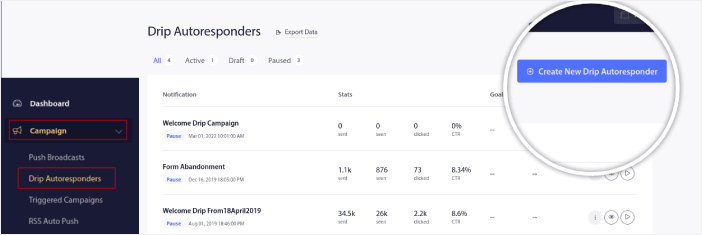
现在就来创建一个欢迎推送通知活动吧。前往您的 PushEngage 仪表板,然后转到活动 » 自动回复 » 创建新的自动回复

创建新的自动回复邮件

为您的自动回复活动命名,以便您轻松记住。然后,设置第一个推送通知,在访问者订阅您的推送通知后立即发送。

创建欢迎邮件系列

您可以编辑通知,为您的欢迎消息创建自定义内容。完成后,点击添加新通知按钮,将更多通知添加到序列中。您可以编辑新通知并设置每个通知之间的自定义延迟。
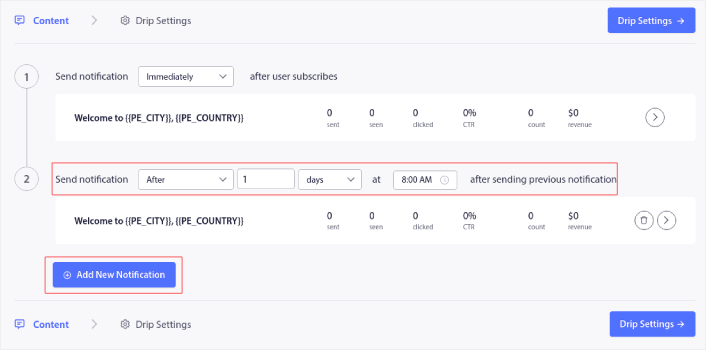
为欢迎邮件系列添加新通知

您可以添加任意数量的通知,但我们建议创建包含 5-7 个通知的欢迎自动回复。

之后,在自动回复设置中选择您的受众:
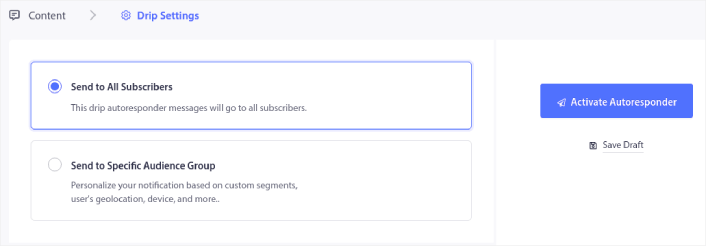
选择自动回复邮件受众

You can send different welcome drips for different segments by using the Send to Specific Audience Group option. This is especially useful when you’re segmenting visitors when they opt for push notifications.

When you’re happy with your targeting, click on the Activate Autoresponder button.

您就完成了!

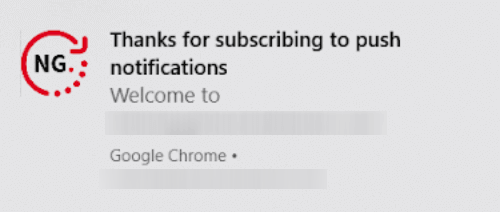
If your push notifications were installed correctly, you should see a welcome notification like this one:

欢迎推送示例

And as you can see, the notification icon is pretty prominent in our example!

If you’re new to push notifications, you should follow a full-blown push notification testing process before you go live. It’ll help you troubleshoot common issues with the functionality before your visitors see them and start complaining about a broken user experience.

What to do After You Add a Notifications Icon

Now that you know how to add a push notification icon, it’s time for you to start creating your own campaigns. But before you get started with the campaigns, you should study some great push notification examples first.

如果您是推送通知的新手,在开始创建广告活动之前,应该先阅读我们关于 推送通知最佳实践 的文章。我们积极推荐的一些最佳实践包括:

我们建议使用 PushEngage 来创建您的推送通知广告系列。PushEngage 是市场上排名第一的推送通知软件,您的广告系列将得到妥善处理。

所以,如果您还没有,请立即开始使用 PushEngage

添加评论

我们很高兴您选择留下评论。请记住,所有评论都将根据我们的隐私政策进行审核,并且所有链接都将是 nofollow。请勿在姓名字段中使用关键字。让我们进行一次个人化且有意义的对话。

在访客离开您的网站后与他们互动并挽留他们

通过难以忽略的推送通知,增加每次网站访问的价值。

  • 永久免费套餐
  • 轻松设置
  • 五星支持