
正在寻找为您的网站添加推送通知的方法?Google Tag Manager 提供了一种超级便捷的方式来帮助您为任何网站添加推送通知。GTM 推送通知的运作方式与常规推送通知完全相同。
将 Google Tag Manager 视为一个容器,用于放置您所有的跟踪脚本。
任何网站至少都需要衡量和跟踪访问者分析。因此,您必须在网站的 HTML 代码中放置一个跟踪脚本来完成此操作。如果您在 Facebook 和 Google 上投放广告系列,也需要在您的网站上放置相应的跟踪脚本。
Google Tag Manager 只需提供一个易于使用的界面,即可在您的网站上放置跟踪脚本,而无需编辑任何 HTML 代码。而且,您可以从一个仪表板轻松管理多个跟踪链接。
在本文中,我们将在 10 分钟内帮助您安装 GTM 推送通知。
让我们开始吧。
如何安装 GTM 推送通知
安装 GTM 推送通知是一个非常快速简便的过程。只需按照以下步骤操作,阅读完本文后,您应该就能像这样从您的网站发送推送通知了:

使用 Google Tag Manager 进行此操作的好处是您根本不需要使用任何代码。您也不需要编辑您网站的 HTML 来安装推送通知。
让我们开始吧。
第 1 步:设置您的 PushEngage 帐户
访问 PushEngage 主页,然后点击 开始使用 按钮:

您可以选择免费套餐来试用 PushEngage,或者如果您想认真发展您的业务,可以选择付费套餐。付费套餐提供更多广告系列选项,并能够建立更大的订阅者列表。
注册账户后,请前往 PushEngage 仪表板并转到 设置 » 网站设置 » 安装设置:
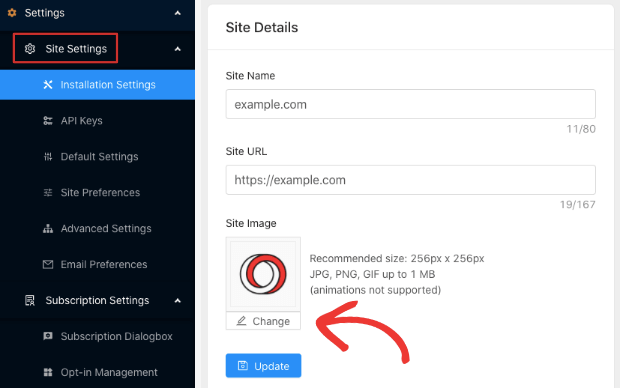
在这里你可以配置你的网站详细信息和品牌。请立即设置你的推送通知的徽标和网站 URL。你应该立即这样做,以便能够正确测试你的推送通知。
第 2 步:从 PushEngage 获取安装代码
接下来,您需要前往 PushEngage 仪表板并获取安装代码。转到 设置 » 网站设置 » 安装设置:
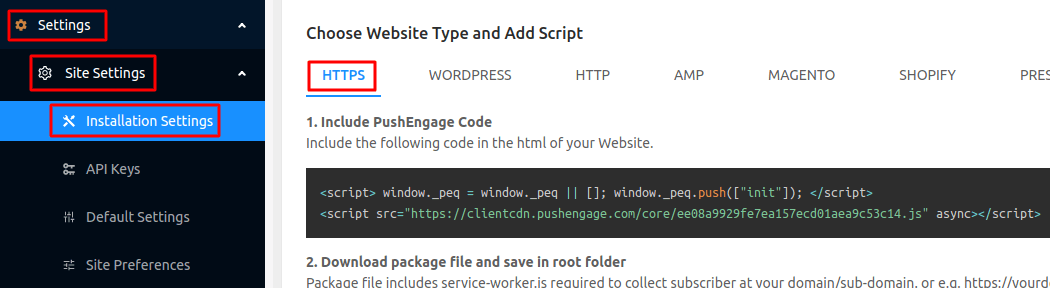
根据您的网站是否安装了 SSL 证书,选择 HTTP 标签或 HTTPS 标签以获取您的安装代码。
复制此代码。稍后您将需要它。
第 3 步:在您的 GTM 帐户中放置安装代码
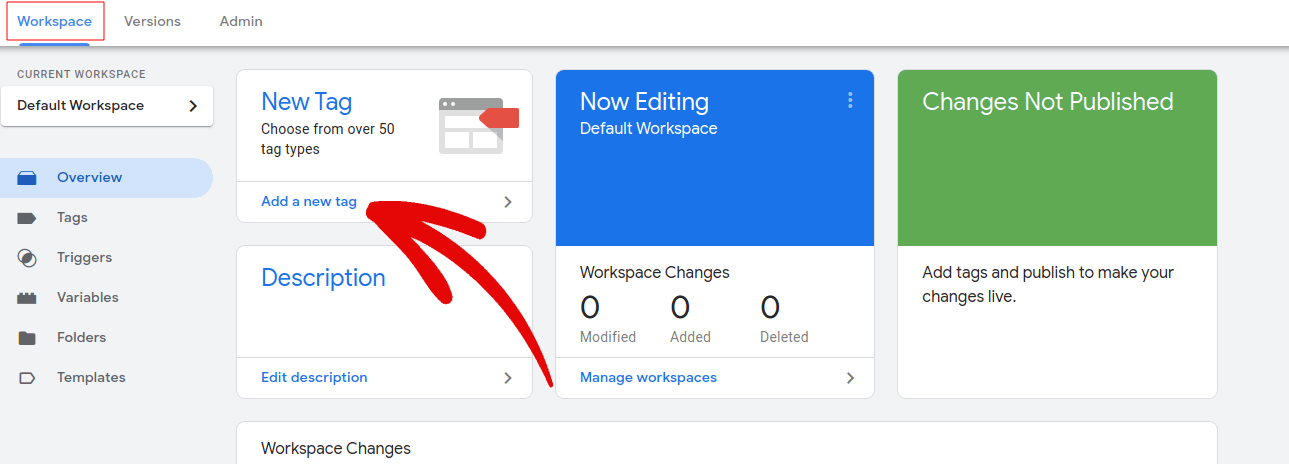
登录您的 Google Tag Manager 并选择您的网站。然后,点击“新建代码:”
并为您的代码命名,以便识别。然后,点击“代码配置”:
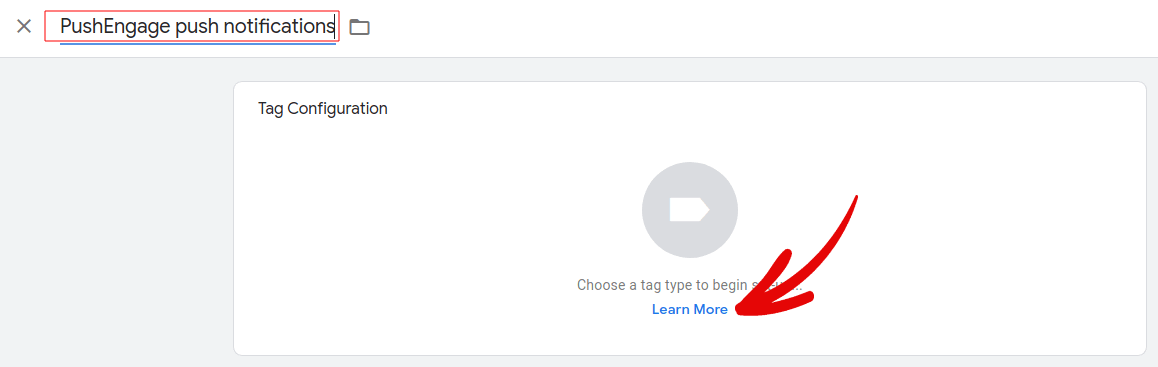
选择“自定义 HTML 代码”开始:
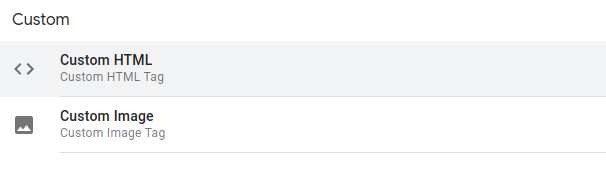
在代码编辑器中,粘贴您的 PushEngage 代码段:
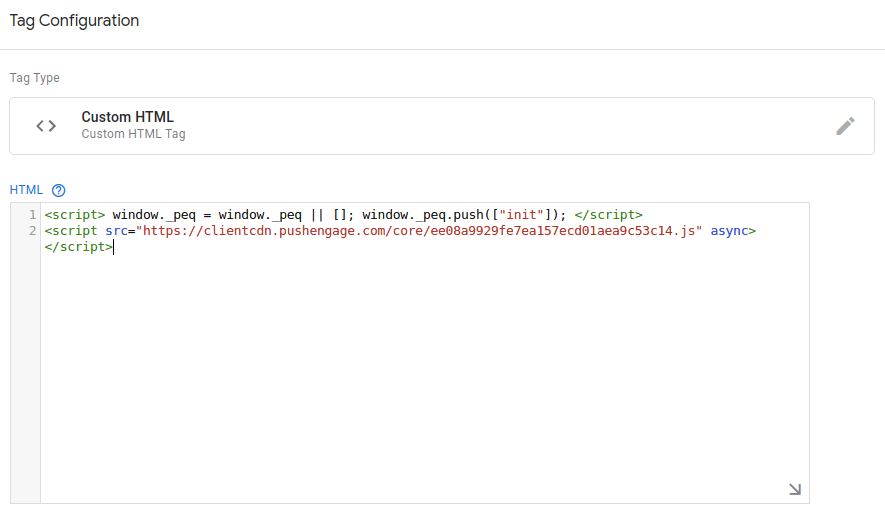
您可以随时自定义触发事件,或者默认在所有页面上触发它们。
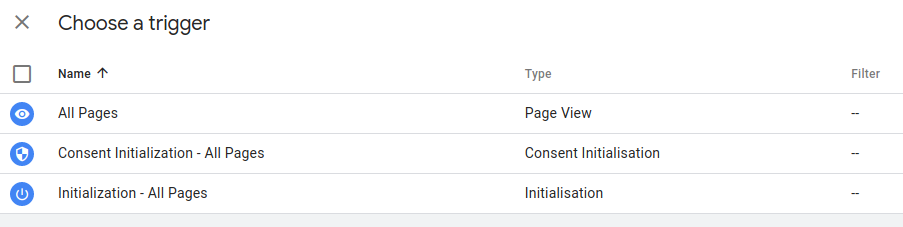
完成后,单击保存。
第 4 步:配置 PushEngage 选择加入
最后,在您的 PushEngage 仪表板中,转到 设置 » 订阅设置 » 订阅对话框 » 编辑:
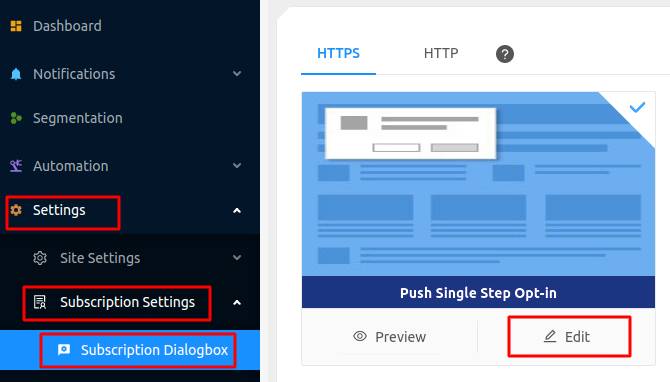
您可以在此处自定义推送通知选择加入。如果您需要帮助,可以查看这篇关于如何创建自定义推送通知选择加入的文章。
如果您需要一些灵感,可以查看这篇关于高转化率的推送通知选择加入的文章。
第 5 步:创建欢迎通知
完成选择加入设置后,您的网站就可以收集订阅者了。
但是,您如何知道您的推送通知是否正常工作?
我们建议您 创建欢迎推送通知 来测试您的设置是否顺利。欢迎通知是您发送给新订阅者的推送通知,以确认他们的订阅并欢迎他们加入。
转到 设置 » 网站设置 » 安装设置 并配置您的欢迎消息:
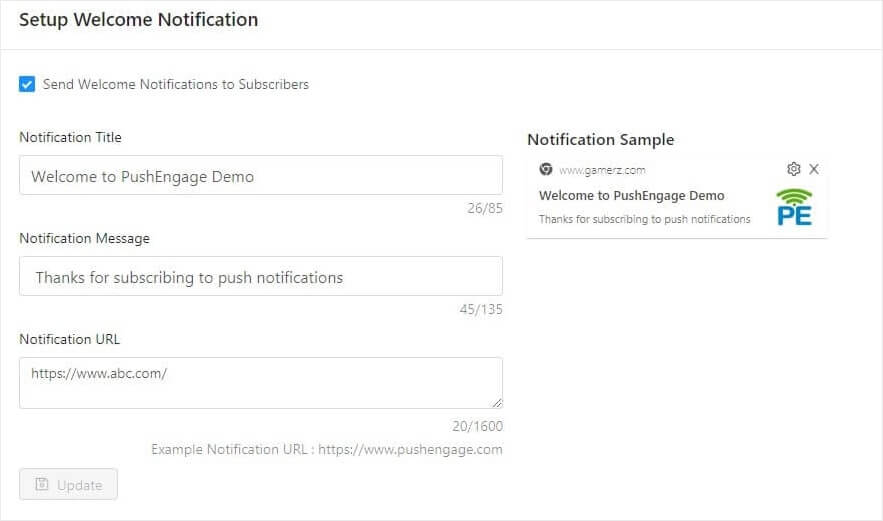
最后,回到您的网站并选择您自己的推送通知,以测试一切是否顺利。
就这样!
您已成功在您的 Blogger 博客上设置了推送通知。现在是时候返回您的 PushEngage 仪表板,开始创建您的 推送通知广告系列了。
总结
好了,各位,本次分享就到这里!
如果您是推送通知新手,在上线之前,您应该遵循一个完整的 推送通知测试 流程。这将帮助您在访问者看到它们并开始抱怨糟糕的用户体验之前,排除常见问题。
如果您还没有尝试过PushEngage,现在就去试试吧。PushEngage是全球排名第一的推送通知服务。所以,如果您想认真发展您的业务,就应该投资PushEngage。


