
正在为您的 Instapage 网站添加推送通知的简单方法?
这是一个非常棒的主意。Instapage 是一个网站构建器,可让您创建即时网页。创建网站并开始销售产品或服务非常容易。
但是一旦您的网站上线,您如何获得流量?如何建立参与度?如何获得更多销售额?
这就是推送通知作为营销工具可以非常有效的原因,因为它们可以在不运行付费广告的情况下产生重复流量和销售。您还可以创建自动化营销活动,只需很少的精力即可提高参与度和销售额。
在本文中,我们将一步一步地向您展示如何在 10 分钟内为 Instapage 网站添加推送通知。
让我们开始吧。
如何在 Instapage 上安装推送通知
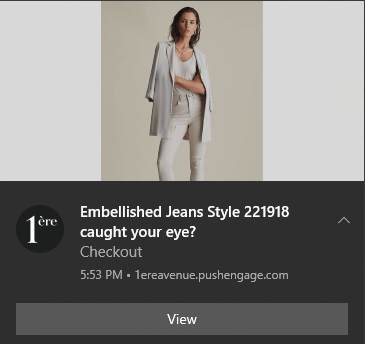
为 Instapage 网站添加推送通知非常简单。只需按照本文中的步骤操作。如果您遵循每一个步骤,在本文结束时,您应该能够发送如下推送通知:
开始吧!
第 1 步:设置您的 PushEngage 帐户
前往 PushEngage 主页,然后点击“开始使用”按钮:

您可以免费试用 PushEngage。如果您经营一个需要重复流量和参与度的小型博客,这可能就足够了。但如果您对销售很认真,您应该购买企业套餐并解锁 自动活动。
注册您的 PushEngage 帐户后,请前往您的 PushEngage 仪表板,然后转到 设置 » 网站设置 » 安装设置:
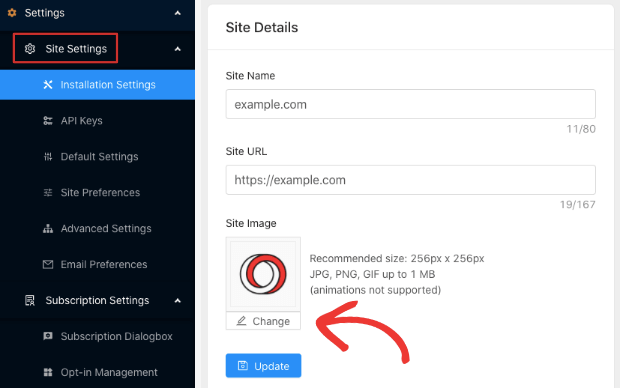
您可以在此处设置您的徽标、网站名称和网站 URL。现在就处理好这些事情非常重要,这样您以后才能测试整个设置。
第 2 步:从 PushEngage 获取安装代码
要安装推送通知,您需要从您的 PushEngage 仪表板获取安装代码。前往 设置 » 网站设置 » 安装设置:
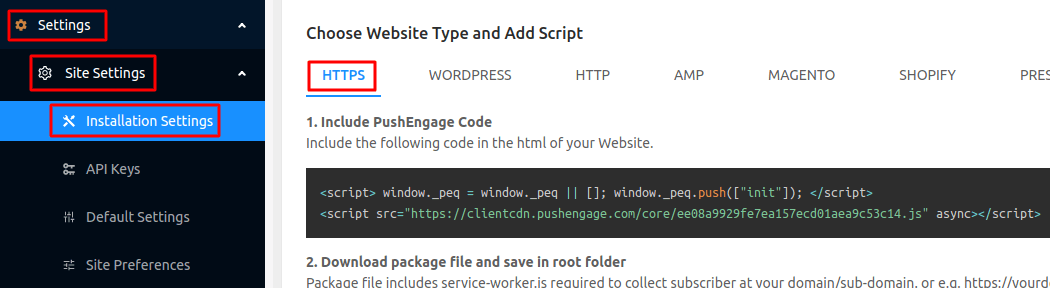
根据您的网站是否安装了 SSL 证书,选择 HTTP 标签或 HTTPS 标签以获取您的安装代码。
复制此 Javascript 代码片段。您很快就会用到它。
第 3 步:将安装代码放在您的 Instapage 网站上
登录您的 Instapage 仪表板,在网站构建器中,转到“设置”并单击“Javascript”:
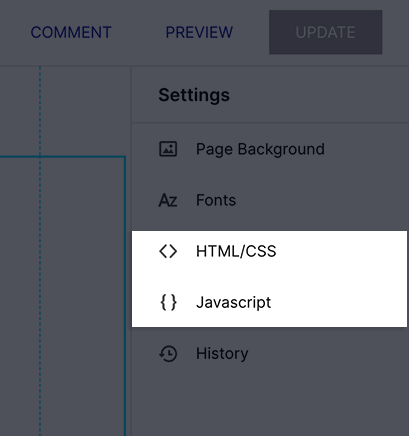
然后,只需在弹出窗口中粘贴您从 PushEngage 仪表板获取的代码段即可:
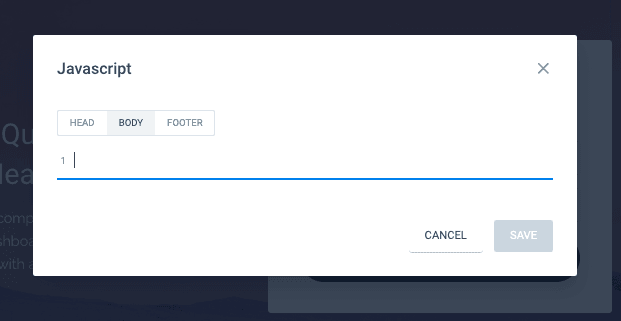
这通常是您放置 Google Analytics 代码、Facebook Pixel 和其他跟踪代码的地方。完成后,点击“保存”。
第 4 步:配置 PushEngage 订阅选项
现在,返回您的 PushEngage 仪表板。转到 设置 » 订阅设置 » 订阅对话框 » 编辑:
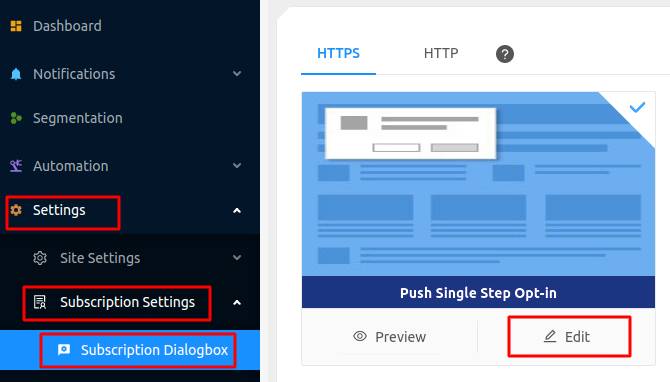
这里的想法是为您的访问者提供订阅的充分理由。如果您需要这方面的帮助,请查看我们关于 如何创建自定义推送通知选择加入的文章。
如果您想获取一些入门模板,您应该查看这篇关于 高转化率推送通知订阅选项的文章。
第 5 步:创建您的第一个营销活动
现在您的 Instapage 网站可以发送推送通知了,您应该创建一个实际的营销活动。
由于您很可能要在着陆页上销售产品,让我们为您的商店设置一个 废弃购物车提醒。
废弃购物车营销活动通过转化废弃的购物车来帮助产生额外收入。这是一个简单的提醒,可以自动销售大量产品。因此,它非常适合支持任何带来直接销售的着陆页。
只需前往您的 PushEngage 控制面板,然后转到 自动化 » 购物车放弃 » 创建购物车自动回复器:
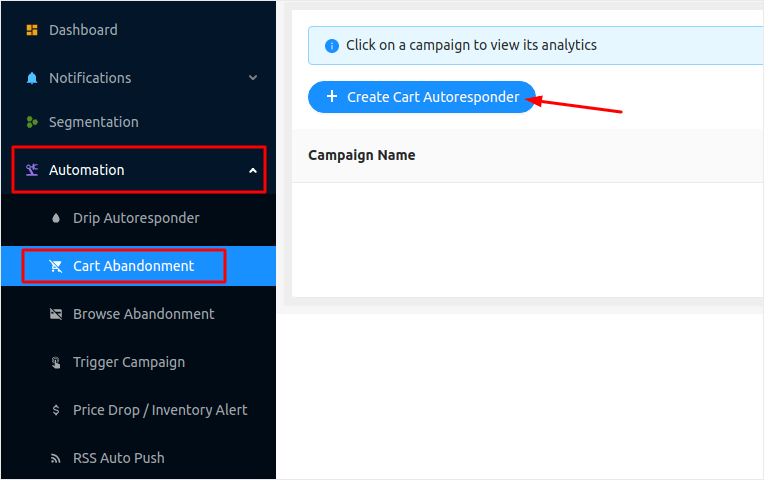
如果您是创建自动化营销活动的新手,可以简单地参考我们关于如何设置废弃购物车推送通知营销活动的文章。请遵循每个步骤,您就可以设置像这样的推送通知:
以防您想知道,您的推送通知营销活动不必是家喻户晓的品牌才能有效。事实上,PushEngage 的创建就是为了帮助小型企业通过推送通知实现增长。
但在您开始营销您的着陆页之前,您应该修复推送通知订阅过程中的任何问题。查看这篇关于 测试您的推送通知 的文章。如果一切正常,您就完成了!
总结
好了,各位,本次分享就到这里!
您刚刚为您的 Instapage 网站添加了推送通知。然后,您创建了一个强大的推送通知营销活动来促进您的增长。所有这些,都在 10 分钟内完成!
查看如何创建自动化推送通知营销活动。大多数推送营销活动都简单有效。因此,我们建议为您的网站设置多个营销活动。以下是一些可以开始的优秀营销活动:
如果您还没有开始,请立即开始使用 PushEngage。PushEngage 是全球排名第一的推送通知软件。因此,您的营销活动是安全的。


