你好,Engagelings。
Exciting news: we just added a MAJOR upgrade to RSS push notifications on PushEngage.
We launched RSS autopush campaigns a while back and it became super popular. But, there were limitations to what you could do with RSS notifications. So, we’ve added some more powerful features to our RSS feed campaigns.
Here’s a quick look at the highlights:
- Create multiple RSS feed
- Start/Pause/Delete your RSS push notifications any time you want
- Add a large image for your RSS feeds
- Dynamically select the large image for your RSS feed push notifcations
- Set a notification icon dynamically from the RSS feed or upload your brand icon
- Automatically promote your latest content by scraping the RSS feed in intervals you decide
- Select the audience group you want to target for better personalization
- Add notification expiry rules
- Set custom UTM Parameters
- Get detailed campaign analytics for each RSS feed campaign
We’ve also made it super easy to use. A lot of work went into this upgrade and we think that you’ll love it. It’s also a major update, so there’s a LOT to unpack.
让我们开始吧。
Why Send RSS Push Notifications?
不断创作内容和管理博客是一项艰苦的工作。但如果您经营着一家严肃的企业,您就会知道,仅仅创作内容是不够的。您还必须能够推广您的内容。
而推送通知是经济高效地获取订阅者的绝佳方式。推送通知之所以成为一种出色的营销工具,是因为它们可以完全自动化。
这就是 RSS 推送通知发挥作用的地方。
如果设置了正确的 RSS 推送通知,那么每次在您的网站上发布内容时,您的订阅者都会自动收到一条将他们引至您内容的推送通知。
Make no mistake, though. RSS push notifications are still less personal than other automated push notification campaigns. So, we recommend using a mix of different campaigns to maximize your growth. For instance, you need to enable eCommerce push notifications if you’re running an eCommerce site.
Create Multiple RSS Feed Notifications
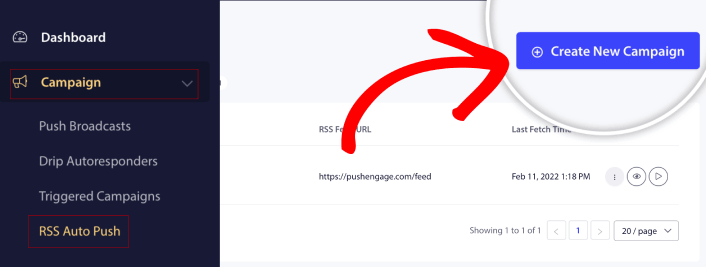
Once you’ve installed PushEngage on your site, head over to your PushEngage dashboard and go to Campaign » RSS Auto Push and click on Create New Campaign:

With this new upgrade, you can now create and send multiple RSS feed notifications for different segments and Audience Groups. Your site doesn’t have only one RSS feed. You can create RSS feeds for each category of content on your site.
And it takes very little time to do. But creating multiple feeds allows you to send more personalized RSS push notifications.
Let’s say that you have three audience groups that care only about supercars, bikes, and trucks respectively. You can easily create different RSS feed URLs for each category and send your subscribers push notifications about content that they actually care about.
The result? You’ll see a spike in your site engagement even with a simple RSS autopush campaign!
Start, Pause, and Delete Your RSS Campaign Any Time
The biggest problem with RSS campaigns, even email RSS campaigns, has been scheduling. It’s super difficult to control how many posts you send. And it was even more difficult to pause your campaigns.
Until now!
With PushEngage, you can easily start, pause, or delete any RSS feed campaign at any time. This is a super useful feature if you’re running multiple campaigns.
Let’s say you’re running a Black Friday push notification campaign. Your subscribers should focus only on your promotional offers. But at the same time, you can’t stop publishing new content until the holiday season is over. That’s a great time to hit pause on your RSS feed campaigns.
Since you can run multiple RSS campaigns now, you can even keep sending regular content to subscribers that you aren’t targeting with your promo.
Easy Image Customization Options
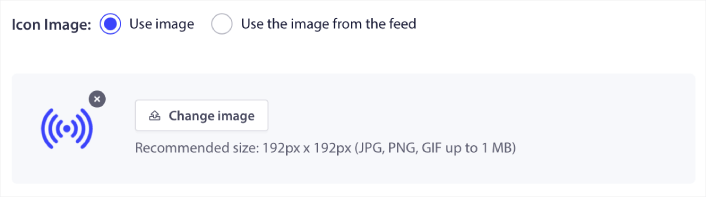
You can customize both the notification icon and the notification’s large image directly from your RSS feed. For the notification icon, you can either upload the icon manually:

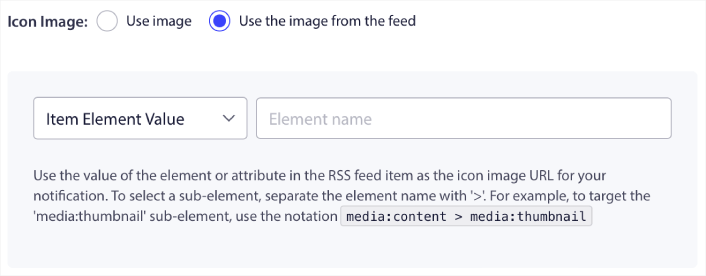
Or, you can set up a pattern for PushEngage to dynamically scrape the notification icon from your RSS feed:

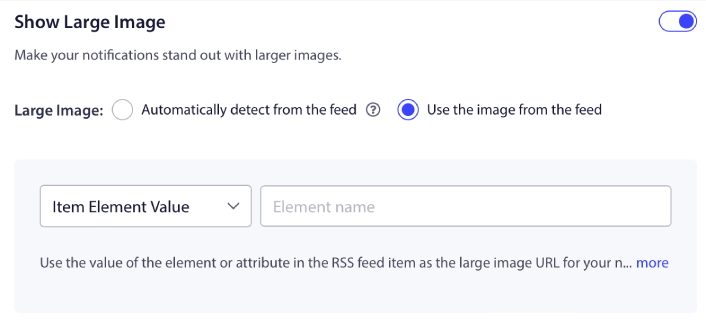
Similarly, you can either allow PushEngage to automatically find the large image for your posts:

Or, you can customize the kind of large image you want by fetching it from your RSS feed:

CAUTION: Only use the advanced image scraping options if you’re able to read the XML in an RSS feed. If you’re not comfortable with XML, you should let PushEngage decide your notification large image for you and you should manually upload the notification icon.
Set RSS Notification Frequency
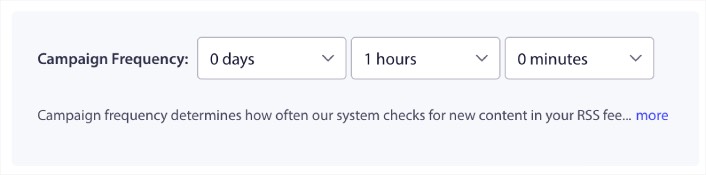
You can also set the Campaign Frequency for each RSS campaign:

广告系列频率是指 RSS 供稿广告系列检查您博客中新内容的频率,以便发送自动推送通知。最小值是 15 分钟,最大值是 7 天。
除非您是新闻机构,否则我们建议每 2 天查找一次要推广的内容。对于新闻机构,您应将其限制在 15 分钟。请记住,一旦您设置并发布了 RSS Feed 广告系列,PushEngage 才会查找新内容。
设置推送通知时长
推送通知的持续时间是指通知在您的订阅者通知托盘中保留多长时间后会被自动删除。
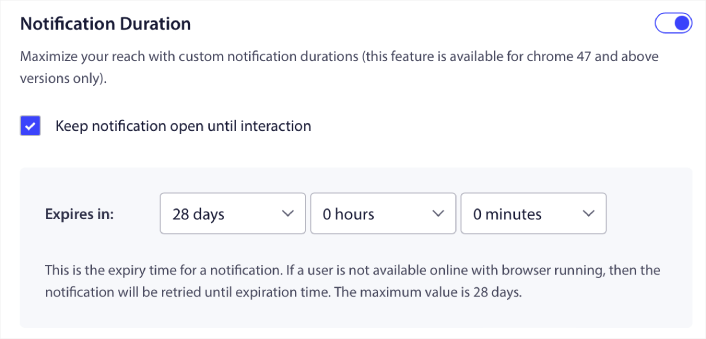
如果您不想让订阅者被大量未读通知淹没,最好让推送通知在几天后过期。
Unlike broadcast notifications or even other automated push notifications, you can’t really schedule RSS push notifications by timezone or a specific sending time. So, you always have the option to keep the notification open until your subscriber interacts with it, even within the expiry limit.
Set UTM Parameters to Track Your Notifications
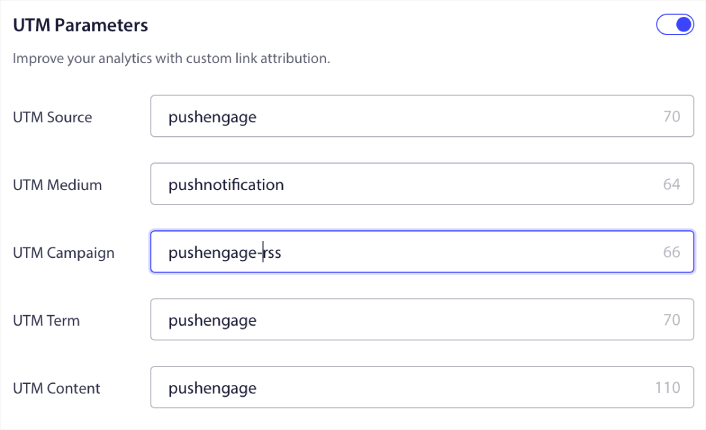
You can also set up UTM parameters to track the push notifications:

This way, you can attribute your traffic from these push notifications easily in Google Analytics. Of course, you can also get detailed analytics for your entire campaign right from your PushEngage dashboard.
Target a Specific Audience Group
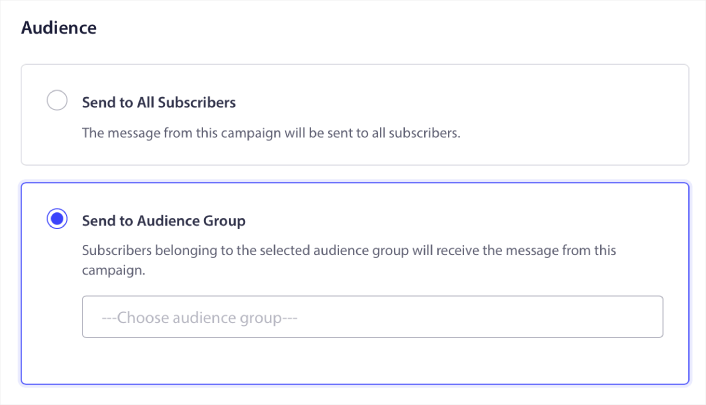
The biggest upgrade to RSS push notifications is your option to select an Audience Group to send targeted notifications. You can either send the RSS feed campaign to all your subscribers, or you can create Audience Groups to send personalized push notifications even from your RSS feed.

Now, you can still send out automated push notifications by setting them up once. But it’s even better because you can choose what kind of content you want to promote to specific audiences.
还有什么?
我们知道发展业务是一项艰苦的工作。 在 PushEngage,我们始终致力于改进我们的产品和您的体验。我们推出了这项新功能,以帮助您从 PushEngage 订阅中获得更多价值。
非常感谢您阅读此公告。
如果您有任何疑问,我们的客户成功团队随时为您提供帮助。只需在实时聊天中发起对话或查看 我们的联系页面。
And thank you for using PushEngage. Whether you’re using the free version or the Enterprise version, you’re just as important to us. The new RSS autopush features are meant to help you succeed and we wish you all the very best.
在下面的评论中告诉我们您的想法,如果您还没有开始,请立即开始使用 PushEngage!