
Anında bildirim oluşturmanın ve anında bildirim aboneleri toplamanın bir yolunu mu arıyorsunuz?
Anlıyoruz. Bazen abonelerinizi büyütme şeklinizde biraz esnekliğe sahip olmak çok daha uygundur.
Endişelenmeyin. Size yardımcı olacağız.
Bu makalede, kendi anında bildirimlerinizi nasıl oluşturacağınızı adım adım göstereceğiz.
Hazır mısınız? Başlayalım.
WordPress'te Anında Bildirim Oluşturma
WordPress'te anında bildirim oluşturmadan önce, anında abone toplamak için bir açılış sayfası oluşturmanız gerekir. Açılış sayfalarınızı oluşturmak için SeedProd kullanmanızı şiddetle tavsiye ederiz.

SeedProd, en iyi WordPress açılış sayfası oluşturucusudur. Geliştirme becerisi olmayan yüksek dönüşüm sağlayan açılış sayfaları oluşturmak isteyen işletmeler, blog yazarları ve web sitesi sahipleri için mükemmeldir.
SeedPreed ile, anında yayınlayabileceğiniz yüksek dönüşüm sağlayan açılış sayfaları için önceden oluşturulmuş şablonlar elde edersiniz. Bu, şunlar için şablonları içerir:
- Satış sayfaları
- Yakında gelecek sayfalar
- 404 sayfaları
- Bakım sayfaları
- Sıkıştırma sayfaları
- Teşekkür sayfaları
- Web semineri sayfaları
- Video sayfaları
Ve çok daha fazlası!
Adım #1: SeedProd'u Yükleyin ve Etkinleştirin
Öncelikle, SeedProd Pro eklentisini alıp etkinleştirmeniz gerekecek. Bunu nasıl yapacağınızdan emin değilseniz, bir WordPress eklentisinin nasıl kurulacağına dair bu makaleye göz atın. Ardından, WordPress kontrol panelinizde SeedProd » Ayarlar bölümüne gidin ve Pro sürümünü etkinleştirin:

Son olarak, SeedProd’un açılış sayfası kontrol paneline genel bakış için SeedProd » Sayfalar bölümüne gidin. SeedProd ile oluşturabileceğiniz farklı türdeki açılış sayfalarını burada görebilirsiniz:

Bunların hepsinin önceden oluşturulmuş işlevsellik ve tasarım şablonlarına sahip özel sayfalar olduğunu unutmayın. Bir açılış sayfası için bu özel açılış sayfalarından HİÇBİRİNİ kullanmak istemezsiniz. Bunun yerine özel bir açılış sayfası oluşturacaksınız.
Başlamak için daha aşağı kaydırın ve Yeni Açılış Sayfası Ekle düğmesine tıklayın:

Adım #2: Anında Bildirimler İçin Yeni Bir Açılış Sayfası Oluşturun
Yeni Açılış Sayfası Ekle düğmesine tıkladıktan sonra, SeedProd'un açılış sayfası şablonları kütüphanesini göreceksiniz. Bunlar tamamen duyarlı, profesyonelce tasarlanmış açılış sayfası şablonlarıdır.
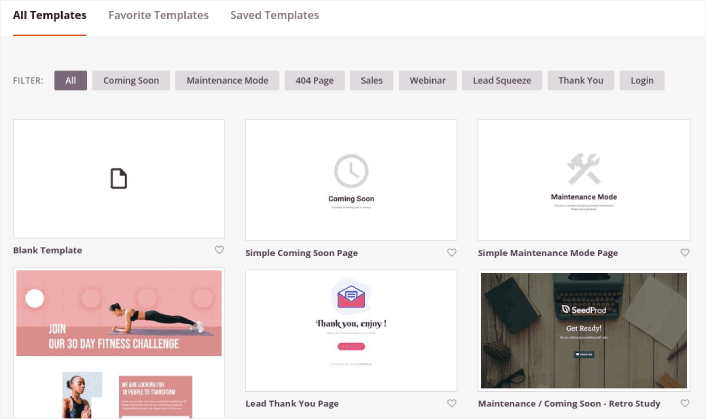
Ardından, başlamanıza yardımcı olması için bu şablonlardan birini seçebilirsiniz.
Unutmayın, şablon yalnızca bir başlangıç noktasıdır. Sayfanın her şeyini daha sonra özelleştirebilirsiniz. Şimdilik, size uygun olacağını düşündüğünüz bir şablon bulun. Şablonlar sayfası açıldığında, listeyi filtrelemek için Sıkıştırma Sayfası düğmesine tıklayabilirsiniz:
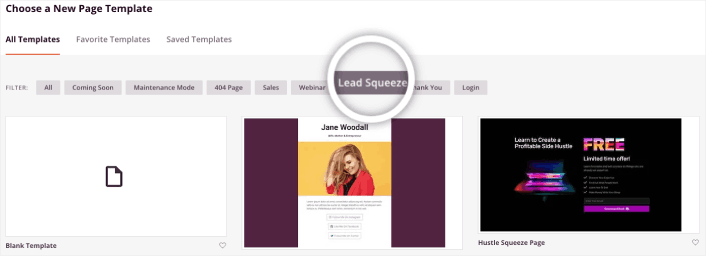
Bu kılavuz için Yatırım Sıkıştırma Sayfası şablonunu seçeceğiz.
Bir sıkıştırma sayfasının yalnızca bir amacı vardır. E-posta adresinizi almak için sizi yeterince "sıkıştırmaktır". Yatırım ve kişisel finans alanında tanıdığınız biri var mı? Evet, kesinlikle sıkıştırabilirler!
Şimdi devam edin ve üzerine tıklayın.
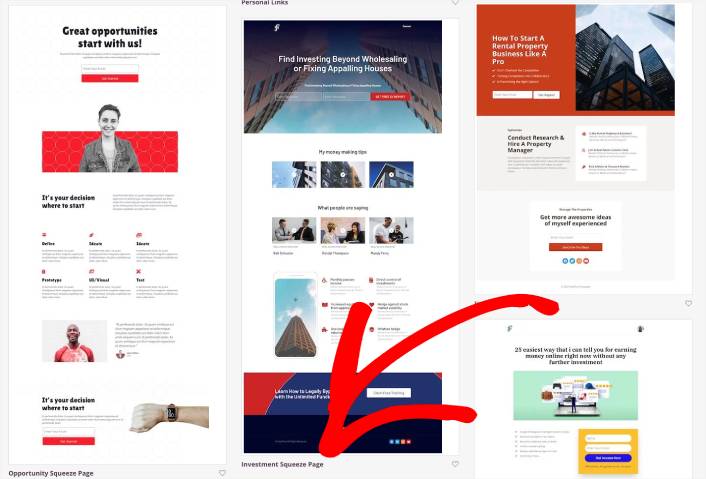
Ardından, açılış sayfasını özelleştireceğiz.
3. Adım: Açılış Sayfanızın Tasarımını Özelleştirin
SeedProd'un görsel oluşturucusu, sürükle ve bırak içerik bloklarını kullanarak açılış sayfanızı özelleştirmenize olanak tanır.
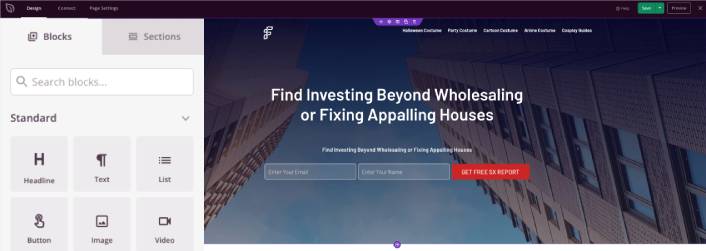
Dakikalar içinde açılış sayfanız için tamamen özelleştirilmiş bir üstbilgi oluşturabilirsiniz. Trafiğinizi ikna etmek ve dönüştürmek için özel öğeler bile ekleyebilirsiniz. Örneğin, ürününüzü veya hizmetinizi satın almaya ziyaretçilerinizi ikna etmek için bir video modülü oluşturabilir ve bir YouTube videosu yerleştirebilirsiniz.
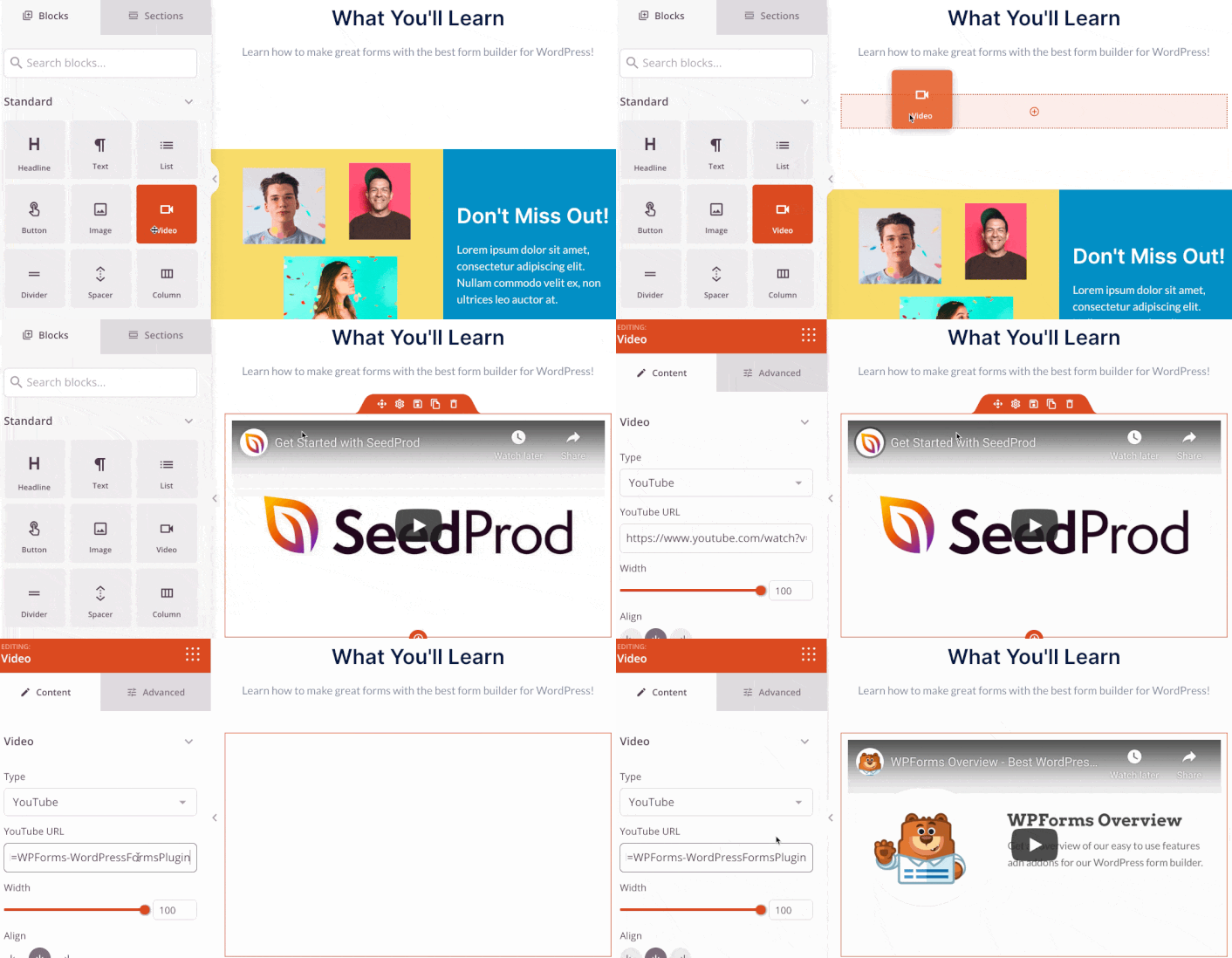
Ürün veya hizmetinizin kısa bir açıklamasını içeren bir bölüm eklemek de çok kolaydır. Görsel oluşturucudaki Bölümler sekmesine gidin ve Giriş bölümünün altında, tek bir tıklamayla içe aktarabileceğiniz birkaç önceden oluşturulmuş şablon bulacaksınız.
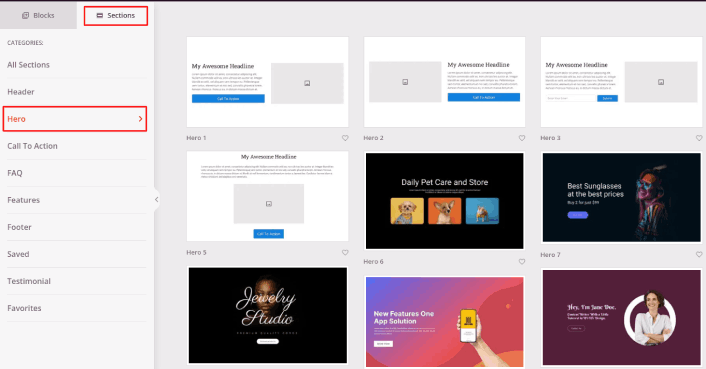
Beğendiğiniz birini seçin.
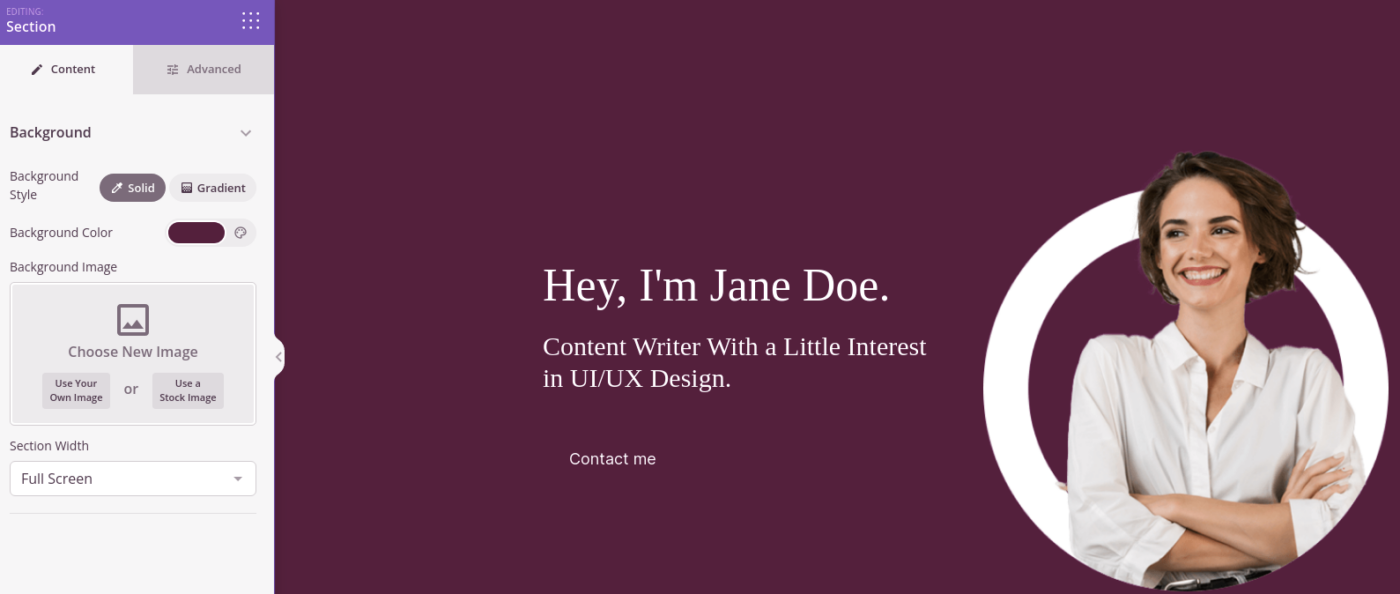
Renkler veya içerik hakkında endişelenmeyin. Hepsinin düzenini değiştirebilirsiniz. Dikkat etmeniz gereken, şablonunuza uygun bir düzendir.
Giriş bölümünü, farklı bir resim seçip başlığı ve açıklamayı değiştirerek daha önce yaptığımız gibi özelleştirebilirsiniz. Bunu yaparken, ziyaretçileri sizden satın almaya teşvik eden bir harekete geçirici mesaj düğmesi ekleyin.
Ardından, Bölümler sekmesinden Referans başlığını seçin ve beğendiğiniz bir tasarımı seçin. Ve işte, açılış sayfanızda bir referans bölümünüz var.
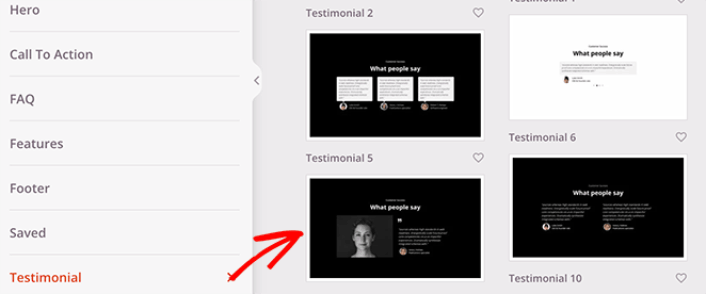
Çok basit!
Adım #4: Açılış Sayfanıza Anında Bildirim Ekleme
Ayrıca anlık bildirim aboneleri toplamak için bir tıklayarak abone ol düğmesi de ekleyebilirsiniz. Anlık bildirimler, tekrar trafiğinizi artırmak, daha fazla etkileşim elde etmek ve hatta varsa resmi ürünler satmak için harika bir yoldur.
SeedProd'da, kenar çubuğundan Özel HTML modülünü sürükleyip bırakmanız yeterlidir.
Abone olma düğmesini, ilk katlamada doğrudan e-posta kayıt formunun altına yerleştirdik.
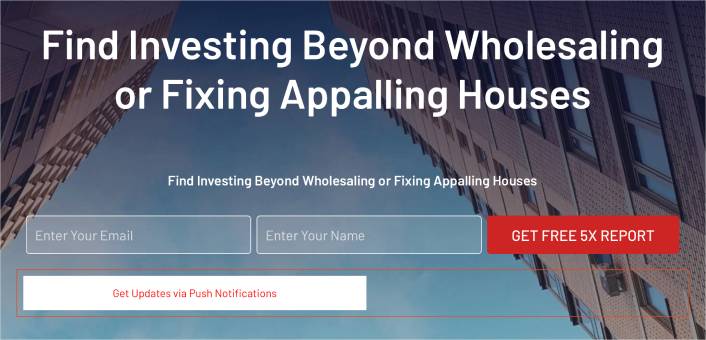
Ancak düğmeyi istediğiniz yere ekleyebilirsiniz.
Bu kısım için HTML ve CSS konusunda biraz deneyime ihtiyacınız var. Veya bu kodu kopyalayıp Özel HTML bloğunuza yapıştırabilirsiniz:
<button onclick="subscribeOnClickButton()" style="border: none; padding-left: 5%; padding-right:5%; text-align: center; display: inline-block; color: blue;">Get Updates via Push Notifications</button>Bu, çok az stil ile standart bir HTML düğmesidir. Tek süslü kısım, kodda onclick fonksiyonudur. Temel olarak ziyaretçilerinizin bir şeye abone olmak için düğmeye tıklayabileceği anlamına gelir. Şimdi, düğmeye ziyaretçilerinizin anlık bildirimlere abone olmasını sağlamak için bazı ek kodlar vermemiz gerekiyor.
PushEngage ana sayfasına gidin ve Başlayın düğmesine tıklayın:

PushEngage, dünyadaki 1 numaralı anlık bildirim eklentisidir.
Anlık bildirimler, web sitesi trafiğinizi ve etkileşiminizi otomatik olarak artırmanıza yardımcı olur. Ve bir çevrimiçi mağaza işletiyorsanız, PushEngage ayrıca otomatik e-ticaret anlık bildirimleri oluşturmanıza yardımcı olarak satışlarınızı artırmanıza da yardımcı olur.
Ücretsiz başlayabilirsiniz, ancak işletmenizi büyütme konusunda ciddiyseniz, ücretli bir plan satın almalısınız. Ayrıca, herhangi bir anlık bildirim hizmeti satın almadan önce, anlık bildirim maliyetleri hakkındaki bu kılavuza göz atmalısınız.
PushEngage ile nelerin geldiğine hızlı bir bakış:
- Yüksek dönüşüm sağlayan otomatik kampanyalar
- Birden fazla hedefleme ve kampanya zamanlama seçeneği
- Hedef takibi ve gelişmiş analizler
- Akıllı A/B testi
- Anlık kampanya şablonları
- Güçlü segmentasyon seçenekleri
- Özel Bir Başarı Yöneticisi
İşletmeniz için trafik, etkileşim ve satış oluşturmak istiyorsanız, PushEngage'in tartışmasız en iyi seçenek olduğunu göreceksiniz. Ve bütçeniz kısıtlıysa, anlık bildirimlerinizle biraz yaratıcı olabilirsiniz.
NOT: WordPress siteniz varsa, PushEngage WordPress eklentisini kurmalı ve etkinleştirmelisiniz.
Ardından, PushEngage'i denemek için ücretsiz planı seçmek isteyeceksiniz veya işletmenizi büyütme konusunda ciddiyseniz ücretli bir planı seçin. Ücretli planlar daha fazla kampanya seçeneği ve daha büyük abone listeleri oluşturma olanağı sunar.
PushEngage kontrol panelinizde, Site Ayarları » Site Detayları bölümüne gidin ve Kurulum Talimatları İçin Buraya Tıklayın düğmesine tıklayın. Herhangi Bir Site altında, kurulum kodunuzu alacaksınız:

UYARI: Kontrol panelinizden aldığınız kodu kopyalamanız gerekir. Kod, her PushEngage kullanıcısı için benzersizdir. Görüntüdeki kodu kopyalayarak anlık bildirim aboneleri toplayamazsınız.
Kodunuzu PushEngage kontrol panelinizde aldıktan sonra, bu kod parçasını kodunuza ekleyin:
<script> window._peq = window._peq || [];</script> <script>
function subscribeOnClickButton(){
window._peq.push(['subscribe',{}.pe,function(res){
if(res.statuscode==1)
{
// Code to return response
console.log(res);
}
}]);
}
</script>
Nihai kodunuz şuna benzer görünmelidir:
<script src="https://clientcdn.pushengage.com/core/02a6e92667ae2279fcba8932356c1d93.js" async></script>
<script> window._peq = window._peq || [];</script> <script>
function subscribeOnClickButton(){
window._peq.push(['subscribe',{}.pe,function(res){
if(res.statuscode==1)
{
// Code to return response
console.log(res);
}
}]);
}
</script>
Bu kodu, düğme kodundan sonra açılış sayfanızdaki HTML bloğuna eklemek isteyeceksiniz. Şuna benzer görünmelidir:

Düğme stillerini istediğiniz gibi özelleştirmekten çekinmeyin. Açılış sayfanızı özelleştirmeyi bitirdiğinizde, Kaydet düğmesine basın.
Adım #4: Sayfa Ayarlarınızı Yapılandırın
Açılış sayfanızı tasarlamayı bitirdikten sonra, sayfa oluşturucunuzun üst kısmındaki Bağlan sekmesine tıklayın ve sitenizde potansiyel müşterileri toplamak için e-posta pazarlama sağlayıcınızı seçin.

Ardından, ekranınızın üst kısmındaki Sayfa Ayarları sekmesine tıklayın.

Burada, açılış sayfanıza bir SEO eklentisi ve bir Google Analytics eklentisi ekleyebilirsiniz. Reklam performansını izlemek için Facebook Pikseli veya Pinterest pikseli gibi özel izleme kodları bile ayarlayabilirsiniz.
Adım #5: Açılış Sayfanızı WordPress'te Yayınlayın
Şimdi tasarımınızı yayınlayalım. Bunu yapmak için kaydet düğmesinin yanındaki açılır oka tıklayın ve Yayınla'yı tıklayın.
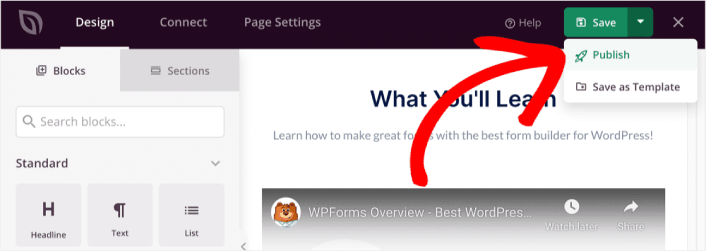
Ardından nasıl göründüğünü görmek için Canlı Sayfayı Gör düğmesine tıklayabilirsiniz.

Tebrikler! İlk açılış sayfanızı yayınladınız.
Sitenize Anında Bildirim Ekledikten Sonra Ne Yapmalı
Açılış sayfanız yayında olduğuna göre, artık trafiğiniz, etkileşiminiz ve satışlarınız üzerinde çalışmanın zamanı geldi. Sitenizde anında bildirimleri kullanmayı denemelisiniz. Anında bildirimler, işletmenizi büyütmenize yardımcı olabilecek harika bir pazarlama aracıdır.
Bu epik kaynaklara bir göz atın ve ne demek istediğimizi anlayacaksınız:
- Müşteri Etkileşimini Artırmak İçin 7 Akıllı Strateji
- Anlık Bildirimler Etkili mi? 7 İstatistik + 3 Uzman İpucu
- Terk Edilmiş Sepet Anlık Bildirimleri Nasıl Ayarlanır (Kolay Eğitim)
Anlık bildirim kampanyalarınızı oluşturmak için PushEngage'ı kullanmanızı öneririz. PushEngage, dünyanın 1 numaralı anlık bildirim yazılımıdır. Bu nedenle, henüz yapmadıysanız, bugün PushEngage'ı kullanmaya başlayın!


