Letar du efter en handledning om hur du lägger till en WooCommerce-sidovagn i din webbutik?
En sidovagn ger dina kunder snabb åtkomst till sin kundvagn från vilken sida som helst medan de bläddrar bland dina varor. Den låter dem bekvämt se artiklarna i sin kundvagn, göra tillägg eller borttagningar och använda kuponger, allt utan att behöva navigera till en separat kundvagnssida.
I den här artikeln guidar vi dig genom de enkla stegen för att lägga till en WooCommerce-sidovagn på din webbplats.
Det bästa är att du inte behöver någon erfarenhet av webbutveckling, konverteringsoptimering eller automatiserade säljtunnlar. Du kan helt enkelt följa stegen i den här artikeln och skapa en högkonverterande sidovagn på några minuter.
Låt oss dyka in.
Vad är en WooCommerce-sidovagn?
En skjutbar sidovagn är en dynamisk panel som bekvämt visas när en kund lägger en vara i sin kundkorg. Dessutom har kunderna möjlighet att när som helst komma åt den här kundvagns panelen genom att helt enkelt klicka på kundvagnsikonen, vilket eliminerar behovet av att navigera till en separat WooCommerce-kundvagnssida.
Beroende på kundvagnens konfiguration kan kunder också ha möjlighet att sömlöst hantera sitt kundvagns innehåll, inklusive att lägga till eller ta bort artiklar och använda rabattkuponger, direkt från den skjutbara panelen. Det är också möjligt att integrera knappar för uppmaning till handling, till exempel en länk till din WooCommerce-kassasida.
PushEngage är det främsta push-notiser-pluginet i världen. Skaffa det gratis!
Att lägga till en WooCommerce-sidovagn förbättrar kundupplevelsen avsevärt genom att effektivisera shoppingprocessen och låta kunder hålla ett öga på sina förväntade kostnader vid tidpunkten för utcheckning. För att inte nämna, det är ett utmärkt sätt att minska antalet avbrutna kundvagnar.
Nu går vi vidare till att utforska hur man integrerar en skjutbar sidovagn i din WooCommerce-konfiguration.
Hur man skapar en WooCommerce-sidovagn (snabbt och enkelt)
Nu när du förstår vad en WooCommerce-sidovagn är, är det dags att bygga en för din webbplats. Den här handledningen är för en WooCommerce-webbplats. Så om du inte redan har gjort det, måste du skapa en WooCommerce-webbplats först.
När du har installerat WooCommerce vill du också ha FunnelKit-pluginet. FunnelKit är ett WordPress-plugin som hjälper dig att skapa en anpassad säljtratt för WooCommerce-webbplatser med hjälp av beprövade mallar.
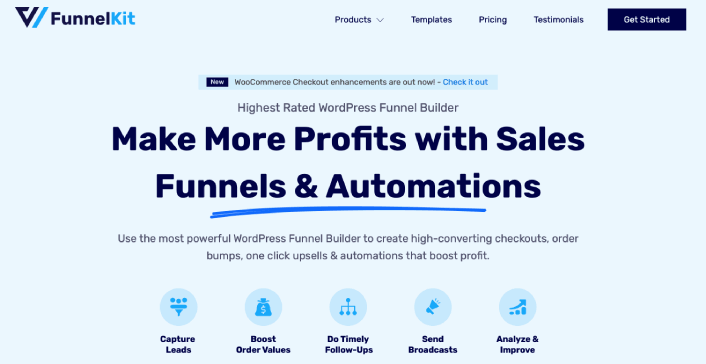
FunnelKit skapar automatiskt kraftfulla säljsidor genom att importera förbyggda mallar. Mallarna är dock bara utgångspunkten. Du kan anpassa allt du vill om sidorna med en visuell byggare.
Fortsätt och installera FunnelKit på din WooCommerce-webbplats. Om du inte vet hur du gör det, kolla in den här artikeln om hur man installerar ett WordPress-plugin. För den här handledningen hjälper vi dig att skapa en fyrstegs säljtratt.
Steg 1: Installera och aktivera FunnelKit
Det första du behöver göra är att aktivera ditt FunnelKit-plugin:
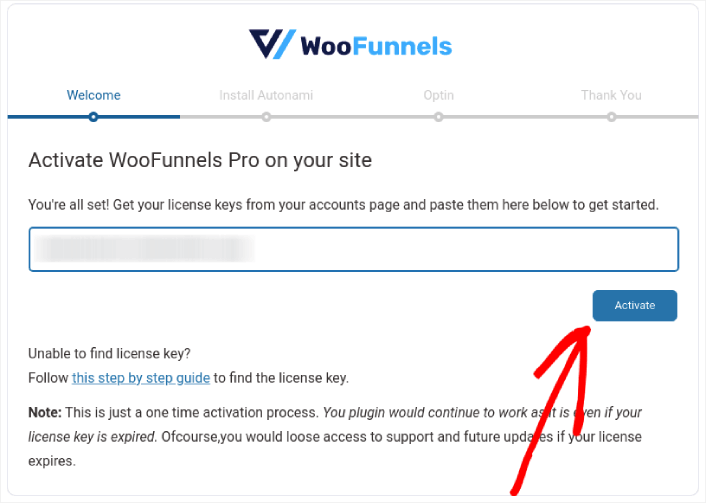
När det är gjort är du redo att skapa din första WooCommerce-sidovagn och få fler försäljningar.
Steg 2: Välj var du vill visa din WooCommerce-sidovagn
I din WordPress-instrumentpanel, gå till FunnelKit » Kundvagn. Du kommer att se en förhandsgranskning av den glidande kundvagnen till höger på skärmen.
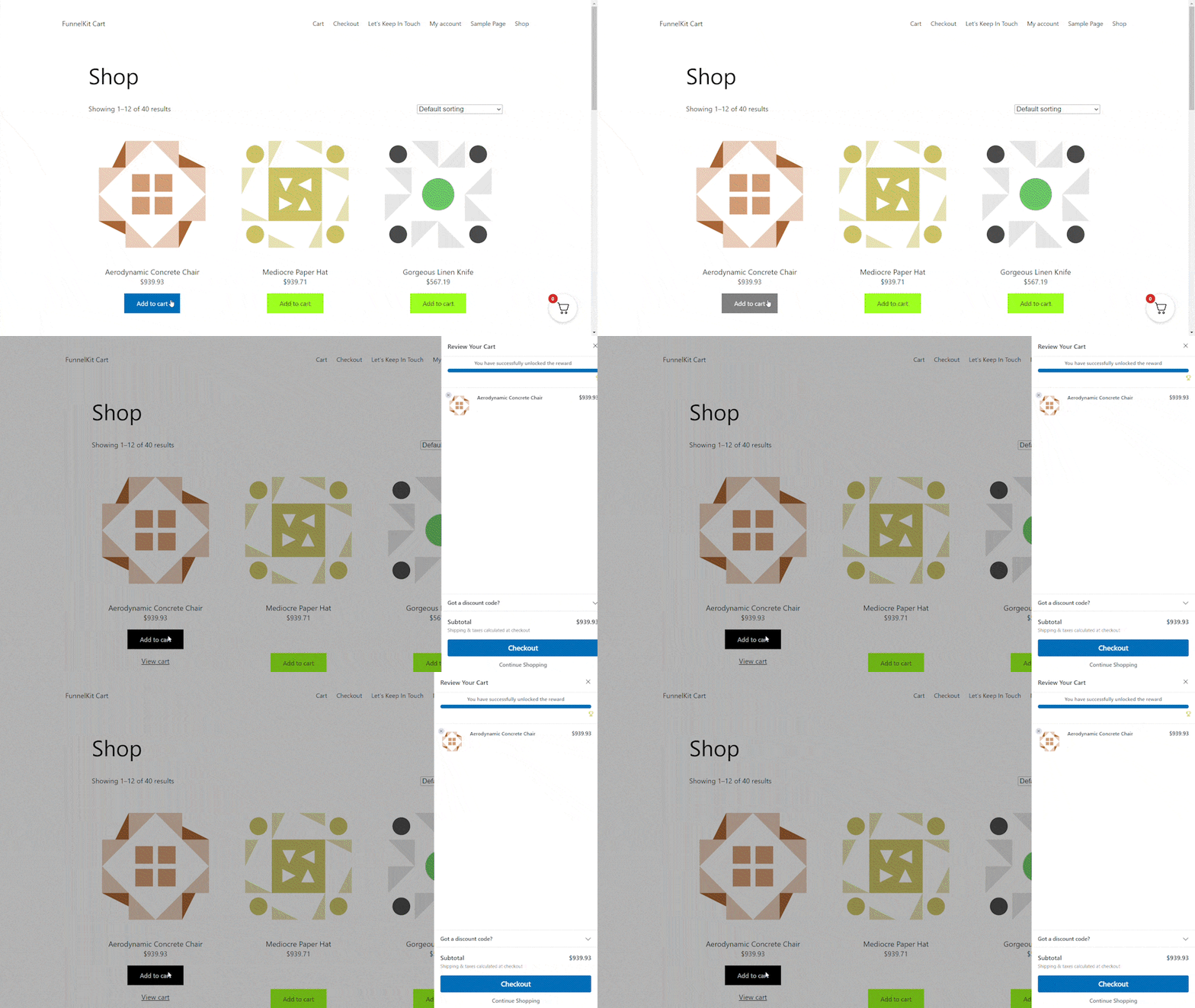
Du kan visa kundvagnsikonen på hela din webbplats, begränsa den till endast WooCommerce-sidor eller lägga till ikonen på specifika sidor och inlägg med hjälp av en kortkod.
Först och främst har du möjlighet att välja om du vill visa kundvagnsikonen på hela din webbplats eller enbart på WooCommerce-relaterade sidor.
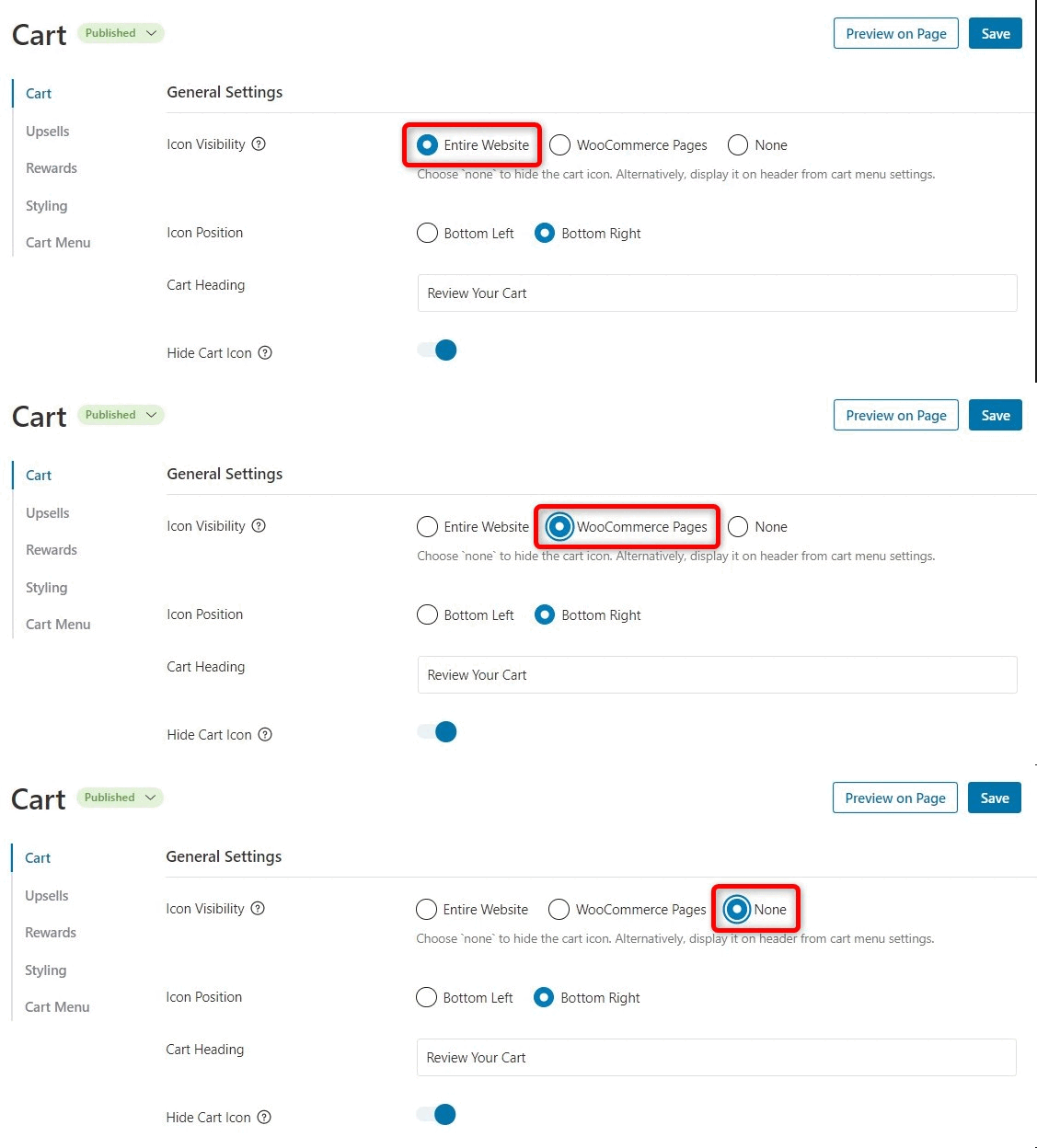
Att välja Hela webbplatsen innebär att kunderna bekvämt kan öppna den glidande kundvagnen från vilken sida som helst på din webbplats. Detta är särskilt lämpligt för online-marknadsplatser och butiker med ett brett utbud av produkter och kategorier.
Det är dock viktigt att tänka på att din webbplats kan innehålla en betydande mängd icke-e-handelsinnehåll. Du kan till exempel driva en populär WordPress-blogg samtidigt som du använder WooCommerce för att erbjuda varor till dina hängivna fans.
Att ha en kundvagnsikon synlig på varje enskilt blogginlägg kan potentiellt bli påträngande eller irriterande för dina läsare. I sådana scenarier kan du välja alternativknappen WooCommerce-sidor.
Ett annat alternativ är att välja Ingen. Detta alternativ döljer kundvagnsikonen. Använd det för att behålla flexibiliteten att manuellt infoga ikonen på specifika sidor, inlägg eller widget-redo områden genom att använda en kortkod.
Naturligtvis kan du också infoga kundvagnsikonen i din navigeringsmeny.
Steg 3: Aktivera kuponger i din sidovagn
Kuponger är ett mycket effektivt sätt att öka försäljningen och främja kundlojalitet.
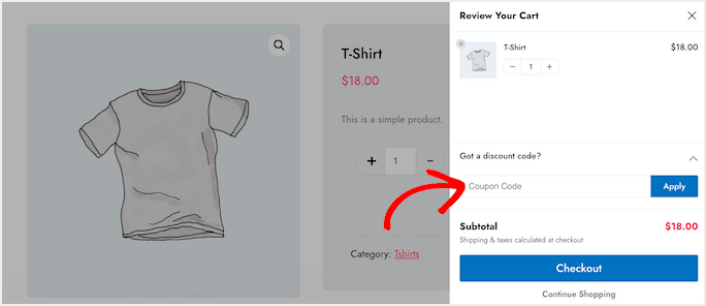
När en kund klickar på knappen Verkställ kommer den glidande kundvagnen omedelbart att visa det belopp de har sparat genom kupongen.
När du visar kunderna rabatten minskar du inte bara antalet övergivna kundvagnar utan motiverar dem också att lägga till fler varor i sin inköpskorg.
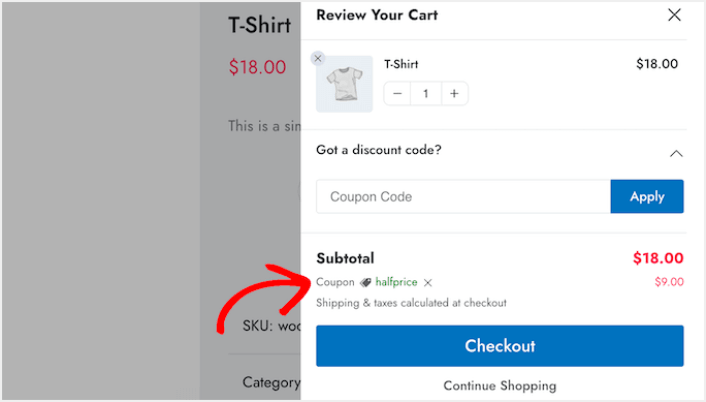
För att inkludera kupongfältet, klicka helt enkelt på omkopplaren Aktivera kupongfält och du är klar!
Steg 4: Anpassa uppmaningen till handling för din WooCommerce-sidovagn
Den glidande sidokundvagnen levereras med en standardkassa-knapp, men du har friheten att anpassa denna åtgärdsknapp för att öka dina konverteringar. För att börja kan du inkludera en kassa-ikon genom att använda omkopplaren Aktivera knappikon.
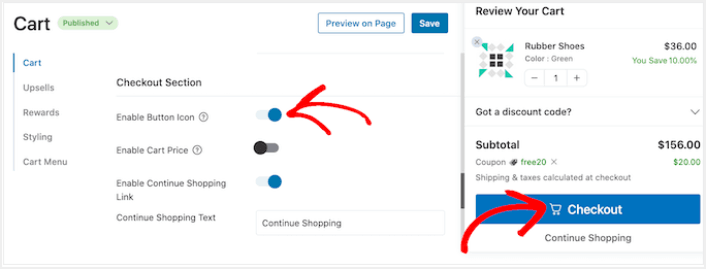
Du kan förstärka kassa-knappen genom att inkludera kundvagnspriset genom omkopplaren Aktivera kundvagnens pris.
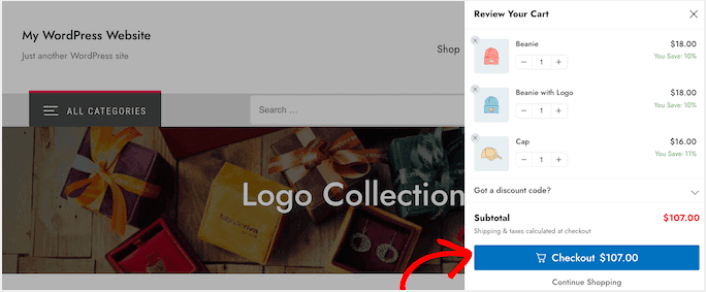
Den här funktionen hjälper kunderna att se hur mycket deras kundvagn kommer att kosta, särskilt om du har tagit bort delsumman från kundvagnsöversikten.
Som standard inkluderar FunnelKit en länk för Fortsätt handla längst ner i den glidande sidokundvagnen. Du kan ändra denna text till ditt eget meddelande genom att skriva i fältet Text för fortsätt handla.
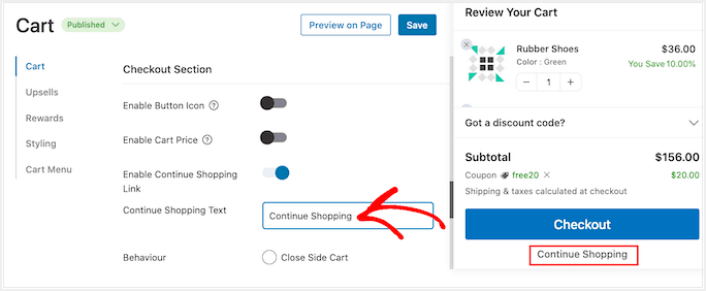
Bestäm sedan om länken ska stänga sidokundvagnen eller ta kunden till din WooCommerce-butikssida.
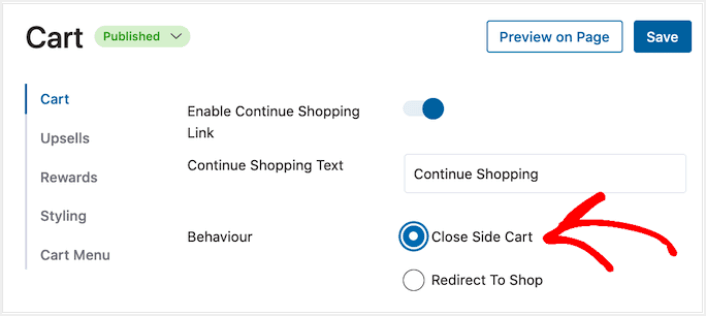
De flesta kunder vill vanligtvis stänga den glidande kundvagnen, så vi rekommenderar att du väljer alternativet Stäng sidokundvagn.
Vad du ska göra efter att du har lagt till en WooCommerce-sidovagn
Nu när du vet hur du skapar en sidovagn för WooCommerce är det dags att driva trafik till din landningssida. Din landningssida är början på hela din tratt. Så, det bör vara målet för dina marknadsföringskampanjer.
Vi rekommenderar att använda push-meddelanden för att skicka återkommande trafik till dina landningssidor. Push-meddelanden är super prisvärda och extremt kraftfulla marknadsföringsverktyg som kan hjälpa dig att växa din verksamhet.
Om du inte är 100% övertygad bör du kolla in dessa resurser om hur du effektivt använder push-meddelanden:
- 7 smarta strategier för att öka kundengagemanget
- Är push-notiser effektiva? 7 statistik + 3 experttips
- Hur du ställer in pushmeddelanden för övergivna kundvagnar (Enkel handledning)
Vi rekommenderar att använda PushEngage för att skapa dina push-notiskampanjer. PushEngage är den främsta push-notisprogramvaran i världen. Så, om du inte redan har gjort det, kom igång med PushEngage idag!


