Om e-postöppningsgraden sjunker och dina inlägg på sociala medier begravs, kan det vara dags att prova något nytt. En webbpush-kampanj kan vara precis vad du behöver.
Webbpush är snabbt, direkt och visas precis när din prenumerant är online. Ingen inkorg. Ingen algoritm. Bara ett snabbt meddelande som får tillbaka folk till din webbplats när det är som viktigast.
I den här guiden visar jag dig hur du ställer in din första webbpush-kampanj med PushEngage. Det är enklare än du kanske tror, och du kommer att se hur även en enkel kampanj kan ge verkliga resultat.
Låter bra? Låt oss bara dyka rakt in.
Skicka webbpush-notiser idag!
Push-notiser är ett super effektivt, billigt marknadsföringsverktyg som hjälper dig att öka din återkommande trafik, ditt engagemang och din försäljning automatiskt.
Varför webbpush fungerar (även när andra kanaler inte gör det)
Webbpush-notiser skär igenom bruset på ett sätt som e-post och sociala medier helt enkelt inte kan.
- Du behöver inget telefonnummer eller e-postadress för att växa din lista
- Meddelanden visas medan din prenumerant aktivt surfar
- Du kan automatisera allt – från återhämtning av kundvagn till produktlanseringar
- Det fungerar på alla enheter och webbläsare (ingen app krävs)
Det är som att ha din egen privata trafikkanal... en som faktiskt blir uppmärksammad. Tänk på det... när var senaste gången du ignorerade en webbläsaravisering som dök upp med ditt namn, en saftig rubrik och en uppmaning till handling som du brydde dig om?
⚡ Omedelbar synlighet: Till skillnad från e-postmeddelanden som ligger olästa i dagar, träffar push-notiser omedelbart. Rakt på användarens skärm. Dator, mobil, spelar ingen roll. Du väntar inte på att de ska öppna en inkorg. Du dyker upp exakt när det är viktigt.
🧠 Noll minne krävs: Användare behöver inte komma ihåg din webbplats. Eller din produkt. Eller ens sin inloggning.
När de väl prenumererar kan du engagera dem igen när som helst – inga formulär, ingen friktion, inget krångel. Det är som att ha en snabbfil rakt in i deras uppmärksamhet.
📈 Galet hög engagemang: Webbpush CTR:er är ofta 2–3 gånger högre än e-post. Varför? För att det är kort. Oväntat. Och inbyggt i hur folk surfar. Dessutom drunknar ingen inkorg i push-notiser (ännu). Så du sticker ut.
💸 Du äger kanalen: Inga algoritmer. Ingen budgivning. Inga fuffens med sociala flöden. Push-prenumeranter är dina. Du bestämmer vad de ser och när. Det är din publik, inte uthyrd från Meta eller Google.
🧪 Perfekt för testning: Behöver du veta om en rubrik fungerar? Om folk bryr sig om en ny funktion? Push är det snabbaste A/B-testverktyget du inte visste att du hade. Skicka en rubrikvariation. Se vilken som får fler klick. Lär dig snabbt. Agera snabbare.
Webbpush är den sällsynta kanalen som är billig, högkonverterande och brutalt effektiv när den används rätt.
Och det bästa av allt... det tar under 10 minuter att lansera din första kampanj.
Låt oss bygga en.
Den korta versionen: webb push-notifikationer når prenumeranter på deras skärm i samma ögonblick som du skickar, utan inkorg, algoritm eller appinstallation emellan.
En genomgång av typer av webbpush-kampanjer
I bredast bemärkelse finns det 3 typer av webbpush-kampanjer:
- Sändningsmeddelanden
- Drip webbpush-kampanjer
- Utlösta webbpush-kampanjer
Sändningar är push-notiser som du skickar ut som en enda notis. Du kan schemalägga dem, men de skickas bara ut en gång. Utlösta kampanjer innebär att du sätter upp en push-notis, definierar en utlösare för att aktivera den och ett arbetsflöde för att styra dess schemaläggning. Automatiserade dropp-notiser är en serie notiser som skickas ut automatiskt vid specifika tidpunkter eller när specifika villkor uppfylls.
För alla praktiska ändamål ser utlösta kampanjer och automatiserade dropp-kampanjer likadana ut utifrån. Den avgörande skillnaden är att utlösta kampanjer är mycket mer flexibla och anpassningsbara. Om du tänker på att push-notiser kostar mycket mindre än de flesta andra kanaler, är det helt logiskt att använda en kombination av alla tre för att växa din verksamhet.
Om du är nybörjare på push-notiser rekommenderar vi starkt att du börjar din resa med hjälp av beprövade mallar.
OBS: De flesta utlösta kampanjer kräver viss utvecklingserfarenhet. Du skulle behöva använda ett API för att få ut det mesta av utlösta notiser. Det finns dock några utlösta notiser som du kan skicka direkt från hyllan. Om du är nyfiken, kolla vår artikel om e-handels push-notiser för en bättre uppfattning.
Den bästa tjänsten för att skicka en webb push-notis-kampanj
Låt oss börja med att säga att de flesta "gratis push-notis-tjänster" som finns där ute faktiskt är gratis provperioder. Vissa av leverantörerna vi har listat här är testprogramvara, medan andra har en gratis plan som du kan välja.
Det finns några andra freemium-alternativ, som Firebase Cloud Messaging (FCM), men det är egentligen inte ett bra alternativ alls. Du kan läsa mer om varför FCM inte kan konkurrera med en tjänsteleverantör som PushEngage. Men för nu, lita på vårt ord och hoppa över till de bättre alternativen.
Vi rekommenderar att använda PushEngage.

PushEngage är det främsta pluginet för push-notiser i världen.
Pushnotiser hjälper dig att öka din webbplatstrafik och engagemang automatiskt. Och om du driver en onlinebutik hjälper PushEngage dig också att öka din försäljning genom att hjälpa dig att skapa automatiserade e-handelspushnotiser.
Du kan komma igång gratis, men om du menar allvar med att växa ditt företag bör du köpa en betald plan. Innan du köper någon pushmeddelandetjänst bör du också kolla in den här guiden till kostnader för pushmeddelanden.
Här är en snabb överblick över vad du får med PushEngage:
- Högkonverterande automatiserade kampanjer
- Flera målriktnings- och kampanjplaneringsalternativ
- Målspårning och avancerad analys
- Smart A/B-testning
- Push-kampanjmallar
- Kraftfulla segmenteringsalternativ
- En dedikerad framgångschef
Och detta är knappt att skrapa på ytan. Kolla in PushEngages fullständiga lista över funktioner innan du går vidare.
Men den mest attraktiva delen av PushEngage är att du kan komma igång med en gratis plan för alltid. Och du kan använda den för att faktiskt växa din verksamhet med flera anpassningsalternativ.
Du kommer att se att PushEngage är utan tvekan det bästa valet om du vill bygga trafik, engagemang och försäljning för ditt företag. Och om du har en budget kan du alltid vara lite kreativ med dina pushmeddelanden.
OBS: Om du driver en WordPress-webbplats bör du installera och aktivera PushEngage WordPress-plugin.
Den kostnadsfria versionen tillåter upp till 200 prenumeranter och 30 livstidsaviseringar. Det räcker bra för att få ditt företag till en punkt där du enkelt har råd med betalda planer. De börjar på 9 USD/månad under det första året (1 000 prenumeranter, faktureras årligen) och skalas med ditt prenumerantantal; 100 000 prenumeranter är Premium-planen, och de aktuella siffrorna finns på prissidan.

Och oroa dig inte om du inte kan någonting om kodning. Du kan installera PushEngage med hjälp av en av de många installationsguiderna för alla webbplatser och CMS.
PushEngages AI-drivna optimering hjälper dig att skapa bättre titlar och meddelanden, vilket leder till ökat engagemang och kampanjframgång. Har du någonsin önskat att dina push-notiser skulle skriva sig själva? Nu kan de det!
Med största sannolikhet kan du minska tiden för att skapa kampanjer för push-sändningar, dropp-kampanjer och automatiserade utlösta kampanjer med upp till 50 % samtidigt som du förbättrar kvaliteten på ditt copywriting.
PushEngage AI använder högpresterande kampanjer som referenspunkt för allt copywriting och kommer alltid att följa bästa praxis som standard.
Och det bästa är att det fungerar för webb push, Android-inbyggda notiser, iOS-inbyggda notiser, Flutter-notiser och React Native-notiser från samma instrumentpanel!
Du kan använda AI-textgenerering för alla kampanjtyper. För det här exemplet använder jag en push-sändning för att demonstrera funktionerna. Men om du vill se dess fulla potential i aktion, titta på den här videon!
Skapa en ny kampanj eller välj någon från Mallar. Du kan sedan klicka på knappen Generera text.
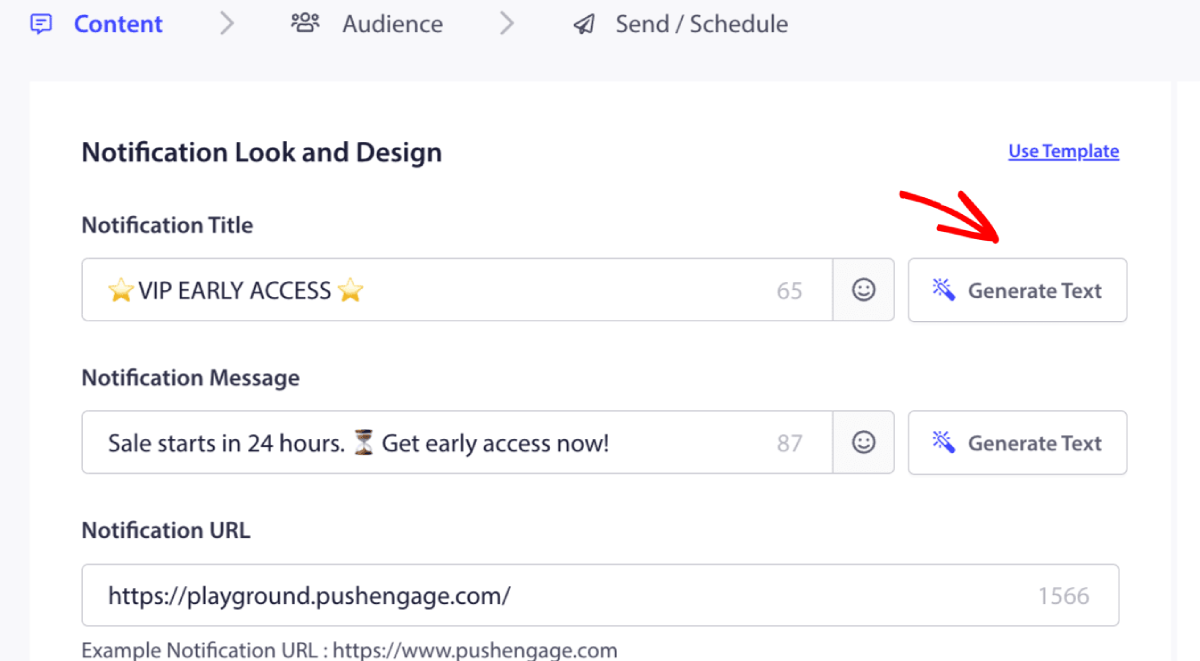
Det öppnar ett litet fönster för titeln och meddelandet för webb push-notifikationskampanjen. Du kan börja med att lägga till nyckelord som fungerar som en uppmaning för AI:n. Uppmaningen kan vara så detaljerad som du vill.
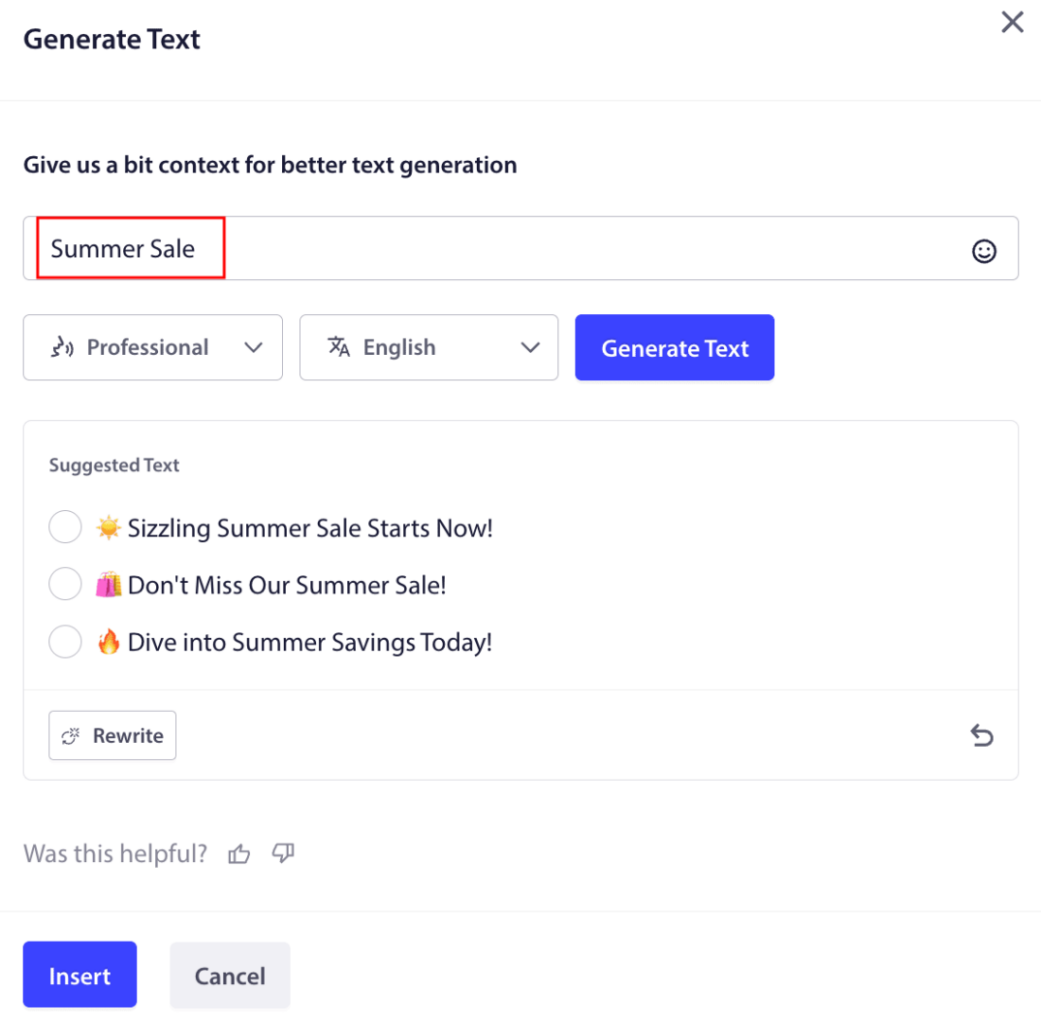
Du kan också ställa in tonen för titeln eller meddelandet för webb push-notifikationskampanjen. Samtalstonen är mycket viktig för att bestämma vilken typ av kampanj som kommer att skapas. Se till att den överensstämmer med ditt varumärkes stil.
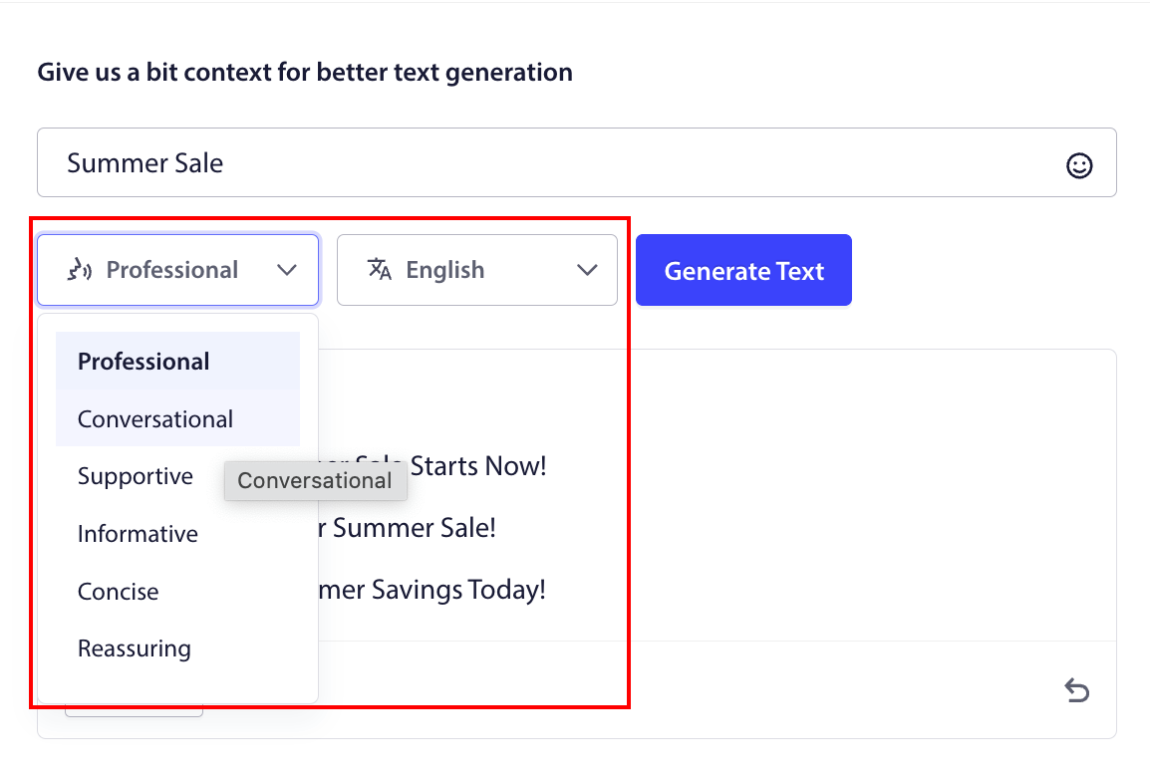
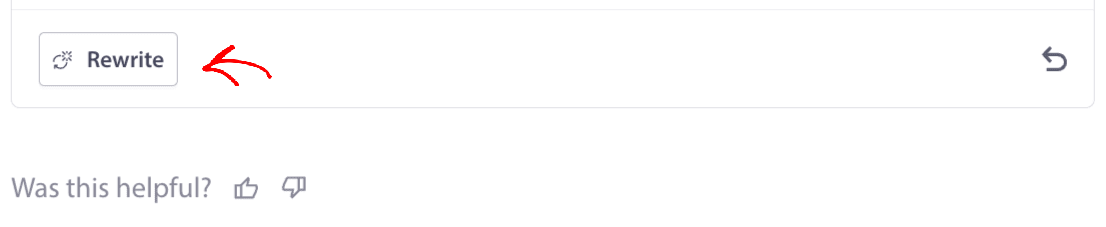
När det är inställt kan du klicka på knappen Generera text. Inte nöjd med den genererade texten? Klicka helt enkelt på knappen Skriv om!
Du kan faktiskt skapa texter på VILKET SPRÅK SOM HELST!
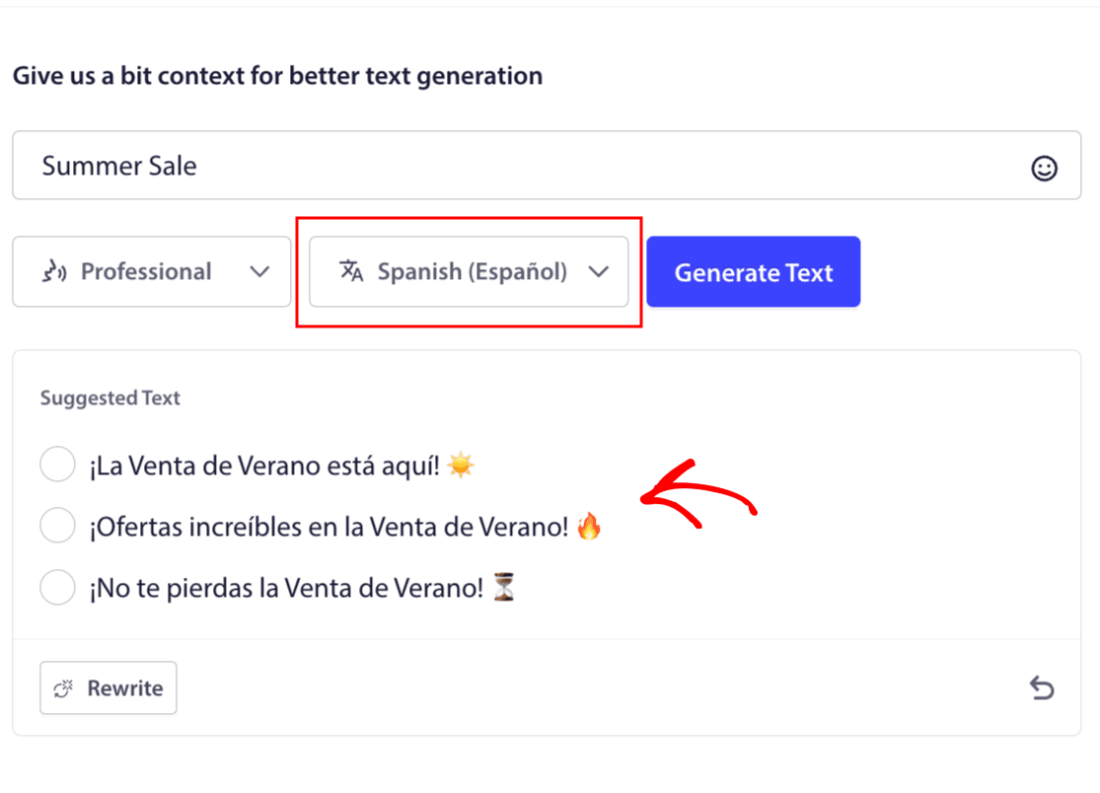
Denna nivå av inbyggt flerspråkigt stöd finns helt enkelt inte i någon annan programvara för push-notifikationer. Och oroa dig inte, översättningarna är klockrena! Så du kan skicka geospecifika kampanjer mycket enkelt nu. Välj rätt Målgrupp, välj språk och låt vår AI göra sin magi.
Hur man skickar en webb push-notifikationskampanj
Nu när du vet vad en webb push-notifikationskampanj är och vilken tjänst du behöver för att skicka dem, är det dags att titta på hur man skickar olika notifikationer.
Här är hur webb push-kampanjer ser ut i praktiken:
🛒 E-handel:
- Välkomstrabatt: "Tack för att du prenumererar! Här är 10% rabatt."
- Prissänkningsvarning: "Jackan du gillade? Den är äntligen på rea."
- Produktlanseringar: "Nya varor har precis landat. Var först med att handla."
📚 Publicister & Bloggare:
- Nytt inlägg-varning: "Missa inte veckans genomgång om [Ämne]."
- Veckans sammanfattning: "Din fredagsläsning är här."
- Leverans av lead magnet: "Här är din gratisguide. Låt oss veta vad du tycker."
💼 SaaS & Verktyg:
- Funktionsuppdateringar: "Vi har precis lanserat något nytt. Prova gratis."
- Påminnelser om provperiod: "Din gratis provperiod slutar imorgon."
- Övergivna varukorgar: "Fortfarande funderar du? Här är 20% rabatt för att prova oss."
Börja smått. Stjäl dessa. Anpassa dem för att matcha din ton. Klart.
För praktiska ändamål pratar vi inte om anpassade utlösta kampanjer som du kan skapa med en API-tjänst här. Om du är mer intresserad av anpassade notifikationer bör du kolla in vår dokumentation.
#1. Välkomstkampanj för webb push-notifikationer
En välkomstkampanj för webb push-notifikationer är en enkel push-notifikation avsedd att välkomna alla nya prenumeranter.
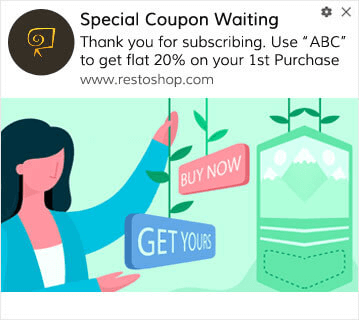
Du kan också skicka ett erbjudande eller en gåva för att prenumerera på dina push-notifikationer. Detta är ganska vanligt bland många av våra kunder. Du kan använda dina välkomst-push-notifikationer för att:
- Dela en välkomstkupong
- Erbjud premiumfunktioner
- Skicka gratis leverans
- Erbjuda gratis gåvor
- Onboarda din prenumerant med en genomgång
Nu ska vi konfigurera din första välkomstpushavisering med PushEngage.
Här är hur du aktiverar välkomstnotifikationer i PushEngage. Gå till PushEngage-instrumentpanelen och gå till Kampanj » Drip Autoresponders och klicka på Skapa ny Drip Autoresponder:

Namnge sedan din kampanj (vi föreslår något som Välkomst-drip), och under Innehåll, välj alternativet som säger, “Skicka meddelande omedelbart efter att användaren prenumererar“):

Vid det här laget kan du klicka på pilen bredvid notisen för att redigera innehållet i din notis. Om du har en Premium- eller Enterprise-plan med PushEngage kan du lägga till mer än en notis för att skapa en sekvens av automatiserade välkomstmeddelanden. Klicka bara på Lägg till ny notis och redigera innehållet.
När du är klar, klicka på Drip-inställningar och välj alternativet att skicka din välkomstkampanj till alla prenumeranter:

Rulla sedan ner för att ställa in dina egna UTM-parametrar för att spåra push-notiserna:

Och när du är klar, rulla upp igen och klicka på knappen Aktivera auto-svarare:

Nu vet du varför det är viktigt att ställa in en välkomstkampanj för push-notifikationer. Du vet också hur du ställer in den. Gå vidare och aktivera välkomst-push-notifikationer för att återengagera nya prenumeranter, eller kolla in den här artikeln om välkomstmeddelanden på webbplatsen för inspiration.
#2. Kampanj för webb push-notiser vid övergiven kundvagn
Övergivna kundvagnar uppstår när en potentiell kund lägger en produkt i kundvagnen och inte slutför köpprocessen.
Ditt jobb är att minska antalet övergivna kundvagnar så mycket som möjligt.
Ett sätt att återfå förlorad försäljning är att använda en kampanj för webb push-notiser vid övergiven kundvagn. Kampanjer för återhämtning av övergiven kundvagn riktar sig till prenumeranter med en övergiven kundvagn och skickar dem uppföljningar, påminnelser, erbjudanden, kuponger och rabatter.
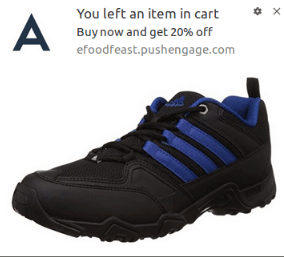
Det är en enkel idé: Få så många människor som möjligt att köpa något.
Pushaviseringar för övergivna kundvagnar har en mycket verklig inverkan på din resultatrad. Till exempel får WickedWeasel 2 000–4 000 USD per vecka i extra försäljning från sin kampanj med pushaviseringar för övergivna kundvagnar.
Nu ska vi konfigurera din allra första kampanj för övergivna kundvagnar med PushEngage.
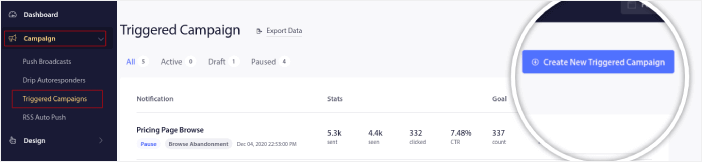
Gå till PushEngage-instrumentpanelen och navigera till Kampanj » Utlösta kampanjer, och klicka på Skapa ny utlöst kampanj:
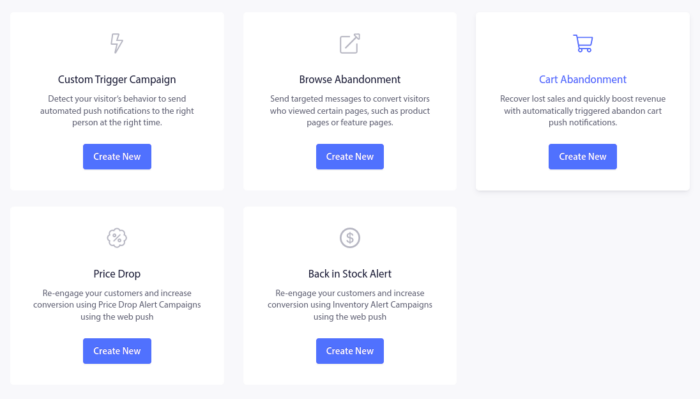
Välj sedan mallen Kundvagnsavbrott och klicka på Skapa ny:
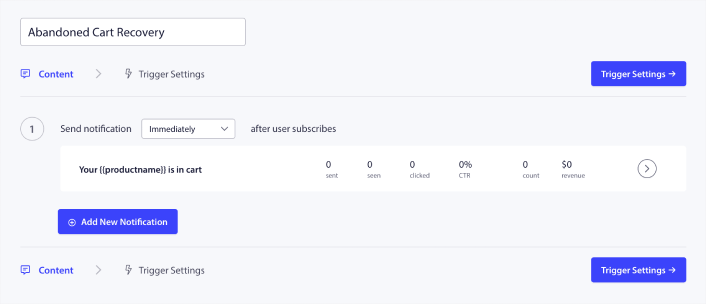
Och du kan börja skapa en automatisk svarare för övergivna kundvagnar. Under fliken Innehåll kan du skapa en serie pushaviseringar:
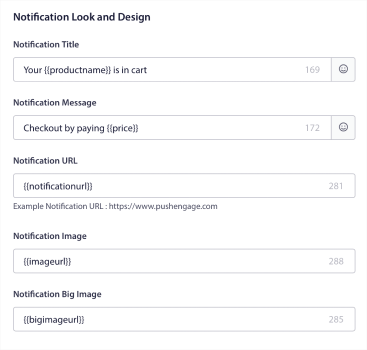
För att redigera en notis, klicka helt enkelt på pilen bredvid den, så kan du anpassa push-notisen:
För en mer detaljerad handledning, kolla in den här artikeln om hur man konfigurerar pushaviseringar för övergivna kundvagnar.
#3. Kampanjer för webb push-notiser vid övergiven surfning
Övergivna webbläsningar är precis vad det låter som. Det är när en webbplatsbesökare surfar på din webbplats och plötsligt bestämmer sig för att gå därifrån. Dessa incidenter är också kända som "funnel abandonment" av andra leverantörer.
Övergivna webbläsningar är en mycket vanlig företeelse inom nästan alla branscher.
Och det är verkligen svårt att minska eller kontrollera eftersom det inte finns något sätt att ge incitament till en slumpmässig användare att stanna kvar på din webbplats. Det är här kampanjer för övergivna webbläsningar är så kraftfulla.
Här är ett exempel på pushaviseringar för övergivna webbläsningar för en utgivare:
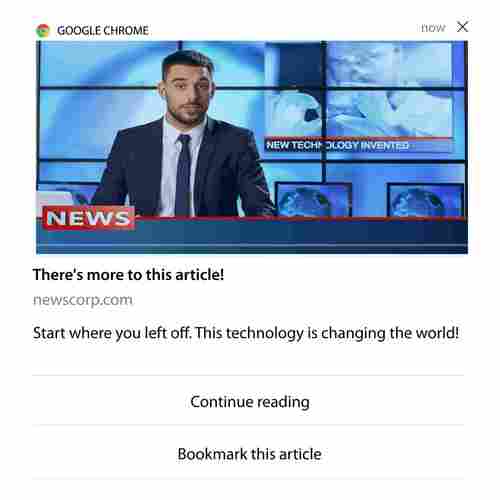
Det imponerande med PushEngage är att du kan ställa in kampanjer för i stort sett alla branscher. Så du kan skicka push-notiser vid övergiven surfning för SaaS- och resewebbplatser också.
Så, hur ställer du in kampanjer för övergiven surfning?
Med övergiven kundvagn finns det en tydlig parameter för att skicka dina push-notiser. För övergiven surfning kan du överväga parametrar som:
- Lade produkten till i Önskelistan
- Tittade på samma produkt mer än X gånger
- Surfning av mer än X produkter i samma kategori
- Sökte på webbplatsen efter en specifik produkt
- Stannade på webbplatsen i minst X minuter innan avvisning
Idén bakom denna kampanj för en e-handelswebbplats är att få prenumeranten att lägga produkten i sin kundvagn. För utgivare kan det vara ett klick eller en nedladdning på artikeln de läste.
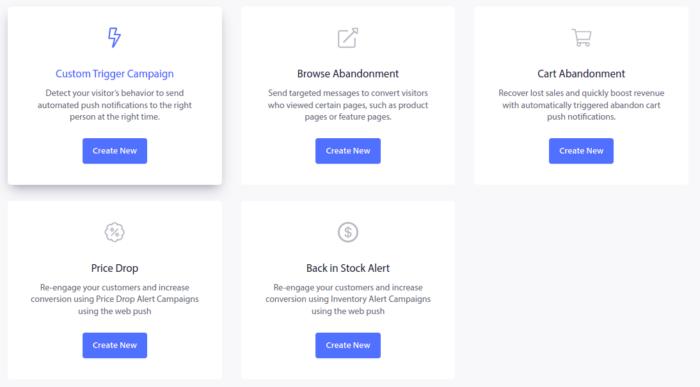
Gå till PushEngage-instrumentpanelen igen och gå till Kampanj » Utlösta kampanjer för att skapa en ny utlöst kampanj:

Skapa sedan en ny kampanj för webbläsaravhopp genom att klicka på knappen Skapa ny:
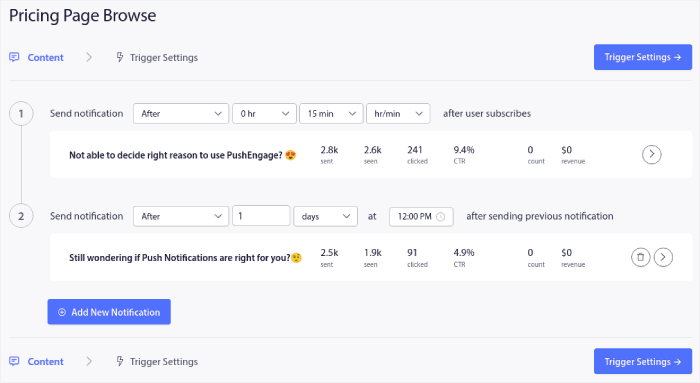
Därefter kommer du att kunna ställa in hela din sekvens av push-meddelanden tillsammans med en fördröjning mellan varje meddelande:
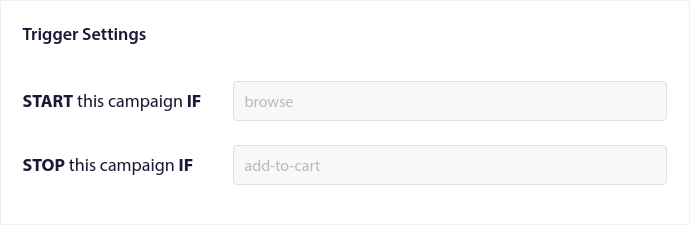
Om du är nybörjare på push-meddelanden bör du kolla in vår artikel om bästa praxis för push-meddelanden. När du är nöjd med ditt push-meddelandeinnehåll klickar du på Utlösningsinställningar. Du kommer att se att villkoren för en kampanj för webbläsaravhopp har förkonfigurerats i sekvensen.
Klicka på knappen Integrationskod för att få kodavsnittet du behöver för att bädda in kampanjen för webbläsaravhopp på din webbplats.
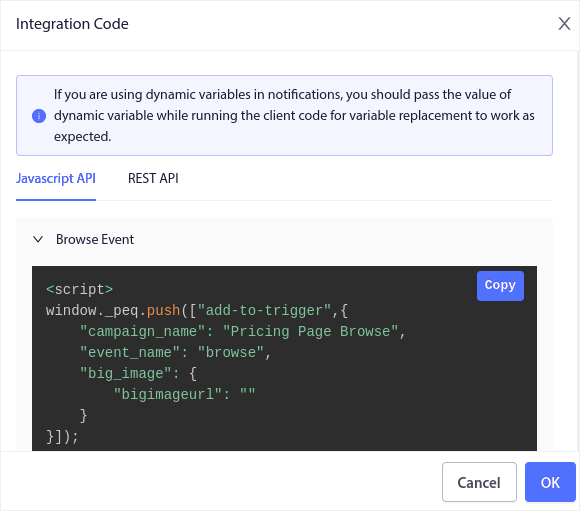
Kopiera sedan koden och klistra in den på din webbplats. Du vill klistra in den koden i HTML-<head>-sektionen på sidan som du vill spåra. Slutligen, klicka på knappen Aktivera utlöst kampanj:
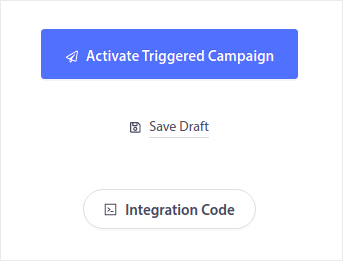
Och du är klar!
#4. Kampanj för webb push-notiser via RSS-flöde
RSS Auto Push låter dig automatisera dina notiser via RSS.
PushEngage kontrollerar var 10:e minut efter ett nytt inlägg som lagts till i ditt RSS-flöde. Om ett nytt inlägg hittas, konverterar PushEngage det till en push-notis och skickar ut den till alla dina prenumeranter. Det bästa är att det sker helt automatiskt.
RSS-flödeskampanjer är perfekta för utgivare och nyhetswebbplatser:
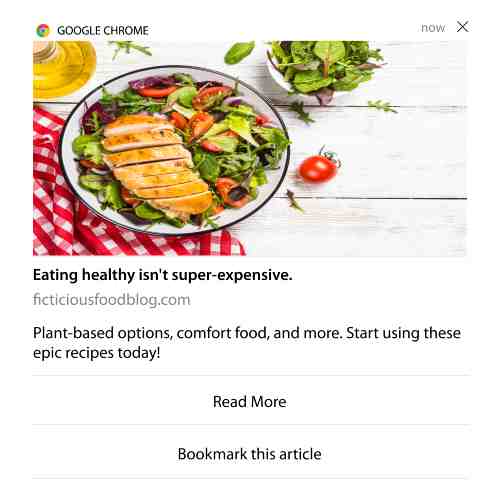
Om du är en stor utgivare och publicerar mer än 1 inlägg var 30:e minut, håller PushEngage en fördröjning på 5 minuter mellan 2 inläggsnotiser.
Innan vi går vidare bör du kolla in den här artikeln om hur man använder RSS-flöden för fler episka tips och tricks.
Nu, låt oss ställa in en kampanj för webb push-notiser via RSS-flöde på PushEngage.
Skapa en ny kampanj för RSS-webb push-notiser
När du har installerat PushEngage på din webbplats, gå till din PushEngage-instrumentpanel och navigera till Kampanj » RSS Auto Push och klicka på Skapa ny kampanj:
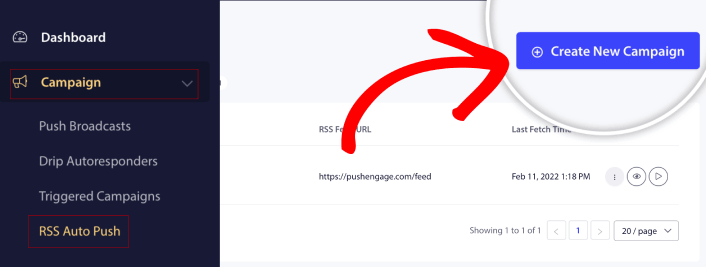
Detta skapar en helt ny kampanj för RSS-webb push-notiser. Du kan ställa in flera RSS-flödeskampanjer i PushEngage. Börja med att ge din kampanj ett beskrivande namn. Klistra sedan in URL:en för ditt RSS-flöde:
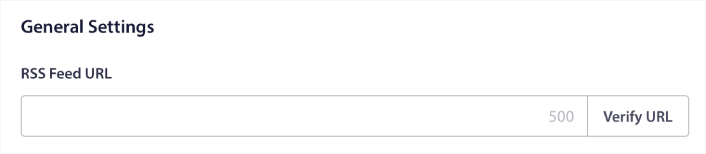
Ställ in RSS-notisinställningar
Därefter vill du ställa in Kampanjfrekvens:
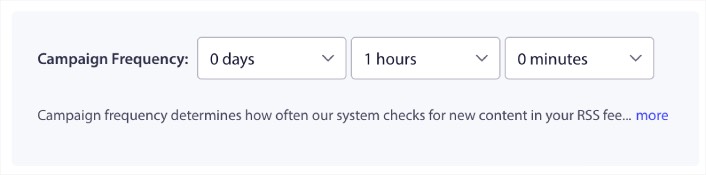
Kampanjfrekvens är hur ofta kampanjen för webb push-notiser via RSS-flöde letar efter nytt innehåll i din blogg för att skicka en automatiserad push-notis. Minimumvärdet är 15 minuter och maxvärdet är 7 dagar.
Vi rekommenderar att leta efter innehåll att marknadsföra ungefär varannan dag om du inte är ett nyhetsbyrå. För nyhetsbyråer bör du hålla det till 15 minuter. Tänk på att PushEngage bara kommer att leta efter nytt innehåll efter att du har ställt in och publicerat din RSS-flödeskampanj.
Välj inlägg att marknadsföra
Du kan välja vilka inlägg som ska marknadsföras. Du kan välja mellan Endast det senaste objektet eller Alla objekt. Om du ställer in RSS-pushnotifikationerna för att välja endast det senaste objektet, skickar PushEngage endast det senaste inlägget:
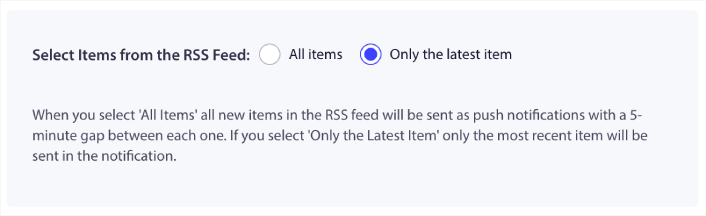
Eller så kan du välja alternativet Alla objekt. I det här fallet kommer kampanjen att välja alla inlägg på din webbplats och skicka ut en pushnotifikationskampanj för varje med 5 minuters mellanrum mellan dem.
Ställ in en ikon för RSS-pushnotifikationer
Din pushnotifikationsikon fastställer din varumärkesidentitet i dina RSS-pushnotifikationer. Vi rekommenderar att du använder ditt varumärkesmärke så att dina prenumeranter omedelbart vet att notifikationen kommer från ditt varumärke.
Nu finns det två alternativ här. Du kan antingen ladda upp meddelandeikonen manuellt:
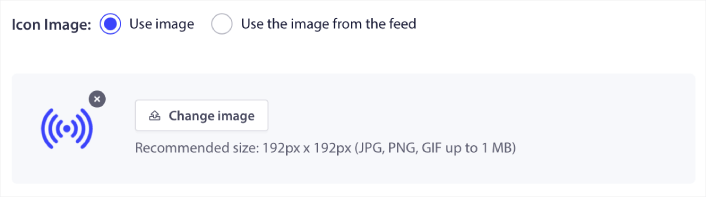
Och det är väldigt enkelt att göra. Klicka bara på Ändra bild och ladda upp din notifikationsikon. Eller så kan du hämta den från ditt RSS-flöde:
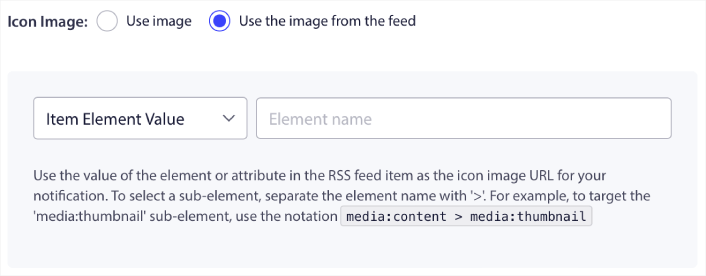
Du kan antingen välja objektelementet eller attributet inuti ett element för att dynamiskt välja din notifikationsikon från flödet. Vanligtvis kommer de flesta RSS-flöden att innehålla webbplatsikonen inuti media:content objektelementet. Ännu mer specifikt är den vanligtvis inuti media:thumbnail attributet för media:content elementet.
För att rikta in dig på elementet kan du välja alternativet Objektelementvärde och ställa in det till media:content. Eller så kan du välja alternativet Elementattributvärde och ställa in det till media:content > media:thumbnail.
OBS: Vi rekommenderar att du bara använder det här alternativet om du vet hur man läser XML. RSS-flöden kanske inte innehåller webbplatsikonen i samma XML-taggar som vårt exempel. Så om du är osäker på hur du hämtar notifikationsikonen från RSS-flödet rekommenderar vi att du laddar upp den manuellt istället.
Välj stor bild för RSS-flödesnotifikationer
Nu ska vi välja den stora bilden för dina RSS-flödes pushnotifikationer. Återigen finns det två sätt att göra detta. Du kan låta PushEngage automatiskt hitta bilden från RSS-flödet:

Eller så kan du manuellt välja vilken bild du vill ha från flödet:
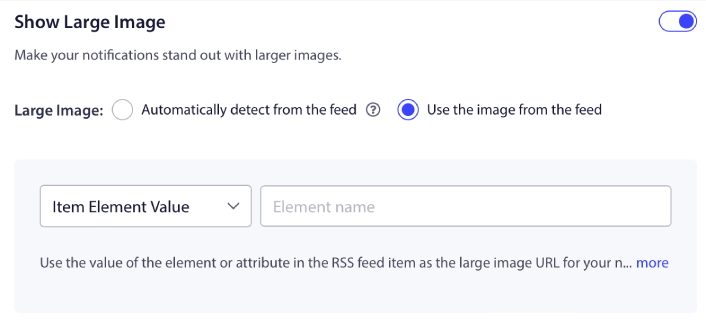
Det här är exakt samma som att välja meddelandeikonen från RSS-flödet. Du kan återigen välja bilden från XML-elementet som innehåller den eller så kan du välja det specifika attributet som innehåller din föredragna bild.
OBS: Vi rekommenderar bara att välja en URL från ditt RSS-flöde om du vet hur man läser XML. Om du är osäker på hur man läser XML är det bättre att låta PushEngage hitta den bästa bilden för dina notifikationer.
Ställ in varaktigheten för pushnotifikationskampanjen
Varaktigheten för pushnotifikationskampanjen är hur länge notifikationen ligger kvar i din prenumerants notifikationsfack innan den automatiskt tas bort.
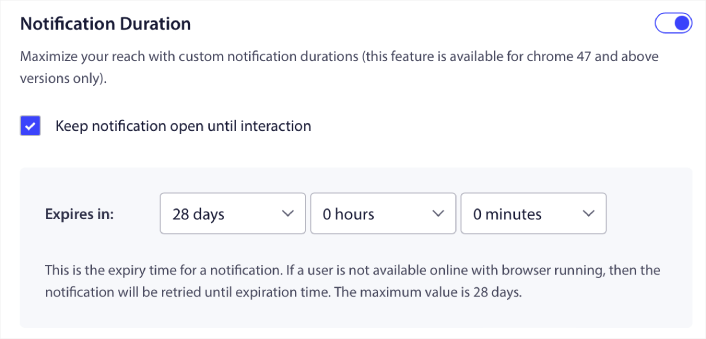
Om du inte vill överväldiga dina prenumeranter med en massa olästa notifikationer är det förmodligen bäst att låta push-notifikationerna löpa ut inom ett par dagar.
Till skillnad från sändningsnotifikationer eller till och med andra automatiserade pushnotifikationer kan du inte riktigt schemalägga RSS-pushnotifikationer. Så du har alltid möjlighet att hålla notifikationen öppen tills din prenumerant interagerar med den, även inom utgångsgränsen.
Ställ in UTM-parametrar
Vi är nästan klara. Bläddra ner för att ange dina egna UTM-parametrar för att spåra push-notifikationerna:
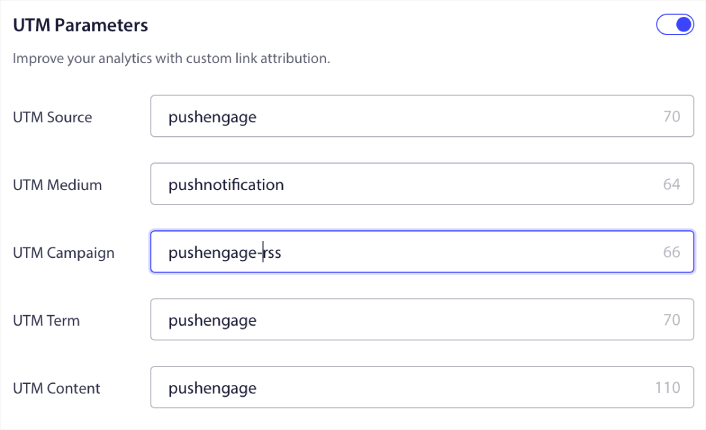
På så sätt kan du enkelt attribuera din trafik från dessa push-notifikationer i Google Analytics.
Välj målgruppsgrupp
Slutligen väljer vi en målgrupp för att skicka din RSS-webbpush-notiseringskampanj. Du kan antingen skicka RSS-flödeskampanjen till alla dina prenumeranter, eller så kan du skapa målgrupper för att skicka personliga push-notiser även från ditt RSS-flöde.
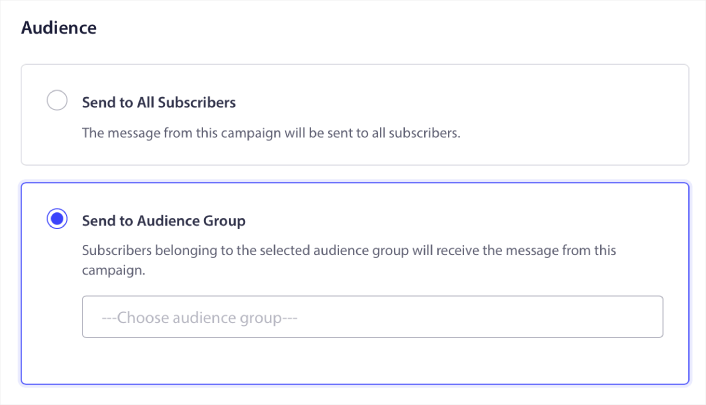
Och det är allt! Det är verkligen allt som krävs.
Nu, varje gång du publicerar ett nytt inlägg, kommer alla push-notifikationsprenumeranter i den valda målgruppsgruppen automatiskt att få en push-notifikation om ditt nya innehåll.
Det var allt! Du är redo. Varje gång du publicerar ett nytt inlägg skickas det automatiskt till alla dina prenumeranter.
#5. Automatiserade återengagemangsnätiseringar
Du kan ställa in automatiserade återengagemangskampanjer för prenumeranter som inte har engagerat sig i ditt innehåll på ett tag.
Men varför skulle du göra det från början?
Vad sägs om detta:
- Kostnaden för att skaffa nya kunder är 5 gånger högre än kostnaden för att behålla befintliga kunder
- Det är enkelt att rikta in sig på och remarknadsföra till en känd publik vars personliga preferenser vi redan förstår.
- Långsiktigt ger engagerade kunder mer affärer till företaget än någon som knappt kopplar sig till ditt varumärke.
Ofertia kunde öka sina återkommande användare med 39 % med hjälp av push-notiser som erbjuder personliga erbjudanden. De är inte ensamma heller. Du kan använda detta för en e-handelswebbplats med stor effekt:
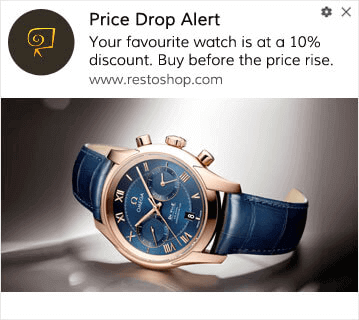
Det finns många sätt att återengagera dina prenumeranter.
Föreställ dig detta:
- En användare besöker din webbplats. Ser en subtil opt-in. Klickar på "Tillåt".
- Får omedelbart en välkomstnotis med rabatt eller nästa steg.
- Lämnar din webbplats…
- Senare samma dag ser de en påminnelse: "Fortfarande funderar du?"
- De klickar, kommer tillbaka och köper.
Det är en grundläggande push-funnel — och du behövde inte lyfta ett finger när den väl var igång.
Föreställ dig nu att lägga till segmentering och automatiserade kampanjer. Det är då det blir roligt. Genom att använda dynamiska segment kan du förstå mycket om dina prenumeranter och skicka dem personligt innehåll som de kommer att älska.
I din PushEngage-instrumentpanel, gå till Segmentering och skapa ett nytt segment:

Detta gör att du kan skapa segment baserat på beteende och surfmönster. Du kan faktiskt ställa in en sekvens av OCH/ELLER-operationer som bestämmer när vissa segment får automatiserade push-notiser.
Du kan till och med segmentera dina användare när de prenumererar på push-notiser. Gå till Design » Popup Modals och välj Stor Safari-stil med segment.
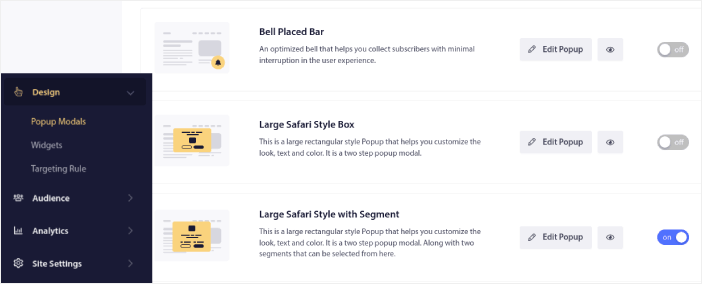
Om du behöver ännu fler sätt att segmentera dina användare kan du skapa anpassade segment baserat på användaråtgärder med hjälp av PushEngage Javascript API.
#6. Webbpush-notiseringskampanj för sidbesök
Sidbesöksutlösare är en förlängning av push-notiseringssegment. Allt du behöver göra är att skapa ett segment när en webbesökare surfar på en URL med en viss fras eller ett visst mönster.
Gå sedan bara till Målgrupp » Segment och ställ in din målgrupp till ett specifikt segment:
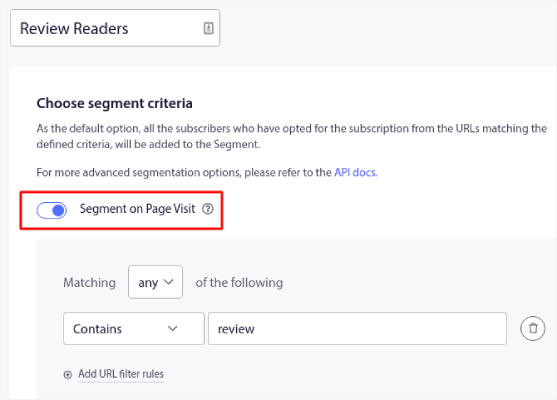
Detta gör att du kan skapa verkligt personliga och automatiserade push-notiser.
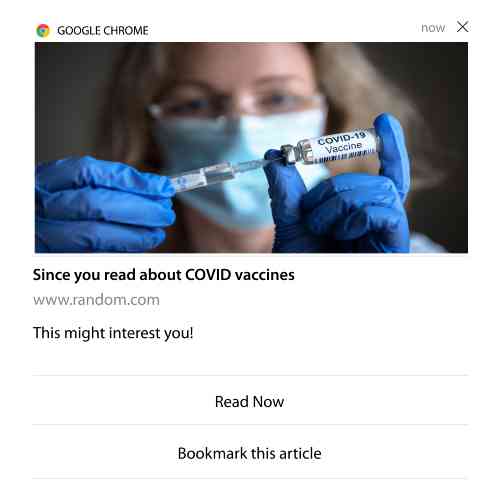
Och det bästa är att du kan skapa anpassade segment i PushEngage på ett par minuter.
#7. Automatiserade pushmeddelanden från klickgenomförande
Du kan inte skapa pushmeddelanden som utlöses när dina prenumeranter klickar på ett levererat meddelande med PushEngage.
Men det finns en mycket smart lösning.
Du kan skapa ett segment baserat på URL:en som ett visst meddelande leder till. Varje gång någon landar på denna URL läggs de till i segmentet, och du kan använda detta segment för att skicka riktade meddelanden.
Push-meddelandekampanjer är i huvudsak en förlängning av standardmålgruppssegmenteringen för drypande kampanjer.
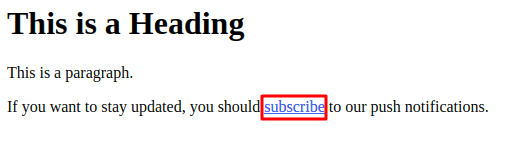
Kolla in den här handledningen om hur du skapar en klick-för-att-prenumerera-knapp.
#8. Upprepande automatiserade pushmeddelanden
Föreställ dig att du har…
- En veckovis rea på en loppmarknad;
- Eller en helgrea;
- Eller en lagerrensning;
- Eller en månatlig blixtrea.
Hur obekvämt skulle det inte vara att behöva skapa pushmeddelanden för varje händelse manuellt?
Lyckligtvis kan du ställa in upprepande meddelanden med PushEngage.
Upprepande meddelanden är schemalagda och automatiserade pushmeddelanden för en återkommande händelse. Du kan ställa in dem en gång, ange ett schema, och du är klar.
Det är bara ett av sätten som MyDeal använder pushmeddelanden. Var noga med att läsa hela fallstudien!
Gå till Kampanj och lägg till ett automatiserat meddelande i din PushEngage-instrumentpanel. Rulla sedan ner till schemaläggningssektionen och gå till fliken Skicka/Schemalägg:
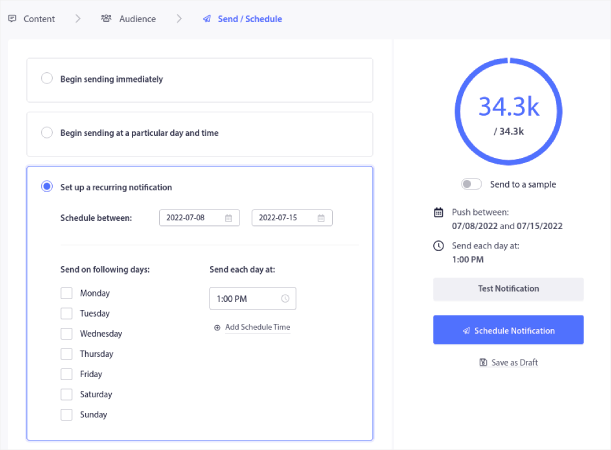
Ställ bara in tidpunkten så är du klar!
#9. Prenumerantens tidszonsmeddelanden
Prenumerantens tidszonsmeddelanden är precis vad de låter som. Du skickar automatiserade pushmeddelanden till dina prenumeranter i deras tidszon.
Varför är detta en så stor grej?
Prenumerantens tidszonsmeddelanden har högre öppningsfrekvens. Vanligtvis levereras alla pushmeddelanden även om din prenumerant är offline. Dessa meddelanden samlas sedan på hög och ignoreras när din prenumerant äntligen kommer online.
Å andra sidan kommer en webbpushmeddelandekampanj i prenumerantens tidszon att levereras när du VET att din prenumerant mest troligt är online.
Proffstips: Använd A/B-testning för att ta reda på den perfekta tiden att skicka dina prenumeranter ett pushmeddelande.
Prenumerantens tidszonsmeddelanden känns mycket mer personliga. Och om du är smart med det kan du kombinera det med geografisk data för att personifiera dina meddelanden ännu mer. Detta är precis vad Phooto gjorde när de använde lokala språk för att skjuta i höjden sina öppningsfrekvenser.
Låt oss ställa in prenumerantens tidszonsmeddelanden i PushEngage nu.
När du skapar ett nytt meddelande, gå till schemaläggningsalternativen och klicka på kryssrutan som säger Skicka meddelanden i prenumerantens tidszon:
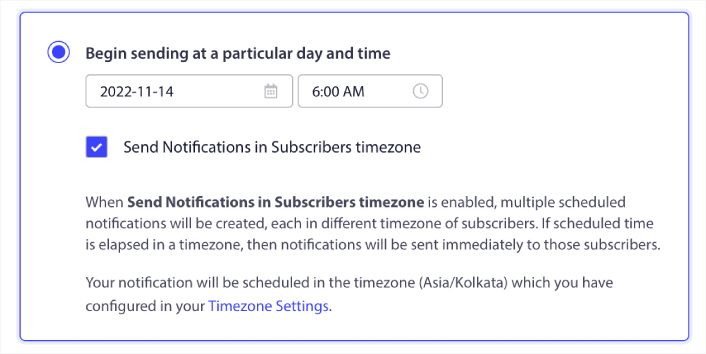
Det är allt! Du måste göra detsamma för dina droppkampanjer också, men resultaten är väl värda ansträngningen att klicka på en knapp för varje kampanj.
Börja med 1–2 meddelanden per vecka. Öka när du ser vad som fungerar.
Här är en enkel kadens att börja med:
- Vecka 1: Välkomstmeddelande + 1 produkt- eller innehållspush
- Vecka 2: Påminnelse eller uppföljning av rabatt
- Vecka 3: Nytt släpp, blogginlägg eller funktionshöjdpunkt
Om användare slutar klicka, dra dig tillbaka. Om de fortsätter klicka? Dubbla insatsen.
Proffstips: De två senaste taktikerna handlade om schemaläggning av push-notiser. Men dessa två är inte de enda sätten att schemalägga automatiserade push-notiser. Läs vår artikel om hur man schemalägger push-notiser för fler episka knep.
#10. E-postanmälningsnotiser
E-postmarknadsföring har länge varit det bästa sättet att generera och vårda leads. Det bästa med automatiserade push-notiser är att du kan generera fler e-postprenumeranter med dem.
Det är verkligen enkelt att ställa in, och att använda en kombination av e-post och webbpush-notiser är mycket effektivare än att använda en eller den andra.
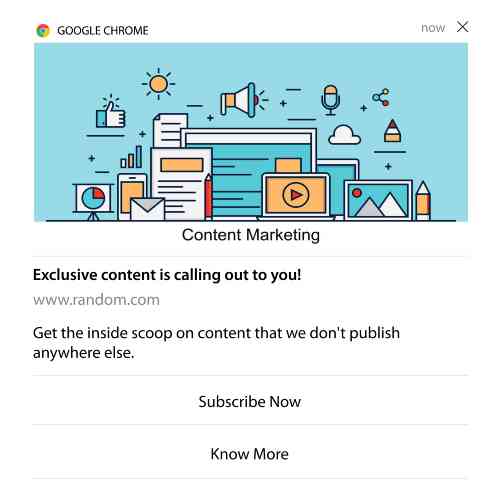
Allt du behöver göra är att skicka en utlösande notis som ber användaren att välja e-postnotiser.
Skapa bara en anpassad CTA-knapp (Call To Action) och infoga en prenumerationslänk som knappens URL. Det är verkligen allt du behöver. Om du är osäker på hur du får en prenumerationsknapp, följ bara med.
I vilken notis som helst kan du scrolla ner och slå på knappar med flera åtgärder:
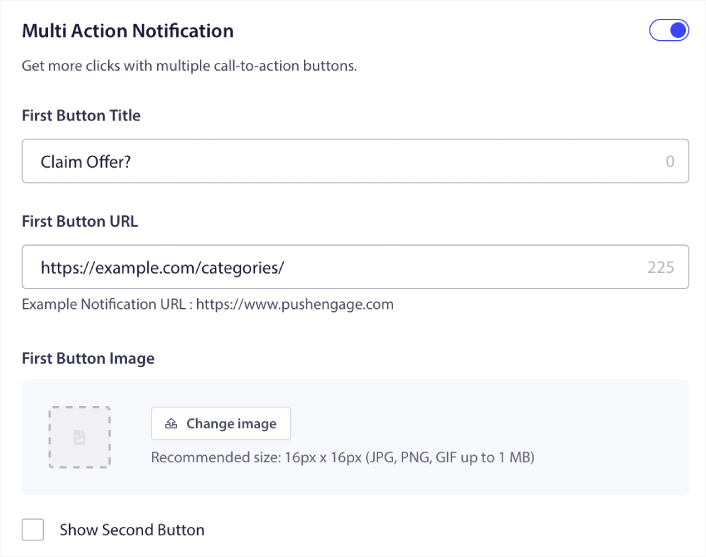
URL:en bör vara en länk till ett formulär för e-postregistrering. Du kan skapa ett med i stort sett vilken e-postleverantör som helst, som Drip. Allt du behöver göra är att klicka på delningsalternativen för registreringsformuläret och kopiera den URL:en. Klistra sedan in den i knappens URL för din push-notis.
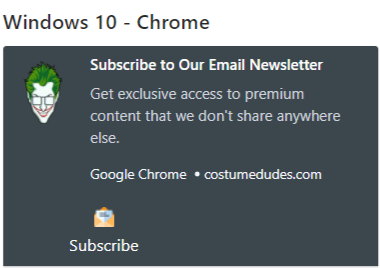
Kolla in vår handledning om knappar med flera åtgärder för mer information. Du kan till och med lägga till en e-postikon till din knapp för att göra det supertydligt att du ber dina användare att prenumerera på dina e-postnotiser:
Proffstips: Du kan använda samma idé för att växa din YouTube-kanal också. Lägg bara till ‘?sub_confirmation=1’ i slutet av din kanal-URL och klistra in den i din push-notisknapp-URL.
Varje gång någon klickar på prenumerationsknappen på din push-notis, kommer de att omdirigeras till din YouTube-kanal och uppmanas att prenumerera på den.
Segmenteringsidéer du kan stjäla
Segment är ett riktigt bra sätt att skicka riktade push-kampanjer. Och det bör vara en stor del av din push-notis marknadsföringsstrategi. Men hur kommer du igång? Vilken typ av segment bör du skapa?
Till att börja med bör du inte fokusera på att bara skapa en typ av segment. Vi kommer att guida dig genom de olika typerna av segmentering som vi har funnit vara mest effektiva.
Här är några hög-impact segment värda att ställa in:
- Engagerade shoppare: Personer som klickade på 2+ notiser under den senaste veckan
- Övergivna varukorgar: Personer som besökte en produkt men inte köpte
- Kategorifans: Användare som fortsätter att kolla på en produktkategori (t.ex. "Sneakerheads")
- Geografiskt riktade: Skräddarsy meddelanden baserat på land eller stad
Ju mer specifik du blir, desto fler klick kommer du att tjäna. Om du är en avancerad marknadsförare bör du skapa segment på samma sätt som du skulle göra för en e-postkampanj med olika segmenteringsmodeller:
- Geografiska segment
- Beteendebaserade segment
- Tillfällesbaserade segment
- Kulturella segment
- Demografiska segment
- Psykografiska segment
Dynamiska segment låter dig prata med prenumeranter som riktiga människor... inte bara trafikstatistik.
Och om du vill anpassa dina meddelanden ytterligare kan du använda målgruppsgrupper.
Hur man skapar en målgruppsgrupp för pushmeddelanden
För att komma igång, gå till din PushEngage-instrumentpanel och navigera till Målgrupp » Målgruppsgrupper och klicka på knappen Skapa ny målgruppsgrupp :
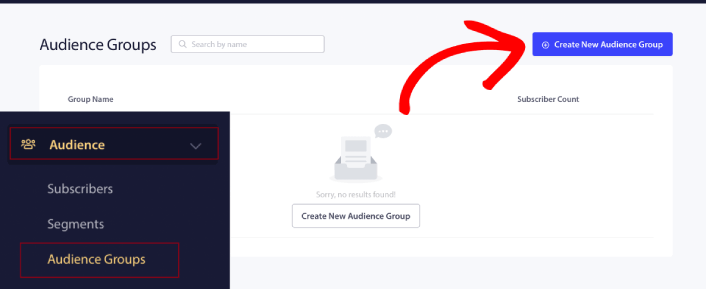
Innan du kan använda dina målgruppsgrupper för att skicka riktade push-sändningar måste du skapa en målgruppsgrupp med regler för att skapa den gruppen. Du kan börja med ett namn och en beskrivning för din målgruppsgrupp.
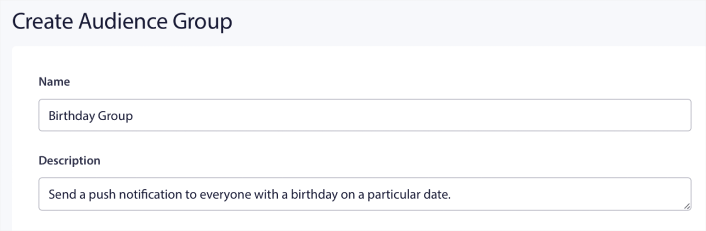
Skapa ett urvalskriterium
Skapa sedan ett urvalskriterium för att filtrera och rikta in dig på rätt målgrupp:
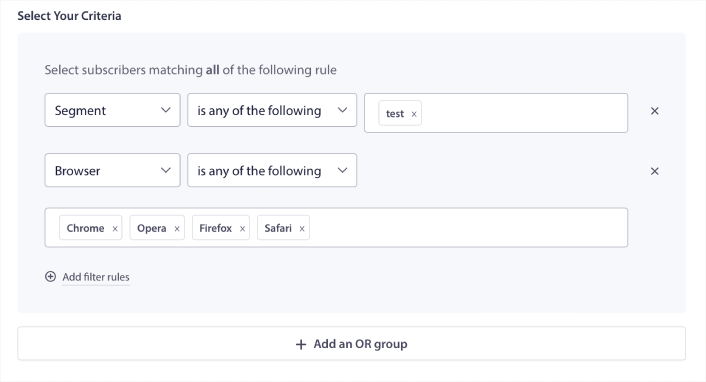
Du kan klicka på Lägg till filterregler för att välja prenumeranter som matchar ALLA filterregler, eller så kan du klicka på Lägg till en ELLER-grupp för att skapa ett filter där prenumeranterna uppfyller minst ett av urvalskriterierna.
Användarbeteende är det mest grundläggande sättet att rikta in sig på dina pushmeddelandeprenumeranter. Som vi sa tidigare grupperar prenumerantsegment vanligtvis besökare som gillar att bläddra bland liknande innehåll. Men även inom den gruppen av prenumeranter som gillar samma innehåll finns det små anpassningar du kan göra.
Ännu mer relevant är att du kan gruppera flera prenumerantsegment för att skicka dem ett gemensamt, relevant meddelande.
Filtrera efter prenumerantsegment
Om du inte redan har gjort det bör du börja segmentera dina pushmeddelandeprenumeranter omedelbart. Annars kommer det här filtret helt enkelt inte att fungera. Men om du redan har segment kan du välja flera segment som bas för din målgruppsgrupp.

Därefter kan du lägga till andra filter för att förbättra din målinriktning.
Filtrera efter prenumerantattribut
Medan attribut mestadels är för dropp-pushmeddelanden kan du även använda dem för push-sändningar. Nu är pushmeddelandeattribut mest användbara för e-handelswebbplatser. Men du kan också använda dem för att skicka personliga pushmeddelanden om du har ett verktyg för kundrelationshantering (CRM).
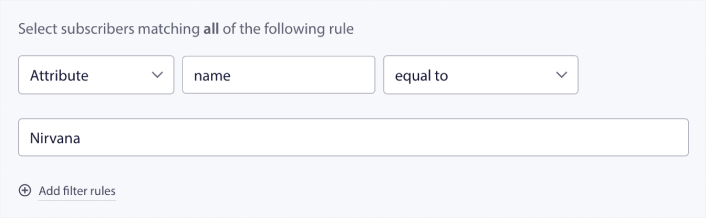
Attribut kan innehålla personlig information som prenumerantnamn, födelsedatum, all annan information som du skulle lagra i ditt CRM för personliga marknadsföringskampanjer.
Filtrera efter prenumerantens enhet och webbläsare
I många fall är det avgörande att veta hur dina prenumeranter tar emot dina meddelanden.
Det finns en riktigt bra historia om Michael Jackson. Varje gång han spelade in en låt lyssnade han på den via en radio. Inte i sin inspelningssvit för en miljon dollar med toppljudkvalitet, utan en billig radio som de flesta av hans publik senare skulle använda. Om han gillade hur låten lät även på den billigaste enheten på marknaden, godkände han att låten släpptes.
Inte undra på att Billie Jean gick Platina 29 gånger!
För dina push-notiser är det ingen skillnad.
Filtrera efter webbläsare för prenumeranter
Olika webbläsare har olika teckenbegränsningar för pushmeddelanden. Så när du skickar en push-sändning måste du vara medveten om dessa begränsningar. Det coola är att du kan spara olika målgruppsgrupper för att återinrikta dig på olika webbläsare. Du behöver inte skapa segment varje gång.
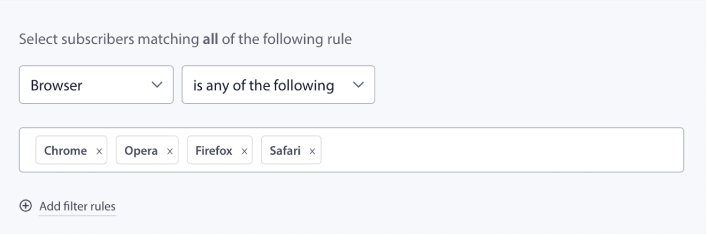
Filtrera efter enhet för prenumeranter
Det finns skillnader i typerna av rich pushmeddelanden som du kan skicka till iOS-, Android- och Windows-enheter. Så alla kampanjer du skickar ut kommer inte att se likadana ut på alla enheter. Faktum är att många typer av pushmeddelanden inte ens kommer att visas på alla enheter. Olika enheter har också olika skärmstorlekar. Så du kanske vill optimera hur dina pushmeddelanden ser ut innan du skickar dem.
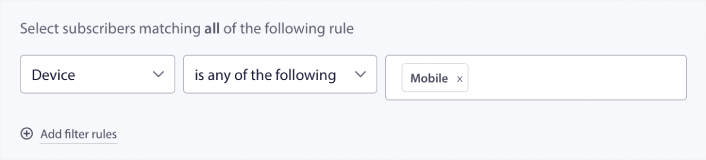
Men nu när du kan filtrera din målgrupp efter deras enhet, borde det inte vara ett problem längre.
Hur man filtrerar efter geolokalisering
Du kan också filtrera efter geolokalisering för att ytterligare anpassa dina kampanjer. Filtret låter dig välja en målgrupp efter land, stad och delstat:
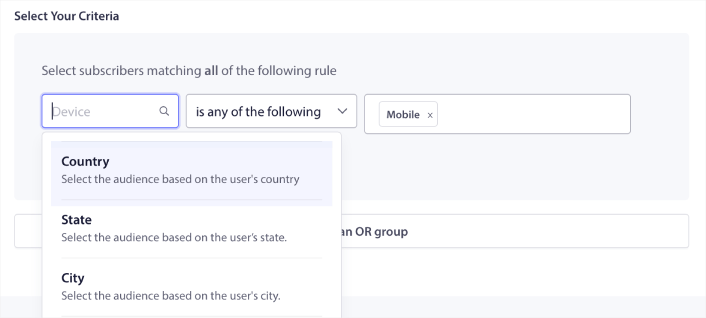
Phooto använde geolokalisering för att skicka pushmeddelanden på lokala språk. Och det hjälpte dem att snabbt öka sina engagemangsnivåer. Läs hela fallstudien.
Hur man filtrerar efter engagemangsmått
En av de bästa sakerna med målgruppsgrupper är att det kan hjälpa dig att skapa återinriktningskampanjer med push-notiser. Du kan filtrera din målgrupp efter:
- Prenumerationsdatum
- Senaste sändningsdatum
- Senaste klickdatum
- Senaste visningsdatum
Att använda dessa mått kan hjälpa dig att återinrikta dig på prenumeranter med låga engagemangsnivåer eller sälja till prenumeranter med höga engagemangsnivåer.
Eller så kan du filtrera målgruppen efter:
- Totalt antal sändningar
- Totalt antal visningar
- Totalt antal klick
Dessa siffror kan hjälpa dig att hitta prenumeranter som får minst meddelanden från dig så att du kan hitta bättre sätt att anpassa notiser. Du kan också hitta de prenumeranter som interagerar mest med dina push-notiser.
Proffstips: Kombinera två eller fler filter för att hitta de bästa sätten att återengagera dina prenumeranter. Till exempel, prenumeranter med ett högt Total View Count och högt Total Click Count ger dig prenumeranter som har engagerat sig med dig under en tid. Dessa är lojala prenumeranter som förtjänar en belöning.
Hur man filtrerar efter identifierare
Identifierare är hur PushEngage identifierar dina prenumeranter. Eftersom PushEngage är GDPR-kompatibel som standard, lagrar vår programvara aldrig någon personligt identifierbar data för någon av dina prenumeranter. Istället tilldelar vi varje prenumerant en profil-ID och en prenumerant-hash.
Tänk på att du främst kommer att använda profil-ID:n och prenumerant-hashar som en del av avancerade kampanjer. Med andra ord, du behöver använda PushEngage API för att skapa anpassade kampanjer som använder dessa identifierare.
Identifierare är fantastiska för att skicka transaktionella push-meddelanden som detta:
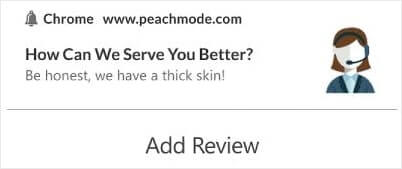
De är utmärkta för anpassade e-handels push-notiser. Så vi rekommenderar egentligen inte att använda dem för något annat än att testa push-sändningar från instrumentpanelen.
Vad du ska göra efter att du har konfigurerat webb push-notis-kampanjer
Att lansera en webb push-notis-kampanj garanterar inte framgång. Som med alla marknadsföringsverktyg måste du testa och förbättra ditt budskap och dina segment.
Gå inte vilse i detaljerna. Fokusera på tre siffror:
- Klickfrekvens (CTR): Engagerar sig folk?
- Opt-in-frekvens: Fungerar din prompt?
- Avprenumerationer: Skickar du för mycket?
Bonus om du spårar intäkter per sändning — men även utan det ger CTR och opt-in-frekvens dig en snabb återkopplingsloop. Tyvärr kan du inte A/B-testa automatiserade notiser direkt. Men dessa resurser hjälper dig att komma igång snabbt:
- Hur man installerar ett WordPress-plugin för webbnotiser på din webbplats
- Hur du gör A/B-testning av pushmeddelanden (Bästa praxis)
- 7 bästa praxis för push-notiser för att få omedelbar trafik
- 21 bästa WordPress-plugins för e-handel 2022 (gratis och betalda)
- 7 bästa WordPress-nyhetsplugins 2022 (jämförda)
Dessutom har PushEngage en hel del integrationer. Du kan till och med ställa in anpassade utlösare med Zapier. Dessa är ganska avancerade kampanjer, och vi rekommenderar att du bara ställer in dem när du är bekant med våra andra inbyggda automatiseringar.
Du bör också veta att PushEngage Javascript API är mycket flexibelt, och du kan ställa in anpassade utlösare för i stort sett vilken åtgärd som helst på din webbplats.
När du har gått igenom alla dessa resurser kommer du att inse att PushEngage är den främsta programvaran för push-notiser på marknaden.
Så, om du inte redan har gjort det, kom igång med PushEngage idag!


