Letar du efter ett enkelt sätt att lägga till push-meddelandeknappar som faktiskt fungerar?
Den största utmaningen är inte att lägga till en knapp i ditt push-meddelande. Det mest utmanande är att skapa knappar som får klick. Till skillnad från din webbplats har du inte obegränsade tecken för att skapa övertygande knappar.
Så du måste hålla dina knappar enkla, relevanta och fokuserade.
I den här artikeln visar vi dig hur du lägger till flera push-meddelandeknappar, hur du optimerar dem för klick och några coola sätt att använda dem. Och ja, det kommer också att finnas några verkliga exempel.
Låt oss dyka in.
Hur man lägger till flera push-meddelandeknappar
Innan vi börjar är det alltid bäst att välja en push-meddelandetjänst för att skicka push-meddelanden. Rätt push-meddelandetjänst gör det superenkelt att skapa kraftfulla kampanjer med lite eller ingen kod.
Om du har använt Firebase Cloud Messaging (FCM) för att skicka push-meddelanden, är det dags att byta direkt. Kolla in den här artikeln för att få en bättre förståelse för varför FCM inte är det bästa alternativet för dig.
Vi rekommenderar att använda PushEngage för att skapa och skicka dina push-meddelanden.

PushEngage är den främsta push-meddelandetjänsten i världen.
Pushnotiser hjälper dig att öka din webbplatstrafik och engagemang automatiskt. Och om du driver en onlinebutik hjälper PushEngage dig också att öka din försäljning genom att hjälpa dig att skapa automatiserade e-handelspushnotiser.
Du kan komma igång gratis, men om du menar allvar med att växa ditt företag bör du köpa en betald plan. Innan du köper någon pushmeddelandetjänst bör du också kolla in den här guiden till kostnader för pushmeddelanden.
Här är en snabb överblick över vad du får med PushEngage:
- Automatiserade kampanjer med hög konvertering
- Flera alternativ för målinriktning och kampanjschemaläggning
- Målspårning och avancerad analys
- Smart A/B-testning
- En dedikerad framgångschef
Du kommer att se att PushEngage är utan tvekan det bästa valet om du vill bygga trafik, engagemang och försäljning för ditt företag. Och om du har en budget kan du alltid vara lite kreativ med dina pushmeddelanden.
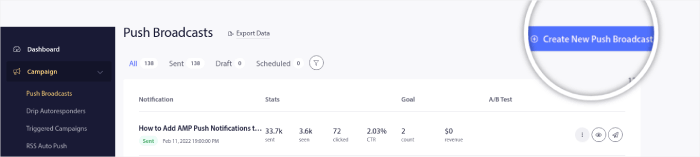
Gå till din PushEngage-instrumentpanel och gå till Kampanj » Push-sändningar och klicka på knappen Skapa en ny push-sändning:
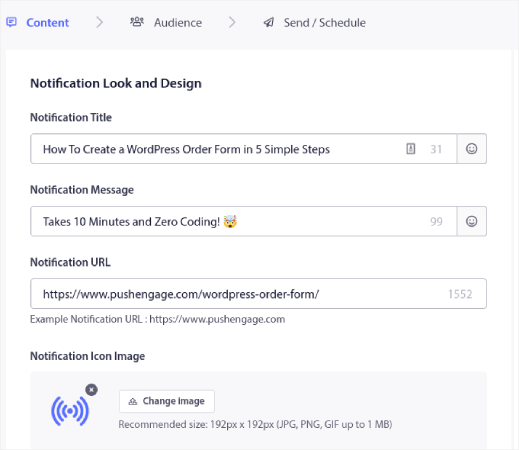
Under fliken Innehåll, lägg till ditt push-meddelandeinnehåll:
Rulla sedan ner till Multi Action Notification och aktivera det:
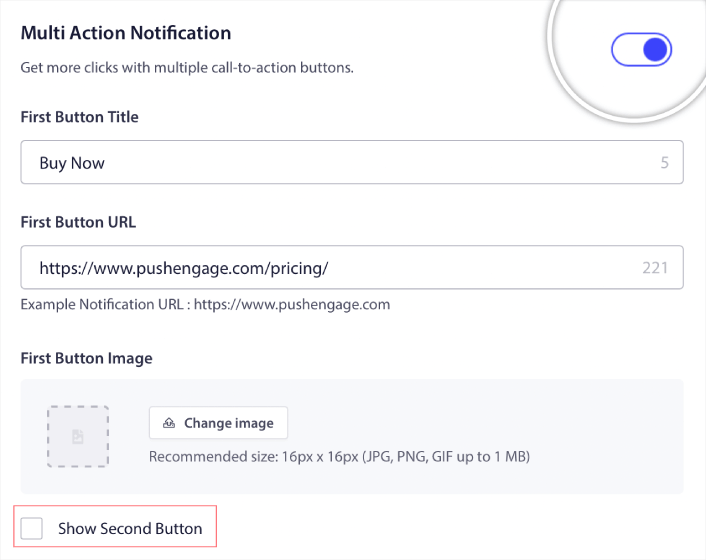
Du kan klicka på alternativet Show Second Button för att skapa en andra push-meddelandeknapp.
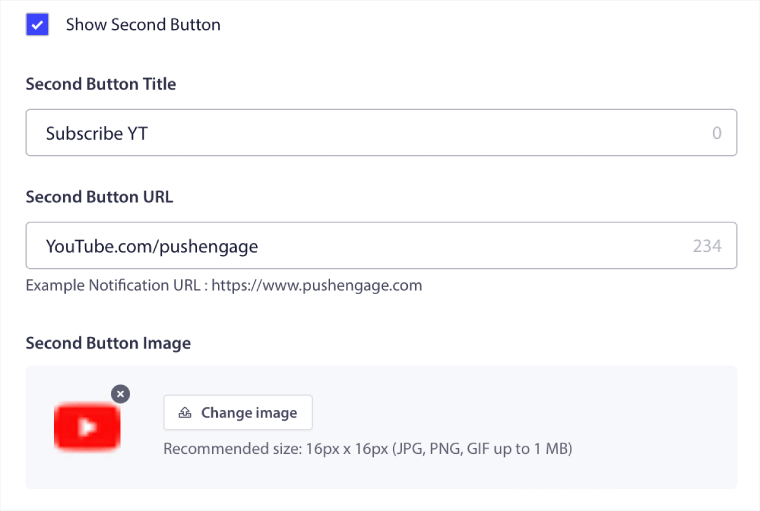
Eftersom du bara kan använda 12 tecken för din knapptext kan det ibland vara svårt att skriva övertygande text.
Till exempel kan du be dina prenumeranter på push-meddelanden att prenumerera på ditt e-postnyhetsbrev eller din YouTube-kanal. Men hur låter du dem veta vad de ska prenumerera på utan att använda så många ord? Ett coolt knep är att använda knappbilderna för att lägga till mer kontext till din knapp.
Du kan bara använda högst två push-meddelandeknappar. Så du måste få båda att räknas. Innan du skickar ditt meddelande, var supertydlig med vad du vill ha från din push-kampanj. Ett enklare sätt att få bättre resultat skulle vara att använda drip push-meddelanden.
PushEngage låter dig skapa push-meddelandeknappar även för dina drip-kampanjer. På så sätt kan du skicka ut riktade push-meddelanden för att få fokuserade resultat.
Låt oss nu titta på några coola sätt att använda push-meddelandeknappar.
Hur man använder push-meddelandeknappar för att få mer trafik
Om du driver en blogg eller en nyhetswebbplats eller till och med en agenturwebbplats är återkommande trafik superviktig. Det enda problemet är att få klick på dina push-meddelandeknappar.
Du kan inte riktigt använda kraftfulla ord i din knapptext som du kan i ett e-postmeddelande.
Så vad gör du?
Ett enkelt sätt att öka din återkommande trafik är att använda dina push-meddelandehandlingsknappar för att ge dem fler alternativ att klicka på. Om du till exempel driver en e-handelswebbplats kommer du troligen att använda en kampanj för övergiven kundvagn. Du kan använda en knapp för att be dina besökare att slutföra köpet och en annan för att få dem att bläddra i en kategorisida.
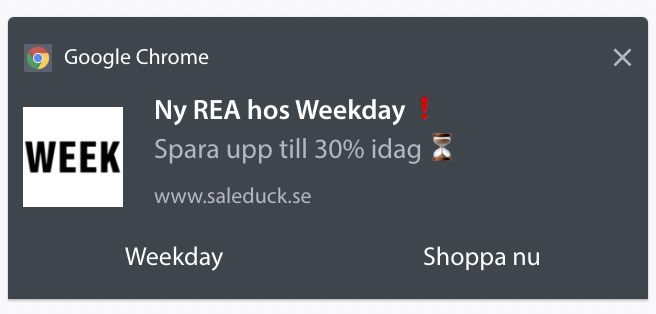
Genom att ge dem två alternativ får du en mycket bättre chans att dina besökare klickar sig vidare till din webbplats.
Hur man lägger till en klickbar prenumerationsknapp till din popup
Pushnotiser hjälper dig att öka din webbplatstrafik och engagemang automatiskt. Och om du driver en onlinebutik hjälper PushEngage dig också att öka din försäljning genom att hjälpa dig att skapa automatiserade e-handelspushnotiser.
Du kan komma igång gratis, men om du menar allvar med att växa ditt företag bör du köpa en betald plan. Innan du köper någon pushmeddelandetjänst bör du också kolla in den här guiden till kostnader för pushmeddelanden.
Här är en snabb överblick över vad du får med PushEngage:
- Automatiserade kampanjer med hög konvertering
- Flera alternativ för målinriktning och kampanjschemaläggning
- Målspårning och avancerad analys
- Smart A/B-testning
- En dedikerad framgångschef
Du kommer att se att PushEngage är utan tvekan det bästa valet om du vill bygga trafik, engagemang och försäljning för ditt företag. Och om du har en budget kan du alltid vara lite kreativ med dina pushmeddelanden.
Lägg först till ett HTML-block i ditt popupfönster från sidofältet i OptinMonster.
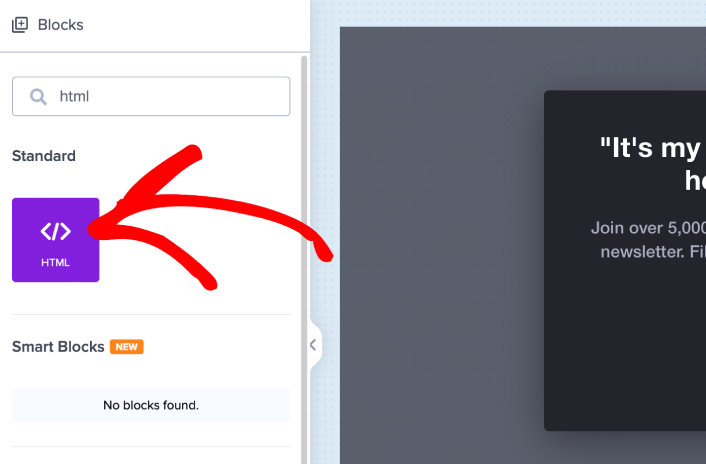
Det här är där vi kommer att lägga till koden för att samla prenumeranter på push-notiser. Klistra först in följande kod för att skapa en klickbar knapp:
<button onclick="subscribeOnClickButton()" style="border: none; width: 100%; padding-left: 15%; padding-right:15%; text-align: center; display: inline-block; color: white;">Get Updates via Push Notifications</button>Klistra in koden där det står att du kan lägga till HTML:
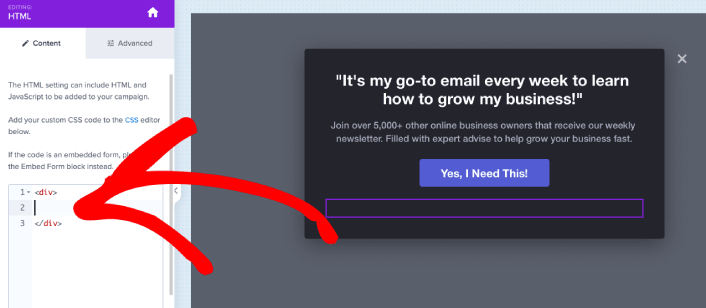
Naturligtvis kan du leka med stilarna för att göra det mer tilltalande. Därefter ska vi göra knappen för att samla prenumeranter på push-notiser när den klickas på.
Gå till PushEngage startsida och klicka på knappen Kom igång :

Sedan vill du välja gratisplanen för att prova PushEngage eller välja en betald plan om du menar allvar med att växa din verksamhet. De betalda planerna kommer med fler kampanjalternativ och möjligheten att bygga ännu större prenumerantlistor.
I din PushEngage-instrumentpanel, gå till Webbplatsinställningar » Webbplatsdetaljer och klicka på knappen Klicka här för installationsinstruktioner. Under Valfri webbplats, får du din installationskod:

VARNING: Du måste kopiera koden du får från din instrumentpanel. Koden är unik för varje PushEngage-användare. Du kan inte kopiera koden i bilden och samla prenumeranter på push-notiser.
När du har koden i din PushEngage-instrumentpanel, ta det andra skriptet och lägg till lite extra kod. Din slutliga kod bör se ut ungefär så här:
<script src="https://clientcdn.pushengage.com/core/02a6e92667ae2279fcba8932356c1d93.js" async></script>
<script> window._peq = window._peq || [];
function subscribeOnClickButton(){
window._peq.push(['subscribe',{}.pe,function(res){
console.log(res);
}]);
}
</script>
Lägg till den här koden i HTML-blocket i OptinMonster direkt efter koden för din knapp och mellan kodblocket <div></div> och du är klar!
Hur du använder push-meddelandehandlingsknappar för att få fler försäljningar
Försäljning håller din verksamhet vid liv. Och du kan använda push-meddelanden för att få massor av extra försäljning. Låt oss se hur du kan använda dina push-meddelandehandlingsknappar för att få fler försäljningar.
Tänk på en enkel kampanj för övergiven kundvagn. Syftet är att få dina kunder att köpa det som finns i deras kundvagn. Men istället för att använda en rak kampanj för övergiven kundvagn, kan du också använda personliga rekommendationer för andra produkter och få dem att återbesöka din butik. Chansen är stor att de lägger till den nya produkten i sin kundvagn och faktiskt gör ett köp.
Det är superenkelt att göra med push-meddelandesegment. Och om detta låter som en ny idé för dig, så är det inte det. Tusentals av våra kunder använder redan denna idé. Det kallas korsförsäljning.
Korsförsäljnings-push-meddelanden hjälper dig att öka försäljningen eftersom du är 60-70% mer benägen att sälja till en befintlig kund. Gå till din PushEngage-instrumentpanel och gå till Målgrupp » Segment och skapa dina segment:

Du vill segmentera dina besökare när de besöker en produkt i en specifik kategori:
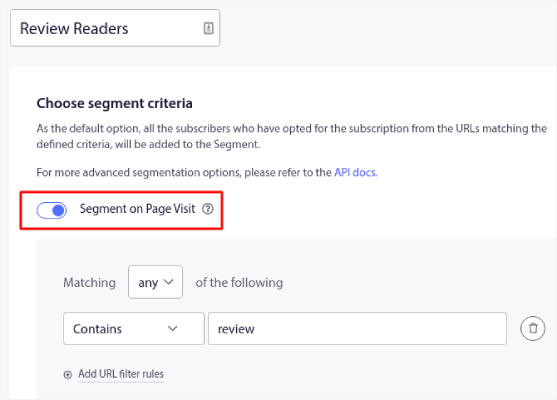
Koppla sedan ihop en produkt med vart och ett av dina segment. Inte alla dina kunder kommer att vara intresserade av exakt samma produkt. Du vill hitta produkter som är intressanta för varje kundsegment.
När det är klart, skapa en dropp-autoresponder för att marknadsföra den.
Gå till din PushEngage-instrumentpanel och gå till Kampanj » Drip-autosvarare » Skapa ny drip-autosvarare:
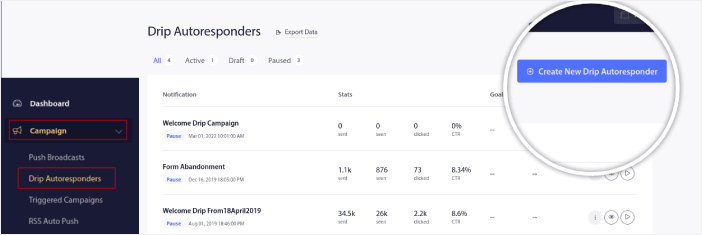
Fortsätt och skapa separata droppar för varje segment. Om du är ny på push-meddelanden bör du kolla in vår artikel om hur du använder e-handels-push-meddelanden för episka kampanjidéer.
Vad du ska göra efter att du lärt dig använda push-meddelandehandlingsknappar
Det var allt för den här gången, gott folk!
När du har skapat en klickbar prenumerationsknapp för din webbplats bör du kolla in våra avancerade segmenteringsregler.
Att skapa detaljerade segment kan hjälpa dig att personifiera dina push-meddelanden i stor utsträckning. Detta innebär mer engagemang, högre klick och mer försäljning från dina push-meddelandekampanj. Kolla in dessa episka resurser för att komma igång:
- Hur man konverterar prenumeranter till köpare med hjälp av webb push-notiser
- Bästa praxis för push-notiser
- Varför välkomstpush-notiser är viktiga
Och om du är nybörjare på push-meddelanden bör du prova PushEngage. PushEngage erbjuder några av de mest kraftfulla och flexibla push-meddelandekampanjerna som finns. Så om du menar allvar med att växa ditt företag, kom igång med PushEngage idag!


