Letar du efter ett sätt att skicka pushmeddelanden när din målgrupp är offline?
Det finns goda nyheter och dåliga nyheter. Och sedan lite fler goda nyheter!
Goda nyheter: Du kan skicka webbpushmeddelanden till dina prenumeranter även om de är offline. De kan fortfarande se dina meddelanden när de kommer online igen.
Dåliga nyheter: Dina prenumeranter kan se ALLA dina pushmeddelanden när de kommer online. Detta inkluderar alla erbjudanden som kan ha gått ut. Och detta inkluderar definitivt flera pushmeddelanden om du skickade dem flera pushmeddelanden.
Så, du KAN skicka offline webbpushmeddelanden. Men du kommer antingen att överväldiga dina prenumeranter med för många meddelanden. Eller så kommer de att klicka på saker som inte längre är relevanta.
Inte bra!
Fler goda nyheter: Det finns ett enkelt sätt att lösa detta problem.
Det stämmer, du kan faktiskt skicka offline pushmeddelanden utan att vara en plåga för dina prenumeranter. Och i den här artikeln visar vi dig hur du gör det.
Låt oss dyka in!
Vad exakt är offline pushmeddelanden?
Offline pushmeddelanden är inte en speciell typ av kampanj. Det är mer ett smart sätt att hantera dina meddelanden så att du inte överdriver meddelandena och irriterar dina prenumeranter. Det är också ett utmärkt sätt att säkerställa att alla dina meddelanden levereras.
Sättet detta fungerar på är att du kan skicka dina prenumeranter ett pushmeddelande när som helst. Du kan schemalägga det i din eller dina användares tidszon eller i din egen tidszon. Och även om dina prenumeranter inte är online, ser PushEngage till att de får det när deras internetanslutning återställs.
Som standard förblir alla PushEngage-meddelanden offline tills prenumeranten kan se dem. PushEngage är den främsta pushmeddelandeprogramvaran i världen. Så, vi kommer att använda PushEngage för att demonstrera allt i den här artikeln.
Den största fördelen med offline-aviseringar är att du får otroliga leveransgrader. En webb push-avisering kan bara levereras medan prenumerantens webbläsare körs, så en avisering som väntar på prenumeranten istället för att gå ut är skillnaden mellan en sändning och en leverans.
Jämför det med en e-postkampanj där 1 av 5 e-postmeddelanden aldrig når din inkorg.
Så, vi rekommenderar starkt att du börjar med pushmeddelanden omedelbart.
Hur offline-meddelanden ser ut
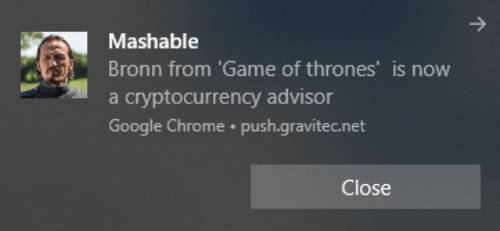
Offline pushmeddelanden ser ut som alla andra pushmeddelanden:
Det är egentligen inte problemet.
Problemet är att även om offline-meddelanden designades för att skickas på ett sätt som inte irriterar dina prenumeranter, är det oftast detta som händer:
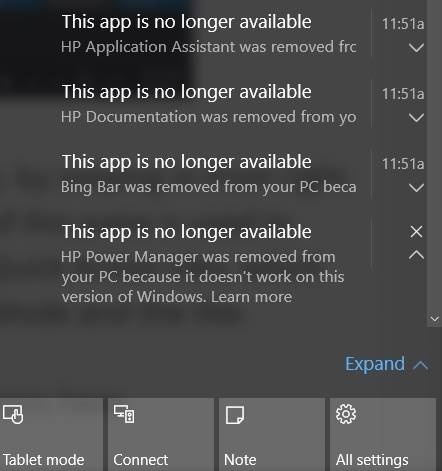
Det är alldeles för många pushmeddelanden för att någon ska kunna se när de kommer online.
Varför händer detta?
Det är enkelt: Avsändaren glömde att skapa ett utgångsalternativ.
Att ställa in ett utgångsalternativ säkerställer att dina prenumeranter bara ser aviseringar som du VILL att de ska se. Med andra ord kan du ställa in en tidsgräns efter vilken dina push-aviseringar löper ut och de kommer inte att vara synliga i aviseringsfacket även om de levererades.
Låt oss ta en snabb titt på hur du kan skicka offline push-meddelanden med en utgångsgräns.
Hur man skickar offline push-meddelanden på rätt sätt
Nu när vi förstår lite om hur offline push-meddelanden fungerar och vad de är, låt oss hoppa in i att skapa ett på rätt sätt.
Steg #1: Konfigurera ditt PushEngage-konto
Gå till PushEngages startsida och klicka på knappen Kom igång:

Du kan välja gratisplanen för att prova PushEngage, eller välja en betald plan om du menar allvar med att växa ditt företag. De betalda planerna kommer med fler kampanjalternativ och möjligheten att bygga ännu större prenumerantlistor.
När du har registrerat ett konto, gå till PushEngage-instrumentpanelen och navigera till Inställningar » Webbplatsinställningar » Installationsinställningar:
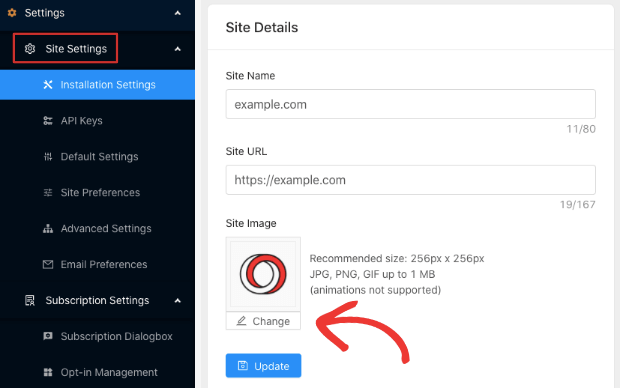
Här konfigurerar du dina webbplatsdetaljer och varumärke. Fortsätt och ställ in en logotyp och webbplats-URL för dina push-notiser. Du bör göra detta nu så att du kan testa dina push-notiser ordentligt.
Steg #2: Skapa ett nytt push-meddelande
Gå över till din PushEngage-instrumentpanel och gå till Meddelanden » Skapa » Nytt meddelande:
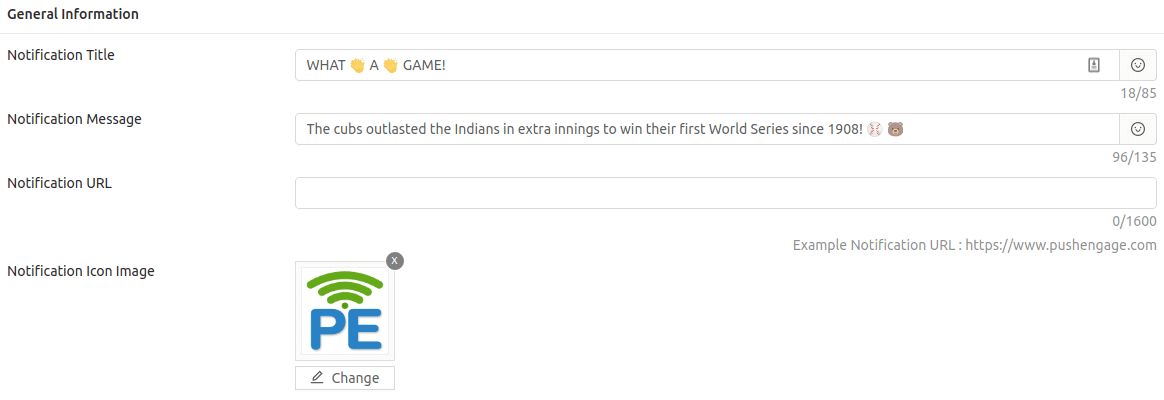
Som du kan se är det där du skriver titeln och texten för ditt meddelande och du kan också använda emojis i dina push-meddelanden.
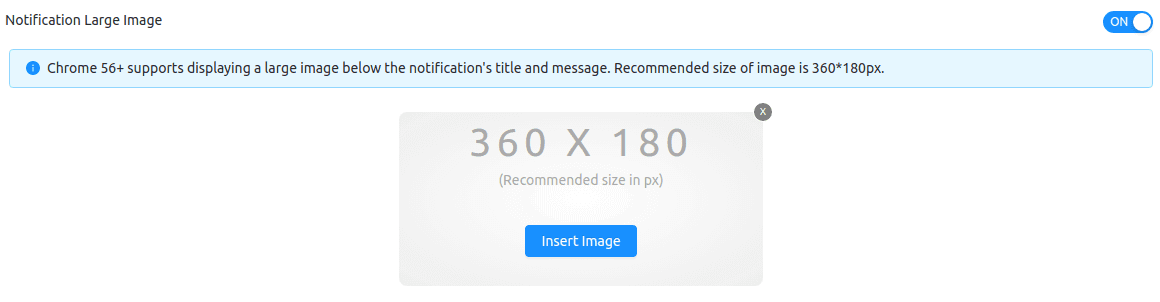
Gå sedan till Stor bild för meddelande och lägg till en bild här:
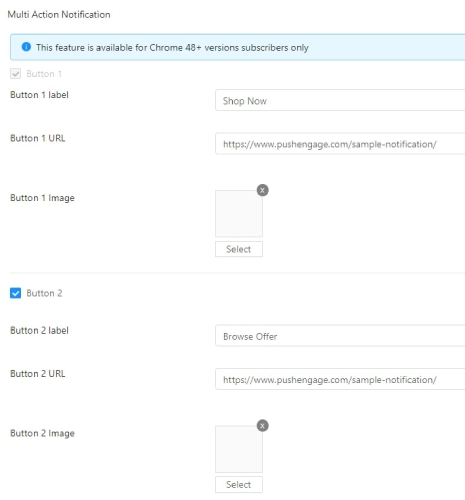
Du kan också lägga till ett par knappar i avsnittet Meddelande med flera åtgärder:
Rulla sedan längre ner och schemalägg ditt push-meddelande:
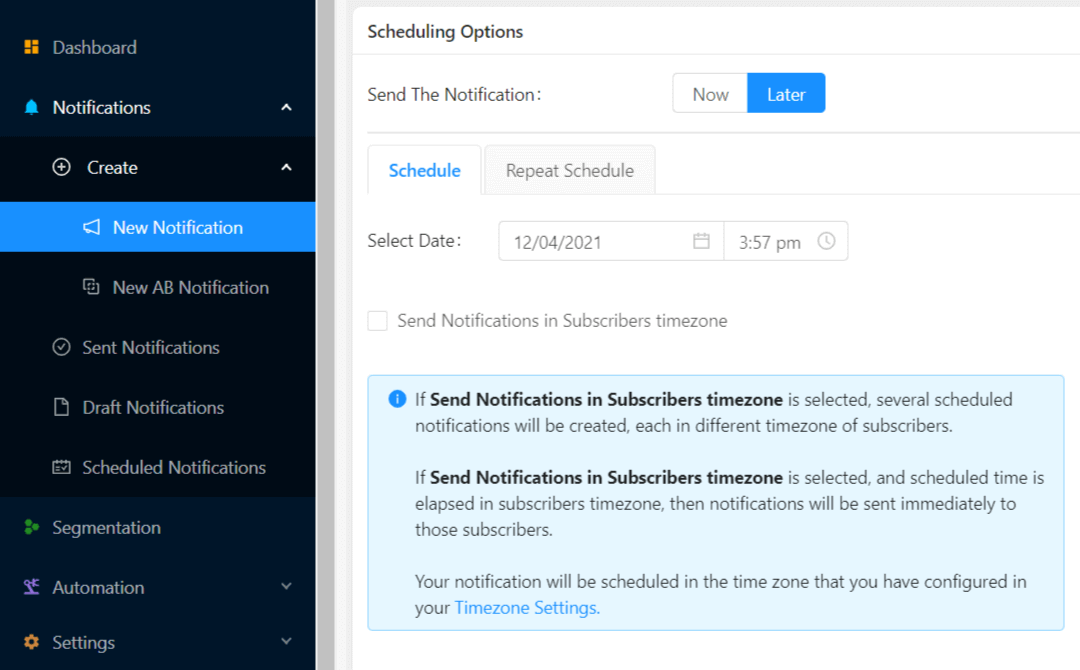
När du skapar ett nytt meddelande, gå till avsnittet Schemaläggningsalternativ och klicka på kryssrutan som säger Skicka meddelanden i prenumerantens tidszon om du vill skicka meddelandet vid en tidpunkt då du vet att de kommer att vara online.
Men hej, ingen fara även om de inte är online! Offline push-meddelanden, kom ihåg?
På tal om det, låt oss ställa in en utgångsgräns för ditt push-meddelande och du är klar.
Steg #3: Ange en varaktighet för meddelandet
I samma vy, gå till Varaktighet för meddelande:
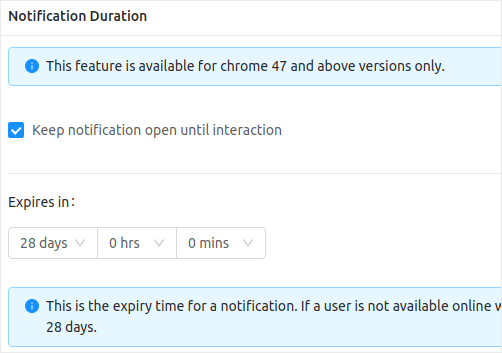
Och ställ in en tidsgräns efter vilken ditt push-meddelande går ut. Standardvärdet för detta är 28 dagar, men det rekommenderas inte, särskilt om du marknadsför ett tidsbegränsat erbjudande.
Men du är faktiskt helt klar nu! Du har precis skapat ett offline push-meddelande med en utgångsgräns.
Avslutning
Det var allt för den här gången, gott folk.
Om du är nybörjare på push-meddelanden bör du kolla in några kreativa push-meddelanden för inspiration och börja skicka dina egna push-meddelanden. Push-meddelanden är extremt prisvärda och de gör det möjligt för dig att skicka extremt kraftfulla marknadsföringskampanjer.
Och om du kommer igång med push-meddelanden finns det ingen bättre programvara att använda än PushEngage. PushEngage är den främsta push-meddelandeprogramvaran i världen. Så, om du inte redan har gjort det, kom igång med PushEngage idag!


